
A code editor shapes how easily a developer can move from an idea to readable, testable code. The right tool cuts friction when users write, read, and manage files across daily tasks.
An IDE is an integrated development environment that combines code editing with tools such as debugging, testing, and project management. This guide weighs skill level, operating system, programming language, performance, and AI preferences so you can choose a tool that suits your work.
You will find practical picks for different budgets and workflows, rather than one winner for every developer. A good starting point should feel easy to try and flexible enough for real development. For most people, a free, cross-platform option is the simplest place to start.
Key Takeaways
- Visual Studio Code is a useful free starting point for many developers.
- Choose a language-specific IDE when its built-in tools match your work.
- Cursor suits developers who want AI across a codebase.
- Neovim fits keyboard-focused terminal work and deep customization.
- Test an editor on a real project before changing your setup.
Best Code Editor for Most Developers
Visual Studio Code is the best code editor for most developers because it combines broad language support, extensions, and a free cross-platform setup. It runs on Windows, macOS, and Linux, so most users can start without changing systems.
For a best code editor for free, Visual Studio Code is the strongest general starting point. Cursor suits AI-first editing, Zed favors speed and collaboration, Neovim serves terminal workflows, and JetBrains IDEs offer language-specific depth.
| Editor | Best fit | Platforms | Price |
|---|---|---|---|
| Visual Studio Code | General editing | Windows, macOS, Linux | Free, open source |
| Cursor | AI-first editing | Windows, macOS, Linux | Free tier; Pro $20/month |
| Zed | Speed and collaboration | macOS, Linux, Windows | Free; Pro $10/month |
| Neovim | Keyboard-driven terminal work | Windows, macOS, Linux | Free |
| IntelliJ IDEA | JVM development | Windows, macOS, Linux | Free core; Ultimate $19.90/month |
Start with the free tool that matches your workflow, then pay only when a specialized feature solves a real problem.
The table gives a quick way to compare familiar choices. Visual Studio Code offers a broad extension library and can grow with new languages or tasks.
Cursor is a Visual Studio Code fork, while Zed brings collaboration into its editor. Neovim takes more setup, and IntelliJ IDEA centers on JVM projects.

Each choice has a different balance of setup, built-in tools, and flexibility. Try the free option that fits your workflow before paying for a more specialized tool.
What Should You Compare Before Choosing an Editor?
The best editor supports your daily language and workflow without adding avoidable friction. Start with your real tasks, then compare performance, usability, customization, and compatibility.
Test the same project in each candidate, because a blank file hides many limits. Common code editors offer file search, error checks, autocomplete, and syntax highlighting, but those features can feel different in practice.
Performance and editing comfort
Notice how quickly the editor opens and responds as a project grows. Large files can strain memory, while many open windows or extensions can tax older hardware.
Ease of navigation matters during routine work. Look for clear file search, useful tabs, readable settings, and a layout that helps you move between code and tools.
Language, Git, and extension fit
Syntax highlighting makes code easier to scan, while code completion can reduce repeated typing. Git support helps track changes, and debugging tools let you inspect errors without leaving the editor.
Visual Studio Code includes support for JavaScript, TypeScript, and Node.js. The best code editor for all programming languages is a configurable general-purpose tool such as Visual Studio Code, though a specialized IDE may offer deeper support for one language.
Use this checklist to compare the parts that affect your regular work:
- Operating system you use every day
- Primary programming language
- Project size and number of files
- Debugging and Git needs
- Willingness to configure extensions

Support for a language may come from built-in features, extensions, or a separate package. Test a real project, not just a blank file, before settling on an editor.
Is Visual Studio Code Still a Safe Free Default?
Yes, Visual Studio Code remains a safe default, and 70.9% of developers in the 2026 survey reported using it. It is free, open source, and available for Windows, macOS, and Linux.
Broad use makes it easier to find extensions, help, and workflow examples. That popularity does not prove the editor suits every project, but it gives new users many ways to learn.
| Editor | Developer use in 2026 |
|---|---|
| Visual Studio Code | 70.9% |
| Notepad++ | 27.8% |
| Visual Studio | 27.6% |
| Vim | 27.2% |
| IntelliJ IDEA | 24.3% |
| Cursor | 14.9% |
The figures describe reported use, not which editor each developer prefers for every task. A user may keep more than one tool installed for different projects.
Git, IntelliSense, debugging, and extensions make Visual Studio Code adaptable. IntelliSense provides coding aids such as completion and error hints as you type.
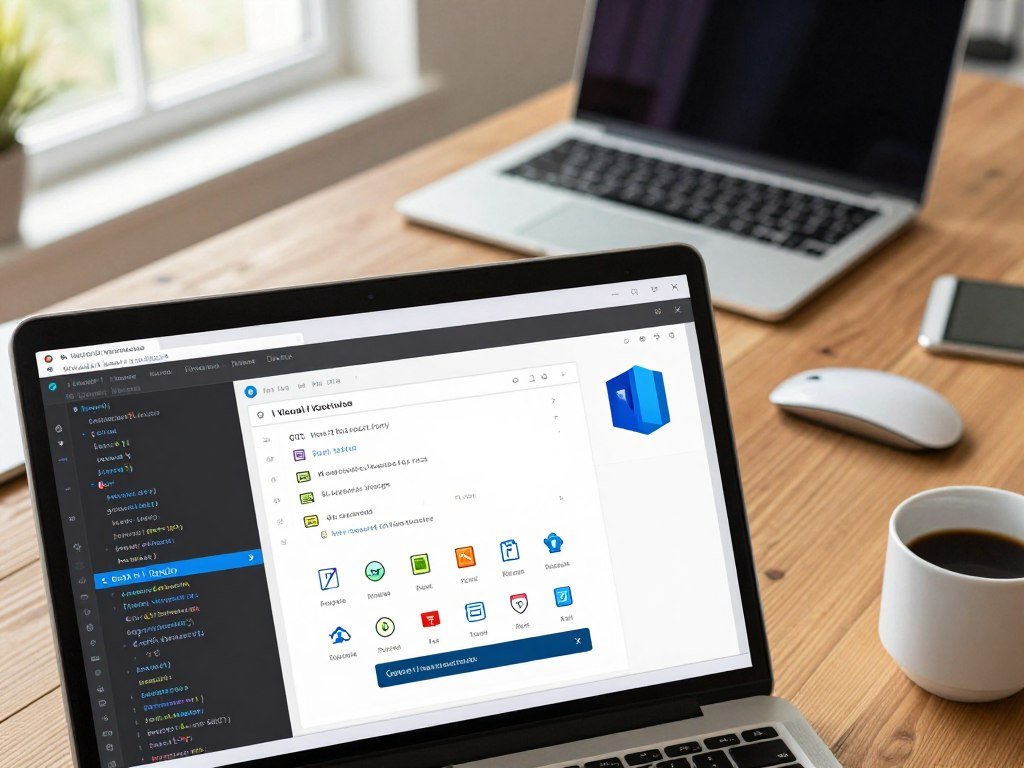
A large extension load can add complexity and make settings harder to manage. Start with a small extension set and add tools only when a project needs them.
When Does Cursor Make Sense for AI Coding?
Cursor makes the most sense for developers who want AI to work across a project rather than only suggest the next line. Its familiar, VS Code-based interface makes AI editing easier to try.
Cursor is the purpose-built choice for codebase-level AI editing inside a familiar editor workflow. Its AI is part of the editor’s core design, which can help with changes that touch multiple files.
Codebase-aware editing
A project-wide request can involve related files, names, and functions. Cursor can use codebase context while helping plan edits, but developers still need to review each change.
This approach suits people who want to ask for a change in plain language and inspect the proposed code. It does not remove the need to understand how a project works.
Developers who prefer basic autocomplete, manual edits, or existing extensions may not need an AI-first editor. A familiar editor with a small set of coding tools may be enough.
Free and Pro usage limits
The free tier includes 2,000 completions per month and 50 slow requests. AI tools and chatbot options can also help compare broader assistant workflows.
Cursor Pro costs $20 per month and includes 500 fast requests plus unlimited slow requests. The plan’s request types matter if you rely on quick responses throughout the workday.

Try the free tier on a project with several related files. Check how often you use fast requests before deciding whether the Pro plan earns its monthly cost.
Is Zed Fast Enough to Replace Visual Studio Code?
Zed is a credible Visual Studio Code alternative for developers who value responsiveness and built-in collaboration. Its live teamwork features let people work together in real time.
Choose Zed when performance and collaboration matter more than the largest extension library. Visual Studio Code remains a better fit when a project depends on many specific extensions.
Zed is free, with a $10-per-month Pro plan. Its extension ecosystem is growing, so the tools you rely on may not all be available yet.
Zed’s stable 1.0 release in April 2026 added full Windows support. That change makes it a choice across the major desktop systems.

Atom was discontinued by GitHub in December 2022, leaving some users seeking current editors with a similar open, community feel. Zed is a separate product, not an Atom continuation.
Its collaboration tools are useful when teammates need to view or edit code together. For solo work, the decision may rest more on startup feel, navigation, and extension coverage.
Check that the extensions required by your current projects are available before switching.
Which Editor Fits Terminal and Keyboard-Driven Work?
Neovim is the strongest fit for developers who want a highly customizable, keyboard-driven terminal editor. Its modal editing uses different key modes for moving, selecting, and changing text.
Choose a terminal editor if keyboard control and remote access matter more than a graphical interface. Neovim is free and built for customization.
Neovim and Vim motions
Neovim supports Lua configuration and a broad plugin ecosystem. Users can shape the editor for languages, file search, and other coding tasks.
Vim offers an established keyboard-driven approach that many users already know. Neovim extends that style with a modern design that supports deeper configuration.
Helix and Emacs alternatives
Helix is a terminal-based modal editor with built-in language-server and syntax-highlighting support. It does not have a plugin system, so users rely more on its included features.
GNU Emacs uses Lisp configuration and can become a code editor or a wider work environment. That flexibility comes with a learning curve and ongoing setup work.
Consider these three factors before choosing:
- Tolerance for a learning curve
- Willingness to maintain configuration
- Need to work over SSH or in a terminal
Terminal tools work well over remote connections and can keep hands on the keyboard. Start with a ready-made configuration if building an editor setup from scratch would slow down your work.
When Are Sublime Text and Notepad++ Better Choices?
Sublime Text is the stronger cross-platform pick, while Notepad++ is a lightweight free choice for everyday Windows edits. Both can open files quickly, and each keeps setup simple.
Pick Sublime Text for cross-platform file work, or Notepad++ for quick edits on Windows. Their smaller default feature sets can mean adding plugins or using a second tool for debugging.
Sublime Text runs on Windows, Linux, and macOS. Goto Anything helps jump to files or symbols, while Multiple Selection lets you edit several spots at once.
A license costs $99 and includes three years of updates. That can suit people who want a focused text editor and do not need a full project environment.
Notepad++ is a free, open-source Windows editor that supports more than 70 programming languages. It works well for quick changes, notes, and reading code without setting up a large project.
Neither option replaces every tool in a developer’s setup. Advanced project work may call for a debugger, Git interface, or language-specific IDE alongside the editor.
Choose based on whether you need a simple file editor or a full project workflow.
Does Visual Studio Still Fit Windows Development?
Visual Studio is still a current Windows IDE, with version 18.11.2 released on October 25, 2026. It remains in active development, so it is not being phased out.
Visual Studio provides an integrated Windows development environment, while Visual Studio Code suits lighter, extension-based work. The two products serve different workflows.
Visual Studio 2026 for Windows projects
Version 18.11 added C++23 feature-complete IntelliSense, excluding modules. Microsoft explains module use in its C++ standard library modules tutorial.
Version 18.11.2 updated IntelliSense error strings. It also has a known issue where F5 fails to launch the Blazor WebAssembly debug adapter.
When Visual Studio Code is enough
Visual Studio Code can handle general editing and extension-based development. Visual Studio offers a more integrated environment for Windows projects that need its built-in tools.
Weigh these project cases before choosing:
- Windows application work
- C++ development
- Web work needing a lighter editor
The right setup depends on the project’s workload and debug path. Check the release notes for the exact workload and debugging path before updating a production setup.
Which JetBrains IDE Fits Java, Kotlin, and JavaScript Work?
IntelliJ IDEA is the better fit for Java and Kotlin projects that benefit from a dedicated JVM IDE. Its built-in project tools help developers navigate code and make changes.
Choose a specialized IDE when its language tools remove setup work you would otherwise repeat. A general editor can be more flexible, but may need extensions for the same workflow.
IntelliJ IDEA for JVM projects
IntelliJ IDEA supports Java and Kotlin work with project navigation, refactoring, debugging, and code inspections. These features help developers find usages, change code safely, and spot issues.
JetBrains IDEs have a free core tier. IntelliJ IDEA Ultimate costs $19.90 per month and adds the paid product’s expanded features.
WebStorm for JavaScript and TypeScript
WebStorm offers dedicated tools for JavaScript and TypeScript projects. It is free for non-commercial use, while commercial work needs a paid license.
The tradeoff is an integrated, language-focused workflow versus a general editor configured with extensions. Use this table to compare the options:
| IDE | Best fit | Price or licensing |
|---|---|---|
| IntelliJ IDEA | Java and Kotlin JVM projects | Free core; Ultimate $19.90/month |
| WebStorm | JavaScript and TypeScript | Free non-commercial; paid commercial license |
| General-purpose VS Code setup | Mixed languages and workflows | Free; features added through extensions |
Some teams prefer one IDE for a shared language stack, while others need a flexible editor for varied files. Pick the specialized IDE when its built-in tools remove setup work you would otherwise repeat.
What Is the Best Code Editor for Python?
PyCharm is the best fit for Python developers who want a dedicated IDE, while VS Code is a flexible free alternative. The best code editor for Python depends on the work at hand.
Choose PyCharm Pro for framework-heavy work, VS Code for flexible editing, Jupyter for notebooks, or Thonny for learning. In the 2024 Python Developers Survey, 48% used Visual Studio Code as their primary environment, and 25% used PyCharm.
PyCharm for a full Python IDE
PyCharm Pro suits projects built with Django, Flask, or FastAPI. Its paid features include remote development, database tools, and advanced data science support.
PyCharm also offers free core features. Developers can begin with those tools and consider Pro when its framework or data features match daily work.
Coding-capable AI assistants can add another layer to a Python workflow, but they do not replace an IDE’s project tools.
VS Code, Jupyter, and Thonny for other needs
Visual Studio Code supports Python debugging, pytest and unittest, virtual environments and Conda, Git, an integrated terminal, and Jupyter notebooks through extensions and integrations.
JupyterLab and Jupyter Notebook are free interactive environments for data science, machine learning, and experiments. Thonny is a free Python IDE for learners who want basic debugging.
A full framework IDE can help with large apps, while notebooks suit code tested in small steps. Choose PyCharm Pro when its framework and database tools are part of your everyday work.
Which Code Editor Is Best for Android Development?
Android Studio is the strongest choice for building and testing Android apps with an integrated toolchain. It is Google’s official Android IDE, and the built-in tools support common app tasks.
Android Studio is the best code editor for Android app development when integrated tooling is the priority. It supports Kotlin, Java, and C++.
Android Studio for full app development
The IDE includes an Android emulator, a drag-and-drop layout editor, an APK analyzer, and Git and GitHub integration. Those tools bring app editing, testing, and source control together.
Its toolset suits a full app workflow on a computer. A lighter editor can work for code, but may require extra setup to build and test an app.
| Tool | Runs on | Languages or workflow | Best fit |
|---|---|---|---|
| Android Studio | Desktop systems | Kotlin, Java, C++ | Full Android app development |
| Visual Studio Code | Desktop systems | Manual Android setup | General editing with custom setup |
| AIDE | Android phones and tablets | Java, C++, HTML5 | Writing apps on a mobile device |
VS Code and AIDE for lighter setups
Android development in Visual Studio Code needs manual setup and is less integrated than Android Studio. That can suit a developer who already has a configured toolchain.
AIDE lets users write Android apps directly on Android phones or tablets. It supports Java, C++, and HTML5 for coding away from a computer.
AIDE serves a narrow need that desktop tools do not address. Use AIDE only when editing directly on an Android device is part of the requirement.
Is Xcode or VS Code Better for Apple Development?
Xcode is the better choice for building and testing native Apple apps on a Mac. Its platform-specific tools support app previews and testing on devices or simulators.
Xcode fits native Apple development; Visual Studio Code fits general cross-platform editing. The better choice depends on whether a project needs Apple’s app tools.
Xcode for native Apple apps
Xcode Previews can display SwiftUI, UIKit, and AppKit views in a preview canvas. Developers can use live or interactive previews while building an interface.
Device Hub supports prototyping and testing apps on physical devices and simulators from a Mac. That brings device work into the Apple development environment.
Xcode 27 supports coding models and agents from Anthropic, Google, and OpenAI. It also supports agents that work with the Agent Client Protocol.
Where Visual Studio Code fits
Custom skills and tools can extend Xcode through the Model Context Protocol. These options support AI workflows alongside Xcode’s app-building tools.
Visual Studio Code is a cross-platform editor for general development. It can suit projects that do not depend on Apple-specific previews or device tools.
Apple developers use Xcode for native Apple development, though some also work in other editors. Choose VS Code when cross-platform editing matters more than Apple-specific previews and device tools.
Which AI Coding Tools Work Inside an Editor?
The best AI coding setup depends on whether you want suggestions inside your editor, an AI-first editor, or a terminal agent. Match the tool to where you already work.
Cursor suits AI-led editing, Copilot fits an existing editor, and Claude Code suits terminal work. AI can help, but its output still needs review.
Assistants that plug into an existing editor
GitHub Copilot works as a plugin in Visual Studio Code, JetBrains IDEs, Neovim, Visual Studio, and other editors. Individual costs $10 per month or $100 per year.
Copilot Business costs $19 per user per month, while Enterprise costs $39 per user per month. These plans suit different personal and team needs.
Editors and agents built around AI
Windsurf’s free tier includes 25 Cascade actions per month. Pro costs $15 per month for unlimited Cascade actions, and Teams costs $35 per user per month.
Claude Code is a terminal-based coding agent that runs in an existing environment, rather than a standalone editor. Cursor is the best AI code editor for people who want AI integrated into editing.
AI use is common, but trust remains tied to checking the work. Among people using AI coding assistants or agents, 73% said they used them daily.
Among AI coding-agent users, 66% used Claude Code and 59% used GitHub Copilot. Users said they relied on AI to generate familiar code (67%) and debug (61%).
Only 48% of AI users said they trusted AI when they could easily verify its output; 12.3% said they did not trust it for most work tasks.
Review generated changes with this checklist:
- Verify every change against the intended behavior
- Run the project’s tests
- Inspect security-sensitive logic
- Review unfamiliar output before using it
Keep a human review step for every change that you cannot independently verify.
That check matters most when code touches security or data. Keep a human review step for every change that you cannot independently verify.
Which Editors Work for Mobile or Browser-Based Coding?
A browser-based cloud IDE is the most practical option when development must happen remotely without installing a desktop editor. Remote work needs access to a project environment, not only a text box.
The best code editor online is a browser-based IDE when you need remote development tools. A browser file editor may work for a small change, but it cannot replace a full project setup.
Cloud IDEs and remote development
Eclipse Theia offers a browser-based cloud IDE with VS Code extension compatibility and remote development support. This can help developers reach project files and tools from different computers.
Remote environments suit work that depends on a server, shared project, or installed package set. They also avoid installing the full development setup on a temporary device.
Coding on phones and tablets
Acode is an Android code editor with syntax highlighting for more than 100 languages and a plugin library. It suits edits and coding tasks on Android devices.
AIDE supports writing Android apps on Android phones or tablets, using Java, C++, and HTML5. Textastic supports mobile code editing on iOS and iPadOS, with syntax highlighting for more than 80 languages.
These tools fit different situations:
- Remote project access from a browser
- Quick mobile edits while away from a computer
- Learning code on a phone or tablet
- Full development away from a desktop
A phone editor can handle a targeted fix or learning exercise. Use a phone or tablet editor for targeted work unless the project genuinely requires a full desktop development environment.
Which Editor Is Best for HTML and Web Development?
Visual Studio Code is the strongest general-purpose choice for HTML and web development. Its web language support includes JavaScript, TypeScript, and Node.js.
Visual Studio Code is the best code editor for HTML for most readers. Extensions and integrations can add support for other web workflows.
HTML editing needs syntax highlighting and clear file navigation. Preview, debugging, and framework support may need extensions or a dedicated development environment.
WebStorm is a reasonable choice for developers who want a dedicated JavaScript and TypeScript IDE. Its language-focused tools can suit projects where those features are used often.
Sublime Text suits people who prioritize a lightweight text editor. It runs on Windows, Linux, and macOS, making it an option for web files across desktop systems.
A general editor can cover many web tasks, while deeper tools may call for a specialized setup. Add only the web extensions that match the project’s framework and build process.
Conclusion
A good editor should make your usual work feel more direct, not force you into someone else’s workflow. Visual Studio Code is a sensible free starting point for many developers.
Specialized choices such as Cursor, Neovim, PyCharm, Android Studio, and Xcode make sense when their tools match a particular workflow. The best fit is the one that supports the work you do most.
Install one leading option and try it on a real project before changing the rest of your toolchain. Choose one candidate, test it on your next project, and keep the setup that helps you work comfortably.
FAQ
How do I say "I love you" in coding?
In Python, you can write print("I love you") to display the words. The exact syntax depends on the programming language and the task. In JavaScript, for example, the same idea uses console.log("I love you"). These commands show text on screen; they do not create a special coding phrase understood by every language.
Is VS Code still the best IDE?
Visual Studio Code remains a strong general-purpose editor, but it is not a full IDE for every workflow. Developers often add extensions for debugging, testing, and language support. A specialized IDE such as IntelliJ IDEA may include deeper tools for a particular language. The better pick depends on whether you value a flexible editor or a more complete built-in environment.
Is Xcode or VS Code better?
Xcode is better for native Apple app development on a Mac because it includes tools for previews, simulators, and physical-device testing. Visual Studio Code is more flexible for general cross-platform editing and projects that do not need Apple-specific tools. Some developers use both, choosing Xcode for Apple app tasks and VS Code for other languages or files.
Do Apple devs use Xcode?
Yes, Xcode is a standard fit for native Apple development. It supports Apple app workflows, including previews and testing on devices or simulators from a Mac. That does not mean every Apple developer uses it exclusively. Developers may use other editors for scripts, web projects, or tasks that do not rely on Xcode’s platform tools.
Is there a better IDE than VS Code?
For Java or Kotlin, IntelliJ IDEA may be a stronger dedicated IDE because it includes tools for project navigation, refactoring, debugging, and code inspections. For broad cross-platform editing, Visual Studio Code remains a solid default. A specialized IDE can reduce setup for one language, while a general editor can handle many types of work through extensions.
Is anyone still using VS Code?
Yes, 70.9% of developers in the 2026 Stack Overflow Developer Survey reported using Visual Studio Code. That level of use makes it easy to find extensions, help, and examples for common tasks. The figure does not mean every developer uses it for every project, but it remains a widely used choice across platforms.
Is Visual Studio being phased out?
No, Visual Studio is still receiving releases. Version 18.11.2 was released on October 25, 2026, and included updated IntelliSense error strings. The release also had a known issue where F5 failed to launch the Blazor WebAssembly debug adapter. Visual Studio and Visual Studio Code are separate products with different roles.
Is VS Code a rich text editor?
No, Visual Studio Code is a source-code editor, not a word processor for styled rich text. It shows code with syntax highlighting and other editing aids, such as completion and error hints. Those features help people read and change code, but they do not provide the page layout and text formatting tools found in rich-text applications.