Quick Answer: How do I choose stream decks?
Choosing a stream deck starts with mapping your most frequent actions to physical buttons, then picking a model with enough keys and the right controls to hold them. Buyers can compare key count, dial or pedal options, software and plugin support, operating system compatibility, and connection needs before committing.
The category is broader than one brand. Elgato’s Stream Deck line sits alongside macro pads, control surfaces, and open-source-friendly hardware, and they differ mainly in software polish, plugin ecosystems, and price. Check key layout, analog controls, plugin support, OS support, build and power draw, and budget before buying.
Why the Button Count Is the Wrong Place to Start
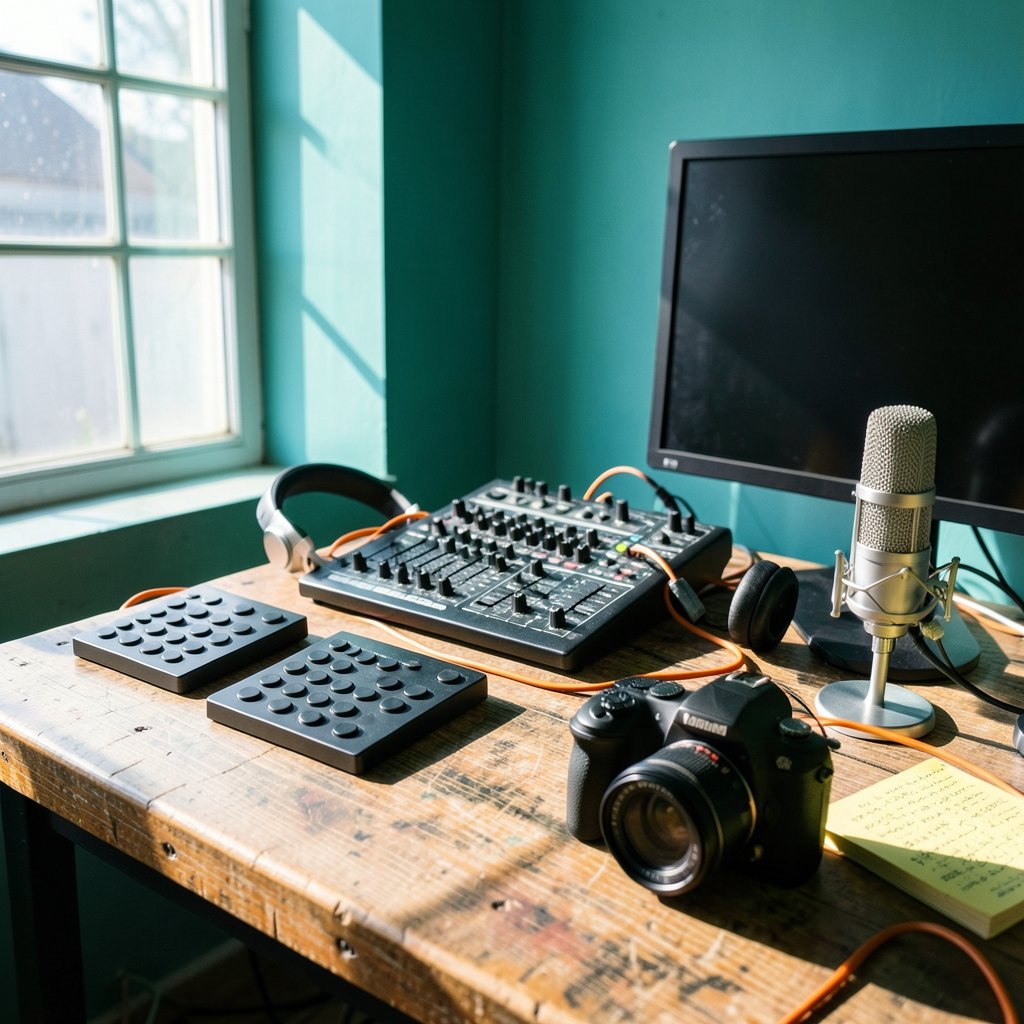
Most people begin shopping by counting keys. That is backwards. The smarter move is to write down the ten or fifteen things you do most often in a given session, then see how many of them deserve a dedicated button.
A streamer might list scene switching, mute, camera toggle, starting a recording, and firing an alert. A video editor might list scrubbing, razor cut, ripple delete, and export. An audio engineer might want fader control more than buttons. Those three lists point to three different devices, even though all three buyers typed “stream deck” into the same search bar.
Elgato introduced the original Stream Deck in 2017, and the line has since grown to include models with as few as six keys, fifteen keys, thirty-two keys, and an eight-key version with dials. That range exists precisely because workflows differ. The device is a tool for reducing mouse travel, not a badge of seriousness.
One practical tip that saves regret: count your actions twice. First count what you do in a typical session, then count what you would genuinely reach for without looking down. The second number is usually smaller. Many buyers over-spec on keys and under-spec on how the keys feel and where the deck sits on the desk. If you want a broader framework for matching a product to your real needs rather than the marketing spec sheet, the same logic behind how to choose a country that fits you for study abroad applies here: fit beats prestige every time.
Match the Control Type to the Job
Keys are only one kind of input. The Stream Deck Plus, released in 2022, added rotary dials and a touch strip, which suit analog adjustments like volume, zoom, or scrubbing a timeline. The Stream Deck Pedal, released in 2021, uses foot switches for hands-free operation, which matters if your hands are already busy with a guitar, a camera, or a soldering iron.
Here is a rough way to think about which control type earns its place.
| Control type | Best for | Weak spot |
|---|---|---|
| Grid of keys | Scene switching, app launching, macros | No fine analog adjustment |
| Keys plus dials | Volume, zoom, timeline scrubbing | Higher cost, larger footprint |
| Foot pedal | Hands-free triggers, push-to-talk | Limited to a few actions |
| Touch strip | Quick labels and sliders | Less tactile feedback than keys |
The mistake people make here is buying dials because they look impressive, then never assigning them. Before you pay extra for analog controls, name three things you would actually turn a dial for. If you cannot, the dials are decoration.
The Software Is the Real Product
Hardware draws attention, but software support decides whether a deck becomes a daily tool or ends up in a drawer. Elgato’s Stream Deck software supports plugins for common tools such as OBS, Twitch, and smart lighting systems, and multi-actions that chain several steps into one press. Most day-to-day value sits in that plugin layer.
There is also a strong open-source alternative. Bitfocus Companion, active since around 2018, supports many deck brands and is widely used in broadcast and live production. If you work in a venue, a church, a school studio, or any environment where multiple devices need coordinating, Companion’s flexibility may matter more than any single vendor’s polish.
This is the same trade-off you meet when comparing design tools: the beginner-friendly option and the powerful option are rarely the same product. The reasoning in this guide to Figma alternatives for beginners picking the right design tool maps neatly onto deck software. A polished, guided experience gets you productive fast. An open, configurable one rewards patience with control.
A practical habit that works: install the software and try the free companion app or emulator before buying hardware. Most deck software lets you build a profile on screen first. If configuring ten buttons feels tedious in the app, it will feel worse on the desk.
Check Compatibility Before Anything Else
Elgato’s software is officially supported on Windows and macOS only. Linux users typically rely on community tools, which can work well but demand more setup and troubleshooting. Buyers who use more than one operating system should confirm support for each system they rely on, including any secondary machine.
Compatibility also extends to the apps you use. A deck is only as useful as the plugins and integrations available for your specific software. Niche tools may have no official plugin, which means falling back on keyboard shortcuts, which means the deck becomes a fancy shortcut launcher. That is still useful, but it changes the value calculation.
Connectivity deserves a mention too. Most decks are USB bus-powered, and setups with many peripherals may need a powered hub to stay stable. A deck that disconnects mid-stream because of an overloaded hub is a bad first impression. Budget for a decent powered hub if your desk already has a lot going on.
Budget Tiers and What You Give Up
Prices shift constantly, so treat any specific figure with suspicion. What stays stable is the shape of the market. Entry-level macro pads cost less than branded decks. The trade-off is usually software polish, plugin depth, and build quality rather than raw button count.
There is a parallel in almost every gear category: the cheap option does the core job, and the premium option removes friction. The same pattern shows up in protective gear, where the question of how to choose a bike helmet that actually protects you comes down to certified protection and fit rather than brand names. With decks, the equivalent of certification is software support and reliability under load.
A sensible approach for first-time buyers is to start smaller than you think you need. A six-key deck teaches you what you actually reach for. If you outgrow it, you will know exactly which features you are missing, and you will have a much clearer brief for the second purchase. Buying the biggest model first often means paying for keys you never label.
Openness, Ecosystems, and the Loupedeck Question
The competitive landscape shifted when Corsair, Elgato’s parent company, acquired Loupedeck in 2023. Loupedeck made control surfaces aimed at creators, particularly editors and audio users. The acquisition suggests more overlap and integration across the two product families over time, though buyers should verify current model status and support rather than assuming a roadmap.
For buyers, the practical lesson is to think in ecosystems rather than single devices. A deck that integrates with your lighting, your streaming software, and your editing suite is worth more than one with better specs and no integrations. Before buying, list the five apps you use most and check whether each has a plugin, a community profile, or at least a clean shortcut path.
Openness cuts both ways. Closed ecosystems tend to be more reliable and easier to set up. Open ones survive vendor changes better, because the community can keep supporting hardware after official support fades. Neither is universally better; it depends on whether you value convenience or longevity more.
A Step-by-Step Buying Process
Here is a sequence that avoids the common traps.
- List your fifteen most frequent actions across your main apps.
- Group them by type: discrete triggers, continuous adjustments, and hands-free moments.
- Decide how many discrete triggers you genuinely need, then round down slightly.
- Note whether any action needs a dial or a pedal, and how many.
- Check software support for your operating system and your five most-used apps.
- Decide whether you want a polished closed system or an open, configurable one.
- Confirm power and hub requirements for your desk setup.
- Try the software before buying hardware if a trial or emulator exists.
- Buy one size smaller than your maximum estimate, and expand later if needed.
That last step is the one most people skip, and it is the one that saves the most money. Decks reward iteration. Your first profile will be wrong, your second will be better, and by the third you will wonder how you worked without it.
If you are comparing several tool categories at once, the same fit-first thinking appears in guides such as <a href="https://occcy.com/best-ai-transcription-tools-choose-one-that-actually-fits/”>choosing AI transcription tools that actually fit your needs. The pattern repeats: define the job, check the software support, then pick the hardware.
Common Mistakes That Lead to Regret
The most frequent error is buying for the fantasy workflow rather than the real one. People imagine elaborate multi-app automations and end up using four buttons. Another common mistake is ignoring ergonomics. A deck placed out of comfortable reach will not get used, no matter how well it is configured.
A third mistake is skipping labels. Blank keys force you to remember assignments, which defeats the purpose. Take ten minutes to design clear icons and text labels; the deck becomes dramatically more usable. Finally, avoid configuring everything at once. Build one profile for one app, use it for a week, then expand. Slow configuration sticks; big-bang configuration gets abandoned.
Conclusion
Choosing a stream deck is really a question about your own habits. Count the actions you repeat, decide which ones deserve physical controls, and check that the software supports the apps and operating system you rely on. Key count, dials, pedals, plugin depth, and openness all matter, but they matter in that order of priority. Start smaller than feels impressive, label everything, and let the setup grow with your workflow. The right deck is the one you reach for without thinking, not the one with the most buttons on the spec sheet.
FAQ
How many keys do I actually need on a stream deck?
Most people comfortably use six to fifteen keys for a single primary workflow. Start with a smaller model, label the keys you reach for daily, and only expand when you find yourself running out of slots for actions you genuinely use.
Can I use a stream deck with Linux?
Elgato’s official software supports Windows and macOS only, so Linux users typically rely on community-built tools. These can work well but require more setup and troubleshooting, so confirm current community support for your specific model before buying.
What is the difference between a stream deck and a macro pad?
A stream deck usually refers to Elgato’s branded line, which has its own software and plugin library. A macro pad is a broader term for any programmable button grid. Macro pads often cost less but may lack polished software and deep plugin support.
Do I need dials or a foot pedal?
Only if you have specific analog or hands-free needs. Dials suit volume, zoom, and timeline scrubbing. Pedals suit push-to-talk or triggers when your hands are busy. If you cannot name three actions for them, skip the extra cost.
Can a stream deck control software other than streaming apps?
Yes. Plugins and multi-actions let decks control editing suites, audio tools, smart lighting, and general desktop shortcuts. Check that your five most-used apps have a plugin or a clean shortcut path before buying.
Is it worth buying a used or older stream deck model?
Often yes, provided the model still receives software support and meets your operating system requirements. Older decks are a low-risk way to learn what you actually need before spending more on a larger or dial-equipped model.