

Quick Answer: Which AI transcription tools are best for beginners?
The best AI transcription tools for beginners are the ones that match how you already work, not the ones with the longest feature list. In practice that means free browser dictation for short notes, built-in captions in the meeting apps you already use, and a simple file-upload service or offline app when you need to transcribe recordings.
These options differ in three big ways: whether they work live or on uploaded files, whether they run in the cloud or on your own computer, and whether they label who spoke. Before committing, compare cost and free limits, file length and format support, accuracy on your real audio, speaker labeling, privacy and data handling, and how much editing the transcript needs afterward.
Why Transcription Feels Harder Than It Should
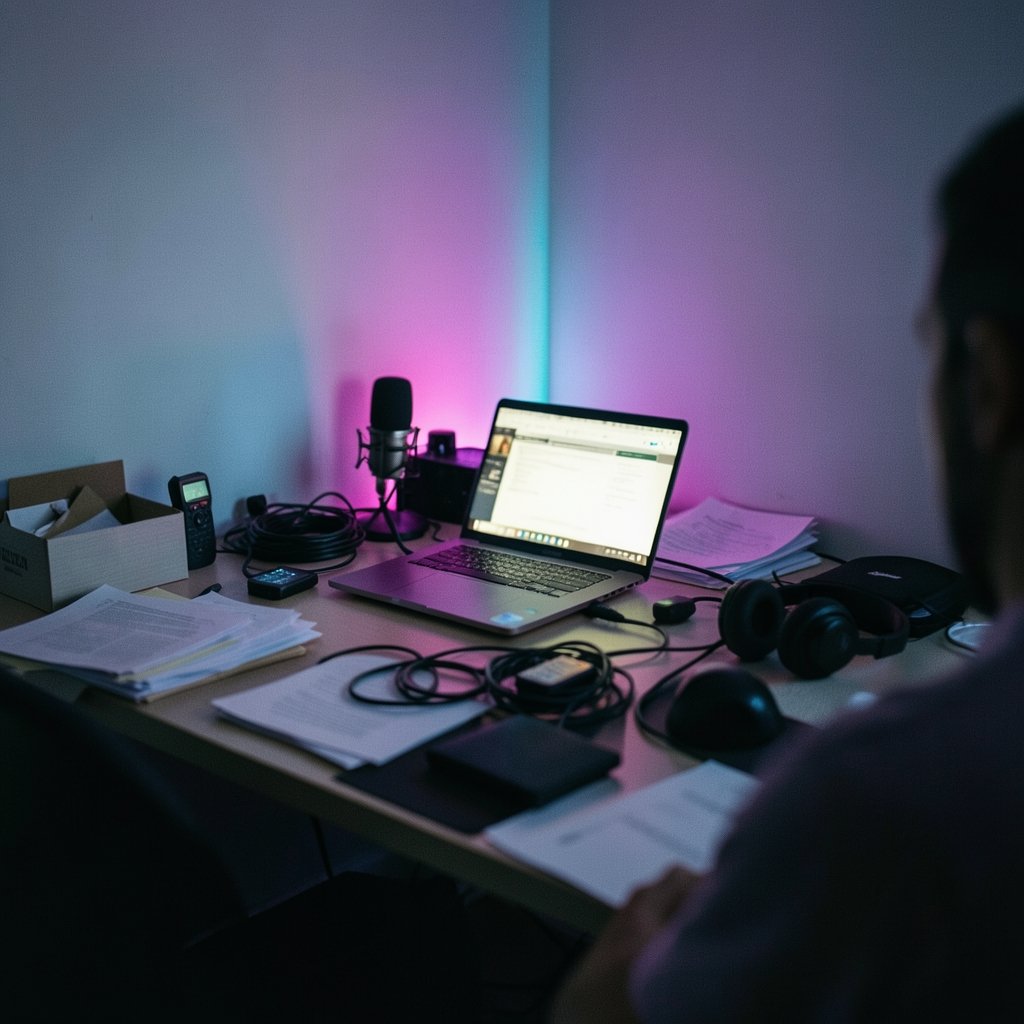
Ever played a recording back and thought, “this will take ten minutes to write up,” then lost an hour to it? That gap between expectation and reality is where most beginners get stuck. AI transcription is genuinely good now, but “good” is not “perfect,” and the tools are built for very different jobs.
The engine behind many of these tools is Whisper, an open-source speech recognition model released with published weights in September 2022. Its research paper, published in December 2022, reported that the largest model approached human-level robustness on English speech recognition, with roughly a 5% word error rate on a clean benchmark set. That number is impressive. It is also a benchmark, not a promise. Real recordings have accents, background noise, crosstalk, and bad microphones, and accuracy drops accordingly.
Here is the practical translation: at a 5% error rate, you get roughly one mistake every 20 words. In a 1,000-word transcript, expect dozens of small fixes. Beginners who plan for a review pass are happy. Beginners who expect a flawless document are disappointed. That single expectation shift matters more than any feature comparison.
The Three Families of Beginner Transcription Tools
Before comparing brands, it helps to sort tools into three groups. Most beginner confusion comes from comparing a tool in one group against a tool in another.
| Family | How it works | Best for | Main trade-off |
|---|---|---|---|
| Live dictation | You speak, text appears in a document | Short notes, drafts, emails | You must speak clearly; not for files |
| Meeting captions | Built into video call apps | Recording meetings you already host | Tied to that platform and plan |
| File transcription | You upload audio, get a transcript | Interviews, lectures, podcasts | Upload limits, review time, privacy |
If you have ever compared note-taking apps and felt overwhelmed by near-identical options, the same principle applies here. The comparison that matters is fit, not features. A similar sorting exercise shows up in guides on Trello alternatives for beginners comparing board tools, where the advice boils down to picking the workflow you will actually keep using.
Live dictation: the lowest-friction start
Google Docs voice typing (found under Tools) is free, runs in the browser, and needs no installation. For a beginner dictating a short note or a first draft, it is hard to beat on simplicity. The catch: it is dictation, not file transcription. It cannot process an existing recording, and accuracy depends heavily on your microphone and how clearly you speak. Punctuation commands take practice.
Meeting captions: free if you already pay for the platform
Microsoft Teams and Zoom both include built-in live transcription and captions. If your workplace already uses one of them, this is the cheapest possible upgrade: no new tool, no new login. Feature availability varies by plan and by administrator settings, so check before you rely on it. If you are evaluating video call software more broadly, a roundup of free Zoom alternatives worth trying can help you see which platforms bundle captions and which treat them as an add-on.
File transcription: where the real work happens
This is the family most people mean by “AI transcription.” You upload an audio or video file and get text back. Some services run in the cloud with a free tier of limited monthly minutes; others are desktop apps built on Whisper that run entirely offline. Free tiers commonly cap both monthly minutes and per-file length, and supported formats usually include MP3, WAV, and M4A. Those limits change often, so check current documentation rather than trusting a blog post from last year.
What Actually Separates a Good Tool From a Frustrating One
Accuracy on your audio, not on a benchmark
Vendor demos use clean studio audio. Your recording is a phone call in a café. The only accuracy test that counts is running ten minutes of your own typical audio through a tool before you commit. Do this with two or three candidates. It takes twenty minutes and saves months of regret.
Speaker labels are the weak spot
Speaker diarization, the “who said what” feature, is consistently less accurate than plain transcription, especially when people talk over each other. Beginners should expect to fix speaker labels by hand on any multi-person recording. If a tool markets diarization heavily, test it on a real group conversation, not a two-person interview.
Privacy is a decision, not a detail
Cloud services upload your audio to third-party servers. For medical, legal, or confidential meetings, that may be a dealbreaker. Offline desktop apps built on Whisper avoid the upload entirely, which is why privacy-sensitive users gravitate toward them. This is a general principle, not a knock on any specific product. Decide where your recordings are allowed to live before you pick a tool.
The editing interface matters more than you think
A transcript you cannot easily correct is a transcript you will not use. Look for a player that syncs with the text, keyboard shortcuts for playback, and simple find-and-replace. The best engine with a clumsy editor still wastes your afternoon.
A Sensible Beginner Setup, Step by Step
- Start with what you already have. Try Google Docs voice typing for a short note, and check whether your meeting platform already offers captions. Cost: nothing.
- Record ten minutes of your real, typical audio. A lecture, an interview, a voice memo.
- Run it through two free-tier file transcription services and one offline Whisper-based app.
- Time your review pass on each transcript. Count the corrections. This is your true cost.
- Pick the tool with the least total friction, then read its privacy policy before uploading anything sensitive.
- Build a review habit: listen at 1.5x speed while reading, fixing as you go.
That last step is where beginners lose the most time and where a little discipline pays off. If you are layering transcription into a bigger content workflow, the same “test before you commit” logic appears in guides on choosing AI transcription tools that actually fit your workflow and in overviews of AI graphic design tools for beginners, where the flashiest option is rarely the one people keep.
Common Mistakes Beginners Make
The most common mistake is judging a tool by its demo. The second is ignoring upload limits until a 90-minute file gets rejected at the end of a long day. The third is treating the first transcript as final and sending it out unread. Typos in names, numbers, and technical terms are exactly what speech engines get wrong, and they are exactly what matters in a professional document.
Another frequent trap: stacking tools. A beginner signs up for a meeting transcriber, a file service, and a dictation app in one week, then uses none of them consistently. Start with one. Add a second only when you hit a wall the first cannot climb.
An accessibility angle also applies here. Live captions and transcripts serve both convenience and access: captioning is part of web accessibility standards, and transcripts make audio content usable for people who are deaf or hard of hearing. Choosing a tool that produces clean, editable text serves everyone on the other end.
Where Transcription Fits in a Wider Tool Stack
Transcription rarely lives alone. It feeds notes, articles, meeting records, and design briefs. If your work also involves visual tools, the selection logic is familiar: compare on fit, test on real work, and ignore feature lists you will never touch. Guides on Figma alternatives for beginners choosing a design tool and on AI graphic design tools for beginners make the same point in a different domain.
Security-minded readers should also think about where transcripts are stored. A transcript is often more sensitive than the audio, because it is searchable. If your organization runs formal security workflows, the principles in this explainer on how security orchestration and SOAR tools work apply to transcript storage too: know where data flows and who can access it. And if you handle shared accounts for these services, a comparison of LastPass alternatives for beginners is a reasonable next read.
Conclusion
There is no single best AI transcription tool for beginners, and anyone who tells you otherwise is selling something. There is a best starting point for your situation: free browser dictation if you mostly write short notes, built-in captions if your meetings already happen on Teams or Zoom, and a simple file transcription service or offline Whisper app if you work with recordings. Test candidates on ten minutes of your own messy audio, budget time for a review pass, and decide early whether your recordings are allowed in the cloud. Do those three things and transcription stops being a chore and starts being a quiet advantage.
FAQ
How accurate are AI transcription tools in real life?
Less accurate than the demos suggest. Benchmark results on clean audio can approach a 5% word error rate, but real recordings with accents, background noise, and overlapping speakers perform worse. Plan on a review pass for anything you will share, and always check names, numbers, and technical terms by hand.
Can I transcribe audio for free?
Yes, within limits. Browser dictation is free and unlimited but only handles live speech, not files. Meeting platforms often include captions at no extra cost on plans you already have. Free tiers of file transcription services usually cap monthly minutes and per-file length, so check the current limits before uploading a long recording.
Do I need to install software?
Not necessarily. Browser-based dictation and cloud transcription services run without installation. Offline desktop apps do require a download, but they keep your audio on your own machine, which matters for confidential recordings. Choose based on your privacy needs rather than convenience alone.
Why are speaker labels often wrong?
Speaker diarization, the feature that identifies who said what, is technically harder than plain transcription. It struggles most when people talk over each other or share similar voices. Expect to correct speaker labels manually on group recordings, and test this feature on a real conversation before relying on it.
Is it safe to upload confidential recordings?
It depends on the service and your obligations. Cloud tools upload audio to third-party servers, while offline apps process everything locally. For medical, legal, or confidential material, check the provider’s data handling terms first, or use an offline tool so the audio never leaves your device.
How much time should I budget for editing a transcript?
Roughly one to two minutes of review per minute of audio for clean recordings, and more for noisy ones. Listening at increased speed while reading along is the fastest correction method. Budget the review time from the start and the process feels manageable instead of endless.



