What good is a twelve-in-one docking station if it chokes the moment you plug in a second monitor and a webcam? That is the question every budget shopper should ask before spending $40 on a hub that looks impressive on the box and falls apart on the desk.
Cheap docks fail in predictable ways. They promise “16-in-1” connectivity, then drop the video signal when two 4K displays and a webcam compete for the same bandwidth. Port count means little if the chipset behind it cannot push the data. The picks below focus on what survives a real workday: stable video output, honest power delivery, and ports you will actually use. Prices move fast, so treat every figure here as a snapshot and verify before checkout.
The Shortlist at a Glance
| Dock | Street price | Best for | Standout port |
|---|---|---|---|
| UGREEN Revodok Pro 7-in-1 | ~$30 | Single-monitor setups on a tight budget | HDMI |
| Acer 9-in-1 USB-C Dock (ODK4K0) | ~$33 to $35 | Dual 4K@60Hz on Windows | 2x HDMI |
| Baseus 10-in-1 | ~$40 | Ethernet plus card reader combo | RJ45 Ethernet |
| HyperDrive GEN2 HDG212B | ~$45 | Fast storage and wired networking | 2x USB-C 10Gbps |
| Anker 555 USB-C Hub (8-in-1) | ~$45 | Travel and USB-A peripherals | 3x USB-A |
UGREEN Revodok Pro 7-in-1: The Value Pick for One Screen
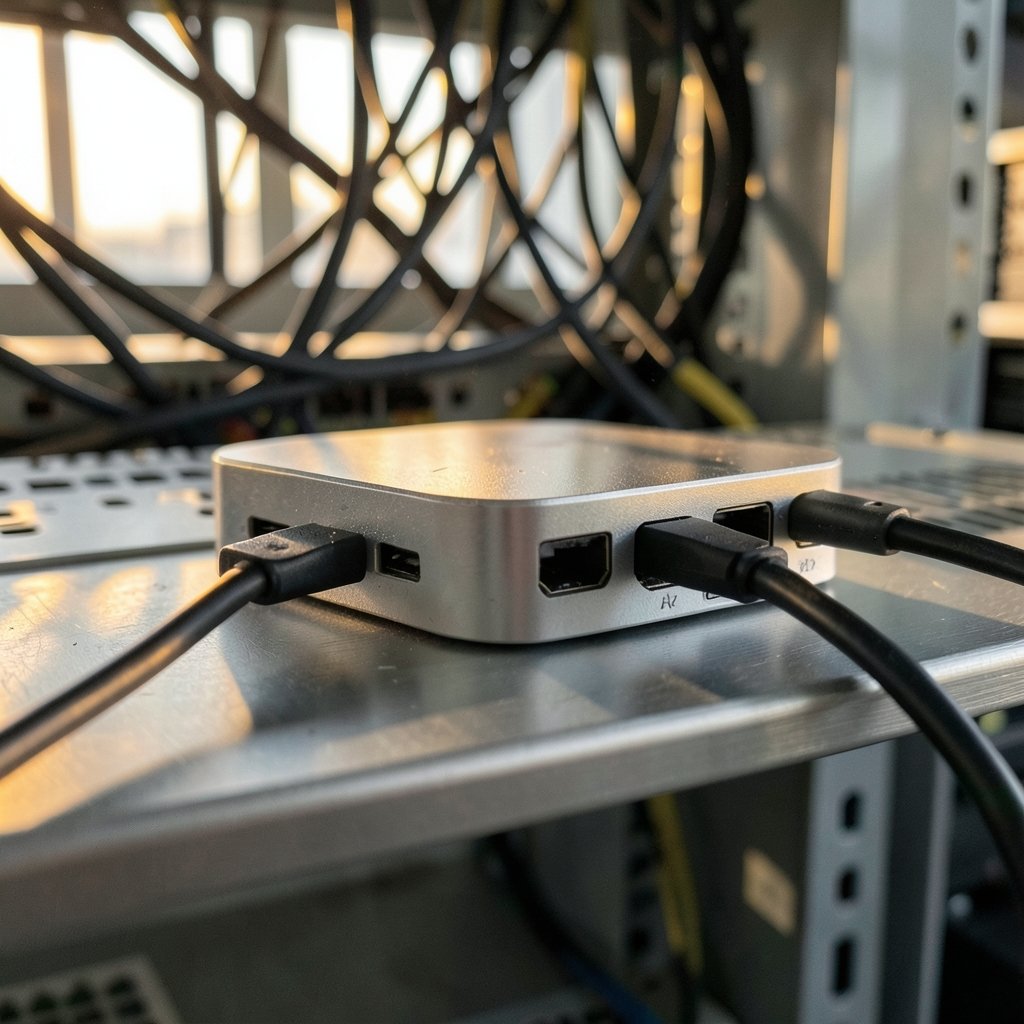
Around $30 buys the UGREEN Revodok Pro 7-in-1, and for a single-monitor desk it is hard to beat on price. It handles the basics without drama: one HDMI output, a handful of USB ports, and pass-through charging. If your setup is a laptop, one external display, a mouse, and a keyboard, this dock covers it and leaves money in your pocket.
The limitation is exactly what the name suggests. Seven ports is not many once you subtract the host connection and power input. There is no room for dual displays, and anyone running a wired network plus a card reader plus two high-speed drives will run out of slots fast. Buy it because your needs are small, not because you hope to grow into it.
One practical note: check that your laptop’s USB-C port supports DisplayPort Alt Mode. A dock cannot create video output that the host port was never wired to carry. This trips up more buyers than any other spec on the page.
Acer 9-in-1 USB-C Dock: Dual 4K@60Hz for About $33
The Acer 9-in-1 (model ODK4K0) has been selling for $32.99 for Prime members and around $34.97 in other promotions, which makes dual 4K@60Hz output at this price genuinely unusual. The port layout is sensible: two HDMI ports, three USB-A at 5Gbps, one USB-C data port, one USB-C PD input rated for 100W, an SD slot, and Ethernet.
Two caveats matter. First, dual 4K@60Hz requires HDMI 2.0 or higher across your laptop, cables, and monitors. Second, Mac users get a reduced experience: dual display works in A-AA or A-BB modes only, A-BC is not supported, and macOS mirrors the same content across external monitors rather than extending. Windows users get proper Multi-Stream Transport (MST) extension across independent screens.
Also budget for power. The 100W PD input needs a 100W or higher adapter, which is not included, and it delivers up to 90W to the laptop. Plug in a 65W phone charger and you will wonder why the battery still drains under load.
Baseus 10-in-1: The Ethernet and Card Reader Combo
At roughly $40, the Baseus 10-in-1 targets people whose desk is really a network closet. Gigabit Ethernet and a card reader sit alongside the usual HDMI and USB array, which suits photographers, videographers, and anyone whose office Wi-Fi is a polite fiction.
The catch is the familiar bandwidth squeeze. Ten ports on a budget controller means everything shares the same pipe, so copying a large video archive over the card reader while running a 4K display and a USB drive will feel slow. It is a convenience dock, not a throughput monster. If your work involves moving big files daily, the next pick fits better.
HyperDrive GEN2 HDG212B: Fast Ports, Honest Limits
The HyperDrive GEN2 HDG212B has appeared on sale for $45, and its spec sheet reads like a more expensive dock. The rear panel carries one DisplayPort, one HDMI, a third video bracket with shared DisplayPort and HDMI (only one of those two can be active at a time), two USB-A 2.0 ports, Gigabit Ethernet, and a USB-C PD input that accepts up to 100W and passes up to 85W to the host. The front adds two USB-C 3.2 Gen 2 ports at 10Gbps, one USB-A 3.2 Gen 2 at 10Gbps, and a 3.5mm audio/mic combo jack.
Those 10Gbps ports are the reason to buy it. External SSDs and fast backups finish noticeably quicker on a 10Gbps lane than on the 5Gbps ports most budget docks offer. The dedicated USB 2.0 ports are a quiet bonus too: they isolate 2.4GHz wireless dongles from USB 3.0 radio interference, which is why your mouse sometimes stutters on other hubs.
The limitation is the shared video bracket. Plugging both ports in that bracket at once disables one or drops the signal, so plan your monitor layout around it. There is also no card reader, which is an odd omission at this price.
Anker 555 USB-C Hub: The Travel Companion
The Anker 555 8-in-1 has hovered around $35 on sale and $45 at list, and long-term owners report it doing exactly what it claims: HDMI output, an SD card reader, three USB ports, and USB-C PD charging in a body that survives being tossed in a bag. Build quality is the selling point here. Budget hubs often feel like they might snap at the cable joint; this one does not.
Its weakness is ambition. Eight ports means no Ethernet on some configurations and no path to triple displays. It is the right dock for a hybrid worker who splits time between a kitchen table and a hot desk, and the wrong one for a fixed workstation with two monitors and a wired network.
How to Choose Without Getting Burned
Start with your host port, not the dock. Confirm your laptop supports DisplayPort Alt Mode over USB-C before anything else. Then work through these checks in order.
- Count your permanent peripherals. Monitor, keyboard, mouse, webcam, Ethernet, and one drive is five or six connections before you add anything temporary.
- Decide how many displays you truly run. Dual 4K@60Hz needs HDMI 2.0 or better end to end, and macOS handles multi-monitor differently from Windows.
- Match power delivery to your laptop’s charger. A 100W PD input needs a 100W adapter to hit its rated passthrough.
- Separate fast storage from slow accessories. Put SSDs on 10Gbps ports and wireless dongles on USB 2.0 ports.
- Read the fine print on shared ports. A video bracket that disables one output when both are used is common and rarely advertised loudly.
A useful sanity check comes from the budget software world: the same discipline that keeps a small team’s tool stack lean applies to desk hardware. Buying fewer, better-fitting ports beats buying a bigger number. If you are equipping a compact team, the thinking in this guide to best ai tools teams under 10 people 2027 actually pays off follows the same logic.
Common Mistakes That Waste $50
The biggest error is buying for the port count printed on the box. A 14-in-1 dock at $39.99 sounds like more value than a 7-in-1 at $30, but the extra ports often share one controller and fight each other under load. Reliability beats a long spec sheet every time.
The second mistake is skipping the power adapter. Many buyers assume the dock charges the laptop at full speed out of the box. It does not, and the resulting slow-charge confusion leads to one-star reviews that blame the dock for a missing accessory.
The third is cable quality. Cheap HDMI cables rated below the needed standard will cap your refresh rate or kill the signal at 4K, and no dock can fix that. If you are weighing workflow trade-offs across hardware and hosting decisions, a comparison like one com vs hostinger workflow differences understand 2027 shows how small infrastructure choices compound the same way.
Finally, do not ignore operating system behavior. Windows extends desktops across multiple external monitors through MST. macOS mirrors content across external displays in many configurations. Buyers who expect three independent screens on a Mac at this price will be disappointed, and that is a platform limit, not a dock defect.
Where the Money Goes Further
If your budget stretches slightly, the pattern across these picks is clear: spend on the chipset and power delivery, not on port stickers. A dock with two well-fed 10Gbps ports and honest 85W to 90W passthrough will outlast a 16-in-1 unit that overheats. Readers building a lean home office often pair a budget dock with modest subscriptions; the same value-first approach appears in this roundup of best ai tools under 20 month 2027 whats actually worth and in these best budget ai chatbot subscriptions 2027 under 10 month picks.
For anyone wondering whether a dock is even necessary, consider how much of modern work is port juggling. The same bandwidth discipline shows up in unexpected places, including how ai detects money laundering 2027 it affects your bank by sifting signal from noise at scale. Your desk deserves the same filtering.
Conclusion
The best docking station under $50 in 2027 depends on one question: what does your desk actually plug in every day? A single-monitor setup is well served by the UGREEN Revodok Pro 7-in-1 at around $30. Dual 4K@60Hz on Windows points to the Acer 9-in-1 near $33 to $35, provided you own a 100W adapter. Wired-network workers should look at the Baseus 10-in-1 around $40, while fast-storage users get the most from the HyperDrive GEN2 HDG212B at $45. Travelers and USB-A loyalists will be happiest with the Anker 555.
None of these is perfect, and that is the point. Each trades something, whether it is port count, a card reader, or Mac multi-monitor support, to hit a price. Know your trade before you buy, confirm the price on the retailer’s page, and the dock will quietly do its job for years.
FAQ
What should I check first before buying a budget dock?
Confirm your laptop’s USB-C port supports DisplayPort Alt Mode. Without it, no dock can send video to an external monitor, no matter what the box promises. Check the laptop maker’s spec sheet rather than the dock listing.
Can a dock under $50 really run two 4K monitors at 60Hz?
Yes, in some cases. The Acer 9-in-1 lists dual 4K@60Hz support, but only if your laptop, cables, and monitors all meet HDMI 2.0 or higher. Mac users face additional restrictions, with only A-AA or A-BB configurations supported and mirrored rather than extended displays.
Why does my laptop still lose charge while docked?
Power passthrough is capped by the adapter you connect. A dock rated for 100W PD input needs a 100W or higher power adapter, which is often sold separately, to deliver its full output to the laptop. Under heavy load, a weaker adapter will not keep up.
Is a 14-in-1 dock better than a 7-in-1?
Not automatically. Higher port counts on budget controllers often share bandwidth, so ports compete and performance drops. A smaller dock with well-fed, high-speed ports is usually more reliable than a crowded one at the same price.
Why do some docks include USB 2.0 ports?
Those slower ports exist to isolate 2.4GHz wireless dongles for mice and keyboards from USB 3.0 radio interference. Plugging a receiver into a USB 2.0 port can stop cursor stutter and dropped keystrokes.
Do these prices stay the same through 2027?
No. Budget docks discount heavily and frequently, and the figures here reflect recent sale prices. Always check the current listing before buying, and factor in the cost of a power adapter and quality cables if you do not already own them.