You deleted a message on your iPhone — maybe by accident, maybe in a hurry to clear a thread — and now you need it back. Knowing how to recover deleted messages on iPhone starts with good news: Apple keeps deleted messages for 30 days, so a recent deletion is usually a two-minute fix. The answer depends on when you deleted the message, whether you have a backup, and whether you act before that 30-day window closes.
That window is the detail most people miss. Deleted messages sit in a Recently Deleted folder and only disappear for good after a month, or if you empty the folder yourself. After that, recovery depends entirely on backups. There is no secret trick that recovers a message deleted a year ago with no backup at all.
Key takeaways
- Act quickly: deleted messages stay in Recently Deleted for 30 days, then disappear permanently.
- Recently Deleted is the first stop: most accidental deletions can be undone there in under a minute, with no backup needed.
- Backups are your safety net: an iCloud or computer backup made before the deletion can restore the message, but restoring may overwrite newer data.
- Check other places first: the message may still exist on another Apple device, in a forwarded copy, or in a chat backup.
- Stop and back up now: before trying any restore, make a fresh backup so you do not lose the messages you still have.
First, understand where deleted messages go
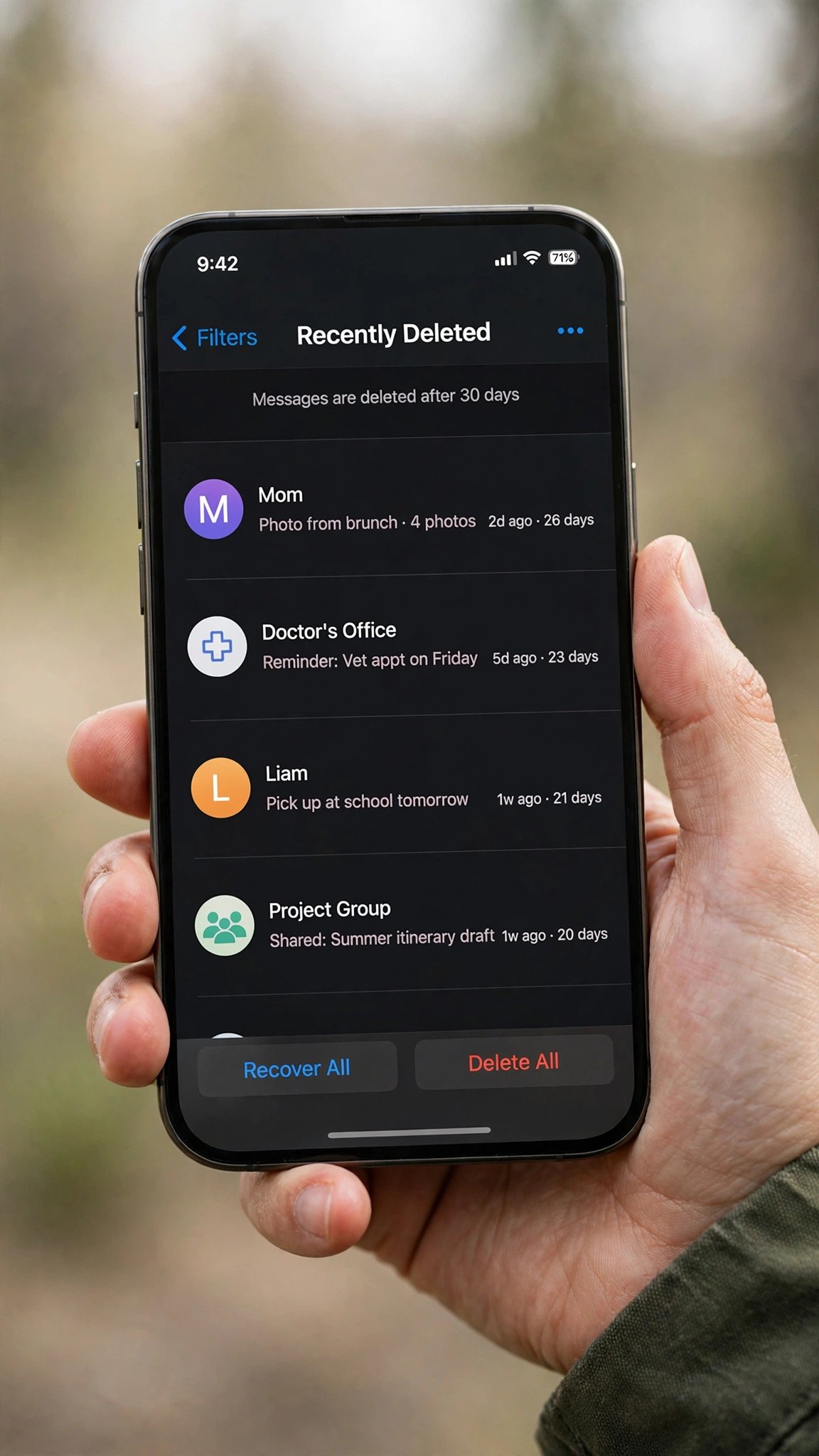
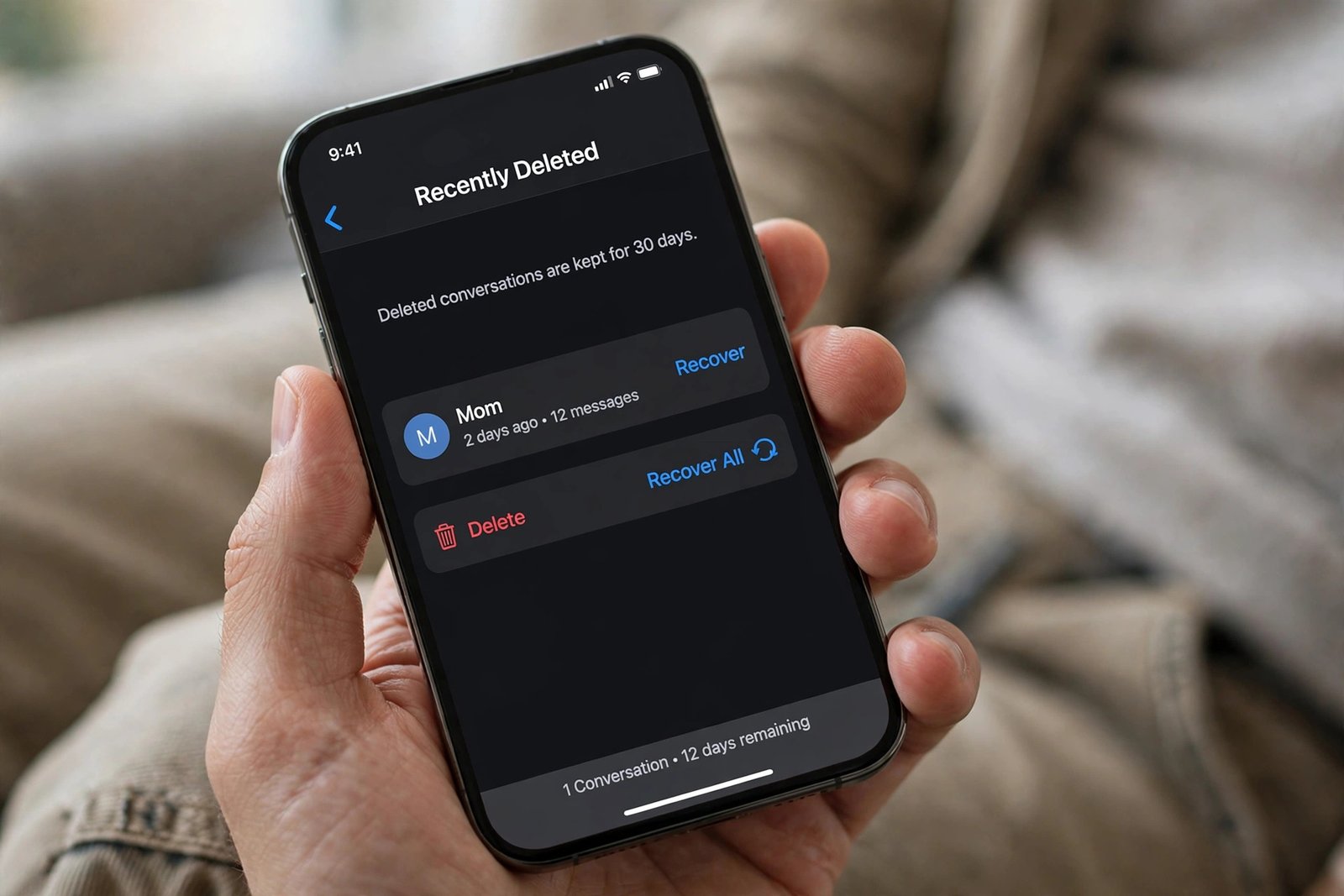
When you delete a conversation in the Messages app, your iPhone does not erase it straight away. It moves it to Recently Deleted, a folder inside Messages that holds deleted conversations for 30 days. You can recover from there, or delete permanently from there, but after 30 days the phone clears the folder on its own. There is no hidden recycle bin beyond it, and no way to extend the window once it has passed.
The same 30-day rule applies to iMessages, standard texts, and messages with photos. If you use Messages in iCloud, your messages sync across iPhone, iPad, and Mac, so a deletion on one device usually deletes it on the others. If you do not, each device keeps its own copy.
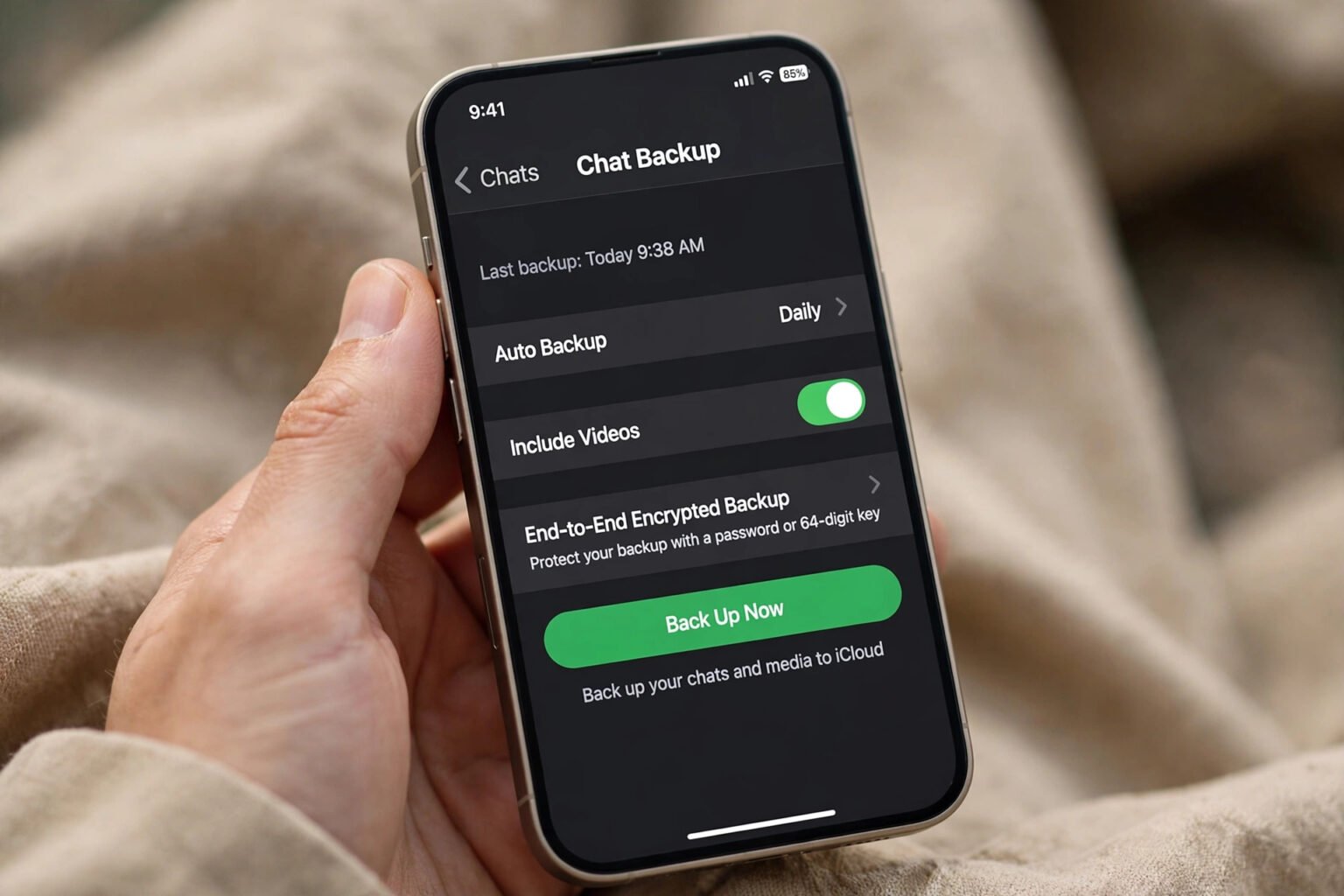
Third-party apps are a separate world. WhatsApp, Telegram, and Signal each have their own deletion rules and backups, and deleting a message in one of them does not put it in the iPhone’s Recently Deleted folder. If the message you need was in WhatsApp, you will need WhatsApp’s own backup — our guide to back up WhatsApp chats iPhone explains how that backup works.
Method 1: Recover from Recently Deleted
This is the method to try first. It needs no backup, no computer, and no extra software, and it works for anything deleted in the last 30 days.
Open the Messages app and tap Edit in the top-left corner, then Show Recently Deleted. If you do not see that option, tap the Filters button first, depending on your iOS version. You will see a list of deleted conversations, each with the number of days left before it is removed for good.
Select the conversation you want back and tap Recover. The conversation returns to your main message list, in its original place, with its full history intact. If it is not listed, it was either deleted more than 30 days ago or permanently deleted from this folder already — move on to the backup methods below.
Recovering a conversation restores the whole thread, not a single message. Permanently deleting from Recently Deleted cannot be undone, so do not empty the folder while you are still deciding.
Method 2: Check your other Apple devices
Before you touch any backup, check every other device signed in with the same Apple ID. Open Messages on your iPad or Mac and search for the conversation or the sender’s name. If Messages in iCloud is switched off on that device, its copy may be untouched by the deletion on your phone.
If you find the message there, do not trigger a sync until you have saved it. Take a screenshot, copy the text into Notes, or forward the message to yourself.
Method 3: Restore from an iCloud backup
If the message is older than 30 days, an iCloud backup made before the deletion is your next best option. This is also the method with the biggest trade-off, so read the warning first.
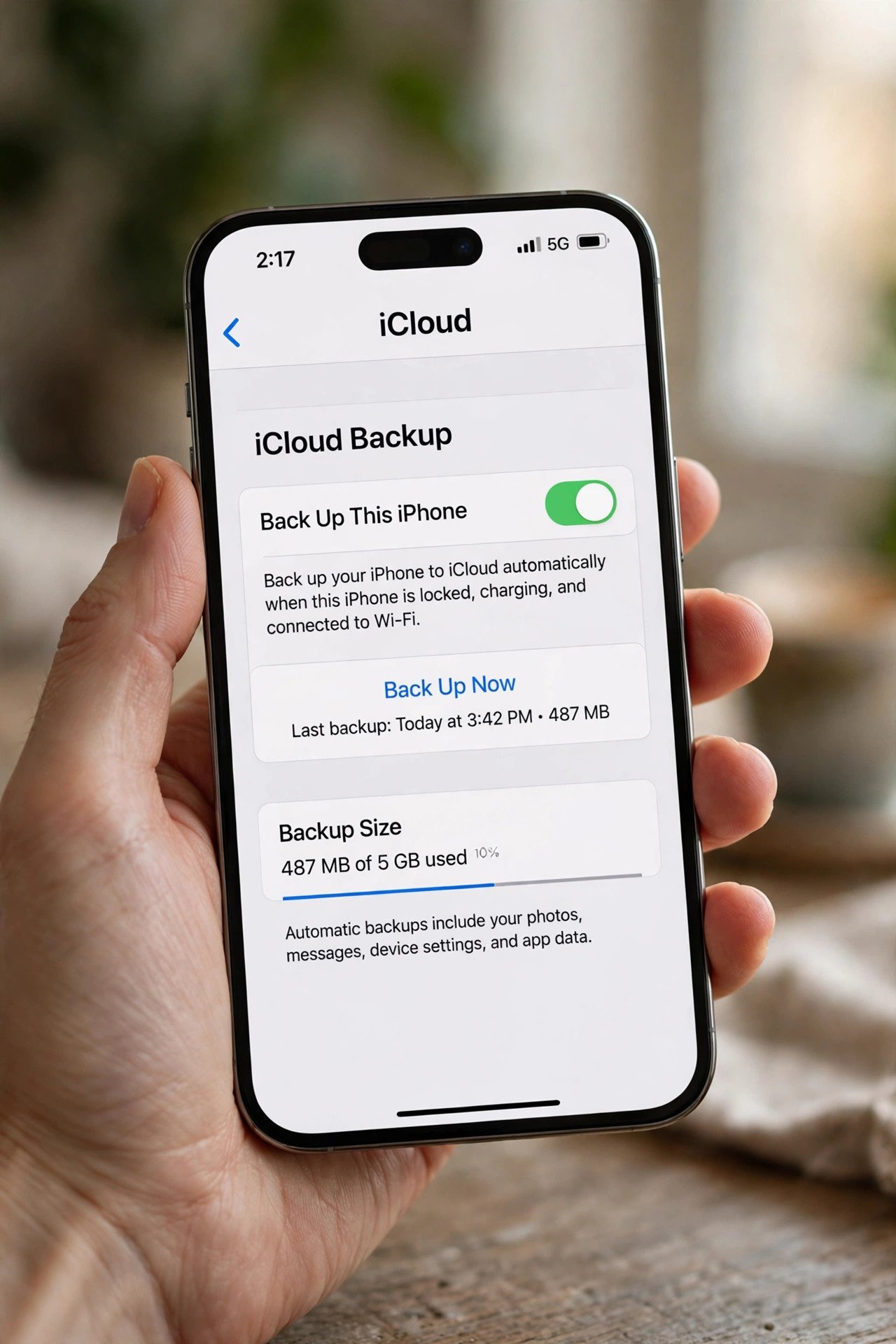
Restoring an iCloud backup erases your iPhone and returns it to the state it was in when the backup was made, so anything created since will be lost unless you save it first. Check the backup date in Settings, under your name, then iCloud, then iCloud Backup. If that backup was made after you deleted the message, it will not contain it.
To restore, first back up your current phone, then go to Settings, then General, then Transfer or Reset iPhone, then Erase All Content and Settings. When the phone restarts, choose Restore from iCloud Backup, sign in, and pick the backup from before the deletion.
Method 4: Restore from a computer backup
A backup made on a Mac or Windows PC works on the same principle, and the restore is often faster over a cable. Connect your iPhone to that computer, open Finder or the Apple Devices app or iTunes, select your iPhone, and choose Restore Backup. Pick the backup dated before the deletion.
The same warning applies: restoring replaces everything with the contents of that backup, so first make a fresh backup of the phone as it is now. Pick the most recent backup made before the deletion.
Method 5: Check other copies
Some messages live in more than one place. If the conversation was also sent by email, check your inbox and sent folder. If it was a booking or payment, the business may have sent the same details by email. If the message contained a photo, check Photos.
Your mobile provider may keep a record of recent texts, though access varies. This will not recover iMessages, but for an important standard text it is worth one call.
Which recovery method should you try?
| Situation | Best method | Needs a backup? | What you risk losing | Chance of success |
|---|---|---|---|---|
| Deleted in the last 30 days | Recently Deleted in Messages | No | Nothing | Very high |
| Deleted on iPhone, but you have an iPad or Mac | Check the other device first | No | Nothing, if you save it first | High |
| Deleted over 30 days ago, iCloud backup before deletion | Restore from iCloud backup | Yes | Data created since the backup | Moderate |
| Deleted over 30 days ago, computer backup before deletion | Restore from a computer backup | Yes | Data created since the backup | Moderate |
| Message was in WhatsApp or another app | That app’s own backup and restore | Yes, in that app | Depends on the app | Moderate |
| No backup, deleted long ago | No reliable method | — | — | Very low |
Table 1: How to recover deleted messages on iPhone, by when the message was deleted and what backup you have.
Recovery is easy when the deletion is recent, and it depends entirely on backups once the 30 days have passed.
Checklist: recover a deleted message without making things worse
- Check Recently Deleted first: open Messages, tap Edit, then Show Recently Deleted, and recover the conversation if it is there.
- Check other devices: search Messages on your iPad and Mac before you change any settings or trigger a sync.
- Save what you find: screenshot or copy any recovered message before you sync, delete, or restore anything.
- Check the backup date: confirm a backup exists from before the deletion before you erase anything.
- Back up your current phone: make a fresh backup now, so a restore that does not help can still be undone.
- Do not install recovery apps blindly: third-party tools that promise recovery often need full access to your phone and data, and their claims are rarely verifiable.
- Keep private messages private: do not paste recovered messages containing personal details into AI chatbots. Our guide to how to use AI safely at work without sharing private data explains why that habit matters.
- Set up a backup habit: switch on iCloud Backup, or back up to a computer regularly, so the next deletion is a two-minute fix.
Once a message is permanently deleted and no backup exists, the data is gone — recovery tools cannot do what Apple itself does not allow. Keeping a little storage headroom also helps messages sync properly; see our guide to clear cache on iPhone for a safe tidy-up.
Frequently asked questions
Can I recover deleted messages without a backup?
Yes, if the message was deleted in the last 30 days — use Recently Deleted in Messages. After 30 days with no backup, there is no reliable way to get it back.
How long do deleted messages stay in Recently Deleted?
They stay for 30 days, then the iPhone removes them automatically. Each conversation shows how many days it has left.
Will restoring an iCloud backup delete my current messages?
Yes. Restoring erases the phone and replaces everything with the backup’s contents, so save anything created since the backup date first.
Can I recover just one deleted message, not a whole conversation?
No. From Recently Deleted or a backup, you recover the whole conversation as it was. There is no built-in way to pick out one message.
Can Apple Support recover my deleted messages?
No. Apple Support cannot recover messages permanently deleted with no backup, though it can help with backups and restores.
A calm way forward
Most deletions are reversible if you act within the 30-day window. Open Recently Deleted, check your other devices, and save anything you recover before you sync or restore. If the message is older than 30 days, weigh the value of the message against what a restore would cost you in newer data. Then switch on iCloud Backup, so the next accidental deletion is a one-minute fix.