Learning how to use AI safely at work without sharing private data starts with one habit: pause before you paste. You can use AI safely at work if you use a work-approved tool, remove names and identifiers first, and check the tool’s training and retention settings before you share anything sensitive.
That sounds simple, and in principle it is. The risk is not the chatbot itself. It is the speed of the habit. A draft email becomes a full client thread. A quick summary becomes a whole contract. Each paste takes a second, and each one moves information outside your employer’s systems.
This guide shows how to keep the benefit without that cost: what counts as private data, which settings matter in ChatGPT, Claude, Gemini and Microsoft 365 Copilot, and a short check to run before every prompt.
Key takeaways
- Use a work-approved AI tool where you can. Personal accounts usually have weaker training and retention controls than business accounts.
- Turn off model training on personal accounts, and use temporary chat for sensitive tasks.
- Never paste passwords, full customer records, unredacted contracts, source code with secrets, or health and financial details into a personal chatbot.
- Remove names, email addresses and account numbers before you prompt.
- Keep a human check at the end. AI can draft and suggest, but it should not be the last word on anything regulated or contractual.
What counts as private data at work?
Private data at work is wider than most people think. It is not only passwords and bank details. It includes anything that could identify a person, reveal a business secret, or cause harm if it left your organisation.
That includes customer names and contact details, employee records, salaries and health information. It includes contracts, pricing, supplier terms, unpublished financial figures and product plans. It includes source code, API keys and internal passwords. It also includes anything covered by a non-disclosure agreement.
A useful test is to ask whether you would email the same text to a stranger. If the answer is no, do not paste it into a personal AI account either. The chatbot may feel private, because it sits in a browser tab on your screen, but the text leaves your device and is processed on the provider’s systems.
Why the account matters more than the tool
The account you sign in with decides how your prompts are treated. On personal plans, providers may use your conversations to improve their models unless you opt out. On business plans, the position is different.
OpenAI states that data from its Business, Enterprise and Education plans is not used for training by default. Anthropic states that commercial plans, including Team and Enterprise, do not use inputs or outputs for training. Google states that Workspace does not use customer data for training without prior permission. Microsoft states that prompts and responses in Microsoft 365 Copilot are not used to train foundation models.
Best for most office workers: a work-provided Microsoft 365 Copilot or Google Workspace Gemini account, because the data stays inside the employer’s contracted service.
Best for freelancers without a work account: a personal account with training switched off, temporary chat for sensitive work, and strict redaction before every prompt.
The Samsung lesson
In spring 2023, Samsung’s semiconductor division allowed engineers to use ChatGPT at work. Within about 20 days, three incidents were reported in which engineers pasted confidential material into the chatbot, including source code and a transcript of an internal meeting. Samsung then restricted generative AI tools on company devices and networks, warning that data sent to these platforms sits on external servers, where it is hard to retrieve and delete.
Nobody in that story was trying to leak anything. Each engineer was doing ordinary work: fixing a bug, improving code, and writing up meeting notes. The lesson is not that AI is unsafe. It is that a helpful tool with no guardrails will carry whatever you give it, including the parts you would never have emailed outside the company.
Personal vs work AI accounts
Settings change over time, so check the provider’s current privacy page before you rely on any one row for a business decision.
| Tool and plan | Used for model training? | Retention note |
|---|---|---|
| ChatGPT, personal | Yes, unless you turn off “Improve the model for everyone” | Temporary chats are not used for training; a copy may be kept up to 30 days for safety |
| ChatGPT Business, Enterprise, Education | No, not used for training by default | Governed by the business agreement |
| Claude, personal | Yes, if “Help improve our AI models” is on | 30 days if training is off; up to five years in de-identified form if training is on |
| Claude Team, Enterprise, API | No, not used for training by default | Standard retention is 30 days |
| Gemini, personal | Yes, if Keep Activity is on | Reviewed chats can be retained for up to three years, disconnected from your account |
| Gemini in Google Workspace | No, not used for training without prior permission | Retention is set by the Workspace administrator |
| Microsoft 365 Copilot | No, prompts are not used to train foundation models | Data is stored in line with the organisation’s Microsoft 365 commitments |
How the main AI tools treat work prompts, by account type. The account matters as much as the tool.
Turn off training: the settings to change first
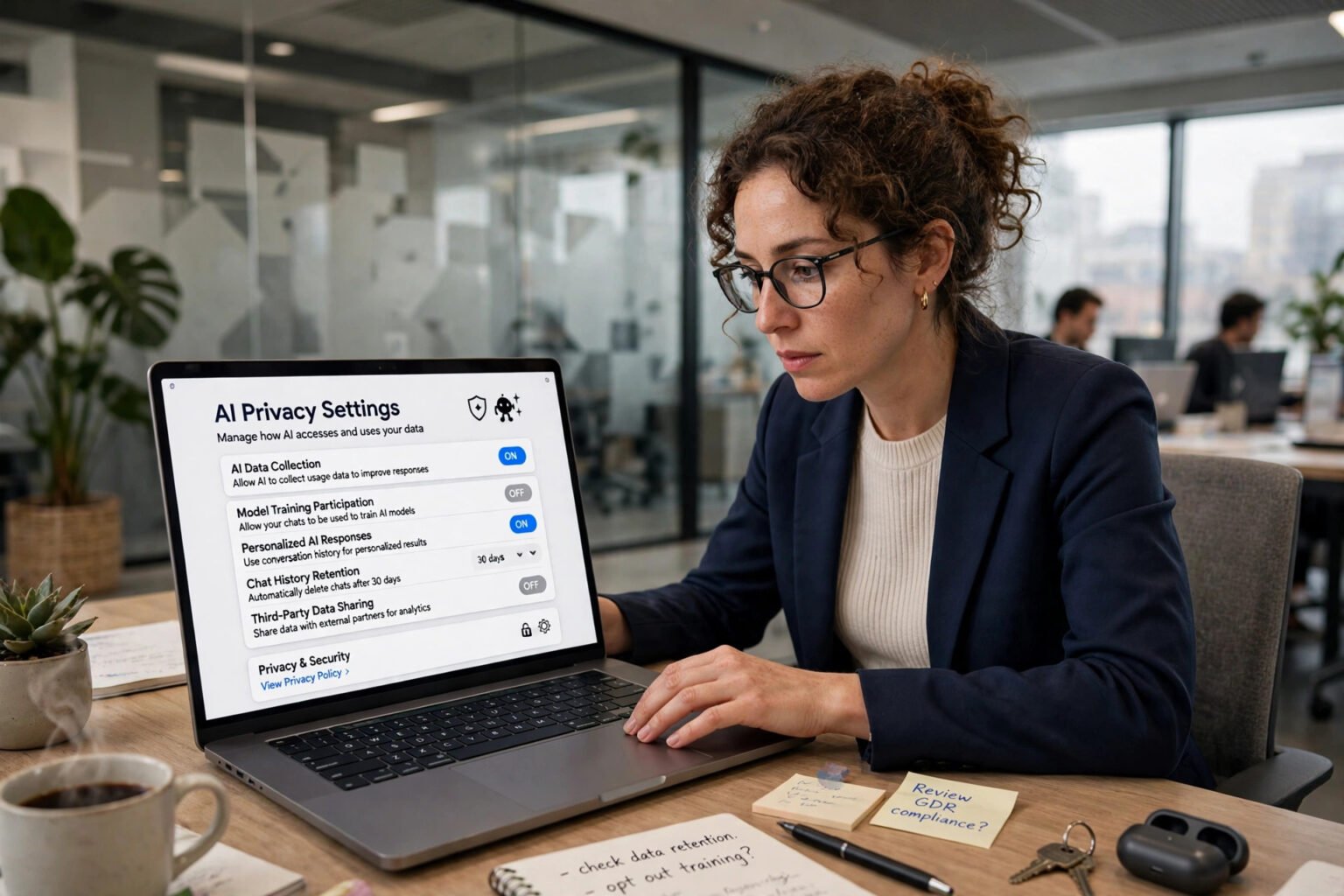
This takes a few minutes, and it only affects future conversations. It does not pull back data that was already used in training.
ChatGPT
Go to your profile menu, then Settings, then Data Controls. Turn off “Improve the model for everyone”. On mobile, open the sidebar, tap your profile icon, and follow the same path. For sensitive work, use Temporary Chat, which is not used for training. OpenAI may still keep a copy for up to 30 days for safety.
Best for: everyday drafting and summaries on a personal account, once the setting is off.
Claude
Click your name, then Settings, then Privacy. Turn off “Help improve our AI models”. After that, new conversations are not used for future model training. Conversations flagged by safety systems may still be reviewed, and feedback sent through the thumbs-up or thumbs-down button can be retained.
Best for: long documents and careful editing, where you want a clean, private workspace.
Gemini
In Gemini, the control is Keep Activity. With Keep Activity on, Google states that your activity can be used to provide, develop and improve its services, including training generative AI models. With Keep Activity off, future chats are not used to train models, although Google still keeps them for 72 hours so it can respond and protect the service. Google began splitting this control in November 2026, separating History from training, so turn training off separately if your account shows the new layout.
Best for: work inside Google Workspace, where the administrator controls the settings.
Microsoft 365 Copilot
There is no training toggle to switch off, because Microsoft states that prompts, responses and data accessed through Microsoft Graph are not used to train foundation models. Copilot only surfaces organisational data that the individual user already has permission to view.
Best for: summarising emails, meetings and documents that already live in Microsoft 365.
What to never paste into a personal chatbot
Some material should not go into a personal AI account at all, even with training switched off. Your employer’s policy comes first, but this list is a practical starting point.
Never paste passwords, API keys or tokens. Never paste full customer lists, employee records or patient data. Never paste unredacted contracts, pricing or supplier terms. Never paste complete source code, especially code that contains credentials. Never paste financial statements, tax details or bank information, health information, or anything marked confidential or covered by a non-disclosure agreement.
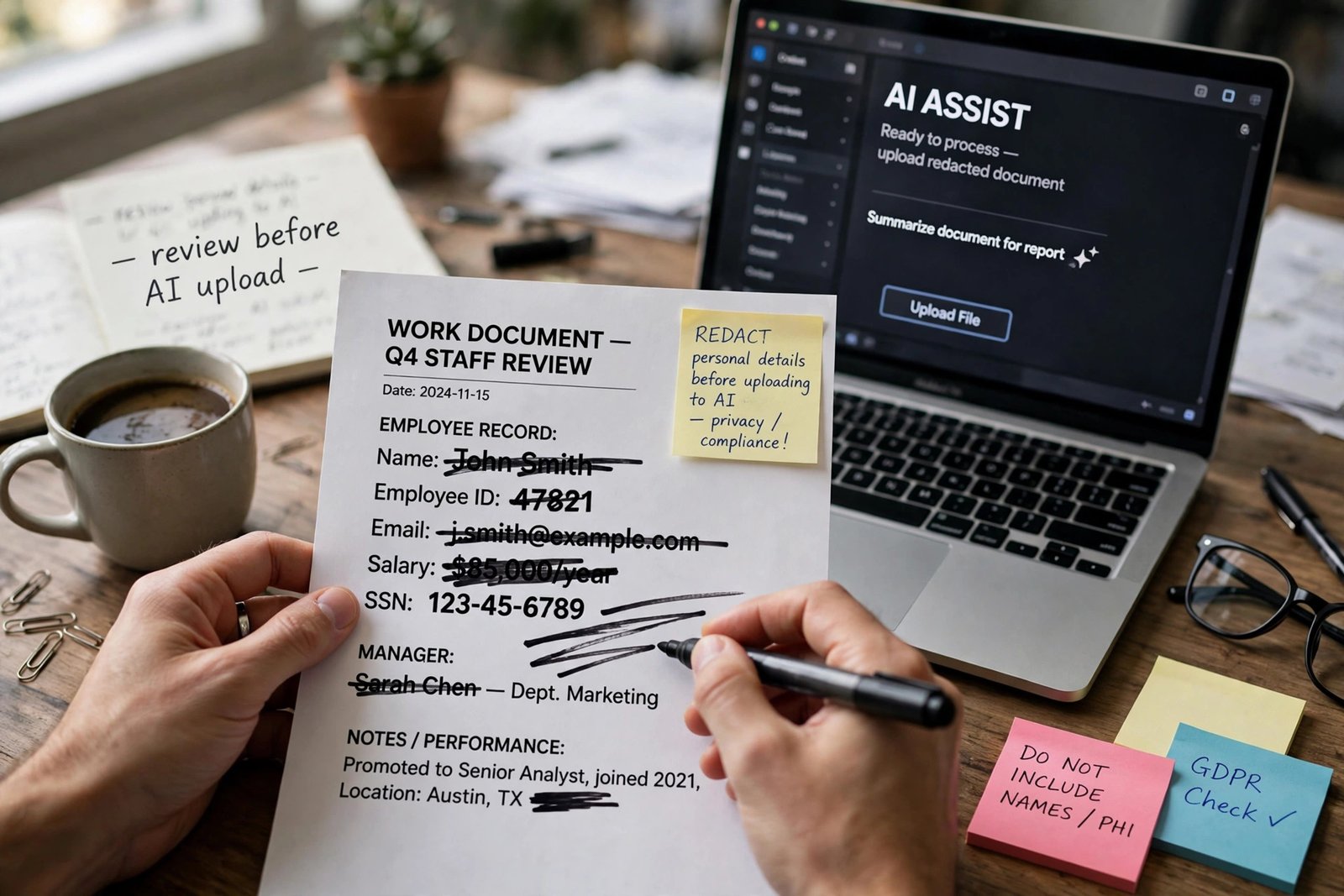
If the work needs the full document, use the approved work tool, or ask the AI to work from a redacted extract. Replace names with roles, such as “Customer A”. Replace email addresses, phone numbers and account numbers with placeholders. Replace exact figures with ranges where the exact number does not change the answer. Then ask a narrower question, such as “Summarise the notice period in this extract”, rather than “Summarise this contract”.
A five-question check before every prompt
Use this framework before you paste anything at work. If you answer “no” to any question, change the prompt or change the tool.
- Is this the right account? Am I using the work-approved tool, or a personal account with training switched off?
- Does this prompt contain private data? Have I removed names, identifiers, secrets and confidential figures?
- Would I email this to an outsider? If not, why am I comfortable sending it to a chatbot provider?
- Do I need the full document? Could a short extract or a generic example give the same answer?
- Can I check the result? Is there a source, a colleague or a document I can compare the answer against?
This check works because it is short. A long policy is easy to ignore. Five questions fit into the pause before you press Enter.
Frequently asked questions
Is it safe to use ChatGPT at work?
It can be, if you use the right account and redact first. A personal account can use your chats for training unless you turn that setting off. A Business or Enterprise account does not use your data for training by default.
Can my employer see what I paste into AI?
It depends on the tool. If you use a work-provided account, your employer may have access through admin controls and audit logs. If you use a personal account on a work device, your employer may still see network activity. Assume work prompts are not fully private.
Does turning off training delete my old chats?
No. Turning off training only affects future conversations. It does not delete your history, and it does not remove data from models that were already trained. Delete old chats separately if you want them removed.
What is the safest AI tool for confidential work?
The safest option is usually the work-approved tool provided by your employer, such as Microsoft 365 Copilot or Gemini in Google Workspace. Those services are covered by business agreements that exclude training by default.
The bottom line
Safe AI use at work is not about avoiding AI. It is about using the right account, sharing less than you think you need to, and checking the result before you act on it. The Samsung case shows how quickly a helpful habit can become a leak, but it also shows the fix: clear rules, approved tools, and a short pause before you paste.
Start with one step this week. Open the AI tool you use most, turn off model training if it is a personal account, and save the five-question check where you can see it. That single change will protect more work data than any longer policy you never read.