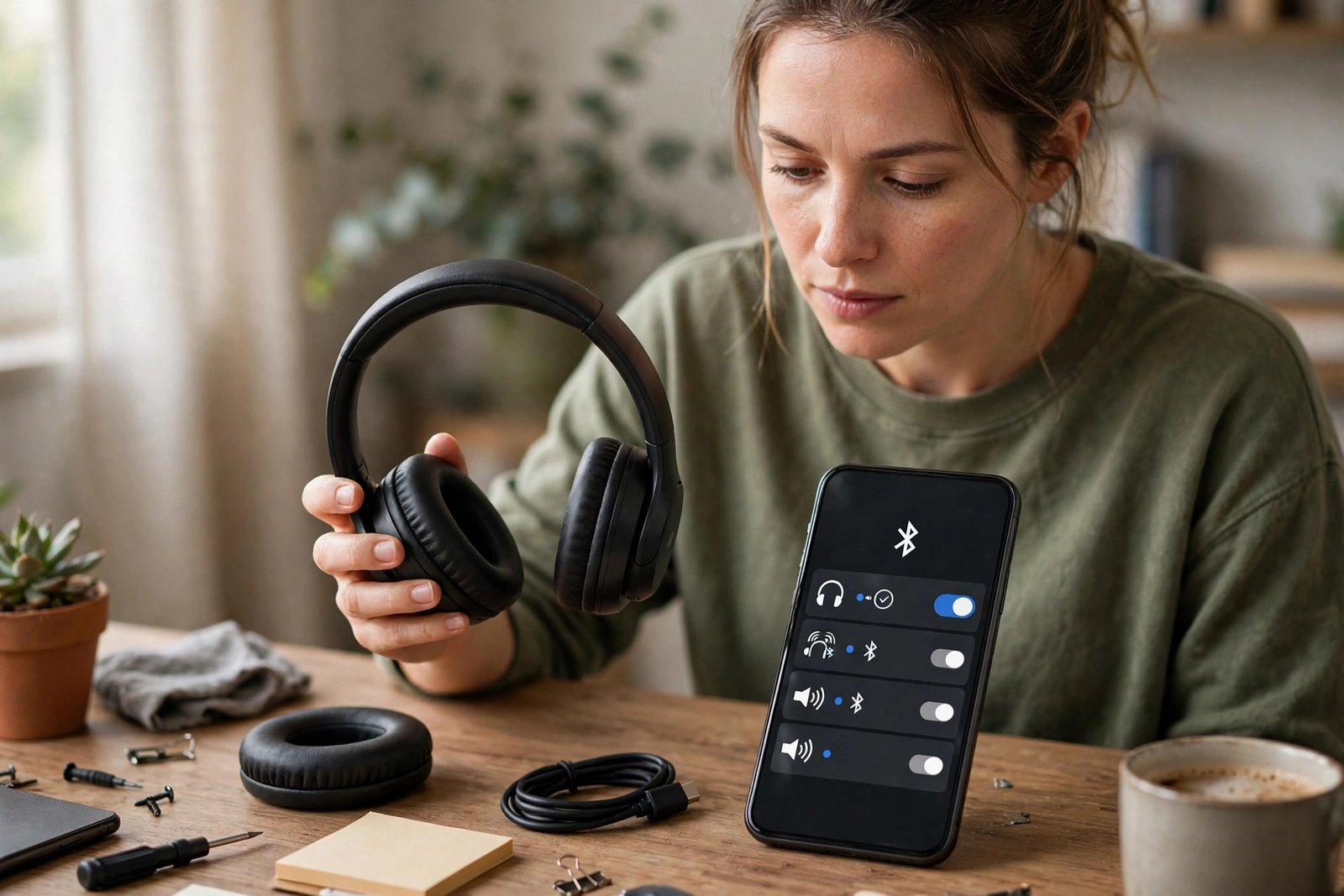
When you need to know how to fix Bluetooth headphones not connecting, the answer is almost always a short sequence of simple steps, not a fault with the headphones. Start by toggling Bluetooth off and on, then forget the headphones and pair them again. That reset clears most pairing failures in under two minutes.
Key takeaways
- Toggle Bluetooth off and on, then forget the headphones and re-pair them; this fixes most failures.
- Check the basics first: charged, in pairing mode, in range, not connected elsewhere.
- A factory reset clears corrupted pairing data when forget and re-pair does not work.
- Multipoint, outdated firmware, low battery and the wrong codec can all block a connection.
- If they pair with one device but not another, the problem is usually the device, not the headphones.
First, Rule Out the Simple Causes
Before changing any settings, check the four things that cause most failures. First, battery: headphones with a nearly flat battery may power on yet fail to pair, or pair and drop out within seconds. Charge them for at least fifteen minutes and try again.
Second, range and interference. Bluetooth works over short distances, and walls and busy wireless environments shrink that range, so move the headphones and phone within a metre of each other. Microwaves, Wi-Fi routers and USB 3 hubs all interfere in the 2.4 GHz band Bluetooth shares.
Third, pairing mode. Headphones that are switched on are not automatically discoverable; most need a button hold until a light flashes or a voice prompt says pairing. If they connected automatically yesterday, they are probably trying to reconnect to that device today. Fourth, an existing connection elsewhere: check whether they are already playing audio from another device in the room, and switch Bluetooth off on that device before trying again.
Toggle Bluetooth and Restart Both Devices
The first fix is the simplest: toggle Bluetooth off and on again, wait a few seconds, then switch it back on. This clears the radio’s temporary state and forces a fresh scan.
If toggling does not help, restart your phone or computer as well: a restart clears the Bluetooth service and any stuck pairing process. Restart the headphones too. Test the connection after each step, so you know which step fixed it. While you are restarting, check that your phone is not in aeroplane mode and that Bluetooth is genuinely switched on.
Forget the Headphones and Pair Again
If a restart does not fix it, remove the pairing and start over. In Bluetooth settings, find your headphones in the paired list and choose Forget, Unpair or Remove. This deletes the stored pairing keys, and corrupted or outdated keys commonly cause repeated failures.
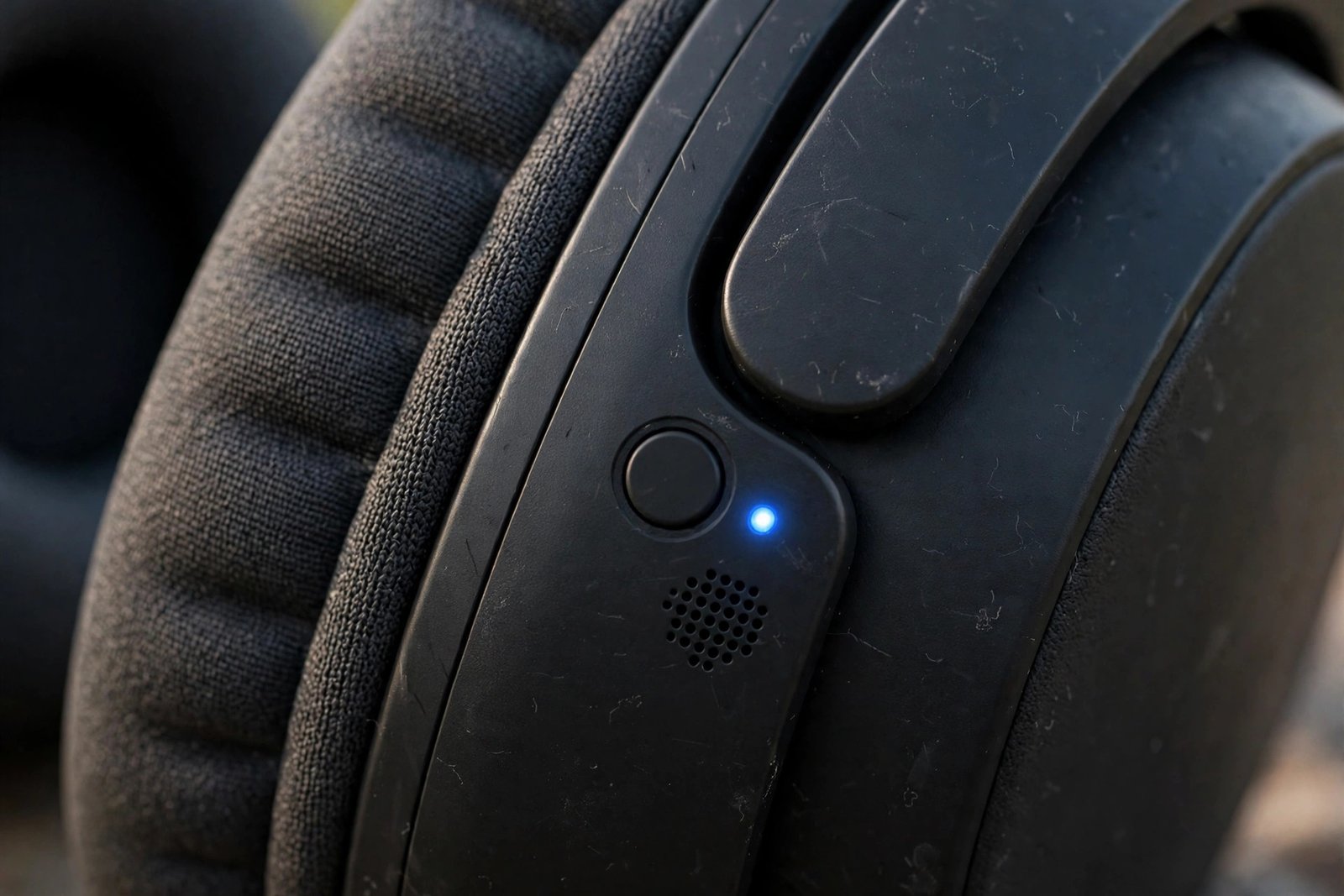
Now put the headphones into pairing mode. The method varies by brand, so check the manual, but most enter pairing mode by holding the power button for several seconds until a light flashes blue, or by holding a dedicated Bluetooth button. Then tap them in the Bluetooth settings list and wait for the pairing prompt. Accept it, and if a code is requested, enter the code shown or try 0000, the standard default for devices that still use a fixed PIN. Keep the two devices close until pairing completes. If pairing fails, forget them again and repeat; a second attempt often succeeds.
Reset Your Headphones to Factory Settings
When forget and re-pair does not work, the next step is a factory reset of the headphones. This wipes the stored pairing list inside them. The method is model-specific, so check the manual or the manufacturer’s support pages for your exact model rather than guessing.
Common patterns exist, but they are not universal: many models reset by holding the power and a volume button together for several seconds, or by holding the Bluetooth button while switched on, until a light flashes or a voice prompt confirms it. Some reset only in the charging case with the lid open and a button pressed. Do not assume one brand’s method works for another. After the reset, the headphones should behave as if new, entering pairing mode automatically or after a short hold. Pair them from scratch; a reset also removes custom settings such as equaliser presets.
Check Multipoint and Other Connected Devices
Many modern headphones support multipoint, staying connected to two devices at once, such as a phone and a laptop. It is convenient, but also a frequent source of trouble: headphones connected to a laptop may refuse to connect to a phone, or route audio to the wrong device.
If your headphones support multipoint, try switching it off in the manufacturer’s app and pairing with one device only. If you cannot reach the app, disconnect or switch off Bluetooth on the other device first. Some models limit multipoint to two connections, so a tablet or smartwatch already holding a slot can block a new device. Also clear old or unused pairings from your phone’s list.
Update Firmware and Check the App
Outdated firmware can cause pairing failures, especially after a phone update changes how Bluetooth behaves. Most brands update firmware through their companion app, so install your brand’s app, connect the headphones if you can, and check for an update. If they will not connect at all, the app cannot update them, so reset them first.
But if they connect intermittently or misbehave, check for a firmware update first. Keep the headphones charged and close to the phone during the update, and do not switch them off partway through, as an interrupted update can leave them unusable. While you are in the app, check the connection settings, such as one-device or two-device mode and the Bluetooth codec. A codec mismatch can leave a connection working but silent, so try changing it.
When Headphones Connect But There Is No Sound
A connection with no audio is a different problem. First, check the volume on both devices, and confirm the headphones are selected as the audio output rather than the phone speaker.
Second, check whether the headphones are connected for calls but not for media, or the reverse. Bluetooth uses separate profiles for calls and media audio, and a device can be connected under one but not the other. Confirm both call audio and media audio are switched on; forgetting and re-pairing usually restores both together. Third, test the headphones with another device. If they play sound from a laptop but not your phone, the fault sits with the phone: reset its network settings. If they are silent on every device, the fault is in the headphones, and a factory reset or a warranty claim is the sensible next step.
Fix Decision Framework: Work Down the List
Work through the steps in sequence and stop as soon as the headphones connect.
Table: the fix to try at each stage, and what it tells you if it fails.
| Step | What to do | If it fails |
|---|---|---|
| 1. Charge and get close | Charge 15 minutes, move within 1 metre | Battery or range is not the cause |
| 2. Toggle Bluetooth | Switch Bluetooth off and on | The radio is not the problem |
| 3. Restart both devices | Restart phone and headphones | A stuck service is not the cause |
| 4. Forget and re-pair | Remove the pairing, pair again | Stored keys are not the cause |
| 5. Factory reset | Reset using your model’s method | Corrupt pairing data is not the cause |
| 6. Check multipoint | Disconnect other devices | Another device is not holding it |
| 7. Update firmware | Update via the manufacturer’s app | Outdated firmware is not the cause |
| 8. Try another device | Pair with a different phone or laptop | The fault is on the original device |
If the headphones pair with a second device at step 8, the problem is with the first device: reset its network settings. If they fail on every device after a factory reset, the fault is in the headphones, and a warranty claim is the next step.
When choosing a replacement pair, look for a companion app with firmware updates and multipoint controls. If you commute, the best headphones for commuting compares models that hold a stable connection on busy trains and streets. For calls, the best earbuds for phone calls covers pairs with strong microphones and reliable pairing. And if your headphones connect fine but sound muffled, the problem may be dirt, so our guide on how to clean AirPods safely explains the safe way to clean earbuds and their case.
Connection Checklist: Pair, Test, Decide
Use this checklist in order, and stop as soon as the connection works.
Pair
- Charge the headphones for fifteen minutes; move within a metre of your phone
- Switch Bluetooth off and on, then restart the phone and the headphones
- Enter pairing mode and confirm the light or voice prompt
Test
- Forget the headphones in Bluetooth settings, then pair again from scratch
- If that fails, factory reset using your model’s method, then pair again
- Disconnect Bluetooth on every other device; try with multipoint off
Decide
- If they connect to a second device, reset the first device’s network settings
- If they fail on every device after a reset, the fault is in the headphones; check the warranty
- If they connect but stay silent, check the audio output, the call and media profiles, and the codec
FAQs
Why won’t my Bluetooth headphones show up on my phone?
They are probably not in pairing mode, or they are already connected to another device. Enter pairing mode, usually by holding the power or Bluetooth button until a light flashes, and switch Bluetooth off on any other device nearby.
Why do my Bluetooth headphones keep disconnecting?
The most common causes are low battery, distance or interference, and a multipoint connection to another device claiming the audio. Charge the headphones, stay close to the phone, disconnect other devices, and update the firmware.
How do I reset my Bluetooth headphones?
The method is model-specific, so check the manual or the manufacturer’s support pages for your exact model. Common patterns include holding the power and volume buttons together for several seconds. After the reset, pair them from scratch.
Why are my Bluetooth headphones connected but there is no sound?
Check the headphones are selected as the audio output and that both call audio and media audio are switched on. If they are, try forgetting and re-pairing, then test with another device to find out whether the fault is in the phone or the headphones.
Can too many paired devices stop Bluetooth headphones connecting?
Yes, in two ways. Headphones can run out of pairing slots, and multipoint headphones can be held by another device that is already connected. Disconnect other devices, remove old pairings, and factory reset to clear the stored list.
Start Simple, Then Go Deeper
Bluetooth headphones that will not connect are frustrating, but the fix is usually unremarkable: toggle Bluetooth, forget and re-pair, and the problem is gone. The deeper steps exist for the cases where the simple fix does not work.
The most useful test is the simplest. If your headphones pair with a second device, the fault is in the first device, and a network reset or a software update is the answer. If they fail everywhere after a reset, the fault is in the headphones: use the warranty.
Safety note: stop using headphones with a swollen, leaking or damaged battery, and do not open them yourself. If a battery smells unusual or feels hot, or the case is swollen or cracked, unplug it and seek advice from the manufacturer or an authorised service provider.