

AI video generators turn a sentence, a photo, or a script into a finished video in minutes. A small business can make a product ad, a social clip, or a training video without a camera crew, a studio, or editing skills. A creator can test an idea on Monday and post it the same day.
This guide compares the AI video generators that work best in 2027, on the same things: video quality, ease of use, price, what is included, and where each one falls short. Prices change, so treat the prices here as approximate starting prices and check the current plan before buying. No tool in this list is linked to its own website. All links in this article go to other occcy.com guides.
The short answer is simple. For most people, Runway is the best place to start, because it balances quality, control and price. For realistic video from a prompt, Google Veo and OpenAI Sora are the strongest. For simple social clips, CapCut and Descript are the easiest. The rest of this guide explains why, and when to choose something else.
Key takeaways
- Best overall for most creators: Runway, from about $12 a month, with strong quality and good editing controls.
- Best for realistic video: Google Veo, via Google AI Pro from about $20 a month, and OpenAI Sora, via ChatGPT Plus from about $20 a month.
- Best for simple social clips: CapCut, free to start with a Pro plan from about $10 a month.
- Best for talking-head business video: Synthesia, from about $29 a month, with AI presenters and no filming.
- Check the credits before you pay: most tools limit how many seconds of video you can make each month, and the limit matters more than the headline price.
At a glance: the shortlist
| Tool | Best for | Starting paid price | Standout limit |
|---|---|---|---|
| Runway | Most creators | From about $12 a month | Credits limit video length |
| Google Veo | Realistic video | Via Google AI Pro, from about $20 a month | Only in Google plans |
| OpenAI Sora | Realistic video | Via ChatGPT Plus, from about $20 a month | Only in ChatGPT plans |
| Pika | Short creative clips | Free tier; paid from about $8 a month | Short clips only |
| Luma Dream Machine | Fast image-to-video | Free tier; paid from about $10 a month | Quality varies by prompt |
| Kling | Value, realistic motion | Free tier; paid from about $10 a month | Interface can be confusing |
| Adobe Firefly Video | Adobe users | Via Creative Cloud, from about $10 a month | Needs an Adobe plan |
| Descript | Editing by transcript | From about $16 a month | Less pure generation |
| Synthesia | Business training video | From about $29 a month | Higher starting price |
| CapCut | Social clips | Free tier; Pro from about $10 a month | Less control over generation |
Runway — Best overall
Runway is the best starting point for most creators because it balances quality, control and price. Its Gen-4 model turns text and images into video, with camera controls, style presets and editing tools in one place, from about $12 a month, with a free tier to try it. A creator can make a product shot, a social clip, or a short scene, and then edit it in the same tool, without exporting to another editor.
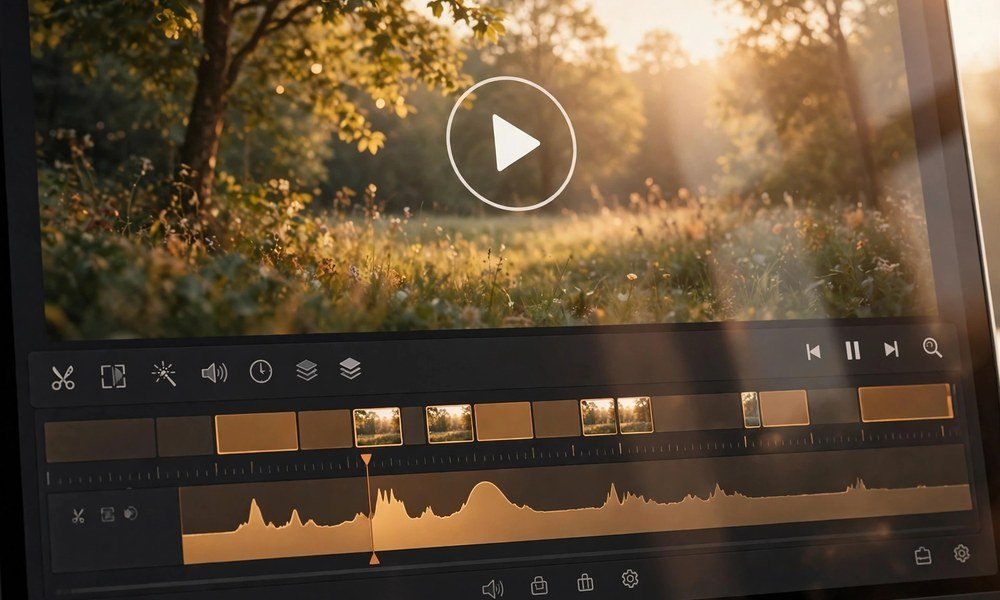
The weakness is credits. Runway charges by credits, and a longer video, or many tries, uses them quickly. For a creator who makes a few clips a week, the standard plan is enough. For a team that makes video every day, the cost rises, and a plan with more credits will be needed.
Pros: Good quality, strong controls, editing in one place, useful free tier.
Cons: Credits limit video length, cost rises with heavy use, learning curve for advanced controls.
Google Veo — Best for realistic video
Google Veo is one of the strongest tools for realistic video from a text prompt, with natural motion, good lighting, and sound in some plans. It is available through Google AI Pro, from about $20 a month, and through Google’s video tools, so a business that already pays for Google AI gets video generation as part of the same plan.
The trade-off is access. Veo is only available inside Google’s plans, not as a standalone tool with its own pricing, so a creator who does not use Google AI will need to subscribe to get it. For a business already in Google’s ecosystem, that is an easy decision. For a creator who only needs video, Runway may be simpler.
Pros: Very realistic motion, good lighting and sound, part of Google AI plans.
Cons: Only in Google plans, no standalone price, credits limit use.
For teams that also write with AI, our guide to best AI writing tools in 2027 covers the writing tools that pair well with video, for scripts and captions.
OpenAI Sora — Best for realistic video
OpenAI Sora turns text prompts into realistic video, with strong scene understanding and smooth motion. It is available through ChatGPT Plus, from about $20 a month, and through the Sora app, so a business that already pays for ChatGPT gets video generation as part of the same subscription.
Like Veo, its access is tied to a wider plan. A creator who only needs video will be paying for a full ChatGPT subscription to get it, which may be more than is needed. For a business that already uses ChatGPT for writing, research and images, adding Sora costs nothing extra, and that makes it a strong choice.
Pros: Realistic scenes, good motion, included with ChatGPT Plus, easy to use.
Cons: Only in ChatGPT plans, credits limit use, less editing control than Runway.
Pika — Best for short creative clips
Pika is built for short, creative clips, from a text prompt or an image, with a free tier and paid plans from about $8 a month. It is fast, playful, and good for social media, where a 5-second clip is enough. A creator can turn a photo into a moving scene, or a sentence into a short animation, in under a minute.
Its clips are short, usually 5 to 10 seconds, so it will not suit a business that needs a 60-second ad or a training video. For social clips, memes, and quick ideas, it is one of the easiest tools in this list, and one of the cheapest.
Pros: Fast, cheap, easy to learn, good for social clips, useful free tier.
Cons: Short clips only, less realistic than Veo or Sora, limited editing.
Luma Dream Machine — Best for fast image-to-video
Luma Dream Machine turns an image into a video quickly, with a free tier and paid plans from about $10 a month. It is good for making a still photo move, for a product shot, a portrait, or a landscape, and it works well for creators who already have images and want to bring them to life.
Quality varies by prompt. Some clips look natural, and others look strange, especially with hands, faces, or fast movement. For a creator who is willing to try a prompt a few times, it is fast and affordable. For a business that needs reliable quality every time, Runway or Veo will be more consistent.
Pros: Fast image-to-video, affordable, easy to use, useful free tier.
Cons: Quality varies, less control, shorter clips.
Kling — Best value for realistic motion
Kling is a strong value choice for realistic motion, with a free tier and paid plans from about $10 a month. It handles human movement, camera motion and detailed scenes well for its price, and it is popular with creators who make short films, ads and social video on a budget.
Its interface can be confusing, especially for a new user, and some features are harder to find than in Runway or Pika. For a creator who is willing to learn it, Kling gives a lot for a low price. For a beginner who wants the simplest tool, CapCut or Pika will be easier.
Pros: Good realistic motion, low price, useful free tier, strong for short films.
Cons: Confusing interface, quality varies, support can be slow.
For teams comparing software subscriptions, our guide to best AI tools for comparing subscription renewal terms in 2027 covers the renewal terms that matter for any AI tool subscription, including video generators.
Adobe Firefly Video — Best for Adobe users
Adobe Firefly Video is built for businesses that already use Adobe Creative Cloud, from about $10 a month for Firefly, or as part of a Creative Cloud plan. It generates video from text and images, with controls for camera, style and motion, and it connects to Premiere Pro and After Effects, so a video can be generated and then edited in the tools a team already uses.
It needs an Adobe plan, so a business that does not use Adobe will pay for a whole ecosystem to get one video tool. For a team already in Creative Cloud, it is an easy addition. For a creator who only needs video, Runway or Kling will be cheaper and simpler.
Pros: Works with Adobe tools, good controls, commercially safe training data, easy for Adobe teams.
Cons: Needs an Adobe plan, less standalone value, credits limit use.
Descript — Best for editing by transcript
Descript is different from the other tools here. It is mainly a video editor that works by editing a transcript: delete a word, and the video cuts itself. It also has AI video generation, voice cloning and studio sound, from about $16 a month, and it is a good fit for podcasts, interviews, training videos and talking-head content.
It is less of a pure video generator than Runway or Sora, so a creator who needs text-to-video from scratch will find it weaker. For a business that records video and needs to edit it fast, Descript saves more time than any other tool in this list.
Pros: Edit video by editing text, good for podcasts and training, voice tools, fast workflow.
Cons: Less pure generation, higher starting price, learning curve for new users.
Synthesia — Best for business training video
Synthesia makes training and business videos with AI presenters, from about $29 a month. A business types a script, picks a presenter, and gets a video with a person speaking on camera, without filming, a studio, or an actor. It suits training, onboarding, product updates and internal communication, in many languages.
The starting price is higher than the other tools here, and the videos look like presenter videos, not like filmed footage, so it will not suit a creative ad or a short film. For a business that needs many training videos, quickly and in many languages, it is the best option in this list.
Pros: No filming needed, many languages, good for training, consistent quality.
Cons: Higher starting price, presenter style only, less creative control.
CapCut — Best for social clips
CapCut is the easiest tool in this list for social clips, free to start with a Pro plan from about $10 a month. It has templates, auto-captions, effects and AI video tools, built for TikTok, Instagram and YouTube Shorts, and it works on phone and computer. A creator can make a clip, add captions, and post it, all in one app.
It gives less control over generation than Runway or Veo, and its AI video is simpler, so a creator who needs a custom scene will find it limited. For social video, where speed matters more than custom control, CapCut is the fastest way to post.
Pros: Easiest for social clips, good templates, auto-captions, free to start.
Cons: Less generation control, simpler AI video, tied to social formats.
For teams that also need images, our guide to how to use AI in Google Docs and Sheets covers how small teams use AI tools day to day, for scripts, captions and planning.
How to choose
Start with the video, not the tool. If the video is a short social clip, choose CapCut or Pika. If it is a realistic scene from a prompt, choose Veo or Sora. If it is a training video with a presenter, choose Synthesia. If it is a creative project that needs editing as well, choose Runway.
Check three things before paying. First, the credits: how many seconds of video does the plan include, and what happens when they run out? Second, the rights: can the video be used commercially, and who owns it? Third, the export: can the video be downloaded in the resolution and format the business needs?
Checklist: before you pay
Use these checks before subscribing to any AI video generator.
- Try it with a real prompt, not a demo, and check the result for hands, faces and motion.
- Check the credits: how many seconds per month, and what a longer video costs.
- Check commercial rights: can the video be used in ads, and who owns it?
- Check export: resolution, format, and whether there is a watermark on the free plan.
- Check the renewal price, not only the first month, and the cancellation terms.
- Check support: is there a human to contact when generation fails, or only a help centre?
Frequently asked questions
What is the best AI video generator?
For most creators, Runway, because it balances quality, control and price. For realistic video, Google Veo and OpenAI Sora are stronger. For simple social clips, CapCut is easiest.
Is there a free AI video generator?
Yes. Runway, Pika, Luma, Kling and CapCut all have free tiers, with limits on credits, length or resolution. They are enough to try the tool and make a first clip before paying.
How much does AI video generation cost?
Most tools in this guide start at about $8 to $29 a month, with credits for a set number of seconds. A longer video, or many tries, uses credits quickly, so check the credit limit before deciding.
Can AI video be used commercially?
It depends on the tool and the plan. Most paid plans allow commercial use, but the terms vary, and some tools train on different data. Check the tool’s terms before using a video in an ad.
How long can an AI video be?
Most tools make clips of 5 to 10 seconds per generation. Longer videos are made by joining clips together, or by using a tool like Descript or Synthesia for talking-head video.
Which AI video generator is easiest to learn?
CapCut and Pika are the easiest in this list, because they focus on short clips and templates, without extra controls. Runway is also easy to learn, with more features to ignore at first.
The bottom line
For most creators, start with Runway. For realistic video, choose Veo or Sora, through the Google or ChatGPT plans a business may already pay for. For simple social clips, choose CapCut. For training video with a presenter, choose Synthesia. Do not pay for the most powerful tool if the team will not use it, and do not choose the cheapest tool if it cannot make the video the business needs.
Try the tool with a real prompt, check the credits and the commercial rights, and keep the prompts that work. A video tool only helps if the team uses it every week. The tool that gets used is the right one, even if it is not the most expensive one in the list.
Note: Prices and plans change. Check the product’s current plan details before buying — no link is provided here by design, all links in this article go to other occcy.com guides.



