Learning how to use AI in Google Docs and Sheets starts with picking the right Gemini tool for the job. You can use AI in Google Docs and Sheets to draft and polish writing, build a table from a plain-English description, write formulas, and classify rows of data. One catch: Gemini is not on every account. Work accounts usually need Workspace Business Standard or above; personal accounts usually need Google AI Pro.
Key takeaways
- In Docs, use Help me write for drafts and the sidebar for summaries.
- In Sheets, use Help me organise for tables, the sidebar for formulas, and =AI() for repeated tasks.
- Give Gemini a task, audience, length and source.
- Vague prompts give vague drafts.
- On Workspace, your content is not used to train models outside your domain without permission.
Do you actually have Gemini?
Open a document and look for the Gemini star in the top-right corner, or click on an empty line and look for Help me write in the left margin. In Sheets, the same star opens the Ask Gemini side panel. Google states that Help me write requires an eligible Google Workspace or Google AI plan, with some features also available through Workspace Labs, its early-access programme. Newer features have rolled out in beta to Google AI Pro and Ultra subscribers first. For work accounts, Business Starter includes Gemini in Gmail only, while Business Standard and Business Plus add Gemini in Docs, Sheets, Slides, Drive, Meet and Chat, listed at $7, $14 and $22 per user per month on an annual plan. For personal accounts, Google AI Pro was listed at $19.99 a month, including Gemini in Gmail, Docs and more. Google AI Ultra starts at $99.99 a month and mainly raises usage limits.
How to use AI in Google Docs
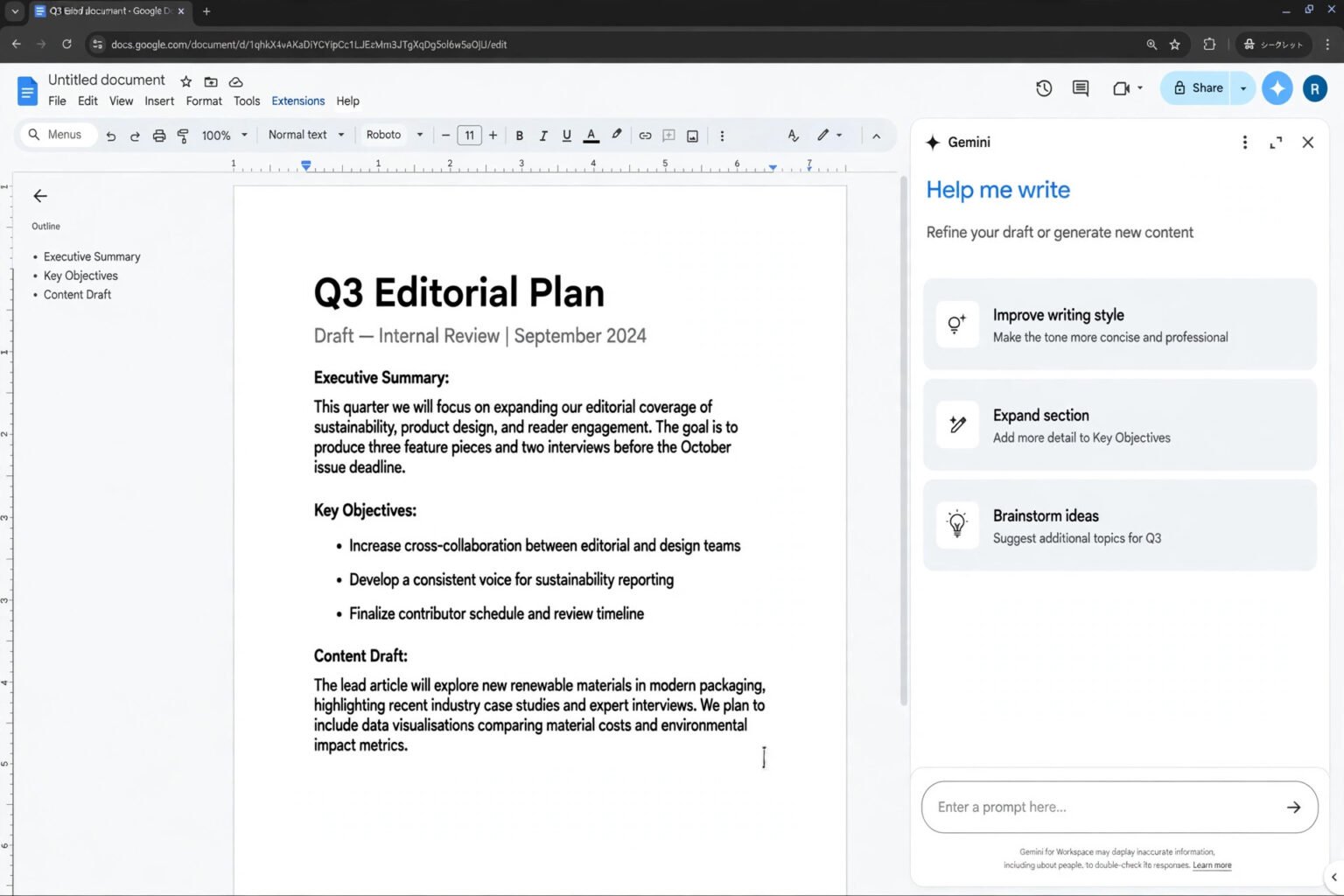
Gemini in Docs works in two places: inline, where you write, and in the Ask Gemini sidebar. Use inline tools for drafting and editing, and the sidebar for the whole document or for other files.
Help me write: drafts and rewrites
Click where you want text to appear, then click Help me write and describe what you need. A useful prompt names the document type, the audience, the facts and the length. “Draft a 150-word email to parents explaining that swimming lessons move to Thursdays from 12 March” will beat “write an email about swimming” every time.
Once text exists, select it and use Help me write to change it. The menu offers Tone (Formal or Casual), Summarise, Bulletize, Elaborate, Shorten and Rephrase, plus a custom prompt box. Work on one section at a time. Accept with Replace, keep both versions with Insert, or close it and keep your original. Treat the first draft as raw material: read it aloud, cut anything generic, and add the detail only you know.
Best for: first drafts, short emails and announcements, and turning rough notes into a structured page.
The Ask Gemini sidebar: summaries and file-aware questions
Click Ask Gemini in the top-right corner to open the side panel. It can summarise the document you are working in, answer questions about it, and generate new sections. Try “Summarise this document in three bullet points, focusing on decisions and action items” on a long report. The sidebar can also draw on your other files. Add sources, or type @ followed by a file name to reference a Doc, Sheet, Slide or Form in Drive. Ask Gemini to write a newsletter using the minutes from your January meeting, rather than asking it to invent one. Google’s March 2026 update added Help me create for this kind of file-aware drafting, rolling out in beta to Google AI Pro and Ultra subscribers.
Run Proofread last, after the structure is settled. Gemini can misquote a source or invent a statistic, so trace important figures back to the original. Our guide to using AI safely at work without sharing private data sets out the redaction habits that matter most.
Best for: summarising long documents, drafting from your own files, and getting a second view on a draft.
How to use AI in Google Sheets
Sheets is where Gemini helps people who do not think of themselves as spreadsheet people. The tools here are about structure: turning a messy list into a table, a question into a formula, and a column of text into a column of answers.
Help me organise: tables from a description
Help me organise builds a formatted table from a plain-English description. Open the Gemini side panel, or type @ in a cell and choose Help me organise, then describe the table, including columns and dropdown values. “Create a content calendar with columns for Topic, Writer, Draft due date, Status and Publish date” is the kind of prompt that works. Gemini returns a preview with headers, placeholder rows and dropdowns. Review it, insert it, then replace the placeholder data with your own.
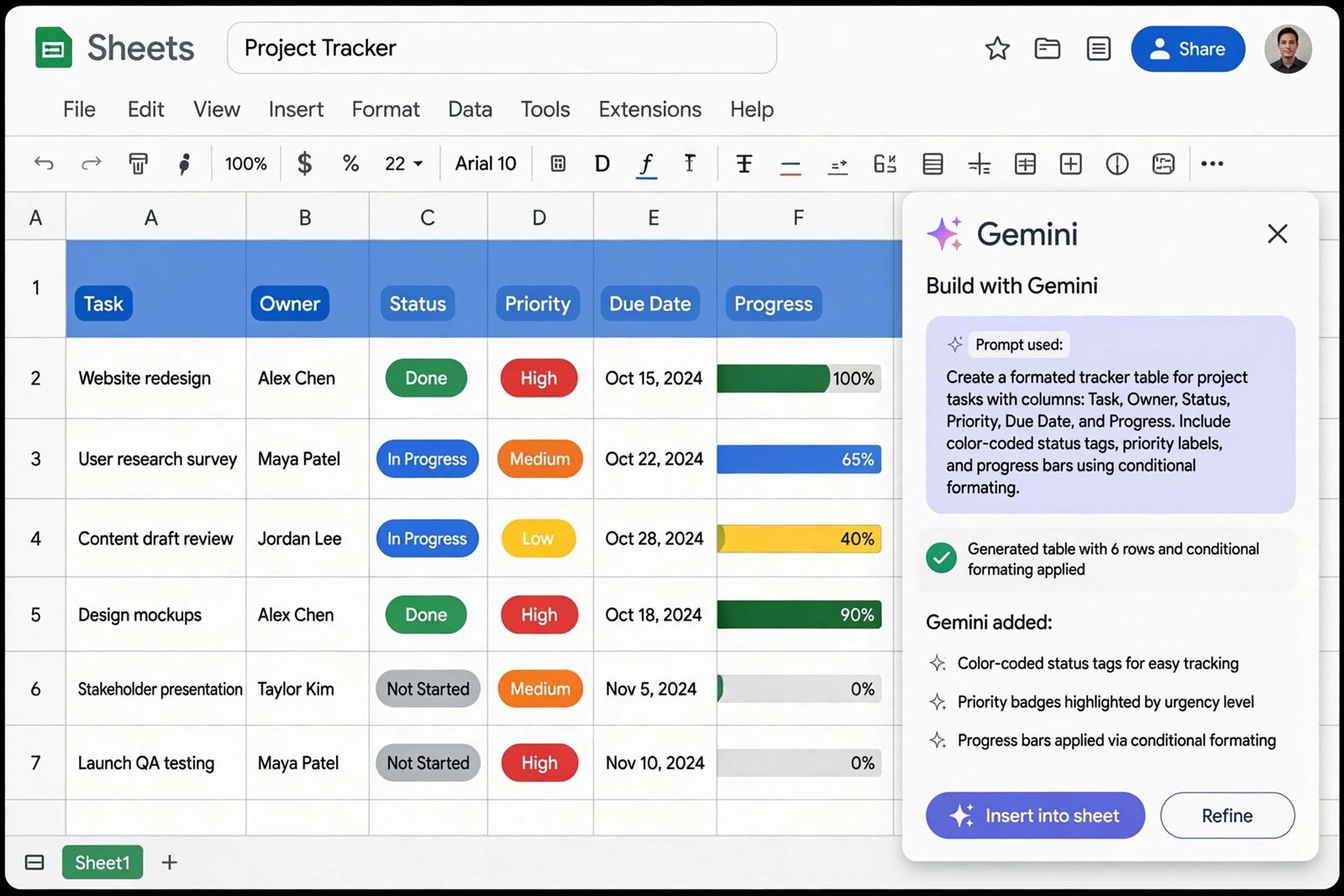
The feature builds the structure; it does not know your real figures. Use it for trackers, budgets and event plans, or as a start for a household budget: describe your income, fixed bills and savings goal, let Gemini build the tracker, then fill in your real numbers. Our guide to using AI to plan a monthly budget walks through that workflow.
Best for: new trackers and templates, when you know what to track but not how to lay it out.
Formulas in plain English
If you can describe the calculation, Gemini can usually write the formula. Select the data, open the sidebar, and ask in words: “Write a formula that sums sales in column C where the region in column A is North.” Paste it in, then test it against a few rows you can check by hand. The same trick works in reverse: paste in a formula you inherited and ask Gemini to explain it in plain English. Keep requests narrow – one calculation per prompt, with the column letters and condition spelled out – and never trust a formula that touches money, tax or payroll until you have tested it on known numbers.
Best for: SUMIF, COUNTIF, lookups and date calculations, and explaining formulas someone else wrote.
The =AI() function: AI inside a cell
The =AI() function, also written as =Gemini(), puts a Gemini prompt directly into a cell: =AI(“your prompt”, data_range). The prompt is required; the range tells Gemini which cells to work on. Google introduced it in June 2025, and it is the most scalable Gemini feature in Sheets because you can drag it down a whole column like any other formula. It can generate text tailored to your data, summarise a range, categorise entries and analyse sentiment, and pull in up-to-date information from Google Search. For example: =AI(“Write a one-sentence summary of this customer feedback.”, A2:D2).
Two limits matter. The output is static text: it does not update when the source data changes, so refresh it manually. And Google notes that only the first 200 selected cells with AI functions are generated at once, so large batches need to run in chunks.
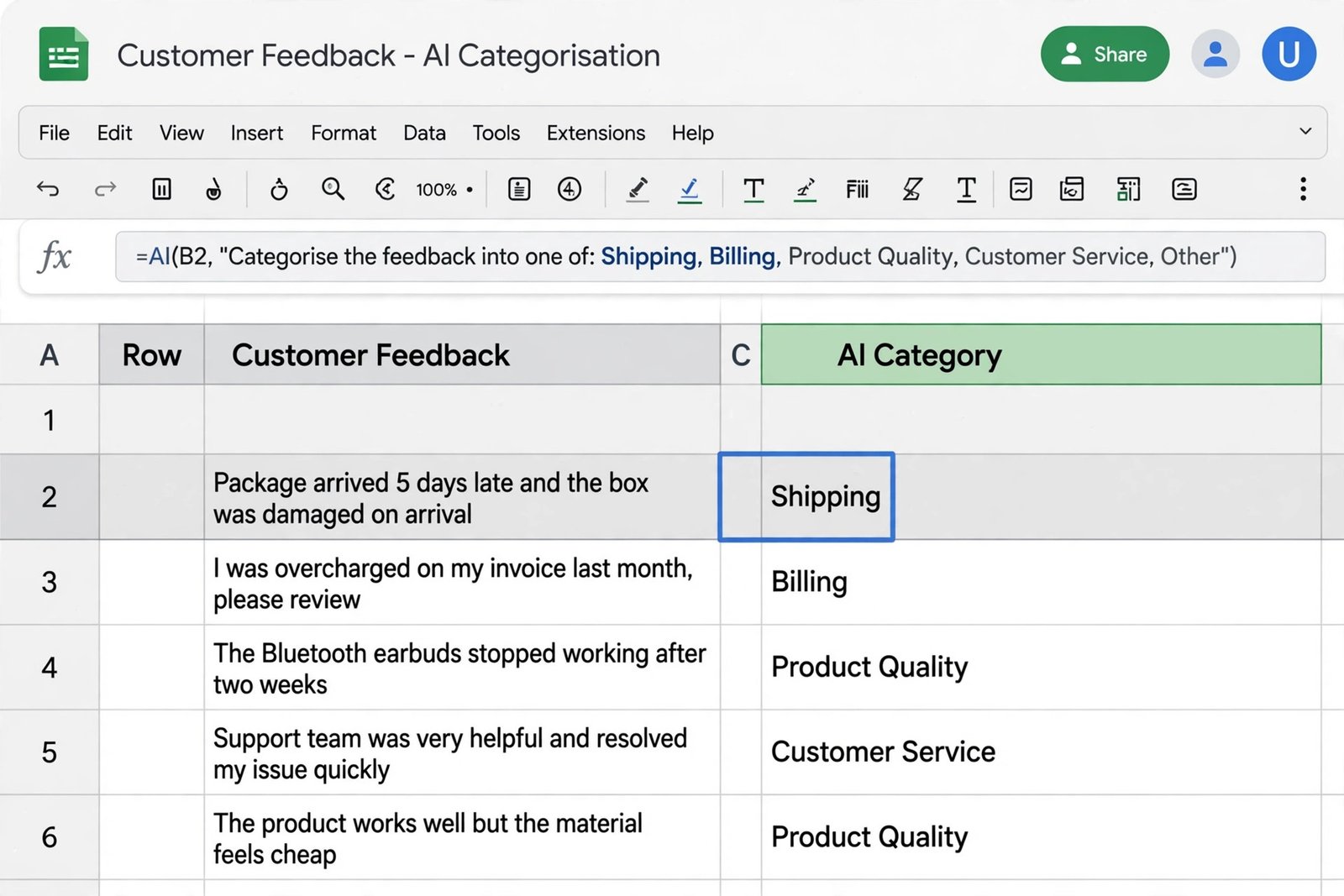
Best for: classifying survey responses, summarising feedback, and repetitive text tasks down a column.
Docs or Sheets: which Gemini tool fits the job?
| Job | Best tool | Why it wins |
|---|---|---|
| First draft of a letter or report | Help me write in Docs | Writes at the cursor, with tone and length controls |
| Summary of a long document | Ask Gemini sidebar in Docs | Sees the whole document |
| New tracker or budget | Help me organise in Sheets | Builds headers and dropdowns from one prompt |
| One formula, or explaining an old one | Gemini sidebar in Sheets | Returns the formula with an explanation |
| Same text task down a column | =AI() function in Sheets | Scales across hundreds of rows |
Match the task to the tool first. The wrong Gemini feature will still give you an answer, but it will take longer to fix.
Prompts that actually work
Good prompts share a shape: task, audience, source, length and format.
- “Draft a [150-word email] to [audience] explaining [decision]. Include [key fact] and [date]. Tone: [formal].”
- “Summarise this document in [3 bullet points]. Focus on [decisions and action items].”
- “Categorise each row in [range] as [category 1, category 2, or category 3]. If unsure, say Unsure rather than guessing.”
Telling Gemini to say “Unsure” turns a silent error into a visible gap you can fix.
What Gemini gets wrong, and how to catch it
Gemini is confident even when it is wrong: a polished paragraph with a wrong date looks finished. Name the current version before any big AI edit in Sheets (File, then Version history, then Name current version), so you have a rollback point. In Docs, use Insert rather than Replace when unsure. Test formulas on a small range with known answers, and spot-check at least five =AI() outputs per batch.
Privacy: work account or personal account?
The account decides the privacy terms. Google’s Workspace Privacy Hub states that interactions with Gemini stay within your organisation, and that content is not used for model training outside your domain without permission. Those protections apply to qualifying Workspace editions, not to a personal Gmail account used for work. Use a work account for work documents. If you use Microsoft 365 instead, the equivalent tools are covered in our guide to using Copilot in Excel and Word for beginners.
A checklist before you let Gemini loose on a document
- Right account? Work material goes in the work account.
- Removed what Gemini does not need? Strip names, account numbers and confidential figures.
- Named the source? Point Gemini at the file, range or email it should use.
- Saved a version first? Name the current version in Sheets, or use Insert in Docs.
- Checked the numbers? Trace figures to their source; test formulas first.
- Read it as a human? Read it aloud and add the detail only you know.
Frequently asked questions
Is Gemini in Google Docs and Sheets free?
Not usually. The standalone Gemini app has a free tier, but Gemini inside Docs and Sheets generally needs Workspace Business Standard or above for work, or Google AI Pro for personal accounts.
What is the difference between Help me write and the Ask Gemini sidebar?
Help me write works inline, at your cursor, for drafting and rewriting selected text. The sidebar works across the whole document: it summarises, answers questions and can draw on files from Drive and Gmail.
What does Help me organise do in Google Sheets?
It builds a formatted table from a plain-English description, with headers, placeholder rows and dropdowns. Describe the tracker you need, review the preview, insert it, then replace the placeholder data with your own.
How do I use the =AI() function in Google Sheets?
Type =AI(“your prompt”, data_range) into a cell, then click Generate and Insert. You can also write =Gemini(). Drag the formula down a column, and refresh it manually if the source data changes.
Does Google use my Docs and Sheets to train Gemini?
It depends on the account. Google states that Workspace content is not used for model training outside your domain without permission. Personal accounts follow different terms.
The bottom line
The useful version of AI in Google Docs and Sheets is narrower than the marketing suggests. Help me write drafts and rewrites, the sidebar summarises and answers questions from your files, Help me organise builds tables, and the =AI() function repeats a text task down a column. Start with one of them this week. Pick a document you need to write or a sheet you need to build, give Gemini a specific prompt with a source and a length, and check the result against the original.