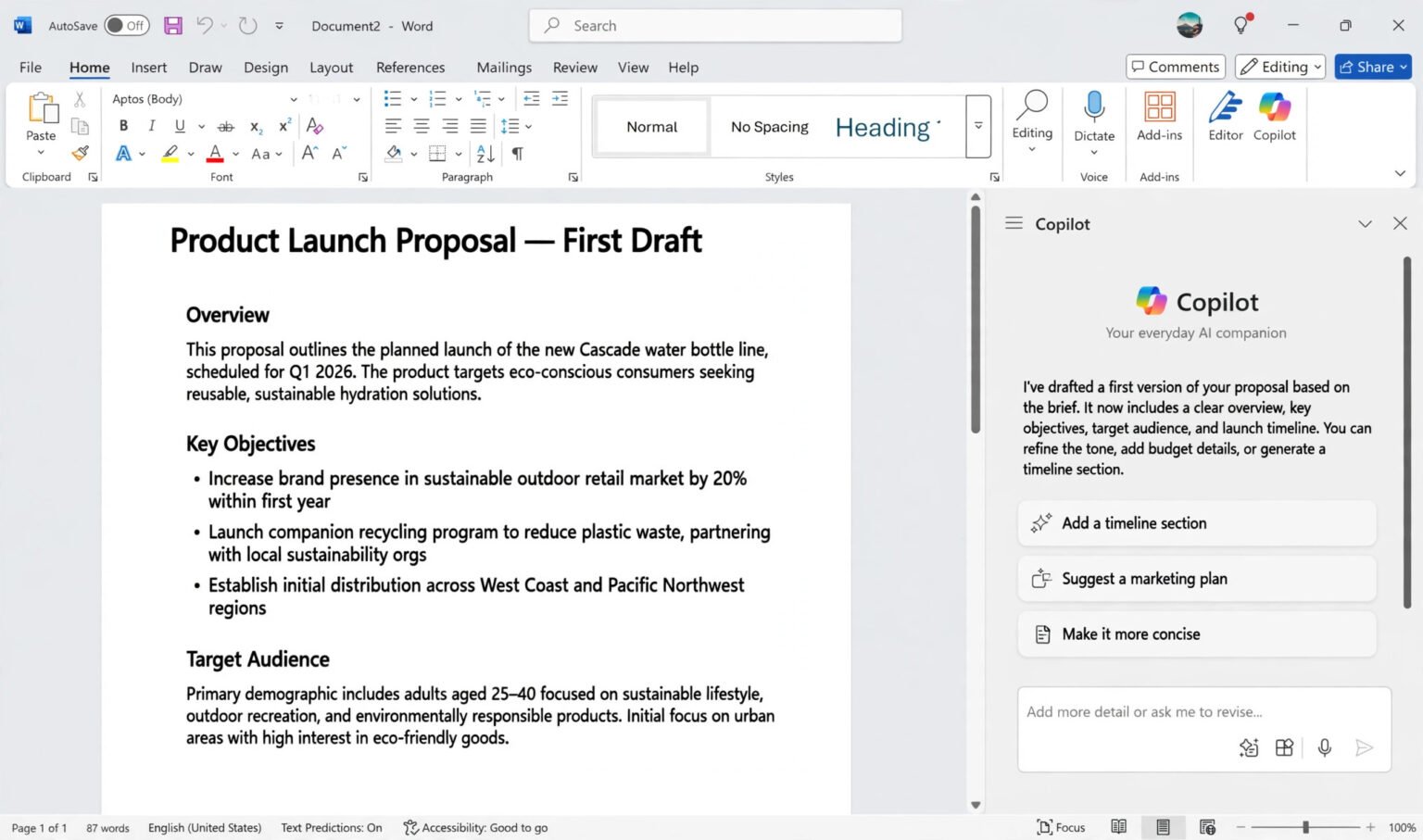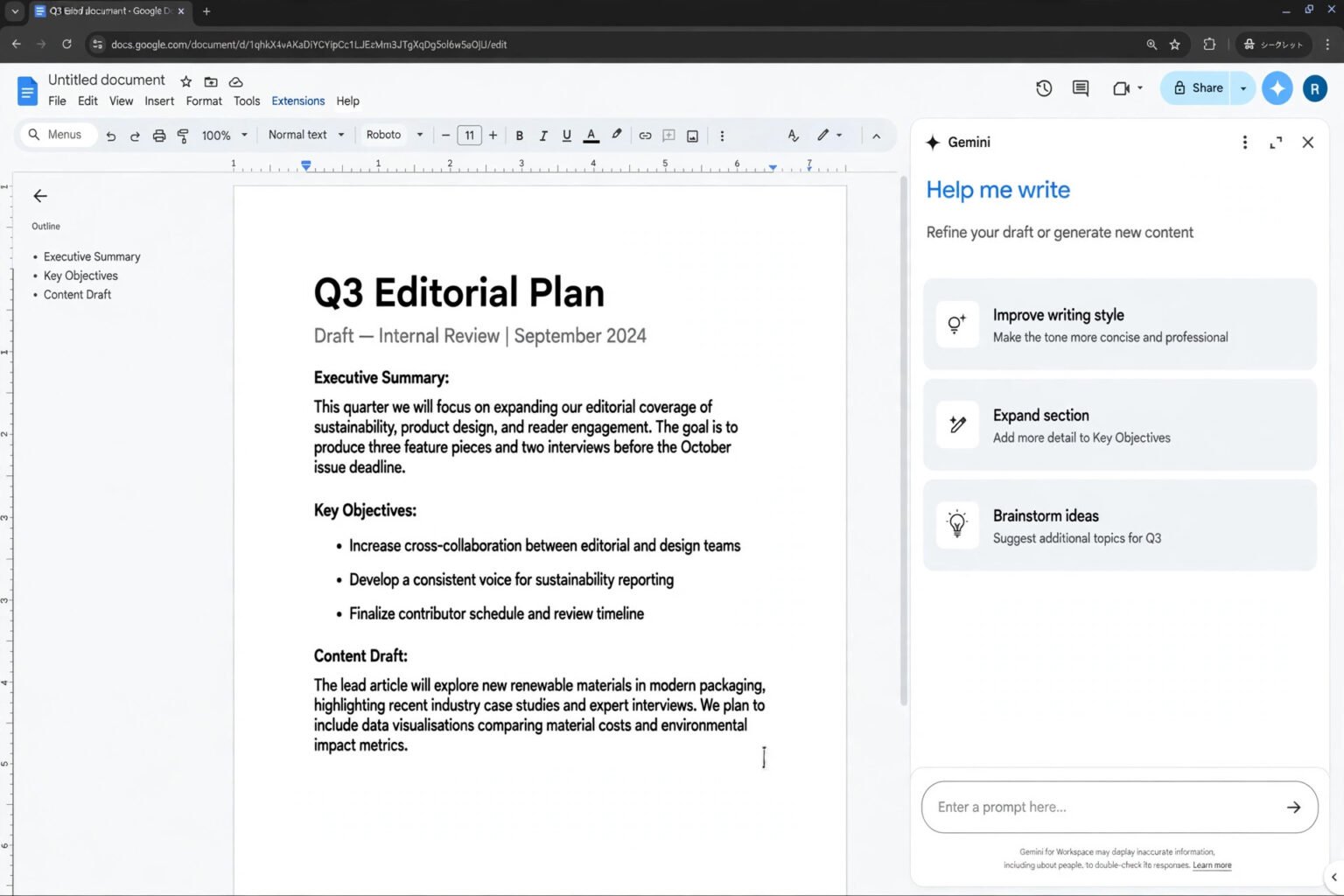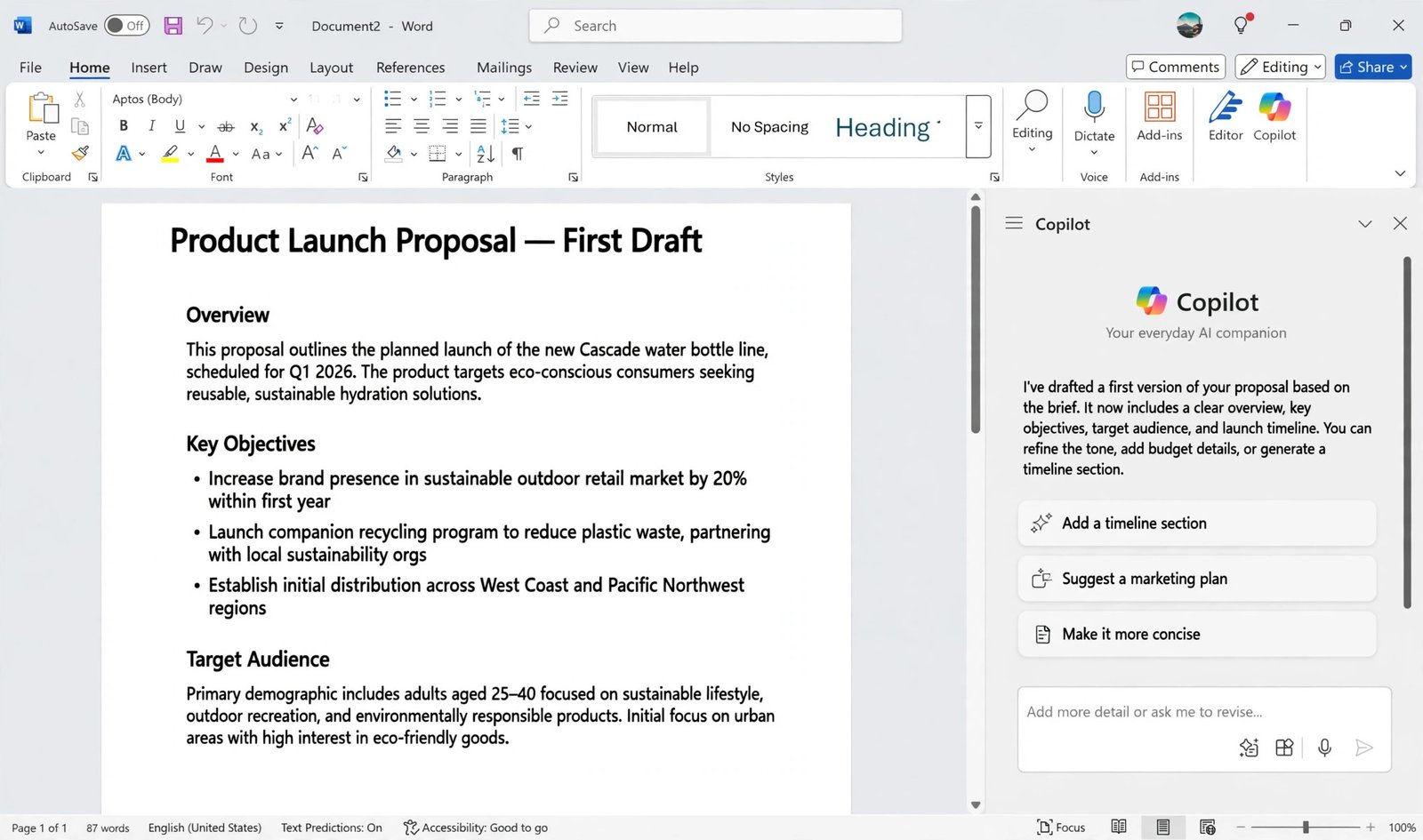
Learning how to use Copilot in Excel and Word comes down to three things: where the button is, what to ask it, and what to check afterwards. You can use Copilot in Excel and Word to draft documents, rewrite paragraphs, summarise long files, build formulas and spot patterns — as long as your plan includes it and your files are set up the way Copilot expects.
Copilot is not a separate app you download. It lives inside Word and Excel, appears only with an eligible subscription or Copilot licence, and in Excel works best when data is stored in OneDrive or SharePoint and formatted as a table.
Key takeaways:
- Copilot in Word drafts, rewrites, summarises and answers questions about your document, using files you reference.
- Copilot in Excel writes formulas, builds charts and PivotTables, and explains trends — but it works best on a clean table in OneDrive or SharePoint.
- Start in a mode that does not edit your file: Chat only in Word, and the chat pane in Excel.
- Copilot in the Office apps is paid: a Microsoft 365 Copilot add-on for business, or a Personal, Family or Premium plan for individuals.
- Check every fact, figure and formula Copilot produces. It can invent details and write plausible-looking formulas that are wrong.
What Copilot in Excel and Word actually is
Microsoft 365 Copilot is Microsoft’s AI assistant built into Word, Excel, PowerPoint, Outlook and Teams. It is not the free Copilot chat app, or Copilot Chat, the free chat tool included with many work licences. The version inside Word and Excel can read and edit your documents and spreadsheets, and in a work account it can draw on your files, emails and meetings.
The name “Copilot” covers several products: a colleague using it for free probably means the chat app or Copilot Chat, which cannot edit your documents or spreadsheets. The in-app features here need a paid route. If your team works in Google’s apps instead, the equivalent is AI in Google Docs and Sheets.
Microsoft states that prompts, responses and data accessed through Microsoft Graph in Microsoft 365 Copilot are not used to train foundation models. If your organisation has no AI policy, writing one is a sensible next step.
Which licence you need, and what it costs
Copilot in Word and Excel is not included in a standard Microsoft 365 plan. Prices below are Microsoft list prices in US dollars and change over time.
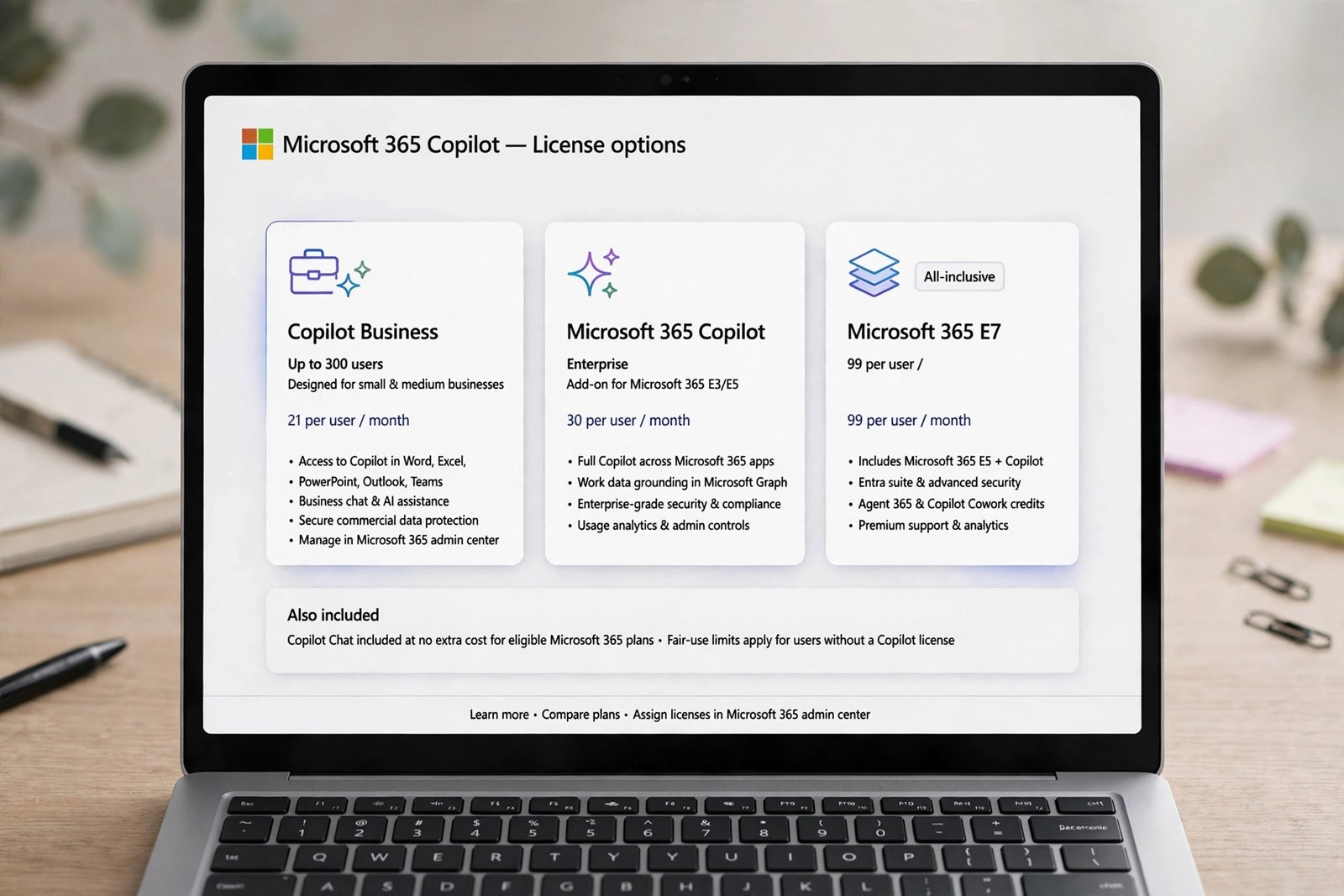
For businesses, the enterprise add-on is Microsoft 365 Copilot at $30 per user per month on an annual commitment, on top of an eligible base plan such as Microsoft 365 E3 or E5, or a Business plan. Copilot Business is listed at $21 per user per month, with a promotional $18 first-year rate due to run to the end of 2026. Without the add-on, business plans include only a basic Copilot Chat in the apps.
For individuals, Personal ($9.99 a month) and Family ($12.99 a month) include Copilot through AI credits, so usage is metered. Premium ($19.99 a month) gives more extensive use and replaced Copilot Pro in October 2025. On Family, AI features are for the owner only.
Best for employees: the add-on through your employer. Best for individuals: Premium for daily use, Personal for occasional use. If Copilot still does not appear, update the app, check File, then Options, then Copilot, and ask your IT administrator.
Getting set up in five minutes
Confirm your licence, then save to the cloud. In Excel this is essential: Copilot works with workbooks stored in OneDrive or SharePoint in .xlsx, .xlsb or .xlsm format. Turn on AutoSave in the desktop app.
Next, format Excel data as a table: select your data and press Ctrl + T (Cmd + T on Mac). Use one header row, one kind of value per column, and no merged cells — merged headings confuse Copilot and cause most poor results. To open the pane, click the Copilot button in Word, or the Copilot icon at the far right of the Home tab in Excel. The shortcut is Alt + C on Windows (Cmd + Control + I on Mac).
Copilot in Word: drafting, rewriting and summarising
Copilot in Word works in the chat pane, and inline, where you select text and choose an action. Its jobs: draft, rewrite, understand a long document, and change the original file rather than a copy.
Draft from a prompt or from your own material
Open a blank document, click where the text should go, and open the Copilot pane. Describe the topic, reader, tone, format and length: “Draft a one-page monthly sales report for the regional manager. Sections: revenue, wins, problems, next steps. Plain, confident tone.”
Better still, point Copilot at material you already have: type a forward slash (/) in the prompt box and pick a file from OneDrive or SharePoint. A prompt grounded in a real file beats one written from memory — for example, “Turn the attached meeting notes into a 400-word briefing, using the figures in the notes only.” Tell Copilot to use only that source, and to flag anything it cannot find.
Rewrite, summarise and ask questions
Select a paragraph, then choose Edit with Copilot or Rewrite. Copilot offers several alternatives; replace the original, insert the rewrite below it, or regenerate. You can also prompt “Convert this text to a table” to turn prose into something scannable.
For a long report, ask: “Summarise this document in five bullet points, then list the action items in a table.” The mode matters: when the pane opens, Edit mode is on, so Copilot can write into the document. Switch to Chat only for answers without changes.
Copilot in Excel: formulas, analysis and charts
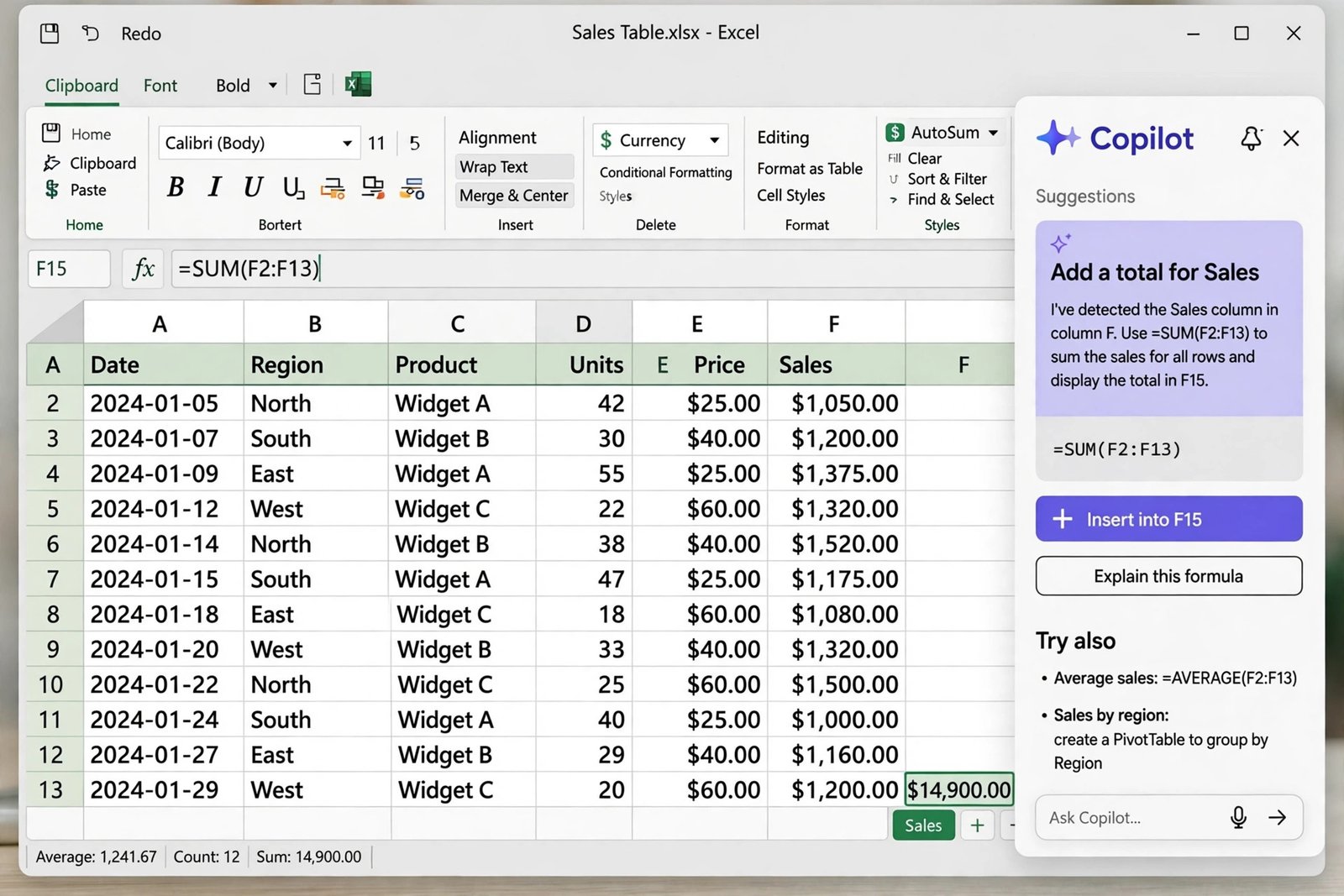
Copilot in Excel is a sidebar chat: type a request in plain English, review the suggested action or formula, and it lands in your sheet. Microsoft says it works with tables of up to 2 million cells.
Write formulas and ask questions
Instead of looking up a function, describe the logic: “Create a formula that calculates the percentage change between column B and column C” or “Write a formula that shows the running total of sales in column D.” Copilot generates the formula and explains what it does. Or type = in a cell and accept Copilot’s suggested formula with Tab. Either way, check the result — click the cell, read the formula bar, and test it against a row you can work out by hand.
Ask Copilot to analyse the table, too: “What are the top five products by total revenue?” or “Which region had the biggest drop in sales between March and April?” It can highlight outliers, sort and filter rows, and explain a formula you already have. Name your columns in the prompt: “Total revenue” is clearer than “the numbers”.
Build charts, PivotTables and bigger jobs
Ask Copilot to “Create a bar chart showing monthly sales by region” or “Build a PivotTable summarising total units by product and quarter.” The result stays editable. For bigger jobs, Agent Mode (Tools icon in the sidebar) plans a multi-step task, carries it out in the grid and shows each step. It suits building a report or restructuring a workbook, and needs the full Microsoft 365 Copilot licence.
Word vs Excel: what Copilot does best in each
Word is about language; Excel is about structure. Use this comparison to decide where to start.
| Task | Copilot in Word | Copilot in Excel |
|---|---|---|
| First draft from notes | Strong — draft from a prompt or referenced file | Not applicable |
| Summarise a long file | Strong — summary, key points, action items | Good — trends and outliers in a table |
| Answer questions | Strong — Chat only mode, with citations | Good — “top five by revenue” |
| Build formulas | Not applicable | Strong — generate and explain formulas |
| Charts and PivotTables | Not applicable | Strong — create from a plain-English request |
Writing prompts that actually work
Good prompts follow one pattern: job, context, constraints, output format. Name the job first — “Draft”, “Rewrite”, “Summarise”, “Calculate”. Give the context: point to a file, name the columns, or paste the passage the answer must come from. Set constraints such as “Use only the figures in the attached notes. Do not invent dates.” Ask for a format, and ask it to show its working: “Explain the formula you used” or “List the source for each figure.”
Two prompts worth copying: Word: “Draft a 500-word project update for the client, based on the attached status notes. Plain tone, sections: progress, risks, next steps. Flag anything the notes do not cover.” Excel: “In a new column, calculate the percentage change in revenue between Q1 and Q2 for each product, and highlight any product that fell by more than 10%.”
Limits, mistakes and how to avoid them
Copilot is a confident assistant, not a careful one. It can invent figures, dates and citations, and write a formula that runs without error yet answers the wrong question. Checking is part of the workflow.
In Word, check names, dates, numbers and quotes against the source. In Excel, check the formula bar, not just the answer in the cell, and test totals against a manual calculation on a small sample. If Copilot changes a sheet, use Undo in the pane immediately.
There are hard limits, too. Copilot cannot see data it does not have permission to access. It cannot reliably work with merged cells, multiple header rows, or data scattered across a sheet with no table structure. And it cannot judge whether a document is legally sound or a spreadsheet is fit for a financial decision — that remains your call. On privacy, do not paste passwords, full customer records or unredacted contracts into a personal account. Our guide to using AI safely at work without sharing private data covers the settings and redaction habits that matter most.
Frequently asked questions
Is Copilot in Excel and Word free?
No. The in-app features need the Microsoft 365 Copilot add-on for business users, or a Personal, Family or Premium subscription for individuals. The free Copilot chat app and Copilot Chat do not include the full in-app editing features.
Do I need a Microsoft 365 Copilot licence, or is a normal Microsoft 365 plan enough?
No. Business users need the Microsoft 365 Copilot or Copilot Business add-on on top of an eligible base plan. Individuals need Personal, Family or Premium, with AI credits limiting use on the cheaper plans.
Does Copilot in Excel need my data in a table?
Yes, ideally. Microsoft recommends a table with a single header row, one kind of value per column and no merged cells, saved in OneDrive or SharePoint as an .xlsx, .xlsb or .xlsm file.
Is my data used to train AI models when I use Copilot?
Microsoft states that prompts, responses and data accessed through Microsoft Graph in Microsoft 365 Copilot are not used to train foundation models. The free Copilot chat app has different terms, so check the privacy terms for the exact tool you use.
The bottom line
Copilot rewards a little preparation: confirm your licence, save files to OneDrive or SharePoint, format Excel data as a clean table, and start in a mode that does not edit your file. Your next step: pick a real task this week — a report to draft in Word or a table to analyse in Excel. Open the Copilot pane, write one prompt with the job, context and format you want, and review the result against your source material.