The CapCut vs DaVinci Resolve comparison is between two very different ideas of what a video editor should be: CapCut is built for speed, turning raw footage into a finished social video in minutes, while DaVinci Resolve is built for depth, offering professional editing, colour grading and audio in a single free application. The honest answer is that neither is better in general — the right choice depends on what you make, how fast you need it and how much control you want. This guide compares them head to head on the things that actually matter, so you can stop debating and start editing.
Key takeaways
- CapCut wins on speed: templates, auto-captions and one-tap tools make short-form video fast.
- DaVinci Resolve wins on depth: professional editing, colour grading and audio for free.
- Both have generous free versions; paid upgrades add features rather than removing watermarks in most cases.
- Many creators use both — CapCut for Shorts, Resolve for long-form videos.
- Check current pricing — Pro and Studio plans change, and free-tier limits vary.
The core difference
CapCut and DaVinci Resolve serve different moments in a creator’s workflow. CapCut assumes you want a finished video quickly, with minimal decisions: pick a template, add your clips, let auto-captions and effects do the work, and export. It is optimised for the short-form content that dominates social media — TikTok, Reels and Shorts — where volume and speed matter more than fine control.
DaVinci Resolve assumes you want control. It gives you a full timeline, professional colour tools, Fairlight audio and Fusion effects, and expects you to learn them. That depth is what makes it the choice of filmmakers and serious YouTubers, but it also means a simple edit takes longer — at least until you know the software well.
Neither approach is wrong. A creator who publishes daily Shorts and a filmmaker cutting a documentary have genuinely different needs, and these two editors are built for opposite ends of that spectrum. The useful question is not which is better, but which fits the videos you actually make.
Ease of use
CapCut is the easier editor to learn by a wide margin. Its interface is clean, its tools are labelled in plain language, and its templates mean a beginner can produce a polished video in their first session. The mobile app is particularly approachable: you can edit an entire Short on a phone without ever touching a timeline in the traditional sense.
DaVinci Resolve is a professional application with a steep learning curve. It has separate pages for media, editing, colour, effects and audio, and each one has its own interface and conventions. A beginner can learn the basics — cutting, trimming, adding text — in a few hours, but feeling comfortable takes weeks of regular use. The payoff is control: once you know Resolve, you can do things CapCut simply cannot.
If you are new to editing and want results today, CapCut is the friendlier start. If you are willing to invest time in learning, Resolve rewards that investment for years. Many creators start with CapCut and move to Resolve as their ambitions grow.
Editing and timeline
CapCut’s timeline is simple and fast. It handles the essentials well — trimming, splitting, transitions, text overlays, music and effects — and its auto-features do a lot of the work: auto-captions, auto-reframe for vertical video, and silence detection. For short videos, that simplicity is a strength. For long, complex projects, it becomes a limitation: multi-track editing, precise trimming and advanced organisation are all thinner than in Resolve.
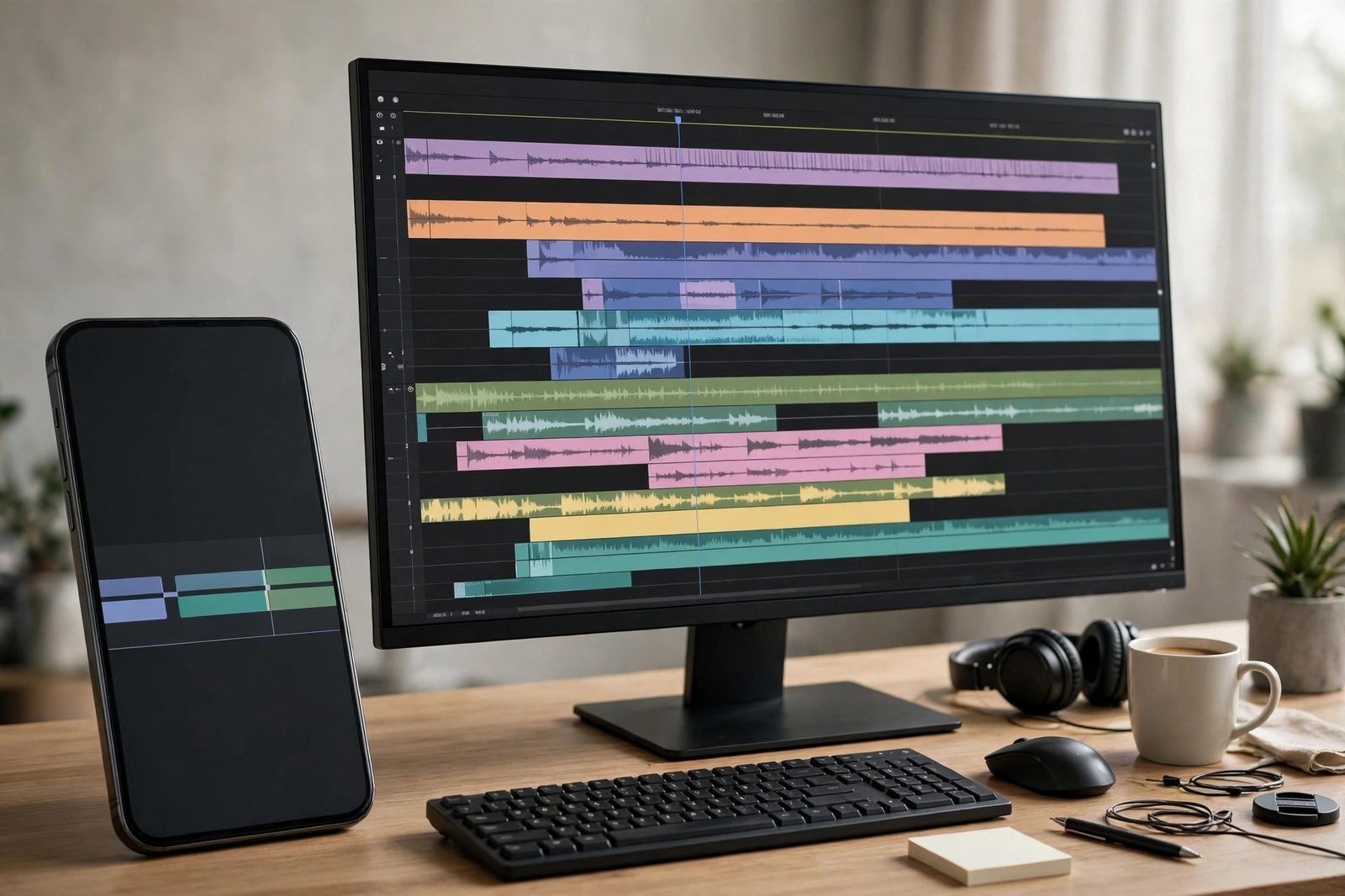
DaVinci Resolve’s timeline is a professional tool. It handles multi-track editing, nested timelines, precise trimming modes, keyboard-driven workflows and complex projects with dozens of tracks. The cut page offers a faster assembly workflow for creators who record long takes, while the edit page provides full control. Resolve also handles a wider range of footage and frame rates without complaint.
For a one-minute Short, CapCut’s timeline is faster. For a twenty-minute YouTube video with b-roll, music, graphics and multiple audio tracks, Resolve’s timeline is the right tool. The difference grows with project complexity.
Colour, audio and effects
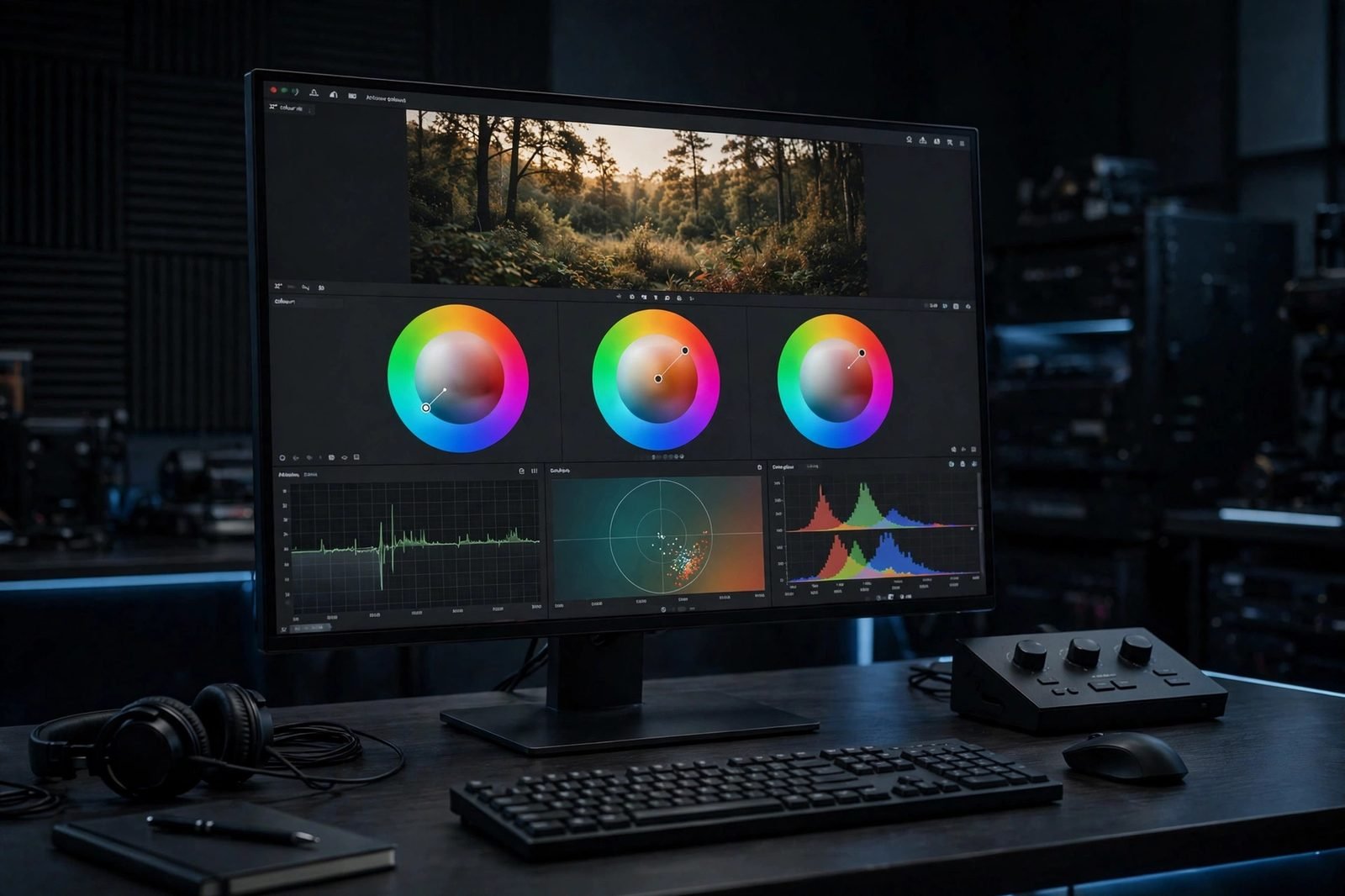
Colour is where Resolve’s advantage is largest. Its colour page is the deepest available in any editor at any price, with scopes, curves, qualifiers and grading controls that professionals rely on. Even basic correction — exposure, white balance, contrast — is more precise in Resolve, and the difference is visible in the finished video.
CapCut’s colour tools are basic: filters, presets and simple adjustments. They are fine for social video, where a filter often does the job, but they cannot match Resolve for controlled, consistent grading across a project.
Audio follows the same pattern. Resolve’s Fairlight page offers professional mixing, noise reduction, levelling and effects. CapCut offers essential audio tools — volume, fade, music and voice effects — which are enough for most social videos but limited for podcasts, interviews or anything where sound quality matters. Effects are closer: CapCut’s template and effect library is large and current, while Resolve’s Fusion page offers deeper visual effects for those willing to learn it.
Pricing and platforms
Both editors have generous free versions, which is why this comparison is so popular. CapCut’s free tier covers most of what a social creator needs, with a Pro plan that adds premium templates, effects, cloud storage and higher export options. DaVinci Resolve’s free version is remarkably complete — editing, colour, audio and effects — with a paid Studio version that adds advanced AI tools, noise reduction and higher-resolution features for a one-off price.
Both run on Windows and Mac, and CapCut also runs on mobile and in the browser, which gives it an edge for creators who edit on a phone. Resolve runs on Linux too, which matters to a smaller group of users. System requirements differ: Resolve demands a more capable computer, especially for 4K work, while CapCut runs well on modest hardware.
Check current pricing for both paid plans before deciding, as features and limits change. For most creators, the free version of either editor is enough to start — pay only when you hit a specific limit.
Performance and export
CapCut is lighter and faster on modest hardware. It opens quickly, plays back smoothly and exports short videos fast, which suits creators who work on a laptop or edit on the go. Its export presets are geared to social platforms, with the right formats and resolutions for TikTok, Reels and Shorts.
DaVinci Resolve is more demanding. It uses the graphics card heavily, needs more RAM, and benefits from a powerful machine — but on capable hardware it is fast and stable, with excellent export controls for YouTube, professional delivery and archival formats. Its proxy workflow makes 4K editing workable on mid-range machines.
If your computer is modest, CapCut will feel smoother. If your computer is capable, Resolve’s performance is excellent and its export options are far more flexible.
Comparison table
| Factor | CapCut | DaVinci Resolve |
|---|---|---|
| Best for | Quick social videos, Shorts | Professional and long-form editing |
| Learning curve | Gentle, hours to first video | Steep, weeks to feel comfortable |
| Colour grading | Basic filters and presets | Best-in-class professional tools |
| Audio | Essential tools, music library | Fairlight professional mixing |
| Pricing | Free, paid Pro plan | Free, paid Studio one-off |
| Platforms | Windows, Mac, mobile, web | Windows, Mac, Linux |
| Hardware needs | Modest | Capable PC recommended |
How to choose: a practical checklist
- List your typical videos: Shorts, long-form YouTube, client work or films.
- Time yourself editing one video in each editor — the faster tool for your format wins.
- Test auto-captioning and templates in CapCut against Resolve’s colour and audio tools.
- Check your computer meets Resolve’s requirements, especially for 4K footage.
- Consider using both: CapCut for short-form, Resolve for long-form.
- Compare the paid plans only if the free version limits something you actually need.
- Look at export options for where your videos will be published.
- Think about growth: will you still be happy with this editor in a year?
FAQs
Is DaVinci Resolve really free?
Yes. The free version of DaVinci Resolve includes the full editor, colour grading, audio and effects tools. The paid Studio version adds advanced features such as AI tools and noise reduction for a one-off price — check current pricing for details.
Can CapCut replace DaVinci Resolve?
For short-form social video, often yes. For long-form, professional or colour-critical work, no — CapCut lacks the depth of Resolve’s editing, colour and audio tools. Many creators use both for different formats.
Which is better for YouTube Shorts?
CapCut, in most cases. Its templates, auto-captions and vertical video tools are built for Shorts, and it is much faster for quick uploads. For long-form YouTube videos, Resolve is the stronger choice — see our best video editing software for YouTube guide.
Which is better for beginners?
CapCut is easier to learn and produces good results faster. Resolve is better for beginners who want to learn professional editing properly and are willing to invest the time.
Do I need a powerful computer for DaVinci Resolve?
For 1080p editing, a modern mid-range computer is fine. For 4K and effects-heavy work, a faster processor, more RAM and a dedicated graphics card help — or use proxy editing to keep things smooth.
Can I use both CapCut and DaVinci Resolve?
Yes, and many creators do. Edit Shorts in CapCut, long-form videos in Resolve, and use whichever tool fits the project. The skills overlap more than you might expect.
The bottom line
CapCut vs DaVinci Resolve is not a contest with one winner — it is a choice between speed and depth, and the right answer depends on your videos. If you publish short-form content daily and want the fastest route to a finished video, choose CapCut. If you make long-form videos, care about colour and sound, and want professional tools for free, choose DaVinci Resolve. And if you make both, use both: that is what most working creators do. Your next step is simple: edit your next video in each editor, time the process, and keep the one that fits the way you actually work.