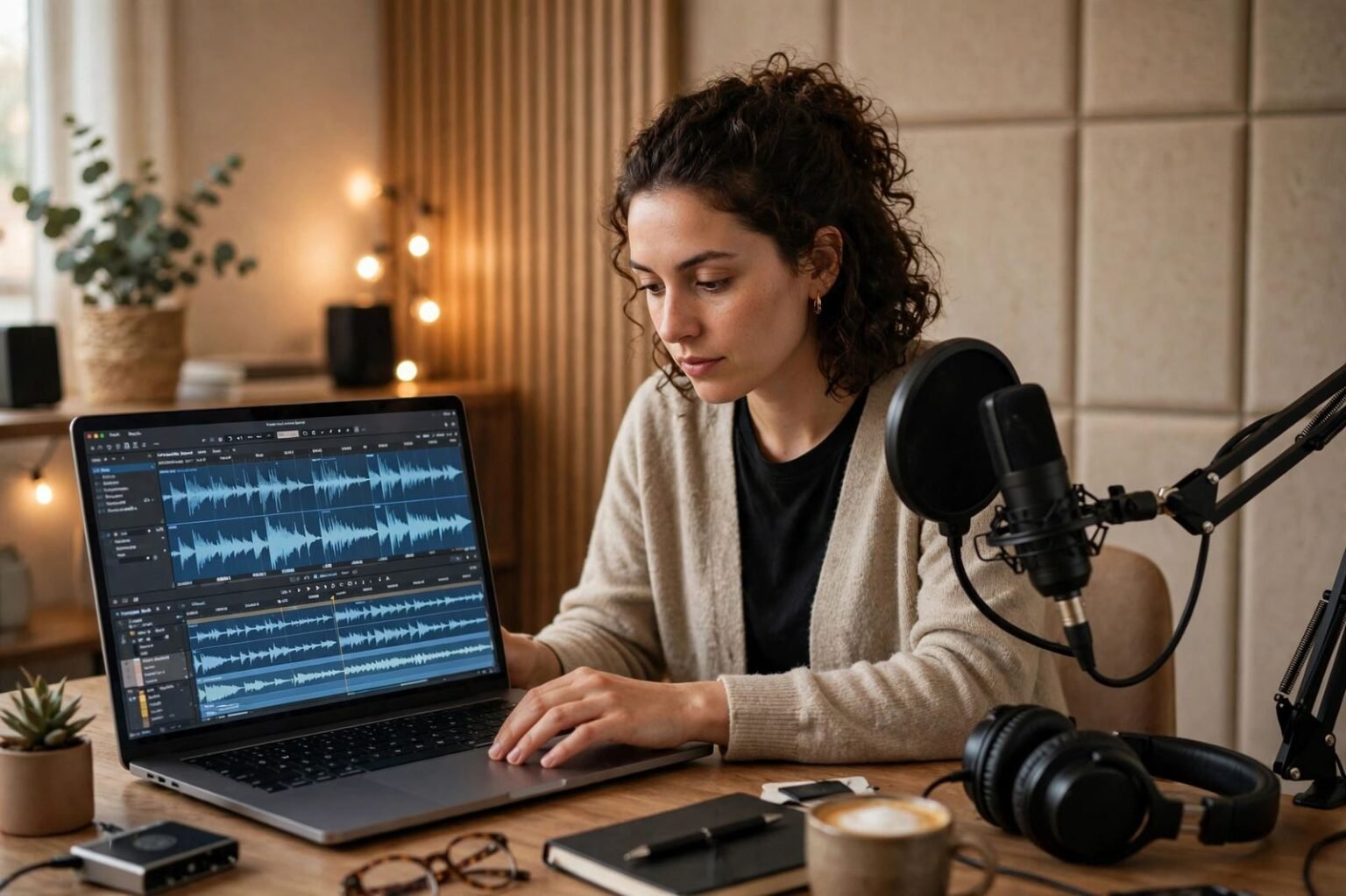
The best video editing software for YouTube 2027 has to offer depends on the kind of channel you run — but for most creators, DaVinci Resolve is the strongest free choice, Premiere Pro is the professional standard, and CapCut is the fastest way to produce short-form content. YouTube rewards consistency and quality in equal measure: a video that takes three days to edit is a video that never gets made, while a sloppy video will not hold viewers. This guide compares the leading editors on the features YouTubers actually use — cutting speed, captions, thumbnails, colour and export — so you can pick the one that keeps your upload schedule on track.
Key takeaways
- DaVinci Resolve gives YouTubers professional editing, colour and audio for free.
- Premiere Pro suits channels with a team, motion graphics and an Adobe workflow.
- Final Cut Pro is the fastest option for Mac-based creators who publish often.
- CapCut is ideal for Shorts, quick uploads and creators who edit on a phone.
- Check current pricing — free tiers and subscription costs change, and watermarks matter.
What YouTubers actually need from an editor
Cutting speed is the first priority. Most YouTube videos are built from long recordings that need to become tight, watchable stories, so an editor that makes trimming, cutting silences and rearranging clips effortless will save hours every week. Keyboard shortcuts, ripple editing and a responsive timeline matter far more than exotic effects.
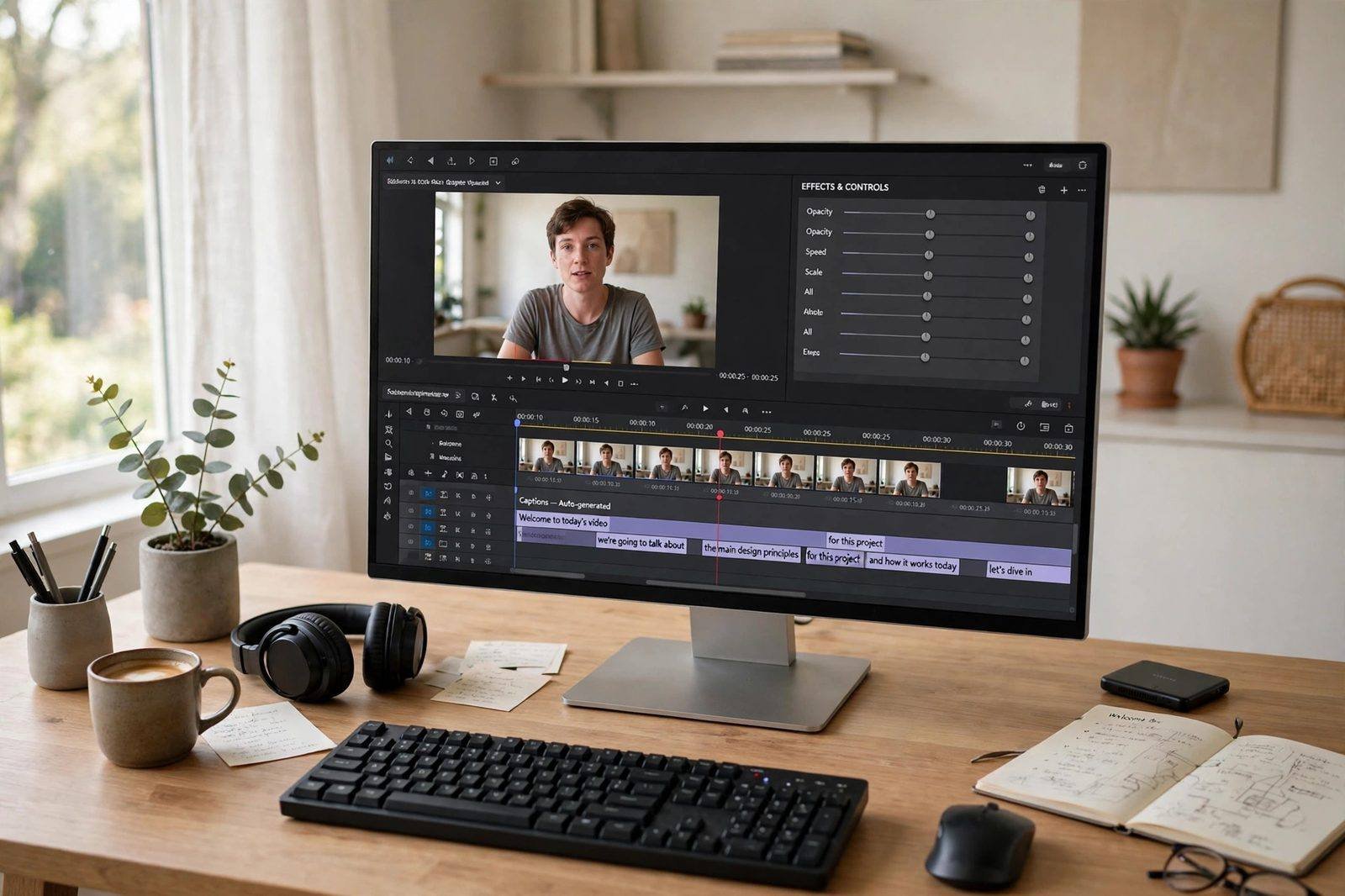
Captions and text are the second priority. Many viewers watch without sound, and YouTube’s algorithm favours videos with accurate captions. An editor with good auto-captioning — or one that works well with caption tools — is a real advantage. The same goes for titles, lower thirds and end screens, which should be easy to reuse across videos.
Colour and audio come next. Viewers forgive a lot, but they leave videos that look washed out or sound echoey. An editor with solid colour correction and audio cleanup — noise reduction, levelling, de-essing — helps a home-recorded video sound like a studio one. Finally, export matters: you need presets for 1080p and 4K, the right frame rates, and uploads that do not take all night.
1. DaVinci Resolve
Best for: YouTubers who want professional quality for free.
DaVinci Resolve is the most capable free editor a YouTuber can use. Its editing page handles multi-track timelines, its colour page is the best in the business, and its Fairlight audio page covers noise reduction, levelling and mixing. For a creator building a channel on a budget, that combination is hard to beat — and the paid Studio version adds AI tools and advanced features for a one-off price.
Resolve’s cut page is designed for fast assembly, which suits YouTubers who record long takes and need to trim them down quickly. The colour tools make a big difference to how a video looks: even basic correction — exposure, white balance, contrast — lifts a home-recorded video noticeably. Performance is strong on modern hardware, with good GPU acceleration.
The learning curve is the trade-off. Resolve is a professional application with several pages and a dense interface, and it takes time to learn. It also demands a capable computer for smooth 4K work. But for creators who plan to grow, learning Resolve early is an investment that pays off for years. Check current pricing for the Studio version.
2. Adobe Premiere Pro
Best for: Established channels with a team and an Adobe workflow.
Premiere Pro is the editor most professional YouTube teams use, and its strengths map well to channel work: strong timeline editing, Lumetri colour tools, Essential Graphics templates for intros and lower thirds, and deep integration with After Effects for motion graphics and Audition for audio. If your channel uses a consistent visual identity, Premiere Pro’s templates and shared libraries keep every video on brand.
The proxy workflow is a practical advantage for creators shooting 4K: you edit lightweight proxy files and export from the full-resolution originals, which keeps even a modest computer responsive. Format support is excellent, and the plugin ecosystem adds captioning, effects and automation tools.
The subscription is the main cost, and it never ends. Premiere Pro can also be demanding on hardware. For a solo creator starting out, Resolve or CapCut may be better value; for a channel with a team, editors and a regular upload schedule, Premiere Pro’s collaboration and ecosystem justify the price. Check current pricing on Adobe’s site.
3. Final Cut Pro
Best for: Mac creators who publish frequently and value speed.
Final Cut Pro’s magnetic timeline is the fastest way to assemble a YouTube video once you learn it. Clips snap together without gaps, trimming is intuitive, and the application is optimised for Apple hardware, so it runs smoothly on Macs where other editors struggle. For creators who upload several times a week, that speed adds up.
Organisation tools are a quiet strength: libraries, keywords and smart collections make it easy to find footage across dozens of videos, which matters once a channel has a large archive. The colour and audio tools are solid, and the one-off purchase price — rather than a subscription — makes it cheaper over time. The iPad companion app lets you start edits away from your desk.
Final Cut Pro runs only on Mac and iPad, so Windows-based creators cannot use it. Its template and plugin ecosystem is smaller than Premiere Pro’s. For Mac-based YouTubers, though, it is one of the best choices available. Check current pricing on Apple’s site.
4. CapCut
Best for: Shorts, quick uploads and creators who edit on a phone.
CapCut is the fastest route from footage to a finished YouTube Short. Its templates, auto-captions, trending effects and one-tap tools are built for short-form content, and the mobile app is good enough to edit an entire video on a phone. The desktop app handles longer videos too, and the free tier is generous.
Auto-captioning is CapCut’s most useful feature for YouTubers: it generates captions quickly and styles them in the bold, animated formats that perform well in Shorts. The template library means you rarely start from a blank timeline, and the music and sound effect library is convenient. For creators who publish daily Shorts alongside longer videos, CapCut is a valuable second editor.
The limits are depth and control. CapCut is not built for long-form, heavily graded or complex projects, and some features need a paid plan. It is best used for short-form content and quick turnaround videos, paired with a fuller editor for main channel uploads. Check current pricing for the Pro plan.
5. Filmora
Best for: Beginner YouTubers who want a friendly editor with strong templates.
Filmora is designed for creators who want good results without a steep learning curve. Its interface is clean, its template and effect libraries are extensive, and its AI tools — auto-reframe for vertical video, silence detection, background removal — handle the jobs that eat a beginner’s time. It runs on Windows and Mac, and the mobile app covers on-the-go editing.
For a new YouTuber, Filmora’s guided approach is reassuring: there are templates for intros, titles and end screens, and the learning resources are good. The pricing is subscription-based, with a perpetual licence option in some regions, so check current pricing. The free version adds a watermark, which is the main limitation.
Filmora’s ceiling is lower than Resolve or Premiere Pro, and very large projects can strain it. But for a channel in its first year, it is a sensible, low-stress choice that produces professional-looking videos quickly.
6. Clipchamp
Best for: Quick YouTube videos, tutorials and business channels.
Clipchamp is Microsoft’s editor, and its strength is accessibility: it runs in the browser and as a Windows app, offers templates and stock media, and includes auto-captioning and text-to-speech. It is bundled with some Windows and Microsoft 365 plans, which makes it effectively free for many users.
For tutorial channels, business channels and creators who publish straightforward talking-head videos, Clipchamp covers the essentials without a learning curve. The stock library is useful for b-roll, and the templates keep branding consistent.
Clipchamp is not a professional editor, and it lacks the colour, audio and effects depth of the tools above. Export options are also more limited. For fast, simple YouTube content, though, its convenience is hard to beat. Check current pricing and what your Microsoft plan includes.
Comparison table
| Editor | Best for | Pricing model | Strength for YouTube |
|---|---|---|---|
| DaVinci Resolve | Free professional quality | Free, paid Studio one-off | Colour, audio, value |
| Premiere Pro | Professional teams | Subscription | Templates, Adobe ecosystem |
| Final Cut Pro | Mac creators, frequent uploads | One-off purchase | Speed, magnetic timeline |
| CapCut | Shorts and quick uploads | Free, paid Pro plan | Auto-captions, templates |
| Filmora | Beginner YouTubers | Subscription or perpetual | Friendly, guided, templates |
| Clipchamp | Quick tutorials and business | Free, Microsoft plans | Browser-based, simple |
How to choose: a practical checklist
- List your formats: long-form videos, Shorts, tutorials, vlogs or a mix.
- Time yourself editing one video in each trial — the fastest editor wins.
- Test auto-captioning quality and styling, since captions matter for retention.
- Check export presets for 1080p and 4K and the time an export takes.
- Confirm the editor handles your camera’s footage without transcoding delays.
- Compare total cost over a year, including subscriptions and paid upgrades.
- Look at template and title options for intros, lower thirds and end screens.
- Decide whether you need a mobile app for editing on the go.
FAQs
What is the best free video editor for YouTube?
DaVinci Resolve is the strongest free editor for long-form YouTube videos, with professional editing, colour and audio. CapCut is the best free option for Shorts and quick uploads. Both are genuinely free to start with.
Do I need 4K editing software for YouTube?
Not necessarily. Most viewers watch in 1080p, and a 1080p workflow is faster and lighter. Shoot and edit in 4K only if your content benefits from cropping or your audience watches on large screens.
How do I add captions to YouTube videos?
Most editors in this list offer auto-captioning, or you can generate captions in YouTube Studio after uploading. For the best results, check auto-captions for errors before publishing.
Is CapCut good enough for a serious YouTube channel?
For Shorts and quick content, yes. For long-form, heavily edited videos, most serious channels use a fuller editor such as Resolve, Premiere Pro or Final Cut Pro — often alongside CapCut for short-form.
What computer do I need to edit YouTube videos?
A modern mid-range computer handles 1080p editing well. For 4K, look for a faster processor, at least 16GB of RAM and a dedicated graphics card — or use proxy editing to keep things smooth.
Should I edit on my phone or computer?
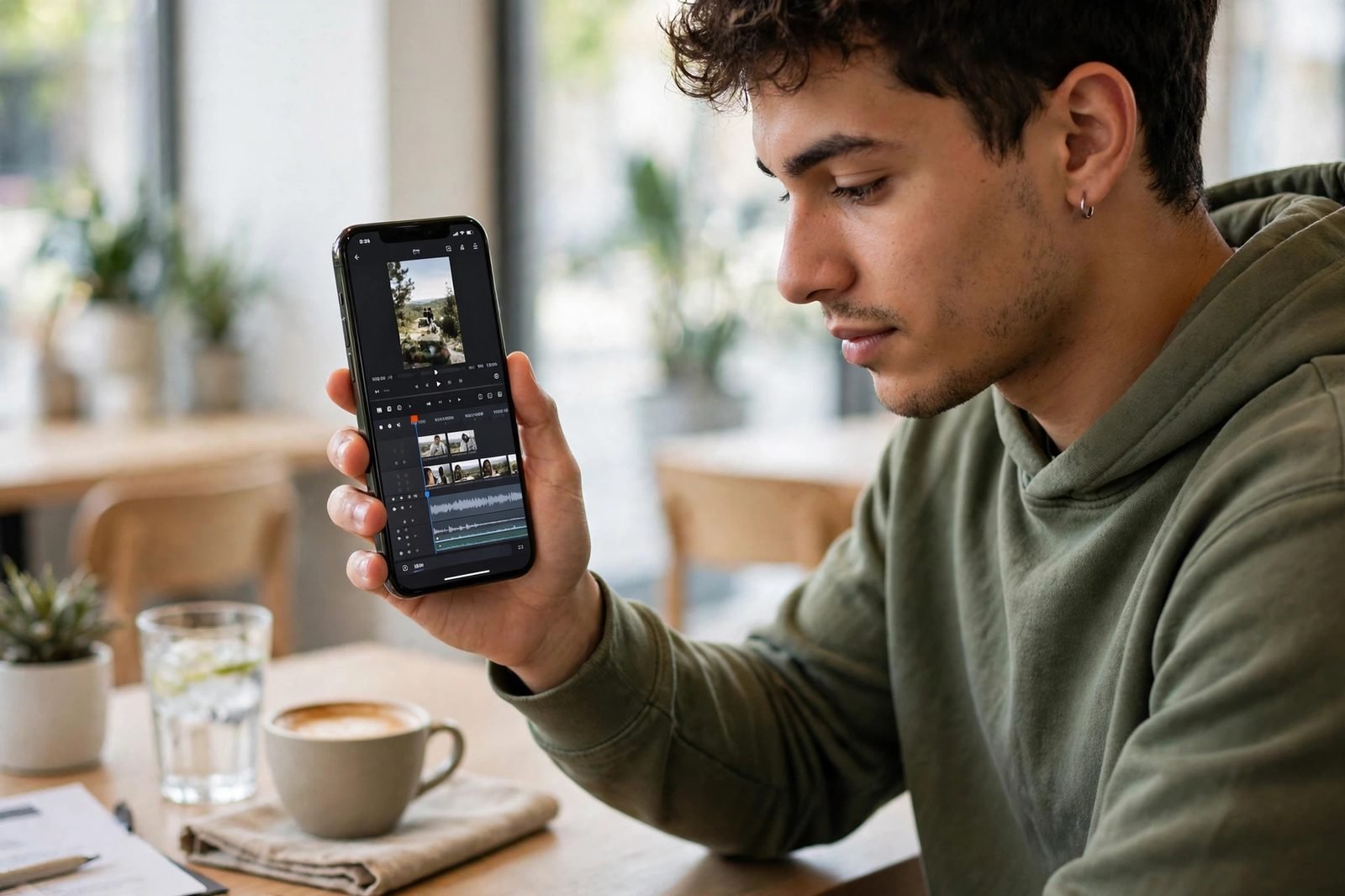
Phone editing with CapCut is fine for Shorts and quick uploads. For long-form videos, a computer editor gives you a bigger timeline, better colour tools and faster exports. Many creators use both.
The bottom line
The best video editing software for YouTube in 2027 is the one that keeps you publishing. DaVinci Resolve gives you professional quality for free, Premiere Pro suits growing teams, Final Cut Pro is the fastest Mac option, and CapCut owns short-form. Pick the editor that matches your format and your upload rhythm, learn its shortcuts, and build a template for your intros, titles and end screens. Your next step is simple: edit your next video in your chosen editor, time the process, and keep the workflow that gets a good video out the door on schedule.