The best video editing software 2027 has to offer depends on what you edit and how you work — but for most people, DaVinci Resolve is the strongest free option, Adobe Premiere Pro is the professional standard, and CapCut is the fastest route from footage to a finished social video. Video editing used to mean expensive software and a powerful computer; today a free editor can produce work that looks professional, and the real question is which tool matches your projects, your platform and your patience. This guide compares the leading editors on features, ease of use, performance and price, so you can choose with confidence.
Key takeaways
- DaVinci Resolve offers professional-grade editing, colour and audio for free, with a paid Studio version for advanced work.
- Premiere Pro is the industry standard for professional teams and integrates with the Adobe ecosystem.
- Final Cut Pro is the fastest, most polished editor for Mac users who want a one-off purchase.
- CapCut is the best choice for quick social videos, with templates and auto-captions built in.
- Check current pricing — subscription and one-off costs change, and free tiers vary.
What makes a great video editor
A good editor starts with the timeline. You need to cut, trim, rearrange and layer clips without friction, and the interface should stay responsive as a project grows. Multi-track editing, precise trimming tools and keyboard shortcuts matter more than any single effect, because most of your time is spent cutting, not adding flourishes.
Colour and audio tools separate good editors from great ones. Colour correction and grading turn flat footage into something cinematic; audio mixing, noise reduction and music handling determine whether a video sounds professional. The best editors include serious tools for both, rather than treating them as afterthoughts.
Performance is practical, not theoretical. An editor that stutters on your computer will slow every project, so check the system requirements and whether the software uses your graphics card well. Export options matter too: you need the right formats and resolutions for YouTube, social media and clients. Finally, consider the ecosystem — templates, stock media, plugins and tutorials — because that is what saves time on real projects.
1. DaVinci Resolve
Best for: Free, professional-grade editing, colour grading and audio.
DaVinci Resolve is remarkable because its free version includes tools that other companies charge for: a full non-linear editor, world-class colour grading, Fairlight audio and Fusion visual effects, all in one application. For filmmakers, YouTubers and anyone serious about video, it is the best value in the category — and the paid Studio version adds advanced features like AI tools, noise reduction and stereoscopic 3D for a one-off price.
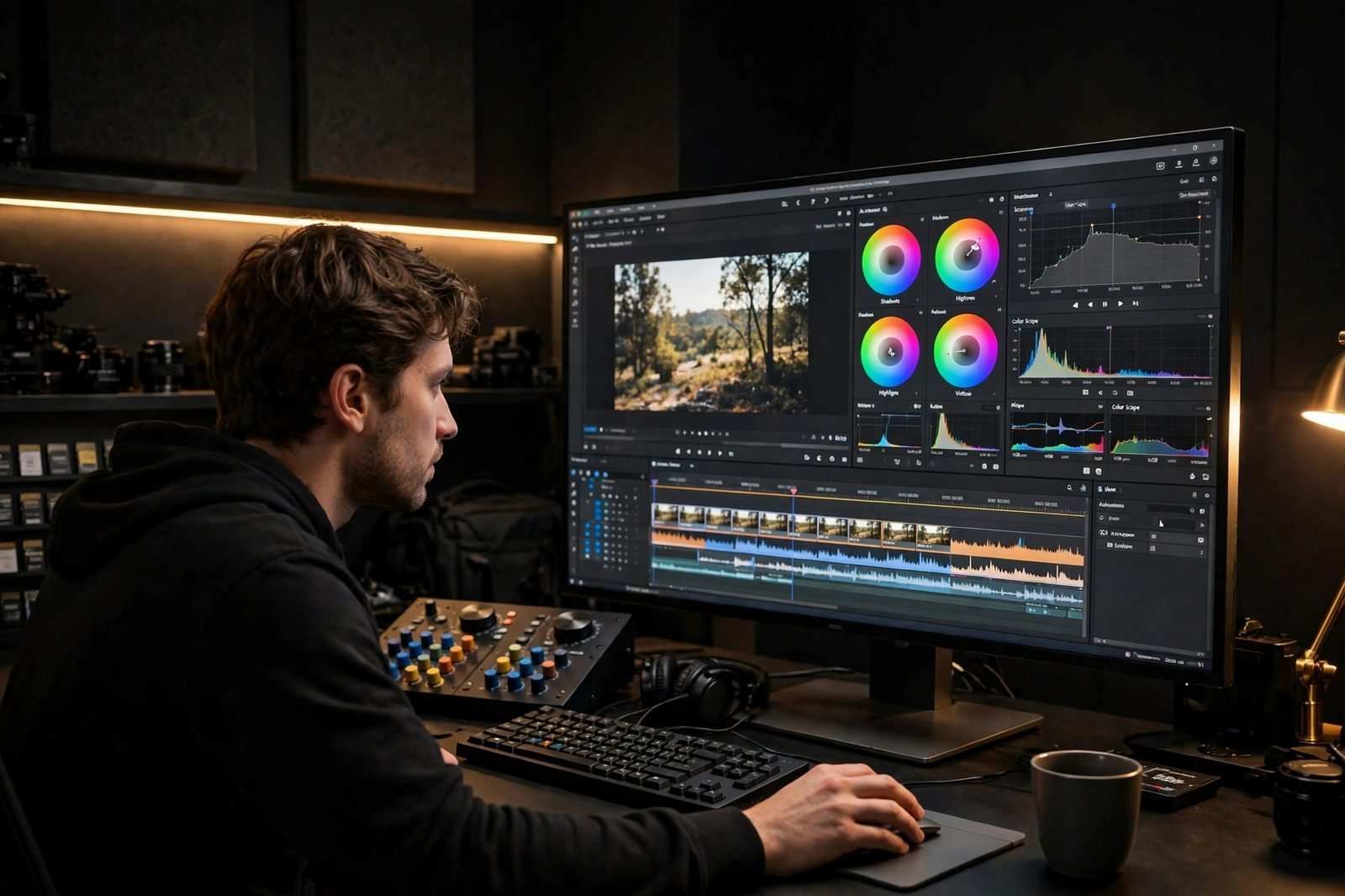
The colour tools are the standout. Resolve began as a colour grading system, and its colour page remains the deepest available, with scopes, curves and grading controls that professionals rely on. The editing page is fast and capable, and the cut page is designed for quick assembly. Performance is strong, with good GPU acceleration on modern hardware.
The learning curve is real. Resolve’s interface is dense, with separate pages for media, editing, colour, effects and audio, and newcomers can feel overwhelmed. The free version also has some limits on resolution and features. But if you are willing to learn, no other free editor comes close. Check current pricing for the Studio version.
2. Adobe Premiere Pro
Best for: Professional editing teams and Adobe ecosystem users.
Premiere Pro is the editor most professional teams use, and its strength is breadth: it handles everything from short social clips to feature films, with deep integration into After Effects, Audition, Photoshop and the rest of Adobe’s Creative Cloud. If your work involves motion graphics, sound design or shared team projects, that integration saves real time.
The editing tools are mature and flexible, with strong timeline controls, Lumetri colour tools, Essential Graphics templates and a large plugin ecosystem. Premiere Pro also leads on format support — it opens almost anything you throw at it — and its proxy workflow handles heavy footage well. The subscription includes regular updates and cloud features.
The subscription is the main drawback: you pay monthly or annually for as long as you edit, and the cost adds up. Premiere Pro can also be demanding on hardware, and some users report stability issues on large projects. For professionals and teams, though, it remains the standard. Check current pricing on Adobe’s site.
3. Final Cut Pro
Best for: Mac users who want speed, polish and a one-off purchase.
Final Cut Pro is Apple’s professional editor, and its magnetic timeline is the fastest way to assemble a cut once you learn it. Clips snap together without gaps, trimming is intuitive, and the whole application is optimised for Apple hardware — it runs smoothly on machines where other editors struggle. For Mac users, that performance is a genuine advantage.
The interface is cleaner than Premiere Pro’s, with strong organisation tools for large projects and excellent colour and audio features built in. Final Cut Pro is sold as a one-off purchase rather than a subscription, which makes it cheaper over time, and it includes a companion iPad app for editing on the go.
The limitation is platform: Final Cut Pro runs only on Mac and iPad, so Windows-based teams cannot use it. Its plugin and template ecosystem is smaller than Premiere Pro’s, and collaboration features are less developed. For solo Mac editors and small teams, though, it is an excellent choice. Check current pricing on Apple’s site.
4. CapCut
Best for: Fast social videos, short-form content and beginners.
CapCut has become the default editor for short-form video, and its appeal is speed. Templates, auto-captions, trending effects and one-tap tools let you turn raw footage into a finished TikTok, Reel or Short in minutes. The desktop and mobile apps sync well, and the free tier is generous enough for most creators.
CapCut’s auto-captioning is genuinely useful, and its template library means you rarely start from a blank timeline. The editing tools cover the essentials — trimming, transitions, text, music and effects — and the interface is approachable for complete beginners. For social media creators, it is often the only editor they need.
The trade-offs are depth and control. CapCut is not built for long-form projects, complex colour grading or professional audio work, and some features require a paid plan. Privacy-conscious users should also review its terms. For quick social content, though, nothing is faster. Check current pricing for the Pro plan.
5. Filmora
Best for: Beginners who want a friendly editor with strong templates.
Filmora is designed for people who want good results without a steep learning curve. Its interface is clean and approachable, its template and effect libraries are extensive, and its AI tools — auto-reframe, silence detection, background removal — handle common jobs quickly. It runs on Windows and Mac, and the mobile app covers on-the-go editing.
Filmora suits YouTubers, small businesses and hobbyists who need polished videos without professional complexity. The pricing is subscription-based, with a perpetual licence option in some regions, so check current pricing. The free version adds a watermark, which is the main limitation for casual users.
Filmora’s ceiling is lower than Resolve or Premiere Pro: it lacks the depth of colour, audio and effects tools that professionals need, and very large projects can strain it. For its target audience, though, that is a fair trade for an editor you can learn in an afternoon.
6. Clipchamp
Best for: Quick edits in the browser and Windows users who want simplicity.
Clipchamp is Microsoft’s video editor, and its strength is accessibility: it runs in the browser and as a Windows app, needs no installation hassle, and offers templates, stock media and simple editing tools that anyone can pick up. It is bundled with some Windows and Microsoft 365 plans, which makes it effectively free for many users.
The editor covers the essentials — trimming, text, transitions, stock footage and audio — and its auto-captioning and text-to-speech features are handy for business videos. For internal communications, training videos and quick social clips, Clipchamp is more than enough.
Its limits are clear: Clipchamp is not a professional editor, and it lacks the colour, audio and effects depth of Resolve or Premiere Pro. Export quality and format options are also more limited. For fast, simple videos, though, its convenience is hard to beat. Check current pricing and what your Microsoft plan includes.
Comparison table
| Editor | Best for | Pricing model | Platforms |
|---|---|---|---|
| DaVinci Resolve | Free professional editing | Free, paid Studio one-off | Windows, Mac, Linux |
| Premiere Pro | Professional teams | Subscription | Windows, Mac |
| Final Cut Pro | Mac speed and polish | One-off purchase | Mac, iPad |
| CapCut | Quick social videos | Free, paid Pro plan | Windows, Mac, mobile, web |
| Filmora | Friendly beginner editing | Subscription or perpetual | Windows, Mac, mobile |
| Clipchamp | Simple browser editing | Free, Microsoft plans | Browser, Windows |
How to choose: a practical checklist
- List your typical projects: short social clips, YouTube videos, client work or films.
- Check your computer meets the editor’s requirements, especially for 4K footage.
- Try the free version or trial on a real project, not a demo file.
- Test the features you will use daily: trimming, captions, colour and export.
- Confirm export formats and resolutions match where your videos will be published.
- Compare total cost over two years, including subscriptions and paid upgrades.
- Look at learning resources: tutorials, community and template libraries.
- Decide whether you need team features, cloud sync or just a solo editor.
FAQs
What is the best free video editing software?
DaVinci Resolve is the strongest free editor for serious work, with professional editing, colour and audio tools. CapCut is the best free option for quick social videos. Both are genuinely free to start with.
Is Premiere Pro or DaVinci Resolve better?
For professional teams in the Adobe ecosystem, Premiere Pro. For colour grading, value and a one-off Studio purchase, DaVinci Resolve. Many editors use both for different projects. For a detailed head-to-head on two popular editors, see our CapCut vs DaVinci Resolve comparison.
Can I edit videos professionally on a laptop?
Yes, if the laptop has a capable processor, enough RAM and a decent graphics card. Proxy editing — editing lower-resolution copies — makes even modest laptops workable for 4K projects.
How long does it take to learn video editing?
The basics — cutting, trimming, adding text and music — take a few hours in a friendly editor like CapCut or Filmora. Professional tools like Resolve or Premiere Pro take weeks of regular use to feel comfortable.
Which editor is best for YouTube?
It depends on your channel. CapCut suits short-form and quick uploads; DaVinci Resolve and Premiere Pro suit long-form, polished content. See our best video editing software for YouTube guide for a focused comparison.
Do I need a powerful computer for video editing?
For 1080p social videos, a modern mid-range computer is fine. For 4K, effects-heavy or multi-camera projects, a faster processor, more RAM and a dedicated graphics card make a real difference.
The bottom line
The best video editing software in 2027 is the one that fits your projects, your platform and your budget — and DaVinci Resolve, Premiere Pro, Final Cut Pro and CapCut cover that range between them. Start with a free editor, learn the craft of cutting and pacing, and upgrade only when your work demands more. Your next step is simple: pick one editor, edit a one-minute video in it this week, and see which interface gets out of your way. The tool matters less than the hours you put into it.