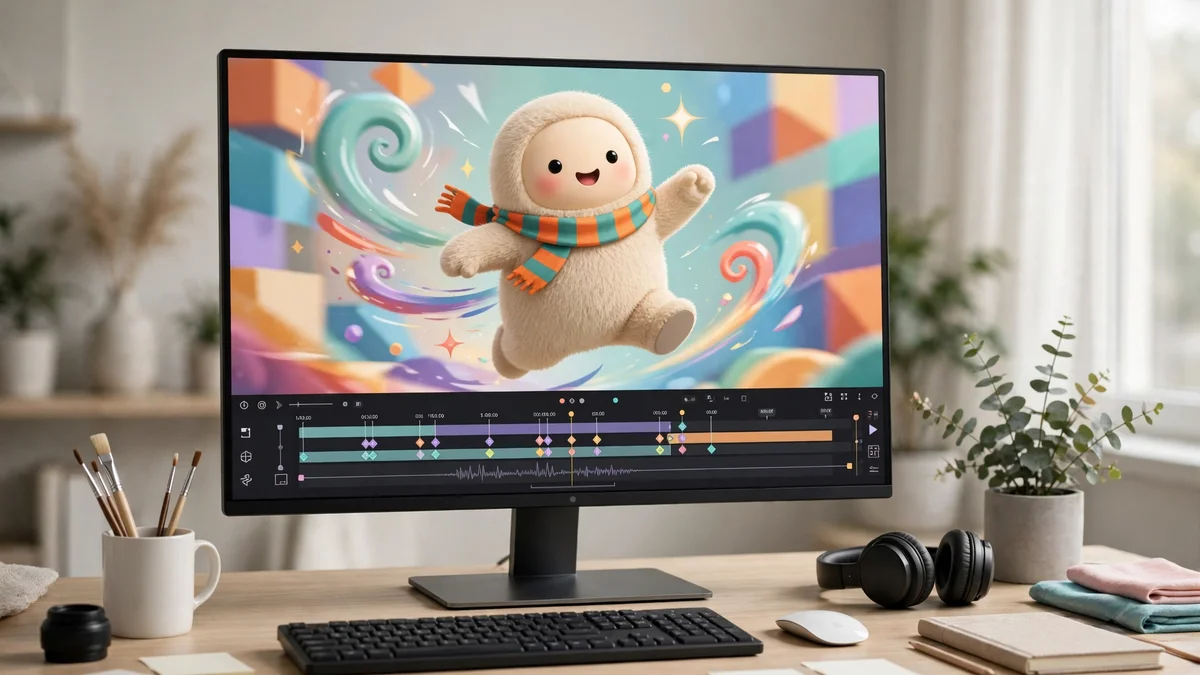
AI tools for motion graphics are changing how animated titles, explainer videos, and social clips get made. A designer used to need hours of keyframing to animate a logo, a character, or a data visualisation; now AI can generate the movement from a text prompt, track a subject through a shot, or turn a still image into a living scene. For content creators, marketers, and small studios, that speed turns animation from a luxury into a daily tool.
What matters most is control. Generative video is exciting, but a motion graphics project has a brief: a brand’s colours, a client’s message, a specific timing. The best AI tools for motion graphics in 2027 give you that control — keyframes you can edit, styles you can lock, and output you can drop into a real editing timeline — rather than a random clip you cannot change.
We tested the leading options on real briefs: a ten-second logo animation, a thirty-second product explainer, a social-media title sequence, and a data visualisation for a presentation. The shortlist covers every budget, from free tiers to professional plans, and every use case, from quick social clips to broadcast-quality motion design.
Key takeaways
- Runway is the best overall pick for AI video generation with real editing control.
- Adobe After Effects is the strongest choice for professional motion graphics with AI assistance.
- Pika is the best tool for fast, stylised animation from text and images.
- Kaiber is the best option for turning music and stills into animated sequences.
- Always check the output frame by frame — AI video still produces glitches a client will spot.
At a glance: the shortlist
| Tool | Best for | Starting price | Standout limit |
|---|---|---|---|
| Runway | AI video with editing | Free, Standard from $12 per month | Credit-based generation limits |
| Adobe After Effects | Professional motion design | From $23 per month | Steep learning curve |
| Pika | Fast stylised animation | Free, Standard from $10 per month | Short clips, limited control |
| Kaiber | Music and image animation | Free, Explorer from $5 per month | Best for short artistic clips |
| Luma Dream Machine | Realistic video generation | Free, Lite from $10 per month | Less control than Runway |
| Vyond | Business explainer videos | From $25 per month | Template-based style |
| Animaker | Quick animated videos | Free, Basic from $12 per month | Watermark on free tier |
Runway — Best overall
Runway is the most complete AI video tool on this list, and its Gen-4 model produces the most controllable results. Describe a shot, upload a reference image, and it generates video you can actually edit — with camera controls, motion brushes to direct movement, and inpainting to fix the parts that went wrong. For a motion designer, that control is the difference between a demo and a deliverable.

It also works as an editor: remove a background, extend a shot, or clean up a clip without leaving the platform. The credit-based pricing means heavy users should plan their generations, and very long clips still need to be assembled from shorter ones. But for short-form motion graphics — the work most creators actually do — it is the strongest tool here. If you also edit the video around the animation, our guide to AI tools for video editing covers the editors that pair well with Runway.
Pros: Best control over generated video; motion brushes and inpainting; built-in editing.
Cons: Credit limits on heavy use; long clips need assembly.
Adobe After Effects — Best for professional motion design
After Effects remains the professional standard for motion graphics, and its AI features now do the tedious work: rotoscoping a subject out of a background, removing an object from a shot, generating fill content, and cleaning up tracking data. The AI does not replace the designer — it removes the hours of manual labour between the idea and the finished piece.
The learning curve is real, and the subscription is professional-priced, but the control is unmatched: every keyframe, every easing curve, every layer is yours to adjust. For broadcast work, client projects, and anything that needs to match a brand exactly, After Effects is still the tool the industry expects.
Pros: Full professional control; best AI rotoscoping and cleanup; industry standard.
Cons: Steep learning curve; subscription pricing.
Pika — Best for fast stylised animation
Pika is the fastest way to turn a still image into a moving one. Upload a character, a product shot, or an illustration, describe the movement, and it animates it in seconds — a character waving, a product rotating, a scene coming alive. Its stylised look suits social media, music videos, and playful brand content.
Clips are short and control is limited compared with Runway, so it is best for quick, eye-catching moments rather than a full explainer. But for a creator who needs a moving image today, Pika is the quickest route from a still to a shareable clip.
Pros: Extremely fast; great for stylised social clips; generous free tier.
Cons: Short clips; less control than Runway.
Kaiber — Best for music and image animation
Kaiber turns music and still images into animated sequences with a distinctive artistic style. Upload a song and a few images, pick a style, and it generates a music video that moves with the beat. For musicians, event promoters, and artists, it produces something that would take a motion designer days, in minutes.
It is best for short artistic clips rather than commercial explainer work, and the output is stylised by design. But for its niche — music-driven animation — it is the most enjoyable tool on this list, and its low starting price makes it easy to try.
Pros: Music-driven animation; distinctive artistic styles; very low starting price.
Cons: Best for short artistic clips; not for commercial explainer work.
Luma Dream Machine — Best for realistic video generation
Luma’s Dream Machine produces some of the most realistic AI video available, with coherent motion, natural lighting, and fewer of the glitches that plague other generators. Give it a text prompt or a reference image and it returns a short clip that often looks like real footage at first glance.
Control is more limited than Runway — fewer editing tools, less ability to direct specific movement — so it is best when the goal is a beautiful clip rather than a precise one. For B-roll, backgrounds, and atmospheric shots, it is excellent. For a logo animation that has to hit an exact beat, use After Effects instead.
Pros: Most realistic AI video; coherent motion; good free tier.
Cons: Less control than Runway; best for atmospheric clips.
Vyond — Best for business explainer videos
Vyond is the tool for corporate explainer videos: animated characters, whiteboard-style explainers, and training videos, built from templates with AI-assisted scripting and voiceover. A team can produce a professional training video in an afternoon, without hiring an animator or a voice actor.
The style is unmistakably template-based, so it will not win design awards, but for internal training, onboarding, and product explainers, that consistency is a feature. The price is professional, and the output is polished enough for client-facing work.
Pros: Fast business explainer videos; AI voiceover included; professional output.
Cons: Template-based style; professional pricing.
Animaker — Best for quick animated videos
Animaker is the simplest tool on this list for making an animated video from scratch: drag-and-drop characters, props, and backgrounds, with AI-assisted script writing and voiceover. The free tier is genuinely usable for short clips, and the Basic plan is affordable for regular use.
The free tier watermarks exports, and the style is simpler than Vyond’s, but for a small business or a solo creator making social content, it is fast, friendly, and cheap. It is the best starting point for anyone who has never animated anything before.
Pros: Very easy to use; free tier available; AI script and voiceover help.
Cons: Watermark on free tier; simpler style than Vyond.
How to choose
Start with the brief. A precise client project belongs in After Effects, with Runway for generated elements. A quick social clip belongs with Pika or Kaiber. A business explainer belongs with Vyond or Animaker. The tool should match the job, not the other way around.
Then check the output specs. A clip for Instagram needs different dimensions, length, and frame rate than a broadcast title sequence, so confirm the tool exports what your channel needs before paying. Prices are starting prices and change often, so check current pricing before buying, and always review generated video frame by frame — a glitched hand or a morphing face will be the only thing a viewer remembers. The same review discipline applies to stills, and our guide to video editing software for small business covers the editors that finish the job.
Checklist: before you pay
- Test the tool on a real brief from your own work, not a demo prompt.
- Review generated video frame by frame for glitches before showing a client.
- Confirm the export resolution, frame rate, and aspect ratios your channels need.
- Check the monthly credit allowance against how many clips you actually generate.
- Read the commercial licence terms for generated video carefully.
- Check whether the tool stores your uploads and for how long.
Frequently asked questions
Can AI video replace a motion designer?
No. AI video is excellent for generating elements, backgrounds, and first drafts, but a finished piece — timed to a brand, a message, and a soundtrack — still needs a designer’s judgement. The best workflow is AI for generation and a human for direction, timing, and the final cut.
Which AI motion graphics tool is best for beginners?
Animaker, for its drag-and-drop simplicity, or Pika, for turning a still image into a moving clip in seconds. Both have free tiers and need no animation experience. Professionals should start with a Runway trial on a real project. The broader animation field has its own tools too, and our guide to AI tools for animation covers the options for character and story work.
How long can AI-generated video clips be?
Most tools generate clips of five to ten seconds, and longer pieces are assembled from shorter ones. Runway and Luma both support longer generations on higher plans, but for anything over a minute, expect to stitch clips together in an editor.
Is AI-generated video good enough for clients?
For social media, backgrounds, and concept work, yes. For broadcast and high-stakes client work, AI video is best used as an element inside a human-directed piece. Always review frame by frame, and never present a raw generation as a finished deliverable.
Can I use AI video commercially?
Usually yes on paid plans, but the licence terms vary by tool. Most paid plans include commercial use of generated video, while free tiers sometimes restrict it. Read the terms for the specific plan you buy, and keep a record of what was generated.
How much do AI motion graphics tools cost?
From free for Runway, Pika, and Luma’s basic tiers, through $5 to $25 a month for Pro plans, to $23 a month for After Effects. Credit-based pricing is common, so heavy users should budget for extra credits.
The bottom line
For most creators, Runway is the best overall pick: it generates video with real editing control, and it fits into a professional workflow. After Effects remains the standard for precise client work, and Pika is the fastest route to a shareable clip.
Whichever tool you choose, keep the direction yours. Use AI to generate the raw material faster — and spend the time it saves on the timing, the story, and the craft that make motion graphics worth watching.