
For most people choosing a Mac today, Apple silicon is the better fit, while Intel still matters for a few specific workflows. A new Mac affects your budget, battery life, and the software you can keep using. The right platform can make daily work smoother, while the wrong one can leave a key app or device behind.
This comparison covers speed, power use, software compatibility, Windows, and upgrade choices. Apple silicon suits most new Mac buyers, but an Intel Mac may fit a must-have legacy workflow. You will also see when keeping a working computer makes more sense than replacing it.
Key Takeaways
- Apple silicon is the stronger choice for most people buying a Mac today.
- Intel can still fit a workflow tied to older Mac software or Boot Camp.
- Check the chip name before judging a Mac by its product name.
- Compare performance results only when the task and device class match.
- Check apps, plugins, drivers, and connected devices before changing platforms.
- A working Intel Mac is not automatically too old to keep.
The right choice depends most on what your essential apps and daily work require.
Apple Silicon vs Intel: What Changes Inside a Mac?
Apple silicon and Intel Macs use different processor architectures, and that design difference affects how their components work together. The key change is not just the processor name: Apple silicon uses ARM, while Intel Macs use x86 processors.
Apple silicon combines more core components in one chip package. A SoC is a system on a chip that combines a computer’s core processing components in one chip package. Apple’s design puts the CPU, GPU, and other parts together, then shares unified memory between the CPU and GPU.
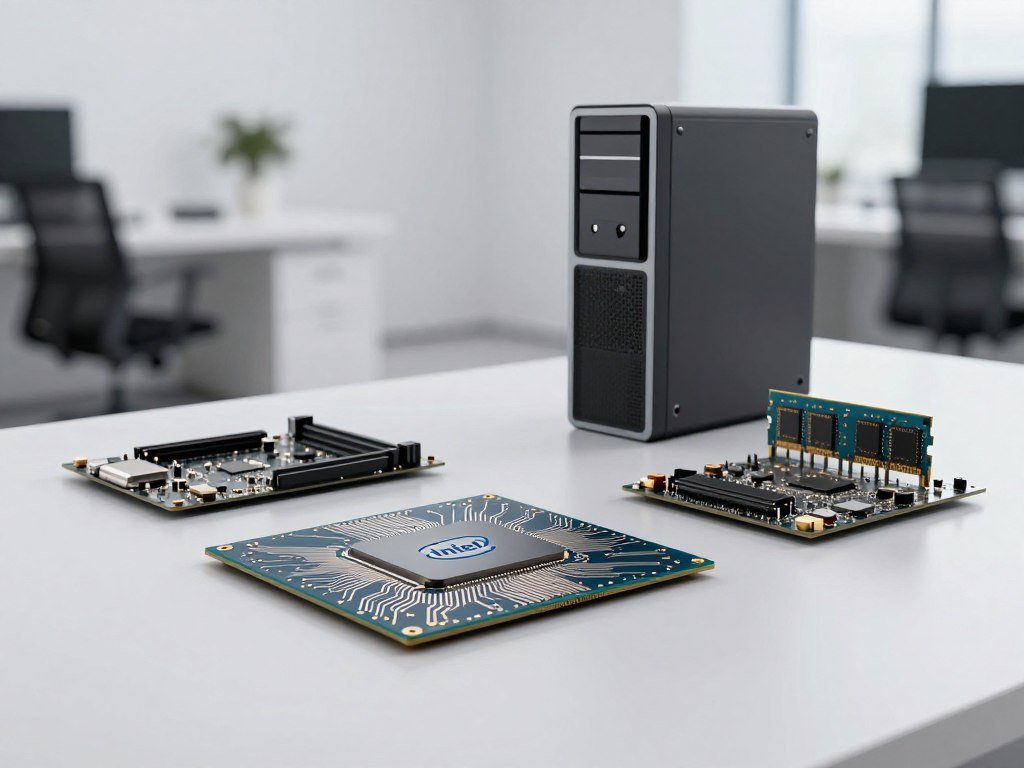
| Feature | Apple silicon Macs | Intel Macs |
|---|---|---|
| Architecture | ARM | x86 |
| Chip and graphics design | CPU and GPU integrated in SoC | CPU, memory, and optional discrete graphics are more separate |
| Memory approach | Unified memory shared by CPU and GPU | Memory separate from CPU, with graphics memory depending on design |
The combined design can help the parts work together and use power efficiently. Intel Macs can offer different component layouts, including separate graphics hardware on some models. That flexibility may matter for a specific older app or setup.
Architecture helps explain the trade-offs, but it cannot tell you how fast a Mac will handle your exact task.
Architecture helps explain the trade-offs, but a benchmark or app test is needed to judge performance in a specific task.
How Can You Check Which Chip Your Mac Has?
Open the Apple menu and choose About This Mac to see whether your Mac lists a chip or an Intel processor. The label is direct: Apple silicon hardware shows “Chip,” while Intel hardware shows “Processor.”
An M1 or another Apple chip name means your Mac uses Apple silicon. An Intel processor name means you have an Intel Mac. If you are asking, “Intel vs Apple silicon, which do I have?” this quick check gives you the answer.

- Open the Apple menu in the top-left corner of the screen.
- Choose About This Mac from the menu.
- Read the “Chip” or “Processor” label in the window.
Apple silicon Macs may show a name such as M1, M2, or a later M-series chip. Intel Macs show the Intel processor name instead. The wording gives you a clearer answer than the Mac’s case, screen size, or product line.
Use the full processor name when you compare software requirements. Two computers with similar model names can use different chips, and apps may treat them differently. A saved name also helps when you check a program’s system needs later.
Write down the full chip or processor name before checking app or operating-system compatibility.
Which Mac Models Use Apple Silicon?
M1 and M2 are both Apple silicon, and several Mac product lines switched at different times. Product year matters, since older versions of the same Mac line may use Intel.
The first M1 Macs included the MacBook Air, Mac mini, and 13-inch MacBook Pro introduced in 2020. M1 and M2 name chip generations, not separate Mac product lines. MacBook Neo also uses Apple silicon.
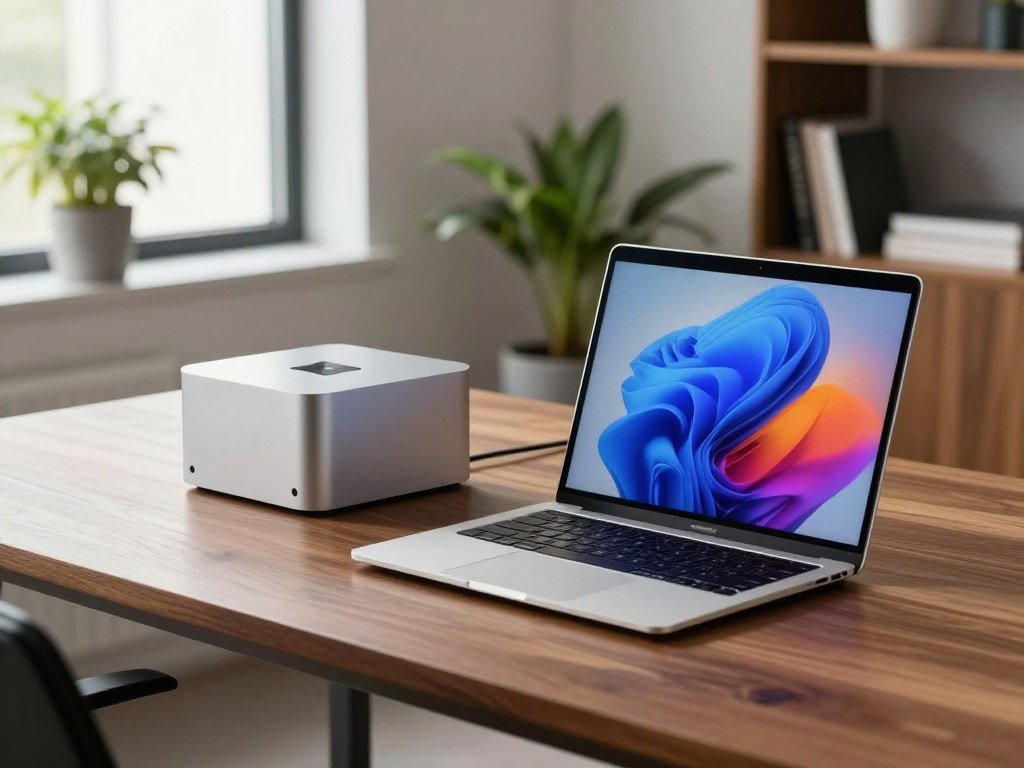
MacBook Air and MacBook Pro generations
The MacBook Air (M1, 2020) and MacBook Pro (13-inch, M1, 2020) use Apple silicon. MacBook Air models introduced in 2022 or later also use it. MacBook Pro models introduced in 2021 or later use it.
These dates help narrow the search, but the product name alone may not settle it. A MacBook Air name covers several generations, and an earlier model may use an Intel processor. M2 is an Apple silicon chip, just like M1.
Desktop Mac generations
iMac models introduced in 2021 or later use Apple silicon. Mac mini models introduced in 2020 or later use it, as do Mac Studio models introduced in 2022 or later. Apple introduced an Apple silicon Mac Pro in 2023.
- MacBook Air (M1, 2020)
- MacBook Pro (13-inch, M1, 2020)
- MacBook Air introduced in 2022 or later
- MacBook Pro introduced in 2021 or later
- Mac mini introduced in 2020 or later
- MacBook Neo
Older generations may have Intel, so check the chip rather than inferring it from the product name alone. A model year can narrow the options, while the chip label confirms the hardware inside.
Check the individual model’s introduction year when a product line spans both Intel and Apple silicon generations.
How Do M-Series and Intel Macs Compare on Performance?
In the PassMark comparison dated October 28, 2026, the M1 scored higher than the Intel Core i7-10750H in both CPU Mark and single-thread testing. That result is specific to these two processors and the listed test.
The M1 scored 14,121 in CPU Mark, compared with 11,416 for the Intel Core i7-10750H. The PassMark results also list 3,672 and 2,603 for single-thread performance, respectively. The PassMark M1 test results show those scores.
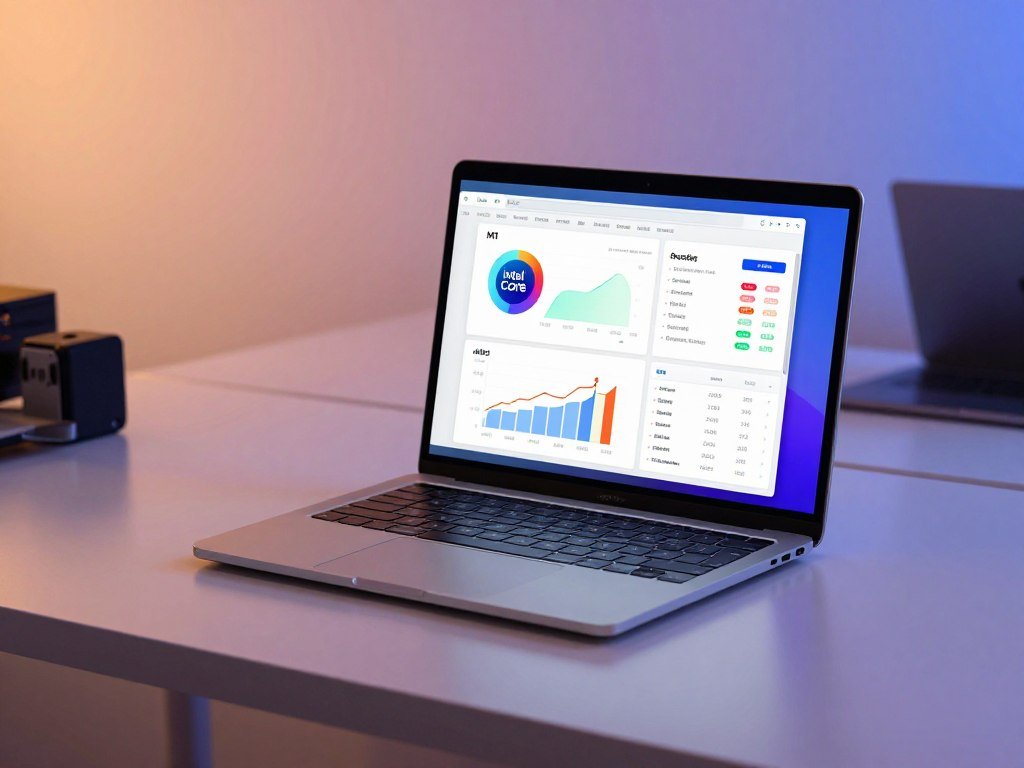
A specific M1 and Intel Core comparison
| Measure | Apple M1 8 Core 3200 MHz | Intel Core i7-10750H at 2.60GHz |
|---|---|---|
| PassMark CPU Mark | 14,121 | 11,416 |
| Single-thread score | 3,672 | 2,603 |
| Physical cores and threads | 8 physical cores, 8 threads | 6 physical cores, 12 threads |
| TDP | 15.1W | 45W |
These processors differ in core counts, thread counts, and listed TDP. TDP is a measure of chip power design, not a direct reading of a whole laptop’s power use. The scores describe CPU tests, not every part of a Mac.
What newer M-series performance claims mean
M5 Pro and M5 Max deliver up to 30 percent faster performance than the previous generation. They also offer up to 4x faster LLM prompt processing than M4 Pro and M4 Max.
For AI image generation, M5 Pro and M5 Max deliver up to 8x faster performance than M1 Pro and M1 Max, respectively. Graphics performance is up to 50 percent higher than M4 Pro and M4 Max.
An M5 Pro MacBook Pro offers up to 7.8x faster AI image generation than an M1 Pro MacBook Pro, and up to 3.7x faster than an M4 Pro MacBook Pro. An M5 Max MacBook Pro offers up to 8x faster AI image generation than an M1 Max MacBook Pro, and up to 3.8x faster than an M4 Max MacBook Pro.
Match benchmark results to your workload
Benchmark outcomes depend on the workload and configuration. A CPU score may help compare processor tasks, but it does not measure every graphics, video, or app workload equally.
One M1-versus-Intel result cannot stand in for every Mac or every Intel processor. Laptop cooling, memory, and the software being tested can change what you see in daily work.
Compare the same workload and device class before using a benchmark to choose a Mac.
Which Platform Offers Better Battery Life and Efficiency?
For Mac laptop buyers who prioritize unplugged work, Apple silicon has the clearer battery-life advantage. That edge matters when a long day away from an outlet is part of your routine.
A MacBook Pro with M5 Pro or M5 Max offers up to 24 hours of battery life. For people upgrading from Intel-based Macs, those models offer up to 13 additional hours. They deliver the same performance plugged in or running on battery.

Those are specific claims for M5 Pro and M5 Max MacBook Pro models, not a promise for every Apple silicon laptop. Screen brightness, open apps, and demanding work can change how long a charge lasts. Your chosen configuration also matters.
An Apple silicon vs Intel laptop comparison should account for the workload, screen, configuration, and test conditions. A video edit or long export can use power differently from writing or web browsing. Battery tests are most useful when both laptops face similar tasks.
The same focus on power use can shape a buying choice. Apple silicon is generally the stronger fit when battery life and power efficiency lead your needs. Fans may also run less often during light tasks, though heavy work can raise heat and fan noise.
Intensive work or a legacy app can change the priority. If a key workflow only runs on an Intel Mac, compatibility may matter more than extra time between charges.
For a wider view of screen size, portability, and workload, compare these laptop picks by use. Compare battery claims only when the Mac configuration and the kind of use are relevant to your own day.
Which Mac Apps Still Need Intel Compatibility?
Most mainstream Mac apps have Apple silicon versions, while Rosetta 2 can keep many older Intel-built apps running. Native apps run without translation, which can help them work directly with the chip.
Photoshop, Final Cut Pro, and Logic Pro have versions optimized for Apple silicon. An Apple silicon app version is the native version built for Apple silicon. Rosetta 2 translates many Intel-built Mac apps, but it does not guarantee that every old tool will work.
Native apps and Rosetta 2
macOS 27 Golden Gate is the final macOS version with general-purpose Rosetta 2 support for Intel-built apps on Apple silicon Macs. After macOS 27, Apple plans to retain a subset of Rosetta features for older, unmaintained games that rely on Intel-based frameworks.
This change matters most when your work depends on an app that has not been updated. A current native version is usually the simpler choice, while a translated app may still bridge a gap for some users.
Plugins, drivers, and older software
Older audio plugins, VSTs, drivers, and video add-ons may need updates or may not work. A main app can open while one important add-on fails, so check the parts of your setup that handle the real work.
- Essential apps used for daily work
- Plugins and VSTs used in projects
- Drivers for printers, audio gear, or other devices
- Connected hardware that needs Mac software
Check both the app version and its add-ons, since an update to one may not update the other. A studio might rely on an older audio plugin, while a video editor may need a particular capture driver.
If your workflow also depends on Windows apps, Windows on Arm uses a separate compatibility layer called Prism. Driver and peripheral support can vary in that setup. Test any plugin or driver that your work depends on before replacing the Mac that currently runs it.
Can You Run Windows on an Intel or Apple Silicon Mac?
Intel Macs can dual-boot Windows with Boot Camp, while Apple silicon Macs run Windows through a virtual machine. The main difference is whether Windows starts on its own or runs beside macOS.
Boot Camp is not available on Apple silicon Macs. On an Intel Mac, Boot Camp installs Windows on a separate partition. You must restart the computer to switch between Windows and macOS.
On Apple silicon, you can run Windows 11 on Arm in a virtual machine. That setup lets Windows and macOS run side by side, so you can move between apps without restarting the Mac.
Windows 11 on Arm can run many x86 and x64 apps through Microsoft’s Prism translation layer. Microsoft’s Windows on Arm documentation explains that Windows 11 adds x64 app emulation, while native Arm apps are another option.
Prism does not make every Windows app compatible. A specific app, driver, or connected device may behave differently from its Intel PC version. Check requirements for the exact program you need, especially if it controls hardware.
For a closer look at Windows on Arm compatibility and laptop apps, see this Windows on Arm compatibility review. The same Windows app may perform differently across a virtual machine and a Windows laptop.
Confirm that the Windows edition and any essential Windows-only apps support the setup your Mac can run.
How Is macOS Support Changing for Intel Macs?
Apple’s move away from Intel began in 2020 and was completed in nearly three years. The change was swift: Apple announced its Mac transition to Apple-designed silicon on June 22, 2020, then discontinued its last Intel Mac, the Mac Pro, in June 2023.
macOS 27 Golden Gate ends macOS support for Intel-based Mac hardware. The release is limited to Apple silicon Macs, making it the next major support boundary for owners of Intel machines.
That cutoff does not mean every Intel Mac stops working when macOS 27 arrives. An older Mac can still run a stable workflow without receiving the next macOS release, though its software path will narrow over time.
Warnings appeared in macOS 26.4 and 26.5. Those versions began telling users that support for Intel-only apps would end in a future macOS release.
The operating-system limit and an app’s own support are separate issues. A program may keep working on an older system, while another tool may stop getting updates sooner. Your daily tasks and connected devices help show how much that matters.
If your Intel Mac runs a stable set of apps, the new boundary does not force an immediate replacement. A need for newer macOS features can make the move more urgent.
Treat the macOS 27 cutoff as a future-support boundary, not proof that every Intel Mac stops working at once.
Which M5 Pro or M5 Max MacBook Pro Fits Your Work?
Pick M5 Pro when its memory and display limits cover your workload, and M5 Max when you need the higher ceiling. More capacity helps most when large projects or several displays use it.
M5 Pro supports up to 64GB of unified memory and up to 307GB/s of memory bandwidth. That can fit demanding everyday work when your apps and external displays stay within its limits.
Choose M5 Pro for demanding everyday work
M5 Pro supports workloads that need more than a basic MacBook setup. Its unified memory serves the CPU and GPU together, while bandwidth describes how quickly data can move between memory and the chip.
The 14-inch MacBook Pro with M5 Pro supports up to two high-resolution external displays. For many work desks, that covers a laptop screen plus a pair of monitors.
Choose M5 Max for higher memory and display needs
M5 Max supports up to 128GB of unified memory and up to 614GB/s of memory bandwidth. Choose it when a large project needs more room or when the 14-inch model’s support for up to four high-resolution external displays fits your setup.
Both chips have three Thunderbolt 5 ports, an HDMI port that supports up to 8K resolution, an SDXC card slot, and MagSafe 3. The two-display and four-display limits apply to the 14-inch models.
| Feature | M5 Pro | M5 Max |
|---|---|---|
| Maximum unified memory | Up to 64GB | Up to 128GB |
| Maximum memory bandwidth | Up to 307GB/s | Up to 614GB/s |
| External displays on the 14-inch model | Up to two high-resolution displays | Up to four high-resolution displays |
| Ports | Three Thunderbolt 5, HDMI up to 8K, SDXC, MagSafe 3 | Three Thunderbolt 5, HDMI up to 8K, SDXC, MagSafe 3 |
Display limits describe the chip and model, not what every adapter or hub can add. Match your ports and monitors to the Mac’s native support; this MacBook Pro hub guide can help with desk connections.
Match the chip tier to the memory and display capacity you will actually use.
Should You Keep or Replace an Intel Mac?
A Mac’s age alone does not decide whether it is time to replace it. Daily use matters more than the year on the box, especially when your apps and devices still work well.
A 2019 MacBook Pro (16-inch) is compatible with macOS Tahoe 26. The iMac (Retina 5K, 27-inch, 2020) and Mac Pro (2019) also support that release.
A seven-year-old Mac is not automatically too old. A replacement makes more sense when a key app no longer runs, daily tasks feel slow, or newer macOS features matter to your work.
- Do your essential apps still run?
- Do required devices and plugins work?
- Does your current Mac handle daily tasks comfortably?
- Do you need a newer macOS release?
Someone who needs Boot Camp or a critical Intel-only tool may have a good reason to keep a working Intel Mac. Future macOS support favors moving to Apple silicon, so weigh that need against the work your current setup already handles.
Keep a working Intel Mac when it still runs a critical tool you cannot replace. Plan a move when newer macOS support becomes part of your work.
Base the decision on the Mac’s current workload and the support your essential setup needs.
Conclusion
For most Mac buyers, Apple silicon is the better long-term fit, while Intel still serves specific legacy needs. Your workflow decides whether that general rule fits your situation.
Choose Apple silicon for a new Mac unless a critical older tool or Boot Camp requirement points you toward Intel. That trade-off matters more than a chip label by itself.
Write down the external devices you use every week, then confirm they work with the Mac configuration under consideration. Before you commit, confirm that the external devices you rely on work with your chosen Mac.
FAQ
Is M1 equal to i7?
No, M1 and Core i7 do not have one fixed level of equivalence. In PassMark testing dated October 28, 2026, the M1 scored 14,121 CPU Mark and 3,672 single-thread. The Intel Core i7-10750H scored 11,416 and 2,603, respectively. Other Core i7 processors and real apps can produce different comparisons.
Which chip is better in a MacBook?
Apple silicon is the better fit for most people buying a MacBook today. It offers a newer platform and strong battery life across current Mac laptops. An Intel Mac can still make sense when you rely on an essential legacy app or need Boot Camp. Compare the exact app requirements before choosing a used Intel model.
Which Mac models have an Intel processor?
Older generations of many Mac product lines may have Intel processors, so a product name alone does not confirm the chip. Open the Apple menu and choose About This Mac. An Intel Mac shows “Processor” followed by its Intel processor name. Later generations of the same line may use Apple silicon instead.
How do I know if I have Apple silicon?
Open Apple menu > About This Mac and look for the “Chip” label. An M1 or another Apple chip name identifies Apple silicon. Intel hardware uses the label “Processor” and lists the Intel processor name instead. Save the full name when you check whether a specific app or system version supports your Mac.
Why did Apple stop using Intel?
Apple moved to its own ARM-based chips so it could design the Mac’s processor platform around its hardware and software. That gives Apple control over how the chip, memory, graphics, and operating system work together. Intel Macs still serve some older workflows, but new Mac models now use Apple silicon.
Are Intel Macs obsolete now?
No, Intel Macs are not all unusable now. macOS Tahoe 26 supports some Intel models, including the 2019 16-inch MacBook Pro. macOS 27 Golden Gate ends macOS support for Intel Mac hardware, so owners face a future support limit. A working Mac can still handle a stable set of apps after that cutoff.
Is a 7 year old Mac too old?
No, a seven-year-old Mac is not automatically too old to keep. A 2019 MacBook Pro (16-inch) remains compatible with macOS Tahoe 26, though future macOS needs may change the choice. Consider whether its apps, devices, and daily tasks still work well. Replace it when its limits block work you need to do.
Which Intel chip to avoid?
No Intel processor name alone is a universal reason to avoid a Mac. The bigger concern is whether a specific model can run the apps and macOS versions you need. Avoid an Intel Mac if your work requires macOS 27 or later, which supports Apple silicon only. Check the whole model, not just its processor name.



