
For most people choosing a new Mac, Apple silicon is the stronger fit, while Intel remains relevant for a few specific legacy workflows.
The best choice depends on the apps you need, the work you do, and whether battery life matters during a typical day. Speed, software support, Windows access, and the value of keeping an existing Intel Mac all shape the decision.
Apple silicon suits most new Mac buyers. An Intel Mac may still fit a workflow that needs older software or native Windows through Boot Camp. Start by identifying the apps and tasks you cannot replace, since they determine which trade-offs matter.
Key Takeaways
- Apple silicon is the practical default for most new Mac purchases.
- Intel can matter when a legacy app requires an Intel Mac.
- Boot Camp runs Windows natively on supported Intel Macs.
- App and hardware support can vary by exact model and software version.
- Your daily tasks matter more than the processor name alone.
What Changes Between Intel and Apple Silicon Macs?
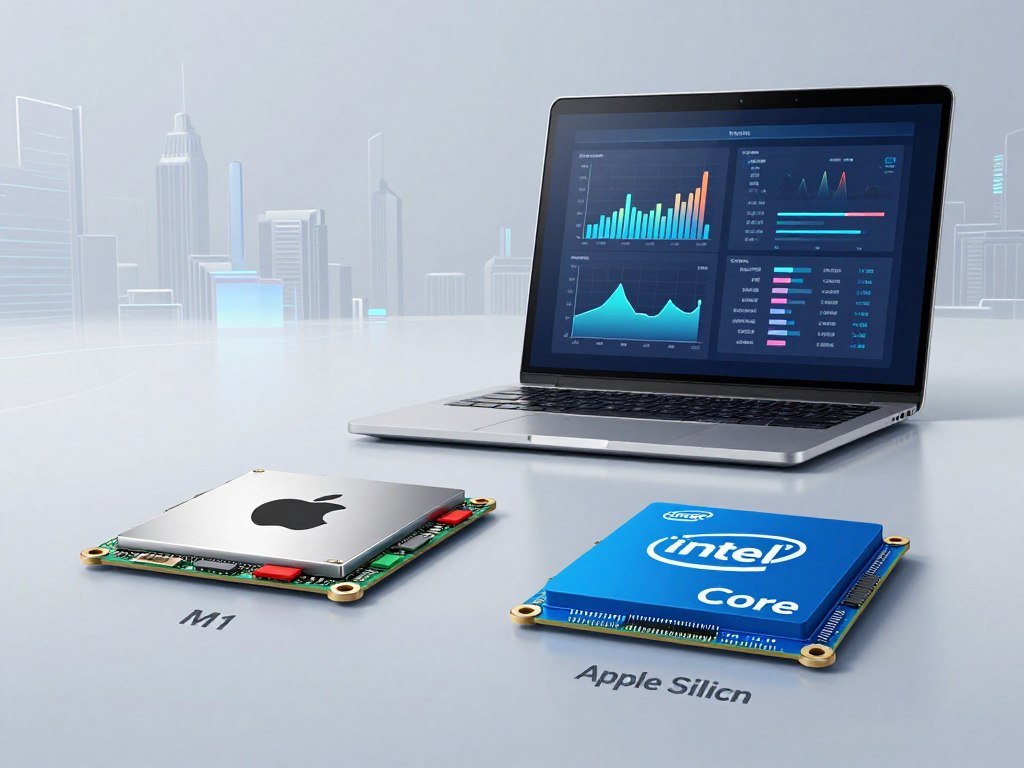
The core difference is that Apple silicon uses Apple-designed ARM-based chips, while Intel Macs use x86 processors. System on a chip (SoC) means a chip design that integrates major processing parts, such as the CPU and GPU, into one system.
Apple silicon combines key components in an integrated design, while Intel Macs use Intel processors with conventional separate system components. Apple silicon also uses unified memory, which its processing components share. This setup can reduce power use and help many Mac laptops stay efficient.
| Attribute | Apple silicon Mac | Intel Mac |
|---|---|---|
| Processor architecture | ARM | x86 |
| Processor design | Integrated SoC | Intel processor with conventional separate system components |
| About This Mac label | Chip | Processor |
| Windows approach | Virtual machine with Windows on Arm | Boot Camp on supported Intel Macs |
ARM and x86 describe different processor architectures, or ways chips handle instructions. Software made for one may need updates, translation, or another method to run on the other.
Treat architecture as a clue to compatibility and efficiency, not as a guarantee that one chip wins every workload.
That distinction affects older apps and Windows tools. Intel systems can run some older Intel-based workflows directly, while Apple silicon offers strong efficiency across many Mac tasks.
For everyday browsing, office work, and many creative apps, Apple silicon can deliver a useful balance of speed and power use. Some tasks still favor a particular Intel processor, app, or setup.
A laptop buying guide by workload can help you compare the full computer, including its operating system and hardware. Treat architecture as one part of that choice, not its whole story.
How Can You Tell Which Chip Your Mac Has?
You can identify your Mac’s processor in About This Mac without installing an app or opening the computer. Check the hardware line to see whether macOS labels it Chip or Processor.
An M1 or A18 Pro name beside Chip means Apple silicon; an Intel name beside Processor means an Intel Mac. Follow these steps:
- Open the Apple menu in the upper-left corner of the screen.
- Choose About This Mac from the menu.
- Inspect the hardware line for Chip or Processor and read its name.
An Apple silicon Mac shows its chip name, such as M1, beside Chip. An Intel Mac shows an Intel processor name beside Processor. This quick check works for current and older models.
The MacBook Air (M1, 2020) and MacBook Pro (13-inch, M1, 2020) are Apple silicon examples. Their model names include the chip generation, but other models may not make that clear.
Knowing whether you have an Intel Mac or an Apple silicon Mac helps narrow down compatibility questions. The specific processor still matters, since an M1 and a later Apple chip are not identical.

Record the full chip or processor name, because the label alone does not tell you whether a particular app will work.
Why Did Apple Move Macs Away From Intel?
Apple moved away from Intel so it could build Macs around chips it designed rather than rely on Intel processors. Its own chip design let Apple plan the processor, hardware, and software together.
Efficiency and performance were central benefits of the move. Apple could tune its chips for the tasks and power limits of its own computers, especially portable Macs. It could also coordinate hardware and macOS as one system.
Apple announced its Mac transition plan in 2020. The first Apple silicon Macs arrived later that year, starting a change that unfolded across several products rather than replacing every Mac at once.
The transition began with certain models in late 2020. Intel and Apple silicon Macs then coexisted while Apple updated its product lines over time.
That overlap matters when you compare a Mac by product name alone. A MacBook Pro from one year may use Intel, while a model with a similar name from another year uses Apple silicon.
Apple’s move gave it more control over the chips used in its computers, but it did not make every Intel Mac instantly outdated. The transition took several product generations, so a Mac’s model year is more useful than a broad assumption about its product line.
Which Mac Models Use Intel and Apple Silicon?
The processor depends on the specific Mac generation: Apple sold Intel and Apple silicon versions of some Mac lines during the transition. The model year matters as much as the family name.
MacBook Pro and MacBook Air names alone do not tell you which processor a Mac uses. Apple released the MacBook Air (M1, 2020) and MacBook Pro (13-inch, M1, 2020) as Apple silicon models.
Some Intel MacBook Pro models remained on sale into 2021. Apple discontinued its two-port 13-inch MacBook Pro on November 10, 2020, then ended sales of its 16-inch and four-port 13-inch models on October 18, 2021.
Those dates show why a product line can include more than one chip type. A used MacBook Pro’s year and configuration are more useful than its general name when checking software support or app needs.

Apple discontinued the Mac Pro in June 2023, ending sales of its final Intel Mac. The lineup had taken years to change, and the Mac Pro lasted longer than Apple’s first Apple silicon laptops.
Used listings may shorten model names or leave out key details. Ask for the full year and configuration, then compare that information with the actual hardware details.
Check the exact year and configuration of a used Mac before assuming its product name identifies its processor.
How Do Their Benchmarks Compare?
A benchmark does not establish one permanent winner: M1 beat the compared Intel Core i7s in single-core performance, but a Core i7-11800H won the cited multi-core comparison. The task changes the result, so a chip label alone cannot predict every workload.
M1 led the cited single-core and graphics tests, while the Core i7-11800H led one multi-core comparison. These results compare particular processors and systems, not every Apple silicon chip against every Intel processor.
Where the M1 leads in single-core and graphics comparisons
In Geekbench 5 comparisons, M1 scored higher in single-core performance than the compared Intel Tiger Lake Core i7 family. Single-core scores can matter when an app relies on a few processor cores at a time.
The result does not show that every M1 beats every i7. Intel’s Core i7 name covers different generations and power levels, so the exact model matters.
The M1 integrated 8-core GPU scored 4696 in a 3DMark Wild Life Extreme Unlimited comparison. That score topped the compared Intel Tiger Lake Core i7 processors with Iris Xe integrated graphics.
A video-editing test also favored the M1 MacBook Pro. In Premiere Pro, stabilizing a 20-second 4K clip took 3 minutes and 6 seconds on that Mac.
The Intel Core i7-1165G7 Razer Book 13 took 4 minutes and 21 seconds for the same stabilization task. That result reflects the named systems, app, and task rather than all video work.
Where Intel wins in a multi-core task
The Intel Core i7-11800H scored higher in multi-core performance than M1 in the cited Geekbench 5 comparison. A multi-core result can favor a processor that handles work across many cores at once.
That win does not erase M1’s results in the other tests. Benchmarks measure different tasks, and an app may use processor cores, graphics, or special hardware in different ways.
Cooling also matters. A laptop with more room for heat control may hold high speeds longer than a thin system, even when both use processors with similar names.
Chip generation, cooling, software version, and the exact task all affect benchmark results. That is why “M1 vs. Intel i7” is not a meaningful single comparison unless you name the i7 model and workload.
Look for tests that match the work you do, such as video export, code builds, or graphics. Use a benchmark only when it reflects the app and task you actually plan to run.
What Difference Does Efficiency Make to Battery and Heat?
For a MacBook Pro buyer, Apple rates the 2026 M5 Pro and M5 Max models for up to 24 hours of battery life. That is a maximum rating, not a promise for every task.
Actual battery runtime changes with display brightness, workload, settings, and configuration. Web browsing, video playback, and demanding work place different loads on a battery, so compare results that resemble your normal day.
| Mac model | Battery task or rating | Apple-rated result |
|---|---|---|
| 2026 MacBook Pro with M5 Pro or M5 Max | Battery life | Up to 24 hours |
| Same MacBook Pro | Fast charging with a 96W or higher USB-C adapter | 50 percent in 30 minutes |
| Intel-based MacBook Pro upgrader comparison | Additional rated battery life | Up to 13 hours |
Apple lists MacBook Pro battery and charging details for the M5 Pro and M5 Max models. The 2026 MacBook Pro can also deliver the same performance on battery power as when plugged in.
Battery claims depend on the task
Battery ratings help you compare models under set test conditions, but your results depend on what you do. A bright screen, video calls, and intensive apps can use power at different rates.
For an Intel-based MacBook Pro upgrader, Apple lists up to 13 additional hours of rated battery life. That comparison is tied to the models and test conditions, so it is not a fixed multiplier for every owner.
Heat and fan noise under real workloads
Efficient chips can draw less power for some tasks, which can reduce heat and fan activity. The result varies by Mac model and workload, and not every Apple silicon Mac is fanless.
Heavy exports, long code builds, and other demanding work can still create heat. Fans may run to control that heat, while lighter work may need less cooling.
The 2026 MacBook Pro can fast-charge to 50 percent in 30 minutes with a 96W or higher USB-C power adapter. For frequent travel, compare the exact model’s rated use cases with your own mix of browsing, calls, and intensive work.
Will Your Apps Work on Apple Silicon?
Many familiar Intel Mac apps can work on Apple silicon, either as native apps or through Rosetta 2 translation. Check the full app setup, since plugins and hardware can change the answer.
Rosetta 2 translates many Intel-based Mac apps, but it does not guarantee every app or add-on will work. A native app is built for Apple silicon, while an Intel app needs translation to run on the newer architecture.
Native apps and Rosetta 2
Universal 2 lets developers provide one app that supports both Intel and Apple silicon Macs. When a developer offers a native Apple silicon version, it can run without Rosetta 2.
Photoshop, Final Cut Pro, and Logic Pro are familiar creative apps. Their support can vary by version, and an add-on may need its own update even when the main app runs.
Rosetta 2 can help keep older Intel apps usable during a platform change. It does not make an Intel Mac app native, and translation is not a promise of full compatibility.
Older plugins, drivers, and specialist software
Older audio plugins and VSTs may need a compatibility check. Specialist tools, drivers, and connected equipment can also depend on software that has not been updated for Apple silicon.
Before moving a work setup, check these four parts:
- Verify the exact app version and its Apple silicon support.
- Check plugins, extensions, and audio VSTs separately.
- Confirm drivers work with your connected hardware.
- Test critical workflows before replacing a working Mac.
A main app opening successfully does not prove that its full workflow is ready. An audio session, for example, may rely on a plugin that the app itself does not control.
For engineering students, software support by laptop architecture can be a key part of choosing a system. Check the required app version and any department rules before moving specialized work.
Six Colors has reported on plans for Rosetta 2 support to change in future macOS releases. Test the complete workflow, including its plugins and connected equipment, rather than checking only the app’s name.
Can Intel and Apple Silicon Macs Run Windows?
The key difference is that supported Intel Macs can boot directly into Windows, while Apple silicon Macs run Windows through a virtual machine. Boot Camp is for supported Intel models, not Apple silicon Macs.
Apple silicon Macs do not support Boot Camp. They can run Windows 11 on Arm in a virtual machine, which keeps Windows and macOS available without restarting between systems.
Boot Camp on supported Intel Macs
Boot Camp installs Windows on a supported Intel Mac. You restart the computer to choose Windows or macOS, then use one operating system at a time.
This can suit a workflow that needs native Windows on Intel hardware. The method depends on a supported Mac, and it is not available on Apple silicon systems.
Windows on Arm in a virtual machine
A virtual machine runs one operating system inside another. On Apple silicon, you can use Windows 11 on Arm while macOS remains active, then switch between apps on the same desktop.
Windows 11 on Arm can run many x86 and x64 Windows apps through Prism. Specialized software, drivers, and peripherals still need separate compatibility checks.
Practical options include:
- Boot Camp on a supported Intel Mac.
- Windows 11 on Arm in a virtual machine on Apple silicon.
- ARM64 Linux in a virtual machine when Linux, rather than Windows, is needed.
Check whether your must-have Windows app and hardware work in Windows on Arm before relying on a virtual machine.
What Does the MacBook Neo Show About Apple Silicon?
MacBook Neo is an Apple silicon Mac powered by the A18 Pro, not an Intel Mac. Its compact design combines a current Apple chip with 8GB of unified memory.
The A18 Pro includes a 6-core CPU, a 5-core GPU, and a 16-core Neural Engine. Its CPU has two performance cores and four efficiency cores, with 60GB/s of memory bandwidth.
A18 Pro processing and unified memory
MacBook Neo offers 256GB or 512GB of SSD storage. Its unified memory is shared across processing components, rather than separated into distinct pools for the CPU and GPU.
Those parts define a specific entry Mac configuration. They do not tell you by themselves how every app or large project will perform.
Display, battery, and portability
The 13.0-inch display has a native resolution of 2408 by 1506 pixels and a brightness of 500 nits. The laptop weighs 2.7 pounds and measures 0.50 inch high, 11.71 inches wide, and 8.12 inches deep.
Battery ratings reach up to 16 hours of video streaming or up to 11 hours of wireless web use. The maximums depend on the task and test setup, so they are not guaranteed daily runtimes.
January 2026 battery tests used preproduction A18 Pro systems with 8GB of unified memory and a 256GB SSD. The wireless web test used 25 popular websites over Wi-Fi, with display brightness set to eight clicks from the bottom.
The video test streamed 1080p Safari video over Wi-Fi at the same brightness setting. Actual battery life varies with use and configuration.
Ports, wireless, and external display support
MacBook Neo has two USB-C ports with different data speeds. One USB 3 port transfers data at up to 10Gb/s, while one USB 2 port reaches up to 480Mb/s.
| Feature | MacBook Neo specification | Limit or second specification |
|---|---|---|
| USB 3 USB-C port | Data transfer up to 10Gb/s | One port |
| USB 2 USB-C port | Data transfer up to 480Mb/s | One port |
| Built-in display | 13.0-inch at 2408 by 1506 pixels | 500 nits |
| External display | One display up to 4K | 60Hz while built-in display stays at native resolution |
Wireless connections include Wi-Fi 6E and Bluetooth 6. MacBook Neo supports one external display at up to 4K resolution and 60Hz while its own display runs at full native resolution.
A USB-C hub can add ports, but it cannot raise a Mac’s native external-display limit. Match the two USB-C ports to your actual accessories, since their data-transfer speeds differ.
Intel vs Apple Silicon: Which Is Better for Your Needs?
For most people choosing a Mac laptop, Apple silicon is the better fit; the deciding exception is a workflow that specifically depends on Intel. Choose for the work, not just the processor label.
Intel remains relevant when you need x86 software, Boot Camp, or a high-power desktop setup. For most new Mac laptop buyers, Apple silicon brings strong performance and efficiency in a system designed around macOS.
For portable creative and development work
Creative work and software development can benefit from the MacBook Pro’s memory, storage, and display choices. The 2026 M5 Pro starts with 1TB of storage, while M5 Max starts with 2TB.
M5 Pro supports up to two high-resolution external displays. M5 Max supports up to four, which can matter if your desk setup uses several screens.
Developers can also choose tools based on language, operating system, and project needs. A code editor and IDE comparison can help narrow down software choices, but the right tool still depends on your workflow.
For memory-heavy, AI, and scientific workloads
M5 Pro and M5 Max offer different amounts of unified memory and memory bandwidth. More memory can help with large projects, while bandwidth affects how quickly data moves through the system.
| 2026 MacBook Pro configuration | Maximum unified memory and bandwidth | External displays |
|---|---|---|
| M5 Pro | Up to 64GB and 307GB/s | Up to two |
| M5 Max | Up to 128GB and 614GB/s | Up to four |
Apple says M5 Pro and M5 Max provide up to 30 percent faster CPU performance than the previous generation. Apple also claims up to four times faster LLM prompt processing than M4 Pro and M4 Max, and up to eight times faster AI performance than M1 models.
Those are generational claims, not guarantees for every app. AI speed also depends on the model, software, and task, so TOPS alone cannot predict real-world results.
Some scientific-computing apps need native FP64 support, which Apple silicon lacks. If your work relies on that feature, check the exact app requirements before choosing a Mac.
When comparing Apple silicon with the competition, focus on Intel Macs first, then compare a complete Windows PC against your app needs. A processor alone does not show whether the full computer fits your work.
Choose the chip tier by the memory, display, and storage your actual workload needs, not by the highest number on a spec sheet.
For a broader laptop comparison, compare complete laptop configurations, including the apps and operating system you need.
Will Intel Macs Keep Getting macOS Updates?
Intel Macs do not get macOS releases indefinitely: macOS Tahoe is the final release that supports Intel processors. Model support still varies, so not every Intel Mac can install Tahoe.
macOS Tahoe, released in September 2025, is the last macOS version that supports Intel processors. Compatibility depends on the exact Mac model and its configuration.
The last macOS version for Intel Macs
A Mac that cannot run a newer macOS release may still serve its owner’s needs. The end of Intel support for future macOS releases does not erase an installed system or instantly stop every app.
Apple silicon Macs include MacBook Neo and MacBook Pro models introduced in 2021 or later, plus the 13-inch M1 MacBook Pro from 2020. The MacBook Air range includes models from 2022 onward and the M1 MacBook Air from 2020.
Intel models compatible with macOS Tahoe
These listed Intel models are compatible with macOS Tahoe:
| Intel Mac model | Model year | Tahoe compatibility |
|---|---|---|
| 16-inch MacBook Pro | 2019 | Compatible |
| 13-inch MacBook Pro with four Thunderbolt 3 ports | 2020 | Compatible |
| 27-inch iMac | 2020 | Compatible |
| Mac Pro | 2019 | Compatible |
That list does not mean every MacBook Pro or iMac can run Tahoe. Models with similar names can differ by year, ports, and hardware.
Software support can also depend on the app, even when a Mac runs a supported macOS version. Check compatibility by the full model and configuration, not simply by the MacBook Pro or iMac name.
Is It Time to Keep or Replace an Intel Mac?
Keep an Intel Mac that still runs your essential work reliably, but do not assume it will keep receiving every future macOS release. Age alone is not a verdict on whether a computer remains useful.
A seven-year-old Mac is not automatically too old if it still meets your needs and support requirements. Apple generally classifies a product as vintage after five years and obsolete after seven years from its last distribution.
Keep it if the workflow still works
If your essential apps open, your hardware works, and performance suits your daily tasks, keeping the Mac may make sense. The date you bought it does not set its service classification.
Apple bases vintage and obsolete status on when it last distributed the exact model. A seven-year-old machine may still be useful, while another model may face repair or software limits sooner.
Replace it when support or performance blocks your work
An upgrade makes more sense when software support, speed, or hardware stops you from doing required work. A new platform can also introduce compatibility checks for apps, plugins, drivers, and accessories.
Use this four-part check before deciding:
- Check the exact model’s service classification.
- Test the essential apps you use for work.
- Confirm that required peripherals and drivers still work.
- Compare current performance with your actual workload.
Older systems can remain useful for a narrow task even after newer models arrive. A machine used for writing or a supported legacy app may have different needs from one used for demanding video work.
Before replacing a functioning Mac, verify the exact model’s support status and test the apps and hardware you depend on.
Conclusion
For most people buying a Mac today, Apple silicon is the practical choice. Keep or choose an Intel Mac only when a specific legacy app, device, or Boot Camp workflow requires it.
Write down your essential apps and peripherals, then check them against the exact Mac model you are considering. That small step can prevent a costly mismatch between your daily work and a new computer.
Check your must-have apps and accessories against the exact model before making the switch.
FAQ
Is M1 equal to i7?
No, M1 does not equal one specific Intel Core i7 processor. M1 beat the compared Tiger Lake Core i7 family in Geekbench 5 single-core performance, while the Core i7-11800H beat M1 in the cited multi-core comparison. The i7 label covers many models, so the exact chip and task matter when comparing performance.
Which chip is better in a MacBook?
Apple silicon is the better fit for most new MacBook buyers. It offers strong performance and efficiency in Macs designed around Apple’s chips. An Intel Mac can still make sense when a required legacy app depends on Intel or when you need Boot Camp. Compare the exact model and app support rather than choosing from the processor name alone.
Which Mac models have an Intel Processor?
Older Mac generations have Intel processors, including the 16-inch MacBook Pro from 2019 and the Mac Pro from 2019. Apple sold Intel and Apple silicon versions of some Mac lines during the transition, so a family name does not settle the question. Check the exact model year and About This Mac to see its processor.
Which Intel chip to avoid?
Do not choose or reject a Mac based only on an i5 or i7 label. Those names cover processors with different generations, power limits, and performance. Check the exact Mac model, its macOS support, and whether your required apps and devices work with it. A chip that suits one workload may be a poor fit for another.
Can Intel Mac apps run on Apple silicon?
Yes, many Intel Mac apps run on Apple silicon through Rosetta 2 translation. Developers can also offer Universal 2 apps that support both Intel and Apple silicon. Check specialist apps, plugins, drivers, and connected hardware separately, since Rosetta 2 does not guarantee the whole setup will work. Test critical workflows before relying on the new Mac.
Can Apple silicon Macs run Windows?
Yes, Apple silicon Macs can run Windows 11 on Arm in a virtual machine. Boot Camp is not available on Apple silicon, so Windows does not start directly on the Mac hardware. Windows on Arm can run many x86 and x64 apps through Prism, but specialized software and peripherals may need a compatibility check.



