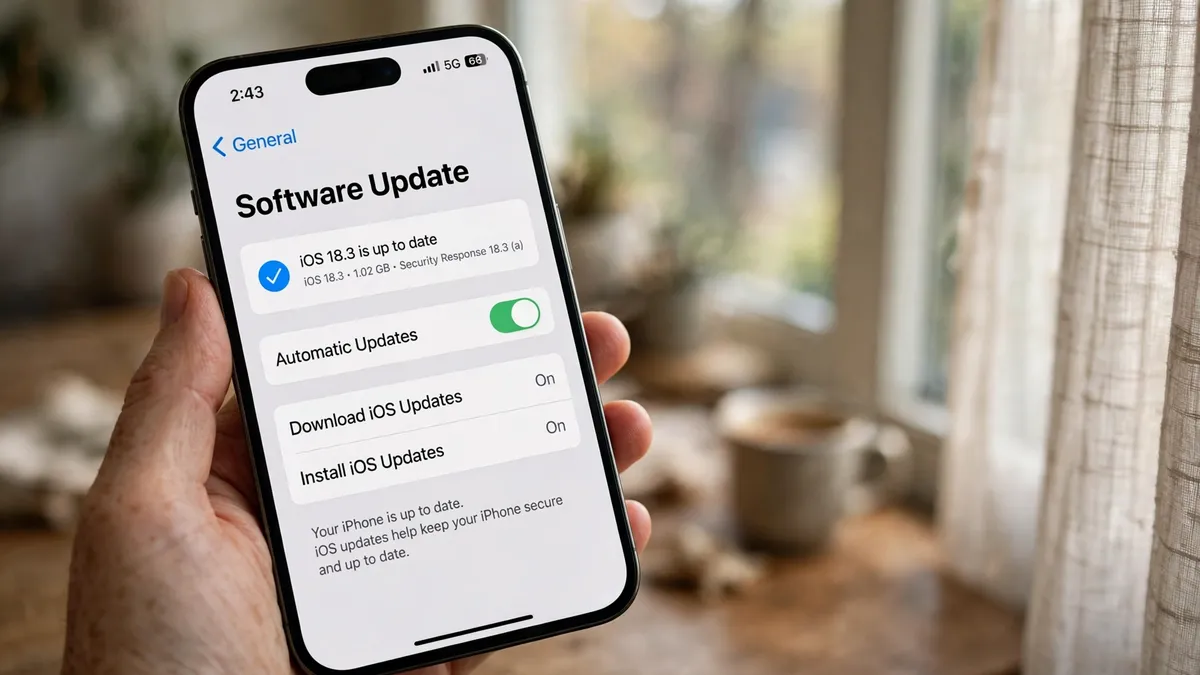
Learning how to change Android wallpaper is straightforward, but the exact menu names depend on your phone. On a Google Pixel running Android 16, the controls live under Wallpaper and style. On a Samsung Galaxy running One UI 8, they live under Wallpaper and style too, with a few extra options for the Lock Screen.
The fastest route on most Android phones is to press and hold an empty spot on the Home Screen, then tap Wallpaper and style. From there you can pick one of your own photos, a built-in image, or a live wallpaper, and choose whether it applies to the Home Screen, the Lock Screen, or both.
This guide covers the long-press method, the Settings route, and setting a wallpaper from your gallery, plus live wallpapers, AI-generated wallpapers, and theme colours. It also covers the common fixes for a wallpaper that looks blurry or will not apply. The steps are written for Pixel and Samsung phones, with notes where other brands differ.
Key takeaways
- Press and hold an empty spot on the Home Screen, then tap Wallpaper and style, for the fastest way to change Android wallpaper.
- Settings, then Wallpaper and style, gives you the same options with more room to adjust the crop.
- You can set one image for the Home Screen and a different one for the Lock Screen.
- Your own photos work best at full resolution, and live wallpapers add motion at a small battery cost.
- If a wallpaper looks blurry, the source image is usually too small or compressed.
At a glance: your wallpaper options
| Method | Where to start | Best for | Time needed |
|---|---|---|---|
| Long-press Home Screen | Empty Home Screen space | Quick changes | Under a minute |
| Settings app | Settings, then Wallpaper and style | Precise edits and theme colours | About two minutes |
| Gallery or Photos app | Any photo, then Set as wallpaper | Using one specific photo | Under a minute |
| Live wallpaper | Wallpaper and style, then live options | Motion on the Home Screen | About a minute |
| AI wallpaper | Wallpaper and style, then AI wallpaper | A one-off generated image | About two minutes |
| Separate Lock Screen image | Wallpaper and style, then Lock Screen | A different Lock Screen look | About a minute |
Method 1: Change it from the Home Screen
The long-press method works on Pixel phones, Samsung Galaxy phones, and most other Android phones. Press and hold an empty area of the Home Screen, taking care not to press on an app icon or a widget. A small menu appears at the bottom with Wallpaper and style, Widgets, and Home settings.
Tap Wallpaper and style. On a Pixel, tap Change wallpaper to see the picker. On a Samsung phone, the same screen shows your current Home Screen and Lock Screen previews, with a Change wallpapers button below them. You will see categories such as My photos, Live wallpapers, and the built-in collections.
Tap My photos and choose the image you want. Drag to position it and pinch to zoom, then tap the tick or Set wallpaper button. Your phone will ask where the image should go: Home Screen, Lock Screen, or Home and Lock Screens. Pick one and the change applies immediately.
If you tap a built-in image instead, the same choice appears. Preview any wallpaper full screen before you commit, which is worth doing when a bright area could make your app labels hard to read.
Method 2: Change it in Settings
The Settings route gives you the same picker with a little more room to work. Open Settings and tap Wallpaper and style. Some other brands call it Wallpaper, or put it under Display and then Wallpaper.
Tap Change wallpaper and browse the categories. My photos holds your own images, while the built-in collections are grouped by theme. Live wallpapers sit in their own section, and Pixel phones also show an AI wallpaper option near the top.
Choose an image and adjust the crop by dragging to reposition it and pinching to zoom. The preview shows how the image will look behind your apps, so check that icons and the clock stay readable. Tap Set wallpaper, then choose Home Screen, Lock Screen, or both.
While you are here, look at Wallpaper colours on a Pixel, or Colour palette on Samsung. A new wallpaper can suggest colours for your menus, buttons, and widgets, which keeps the whole phone looking matched. You can switch the palette off if you prefer your current colours.
Method 3: Use any photo from your gallery
If you already have the perfect shot, you do not need to open Settings at all. Open the Gallery app on a Samsung phone, or Google Photos on a Pixel, tap the picture to open it full screen, then tap the three-dot menu and look for Set as wallpaper or Use as, followed by Wallpaper.
The editor opens with your photo loaded. Drag to reposition it and pinch to set the crop, remembering that widgets and the clock cover the top of the screen, so the main subject should sit in the middle or lower half. Confirm, then pick Home Screen, Lock Screen, or both.
This route is handy for photos you have just taken or edited: crop or brighten a photo in the gallery first and the edited version becomes your wallpaper. A photo saved from a message works the same way, as long as it is saved to your device first.
For the sharpest result, use a photo taken on the phone or saved at full size. A small image from a chat thread is often compressed and will stretch to fill the screen, so it can look soft.
Set different wallpapers for Home Screen and Lock Screen
Your Home Screen and Lock Screen do not have to match. The Home Screen sits behind your apps, where a busy photo can make icons hard to read, while the Lock Screen is the photo you see when you wake the phone. Many people use a favourite photo on the Lock Screen and a calmer image behind the apps.
To set them separately, open Wallpaper and style and choose your Lock Screen image first, selecting Lock Screen only. Then repeat the process for the Home Screen, choosing Home Screen only.
On a Samsung phone, you can also press and hold the Lock Screen to customise it directly. Tap the clock to change its font and colour, and tap the shortcut icons at the bottom to swap them. These edits affect only the Lock Screen.
On a Pixel, the Lock Screen clock style can be changed from the same Wallpaper and style screen. Pick a design that leaves the main subject of your photo visible.
Live wallpapers, AI wallpaper, and theme colours
A live wallpaper adds gentle motion to your Home Screen. From the wallpaper picker, open the Live wallpapers category and tap one to preview it. Some are simple animations, while others react to touch or to the time of day. Live wallpapers only animate on the Home Screen, and they use a small amount of extra battery, so a still photo is better if battery life is tight.
On Pixel phones, AI wallpaper builds a one-off image from a short prompt. Open Wallpaper and style, tap AI wallpaper, pick a theme and a style, and the phone generates a few options. Choose one and set it like any other wallpaper. The result is unique to your phone, though the styles are limited.
Samsung’s Galaxy AI offers a similar generative wallpaper option in Wallpaper and style, under Change wallpapers. The images are made on the phone from a prompt you type, and work like any other wallpaper once saved.
Theme colours tie the rest of the phone to your wallpaper. After you set a new image, your Pixel or Samsung phone will suggest a palette drawn from the photo’s colours. Accepting it recolours quick settings, buttons, and some widgets. If the palette looks wrong, open Wallpaper and style and pick a different one, or switch it off.
Troubleshooting: when the wallpaper will not change
If a long press on the Home Screen does nothing, check that you are pressing an empty area, not an icon or a widget. Some third-party launchers move the wallpaper option into their own settings. Restarting the phone fixes the gesture in most cases.
A blurry wallpaper almost always means the source image is too small. A photo below roughly 1000 pixels wide will soften when stretched across the display, so use the original full-size photo from your gallery rather than a compressed copy from a chat app.
If the wallpaper changes on the Home Screen but not the Lock Screen, you probably chose Home Screen only during setup. Open Wallpaper and style, pick the image again, and choose Lock Screen or both.
When a wallpaper disappears after an update, the image is usually in a cloud album that has not finished syncing, or the file was moved. Open your gallery, wait for the sync to finish, then set the wallpaper again. If a live wallpaper stops animating, check that battery saver is off, since it pauses live wallpapers.
If you are weighing a switch between the two big platforms, the Android vs iPhone in 2027 comparison sets out the practical differences that matter most to everyday buyers. The Android vs iPhone security comparison is also worth a read before you change settings you are unsure about.
Checklist: before you change your wallpaper
- Pick a photo at full resolution, saved on your device, not a compressed copy from a chat.
- Check that the main subject sits in the middle or lower half, clear of the clock and widgets.
- Decide whether the Home Screen and Lock Screen should match or use different images.
- Preview the wallpaper with your usual widgets in place before you confirm.
- Turn battery saver off before judging a live wallpaper, since it pauses the animation.
- Keep your favourite wallpapers in a dedicated album so you can find them again.
Frequently asked questions
How do I change my Android wallpaper for free?
Changing your Android wallpaper is free. Use your own photos from the gallery, or pick from the built-in collections and live wallpapers. No purchase is needed, and you can change it as often as you like.
Can I set a different wallpaper for the Home Screen and Lock Screen?
Yes. When you set a wallpaper, choose Home Screen only or Lock Screen only instead of both. Repeat the process for the other screen with a different image.
Why does my Android wallpaper look blurry?
The source image is usually too small or compressed. Use the original full-size photo from your gallery, and avoid copies sent through chat apps.
Do live wallpapers drain the battery?
Live wallpapers use a small amount of extra battery because they animate. The effect is modest on most phones, but if battery life is tight, a still photo is the safer choice.
How do I use my own photo as a wallpaper?
Open the photo in your gallery or Google Photos, tap the three-dot menu, choose Set as wallpaper, adjust the crop, and pick Home Screen, Lock Screen, or both.
Where do I find more wallpapers?
Your phone’s built-in collections are the simplest source, and the Google Wallpapers app adds more free options. The passkey guide explains how synced and device-bound passkeys work on Android and iPhone.
The bottom line
Changing your Android wallpaper is a thirty-second job once you know the route: press and hold an empty spot on the Home Screen, tap Wallpaper and style, and pick an image. Your own full-size photos give the best results, and a different Lock Screen image keeps your apps easy to read.
Start with the long-press method, preview the crop first, and save your favourites in one album. If a wallpaper looks wrong, the fix is almost always a bigger source image or battery saver.