How to Use a Foldable Phone for Productivity
A foldable phone for productivity is a regular smartphone that opens into a small tablet, and that extra screen is the whole point. Closed, it works like any other handset for calls, messages and quick checks. Open, it gives you a wide display that fits two apps side by side, a full document page, or a spreadsheet with columns you can actually read.
The mistake most people make is treating a foldable exactly like the phone it replaced. They open it, use one app at a time, and wonder why they paid extra. The payoff comes from the folding itself: the wide inner screen, the half-open angles, and the multitasking tools most foldables ship with. Used deliberately, the phone can replace a small tablet for reading, planning, note-taking and light editing away from a desk.
This guide walks through the setup and daily habits that make a foldable genuinely useful for work: the first settings to change, the split-screen workflows worth learning, the half-open modes that turn the phone into a tiny laptop, and the common problems that put people off.
Key takeaways
- A foldable earns its keep when you use the wide inner screen for two apps at once, not one app on a bigger display.
- Set up app pairs, the taskbar and split-screen combinations before you need them, so multitasking takes one tap.
- Half-open flex mode turns the phone into a hands-free stand for video calls, note-taking and watching briefings.
- Most foldable frustrations come from apps not optimised for the large screen, and most have a workable fix.
- Protect the inner screen and the hinge, keep the phone cool, and expect a shorter battery day than a slab phone.
Step 1: Set up the phone for work before you use it for work
Decide which screen does what. The cover screen is for quick actions: checking a message, skipping a song, glancing at a calendar reminder. The inner screen is for focused work: documents, email triage, planning and research. Keeping that split in mind stops you opening the phone for every notification and makes the big screen feel deliberate rather than decorative.
Install your core work apps — email, calendar, notes, a cloud drive, a chat app and a browser — and sign in on the inner screen. Open each one unfolded and check it fills the display. Then turn on the taskbar, split-screen gestures, and the option to continue apps when folding or unfolding. These settings are usually buried in the display menu, and they decide whether the phone multitasks smoothly or fights you.
Step 2: Learn split-screen and multi-window properly
Split-screen is the single most useful foldable feature. Open your first app, then open the second from the taskbar or recent-apps view and drag it to one side. Most foldables offer a 50-50 split, or a wider-narrower split when one app needs more room. A document on the wide side and notes on the narrow side is a combination you will use every day.
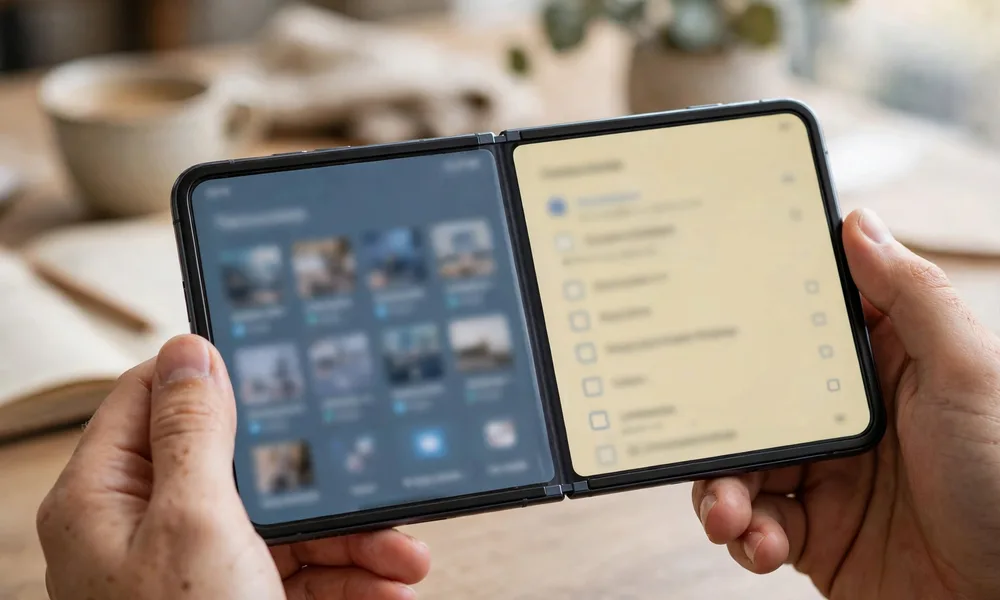
Save the pairs you use most. If you check email beside your calendar every morning, save that as an app pair so one tap opens both. The same goes for a browser and notes app for research, or a chat app and a document for editing with a colleague. Our roundup of the best foldable phones in 2027 is a useful reference if you are still choosing a model, because multitasking software varies more between brands than the hardware does.
Step 3: Use flex mode as a hands-free workstation
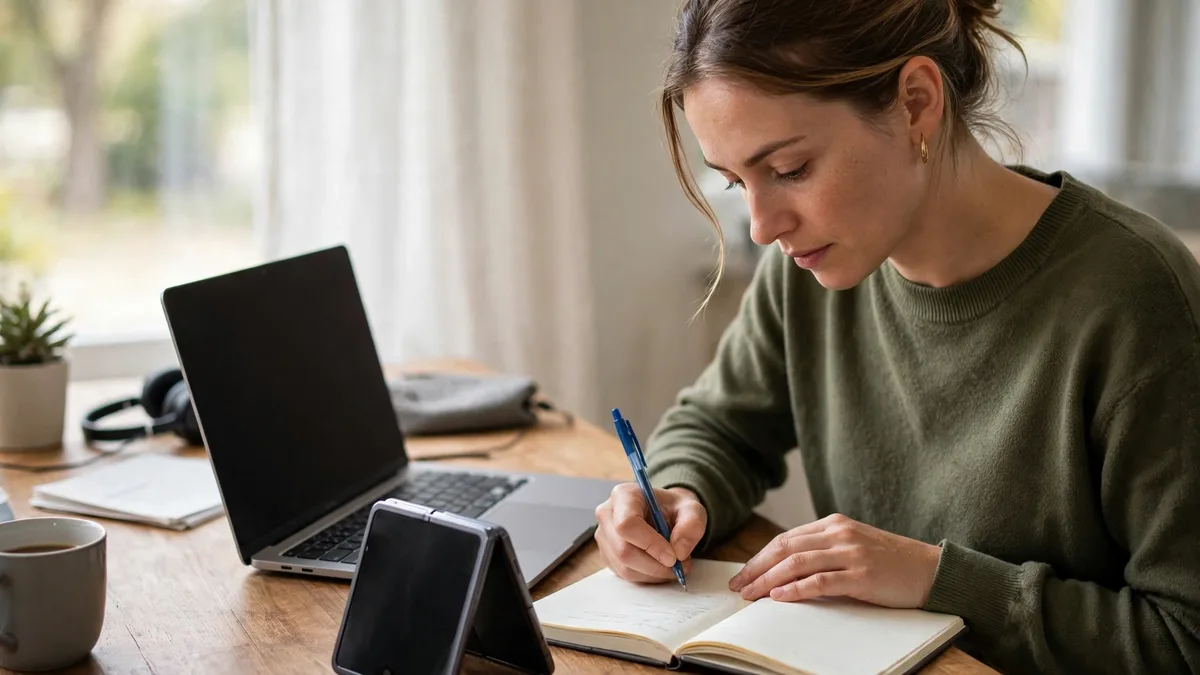
Fold the phone halfway and it becomes its own stand. This half-open angle, usually called flex mode, splits the screen into a top viewing area and a bottom control area. It is ideal for video calls: prop the phone on a desk, the camera points at you from the top half, and the controls sit on the bottom half where your hands can reach them without blocking the lens.
Flex mode also works for watching a recorded meeting while you take notes — video on top, notes below — or for propping the phone beside your laptop as a second screen. The trick is to stop holding it: flex mode only pays off on a surface, so put it down on a desk or a train table and keep your hands free.
Step 4: Build a note-taking and reading workflow
A foldable is at its best as a reading and note-taking device. The wide inner screen shows a full page without constant scrolling, and a stylus — where your model supports one — turns it into a pocket notebook. Choose one notes app and commit to it, and pick one that syncs to your computer, so a note started on the phone is waiting on your desk later.
For reading, use the inner screen for anything longer than a quick message: reports, contracts and long articles. For meetings, open the agenda on one side and your notes on the other, and mark the owner of each action item before the meeting ends. A note that says who does what by when is worth ten pages of transcript.
Step 5: Handle email, calendar and tasks in batches
Foldables tempt you to check email constantly because the big screen makes it pleasant. Resist that. Batch your inbox instead: open the phone, work through email in one focused pass, and close it. Use the wide screen to triage quickly — the message list on one side and the open message on the other — and deal with each message once: reply, delegate, file or delete. Anything needing more than two minutes becomes a task, not a lingering unread message.
Use the calendar the same way. A week view on the inner screen shows enough detail to plan properly. Each morning, open the calendar beside your task list, confirm the day’s meetings, and pick the three tasks that matter most. Keep the list short — ten tasks is a plan, forty is a pile — and spend five minutes each evening clearing completed items and choosing tomorrow’s priorities.
Step 6: Fix the apps that do not fit the big screen
Not every app is designed for a wide foldable display. The common symptoms are easy to recognise: an app that stays phone-shaped with black bars on either side, one that stretches so text and buttons look oversized, or one that restarts every time you fold or unfold the phone. Before you blame the phone, check the app’s own settings and your phone’s display options.
Most foldables offer a per-app setting for aspect ratio or full-screen behaviour. Try the full-screen option, restart the app, and test it folded and unfolded. Some phones also offer a force-resize feature that lets unoptimised apps fill the screen. The comparison in our Samsung Galaxy Z Fold 7 vs Pixel 10 Pro Fold piece shows how differently two leading foldables handle these same apps. If one still misbehaves, use its web version in the browser, which usually scales cleanly.
Step 7: Protect the screen, the hinge and the battery
The inner screen is the most delicate part of a foldable and needs different care from a normal phone. Never press hard on it with a fingernail or a pen that is not designed for it, and do not stick an ordinary screen protector over the factory one — the wrong protector can damage the display when the phone folds. If the factory protector starts peeling, have it replaced by the manufacturer or an authorised repairer rather than pulling it off yourself.
Keep the hinge free of grit: sand, crumbs and pocket lint are the enemies of a folding mechanism, so avoid pockets with keys or loose change, and do not force the phone past its natural stopping point. A slim case that covers the hinge without adding bulk is worth having.
Troubleshooting common foldable problems
If the phone feels sluggish when multitasking, the cause is usually memory rather than the screen. Close apps you have not used in hours, restart the phone once a week, and check for a software update — foldable multitasking improves noticeably with updates in the first year of a model’s life.
If the inner screen looks dim beside the cover screen, check the brightness and colour settings for each display separately. A visible crease down the middle is normal and becomes less noticeable in daily use; a bright line, flickering or dead pixels are not, and those are reasons to contact the manufacturer under warranty. If the battery drains fast, restrict background activity for apps you do not need. Choosing between a foldable and a conventional phone is also a question of what else you carry, and our Android vs iPhone in 2027 comparison is a useful starting point if you are weighing the wider switch.
Frequently asked questions
Is a foldable phone actually better for productivity than a normal phone?
It is better for tasks that need two things visible at once, such as reading a document while taking notes. For single-app tasks like calls and quick messages, it is no faster than a normal phone, so the benefit depends on how much of your work is genuinely multi-window.
Can a foldable replace a tablet?
For reading, notes, email and light editing, yes for most people. It cannot fully replace a tablet for long drawing sessions, large spreadsheets or heavy video editing, where the bigger screen and stronger battery of a dedicated tablet still win.
Do all apps work in split-screen on a foldable?
Almost all apps support split-screen on modern foldables, but not all use the wide screen well. Some stay phone-shaped or stretch awkwardly; the per-app display settings and the web version of the app usually fix the worst cases.
How fragile is the inner screen?
It is softer and more delicate than the glass on a normal phone, so it scratches more easily and must not be pressed hard. With the factory protector in place and a case on the phone, normal daily use is fine, but it will not survive the same rough treatment as a slab phone.
Does using the big screen all day kill the battery?
It shortens the day noticeably compared with using the cover screen alone, because the larger display draws more power. Most people get through a normal workday with mixed use, but heavy inner-screen days usually need a top-up or a power bank.
Is a foldable worth it if I mostly work at a desk?
Probably not as a primary work device, since a laptop is faster for desk work. It is worth it if much of your day happens away from a desk — commuting, meetings, travel and working from cafes — where the pocketable second screen fills the gap between a phone and a laptop.
The bottom line
A foldable phone becomes a productivity tool when you treat the fold as a feature instead of a novelty. Set up app pairs and the taskbar first, use split-screen for real two-app work, prop the phone in flex mode instead of holding it, and batch email and tasks instead of checking them all day. The hardware is only half the story; the habits are what turn a wide screen into actual output.
Start with one workflow this week — email beside your calendar, or a document beside your notes — and get it working smoothly before adding more. If that one workflow saves you time every day, the foldable has earned its place. If it does not, you have learned something useful about how you actually work, and you can stop chasing the big screen and use the phone the way that suits you best.