For most retro players, RetroArch is a flexible starting point; Android gamers on a computer should look first at BlueStacks, while app developers should start with Android Studio Emulator. Your choice matters because console emulation, Android gaming, and app development solve different problems. The right program can make games easier to play or apps easier to test.
These recommendations are organized by use case and platform, so you can focus on the systems you want to run. Use game files you have the right to use. An Android Virtual Device (AVD) is a configurable virtual hardware profile that the Android Emulator boots as a simulated device.
Key Takeaways
- RetroArch is a flexible starting point for playing games from multiple retro systems.
- BlueStacks is aimed at playing Android games on a computer.
- Android Studio Emulator is built for developing and testing Android apps.
- Choose a dedicated emulator when you want to run one console.
- Check compatibility and hardware needs before setting up a new system.
- Use only game files and system files you have the right to use.
Best Emulators by Platform and Use Case
A PC retro-gaming setup can start with one all-in-one frontend or several focused programs, depending on how many systems you want to play. Your shortlist should reflect the games and platforms you care about, not the size of an emulator’s feature list. RetroArch is an open-source frontend for emulators, game engines, games, and multimedia programs.
The best emulators for PC include both multi-system frontends and dedicated emulators. A standalone program can be simpler when you want one console, while a frontend can bring several systems into one interface. The Libretro project has been active since 2012, and RetroArch has more than 200 cores.
- RetroArch: multi-system retro play through one frontend.
- BlueStacks: Android gaming on a computer.
- Android Studio Emulator: Android app development.
- Genymotion: app testing across virtual devices.
- DuckStation: PlayStation 1 games.
- PCSX2: PlayStation 2 games.
- Dolphin: GameCube and Wii games.
- PPSSPP: PlayStation Portable games.
- melonDS: Nintendo DS games.
- Flycast: Dreamcast games.
These options cover gaming, testing, and play across different platforms, but they do not all serve the same user. RetroArch provides a shared starting point, while dedicated emulators focus on specific systems. That focus can make a one-console setup easier to understand and manage.
Choose an emulator for the system you want to run, then judge its compatibility with your games.
For retro play, the best emulators include both an all-in-one choice and focused options for individual consoles. Compatibility can differ across games, even when a program supports the system in general. Keep the shortlist focused on the systems you actually plan to run.
Which Android Emulators Work Best for Gaming?
If you want Android games on a Windows PC, BlueStacks is the broadest starting point in this comparison, while GameLoop is more focused on its named mobile games. BlueStacks fits users who want broad Android gaming and keyboard controls. Google Play Games for PC works well when its smaller catalog includes the games you play.
The best emulators for Android gaming on a computer include BlueStacks, GameLoop, NoxPlayer, and MEmu Play. GameLoop is Tencent’s emulator for PUBG Mobile and Call of Duty: Mobile. The table compares the main options by game fit and features.
| Emulator | Best fit | Distinguishing feature |
|---|---|---|
| BlueStacks | Broad Android gaming | Keyboard-control mapping |
| GameLoop | PUBG Mobile and Call of Duty: Mobile | Game center and key mapping |
| NoxPlayer | Customizable play | Macro recorder and multi-instance controls |
| MEmu Play | Intel- or AMD-based Windows gaming | CPU, rendering, and multi-instance controls |
| Google Play Games for PC | Official Google game catalog | Smaller catalog than a full Android emulator |
NoxPlayer lets you record macros, map keyboard and gamepad controls, and manage several instances. MEmu Play offers CPU, rendering, and multi-instance controls on Intel- and AMD-based Windows PCs. Google Play Games for PC is an official Google gaming product, but it has fewer games than a full Android emulator.
For best emulators for Android in 2026, compare the listed Android version, game support, and control features rather than assuming every option runs the same titles. A top 10 emulators for Android list should distinguish computer-based Android gaming from console emulation on an Android phone. BlueStacks lists a minimum requirement of 12 GB of RAM or more. Check BlueStacks’ stated RAM requirement against your computer before installing it.
Which Android Emulators Suit App Development?
For building and debugging Android apps, Android Studio Emulator is the most direct choice because it sits inside the official development environment. Its integrated tools support local app work, while Genymotion offers desktop and cloud testing. Android Studio Emulator profiles cover phones, tablets, Wear OS, Android Automotive OS, and Android TV.
The recommended Android Studio Emulator setup needs at least 16 GB of RAM and 16 GB of disk space. Supported hosts include 64-bit Windows 10 or higher, macOS 12 or higher, Linux, and ChromeOS. A profile is a configurable virtual hardware setup that the emulator boots as a simulated device.
Android Studio Emulator for local development
Android Studio Emulator works with Android Studio’s development and debugging tools. You can choose a device profile, inspect app behavior, and save snapshots of virtual devices. Android Studio AVD also supports automated testing with Espresso and Appium.
The emulator can simulate incoming calls and text messages, location, network speeds, rotation, and hardware sensors. These controls help you see how an app responds to changes without switching physical devices. They can also help reproduce a problem that appears only under a certain condition.
Genymotion for desktop and cloud testing
Genymotion offers both desktop and cloud options for testing apps across virtual devices. Its GPS, network, and sensor simulation lets you test how an app handles different locations and device conditions. A team can use the cloud option when local machines are not the right place for every test.
Android Studio is the integrated choice for Android development, while Genymotion suits teams needing desktop or cloud testing. A desktop setup and a cloud workflow can serve different testing needs, so choose the one that fits how your team works. Check both the host operating system and available disk space before creating an AVD.
Is RetroArch the Best Multi-System Emulator?
RetroArch is the strongest all-around choice when you want many retro systems gathered in one interface. Its shared interface brings different cores together, but a dedicated emulator can be easier when you only want one console. RetroArch lists version 1.21.0 as its latest update.
RetroArch supports netplay, recording, streaming, shaders, and controller auto-configuration. Those features make it useful for more than launching games. The controls and display tools can help you shape how a game looks and feels.
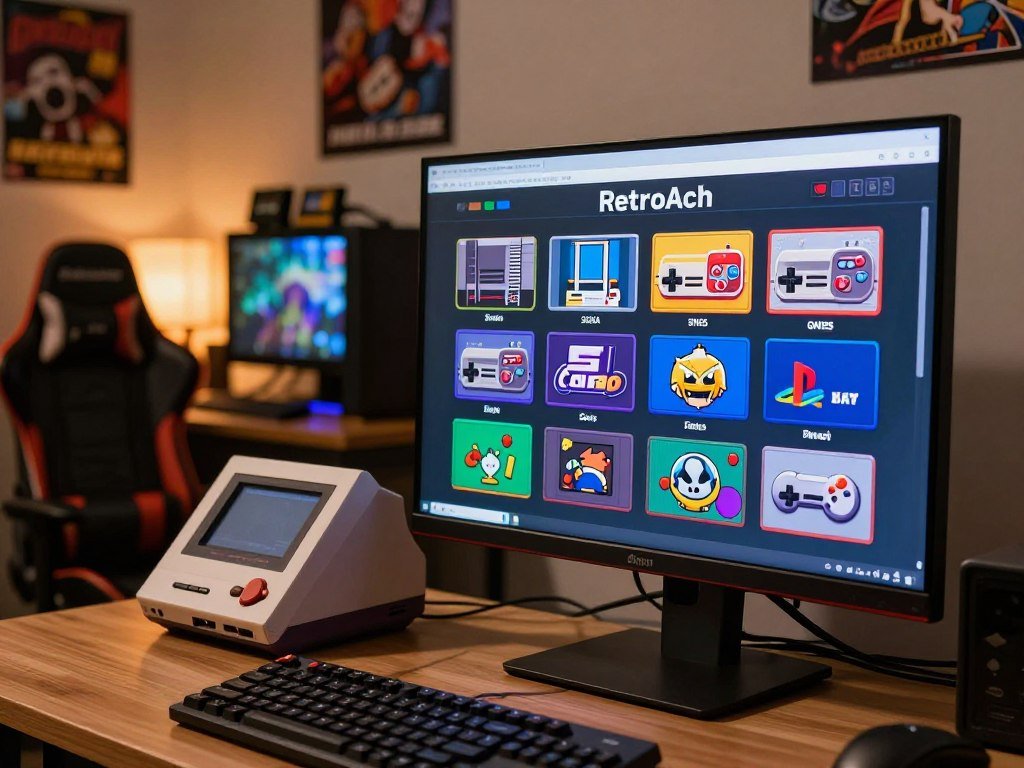
Features that make RetroArch versatile
RetroArch uses cores to add emulators and other programs to its interface. You can switch systems without opening a different program for every game. The Libretro core list names supported cores and the systems they cover.
Netplay supports shared play, while recording and streaming tools capture game sessions. Shaders can change a game’s display, and controller auto-configuration can save time when connecting a supported controller. These features sit alongside the core-based setup, rather than replacing each core’s role.
When a standalone emulator is simpler
A standalone program can be easier to configure if you want one console and do not need a shared frontend. DuckStation focuses on PS1 play, while PPSSPP focuses on PSP games. You can open the program and work with one system instead of learning a frontend and choosing its cores.
RetroArch remains a flexible option for several platforms, but that flexibility comes with settings to learn. A standalone choice may be a better fit when you want a shorter setup and a single system. Pick a standalone emulator if configuring a frontend and its cores feels like more work than you need.
What Should You Use for PS1 and N64 Games?
For PS1, start with DuckStation; for Nintendo 64, Project64 is a straightforward dedicated option. Both focus on a specific console, which can make the setup easier to follow. RetroArch is another choice if you prefer to manage several systems through one shared frontend.
DuckStation is the PS1 pick, while Project64 supports Nintendo 64 games, cheats, and multiplayer. Dedicated programs suit players who want to focus on one system. You can start with the game and controller setup before changing optional graphics settings.
DuckStation for PlayStation 1
DuckStation is a PS1 emulator and a focused choice for classic PlayStation games. A dedicated program makes sense when PS1 compatibility and visual enhancements matter to you. It keeps the system’s options together instead of placing them among settings for many consoles.
That focus may suit you if the PS1 is the main reason you are setting up emulation. A shared frontend remains useful for players who already use RetroArch for other systems. These choices do not make every feature identical across the two programs.
Project64 for Nintendo 64
Project64 supports Nintendo 64 games and includes cheats and multiplayer. Those features make it a practical starting point for N64 play, especially when you want a dedicated program. The exact experience can still depend on the game and your control setup.
RetroArch offers another route for people who prefer a common interface across several platforms. It can serve as an alternative without replacing every feature in a standalone emulator. Confirm that the game and controller setup work before adjusting optional graphics settings.
Which Emulators Handle PSP and Nintendo DS?
PPSSPP is the clear starting point for PSP, while melonDS is a feature-rich option for Nintendo DS. PPSSPP fits PSP play, and its open-source design is available across platforms. On a PC, it supports HD upscaling for sharper visuals.
melonDS supports save states, joystick controls, and a range of DS features. Its JIT recompiler, 3D upscaling, and OpenGL renderer support different parts of game performance and display. The DS’s two-screen design also makes layout and control choices part of setup.
PPSSPP for PSP games
PPSSPP is an open-source PSP emulator and a focused choice for games made for that handheld. Its PC HD upscaling can make a game appear at a higher resolution. You can also use PPSSPP on supported mobile and handheld devices.
If you are setting it up on Android, this PPSSPP setup guide covers storage, controls, and basic settings. The right display and control setup can differ between a computer and a handheld. Start with the device you plan to use most.
melonDS for Nintendo DS games
melonDS is a Nintendo DS emulator with a JIT recompiler, 3D upscaling, and an OpenGL renderer. It also supports a microphone, a real-time clock, save states, and joystick input. Those features give you several ways to match a game’s needs.
The Nintendo DS has two screens, so their position and size can affect how a game feels. A melonDS screen layout guide can help with setup on Steam Deck. Test the DS screen layout with your controller before settling on a permanent configuration.
Which Emulator Works Best for PS2, GameCube, and Wii?
PCSX2 is the pick for PS2, and Dolphin handles both GameCube and Wii. These systems need more from a computer than older handheld consoles, and results depend on the game. PCSX2 version 2.6.0 was released in January 2026.
PCSX2 is free and open source, and it supports 2,679 PS2 games. Dolphin emulates GameCube and Wii games and supports upscaling. The table shows which program fits each system and one useful detail.
| Console | Emulator | Useful detail |
|---|---|---|
| PS2 | PCSX2 | Free and open source, supports 2,679 PS2 games |
| GameCube | Dolphin | Supports upscaling |
| Wii | Dolphin | Supports upscaling |
Start with PCSX2 if you want to play PS2 games on a computer. Dolphin is the choice for both GameCube and Wii games, which makes it useful if your library spans those systems. One emulator can handle two related consoles, but each game may still behave differently.
Upscaling can make a game look sharper, but it also asks more from your graphics hardware. A setting that works well in one title may not suit another. Start at native settings, then raise resolution only if the game remains smooth.
What Does PS3 and Xbox 360 Emulation Require?
PS3 and Xbox 360 emulation is the demanding end of this guide, with RPCS3 and Xenia as the respective starting points. High-end hardware is the expected tier for these systems. Even then, performance varies by game, so a successful launch does not promise a stable frame rate.
RPCS3 is a PS3 emulator, and Xenia is an Xbox 360 emulator. A game may open but still show slowdowns or other problems during play. FPS can change across scenes, so one successful start does not tell you how the whole game will run.
These systems place a heavier load on a computer than PS2, GameCube, and Wii emulation. Results vary with the game, which means a computer that runs one title well may struggle with another. Check compatibility for the exact game before upgrading a computer around it.
Which Emulators Cover Dreamcast, Arcade, DOS, and SNES?
Flycast is the dedicated Dreamcast pick, while DOSBox and Snes9x cover MS-DOS and SNES play. FinalBurn Alpha is an arcade-focused option for readers who want to play arcade games. RetroArch is another choice when you want broader core-based coverage.
Match an arcade emulator to the system family you want to play. One program may not cover every arcade system. These four options each serve a distinct classic gaming category.
- Flycast: an open-source emulator for Sega Dreamcast.
- FinalBurn Alpha: an arcade-focused emulation option.
- DOSBox: MS-DOS games on Windows, Linux, and macOS.
- Snes9x: Super Nintendo and Super Famicom games.
Flycast focuses on Dreamcast, while DOSBox runs MS-DOS games on several computer platforms. Snes9x focuses on SNES and Super Famicom games. If you want broader coverage through cores, consider RetroArch rather than expecting one arcade program to cover every system.
Arcade emulation can refer to different system families, so the program that fits one set of games may not fit another. Choose by the arcade system family you want to run. Match arcade emulation to the system family you want rather than assuming one arcade program covers everything.
How Can You Organize a Multi-Emulator Game Library?
If your games are scattered across several programs, LaunchBox can bring the collection into one browsable library. It organizes a collection, but it does not replace the emulators that run the games. The library can make it easier to browse games from different sources.
LaunchBox can organize emulator games alongside Steam games, MS-DOS games, and ROM files. It can also display cover art and video previews. Those details help you browse a collection without opening each emulator first.
A frontend can keep games in one place even when several programs run them. You still need the matching emulator for each system, and the library does not change how those programs work. Think of it as a shelf for your games, not the console that plays them.
Someone with only a few games may find that a frontend adds unnecessary setup. For a larger collection, browsing one library can save time spent opening different programs. Add a frontend only when its organization saves more time than it takes to maintain.
What PC Specs Do Emulators Need?
Entry-level PCs can often start with PS1 and N64, while PS2 and newer systems call for more capable hardware. The hardware tier gives you a starting point, not a promise that every game will run well. Resolution increases and demanding titles can raise system load.
PS3 and Xbox 360 emulation belong in the high-end tier, with results varying by game. PS1 and N64 often fit entry-level systems, while PSP and DS fit the entry-to-mid tier. The table matches systems with emulator examples and a realistic expectation.
| Hardware tier | Systems | Emulator examples | Expectation |
|---|---|---|---|
| Entry-level | PS1 and N64 | DuckStation, RetroArch, Mupen64Plus | Upscaling for most titles |
| Entry-to-mid | PSP and DS | PPSSPP, DeSmuME, melonDS | Suitable tier |
| Mid-range | PS2, GameCube, Wii | PCSX2, Dolphin | More demanding systems |
| High-end | PS3 and Xbox 360 | RPCS3, Xenia | Results vary by game |
DuckStation or RetroArch can suit PS1, and Mupen64Plus or RetroArch can suit N64. Many titles on those systems can use upscaling on entry-level hardware. PSP and DS fit the entry-to-mid range, with PPSSPP, DeSmuME, and melonDS as examples.
PCSX2 and Dolphin fit the mid-range tier because PS2, GameCube, and Wii are more demanding. If your computer struggles with newer games, this guide to low-end PC games explains how parts like RAM and graphics hardware affect play. Test the game at its default resolution before adding upscaling or other performance-heavy features.
How Do You Accelerate Android Emulators on Windows 11?
On a supported Windows 11 edition, WHPX is the preferred Android Emulator acceleration option when it is available. WHPX or AEHD can provide hardware acceleration for the Android Emulator. Microsoft recommends Windows Hypervisor Platform, or WHPX, when available.
WHPX is supported on Windows 11 Enterprise, Pro, or Education, and Windows 10 version 1909 or later. Acceleration needs an x86 or x86-64 system image. An Arm-based image runs slowly without acceleration.
Android Emulator does not support Windows ARM devices, including ARM64 devices with Snapdragon processors. That limit can stop setup before emulator settings matter. Use this short checklist to check compatibility first.
- Check whether your Windows edition supports WHPX.
- Enable an available supported hypervisor.
- Select an x86 or x86-64 system image.
- Confirm that the PC is not a Windows ARM device.
WHPX and AEHD are acceleration options for supported Windows systems, but an Arm image runs slowly without acceleration. Windows ARM is a separate hardware limit, including Snapdragon ARM64 devices. Rule out Windows ARM incompatibility before spending time changing emulator settings.
Which Emulators Work on Mac, Android, and Handheld Devices?
For a phone, RetroArch is the broad multi-system pick, while PPSSPP is the focused choice for PSP games. RetroArch travels across several platforms, including Windows, macOS, Linux, Android, and iOS. Your device and the system you emulate still affect performance.
RetroArch is the most flexible multi-system phone starting point among these picks. PPSSPP is the more focused choice when PSP games are your main goal. This platform list shows which options fit different devices.
- Mac users can consider RetroArch, Android Studio Emulator, or Genymotion.
- Android phone users can try RetroArch or PPSSPP.
- Android handheld users can consider RetroArch, PPSSPP, melonDS, or Flycast.
- People who want Android apps on a computer should use the computer-focused choices discussed earlier.
RetroArch supports Windows, macOS, Linux, Android, and iOS. PPSSPP gives you a focused option for PSP games across supported devices. The best Android choice for a phone depends on the system you want to run, not just the app’s name.
An Android handheld may run one console smoothly and struggle with another. Its hardware and the system being emulated both affect performance. Check the app’s current device and operating-system compatibility before moving a collection to a new device.
How Do Android Versions and Play Protect Affect Compatibility?
Check the Android version and Play Protect certification separately, since they affect compatibility in different ways. The version listed tells you which Android release an emulator offers, while certification affects access to licensed Google apps. The table shows versions listed in 2026.
Only Play Protect-certified devices are eligible to include licensed Google apps such as the Play Store. Certification requires passing Android compatibility testing. An Android version alone does not show whether a device has passed that test.
| Emulator | Android version listed in 2026 |
|---|---|
| Android Studio AVD | Android 15 |
| Genymotion | Android 14 |
| BlueStacks | Android 13 |
| MuMu Player | Android 12 |
| MEmu Play | Android 11 |
LDPlayer and NoxPlayer are listed for Android 9. A listed version can help you check whether an app’s Android needs match an emulator. It does not tell you by itself whether licensed Google apps are included.
Uncertified devices may have app or feature problems and may miss Android system or app updates. Certification and version are separate checks, so a newer Android release does not guarantee Play Store access. Confirm certification and app behavior on the exact device rather than assuming every Android environment includes licensed Google apps.
How Do You Install and Configure an Emulator Safely?
A safe setup starts with the official download and a clear idea of which system you want to run. Start with the basics, then adjust controls and graphics after the emulator opens. Use only game files and system files you have the right to use.
Download an emulator from its official project or developer before you install it. The steps below work as a simple setup path for games and app testing. Keep changes modest until you know the program runs as expected.
- Download the emulator from its official project or developer.
- Install and open the program.
- Choose a device profile or console system.
- Configure controls and graphics conservatively.
- Add only game files and system files you have the right to use.
Developers can use Android Studio profiles and debugging tools to test apps. Snapshots let them save virtual-device states, while Espresso and Appium support automated testing. Retro players can configure RetroArch cores or use a dedicated emulator such as Dolphin.
A game’s save file can matter as much as its graphics settings, especially if you change programs or move files. Back up a save before trying a new setup. A Pokémon FireRed cheat setup guide also explains why testing changes carefully can protect progress. Keep a backup of saves before changing emulator versions or moving game files.
Use only game files and system files you have the right to use.
Conclusion
The right emulator is the one that supports your system and works well on the device you already have. Match the tool to your task, whether you want to play a console game or test an Android app. Check compatibility before spending time on detailed settings.
Choose a single game or app, install its matching emulator from the official source, and test it at default settings. That first run can show whether your device, controls, and chosen program work together. Pick one game or app to test first, then expand your setup only if it runs as expected.
FAQ
What is the best free emulator for PC retro gaming?
RetroArch is a flexible free starting point for playing games from multiple systems on a PC. It gathers different cores in one interface, so you can use one frontend for several kinds of retro play. If you only want one console, a standalone emulator such as DuckStation or PPSSPP may take less setup. Use game files you have the right to use.
Can I use an Android emulator on a Windows ARM laptop?
No, Android Emulator does not support Windows ARM devices, including ARM64 laptops with Snapdragon processors. This limit is separate from whether the laptop has enough memory or disk space. Changing emulator settings will not make an unsupported Windows ARM device compatible. Check the computer’s processor type before installing Android Studio or setting up an Android Virtual Device.
Is Android Studio Emulator good for gaming?
Android Studio Emulator is mainly for Android app development and testing, not everyday gaming. It includes tools for virtual device profiles, debugging, and tests, which serve developers better than game players. BlueStacks and GameLoop are aimed at Android gaming on a computer. GameLoop is especially focused on PUBG Mobile and Call of Duty: Mobile.
How much RAM does the recommended Android Studio Emulator setup need?
The recommended Android Studio Emulator setup needs at least 16 GB of RAM and 16 GB of disk space. Those figures describe the recommended setup, not a promise that every app will run well. Android Studio also supports several host operating systems, including 64-bit Windows 10 or higher and macOS 12 or higher. Check available disk space as well as memory.
Do Android emulators include the Google Play Store?
Only Play Protect-certified devices are eligible to include licensed Google apps such as the Play Store. Certification requires passing Android compatibility testing, so an Android version alone does not confirm Play Store access. Uncertified devices may have app or feature problems and may miss Android system or app updates. Check certification on the exact environment you plan to use.
What is the difference between an Android emulator and RetroArch?
Android Emulator recreates Android devices so developers can test apps, while RetroArch is a frontend that uses cores for emulators and other programs. An Android Virtual Device gives Android Emulator a simulated device profile, such as a phone or tablet. RetroArch instead brings supported gaming systems into one interface. The two tools solve different problems and are not direct substitutes.
Which emulators can run PS2 games on a PC?
PCSX2 is the dedicated PS2 emulator pick for a PC. It is free and open source, and it supports 2,679 PS2 games. PS2 emulation fits the mid-range hardware tier, so results depend on the computer and the game. Start with default settings, then adjust resolution if the game runs smoothly. Compatibility can differ between titles.



