
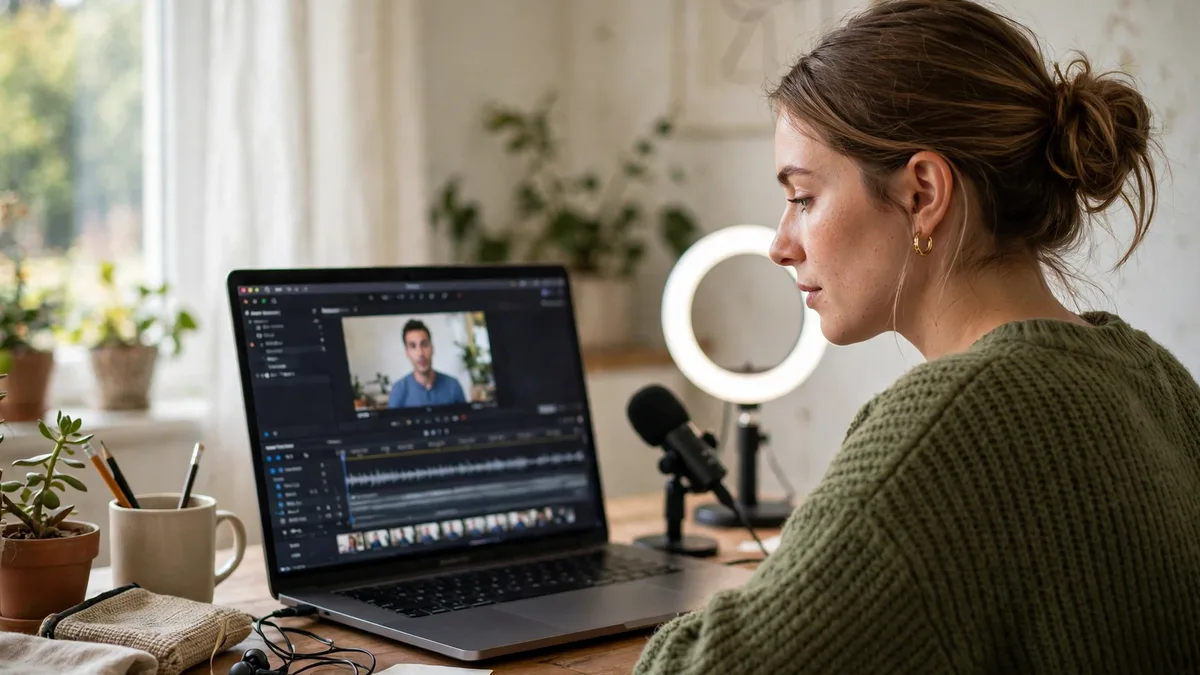
An AI avatar video lets one person appear on camera without ever stepping in front of one. HeyGen is one of the most widely used tools for it: you type a script, pick or build a digital presenter, and it renders a talking-head video that moves, blinks, and speaks in sync with the words — turning an afternoon of filming into a few minutes of editing for training videos, explainers, and short social clips.
The details decide whether the result looks professional or cheap: a clean recording, a script written for the ear, and a few minutes checking the render before you share it. Skip any of those and the video gives itself away — stiff lips, flat delivery, or a presenter who looks nothing like the person it should be.
This guide walks through the whole process in 2027, from choosing the right avatar type to exporting a finished video — including the free and paid options, the consent rules for cloning a real face, and fixes for common problems such as audio drifting out of sync or an avatar mispronouncing your brand name.
Key takeaways
- HeyGen offers stock avatars, photo avatars, and personal avatars built from your own video — each suits a different budget and use case.
- A personal avatar needs two to five minutes of clean, well-lit footage of you speaking to camera.
- Write scripts for speech: short sentences, plain words, and pauses where a human would naturally breathe.
- Always preview the full render before exporting, checking lip sync, pronunciation, and pacing on a phone as well as a desktop.
- Never create an avatar of another person without clear, written consent — HeyGen requires it, and synthetic-media rules are tightening.
Step 1: Pick the right avatar type for your video
HeyGen gives you three ways to put a presenter on screen, and the choice shapes everything else. Stock avatars are ready-made presenters filmed by actors in a studio: pick one, type your script, and the video renders in minutes. They are fastest for training and internal updates.
Photo avatars turn a single still image into a talking head. They are cheaper and quicker, but movement is limited — the head tilts and the mouth moves while the shoulders stay still. They suit short announcements and social clips, but look less convincing past a minute or two.
Personal avatars, sometimes called instant avatars, are built from a short video of you. They look and sound like you — the right choice for founders, teachers, and creators whose audience expects to see them. They take more setup and cost more, but they are the only option that keeps your own face in the video. If you are weighing HeyGen against its closest rival, our comparison of HeyGen vs Synthesia for AI video breaks down where each tool wins on price, avatar quality, and ease of use.
Step 2: Record clean footage for a personal avatar
If you chose a personal avatar, the recording session is the most important part of the whole process. HeyGen asks for two to five minutes of video of you speaking directly to the camera. Film in a quiet room with soft, even light on your face — a window in front of you works better than a ceiling light above you. Keep the camera at eye level, frame yourself from the chest up, and leave a little space above your head.
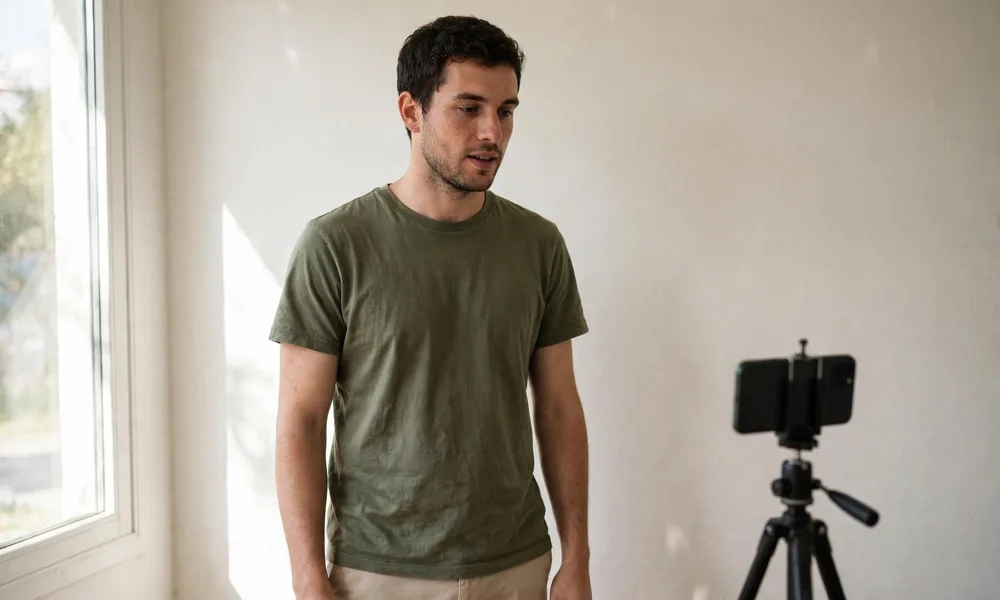
Speak naturally and move slightly, as you would in a real conversation. Read a script of your own, or talk about your work — the words matter less than your voice, your expressions, and how your mouth forms sounds. Avoid sunglasses, hats, and heavy makeup, and check for background noise before uploading.
Before uploading, you must confirm the footage shows you and that you consent to it being used. This is not a formality: HeyGen verifies identity for personal avatars, and cloning someone else without permission can close your account. If you need a presenter who is not you, use a stock avatar.
Step 3: Write a script that sounds human when spoken
A script written for reading almost always sounds wrong spoken aloud. Long sentences run out of breath, jargon trips up the voice, and numbers come out unexpectedly. Write the way you talk — short sentences, one idea at a time, plain words wherever a simpler one will do — and read each line aloud as you go; if you stumble, rewrite it.
Numbers and abbreviations need care: write “twenty twenty-seven” instead of “2027” if you want the year spoken that way, and spell out “dollars” instead of “$”. Test brand names early — type them into the preview, listen, and adjust the spelling until the voice says them right. A phonetic spelling beats a mispronounced brand name in a finished video.
Keep the script tight: a one-minute video is roughly 130 to 150 words, so five minutes needs about 700. Mark pauses with commas and full stops, and break the script into short paragraphs matching your scenes. If you are still comparing tools, our roundup of the best AI avatar generators in 2027 shows which tools handle long scripts and multiple languages best.
Step 4: Build your video scene by scene
With avatar and script ready, open a new video and choose a layout. Full-screen avatar suits announcements and personal messages; side-by-side works better for training, with the avatar on one side and slides or product footage on the other. Pick the aspect ratio first — horizontal for YouTube and training platforms, vertical for TikTok, Reels, and Shorts — because changing it later means rebuilding the layout.
Add your script to the first scene, choose a voice, and set the pace — personal avatars can use a clone of your own voice if you recorded one. Listen to the first scene in full before adding more. If the voice sounds rushed, slow it down; if a word is wrong, fix the spelling now, not after the whole video is built.
Build in scenes, one idea per scene, each under a minute. Add slides or images where they help, and keep on-screen text to a heading and a few words. The avatar is the presenter; the slides are the support. When the scenes are in place, watch the whole video and note anything that jars: a jump between scenes, a late slide, or a sentence that runs too long.
Step 5: Add voice, captions, and translation
Captions make avatar videos far more watchable, especially on social media where many watch with the sound off. HeyGen can generate them automatically from your script — check them rather than trusting them blindly, since names, numbers, and technical terms are the usual errors. Style them to match your brand: clean sans-serif, high contrast.
Translation is one of HeyGen’s strongest features: the same avatar can deliver your script in dozens of languages, voice and lip movements adjusted to match. It is genuinely useful for training teams in several countries, but idioms and jokes rarely survive translation, and a script written for one culture can sound odd in another — have a native speaker check any translated video that matters.
Step 6: Preview, export, and check the finished video
Preview the full video before exporting, on your phone as well as your desktop — most viewers will see it on a small screen. Check lip sync at the start, middle, and end, since drift creeps in on longer renders. Listen for mispronunciations, check captions against the spoken words, and confirm every slide appears at the right moment.
Export at the highest quality your plan allows and keep the project file. If you spot a mistake, fix the script and re-render only that scene.
Before sharing, run a short disclosure check. If the video features an AI avatar of a real person, say so in the description or on screen — audiences accept synthetic presenters far more readily when told. If it is used in hiring, sales, or support, make sure it cannot be mistaken for a live person on a call. For wider video work, our guide to the best AI tools for video creation in 2027 covers editors, generators, and captioning tools that pair well with HeyGen.
At a glance: HeyGen avatar options
| Avatar type | Setup needed | Best for | Watch out for |
|---|---|---|---|
| Stock avatar | None — pick and go | Training, internal updates | Same faces used by many creators |
| Photo avatar | One clear photo | Short announcements, social clips | Limited head movement |
| Personal avatar | 2–5 minutes of video of you | Founder and creator videos | Needs clean footage and consent checks |
Troubleshooting: fixing the most common HeyGen problems
Lip sync drift is the most common complaint. If the mouth falls behind the voice, shorten the scene — drift usually appears past a minute. Re-render that scene alone and check it before re-rendering the whole video. If it persists, try a different voice.
Robotic delivery usually comes from the script, not the tool. Long sentences, passive voice, and strings of numbers flatten it. Break sentences in two, swap formal words for plain ones, and add a pause before any important point. A script that reads well on paper can still sound stiff, so always listen to the preview.
If the avatar looks nothing like you, the problem is almost always the source footage. Harsh overhead light, a low camera angle, or a busy background all confuse the model — re-record with soft frontal light, eye-level camera, and a plain background. If the render fails, check your remaining credits first, then try a shorter scene, since very long scenes time out more often.
Frequently asked questions
How long does it take to create an AI avatar video with HeyGen?
A stock-avatar video can be ready in under ten minutes: pick the avatar, paste the script, and render. A personal avatar takes longer, since you must first record and upload two to five minutes of footage and wait for the avatar to process.
Can I use HeyGen for free?
HeyGen offers a free plan with limited monthly credits and a watermark on exports — enough to test the tool and make short clips. Regular use and watermark-free exports need a paid plan.
Does HeyGen need my real face to make an avatar?
Only for a personal avatar, built from video of you. Stock and photo avatars need no footage of you; a photo avatar can be built from any image you have the rights to use, with consent from the person in it.
Can HeyGen videos be used for commercial purposes?
Yes, on paid plans, which include commercial use rights. The free plan is more restricted — check the current terms for your plan, especially if the video will run as an ad or be sold as part of a course.
How do I make the avatar sound less robotic?
Write for speech, not reading: short sentences, plain words, natural pauses. Test different voices, slow the pace slightly, and fix mispronunciations by adjusting the spelling. A personal voice clone also helps, carrying your own rhythm and intonation.
Is it legal to make an AI avatar of someone else?
It depends on consent and purpose. Cloning someone without permission can breach platform rules, privacy law, and in some places synthetic-media laws, especially if the video misleads. Always get clear written consent before cloning anyone, and label avatar videos as AI-generated where your audience could be confused.
The bottom line
Creating an AI avatar video with HeyGen is straightforward once you respect the three things that decide quality: the avatar type, the script, and the preview. Stock avatars are fastest for training and internal content, personal avatars are worth the extra setup when your face matters, and a script written for the ear always beats one written for the page.
Start small: make one short video with a stock avatar, check it on your phone, and see how your audience responds before investing in a personal avatar.


