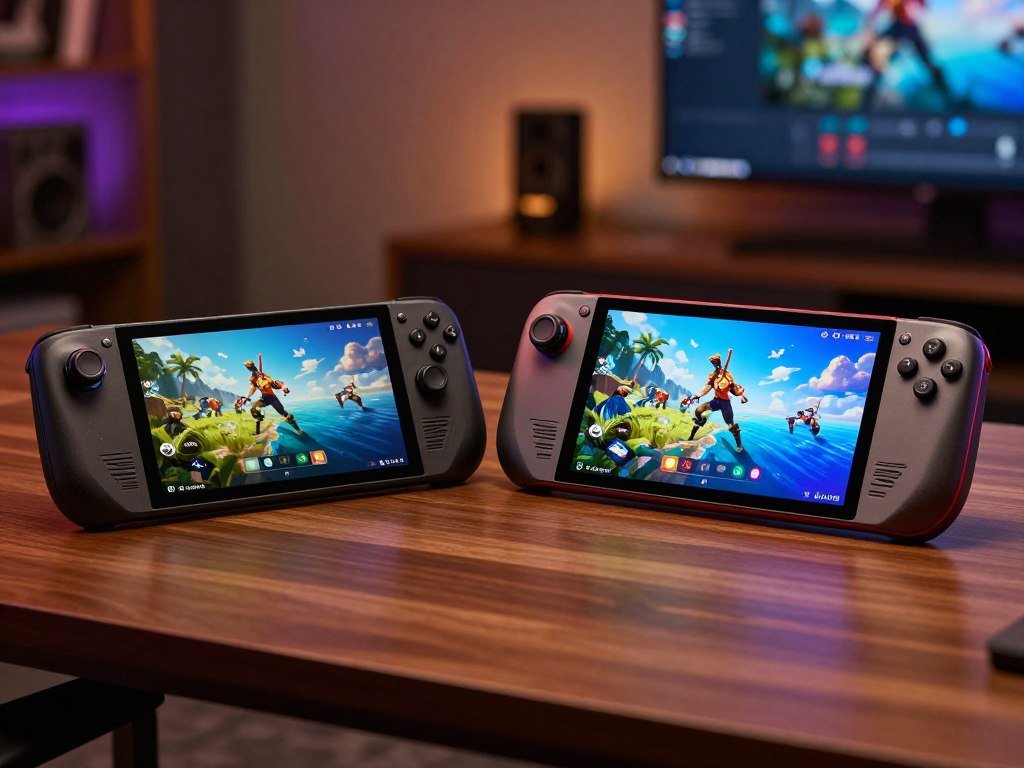
The best handheld for you depends on whether you value a simple SteamOS experience or Windows flexibility and higher performance potential. Your games, budget, comfort with setup, and plans for portable play all shape the choice. Variable refresh rate (VRR) is a display feature that adjusts screen timing to match a game’s changing frame rate.
One handheld keeps Steam games at the center, while the other offers access to more PC storefronts. That difference can matter more than a single hardware number. You might want a quick pick-up-and-play experience, or you might prefer broader game access and more performance headroom.
Key Takeaways
- Choose the Steam Deck OLED for a straightforward SteamOS setup and OLED contrast.
- Choose the ROG Xbox Ally X for Windows storefronts and greater hardware headroom.
- Check your must-play games before choosing a handheld.
- Compare the storage tier, controls, and screen you will actually use.
- Consider how much setup you are willing to handle on a Windows handheld.
Your most-played games and the way you like to use a handheld matter more than a single headline specification.
How much do the Steam Deck OLED and ROG Ally X cost?
The 512GB Steam Deck OLED starts at $789.00, while the ROG Xbox Ally X is listed at $999.99 in 2026. The storage tiers differ, so compare the exact model and memory alongside the price.
The Steam Deck vs ROG Ally X specs comparison uses different storage configurations, not matching tiers. The Steam Deck OLED comes with either 512GB or 1TB of internal storage, and both models have 16GB LPDDR5 memory.
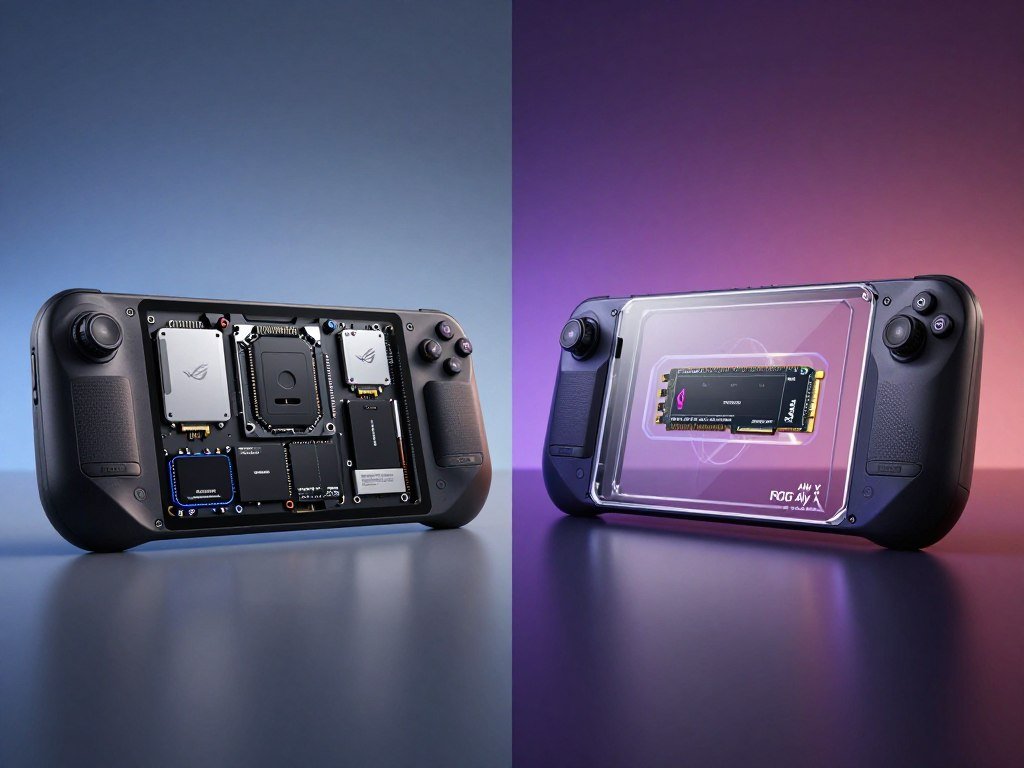
Compare the exact storage tier and memory before deciding which listed price fits your budget.
Steam Deck OLED storage tiers
The 512GB model is the less expensive Steam Deck OLED option. The 1TB model has twice the internal storage, while its memory stays at 16GB LPDDR5.
In 2026, the 512GB Steam Deck OLED price is $789.00, and the 1TB model is listed at $949. Those prices make the 1TB Deck less than $51 below the ROG Xbox Ally X.
The ROG Xbox Ally X configuration
The ROG Xbox Ally X is listed at $999.99 in 2026. Its configuration combines 24GB of LPDDR5X-8000 memory with a 1TB PCIe 4.0 NVMe M.2 SSD.
| Model/configuration | Memory | Internal storage | 2026 listed price |
|---|---|---|---|
| Steam Deck OLED 512GB | 16GB LPDDR5 | 512GB | $789.00 |
| Steam Deck OLED 1TB | 16GB LPDDR5 | 1TB | $949 |
| ROG Xbox Ally X | 24GB LPDDR5X-8000 | 1TB | $999.99 |
Those configurations pair different memory amounts with different prices, even when storage matches. Compare the exact storage tier and model name when checking the listed prices.
Which screen is better for handheld gaming?
Choose the Steam Deck OLED for OLED contrast, or the standard ROG Xbox Ally X for a sharper 1080p, 120Hz screen. Contrast or resolution is the key choice, since both affect how games look and run.
OLED pixels light up one by one, creating deep blacks, while higher resolution can put more load on a handheld GPU. A sharper display does not always mean a sharper-looking game when performance limits require lower settings.

OLED contrast versus LCD resolution
The Steam Deck OLED has a 7.4-inch, 1280 × 800 HDR OLED display with a refresh rate up to 90Hz. Its OLED panel makes dark scenes look rich, which can help games with night settings or strong shadows.
The standard ROG Xbox Ally X has a 7-inch, 1920 × 1080 display. Its 120Hz screen with VRR offers more resolution and refresh-rate headroom than the Deck OLED.
The 1TB Steam Deck OLED adds premium anti-glare etched glass. The Steam Deck LCD uses a 7-inch, 1280 × 800 LCD display with a refresh rate up to 60Hz.
Refresh rates and the X20 screen
The separate ROG Xbox Ally X20 model has a 7.4-inch, 1920 × 1080 OLED screen. It supports HDR, a 120Hz refresh rate, and VRR across a 30Hz-120Hz range.
| Model | Screen type and size | Resolution | Maximum refresh rate | Distinguishing feature |
|---|---|---|---|---|
| Steam Deck OLED | 7.4-inch HDR OLED | 1280 × 800 | 90Hz | Etched glass on 1TB model |
| Steam Deck LCD | 7-inch LCD | 1280 × 800 | 60Hz | LCD panel |
| ROG Xbox Ally X | 7-inch display | 1920 × 1080 | 120Hz | VRR |
| ROG Xbox Ally X20 | 7.4-inch OLED | 1920 × 1080 | 120Hz | HDR, 30Hz-120Hz VRR |
A high refresh rate helps only when a game can make good use of it. For games that rarely reach high frame rates, prioritize visible contrast and clarity over an unused refresh-rate ceiling.
Does the ROG Ally X perform better?
The ROG Ally X has more raw hardware headroom, but the Steam Deck OLED’s lower screen resolution asks less of its GPU. In general, the Ally Extreme chip can handle more demanding work, but that does not promise a fixed fps lead in every game.
Actual performance depends on the game, graphics settings, and render resolution you choose. The Steam Deck OLED uses a 6 nm APU, while the Ally X uses an AMD Ryzen AI Z2 Extreme processor and AMD Radeon graphics.

More graphics headroom on Windows
The AMD Ryzen processor gives the ROG Ally X more raw performance potential than the Steam Deck OLED. Its stronger hardware can help with demanding games and higher settings, especially when you use a lower render resolution.
That potential is not a guarantee of higher frames per second in every title. A game can be limited by its own engine, its settings, or the power level you choose.
Do not treat the processor name as a promise that every game will run faster. A game with heavy effects may need a lower setting on either device to keep play smooth.
Resolution changes the workload
The Deck OLED renders games for a 1280 × 800 screen, which asks less of its GPU than a 1920 × 1080 target. The standard Ally X has more pixels to draw at its native resolution.
A more powerful APU may still face a bigger workload when driving a sharper screen. Lowering the Ally X’s render resolution can help demanding games, though the picture may look less crisp.
Think about the settings you would really use, not a best-case setting you would rarely keep. If you play newer games at lower resolution, the Ally X can still offer useful headroom.
The Steam Deck OLED can be a more efficient match for its lower-resolution screen. The ROG Ally X is the better pick if you want more room to adjust settings for demanding games.
Compare a demanding game at each device’s realistic render resolution before treating a sharper screen as a performance win.
How long does each handheld last on battery?
The Steam Deck OLED is rated for 3-12 hours of gameplay, while demanding ROG Ally X games can last just over two hours at maximum settings. Your game matters: light titles use less power than demanding games.
Runtime changes sharply with the workload and power settings. The standard Steam Deck LCD has a 40Whr battery and an estimated 2-8 hours of gameplay, while the Deck OLED has a 50Whr battery.
Runtime depends on the game
On the standard ROG Xbox Ally X, demanding games run for more than two hours at maximum settings. Lightweight indie games run for more than ten hours, and video or browsing can last more than eight hours.
The separate ROG Xbox Ally X20 has an 80Wh battery. That capacity is a specification, not the same thing as a runtime estimate for every game.
Charging and practical settings
The Steam Deck OLED can charge from 20% to 80% in as little as 45 minutes. A fast top-up can help between sessions, though a long game still draws power while you play.
Use these settings to stretch battery life when a wall outlet is not close:
- Choose a lower power mode for lighter games.
- Cap the frame rate when a title allows it.
- Reduce screen brightness when the room permits.
Carry a compatible USB-C charger when you expect long sessions with demanding games.
Which operating system is easier to use?
SteamOS is the simpler Steam-first experience, while Windows 11 gives the Ally family broader PC storefront access. Ease or flexibility is the main trade-off when you choose between them.
The SteamOS-first experience is simpler for a Steam library, while Windows involves more flexibility and more PC-style setup. SteamOS 3 is based on Arch Linux and uses Proton to run many Windows games.
SteamOS is built around Steam
SteamOS opens into a game-focused interface that centers your Steam library. You can browse, install, and launch games without treating the handheld like a small desktop computer.
Proton helps many Windows games run on Linux, but compatibility can differ by game. The Deck’s interface is a good fit if most of your library already lives on Steam.
Windows offers broader PC access
The ROG Xbox Ally X runs Windows 11 Home, a familiar PC environment with access to Xbox and other major PC storefronts. The Xbox Full Screen Experience adds a controller-oriented layer for navigating games.
That full-screen mode is an interface, not a replacement operating system. Windows still gives you access to desktop tools, but launchers and settings may need more hands-on setup.
Before a trip, make these three checks while you have an internet connection:
- Sign in to the storefronts you use.
- Confirm controller navigation in the launchers you need.
- Review update behavior before traveling.
A hands-on review of the Xbox Ally interface also covers Windows setup and controls. Before traveling, open the launcher you rely on and complete account sign-in while online.
Which games and storefronts work on each device?
The Ally X is the safer choice for Windows-only games and multiplayer titles whose anti-cheat blocks SteamOS. Check your key games before settling on an operating system.
Steam Deck Verified ratings flag game-specific compatibility, but Proton does not support every kernel-level anti-cheat setup. A Windows-only title may run on the Ally X when the same game will not run on SteamOS.
SteamOS compatibility and anti-cheat
Verified ratings help you see how a game works on Steam Deck, including controls and basic play. A rating can change as a title updates, so it is useful to check the current status of games you care about.
Proton can run many Windows games, but it cannot make every anti-cheat system work with Linux. Some multiplayer games use kernel-level tools that block SteamOS.
Roblox does not run natively through SteamOS, and community workarounds are unsupported. Installing Windows changes the software environment, but it does not guarantee that every Roblox setup will work.
Native Windows games and Roblox
Native Windows on the Ally X is a safer choice for Windows-only games and anti-cheat systems that reject Linux. This matters if your favorite multiplayer titles depend on a specific launcher or anti-cheat tool.
Use this quick checklist for your must-play games:
- Check the game’s Deck Verified status.
- Check its current anti-cheat support.
- Confirm the required launcher.
- Look up handheld-specific settings for demanding titles.
If you use several launchers, the EmuDeck, ES-DE, and RetroDECK comparison explains how game tools differ across devices. Check the specific game’s Deck Verified status before buying if it is central to your library.
Which handheld feels better in your hands?
The Steam Deck OLED is lighter than the LCD model, while the Ally X20 adds specialized controls such as TMR joysticks and impulse triggers. Hand fit matters during long sessions, even when the specs look close.
Grip shape and button reach can change how comfortable a handheld feels over time. The Deck OLED weighs about 640g, around 5% less than the Steam Deck LCD.
Grip, weight, and long sessions
The Steam Deck has broad grips that give your palms room to settle around the controls. A secure grip can help you keep your hands relaxed during a long game.
The Ally X20 has a different control layout, with features aimed at detailed input. The right choice depends on your hand size, how you hold a handheld, and where your thumbs naturally rest.
Trackpads and specialized controls
Dual trackpads and rear grip buttons give the Deck extra ways to control games. Trackpads can help with desktop navigation or games that do not map neatly to a standard controller.
The Ally X20 includes TMR joysticks, a transforming D-pad, and impulse triggers. Those controls may suit players who value joystick feel and extra trigger feedback.
For an independent look at button feel and handheld use, a hands-on Xbox Ally review discusses the controls. Try a trackpad-controlled strategy game and a controller-first action game to see which layout feels natural.
How can you expand game storage?
MicroSD expansion is the easiest way to add game capacity without opening a handheld. Use a card for games you rotate, or replace the internal drive if you need more built-in space.
Adding a card and replacing an SSD are different jobs. Steam Deck models support microSD expansion, while the ROG Xbox Ally X20 includes a MicroSD Express card reader.
MicroSD Express names the X20’s card-reader standard; it does not mean every card has the same speed. Check the card standard before buying, especially if you plan to move large games onto it.
The Steam Deck uses a compact 2230 SSD that can be replaced. Opening a handheld takes care, and replacing a drive is more involved than inserting a card.
The Steam Deck SSD replacement guide shows the steps for opening the device and removing its 2230 drive. Follow safe repair steps, including disconnecting the battery before handling the internal parts.
Plan your storage like this:
- Keep frequently played games on internal storage.
- Use a card for games you rotate.
- Check the card standard before buying an expansion card.
Keep large games on internal storage and use a card for titles you rotate less often.
Steam Deck vs ROG Ally X: How do the ports compare?
The X20 has two USB-C ports with DisplayPort 2.1 and Power Delivery 3.0, while the Steam Deck OLED has one USB-C port. Port choice matters if you connect a monitor and charge at the same time.
The Steam Deck OLED supports DisplayPort 1.4 through its single USB-C port. The standard ROG Xbox Ally X uses USB4 and DisplayPort 2.1 for wired display output.
Connecting a monitor and accessories
A dock can add monitor, keyboard, and mouse connections to a handheld. Check the dock’s video output and charging support, since not every hub handles the same display setup.
The Steam Deck OLED has USB 3.2 Gen 2 support through its USB-C port. The standard Ally X uses USB4, while the X20 has two separate USB-C ports.
| Model | USB-C ports | Video and power support | Card reader |
|---|---|---|---|
| Steam Deck OLED | One USB-C | DisplayPort 1.4, USB 3.2 Gen 2 | microSD |
| ROG Xbox Ally X | USB4 | DisplayPort 2.1 | microSD |
| ROG Xbox Ally X20 | USB 3.2 Gen 2 Type-C and USB 4 Type-C | DisplayPort 2.1, Power Delivery 3.0 on both | MicroSD Express |
What the X20’s two USB-C ports add
Two ports give you more options for charging and connecting accessories at once. Both X20 ports support DisplayPort 2.1 and Power Delivery 3.0.
That can simplify a docked setup if your monitor and charger use the same connection point. Confirm that a dock supports your intended display output and charging over the port you plan to use.
Which handheld is the better fit for you?
Choose the Steam Deck OLED for a Steam-first, low-fuss experience, and the Ally X when native Windows access is essential. Your game library should guide the choice more than a long spec sheet.
Pick the Steam Deck OLED for SteamOS simplicity and OLED contrast; pick the ROG Ally X for Windows storefronts or Windows-only games. The Deck can suit players who value portability and longer sessions, while Windows suits buyers willing to handle more setup.
Choose the Steam Deck OLED for a Steam-first setup
The Steam Deck OLED is a strong fit if most of your games already live on Steam. Its game-focused interface keeps your library close and avoids much of the desktop-style setup that comes with Windows.
If your main goal is a simple portable gaming routine, it is an easy recommendation. The display also makes it a good match for players who care more about rich contrast than a higher native resolution.
Choose the ROG Ally X for Windows flexibility
The ROG Ally X is a better fit when you need native Windows storefronts, Windows-only games, or more performance headroom. It can also suit you if you want to use the handheld like a small PC.
These common use cases can help you decide:
- Steam-first indie gaming and a simple interface.
- Windows storefronts and anti-cheat-dependent multiplayer.
- Mixed gaming and docked PC use.
For other systems, compare the handheld options that can replace a Steam Deck. If gaming is for a household, the family console comparison can help you weigh play styles and game access.
Make Windows-only access or SteamOS simplicity your deciding requirement, rather than choosing by spec-sheet size alone.
Conclusion
For most Steam-focused players, the Steam Deck OLED is the simpler choice; for Windows-first players, the ROG Ally X is more flexible. The Deck puts Steam games in a focused interface, while the Ally X offers broader access to PC storefronts and more performance headroom.
Start with the games you play most, then decide how much setup you want to handle. If comfort is your deciding factor, try the grip and button layout in person before choosing.
FAQ
Does the ROG Ally run better than the Steam Deck?
The ROG Ally X has more raw performance headroom, but actual frame rates depend on the game and settings. The Steam Deck OLED renders at a lower resolution, which asks less of its GPU. The Ally X may need lower render settings to run demanding games smoothly at its sharper native resolution. Compare the same title at settings you would really use.
What is better, Steam Deck LCD or OLED?
The Steam Deck OLED is better for most players who value contrast and longer battery life. It has a 7.4-inch HDR screen with refresh rates up to 90Hz and a 50Whr battery. The LCD model has a 7-inch screen up to 60Hz and a 40Whr battery. The LCD remains a capable option if its price and display meet your needs.
Can the Steam Deck run Roblox?
Roblox does not run natively through SteamOS. Community workarounds are unsupported, so they may stop working or fail on your setup. Installing Windows changes the software environment and can provide a path to Windows games, but it is a separate setup. Windows installation alone does not guarantee that every Roblox configuration will work well.
Is it really worth getting a Steam Deck?
Yes, the Steam Deck can be worthwhile if you mainly play Steam games and want a simple handheld experience. The OLED model adds strong contrast and a focused interface that feels ready for game time. A Windows-first library may make the Ally X a better fit, especially when your games depend on Windows launchers or features.
What are the downsides of a Steam Deck?
The Steam Deck has less performance headroom than the Ally X, and SteamOS compatibility gaps affect some anti-cheat games. Proton runs many Windows games, but it cannot make every multiplayer title work on Linux. Demanding new games may also need lower settings. If your favorite games rely on unsupported anti-cheat tools, native Windows can be a safer choice.
Is the Steam Deck becoming obsolete?
No, the Steam Deck remains a viable handheld for games that support it. SteamOS and Proton continue to run many titles, though compatibility differs from game to game. Demanding newer releases may require lower graphics settings or resolution. The device can still suit a Steam library, especially if you choose games based on their current support.
What games are not playable on Steam Deck?
Some games with anti-cheat systems that do not support Linux or Proton will not run on Steam Deck. Windows-only games may also be unavailable through SteamOS, depending on their launcher and software requirements. Compatibility can change when a game updates. Check the current status of each must-play title before making the device your main gaming system.
Is there a monthly fee for a Steam Deck?
No monthly fee is required to own or use a Steam Deck. You can buy games individually and play supported titles without paying a device subscription. Optional services, such as PC Game Pass, have their own subscription costs. Your ongoing spending depends on the games and services you choose, not on owning the handheld itself.