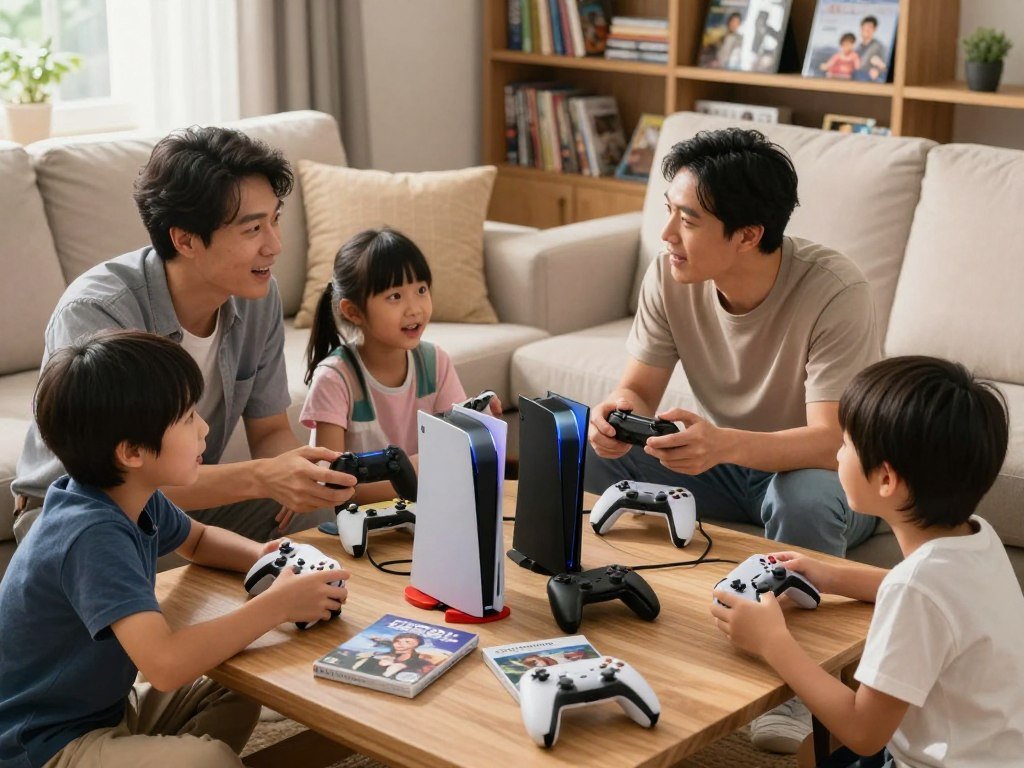
For most households looking for shared games and flexible play, Nintendo Switch 2 is the strongest all-around starting point. Your family may prefer a portable system, a large digital library, or particular games tied to one brand. The right choice can make game nights easier and help you avoid paying for features your household will not use.
Nintendo Switch Lite suits children who mainly play on the go. Xbox Series S fits families who want a broad digital library, while PlayStation 5 suits households interested in its specific games. Backwards compatibility means a newer console can play games released for an earlier console generation.
This roundup helps you weigh game choices, play styles, and the full cost of owning a system. It also covers ratings, parental controls, subscriptions, and ways to get ready before a gift is opened. Match the console to the games your household already wants to play, not only to its headline specifications.
Key Takeaways
- Nintendo Switch 2 is the strongest all-around fit for many families.
- Nintendo Switch Lite is made for handheld play, not family TV play.
- Xbox Series S is digital-only, so it cannot play physical discs.
- Check each game’s ESRB rating and content details before buying.
- Include subscriptions, extra controllers, and games in your budget.
- Set parental controls before a child’s first unsupervised session.
How should you compare family consoles before buying?
Start by listing the games your family wants, the screens it will use, and how much supervision it needs. Game fit matters more than a long feature list, since each console has a different mix of games and ways to play. Your budget should cover more than the system itself.
Compare game fit, play style, parental controls, and ongoing costs before choosing a gaming console. Nintendo, PlayStation, and Xbox are the three major console families. The table shows how four popular options differ for a family.
| System | Play style | Game access | Family fit |
|---|---|---|---|
| Nintendo Switch 2 | Handheld or TV | Digital and compatible physical games | Shared play and flexible use |
| Nintendo Switch Lite | Handheld only | Compatible Nintendo Switch games | Portable play away from the TV |
| Xbox Series S | TV | Digital only | Families seeking a digital library |
| PlayStation 5 | TV | Disc or digital, by model | Households interested in PlayStation games |

Do not choose a digital-only console before checking whether your household expects to use physical discs.
A console’s screen options affect where family members can play. Nintendo Switch 2 can move between handheld and TV play, while Nintendo Switch Lite stays handheld. Xbox Series S and PlayStation 5 are TV systems, so the household needs a screen for play.
If you already own games on disc, check whether the model you want has a disc drive. A digital-only system cannot use physical game discs, even when the same title is sold online. Screen resolution and refresh rate also matter when you choose a TV or monitor; this gaming monitor buying guide explains how to match a screen to gaming hardware.
Account settings can help you manage playtime, purchases, and online communication. Think about whether children will share one console or need separate accounts, since that can affect game access and supervision. Check whether siblings and friends already use a particular platform before committing to a separate online ecosystem.
How do ESRB ratings help you choose age-appropriate games?
Read the ESRB category first, then check the content descriptors and interactive elements to understand what else a parent may want to review. The three parts tell you different things, so the category alone cannot answer every question. Read all three before buying or downloading a game.
Use the rating as a starting point, not a guarantee that a game suits every child. In 2024, 65% of ESRB ratings for physical and console-downloadable games were E or E10+. That share gives context, but it does not mean every game is right for your child.
- Rating Categories suggest the age group for which a game may be suitable.
- Content Descriptors name content that may have led to a game’s rating.
- Interactive Elements flag features such as player interaction, location sharing, digital purchases, or unrestricted internet access.

The ESRB rating system has these three parts, and each adds useful detail. A category gives you a quick age-based guide. Descriptors can point out themes or content you may want to discuss with your child.
Interactive Elements cover how a game connects with other players or online services. A notice about digital purchases, for example, can help you decide whether to review spending settings. Player interaction and location sharing may also affect the rules you set for online play.
Check the game’s listing or packaging, then talk with your child about any content that stands out. You can also compare games like the ones your child already enjoys, but similar style does not mean similar content. ESRB’s rating-system details explain its categories, descriptors, and interactive elements.
Children of the same age can react differently to a game’s themes or online features. Your household may also have rules about chat, spending, or frightening scenes. Use the rating as a starting point and make the final call based on your child and your household rules.
Best Gaming Consoles for Families: Which One Fits Your Household?
Nintendo Switch 2 is the best starting recommendation for most families, while the right alternative depends on portability, preferred games, or active play. Choose by use, then check the games your child will be able to access. Each system has a trade-off that may matter at home.
Nintendo Switch 2 is the leading family option for a 7-year-old or an 8-year-old, but parents should check each game’s rating. For a 5-year-old, Nintendo Switch Lite offers portable, simpler access, while Nex Playground may fit better when active play is the priority.
| Household priority | Recommended system | Why it fits | Main trade-off |
|---|---|---|---|
| All-around family play | Nintendo Switch 2 | Handheld and TV play | Costs more than portable-only choices |
| Portable-only play | Nintendo Switch Lite | Handheld design | Cannot connect to a TV |
| Digital game access | Xbox Series S | Digital library, no disc drive | Cannot use physical discs |
| PlayStation game preferences | PlayStation 5 | Access to PlayStation titles | Some models are digital-only |
| Active motion play | Nex Playground | Games controlled by body movement | Smaller game library |
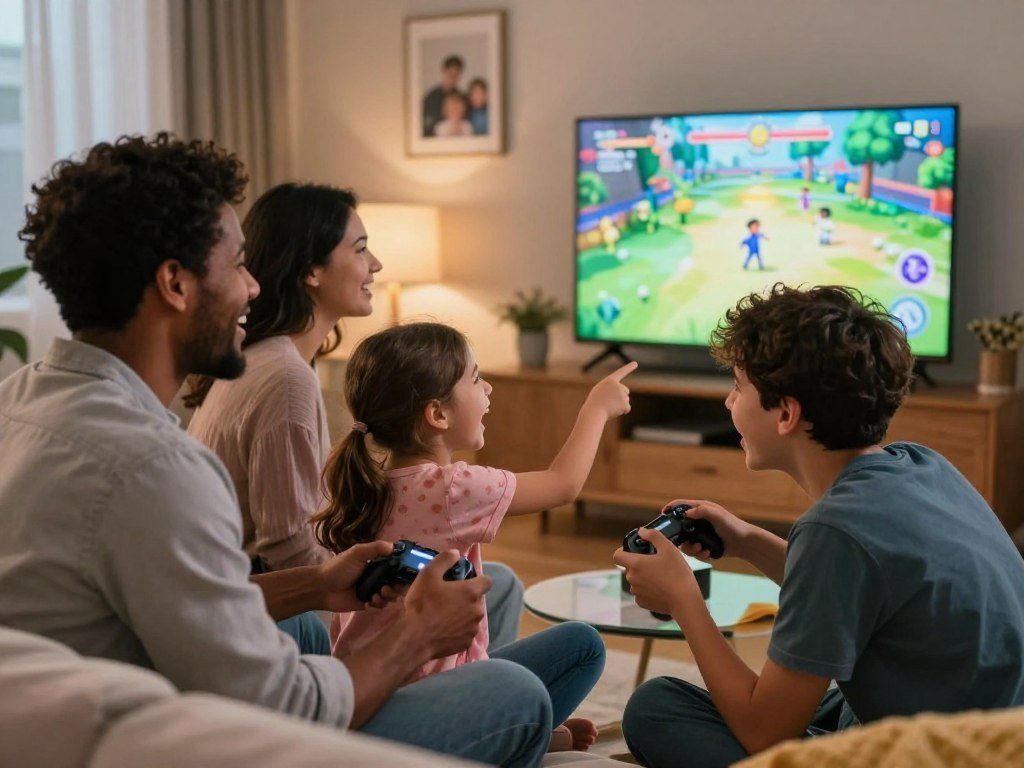
For a family asking about the best game console for a 7-year-old, Nintendo Switch 2 is a sensible first option. The same is true for the best gaming system for an 8-year-old who wants games that work on a TV or in handheld mode. These age-based choices still depend on which games you allow.
The best games console for a 5-year-old depends on how the child will play. Nintendo Switch Lite offers simple, portable access to compatible games, while Nex Playground focuses on movement. Think about whether the child will play alone, with others, or mostly near the TV.
Families who want specific PlayStation games may prefer PlayStation 5, especially if the household already has that platform. Xbox Series S suits families who want digital access and do not need a disc drive. Active play can be a different kind of family option, but it still calls for a clear play area.
Age is only one part of the choice. A child may be ready for one game but not another, even when both appear on the same console. Treat every age-based pick as a starting point, then check the individual games your child will access.
What makes Nintendo Switch 2 a strong family pick?
Nintendo Switch 2 suits families who want one system for both the living-room TV and handheld play. Two play modes make it easier to share a game at home or take the system along. The best fit depends on where your family expects to use it most.
Nintendo Switch 2 can play on a TV or in handheld mode, and it plays almost all original Nintendo Switch games. That broad access helps families choose from more games without giving up portable play. Check each title’s rating and supported mode as you build a library.
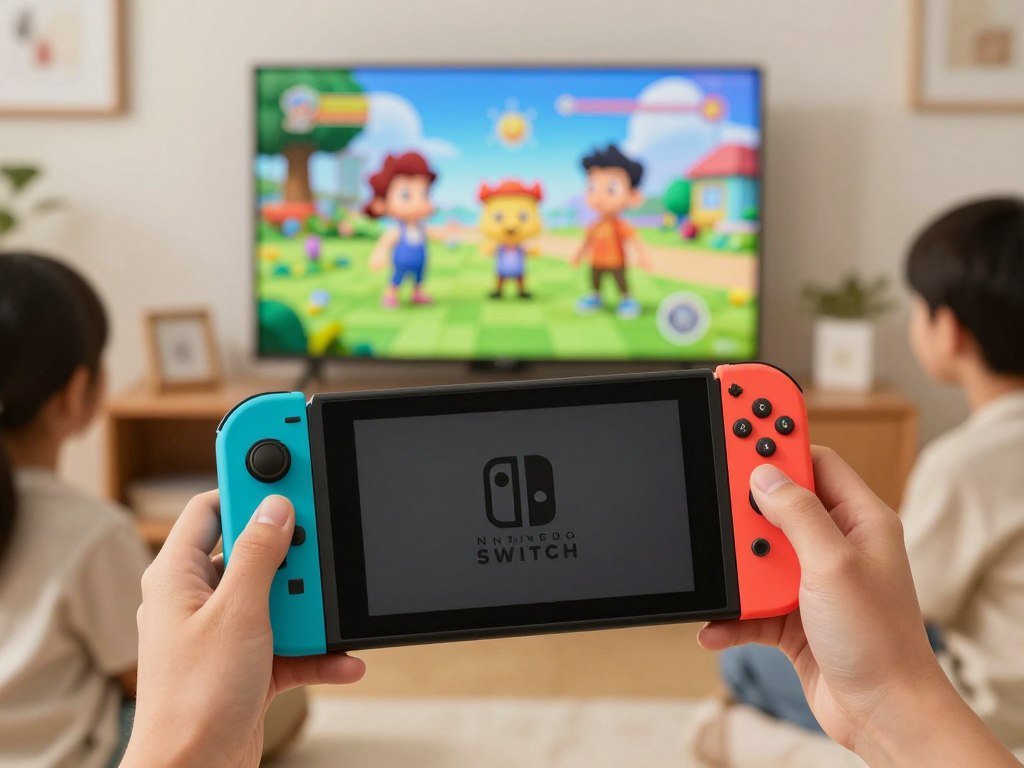
TV play and handheld play
Connect Nintendo Switch 2 to a TV when several family members want to watch or take turns. A living-room screen can make group play easier, especially when everyone wants to see the same game. The system also works in handheld mode when the TV is in use.
Handheld play can suit a quiet break or a trip away from home. You can take the system from room to room without setting up another TV. This mix is the key difference for families weighing Nintendo Switch against a console that stays by the television.
Original Switch compatibility and price timing
As of November 19, 2025, Nintendo Switch 2 could play almost all games released for the original Nintendo Switch. That gives families with an existing collection more choices. A few games may have limits, so check a title before expecting it to work.
As of November 19, 2025, the U.S. starting price was $449.99, or $499.99 for bundles with a digital game download code. U.S. price revisions for Nintendo Switch 2 and Nintendo Switch products took effect September 1, 2026. The older prices are dated figures, not current price quotes.
- List the games your family wants before choosing a system.
- Decide whether play will happen mostly at home or on the go.
- Check whether a bundle includes a game your household wants.
Look at bundle contents rather than assuming each package includes the same game or accessory. A download code is different from a physical game, and your family may prefer one format. Check the current price and bundle contents before buying because the listed starting prices are dated.
Is Nintendo Switch Lite right for a child who plays on the go?
Choose Nintendo Switch Lite when the child will mostly play alone in handheld mode and a TV connection is not a priority. Its small, portable design suits trips and shared-car rides. It is a focused choice for handheld gaming, rather than a system for family TV play.
Nintendo Switch Lite plays Nintendo Switch games that support handheld mode, as of October 2026. Children can play compatible titles without connecting the system to a TV. Check each game before buying, since not every game supports handheld play.
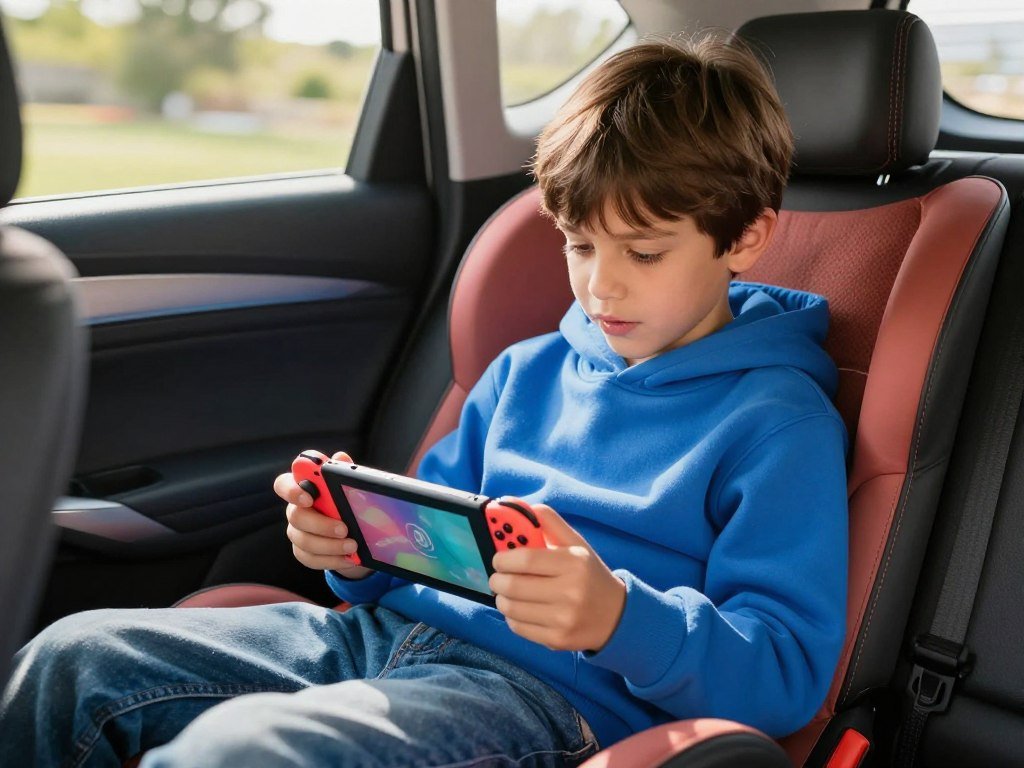
The handheld-only design keeps the system ready for portable play. It can be a practical option when a child often uses the system away from home or when the family shares one TV. It also means siblings cannot use it for a game on the living-room screen.
Check the game’s details for handheld mode support before you add it to a library. This matters for children who have a specific game in mind, including a title they have seen a friend play. The console’s support for a game does not guarantee every feature works in handheld mode.
The Nintendo Switch Lite starting price was $229.99 in the United States as of November 19, 2025. U.S. price revisions for Nintendo Switch products took effect September 1, 2026, so that figure is not a current price. Portability may matter more than a lower headline cost if the child will carry it often.
Consider how the child handles a handheld system and whether you want play to happen in shared family spaces. A portable console can travel easily, but it may also be used alone. Before choosing it, confirm that the games your child wants support handheld mode.
Which Xbox Series console fits your family’s needs?
Pick Xbox Series S for a lower-cost digital system and Xbox Series X when disc access or 4K output matters. The key difference is the Series S’s lack of a disc drive and its 1440p output. Both systems play the same current Xbox games.
Xbox Series S is digital-only and tops out at 1440p, while Xbox Series X offers disc and digital options. The Series S plays the same current Xbox games as Series X consoles, but storage and older-game compatibility still matter. Starting prices below are dated to November 19, 2025.
| Model | Disc drive | Output or compatibility | Starting price as of November 19, 2025 |
|---|---|---|---|
| Xbox Series S 512GB | No | 1440p; digital games | $399.99 |
| Xbox Series S 1TB | No | 1440p; digital games | $449.99 |
| Xbox Series X | Disc or digital model | 4K output; many older Xbox games | $599.99 digital, $649.99 1TB disc, $799.99 2TB disc |
Xbox Series S fits a household that buys games online and does not need discs. Its digital-only design means it cannot play a physical copy from an older collection. The 512GB and 1TB versions offer different amounts of storage, which can affect how many games stay installed.
Xbox Series X has a digital edition and disc-drive models. As of November 19, 2025, the 1TB disc-drive model started at $649.99, the 2TB disc-drive model at $799.99, and the digital edition at $599.99. A disc model may suit a family that already owns physical Xbox games.
Xbox Series X and Series S play many games from the original Xbox, Xbox 360, and Xbox One, as of November 19, 2025. That can make either a useful game console for kids in the 2000s who want to revisit older games. Compatibility varies by title, so do not expect every older game to work.
Consider the screen as well as the console. Xbox Series X supports 4K output, while the Series S tops out at 1440p. A family may not see the value of a higher output if its display does not support it.
Storage also affects convenience. Large games can take up space, so a smaller drive may mean removing games before installing others. Check the exact game’s compatibility and the console’s storage before relying on an older-game collection.
What do Nintendo Switch Online and Xbox Game Pass include?
Nintendo Switch Online is the lower-cost annual route to classic Nintendo games and compatible online play, while Xbox Game Pass offers tiered monthly libraries. Compare the games each family member will use, not just the number in a catalog. Costs and access differ by tier.
As of October 2026, Nintendo Switch Online costs $19.99 yearly for an individual or $34.99 yearly for a family membership. The family option covers up to eight Nintendo Accounts. It includes compatible online play, NES, Super NES, and Game Boy titles, cloud saves, and other benefits.
Nintendo Switch Online + Expansion Pack costs $49.99 yearly for an individual or $79.99 yearly for a family membership covering up to eight Nintendo Accounts, as of October 2026. It adds selected GameCube, Nintendo 64, Game Boy Advance, and SEGA Genesis games. It also adds selected upgrade packs and downloadable content.
The GameCube titles offered through Nintendo Switch Online + Expansion Pack require Nintendo Switch 2, as of October 2026. That system requirement matters if your family expects to use the added GameCube library. Standard Nintendo Switch Online and the Expansion Pack are not the same plan.
Xbox Game Pass has three tiers. Monthly prices and approximate library sizes below are as of November 19, 2025.
- Essential costs $9.99 per month and includes approximately 50 games.
- Premium costs $14.99 per month and includes approximately 200 games. New Xbox-published games arrive within 12 months of release.
- Ultimate costs $29.99 per month and includes approximately 500 games. New Xbox-published games arrive on release day.
Some level of Xbox Game Pass is required for online multiplayer. The included games can change, so a large library does not mean your family’s favorite title will stay available. A monthly plan can also cost more over a year than the monthly price first suggests.
Think about whether family members will use online play, cloud saves, or classic games. A subscription can be poor value if it adds titles no one wants to play. Compare the games your family will actually play against the full annual or monthly subscription cost.
Does a PS5 make sense for family gaming?
PS5 is a sensible family option when the household wants PlayStation games or has a PS4 library to carry forward. Disc choice matters if you own physical games, while the Digital Edition suits a household comfortable with downloads. Check individual game ratings before sharing a library.
PS5 plays an overwhelming majority of PS4 games, but it does not play every title. As of November 19, 2025, the standard PlayStation 5 started at $549.99, and the Digital Edition started at $499.99. PlayStation Plus adds a separate recurring cost for online and game access.
| Option | Disc or service access | Starting price or subscription | Family consideration |
|---|---|---|---|
| PS5 with disc drive | Physical discs and downloads | $549.99 | Useful for disc owners |
| PS5 Digital Edition | Downloads only | $499.99 | Cannot use physical discs |
| PlayStation Plus | Online service and tier benefits | Essential $9.99 monthly or $79.99 yearly; Extra $14.99 monthly or $134.99 yearly; Premium $17.99 monthly or $159.99 yearly | Choose a tier for its benefits |
As of November 19, 2025, PlayStation Plus Essential cost $9.99 monthly or $79.99 yearly. Extra cost $14.99 monthly or $134.99 yearly, while Premium cost $17.99 monthly or $159.99 yearly. Count the subscription in your family’s budget if you plan to use it.
A disc-based household may prefer the standard PS5, especially when family members own physical games. A digital-only household can consider the Digital Edition, but it cannot play discs. Decide which format fits the games you already own and how you expect to buy future titles.
Best gaming consoles for families on PS5 include the standard PS5 when your family wants PlayStation titles or already owns PS4 games. The PlayStation 5 plays most PS4 games, which can help carry a library forward. Check each game’s rating before a child uses it.
PlayStation VR and PlayStation VR2 are not for use by children under 12. That age restriction applies to those VR systems, not to the PS5 console itself. Check the rating of each game and the fit of any VR accessory separately from the console choice.
Is the PS5 Pro worth the extra cost for a family?
Choose PS5 Pro only when your family will use its added storage or display-focused features enough to justify the higher starting price. It is a premium model, not a required upgrade for ordinary family gaming. The standard PS5 may suit households that do not need its extra features.
PS5 Pro starts at $749.99 as of November 19, 2025, and comes with 2TB of internal storage. It supports 120Hz gaming, and a handful of games offer 8K options. Those features matter most when the family has a display and games that can use them.
The standard PS5 is a less costly route to PlayStation gaming. PS5 Pro may help if a family keeps many large games installed or wants to use a compatible display at a higher refresh rate. The storage can reduce the need to remove games as often.
Do not treat 8K support as a feature every game uses. Only a handful of games offer 8K options, and game modes depend on the title. A family should consider the actual games it plans to play rather than a number on a box.
PS5 Pro is digital-only out of the box. A separate disc drive cost $79.99 as of November 19, 2025, so disc users need to add that cost. The higher starting price and drive add-on can change the value of the upgrade.
Compare the screen you already own with the features your family expects to use. If your display does not support the modes you want, the upgrade may offer little day-to-day benefit. If the household does not own a display or games that benefit from those features, compare the standard PS5 before paying for the upgrade.
Is a PS4 still a practical family console?
A PS4 can still serve a family that already owns one or wants access to specific games in its catalog. Existing games are its strongest value, especially when you do not need to buy another system. A game’s presence in the catalog does not mean it suits children.
The PS4 catalog includes family-oriented examples and mature games, so check every game’s rating. Sackboy: A Big Adventure, It Takes Two, Gran Turismo 7, EA Sports FC 24, and Minecraft are listed PS4 titles as of October 2026. These examples show range, not blanket recommendations.
The PS4 library also includes The Last of Us Part II, Resident Evil 4, and Elden Ring. Those titles are examples of the catalog’s broader range, not suggestions for every child. Check each rating and consider the content before adding a game to a child’s account.
A household with a PS4 and games it already owns may get practical use from keeping the system. A family looking at a used console can focus on the titles it wants, rather than assuming every popular game fits. The games offer different styles and themes.
PS5 plays an overwhelming majority of PS4 games, which can give families another way to access many older titles. Still, compatibility varies by game, so confirm that a specific title works on the system you plan to use. The existing PS4 can remain useful for a child who plays a limited set of familiar games.
Look at the actual collection before deciding whether the system meets your needs. A long library matters less than a few games your family will enjoy and feel comfortable sharing. Review the rating of each named game before handing the controller to a child.
Can a motion gaming console work for young kids?
Nex Playground is worth considering when the family wants TV-based games controlled through body movement rather than a standard gamepad. Active play can suit children who enjoy moving around while they play. The system still needs room, supervision, and games that suit your child.
Nex Playground uses a built-in camera and motion controls to read players’ body movements. It includes five games. Its Play Pass adds more than 45 games and is listed at $49 for three months or $89 for a year.
Compared with traditional platforms, Nex Playground has a more limited library. That may be fine when your child wants movement-based games, but it gives you fewer choices across genres. Check which included games appeal to your family before treating the system as a main console.
Active play needs a clear space where players can move without hitting furniture, toys, or other people. The camera-based controls do not replace checking game suitability or setting household rules. Children still need games that match their age and comfort level.
Play Pass adds access to more games, but it is a separate cost. The three-month and yearly plans suit different patterns of use, so consider whether your family will play often enough to use the larger library. A subscription does not make every game right for every child.
Before choosing a motion gaming console, think about how much floor space you can clear and where the TV sits. A cramped play area can make movement less comfortable. Check the included games and the space needed for movement before choosing it as the household’s only system.
PCMag reported that Nex Playground announced a $50 price increase for April 1, 2026, citing higher component and memory costs. That report said the console was available for $249 before the increase, so that older price should not be treated as current.
Which parental controls can families use across consoles?
All three major console families offer ways to manage game access, playtime, communication, and purchases, though the settings are not identical. Match the controls to your household rules, then review them as children gain new games and online features. Controls can support your decisions, but they do not make those decisions for you.
Use the settings to manage game access, time, communication, and spending. Nintendo Switch 2, PlayStation, and Xbox each offer controls for families. Some tools work through an app or account, while others are set on the console.
Nintendo Switch 2 controls
Nintendo Switch 2 controls can manage access to ESRB-rated games, playtime, communication, and in-game purchases. Families can use the console, an app, or a Nintendo Account to manage these settings. Choose limits that fit the child and the games they use.
Rating-based limits can help block games above an age level you choose. Playtime settings can support household schedules, while communication settings help manage online contact. Purchase controls can lower the chance of a child spending without permission.
PlayStation controls and the Family app
PlayStation controls manage game age levels, playtime, communication, user-generated content, and monthly spending. The PlayStation Family app is free for iOS 14 or later and Android 8 or later. It can set playtime by day and handle requests for more time or access to restricted games.
The app can show a child’s online status, current game, and playtime over the past week. It can also track Store balance and spending, and set monthly spending limits. A child account’s monthly spending limit defaults to $0, and purchases use the family manager’s wallet.
Communication restrictions disable text and voice chat, sharing the child’s user-generated content, and viewing other players’ user-generated content. Preset in-game messages remain allowed. That distinction lets parents restrict open communication without blocking every built-in message.
PlayStation Family app features include time limits, requests, activity views, and spending tools. Check that your device meets the app’s operating-system requirements before relying on it for daily family settings.
Xbox Family Settings
Xbox Family Settings can set ESRB age limits and weekly screen-time schedules. Parents can manage friends and require approval before a child makes purchases. Those tools help you apply household rules to account use and spending.
Use a short checklist when you set up controls:
- Game access: choose ratings and titles a child may use.
- Time: set limits that fit school days and weekends.
- Communication: decide whether online chat and sharing are allowed.
- Spending: set purchase approval and a clear budget.
Controls work best when they reflect the games and online features a child uses now. A new game may add chat, purchases, or user-created content that changes what you want to allow. Set the controls before the first unsupervised session and revisit them as the child’s games and online play change.
How can families choose games everyone can enjoy?
A shared game night works best when the title suits the youngest player and gives everyone a way to join in. Shared interests help, but game ratings and multiplayer support matter too. Ask each person what kind of game they want to play before picking a title.
Check the game’s rating, local multiplayer support, and controller needs before planning a group session. Racing, building, sports, and cooperative adventure can all appeal to different family members. Titles to check include Mario Kart, Animal Crossing, Minecraft, Sackboy: A Big Adventure, It Takes Two, and EA Sports FC 24.
Those games cover different styles, but their names alone do not tell you whether they suit every child. Read the rating and content details for the exact title. A child who likes one game may not enjoy another game with a similar theme.
Local multiplayer means people play together in one room, but support depends on the individual game. Some titles allow several players on one screen, while others may limit which modes support shared play. A game can also offer online multiplayer without offering local multiplayer.
Check these details before inviting more players:
- Shared interests: choose a style that more than one person wants.
- Age rating: check whether the game suits the youngest player.
- Local multiplayer support: confirm the game offers play in one room.
- Compatible controller count: make sure enough controllers work with the system.
Extra controllers can add to the cost, and not every controller works with every platform. Check connection type and platform support before buying another one. This Xbox controller guide compares options for different play setups.
Some games reserve local multiplayer for certain modes, while other modes require online play. Read the game details before planning a couch session around a feature it may not include. Confirm local multiplayer support for the specific game before inviting extra players.
How do you prepare a new console before gifting it?
Set aside time before gifting a console so updates, accounts, and game downloads do not delay the first play session. A little setup can make the first evening calmer for everyone. Work through the screen, network, account, update, and controller needs before wrapping the box.
Prepare the console, connect it to Wi-Fi, install updates, set up accounts and controls, then charge controllers and download games. These five practical steps cover the main tasks without turning gift opening into a troubleshooting session. A wired connection can help if Wi-Fi drops during downloads.
Check the screen, space, and connection
Unpack the console and check that all required parts are present. Connect a TV-based system to a TV or monitor, then place it where cables and vents remain clear. A handheld system may not need a TV connection, but it still needs a safe place to charge.
Make sure the screen has the inputs your console needs. For PS5, resolution, refresh rate, and HDMI support can affect the display modes available. This PS5 monitor guide covers screen features to consider when matching a monitor to the system.
Connect to Wi-Fi so the console can download updates and games. If the router is far away or the connection often drops, a wired network may be more stable. Check the console and router ports, plus the cable route, before choosing an Ethernet cable.
Clear space around the play area, especially if the family plans to use motion-based games. Keep the console’s cables away from walkways and arrange the screen so children can see it from their usual play spot. A monitor or TV should fit the room as well as the hardware.
A guide to Ethernet cables for gaming can help you choose a cable for a wired setup. A suitable cable will not make your internet plan faster, but it can reduce Wi-Fi dropouts when the connection is the problem.
Create accounts and set family limits
Create child accounts before handing over the console, and make sure the right adult account manages family settings. Set the household’s rules for game access, playtime, communication, and purchases. Account settings can be easier to check before a child begins playing.
Choose only the subscriptions your family intends to use. Confirm which account needs the service and whether it covers the people who will play. A subscription should match the games and online features the household plans to use.
Check that account details and passwords are stored safely. Talk with children about which account they should use and when they need permission to download a game. Set purchase approval before a payment method is added or used by a child.
Update software, charge controllers, and download games
Install software updates before gifting the console. Updates can take time and may require a restart, so start them while you can check the screen. Follow the console maker’s setup and parental-control instructions for its specific settings.
Charge controllers and any handheld system before wrapping the gift. If you plan to add controllers, check platform support and connection type first. Keep charging cables nearby so the family can recharge after play.
Download the first game before the gift is opened, especially if the family expects to play right away. Make sure the game is on the correct account and that the console has enough free storage. A large download may take longer on a slower connection.
Test the console with the game and controller your family plans to use first. Confirm the screen, sound, and controls work from the spot where the child will play. Test the console with the game and controller your family plans to use first.
Conclusion
The right family console is the one that fits the games your household wants and the limits you are ready to manage. Game fit and play style matter more than the most powerful hardware. A less costly system can be a better choice if it supports the games your family enjoys.
Parental controls should match your rules for time, spending, and online play. Check the rating of the first game you plan to buy, then set controls before a child’s first session. That gives you a clear first step without trying to plan every future game at once.
Before you buy, choose one game to check by rating and confirm the console can support the way your family wants to play.
FAQ
What do ESRB Content Descriptors tell parents?
ESRB Content Descriptors identify content that may have triggered a game’s rating. They give more detail than the Rating Category alone, so you can review themes or material that may matter to your child. Interactive Elements flag online features such as player interaction, location sharing, digital purchases, or unrestricted internet access. Check both kinds of details before deciding whether a game fits your family.
Can parents restrict online chat without blocking every in-game message?
Yes, PlayStation communication restrictions disable text and voice chat while allowing preset in-game messages. The settings also restrict sharing a child’s user-generated content and viewing other players’ user-generated content. Controls differ by platform, so the same limit may not work the same way on Nintendo or Xbox. Review the options on the console your child uses before setting a family rule.
Can a family membership cover more than one Nintendo Account?
Yes, a Nintendo Switch Online family membership covers up to eight Nintendo Accounts. As of October 2026, standard Nintendo Switch Online costs $34.99 per year for a family membership. Nintendo Switch Online + Expansion Pack costs $79.99 per year for a family membership and adds selected classic-game libraries, upgrade packs, and downloadable content. GameCube titles in that service require Nintendo Switch 2.
Do all PS4 games work on PS5?
No, PS5 plays an overwhelming majority of PS4 games, but not every title. Compatibility depends on the specific game, so check before buying or relying on a disc from your collection. A game that works may also have features or modes that differ from its PS4 version. Keep the title’s rating in mind when deciding whether a child should play it.
Is a digital-only console a poor choice for a family with disc games?
It can be a poor fit if your family expects to use physical game discs. A digital-only console cannot play those discs, even when the game is available as a download. Check your existing collection and the format of games you plan to buy. If the family is comfortable with digital downloads, the missing disc drive may not be a problem.
Is E10+ a guarantee that a game is right for every 10-year-old?
No, E10+ suggests that a game may be suitable for ages 10 and older, but it is not a guarantee for every child. Children can respond differently to a game’s themes, and household rules may set a stricter limit. Read the Content Descriptors and Interactive Elements as well as the category. Consider whether online features, purchases, or other content need your attention.
What should parents do before a child uses a new console?
Update the console, create child accounts, set parental controls, charge controllers, and download a game before the first session. Connect the system to a TV if needed, and make sure it can reach Wi-Fi. Check that the game is on the right account and that its rating fits your child. Testing the game and controller first can prevent setup delays during gift opening.



