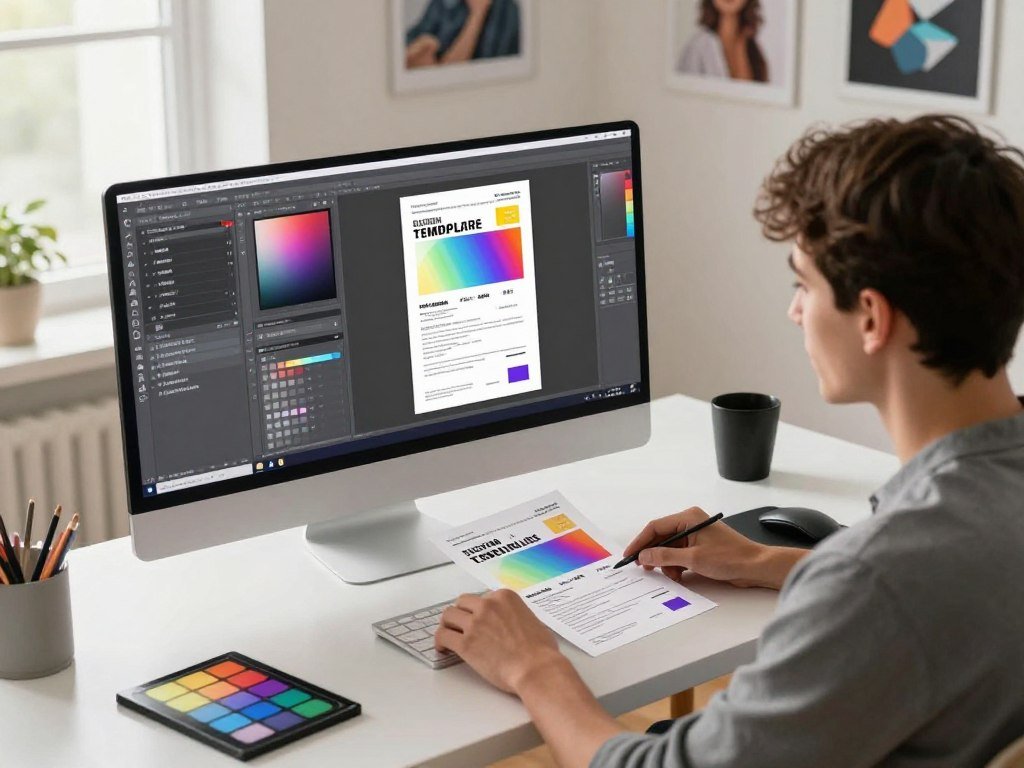
A first social post or flyer is easier to start when the software handles the blank canvas and gives you something editable. The choices range from template-led editors to image generators. An image generator is a tool that turns a written description into a new image.
These tools can help turn rough ideas into visual drafts, but the first result rarely finishes the job. You may need to fix the text, adjust the layout, or bring colors in line with your brand. That editing is part of the creative work, not a sign that the tool failed.
This comparison focuses on practical choices for a first project, from quick social graphics to more hands-on image editing. You will also find ways to start free and build a simple workflow without learning every feature at once. Choose a tool for the visual you need to finish, not just the most impressive sample image.
Key Takeaways
- Canva is a broad first choice for editable marketing graphics.
- Adobe Firefly suits image creation and edits in an Adobe workflow.
- Ideogram is a good first try when words must appear in an image.
- Free access often comes with limits on features or use.
- Review the generated output before sharing or selling it.
Which Tools Are the Best Starting Picks?
Canva is the easiest all-around starting point for a beginner who wants editable social and marketing graphics. It pairs a friendly interface with templates and direct editing, so you can move from an idea to a finished post. For most first projects, that blend makes it the best general pick.
Choose a more focused design tool when your output needs a certain kind of help. PCMag gave Canva a 4.5 out of 5 rating in 2026. Canva is the broadest first pick, while the other tools fit more specific jobs.

| Tool | Best use | Beginner advantage | Standout capability |
|---|---|---|---|
| Canva | Social and marketing graphics | Ready-made templates | Direct edits to generated designs |
| Adobe Firefly | Adobe image editing | Plain-language image tools | Generative Fill and Expand |
| Ideogram | Text-heavy visuals | Strong lettering in images | Headlines inside generated art |
| Piktochart AI | Infographics and presentations | Structured layouts | Turning information into visual sections |
| Midjourney | Concept art | Style exploration | Artistic image concepts |
Pick a tool for the asset you need to finish this week, not the tool with the longest feature list.
Firefly is the focused pick for Adobe editing, Ideogram for text-led images, Piktochart AI for infographics, and Midjourney for concept art. Canva remains the easier place to start when you want to edit a complete graphic. Compare the likely output, not just the number of features shown on a product page.
Free options and paid plans can change how often you work, but they do not change what each tool is built to do. A beginner making one event poster has different needs from someone creating a weekly campaign. Pick the row that matches the asset you need to finish this week, not the tool with the longest feature list.
Which AI Graphic Design Tools for Beginners Match Your Project?
Start with the output you need, because a social post, a concept image and an interactive interface call for different kinds of assistance. Your best choice depends on how much editing control you need and whether the work is a one-off or recurring. Begin with the task, not a long list of tools.
AI graphic design tools for beginners can still include professional features when you start with one narrow task. In 2026, 91% of designers used AI at least weekly, up from 54% a year earlier, and 75% used it daily. Designers used an average of seven AI design tools, compared with three the year before.

Brand and social content
For repeat brand work, Canva Magic Studio offers templates and brand tools in one design platform. It can help you make a batch of social graphics with a shared look. An existing design app with built-in AI may fit better if your team already works there.
Six broad groups cover much of today’s design work: image and asset generation, AI in existing apps, brand and template systems, UI/UX and design-to-code, video and motion, and 3D and product visuals. These categories explain why designers may use several tools. They do not mean you need to learn all six.
Concept art, image generation and interface work
For image generation or style references, try a tool made for visual exploration. If an interface is the goal, Figma Make can turn designs into working front-end code. A beginner guide to creating AI images can help you plan a visual draft and refine it.
Check four points before settling on a workflow:
- Final output: Is it a post, image, presentation, or interface?
- Editing needs: Will you need to change text, layers, or details?
- Repeat frequency: Is this a one-time project or a regular task?
- Team handoff: Does someone else need to review or build on it?
Professional design tools can be approachable when you choose a small first task, such as a single landing-page mockup. AI tools for graphic designers cover different needs, so using more than one can make sense later. A beginner can keep the first workflow to one tool until a real project shows where another capability is missing.
Is Canva a Good First Tool for Social Graphics?
Canva works especially well when you need a social post or campaign asset that you can edit immediately after generation. Its drag-and-drop editor, templates, and Magic Studio put layout and text changes in one place. That direct control helps a beginner turn a rough draft into a usable graphic.
Magic Studio includes Magic Design, Magic Write, and Magic Edit. You can use a template or generate a starting point, then adjust its copy, layout, and colors. Canva’s brand-kit features also help you keep recurring graphics close to your brand style.

Canva received a 4.5 out of 5 rating in 2026, with reviewers noting its intuitive interface, free version, and AI tools for different skill levels. Generate a draft, then edit the parts that do not match your message. This approach gives you more say than accepting the first result as a finished design.
Templates save time when a post follows a familiar format, such as a sale announcement or event notice. They may not offer the precise layer-level control a complex custom project needs. A long campaign with many linked assets may call for more detailed editing tools.
For a social graphic, check whether the headline stands out before you add small decorative details. Keep the copy short enough to read on a phone. Treat the first result as a draft and check that its text hierarchy and brand colors remain clear at mobile size.
What Can Adobe Firefly Do for a Beginner?
Firefly is a useful next step when a beginner wants to create or edit an image without leaving an Adobe-centered workflow. Text-to-image makes a new visual from a written description. Its editing tools can also change an image you already have.
Generative Fill adds, removes, or replaces part of an image based on your request. Generative Expand extends an image beyond its original edges, which can help when a photo needs more space around its subject. Adobe Firefly supports both creating a visual and making targeted changes.
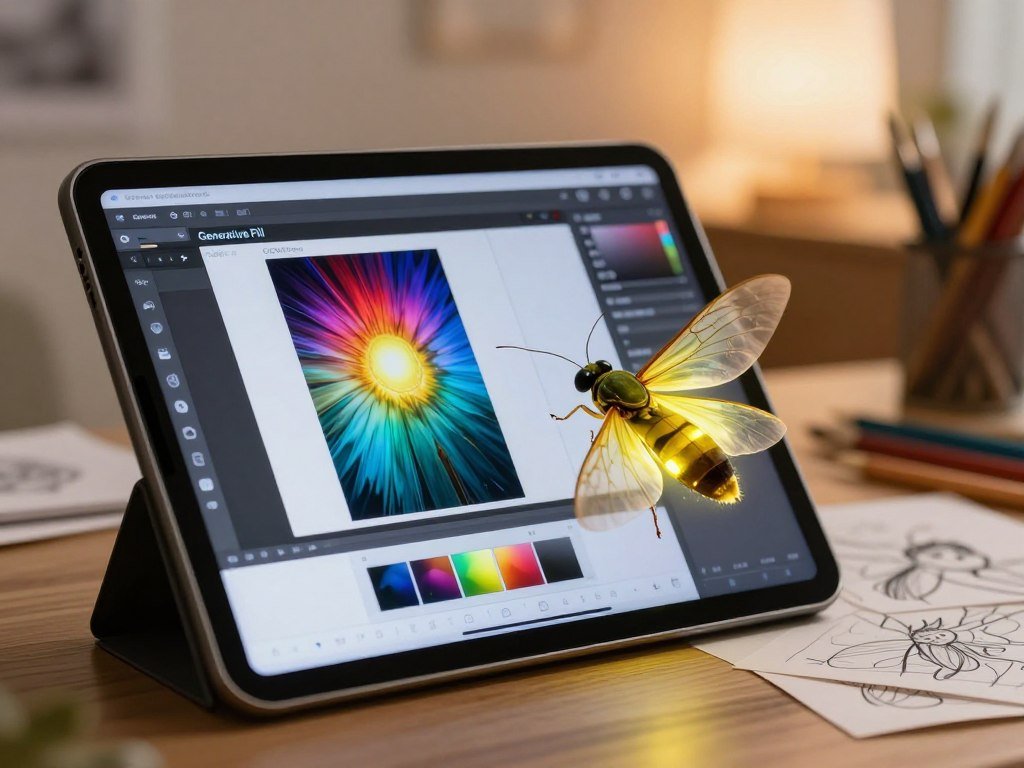
These features can be useful when you need a new background or a wider crop for a banner. Adobe’s Firefly feature guide describes image generation, fill, and expansion in Photoshop. Firefly fits image-level edits better than a template-first editor.
Firefly Pro included Photoshop on web and mobile, plus Adobe Express Premium, in 2026. You do not need that plan to begin exploring Firefly. A beginner can first test whether the Adobe workflow suits the project, then decide if included apps would be useful.
Firefly works well when you expect to keep editing an image in Adobe tools. A template editor may be quicker for a complete post with text and layout already in place. Try one small edit on a copy of an existing image before building a larger project around a new generation.
When Is Adobe Express the Simpler Choice?
Choose Adobe Express when the main task is assembling a polished template-based graphic rather than generating a standalone image. It starts with a designed asset, then lets you refine it using text, images, and basic edits. That template-first route suits beginners who want a clear starting layout.
Adobe Express can work for social posts, flyers, and other marketing graphics. Its template-based environment may suit someone who wants to use Adobe products without beginning in Photoshop. The free starting point makes it possible to try a basic design before choosing a paid plan.
Adobe Express received a 4.0 out of 5 rating in 2026 and was described as a template-based tool for non-designers. It is most useful when you need a designed asset, not a blank image canvas. Add your own message and pictures, then make basic changes to the layout.
A template can give a flyer polish, but its starting structure may not suit every message. Check the space for your real headline and call to action before changing decorative details. Complex layer control or detailed vector work may call for another application.
For an event graphic, a busy template can leave too little room for the date and location. Try a simpler layout if the key information feels crowded. Check that the chosen template leaves enough room for your actual message before adjusting its decorative details.
Is Ideogram Useful for Graphics With Text?
Ideogram is worth trying when the headline itself needs to appear inside the generated image. It is a good first try for a poster, banner, or social graphic where lettering is part of the composition. Readable text matters when the words carry the main message.
A generated image can look polished and still fail if it misspells a headline or changes its capitalization. Check spacing, letter shapes, and unwanted marks around the text. Ideogram’s strong text rendering in graphic examples makes it a useful option for text-led visuals.
Use a clear headline and keep the surrounding design simple. A short banner phrase is easier to inspect than a block of small copy. Generated lettering still needs a close human check before you publish it.
If the composition works but one word looks wrong, do not throw away the whole design. Bring the image into an editable canvas, such as Canva, and correct the text manually. That can preserve a strong background while fixing the most visible flaw.
Text inside an image can be hard to spot at thumbnail size. Review the full-size graphic, including spaces between letters and punctuation. Zoom in on every word before exporting, because a nearly correct headline is still a visible error.
Can Affinity Help Beginners Who Want More Editing Control?
Affinity is a strong option when you want to adjust the actual artwork rather than rely only on a generated layout. Its Pixel, Vector, and Layout studios support photo editing, vector illustration, and page layout. Those separate work areas give you more direct control over visual parts.
Vector editing helps when curves, nodes, alignment, or scalable shapes matter. For example, a logo element needs to stay sharp when it grows from a small icon to a large sign. Vector Studio includes curve and node editing, snapping, alignment, and other shape tools.
Affinity’s Pixel, Vector, and Layout studios and its export features were free to use without restrictions or payment in 2026. Installation on macOS or Windows requires a Canva account, which you can create for free. The editing studios are free, while Canva premium-plan users can access AI tools within Affinity.
Affinity received a 3.5 out of 5 rating in 2026 as a free suite for photo editing, page layout, and vector illustration. That range makes it useful when a template editor feels too limited. It can take longer to learn than a drag-and-drop design tool.
Choose Vector Studio when a project needs precise lines or shapes that must scale cleanly. A raster-only draft is made from pixels and may lose sharpness when enlarged. If your project needs a precise curve or scalable logo element, try the Vector Studio tools before settling for a raster-only draft.
What Does Figma Make Add to a Beginner’s Workflow?
Figma Make is the more relevant pick when your “graphic” is an interactive interface rather than a static post. In 2026, it could turn a text prompt into an editable layout, interactions, and underlying code. That makes it a way to explore how a screen might work.
Figma also supports collaborative design and handoff to developers. PCMag gave Figma a 4.5 out of 5 rating in 2026 for real-time collaboration, vector-file support, and code handoff. Its shared workspaces help a team review a design together.
Imagine sketching a simple sign-up screen for an app. You can describe the page, review the generated layout, then ask a teammate to comment on the flow. The Figma review covers its collaborative design and prototyping features.
A prompt-generated interface is a draft, not a finished product. Check whether the buttons, labels, and steps make sense for the people who will use it. An attractive screen can still hide confusing navigation or a missing action.
Test the layout at the screen size where people will see it. A wide desktop view may not fit a phone, and a small button may be hard to use. Check the generated layout on its intended screen size before treating its interactions as ready to share.
Which Free Tools Can You Use Without a Subscription?
Yes, a beginner can try several useful tools without a subscription, but “free” may mean a limited tier rather than unlimited use. Browser-based options let you try AI graphic design for free without installing a full app. Free download does not mean every tool needs an installer.
AutoDraw runs in a browser and requires no account. Canva has a Free plan with limited AI access, Adobe Firefly offers daily generations, and Adobe Express starts free. Adobe Fresco is a free painting and sketching app for iPad, iPhone, and Windows.
| Tool | Free starting point | Suitable task | Access or limitation |
|---|---|---|---|
| AutoDraw | Free browser tool | Quick sketch cleanup | No account required |
| Canva | Free plan | Social graphics | Limited AI access |
| Adobe Firefly | Free tier | Image generation | Daily generations |
| Adobe Express | Free starting plan | Template graphics | Browser-based design work |
| Adobe Fresco | Free app | Painting and sketching | iPad, iPhone, and Windows |
Adobe Fresco received a 4.5 out of 5 rating in 2026. A free tier may still limit features or usage, so it helps to match the tool to a small test project. Affinity is different because it needs a desktop installation, as covered in its own section.
Searches for AI graphic design tools for beginners free download often mix browser tools with apps. AutoDraw needs no account, while Fresco is an app available for several devices. Start in a browser if you want to test an idea without installing a full creative application.
How Do Canva and Firefly Pricing Compare?
Canva bundles AI access with its design plans, while Firefly offers standalone monthly tiers with credit allowances. Canva’s monthly AI allowance is shared across its AI tools. The plan shape matters because the price alone does not show how you can use the tools.
Canva Free includes up to 200 Standard AI uses or 20 Premium AI uses per month, with no Ultra AI uses. It also includes five Dream Lab generations each month. Canva Pro costs $144 per year for one person, while Canva Business costs $250 per person per year.
| Plan | Price and billing period | Included AI allowance | Key condition |
|---|---|---|---|
| Canva Free | $0 | 200 Standard or 20 Premium monthly | No Ultra; five Dream Lab generations |
| Canva Pro | $144 per year | 2,000 Standard, 200 Premium, 20 Ultra monthly | One person |
| Canva Business | $250 per person yearly | 4,000 Standard, 400 Premium, 40 Ultra monthly | Licensed per person |
| Firefly Standard | $9.99 per month | 2,000 Firefly credits monthly | United States plan |
| Firefly Pro | $19.99 per month | 4,000 Firefly credits monthly | United States plan |
Canva AI is bundled into Canva plans rather than sold as a separate AI subscription. Firefly also offers Pro Plus for $49.99 per month with 10,000 Firefly credits, and Premium for $199.99 monthly with 50,000. Canva Business costs $250 per person per year, not for a whole team.
Firefly’s free tier provides daily generations across image, video, and audio, and its allowance refreshes daily. Paid Firefly tiers give you a set monthly total of Firefly credits. Canva’s allowance is tied to its wider design plans, which can suit people who want templates and editing too.
Compare how often you expect to generate and which design features you need. Canva’s yearly prices and Firefly’s monthly prices use different billing periods. Compare the billed period as well as the headline price before deciding which plan fits your expected volume.
How Do AI Credits Affect Your Output?
A monthly credit total matters only after you know which actions draw from it. Canva uses a shared AI allowance, while Firefly credits apply to some specific generation features. One finished visual may take several tries, so the allowance is not the same as a count of final designs.
Canva’s shared allowance covers its AI tools, and failed generations count against it. Some named AI Design Tools sit outside that monthly allowance. Background Remover, Magic Eraser, Magic Expand, and Magic Grab do not use the shared monthly AI allowance.
Standard image work and credit-free features
Paid Adobe Firefly plans include unlimited standard Generate Image, Generative Fill, and Generative Expand use, except in Firefly Graph. That means the main image and edit tools do not always draw down the monthly total. Read the feature name carefully before assuming a generation spends credits.
Premium generation and video credits
Firefly Image 5 uses 10 Firefly credits for each generation. A five-second video costs 100 credits at 540p, 250 at 720p, or 500 at 1080p. Higher video resolution uses more of the allowance.
Paid Firefly credits reset monthly, and unused credits do not roll over. Check these four points before a larger run:
- Which feature spends Firefly credits?
- Does a failed generation count?
- When does the allowance reset?
- Do unused credits roll over?
A video test can use far more credits than an image draft. Explore the visual direction before choosing a higher resolution. Use lower-cost previews for exploration and save higher-credit video runs for directions you have already refined.
How Can You Write Prompts That Produce Usable Graphics?
A useful prompt names the format, the message, and the visual direction before it describes decorative details. Clear instructions give an image generator a better starting point than a vague request for something attractive. State what the graphic must do and where people will see it.
A static graphic brief should name its audience, purpose, dimensions, headline, style, background, and contrast needs. A blog banner might be 1200 x 628 px, while an Instagram post might be 1080 x 1080 px. Mention whether the export should be PNG or JPG.
Describe a static graphic clearly
For a social post, say who should read it and what they should do next. If the file must stay under 1 MB, include that as an export target. A Harvard guide to AI prompts recommends naming the goal, audience, context, and desired output.
Use this five-part check before you send a prompt:
- Intended audience
- Placement and dimensions
- Exact copy
- Visual direction
- Export requirements
Refine the first output instead of restarting
After the first result, describe one change at a time. You might ask for a darker background while keeping the text and subject unchanged. That makes it easier to tell whether the new instruction helped.
Keep the wording simple and specific. “Warm orange background, dark headline, no extra text” gives a clearer direction than “make it pop.” If the result misses the mark, change one instruction at a time so you can tell which revision helped.
What Does a Beginner-Friendly Design Workflow Look Like?
A reliable beginner workflow separates deciding what the graphic must say from polishing how it looks. Use three stages: define the brief, generate a draft, and refine the asset. That order helps you make design choices before spending time on small edits.
For a blog banner, first decide who will read it and what the headline needs to promise. Then create a few concepts and choose one with room for the message. The tool can help with repetitive work, but it cannot decide whether the message is right.
From brief to first draft
Use these four steps to move from idea to draft:
- State the audience and placement.
- Generate a small set of concepts.
- Edit the strongest draft.
- Export and inspect it at its intended size.
A small set gives you a choice without creating a pile of near-identical assets. If the banner is for a website, consider its shape and the space available for the headline. Starting with the placement keeps the design tied to its real use.
From draft to finished asset
Review the copy, hierarchy, contrast, and crop yourself. Those checks depend on the audience and the message, not just the pixels. AI can speed up repetitive edits such as resizing, background removal, or layout adjustments.
Canva lets you edit generated visuals directly, while Photoshop supports image editing and Firefly-assisted changes. For a social post, check that the headline remains easy to read after resizing. A strong image can still fail if its text sits too close to the edge.
Some work also needs a human fact check, such as a property listing graphic with a price or feature. Keep every claim accurate before publishing. Inspect the exported file at the size people will actually see before sharing it.
What Should Beginners Know About Privacy and Commercial Use?
Before using an AI-generated visual in a client or business project, check both the tool’s terms and the work you contributed. Adobe says its first-party Firefly models use licensed Adobe Stock content and public-domain content whose copyright has expired. That statement applies to Adobe’s stated training approach.
Adobe also says it does not train Firefly on subscribers’ personal content. Copyright protection for AI-assisted work in the United States depends on sufficient human authorship, not a prompt alone. Commercial permission and copyright ownership are separate questions.
Before you use an asset, make four checks:
- Review the tool’s current terms.
- Avoid entering sensitive client information.
- Keep records of substantial human edits.
- Check asset rights for the intended use.
A tool may allow commercial use under its terms, but that does not settle who owns copyright in the final work. A client’s private details also deserve care, even when they seem useful for a prompt. A guide to safe AI data use explains why sensitive information should stay out of public tools.
Keep the prompt and any source assets alongside the final file. This record can help explain how the design took shape if questions come up later. Keep a record of the prompt, source assets, and substantial edits when the visual has business value.
When Should You Move From AI Tools to Professional Software?
Move to professional software when a project repeatedly asks for control that a template or generator cannot provide. A beginner does not need advanced software for every social graphic. The move makes sense when repeated work needs finer control over shapes, image layers, or page layout.
Illustrator received a 4.5 out of 5 rating in 2026, with vector editing and text-to-vector tools highlighted. Photoshop received a 5.0 out of 5 rating for generative AI, image editing, and its guided interface. Choose software for the kind of control your project needs.
| Software | Strongest work type | Relevant capability | Rating |
|---|---|---|---|
| Adobe Illustrator | Vector graphics | Vector editing and text-to-vector | 4.5 out of 5 |
| Adobe Photoshop | Photo editing | Generative AI and image tools | 5.0 out of 5 |
| Affinity | Photo, layout, and vector work | One free creative suite | 3.5 out of 5 |
Upgrade for a specific recurring task, not because a more complex interface looks more professional.
Look for a repeated need before taking on a new learning curve:
- Precise vector control
- Complex layered image edits
- Repeatable page-layout work
Professional software can save time when you need to make the same detailed change across many designs. It can slow you down if your main task is a one-off announcement. Affinity offers a free suite for photo editing, page layout, and vector illustration.
Choose one recurring project and try the tool that best fits its hard part. If you make many logos, vector control may matter more than image effects. Upgrade for a specific recurring task, not because a more complex interface looks more professional.
Conclusion
For most beginners making everyday marketing visuals, start with Canva and keep the first project small. Its editable layouts make it a practical first choice for social posts and other brand graphics. One clear project is enough to learn how generation and editing fit together.
Firefly suits Adobe image editing, Ideogram suits text-led images, and Affinity helps when you want hands-on vector control. Pick based on the work in front of you, not the number of tools you might use someday.
Write a one-sentence brief for your next graphic, make one draft, and revise it until the message is clear.



