A soft, noisy, or small picture can often be made clearer with a few targeted AI-assisted edits. An AI photo enhancer can reduce visible noise, soften mild blur, and balance lighting in seconds. One click may be enough for a simple social media post or design draft.
Super-resolution is a method that increases an image’s pixel dimensions while estimating detail that is not present in the original pixels. That added detail is an estimate, not information your camera truly captured. Results can also shift the background, color, or fine edges, so keep the original nearby.
Start with a copy of the original whenever the edited version will be used in a design. That gives you a clean file to return to if the enhancement changes a face, edge, or color.
Key Takeaways
- Choose cleanup for noise, mild blur, or uneven lighting.
- Upscaling adds pixels and estimates some missing detail.
- Generative edits can change faces, text, and product features.
- Compare the edited file with the original before sharing.
- Check free access, watermarks, and output size before choosing a tool.
AI Image Enhancer: Improve Photo Quality Across Common Problems
A noisy low-light picture, a mildly soft portrait, and a small web graphic call for different kinds of enhancement. Match the fix to the visible problem, since each edit affects image quality in a different way.
AI enhancement can improve visible clarity, but it cannot prove that generated detail matches the original scene. Use the result as an edited version, not as a record of details the camera never captured.
Noise, blur, and uneven lighting
Noise reduction smooths speckles that often appear in dark photos. Strong denoising can also erase small details, such as hair strands or fabric weave. A gentle setting may keep more texture while reducing the rough look.
Sharpening increases edge contrast, while deblurring tries to make soft edges clearer. These tools can help with mild softness, but severe blur or missed focus leaves too little information to restore reliably.
Color and lighting correction can lift shadows, adjust contrast, or bring skin and background tones closer to balance. A change that helps a dim portrait may make a night scene look unnaturally bright.
When enlargement adds estimated detail
Upscaling raises the pixel count and estimates details between the original pixels. It can make a small image more useful for a larger display, but the added pixels do not equal newly captured facts.
Some models generate texture that looks plausible at normal size. At close zoom, hair, fur, or lettering may look altered, especially when the original lacks clear edges.
AI-generated texture is an estimate, not a recovery of detail the camera captured and then lost.
Face recovery can create convincing eyes, skin, or hair without staying faithful to a person’s features. A heavily out-of-focus face gives the model even less reliable information to work with.
Treat reconstructed facial features as suggestions, not proof of what a person looked like.
How Do You Enhance an Image in a Few Steps?
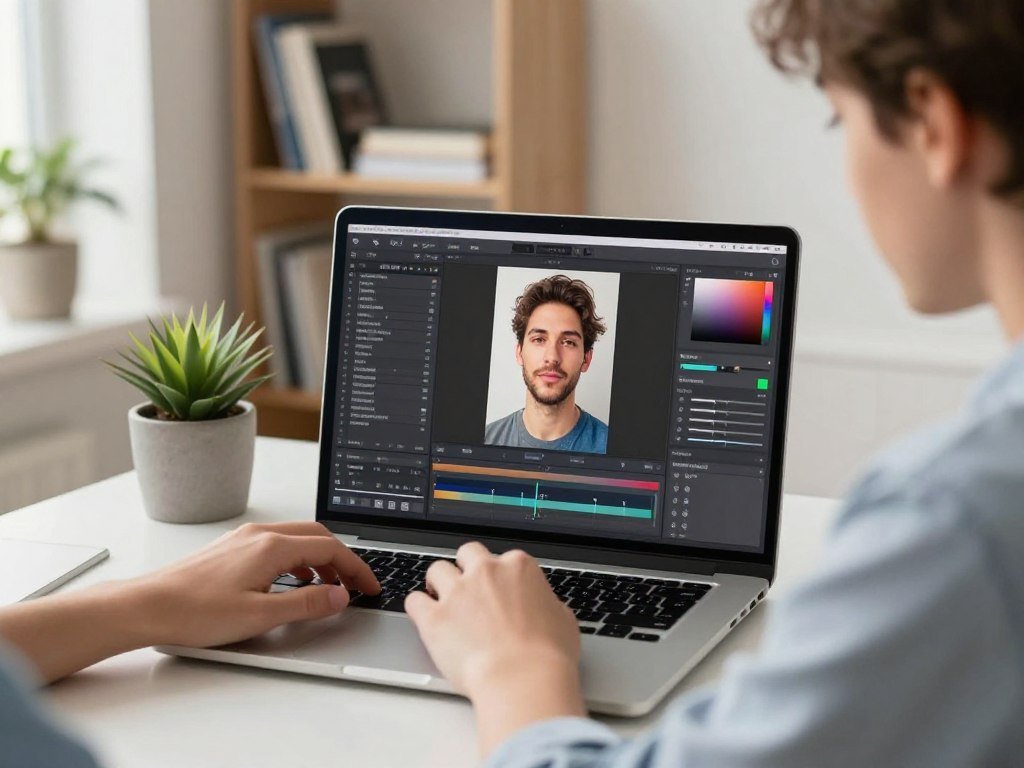
A first enhancement usually needs only the image, one selected adjustment, and an export check. Keep the first edit simple so you can tell whether the change helps.
Use one adjustment first, then inspect the image before adding another. That makes it easier to spot when sharpening or denoising starts to harm the photo.
- Choose an image and tool suited to the file and task.
- Upload or open the picture in the editor.
- Apply one enhancement and inspect the result.
- Download in the format needed for its next use.
Adobe Express lets you upload a JPEG, JPG, PNG, or WebP file under 40 MB. Open the enhancer, apply its available adjustment, and review the preview before exporting.
Adobe Express has a free plan, but some AI features share limited generative credits. Its mobile apps are available for iOS and Android, so you can make a quick edit from a phone.
Canva Upscale sits in the editor and offers one-click enhancement with manual adjustment tools. You can download the result as a JPG, PNG, or PDF, depending on your project.
For more help with a Canva-based workflow, see this guide to the ChatGPT app and connected tools. The right download choice depends on where the picture will appear next.
Confirm the downloaded file opens at the intended size before using it elsewhere.
Which Enhancement Method Fits the Image?
Choose cleanup when the composition is right, and choose a generative edit only when new-looking detail is acceptable. Preserving the scene matters most when exact content must remain unchanged.
A restrained method is the safer choice when you need to preserve the original content. Generative editing can redraw texture, lighting, or even parts of the subject.
Pixel-level cleanup and upscaling
Conventional sharpening and denoising adjust the pixels already in the image. These edits can improve edge contrast and reduce noise, but strong settings may create halos or smooth away detail.
AI upscaling increases resolution and estimates detail between pixels. It suits small pictures that need a larger display size, though a high upscale factor gives the model more room to invent texture.
Generative editing and texture models
Generative editing redraws parts of an image based on learned patterns. It may improve texture or atmosphere, yet it can alter what the picture contains.
Let’s Enhance lists Prime for realism-focused enhancement, Ultra for stronger texture generation, Digital Art for illustrations, and Old Photo for restoration. Magnific AI Precision is capped at 2× enlargement, while Creative can add details and alter content, lighting, and atmosphere.
| Method | What it changes | Best fit | Main limitation |
|---|---|---|---|
| Conventional sharpening and denoising | Existing pixels and edges | Mild noise or softness | Cannot add missing scene detail |
| AI upscaling | Pixel dimensions and estimated detail | Small images for larger display | Generated texture may be inaccurate |
| Generative editing | Texture, content, or lighting | Creative redesigns | May change subject details |
For more on the difference between editing and image creation, read this comparison of AI image generator tools. Let’s Enhance’s model names help describe intended uses, not a guarantee that every output will match the original.
Keep a creative mode away from images where exact text, identity, or product features must remain unchanged.
Which Free Online AI Image Enhancer Fits Your Limits?
For a no-sign-up browser edit, VisualGPT and ZEnhancer offer different ways to try an image without creating an account. Compare the limits before choosing a free photo enhancer.
A free AI image enhancer can improve photo quality online for a quick edit, but its access and output rules decide whether it fits. Account needs, credits, watermarks, file size, and maximum resolution all matter.
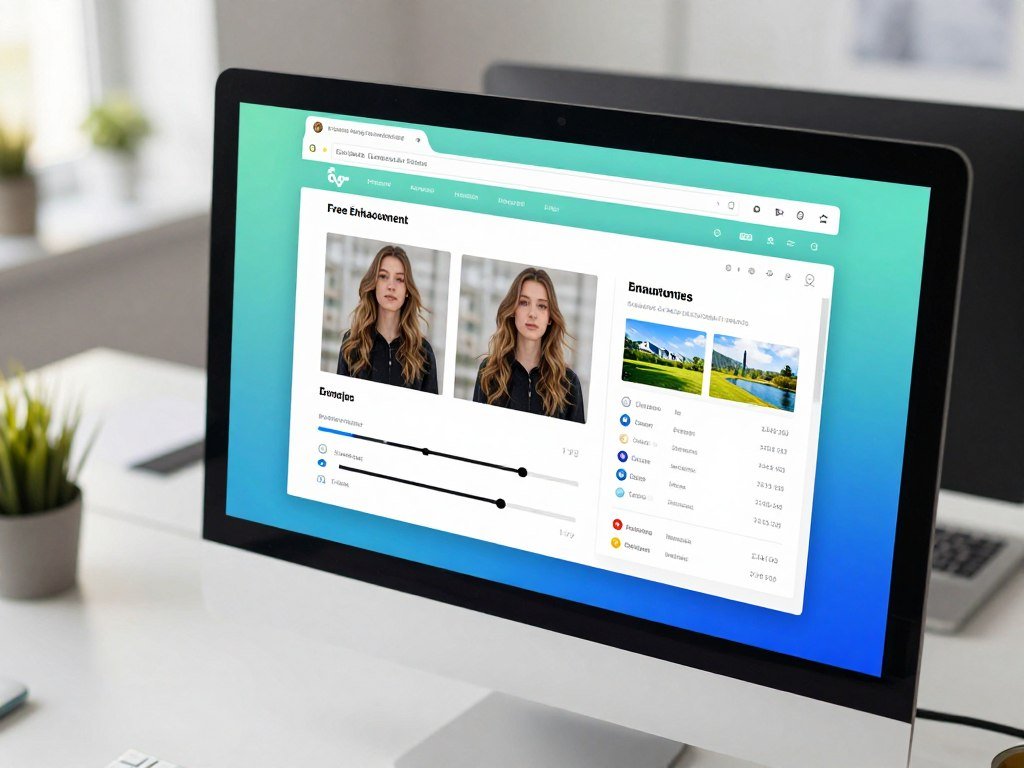
No-account options
In 2026, ZEnhancer provides 6 credits per day, resets them daily, and adds no watermark. It does not require an account for one image.
Pixelcut advertises free HD downloads without a watermark. It accepts files up to 100 MB or 8,000 × 8,000 pixels, and describes output at roughly 2.5× source resolution.
VisualGPT accepts JPG, PNG, and WebP files up to 16 MB. It advertises free use without sign-up, unlimited individual upscales, full-resolution output up to 4K, or 3840 × 2160 pixels, and no watermark.
Credit-based starter plans
Let’s Enhance provides 10 starter credits and requires an account. Free starter outputs carry a watermark, while the service advertises upscaling up to 16×.
VanceAI provides 10 starter credits. Higher upscale factors use more credits, so a large enlargement can spend the starter balance faster.
Upscale.media’s official pages give conflicting free-access details. One describes free personal web use, while its homepage asks users to register for 3 starter credits.
Compare access and output limits
| Tool | Account or free access | File or credit limit | Watermark or output detail |
|---|---|---|---|
| ZEnhancer | No account for one image | 6 daily credits | No watermark |
| Pixelcut | Free HD downloads advertised | 100 MB or 8,000 × 8,000 px | No watermark; roughly 2.5× |
| Let’s Enhance | Account required | 10 starter credits | Watermark on free outputs; up to 16× |
| VanceAI | 10 starter credits | Higher factors use more credits | Output limits depend on use |
| VisualGPT | Free use without sign-up advertised | 16 MB; unlimited individual upscales | No watermark; up to 4K |
Free download claims can depend on export conditions, so check those terms for the specific tool you use. This overview of free AI image generators also compares access and usage limits.
Check the watermark and maximum output dimensions before spending time on a batch of images.
When Should You Download Desktop Enhancement Software?
A desktop app is worth considering when you want local processing or a workflow built around a computer’s available hardware. Local work can suit large projects, but each app has its own requirements.
A free download helps only when your computer meets the application’s system requirements. Upscayl and Aiarty take different approaches, and Aiarty’s hardware needs do not apply to every desktop enhancer.
Local upscaling with Upscayl
In 2026, Upscayl Desktop is free, open source, and runs locally on Windows, macOS, and Linux. It has no account-based credit meter, but it requires compatible Vulkan hardware.
Upscayl can enlarge images, but it is not designed to fix a severely out-of-focus photo. Its local workflow also means the computer handles the processing rather than relying on a hosted editing session.
Hardware-specific processing with Aiarty
Aiarty Image Enhancer supports several file types, including HEIC, JPEG, JPEG 2000, PNG, TIFF, WebP, BMP, AVIF, and camera RAW formats. It exports JPG, PNG in 8-bit or 16-bit, TIFF, DNG, AVIF, and HEIC.
Aiarty lists different minimum operating systems and RAM for Windows, Intel Mac, and Apple Silicon Mac. Windows acceleration also has separate DirectML and TensorRT requirements.
| Platform | Minimum operating system | Listed RAM |
|---|---|---|
| Windows | Windows 10 x64, version 1809 or later | 8 GB minimum; 16 GB or more recommended |
| Intel Mac | macOS Catalina 10.15 or later | 4 GB |
| Apple Silicon Mac | macOS Big Sur 11 or later | 8 GB or more |
Windows DirectML acceleration requires DirectX Feature Level 12.0 or higher. TensorRT acceleration requires an NVIDIA GPU with Compute Capability 6 or higher, with compatible GeForce models starting at GTX 1050.
A 2026 test used Aiarty RealPhoto at 2-pass, More-Detail, and 0.78 strength on a high-ISO bird photo. It reduced noise, restored feather detail, and sharpened the bird’s eye.
In another low-light test, More-Detail at 0.95 strength reduced noise while retaining lifelike skin and fabric detail. An architecture image enlarged from 6K to 12K showed sharper edges, cleaner lines, and finer textures.
Check Vulkan support before installing Upscayl, since its local workflow depends on compatible hardware.
Can You Enhance Photos on a Phone?
A phone is convenient for a quick portrait or social post, while larger files and detailed review are easier to manage on a computer. For a fast edit, use a mobile app or open a browser tool on your phone.
An AI image enhancer APK is an Android app package, not proof that a download is safe. Choose a supported official app listing instead of an unverified file.
Nero Lens is available for iOS and Android. It includes Photo, Standard, Iris, Anime, and Reconstruct upscaling models, so you can choose a style suited to a portrait or illustration.
Nero AI’s online upscaler offers 2×, 4×, and 8× options. In 2026, a new account received 10 free credits, and the service could enlarge up to 8× and up to 1024 megapixels, depending on the original image and settings.
These options suit different needs: a 2× setting may be enough for a small social image, while a larger factor can produce more estimated detail. The final pixel count also depends on the source image and chosen settings.
Remini can help with phone portraits, but check the Android version before relying on its latest updates. Its Google Play listing says versions older than Android 7 may not support those updates.
Remini lists weekly and yearly subscriptions. The subscription renews automatically unless you turn off auto-renewal at least 24 hours before the current period ends.
Check the renewal setting at least 24 hours before the subscription period ends if you do not want the next renewal.
Can Prompts Guide AI Photo Enhancement?
A prompt can guide the look of an edit, but it cannot guarantee that the model preserves every original pixel. Use a prompt when you want to direct texture, lighting, or other visual changes.
A prompt to convert an image to 4K resolution cannot override a model’s fixed output dimensions. A prompt may change how an image looks, but pixel dimensions depend on the tool.
Prompts for a targeted edit
Cutout.pro Photo Enhancer Pro accepts prompts such as “realistic skin texture” and “cinematic lighting.” Its workflow combines denoising, deblurring, color correction, and upscaling.
Cutout.pro accepts JPG, PNG, and WebP uploads, and offers a choice of output-resolution format. For a restrained edit, try: “Keep the same subject and background, add natural texture, and sharpen edges lightly.”
Check the current access gate before relying on a free Cutout Photo Enhancer session. Free access terms can affect whether you can complete the export you need.
When a prompt redraws the image
ChatGPT image-enhancement prompts produce a re-render of a scene, not a pixel-level upscale. The resulting image’s pixel count is fixed by the model, even if the prompt asks for 4K.
That kind of edit can reinterpret the background, face, or fine texture. For more on writing clear image prompts, focus on one change and name the details that should stay the same.
A guide to creating and editing AI images can help you tell a redraw from a pixel-level enhancement. Prompt results still need close review for changed details.
For a broader look at free generation options, compare free text-to-image tools and their different output limits.
Use prompt-led reconstruction only when a newly interpreted version is acceptable.
What File, Privacy, and Detail Limits Should You Check?
A tool’s file limit and processing method can matter as much as its enhancement model. Check the practical limits before you upload images or plan a batch.
On-device processing means the browser performs the work locally, not that every privacy question is settled. Review the tool’s terms and your own browser settings as well.
File handling and browser constraints
In 2026, BulkPicTools accepts JPG, PNG, and WebP files up to 10 MB. It processes images on your device, enlarges them by 4×, and limits the long edge to 4096 pixels.
The browser uses WebGPU when available, a way to run graphics work with the device’s graphics processor. If WebGPU is unavailable, WebAssembly lets the browser run the task through another local method.
BulkPicTools downloads results as PNG or WebP. Before using any browser enhancer, check these four details:
- Supported file type and maximum file size.
- Maximum output dimensions.
- Available export formats.
- Whether processing happens locally or on a service’s server.
Texture that looks convincing at a glance
A 2026 comparison found different strengths in two fox illustration results. Let’s Enhance at 4× showed distinct fur strands and leaf structures, smooth lighting gradients, and a face that kept its character without looking oversharpened.
Upscayl removed blocky structure and made cleaner edges. At close zoom, its fox fur and leaf textures looked smooth and slightly painted.
Those results do not make one tool the best choice for every image. A painterly look may suit an illustration, while a realistic fur texture may matter more for another design.
For another view on free local and browser tools, see this comparison of free AI image generators. Check how the chosen service handles uploaded files before sending private images.
Zoom in on fur, leaves, edges, and faces to spot smooth or painted-looking textures before sharing.
How Can You Judge the Result Before Using It?
Judge an enhanced picture at both close zoom and the size people will actually see. Check the whole image, since an edit can improve one area and damage another.
A 2×-4× enlargement is a sensible starting range for many ordinary images. Larger jumps tend to need more estimated detail, and the best factor depends on the original pixel dimensions and intended use.
- Compare the original and edited versions side by side.
- Inspect faces, text, edges, and fine textures at 100% zoom.
- View the file at its intended display or print size.
- Reject results with halos, plastic skin, changed text, or invented product details.
At 100% zoom, one image pixel appears at roughly one screen pixel. This view can reveal halos around edges, fake hair strands, and uneven areas that disappear in a small preview.
Do not accept an edit simply because it looks sharper at a glance. A changed face, label, or product feature can make the file less useful.
Then view the file at the size where it will appear. A social post may look fine at phone size, while a printed image can expose artifacts that were hard to spot on screen.
Check text and brand colors with extra care when a picture supports a design. AI editing tools may change small letters or shift familiar colors.
If important lettering or product features have changed, use the original or a less aggressive edit.
Conclusion
The most useful enhancer is the one that fits the image, the device, and the kind of detail you need to preserve. Choose cleanup for a mild flaw, and treat reconstructed detail as an estimate.
A quick social post may need only a browser edit, while a large batch or local workflow can call for desktop software. No model can promise that every added texture matches the scene that the camera recorded.
Pick one image with a clear goal, such as reducing noise or preparing a small graphic for a larger display. Choose a suitable tool for one image and check that its exported dimensions and format work for your intended use.
FAQ
Can AI enhancement restore a face in an old photo without changing the person’s identity?
No, face recovery can alter identity cues because the model estimates unclear features. It may add plausible eyes, skin, or hair, but those details are not proof of the person’s appearance. Compare the result with the original and with other known photos. For family records or public use, keep the unedited scan and label the enhanced version clearly.
How large should an image be before printing?
About 300 pixels per inch is a common target for prints viewed up close, but it does not guarantee quality. The needed pixel dimensions depend on the print’s width and height. Viewing distance matters too: a large poster viewed from across a room can use fewer pixels per inch than a small print held close. Check the final size before printing.
Does upscaling increase image quality or only pixel count?
Upscaling increases pixel dimensions and can estimate detail between the original pixels. It may improve clarity at a larger display size, but the new detail is not recovered camera information. A model can also smooth texture or invent edges. Compare the export at its intended size, since a larger pixel count alone does not guarantee a better-looking image.
Can an AI enhancer remove motion blur?
Mild motion blur may improve with sharpening or deblurring, but severe blur cannot be reliably reversed. When a subject moves during exposure, the image may lack clear edge information for the model to use. A tool can make the result look sharper by estimating detail, yet it may create false texture. Keep the original if the exact scene matters.
Will an AI photo enhancer change the colors in my picture?
Yes, color correction can shift tones while balancing lighting or contrast. Skin may look warmer, shadows may brighten, and a background may change slightly. Compare skin, neutral objects, and brand colors with the original before using the export. If accurate color matters, use a lighter correction and avoid a creative mode that can redraw the scene.
Can I use an AI-enhanced photo commercially?
Check the tool’s current usage terms and confirm you have rights to the original image. A free plan alone does not establish commercial permission. Rules can differ for uploaded photos, generated edits, and business use. You should also check whether the image includes people, logos, or artwork that needs separate permission before you publish or sell it.



