A vague AI image prompt can produce a striking image, but it often leaves the most important visual choices to chance. You may need a campaign image, a social post, or a concept sketch, and each one calls for a different result. A creative brief is a short set of instructions that specifies what an image should show and how it should look.
This guide helps you turn an idea into clear directions for common image generators. You will describe the subject, style, lighting, and composition, then test and refine the results. That process can save time when a first draft misses the mood or layout you need. Treat the prompt as a practical creative brief, not a label for an image. Start by deciding what the image needs to communicate and who will use it.
Key Takeaways
- Write down the image’s purpose before adding visual details.
- Name a clear subject and setting so the model has direction.
- Choose visual choices that support one mood and style.
- Use composition to guide attention and leave needed space.
- Review generated images, then revise details that matter most.
- Check text, product details, and permissions before publishing.
How to Write AI Image Prompts 2026: A Repeatable Formula
A useful prompt names the main visual decisions before the model has to guess them. Start with purpose, then set the subject and visual direction. A practical prompt brief covers six decisions, with the intended use guiding layout and output needs.
Keep the first draft focused on decisions that can change the final image. OpenAI recommends ordering details as background or scene, subject, key details, and constraints. Naming the intended use helps the model understand whether the image is for a listing, poster, or story concept.
Put the image’s purpose and main subject before secondary visual details. Add constraints only when they protect a real requirement.
Set the scene, subject, and intended use
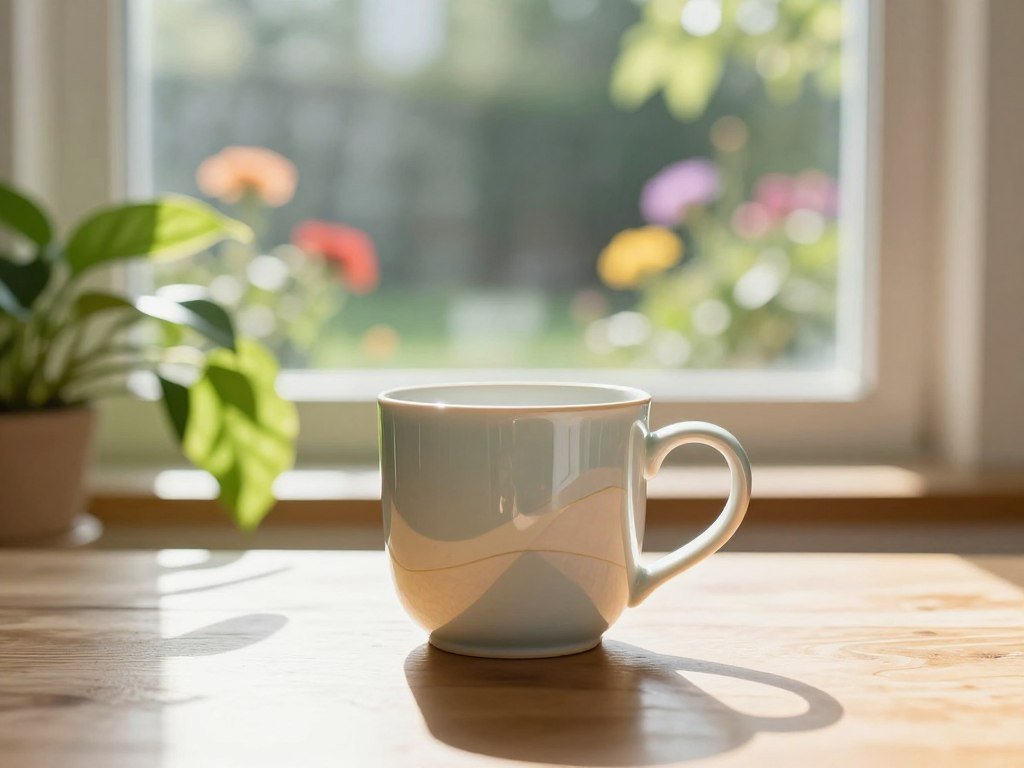
Begin with where the image takes place, then identify the main subject. “A ceramic mug” gives less direction than “a blue ceramic mug on a breakfast table beside a window.”
Include the subject’s main action or role when it matters. A runner crossing a city bridge tells a different story from a runner standing at the start line.
The intended use shapes the scene. A social post may need an open area for a caption, while a concept sketch can focus on an unusual setting.
Add style, framing, light, and constraints
Once the scene is clear, choose visual directions that support its purpose. The six core decisions give you a simple structure:
- Subject: the person, object, animal, or place.
- Style: the medium or aesthetic guiding the image.
- Composition: the arrangement of objects and empty space.
- Lighting: the direction and quality of the light.
- Color: the palette that shapes mood and contrast.
- Technical requirements: the needed format, ratio, or text.
Framing tells the model what deserves attention, while lighting and color help set the mood. Add only constraints that matter, such as leaving clear space for a headline or keeping a package label visible.
For a first draft, put the image’s purpose and main subject before secondary visual details.
Why Do Vague or Overloaded Prompts Miss the Mark?
“A forest” leaves the model to choose the time of day, weather, viewpoint, and visual style. That open request may work when surprise matters, but it offers little control. More direction helps when the result must fit a clear purpose.
A prompt guides the image; it does not guarantee an exact result. Too little detail leaves major choices to the model’s defaults. A directed scene, such as a misty pine forest at dawn viewed from a trail, narrows those choices.
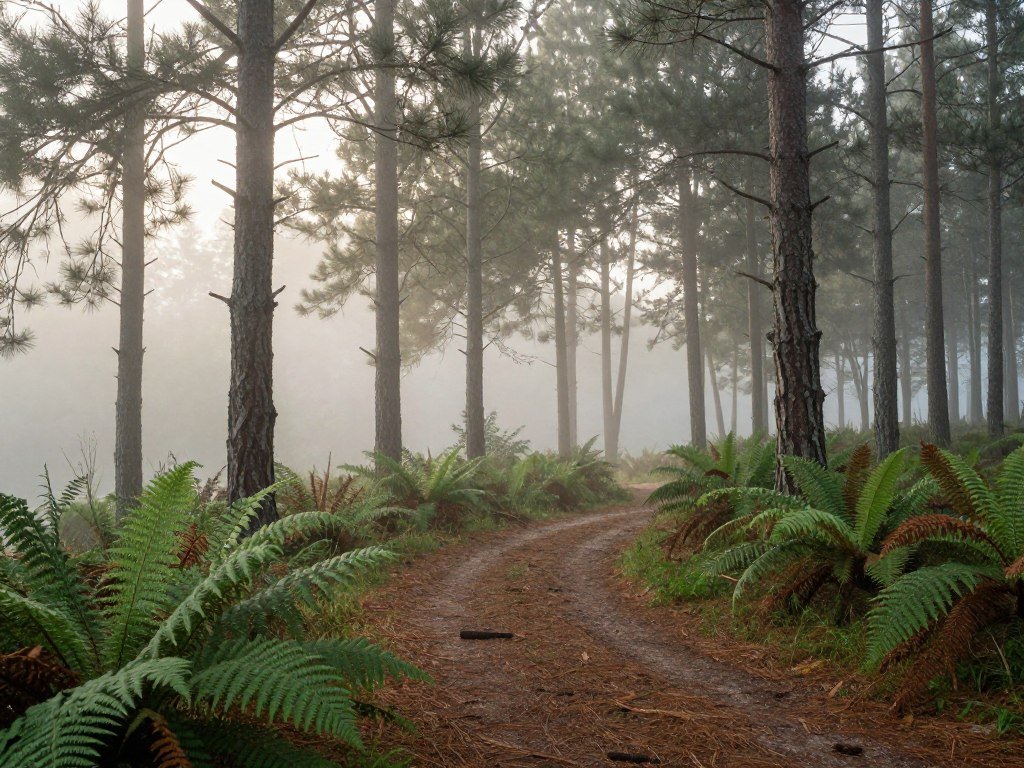
You can also control the scene more tightly by placing one hiker in the lower right, with open sky above the trees. That level of direction can help when the composition must leave space for a title.
Image generators can create photography, illustrations, characters, products, logos, social graphics, and cinematic scenes. The same wording may produce different results across ChatGPT, Gemini, Midjourney, FLUX, and Stable Diffusion.
Specificity can range from open to directed to highly controlled. Choose the level that fits the task instead of adding detail for its own sake.
An overloaded prompt can cause trouble too. Conflicting requests, such as “minimalist” and “packed with small details,” can pull the image in opposite directions.
Long lists of unrelated adjectives may leave the model unsure which quality matters most. A prompt works better when each added detail supports the same scene and visual goal.
Models interpret language differently, and separate generations can vary as well. A useful result is a strong draft, not proof that every word will appear exactly as intended.
Add a detail only when changing it would noticeably change the image’s meaning or appearance.
How Do You Describe the Subject, Setting, and Style?
“A person” gives less visual direction than a person with a defined role, clothing, pose, and setting. Concrete language helps the model build a clearer subject and scene. Choose details that change what viewers notice.
Describe what the subject is doing and what makes it visually distinct. A subject description can name its action, material, color, condition, and surroundings. These details matter more than a pile of decorative words.
Make the subject and setting concrete
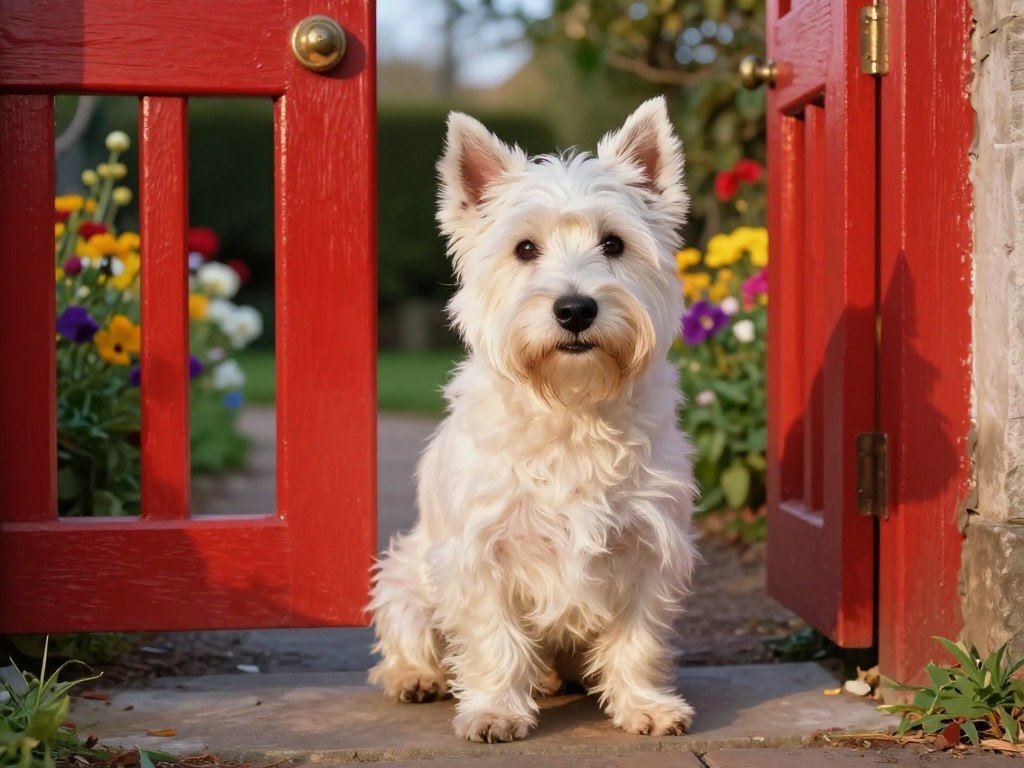
A broad label like “dog” leaves breed, size, behavior, and setting open. “A small white terrier resting beside a red garden gate” gives the image a recognizable subject and place.
For an object, name its shape, surface, and condition when those features matter. “A dented brass lantern with cloudy glass” carries more visual information than “an old lantern.”
Concrete materials, shapes, and textures can help the model form the scene. If you want a photorealistic result, say “photorealistic” rather than relying on “realistic” alone.
Choose one coherent aesthetic
Pick one visual medium or aesthetic, such as a hand-painted picture book scene or a clean editorial photograph. Then choose a palette and mood that fit the same direction.
Watercolor with visible paper grain supports a different result from glossy 3D art. Combining both can work as an intentional contrast, but unrelated styles often compete.
To write AI image prompts in 2026 for an aesthetic look, settle on one coherent medium, palette, and mood before minor details. Trending ChatGPT image prompts can spark ideas, but a trend should not replace a brief built for your image’s purpose.
Use language a viewer could picture. “Soft, dusty blue with warm cream accents” gives a more useful color direction than “beautiful colors.”
Keep the style vocabulary coherent enough that every descriptor points toward the same visual result.
How Do Lighting, Color, and Composition Shape the Image?
Soft window light can make a portrait feel calm, while hard side light creates stronger shadow and shape. Choose light for a reason, since it changes mood and visibility. Composition directs the viewer’s eye through the frame.
Match the light and framing to the image’s purpose. A bright, even scene can show details clearly, while deep shadow may add tension or drama. The right choice depends on what viewers need to notice first.
Match the lighting to the mood
Diffused light, such as light through a soft curtain, creates gentle shadows. A softbox can give a similar even look for studio photography.
Hard directional light creates sharper shadows and stronger shape. Golden-hour light comes from a low angle, with warm color and long shadows.
Neon light adds vivid color and can make a night scene feel energetic. It may also hide surface detail when bright hues spill across the subject.
| Lighting choice | Visual effect | Suitable use |
|---|---|---|
| Soft diffused light | Even light, gentle shadows | Calm portraits, clear detail |
| Hard directional light | Sharp shadows, defined shape | Bold portraits, dramatic scenes |
| Golden-hour light | Warm glow, long shadows | Outdoor portraits, travel scenes |
| Neon light | Bright color, strong contrast | Nightlife, futuristic scenes |
Direct the frame and camera perspective
A wide shot shows more of the setting, while a close-up brings attention to one detail. A low angle can make a subject feel imposing; an overhead view shows the layout from above.
Negative space means open room around the subject. It can give the image breathing room or leave space for a headline.
A campaign image for a social feed may need the subject on one side and a clear area on the other. State that placement directly instead of asking for a generic “cinematic” look.
Describe where the subject sits in the frame whenever placement matters more than a generic “cinematic” label.
How Do You Write a Product Photography Prompt?
A product prompt should identify the object’s material and finish before adding decorative set dressing. Start with the item, including its shape and color. Then choose a setting and light that support its intended use.
Protect the details that make the product recognizable. Describe its material, color, shape, and finish separately from the atmosphere or styling. A clear glass bottle and a matte glass bottle need different visual treatment.
A product prompt can name the camera angle, lighting, setting, and intended use. A 50mm product shot may show the whole object, while a 100mm macro lens can suggest a close view of a small feature.
Keep the scene simple when buyers need to judge the item itself. A lifestyle image can add context, such as a bottle on a bathroom shelf, without letting props hide its shape.
When logos, packaging, proportions, or labels must remain recognizable, describe them with care. Models may still alter small text or fine product marks, so inspect those areas closely.
| Intended use | Background | Framing | Lighting |
|---|---|---|---|
| Marketplace listing | Clean white sweep | Full product, centered | Even studio light |
| Lifestyle product image | Kitchen counter, herbs nearby | Product with room setting | Soft window light |
| Campaign hero image | Deep blue stage, spare props | Low angle, open headline space | Hard rim light |
The background should serve the product, not compete with it. A listing needs a clean view, while a campaign image can use a bolder setting to set a mood.
For a real campaign, a product image and video ad workflow can help you plan assets and review product details together.
Check that the generated image still shows the product’s defining shape and material accurately.
How Should You Prompt Portraits, Scenes, and Illustrations?
A convincing portrait needs more than a face label; the expression, gaze, and light direction shape its character. Name the details that define the person’s presence. A clear pose can keep the image from feeling stiff.
Give the viewer one main subject to follow. For a portrait, state an age range, clothing, expression, gaze, skin texture, and light direction when they matter to the image.
Give portraits clear identity and expression
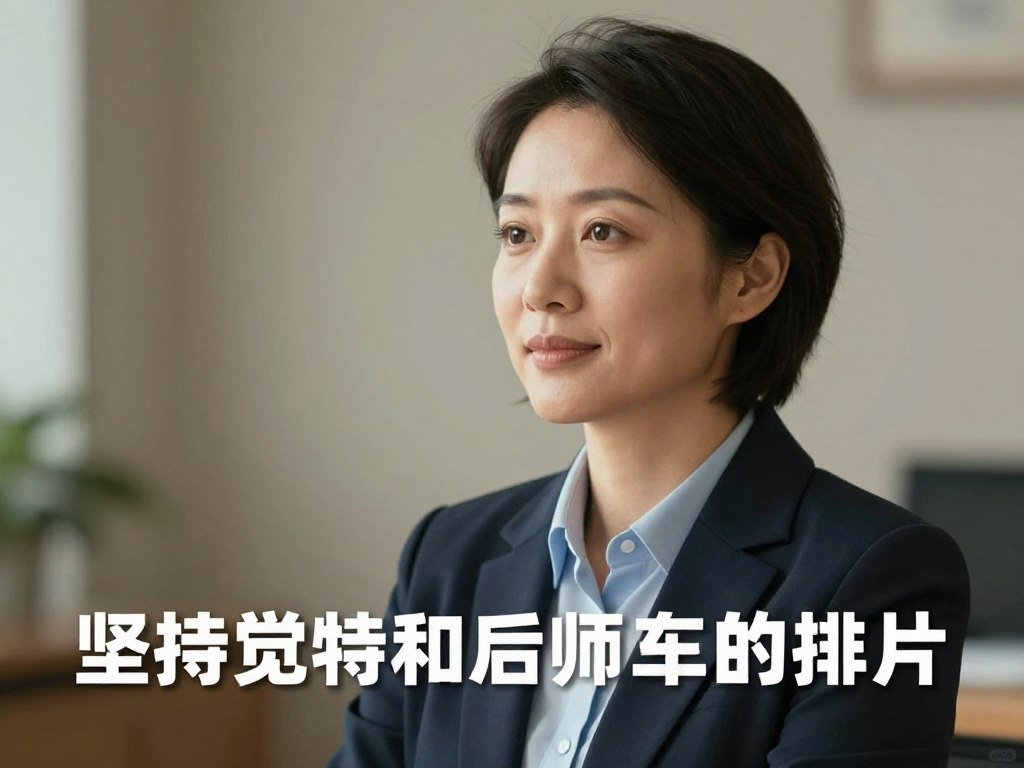
For example, describe an older woman in a green wool coat, smiling slightly, looking just past the camera, with soft light from the left. Add a plain gray wall behind her if the background should stay quiet.
A pose helps set the feeling. Folded arms can suggest reserve, while relaxed shoulders and a direct gaze may feel open and confident.
Be specific without asking for unrelated traits. A portrait prompt should guide the expression and scene, not crowd the person with details that do not serve the image.
Build scenes and illustrations around a readable focal point
Organize a landscape or story scene into foreground, middle ground, and background. A bicycle in front, a child in the middle distance, and hills behind create depth without losing the main action.
For illustration, name the line quality, silhouette, and palette. Bold outlines and a limited set of colors may make a character easier to read than fine detail everywhere.
Use these checks when reviewing the result:
- Portrait identity and expression match the brief.
- Scene depth supports a clear focal point.
- Illustration linework and silhouette stay readable.
Details such as hands can be hard to render cleanly when they fill the frame. Keep them in a natural pose, or make them a clear part of the scene’s action.
A crowded setting needs a simple visual order. For a busy narrative scene, give one subject the clearest visual priority.
How Do You Prompt Images With Readable Text?
A short headline is easier to place and review than several lines of copy inside a generated image. Keep wording brief and state where it belongs. Text-heavy images ask the model to handle both the picture and exact words.
Give each text element a clear place and size. A headline should be largest and near the top, a subtitle should sit below it, and a small label can go in a corner.
Use the exact words in quotation marks if the tool supports that style of instruction. Describe the layout in plain language, such as “large headline at top, short subtitle below, small label at bottom right.”
Keep the copy short enough to fit the design. Long paragraphs add more chances for spelling errors, broken letters, and uneven spacing.
Before publishing, review every word and fact against the intended copy. A headline may look right at a glance while a letter or number is wrong.
For a poster with a title, subtitle, and small date, ask for the hierarchy rather than a block of text. Clear spacing helps viewers know what to read first.
When exact wording matters, it may be easier to generate the visual background and add final typography in a design editor. That gives you direct control over font, spelling, and alignment.
You can also test the same brief in tools with different text strengths. A comparison of free image generators can help you find an option that fits your layout and workflow.
Proofread every word in the final image, even when the requested text looked correct in the prompt.
How Should Prompts Change Across Image Models?
The same brief can travel across image models, but its wording and available controls may need to change. Keep the visual goal stable as you adapt the prompt. Different tools may respond to the same language in different ways.
Test the core brief before changing several prompt details. As of April 21, 2026, OpenAI lists gpt-image-2, gpt-image-1.5, gpt-image-1, and gpt-image-1-mini as available image models.
Write natural instructions for conversational tools
ChatGPT-style workflows accept natural-language directions and follow-up messages. A 2026 ChatGPT prompt should state the subject, intended use, layout, and key visual details clearly.
You can make a first image, then ask for a focused change in a follow-up message. That approach is useful when you want the same scene with a warmer palette or a cleaner background.
Translate the brief for parameter-driven or open workflows
Some tools favor concise visual phrases and interface controls, while others use separate positive and negative prompts. Treat these as workflow tendencies, not fixed rules.
For example, a concise phrase may name the subject and style, while an interface setting controls aspect ratio. In an open workflow, a negative prompt may help rule out unwanted elements.
| Tool | Prompt style | Useful control | Practical first test |
|---|---|---|---|
| ChatGPT | Natural-language directions | Follow-up edits | Ask for one clear scene |
| Midjourney | Compact visual phrases | Aspect ratio setting | Test a simple subject and style |
| Stable Diffusion | Positive and negative prompts | Sampler and seed options | Compare one prompt with a seed |
| FLUX | Descriptive natural language | Workflow-specific controls | Try the same brief unchanged |
OpenAI recommends gpt-image-2 for image editing, text-heavy images, photorealism, compositing, and identity-sensitive edits. When moving from gpt-image-1 or gpt-image-1.5, keep the prompt largely unchanged first, compare results on the intended work, then adjust.
A 2026 comparison of image generators can help you judge how different tools handle the same brief.
Test the unchanged core brief once on a new model before rewriting it for that model’s habits.
How Do You Prompt ChatGPT to Edit a Photo?
If the subject and composition are right but the light is wrong, request a lighting change rather than rebuilding the whole image. Ask for one main edit at a time. That makes the result easier to judge.
Name the change and the parts that must stay fixed. A request such as “warm the light” is clearer when it also protects the subject and layout.
State what should change
Say what is wrong and what you want instead. For example, ask to make daylight warmer, soften the shadows, or replace a busy background with a plain wall.
A single major change gives you a cleaner comparison. If the result changes the light, background, and camera angle at once, it becomes harder to see which instruction caused the difference.
Protect the details that should stay fixed
Use a concise instruction like: “Warm the window light. Keep the subject, camera angle, and composition unchanged.” Add another protected detail only if the edit risks changing it.
Follow this four-step process:
- Identify the specific problem in the image.
- Name the change you want the model to make.
- State which details must remain unchanged.
- Inspect the edited result for unwanted changes.
For example, a photo with a good pose but a cluttered room can call for a simpler background. Keep the person’s clothing and expression fixed if they already fit the intended use.
For options built around conversational edits, a guide to AI image generator tools can help you compare editing workflows.
Compare the edited image against the original for any unintended changes to identity, layout, or important details.
What Do Useful ChatGPT Image Prompt Examples Look Like?
A useful example makes the visual choices visible instead of hiding them behind “make it look professional.” Specific goals teach more than broad praise. A strong example connects its subject, style, lighting, and composition.
Adapt the details to your own image task instead of copying every word. These short examples show how a prompt can guide a product shot, portrait, social graphic, or cinematic scene.
Use this ChatGPT prompts list as a starting point:
- Product: “Photograph a green glass soap bottle on a white stone sink, with soft window light and a centered view.”
- Portrait: “Show a smiling young chef in a white jacket, looking toward the camera, against a quiet kitchen background.”
- Social graphic: “Create a bright spring garden illustration with open space at the top for a short headline.”
- Cinematic scene: “Show a lone cyclist crossing a foggy bridge at dawn, with cool colors and a wide view.”
Swap the subject, setting, palette, or intended layout to fit your project. A soap bottle can become a candle, and the stone sink can become a wooden table.
A social graphic may need empty space for copy, while a portrait may need a close view and a plain background. Match the example’s structure to the image’s job.
ChatGPT prompt examples work best when they show a visible goal you can change. “High quality” does not tell the model whether you need a clean listing image or a moody campaign shot.
Save the exact wording beside any example image that meets the brief.
How Can a Prompt Generator Help Build a Reusable Prompt?
A prompt generator is most useful when it turns an incomplete idea into a draft you can judge and revise. Use it to organize your thoughts, not to choose your priorities. A ChatGPT prompt generator can shape a rough idea into a usable structure.
A generated draft still needs a clear intended use and human review. A tool can organize details, but it cannot promise that the result will match your idea.
A prompt generator can help cover subject, style, composition, lighting, color, and technical requirements. It may also suggest details you did not plan to include.
Check the draft for a clear subject and setting. Then check whether it explains the composition, lighting, and output needs.
A draft that says “a modern city” may still lack the time of day, viewpoint, or intended use. Add those details when they will change the image in a meaningful way.
Review the generator’s wording for conflicts. A request for a quiet scene can clash with a long list of bright signs, crowds, and dramatic effects.
Use the output as a starting point for your own work. Remove details that distract from the image’s main job, even if the generator suggested them.
Keep only the generated details that support the image’s purpose.
How Do You Keep Image Results Consistent Across a Set?
A consistent image series starts with a small set of visual choices that stay fixed from one frame to the next. Keep the core steady so each image feels part of the same set. Stable wording helps you repeat a style and subject.
Save the prompt beside the result it produced. This gives you a record of the language and model used when an image works well.
Keep stable descriptors for the subject and style, then change only what belongs to each scene. A set of food images might keep the same palette and surface while changing the dish.
Reference images can support visual consistency when the chosen tool accepts them. Seed controls may help repeat a generation in tools that offer them, though they do not ensure identical results across models.
Use this checklist to record each image:
- Save the prompt.
- Save the result.
- Record the model.
- Lock repeated style and palette terms.
- Note any reference or seed settings.
The same prompt can still produce different images across models and generations. A saved example lets you compare those changes and decide whether the series still fits.
A repeatable ad production workflow can also help keep product assets and prompts organized for a campaign.
Change one controlled element at a time when testing whether a series can hold its look.
Which Image Settings Should You Set Before Generating?
Set the intended layout and dimensions before generating, because a square draft cannot simply become a widescreen composition without changing the frame. Choose the ratio first to fit the final placement. For gpt-image-2, output dimensions must meet specific size limits.
Both dimensions must be multiples of 16. The total image must contain 655,360 to 8,294,400 pixels, its longest edge must stay below 3,840 pixels, and its long-to-short ratio cannot exceed 3:1.
Common listed sizes include 1024×1024 for square, 1024×1536 for portrait, and 1536×1024 for landscape. A listed widescreen size is 2560×1440.
Resolutions above 2560×1440 pixels are experimental and may be more variable. For many tasks, a listed size that fits the placement is a sensible first choice.
| Layout | Listed dimensions | Practical use |
|---|---|---|
| Square | 1024×1024 | Profile art, square social post |
| Portrait | 1024×1536 | Vertical story, portrait design |
| Landscape | 1536×1024 | Website banner, landscape scene |
| Widescreen | 2560×1440 | Video frame, wide presentation |
For gpt-image-2, output quality can be low, medium, or high. The model’s input_fidelity setting is disabled.
Transparent backgrounds need a specific setting and file type. Set the background to transparent and use PNG or WebP, since JPEG does not support transparency.
Use PNG or WebP with a transparent background setting when the final image needs transparency.
OpenAI’s gpt-image-2 output limits include the size and format rules for those image settings.
How Do Image Generations, Variations, and Edits Affect Allowances?
A discarded image can still count against a consumer image-generation allowance. Plan for each attempt, since a variation or edit can use another generation. ChatGPT image allowances are separate from text-message allowances.
Each requested variation counts as a generation, and image edits usually count as new generations. ChatGPT image allowances reset on a provider-defined cycle, so several drafts can use the available amount quickly.
Discarded results still count against the image allowance. That means a batch of options can use more of the allowance than the final image alone suggests.
API image generation works differently. It is billed per image rather than limited by a consumer-plan allowance.
Adobe generative credits reset monthly without rollover. Adobe AI features may use different credit amounts, so a credit balance can cover different numbers of tasks.
Photoshop subscribers receive 250 generative credits each month. New Photoshop Elements 2026 users receive 25 monthly credits.
These rules affect how you plan a batch of images. Make a few focused drafts before ordering many variations, especially when the output needs careful review.
Check the allowance or credit rules for the specific workflow before ordering a large batch of variations.
Adobe’s monthly credit rules explain resets and how different AI features use credits.
What Should You Check Before Publishing an AI-Generated Image?
Before publishing, check both what the image shows and whether you have the rights needed for its intended use. Review the whole image, including small text and background details. A polished result can still contain errors or unwanted elements.
Check accuracy, permissions, and the specific use before release. The U.S. Copyright Office’s report addresses both digital replicas and the copyrightability of generative-AI outputs.
Part 1 of the Office’s Copyright and Artificial Intelligence report, published July 31, 2024, addresses digital replicas. Part 2, published January 29, 2025, addresses copyrightability of generative-AI outputs.
Those topics do not give every image the same legal status. Consider the specific image, your human contributions, its intended use, and the rules that apply to that use.
Run through this publication checklist:
- Check spelling in headlines, labels, and signs.
- Confirm factual details shown in the image.
- Compare product shape, color, and packaging with the real item.
- Remove unwanted logos or watermarks.
- Confirm permission to use any reference material.
For product art, even a small change to a label or package can mislead buyers. Compare the image with the real item before using it in a campaign.
Do not assume every AI-generated image has the same legal status. Review the specific image and its intended use before release.
For a commercial release or a rights dispute, get advice specific to the image and its use.
Conclusion
Better results begin with a clear visual goal and a few deliberate choices. Clear visual directions matter more than decorative wording, and focused revisions make each test easier to judge.
Choose a real task, such as a campaign image or a social post, and write a short creative brief for it. Generate a first version, then compare the result with the job it needs to do.
Draft one prompt for your next real project and revise only the detail that most needs to change.
FAQ
How long should an AI image prompt be?
Use one clear sentence for a simple image or a short paragraph for a complex brief. Keep details that affect the subject, setting, style, or layout, and remove words that do not change the result. A short prompt can guide a single object well, while a campaign scene may need several connected directions. Add detail only when it matters.
Can the same prompt work across every image generator?
No, the same prompt may produce different results across generators. Keep the visual brief stable, but adjust phrasing and controls to fit each tool. ChatGPT, Midjourney, Stable Diffusion, and FLUX can interpret language differently. Compare the outputs using the same intended use and layout, then change the wording only where the results show a clear need.
How can I keep the same character consistent across images?
Reuse stable wording for the character’s appearance, clothing, and visual style. Save a strong result as a reference image when the selected tool accepts references, and use seed controls when available. Keep those details fixed while changing the scene or action. The same wording can still produce variations, so review each image for the features that define the character.
Can an AI image generator spell text correctly?
Sometimes, but generated text can still contain spelling or layout errors. Short wording and clear placement give the model a simpler task than long paragraphs. Check every word and fact in the final image. When exact typography matters, create the visual background first and add the final text in a design editor where you can control the font and spacing.
Do ChatGPT image edits count toward the image allowance?
Usually, yes. ChatGPT image edits generally count as new generations, and each requested variation can use the allowance too. Discarded outputs may count even when you do not keep them. Image-generation allowances are separate from text-message allowances, so track the image workflow on its own when planning a larger batch.
Can I copyright an AI-generated image in the United States?
The answer depends on the image and the human contributions involved. The U.S. Copyright Office’s January 29, 2025 report addresses copyrightability of generative-AI outputs, but it does not mean every output has the same legal status. Consider the specific image, how people contributed to it, and the intended use. For a rights dispute, seek advice for that case.