
A long report, campaign brief, or set of data points can take more time to design than to explain. An AI infographic generator can turn a prompt, text, or data into visual content, giving you a draft without a dedicated designer. You still need to review the details and refine the design.
That workflow can help marketers, educators, and business teams share ideas in a clear format. It can also help when you have limited design skills or a deadline that leaves little room for manual layout work. The tool does the first pass, while you decide what matters, what needs proof, and what readers should notice.
Use the saved time to improve the content, not to skip the final review. Check the wording, figures, and visual order before you share the result. Treat the first generated design as a starting point, not a finished message.
Key Takeaways
- AI can draft visuals from a prompt, document, or data.
- Your review keeps the message accurate and clear.
- Choose a tool based on the input and edits your project needs.
- Test one short piece of existing content before scaling up.
- Check export access, brand fit, and readability before sharing.
What can an AI infographic generator create?
A process flow works best for ordered actions, while a comparison layout makes differences between options easier to scan. Different formats help you turn information into visuals that match the relationship between your points.
A clear title, concise labels, and logical reading order make complex information easier to scan. Visual hierarchy is the order in which size, placement, and contrast signal what a viewer should notice first. A study on visual hierarchies for health data shows how grouping and emphasis can help readers find important details.
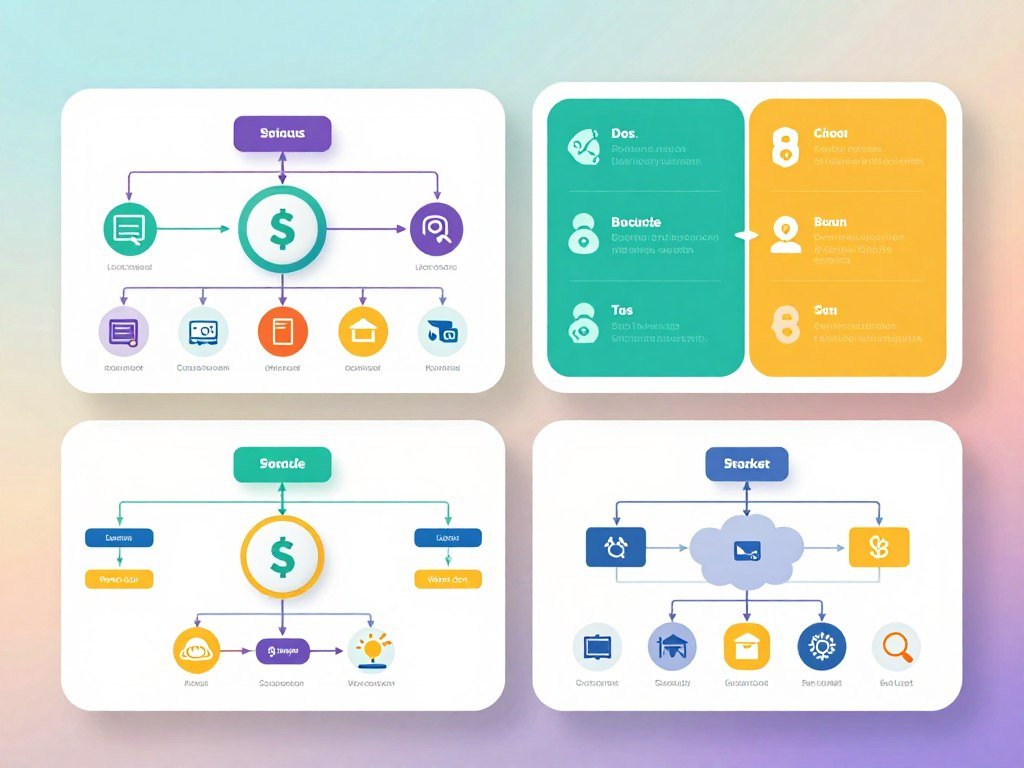
Choose a format that shows how the main points relate, not one that merely fills the page.
A timeline can show events in sequence, while a statistical infographic gives numbers a strong visual focus. Use a comparison layout for alternatives, a framework diagram for connected ideas, and a process flow for steps that happen in order.
Other common infographics include informational, hierarchical, geographic, and list-based designs. A hierarchy can show levels or ranks. A geographic layout can tie information to places, while a list design suits points that do not need a strict order.
Layout affects how people scan the design. Put the main idea near the start of the reading path, then use labels and spacing to make supporting details easy to find. A useful design gives each point enough room without making the full page feel disconnected.
For example, a school could use a timeline for a history lesson, then use a framework diagram to explain how its key ideas connect. A business might show a workflow as a process, then compare two service options side by side.
Pick the format that makes the relationship between the main points visible at a glance.
How do you turn text into an infographic?
A prompt that names the format, supplies the real content, and states where the visual will appear gives the generator more direction than a broad topic alone. Specific input helps turn text into an editable draft you can shape for your audience.
Keep the original material close, since an AI summary can miss a key detail or change its meaning. You can begin with a topic, pasted text, a report, notes, a PDF, or even a video. Some tools summarize those inputs before creating an infographic.
Write the brief in three layers
Start with the format, then provide the source content, and name the audience or channel. This gives the infographic generator a shape, facts, and a reason to make each design choice.
For example, request a LinkedIn carousel about onboarding, then paste the real steps in your process. Tell the tool whether new hires or managers will read it. A broad request about “onboarding ideas” would leave too much open to guesswork.
- Format: process flow, timeline, comparison, or another clear layout.
- Source content: the actual points, figures, steps, or notes to include.
- Audience and channel: who will read it and where it will appear.
Generate an infographic from text or a document
Paste a short passage or upload a document, then review the editable draft before making detailed edits. NoteGPT converts PDFs, notes, articles, and videos into visual summaries. That can save time when you have a long report, but it does not replace checking the source.
A free AI infographic generator from text can be tested through a free plan. Piktochart uses one credit for topic generation, three for pasted text or document upload, and 25 for image generation. The credit cost depends on the feature you choose.
Some tools let you use an AI image creation workflow alongside the text draft. Keep the visual focused on the information, rather than adding images that compete with the message. Editing the generated result is part of the work, not a sign that the tool failed.
AI summaries can shorten a document, but they may leave out a fact, date, or condition. Compare each summary with the original material, especially when readers will act on its claims.
Keep the source document open while checking that every key point survived the summary.
How to Choose an AI Infographic Generator for Visual Content
For an editable draft from text or a document, start by testing Piktochart; choose Venngage when imported data and editable charts matter more. Your core task is the best guide to choosing a tool.
The best AI infographic generator for visual content depends on the editing and data workflow you need. Venngage’s 2026 evaluation considered generation quality, ease of use, editing, data handling, AI features, export, publishing, and pricing.
Pick a tool for text-first creation
Piktochart is a practical first test when you want to turn text or a document into an editable draft. You can check whether its summary captures your points, then see how much design work remains.
Canva offers generated layouts, image generation, Magic Design, and AI editing. Its generated layouts may still need manual design work. If you also need image creation, compare broader AI image generator tools by their editing workflow and level of control.
Pick for charts or broader design editing
Venngage supports data import and editable charts. Infogram focuses on interactive charts, live data, and embeds. Canva and Adobe Express offer broader design and editing features, including image and element-level editing.
| Tool | Useful starting input | Distinguishing capability | Best fit |
|---|---|---|---|
| Piktochart | Pasted text or a document | Text-to-infographic generation and AI summaries | Editable drafts from written material |
| Venngage | Imported data or text | Data import and editable charts | Business visuals with data |
| Infogram | Data for charts | Live interactive charts and embeds | Interactive data displays |
| Canva | Prompt or design content | Magic Design, generated layouts, and AI editing | Broader design work |
Compare input types, editability, data handling, brand controls, export options, and cost. These features shape how well a tool fits your day-to-day project, not just its first generation.
An AI infographic generator for visual content online can be tested by making the same small project in two tools. Use the same text and goal, then compare the drafts and the changes they need.
Choose from a focused workflow or a general design editor based on the work in front of you. Compare the time it takes to correct the draft, not just the time it takes to generate one.
Which free plans and paid tiers fit your budget?
For a quick first test, compare the free access limits before paying, because daily generations, monthly credits, and trials work differently. Free access can help you test input and editing before choosing a paid tier.
Venngage allows five AI generations per day, while Piktochart gives 60 AI credits per month. A generation count and a credit balance are not the same: features can use different numbers of credits.
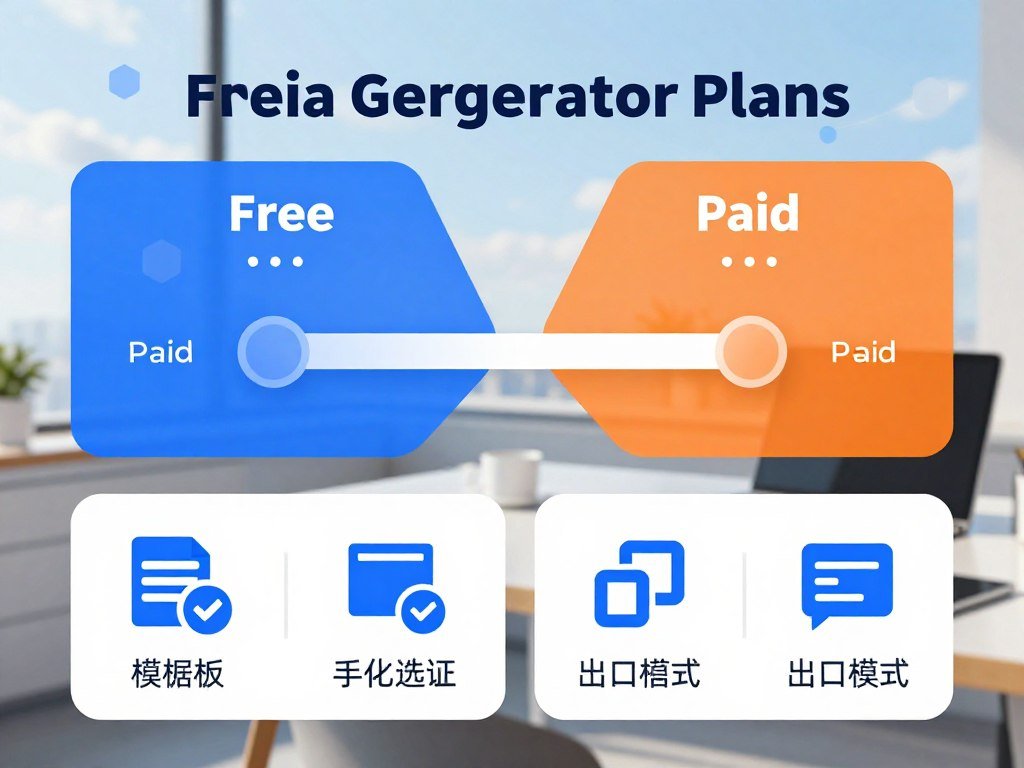
What free access lets you test
A free AI infographic generator can show whether a tool accepts your input and leaves enough room for editing. Try a real short task, such as turning a section of a report into a labeled visual.
Venngage’s free allowance resets by day, while Piktochart’s credits are monthly. Trials work differently again because they offer paid features for a set period. The free AI image generator options also show why limits and access terms matter when you test creative tools.
When a paid plan may be worthwhile
A paid tier may fit when a free allowance cannot support your regular work, or when you need a feature it does not include. Listed prices and trial terms below are from 2026. Check the renewal date and cancellation terms before you start a trial.
| Tool | Free access | Paid plan or trial | Price condition |
|---|---|---|---|
| Venngage | 5 AI generations per day | Premium plan | $10 per month, billed annually |
| Piktochart | 60 AI credits per month | Pro plan | $10 per month, billed annually |
| Infogram | Free projects are public | Pro plan | $19 per month |
| Text2Infographic | 2 free credits | Lifetime access | $70 listed price |
| VistaCreate | 14-day Pro trial | Pro plan | $10 per month |
Infogram makes free projects public, so do not use that tier for sensitive work without checking its sharing settings. Visme paid plans start at $12.25 per month when billed annually.
Canva has a free plan and a Pro free trial. Adobe Express has a free plan and a Premium free trial. For either tool, consider whether the features you need remain available after the trial.
Write down the renewal date before activating a trial.
Which formats and layouts can you publish?
Choose the canvas for its destination first, since a presentation-wide layout and a tall social post need different proportions. Aspect ratios help a visual fit its intended space.
A free plan or credit balance does not guarantee that every download will be free. Check the chosen tool’s download allowance before creating a final file, since export access can differ from generation access.
Jeda.ai lists presets for an Instagram square, Twitter banner, Pinterest tall visual, presentation wide layout, and print portrait. Those choices cover very different uses, from a phone screen to a printed page.
The AI Infographic Maker iPhone app supports 10 aspect ratios, including 1:1, 9:16, 16:9, 4:5, and 3:2. It exports high-resolution PNG files and requires iOS 15.0 or later.
The app listing is in English and 14 other languages. It is designed for iPhone, and its listing does not verify macOS support. A phone app may suit quick edits, but a larger screen can make detailed layout work easier.
Jeda.ai lists 18 AI models in 2026, including GPT-4, Claude 3.5 Sonnet, Gemini 1.5 Pro, Grok, Llama 3.3, and DeepSeek. Infograph.app gives signed-in users 60 free credits and advertises 4K output in 2026.
These features do not make every canvas a good fit for every channel. A square post, tall Pinterest design, presentation, and print page each give information a different amount of room.
Preview the design at its intended screen size before committing to a print or social layout.
How do generators visualize and handle data?
A spreadsheet-driven infographic is only as reliable as the values and labels you confirm before publishing. Source data matters whether you create a static chart or an interactive view.
Do not accept generated labels or summaries without checking them against the source data. Venngage can import data to create editable charts, while Jeda.ai accepts CSV and Excel files for chart visualization.
Editing a chart made from a spreadsheet is different from sharing a chart that updates with live data. Infogram supports interactive charts, live data, and embeds, so viewers can explore information in a way that a fixed image cannot offer.
A chart can make a report easier to scan, but its shape can also hide a comparison. Check the source and the chart together before you treat a visual as an insight.
- Verify each value against the source file.
- Confirm that units and labels match the data.
- Check that the chart makes the comparison clear.
For example, a spreadsheet might list yearly sales in dollars, while an imported chart labels them as units. The numbers could be correct, yet the label would still mislead readers.
Generated summaries can also smooth over a sharp change or leave out a key condition. Keep the complete source data available when you edit the chart or change its labels.
Recheck the chart against the source file after every data edit.
How do you keep designs on-brand and accessible?
A color palette can look polished and still make a chart hard to read if contrast and non-color cues are overlooked. Brand rules help keep the design consistent, while accessibility choices help more people read it.
WCAG 2.0 AA calls for 4.5:1 contrast for regular text and 3:1 for large text. These ratios apply to text and images of text, giving you a clear way to check whether important words stand out.
Apply brand rules without reworking every element
Set the brand kit’s colors, fonts, and logo before you shape the draft. Then check whether the tool applied them consistently across titles, labels, and charts.
A saved brand kit can reduce repeated setup, but a generated layout may still place a logo poorly or use a font that feels out of place. Make focused edits to the parts that do not match your brand.
Build accessibility into the final design
Do not use color as the only way to convey information, show an action, prompt a response, or distinguish an element. Add labels, patterns, or icons so the meaning remains clear without color.
Section 508’s functional performance criteria call for a visual mode that does not require users to perceive color. About one in 12 men and one in 200 women experience color blindness, so color-independent cues can help many readers.
WCAG 2.1 criterion 1.4.11 sets a 3:1 contrast ratio for relevant graphical objects and interface states. Section508.gov describes this as a best practice that has not yet been incorporated into Section 508 standards. The W3C WCAG 2.2 guidelines provide the current web accessibility standard.
Use more than color to separate chart lines or categories. A label, pattern, or icon can make the distinction easier to follow, especially on a small screen.
Check critical labels and chart distinctions in grayscale before sharing the design.
What should you check before downloading or sharing?
Before sharing, inspect the exported file itself, not only the design inside the editor. The saved version can display differently from the workspace.
Open the export and confirm that it renders as expected on a real device. Jeda.ai lists PNG, JPEG, SVG, PDF, GIF, and MP4 as export options in 2026.
PNG is a raster image format, while JPEG uses image compression. SVG is a scalable vector format, and PDF can preserve a document layout. GIF and MP4 support animated output.
| Format | File characteristic | Useful destination |
|---|---|---|
| PNG | Raster image format | Digital images and social posts |
| JPEG | Compressed image format | Image workflows and web content |
| SVG | Scalable vector artwork | Designs that need resizing |
| Can preserve a document layout | Documents and presentations |
Pick a format that matches the work you plan to do with the file. An SVG suits scalable artwork, while a PDF can keep a page layout intact when you share a document.
- Inspect spelling and line breaks.
- Confirm the title and source labels are visible.
- Open the exported file and check how it renders.
A thumbnail may hide a broken line break or small label. Look at the full-size export, especially where the title, source labels, and key details sit.
Open the saved file on the device your audience is likely to use.
Where can you use finished infographics?
A single set of verified points can become a blog visual, a social post, or a presentation asset when the layout is adapted to its audience. One message can serve more than one channel when you change its format and detail.
Adapt the layout to the audience instead of sending the same crowded design everywhere. A blog can hold more context than a social media post, while a presentation may need large labels for a room.
Repurpose campaign content across channels
A marketing team can turn a blog summary into a social post, then reuse the main points in a marketing explainer. Venngage provides pre-sized templates for Instagram, LinkedIn, and YouTube, which can give each version a more suitable starting layout.
Keep the central claim steady as you adapt the content. A social media design may use fewer points, while a blog visual can add labels or context that help readers follow the idea.
Common web infographic canvas sizes include 800 x 2,000 pixels and 600 x 1,800 pixels. Treat those sizes as starting points, not universal requirements for every site or channel.
Explain work, lessons, and research
Infographics can explain an internal rollout, a training process, or a set of lessons. Educators and researchers can use them to sum up research, reports, and presentations for readers who need the main ideas quickly.
Genially offers AI-assisted creation, animation, and interactive infographic elements. Animation can suit a process that unfolds step by step. Interactive elements can help when viewers need to explore related facts, rather than receive one fixed summary.
Text2Infographic supports more than 20 languages. A multilingual design still needs language-specific review, since a direct translation may change meaning, tone, or line length.
Consider where each version will appear before you settle on its amount of detail. A clear message can travel across channels without forcing every audience to read the same dense page.
Keep the core message consistent while adjusting the amount of detail for each channel.
Conclusion
A useful first draft starts with clear source material and ends with a human review. The right tool accepts the input you already have and leaves room to edit the design.
Try one short piece of existing content before you bring a larger project into the workflow. Check whether the draft preserves the facts and how much correction it needs.
Choose one short brief, test it with a free plan or trial that fits your needs, and keep the version that takes the least correction.
FAQ
Can an AI infographic generator work from a PDF?
Yes, some tools accept uploaded documents or turn PDFs into visual summaries. Piktochart supports document input, and NoteGPT can make visual summaries from PDFs. The exact workflow depends on the tool, so check that your plan allows document uploads. Keep the original PDF open while reviewing the draft, since a summary can miss a detail or change a claim.
How many free AI infographic credits do I get?
Piktochart includes 60 AI credits per month, while Venngage includes five AI generations per day. These limits use different systems, and Piktochart charges different credit amounts by feature. For example, topic generation uses one credit, while pasted text or a document upload uses three. Check the feature cost before using a limited balance.
Does an AI-generated infographic need fact-checking?
Yes, compare every number, label, and summary with the original text or data file before publishing. A generator can shorten a passage or label a chart without preserving every condition. Check names, dates, units, and any claim readers might act on. If a key point is missing, add it back before you share the visual.
Can I create an infographic on an iPhone?
Yes, the AI Infographic Maker app is designed for iPhone and requires iOS 15.0 or later. It supports 10 aspect ratios and exports high-resolution PNG files. Its listing is in English and 14 other languages. The app is not verified for macOS, so do not assume an iPhone listing means it works on a Mac.
What is the difference between an infographic and an interactive data visualization?
A static infographic is a fixed visual, while interactive charts can let viewers explore data. A static design presents the same labels and figures to everyone who sees it. Infogram supports interactive charts, live data, and embeds, which can suit information that changes or needs closer exploration. Use a fixed visual when the message is brief and stable.
Can a free infographic generator download files without a watermark?
Sometimes, but export access and watermark rules depend on the tool and plan. A free account may allow you to create a design without including every download option. Check the free export terms and watermark rules before building a deliverable. Then open the downloaded file to confirm its quality and appearance before sharing it.



