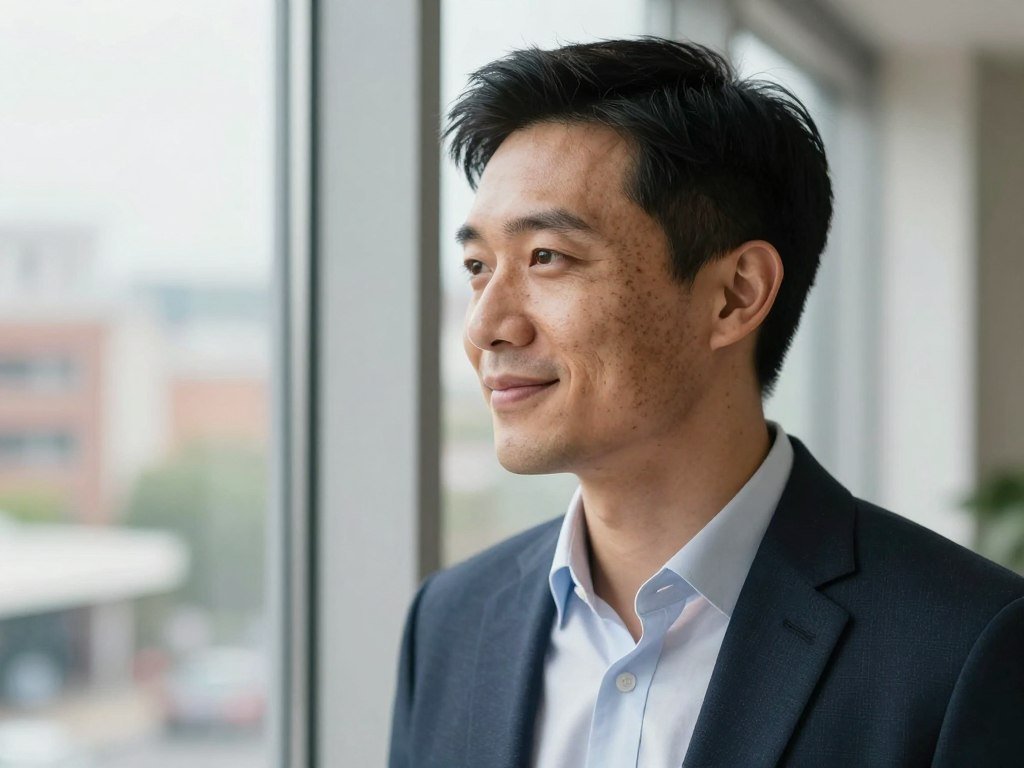
A convincing AI image starts with clear visual choices, not a longer string of impressive-sounding adjectives. Realism depends on how well you direct the subject, setting, and photographic details, not on one magic word. These examples can adapt to portraits, products, and scenes, while practical notes cover Leonardo AI controls and limits.
Specific visual direction gives you more creative control over lifelike results. It also helps you spot what to change when an image misses the mark. Choose the image you need for a real project before you start refining its details.
Key Takeaways
- Direct the subject, context, and visual style with clear, compatible details.
- Use camera, lighting, and texture cues as guidance, not guarantees.
- Pick a shot size and aspect ratio that fit your intended image.
- Adapt a complete prompt, then change one detail at a time.
- Check model settings, privacy, and file format before using an image.
Leonardo AI Image Prompts for Realistic Results: What Goes Into a Strong Prompt?
A strong starting prompt tells Leonardo AI what to depict, where it belongs, and what visual treatment to use. Three core parts give the model a clear direction: subject, context, and style.
Start with three to five core elements rather than piling on competing instructions. A clear prompt is easier to adjust when the generated image misses one detail. This practical guide to creating AI images also covers focused prompts and refinement.
| Prompt element | Question it answers | Concrete example |
|---|---|---|
| Subject | What is shown? | An older woman with silver hair |
| Context | Where or when? | Reading at home on a rainy morning |
| Style | What visual treatment? | Naturalistic editorial photography |
| Mood | What feeling comes through? | Quiet and reflective |
Name the subject and its context
The subject is the main person, object, or animal in your image. “A dog” leaves many choices open; “a black Labrador carrying a red ball” gives Leonardo AI more to work with.
Context adds the location, time, or action around that subject. A clear setting, such as a bakery at sunrise, helps the image feel like one scene rather than unrelated parts.
Choose the visual style
Style describes the kind of image you want, such as a product photo, documentary portrait, or oil painting. A few clear prompt-writing steps can help you name the key visual choices without crowding the description.
Mood adds a sense of feeling, such as calm, lively, or tense. Keep the mood in line with the scene and its style.
Keep the instructions focused
Choose one main visual style; asking for several incompatible styles can pull the image in competing directions.
For example, “documentary photo” and “watercolor illustration” usually point to different treatments. Pick the one that fits your goal, then add only details that support it.
Shorter prompts are not always better, but each detail should clarify the scene. Remove any detail that competes with the main subject instead of clarifying it.
How Should You Describe Light, Lens and Texture?
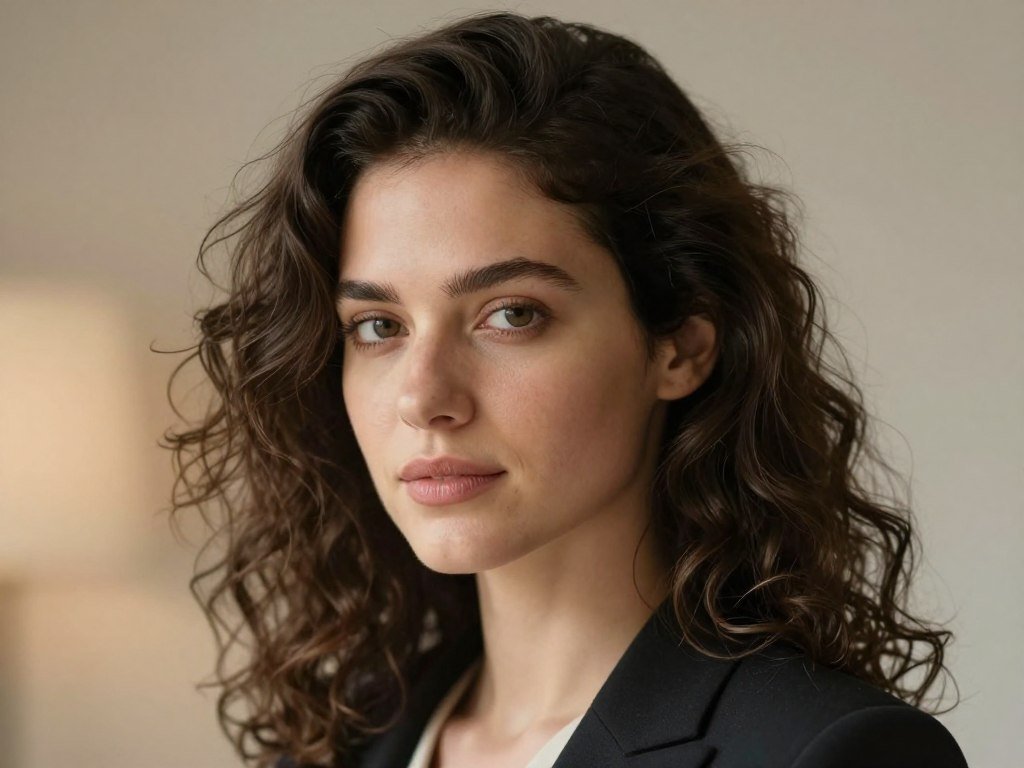
A portrait prompt can become more photographic by naming the light source and the way it falls across the face. Light direction changes the image’s mood and the way its features read.
Camera terms guide the image, but they do not guarantee exact camera physics. A useful AI image generator comparison also stresses checking faces, hands, lighting, and textures in the output.
Direct the light and camera
Say whether light comes from a window, a lamp, or the open sky. Soft lighting from a window can make a face feel gentle, while hard side light creates sharper shadows.
Natural light can suggest a bright room or an outdoor portrait. For a portrait, “85mm lens, f/1.8” offers a familiar photographic cue for a close view and blurred background.
These terms shape the model’s visual direction, not a literal camera setup. Generated results may not follow real lens or aperture behavior.
Add believable surface detail
Name the material and how it should look under the light. Brushed steel reflects differently from matte paper, while clear glass can show bright edges and subtle reflections.
Use texture words that fit the subject, such as woven fabric, rough bark, or polished stone. A short material cue can add more than a string of broad quality claims.
Treat lens specifications as a starting cue, then judge the generated image by its actual composition.
What Prompt Structure Helps Control Composition?
A prompt for generating images should tell the model what the viewer sees first and how much of the scene fits in the frame. Shot size sets that first view.
Match the framing to the detail your viewer needs. A wide shot helps establish a location, while a close-up suits a portrait or product detail.
- Choose a shot size: wide shot, medium shot, close-up, or extreme close-up.
- Place the subject in the frame, such as centered or near one side.
- Describe the foreground, middle ground, and background.
- Specify what remains in focus, such as the subject or a nearby object.
The rule of thirds uses a 3×3 grid to help place a subject along a line or at an intersection. It is an option, not a required formula; the rule of thirds guide explains how it can shape a view.
Depth cues help separate foreground objects from the middle ground and background. A prompt that asks for a close-up and a full-body subject in a broad setting gives conflicting framing directions.
Match the shot size to the detail your viewer needs to notice.
Which 10 Prompts Can You Try for Realistic Images?
For a quick starting point, try a complete scene description instead of a bare subject name. These prompts offer adaptable inspiration for personal projects, campaigns, or model image prompts.
Each example names a subject, setting, composition, light, and fitting surface detail. Copy one into Leonardo AI, then replace details to suit your own image.
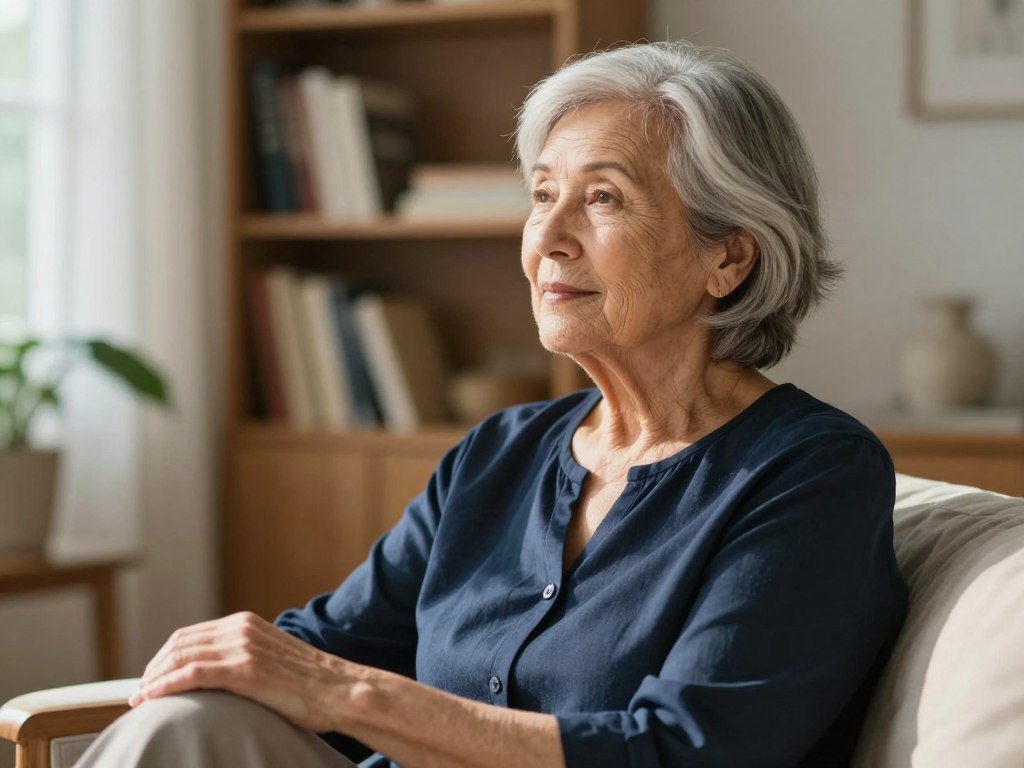
- Photorealistic half-body portrait of an older woman with silver hair, seated beside a kitchen window on a quiet morning. Soft natural light falls across her face; show visible skin texture, pores, fine lines, and natural imperfections. Keep her eyes sharp, with a softly blurred room behind her. Useful for an honest, warm portrait.
- Professional portrait of a woman in a navy blazer, standing in a bright studio with a neutral background. Frame her from the chest up, with soft key light and gentle fill. Show natural pores, fine skin lines, and individual hair strands; keep her eyes in focus. Useful for a polished profile image.
- Candid street portrait of a middle-aged man waiting at a city crosswalk after work. Use a medium shot with storefronts behind him and late-afternoon natural light. Keep visible pores, slight skin texture, and realistic hair; let the background fall softly out of focus. Useful for documentary-style editorial work.
- Close portrait of a young woman beside a plain studio wall, framed from the shoulders up. Use soft side lighting and a shallow-focus look, with crisp eyes, detailed brows, and fine strands of dark hair. Keep pores, small skin marks, and natural texture visible. Useful for a beauty or fashion concept.
- Lifestyle portrait of a woman walking her dog at dusk along a quiet park path. Frame her in a medium-wide view, with warm path lights and fading blue sky. Keep her face and coat clear, with natural skin texture and realistic wool fibers. Useful for an evening campaign concept.
The first five examples focus on people, from calm portraits to street scenes. The next set shifts to products, interiors, and outdoor views.
- Clear glass perfume bottle on a clean pale stone surface in a bright studio. Use a close product shot, soft side light, and a faint reflection beneath the bottle. Show crisp glass edges, realistic refraction, and a simple blurred background. Useful for a clean fragrance product concept.
- White ceramic coffee mug beside a small bowl of beans on a wooden café counter. Frame a close product shot in morning window light, with a softly blurred café background. Show the mug’s glazed surface, coffee steam, and wood grain. Useful for a warm coffee brand image.
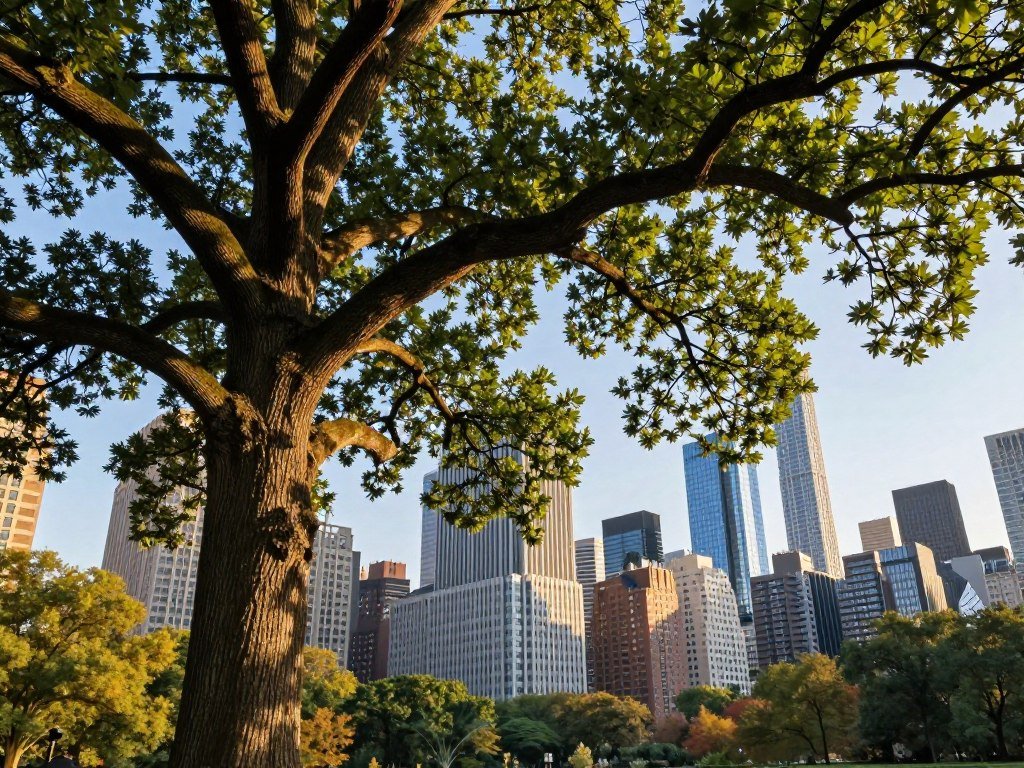
- Realistic oak tree beside a quiet country path in early fall. Use a wide shot with the trunk in clear focus and the path receding behind it. Natural late-afternoon light catches falling leaves; show rough bark, varied leaf color, and leaf edges. Useful for a seasonal landscape image.
- Sunlit home interior with a linen sofa, low table, and potted plant near a large window. Use a wide view from the doorway, with natural light across the floor and soft shadows. Show woven fabric, wood grain, and a calm background. Useful for a home design mood board.
- City street after rain, framed from sidewalk level with a cyclist moving through the scene. Use a medium-wide view and cloudy evening light; show wet pavement reflections, darkened brick, and small puddles. Keep the cyclist clear against a softer background. Useful for an urban travel image.
Change one visual detail at a time when adapting a prompt so you can tell which edit improved the result.
What Should You Put in a Negative Prompt?
A negative prompt is most useful for naming a recurring flaw, not for describing the image you actually want. Use it as a soft constraint to discourage specific unwanted details.
Negative prompts are available on some Leonardo AI models, and they cannot guarantee removal. A useful model-dependent negative prompt field can help address a flaw that keeps showing up.
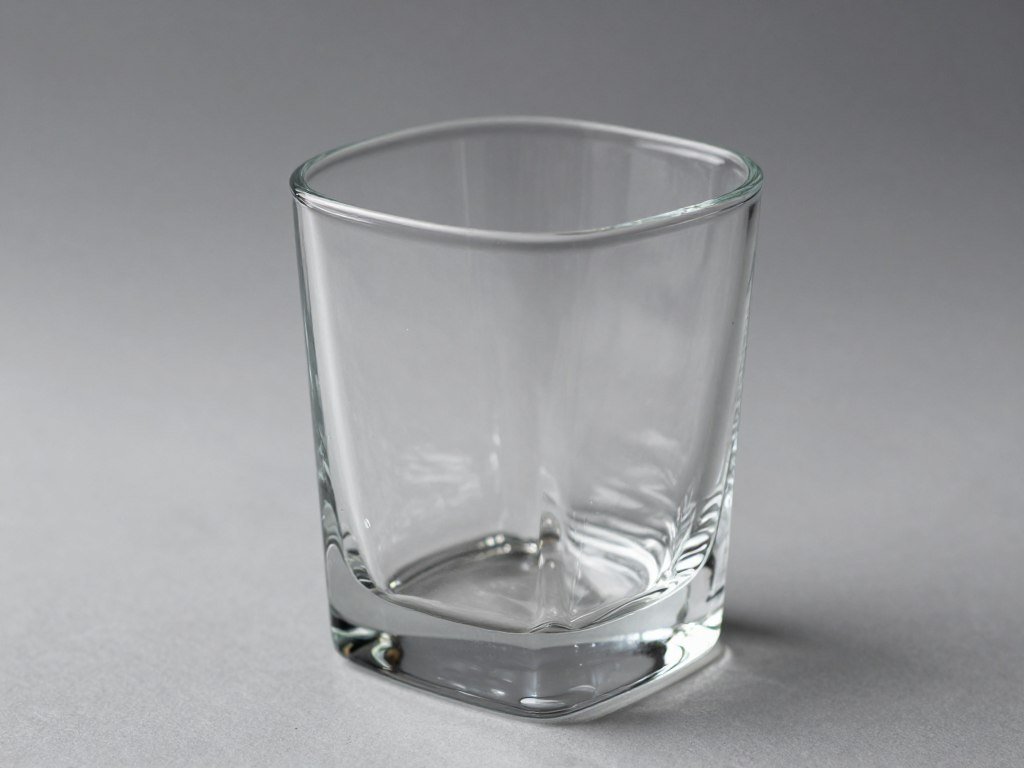
- Product text: blurry text
- Product shape: warped edges
- Product placement: floating objects
- Product lighting: inconsistent shadows
- Portrait details: deformed eyes or extra fingers
For a product photo, you might exclude blurry labels or edges that bend unnaturally. For a portrait, you might exclude plastic-looking skin or malformed eyes.
Keep each exclusion tied to a visible problem. Adding a negative term that clashes with your request can muddy the result.
For example, asking for dramatic shadows while excluding all shadows gives the model two opposite directions. Choose the shadow effect you want instead.
If an unwanted detail persists, rewrite the positive description before adding a longer exclusion list.
Which Leonardo Settings Should You Adjust?
Choose the output shape before generation so the frame fits the place you intend to use it. The aspect ratio is the proportional relationship between an image’s width and height.
Pick the frame for its destination before changing generation controls. Leonardo AI offers common ratios and custom width and height settings.
Match the aspect ratio to the destination
A vertical portrait usually suits 2:3, while 1:1 fits a square composition. Choose 16:9 for a wide scene, or set custom dimensions for a specific canvas.
| Ratio | General framing | Common use |
|---|---|---|
| 2:3 | Vertical | Portraits |
| 1:1 | Square | Square compositions |
| 16:9 | Wide | Wide scenes |
| Custom width and height | Specific canvas | Set dimensions for a target layout |
Select a model and generation controls
Leonardo AI returns four images per prompt by default, and you can change the number of variations. Aspect ratios and generation controls include model-specific options such as PhotoReal, transparency, tiling, fixed seeds, and negative prompts.
Phoenix is Leonardo’s foundational image-generation model, available on free and paid plans. It is designed to follow long prompts and render readable text inside images.
Ideogram 3.0 is recommended for text rendering; keeping requested wording under 25 characters is a practical limit. Prompt Enhance can improve how the system interprets your prompt.
Available features vary by model, so check the active settings instead of expecting every control to appear. Generate a small set of variations before changing several settings at once.
How Can You Refine an Image After Generation?
Keep a generation that is close to your goal and edit the specific area that is not working. Targeted changes can save time when the rest of the image already fits.
A local repair can fix one detail without regenerating the whole image. For example, use the Canvas Editor to replace a stray object while preserving the scene around it.
| Tool | What it changes | A practical use |
|---|---|---|
| Image Guidance | Style or structure references | Guide a new image with a reference |
| Canvas Editor | Selected areas or image edges | Repair a detail or extend the scene |
| Realtime Canvas | Sketch-led image generation | Regenerate while you sketch |
| Pro Upscaler | Image size, up to 8x | Enlarge a finished image |
Image Guidance accepts style and structure references. The Canvas Editor supports inpainting, which changes a selected area, and extending images beyond their edges.
Realtime Canvas regenerates as you sketch. Elements are trainable LoRAs, which are small model add-ons you can train on your own datasets to apply a learned style.
Leonardo AI downloads images as JPG by default. Images with removed backgrounds download as transparent PNG files.
Check the downloaded file’s background and format before placing it into a design.
Can You Use Leonardo AI for Free?
Yes, you can try Phoenix on Leonardo AI’s free plan, but its daily tokens do not roll into the next day. The free plan gives you 150 tokens every 24 hours.
Unused daily tokens expire instead of accumulating. Phoenix is available on free and paid plans, and its settings affect each image’s token cost.
Phoenix generations cost 12-50 tokens per image, depending on settings. A 100-image batch can therefore require 1,200-5,000 tokens.
| Plan | Monthly App Store price | Annual App Store price | Token note |
|---|---|---|---|
| Free | $0 | $0 | 150 tokens every 24 hours |
| Essential | $15.99 | $159.99 | Rollover Bank holds up to 3 months’ tokens |
| Premium | $39.99 | $384.99 | Rollover Bank holds up to 3 months’ tokens |
| Ultimate | $79.99 | $749.99 | Rollover Bank holds up to 3 months’ tokens |
Paid plans include a Rollover Bank that can hold up to three months’ worth of tokens. These App Store prices give you a point of comparison for the workload you expect.
- Check the daily token balance before starting.
- Test your settings on a small batch.
- Decide whether paid access fits the workload.
Compare the time span of your project with the daily allowance before planning a large batch.
What Can You Do in the Leonardo AI iOS App?
The Leonardo AI iOS app supports image generation on iPhone and iPad running iOS 16.0 or later. Check that requirement first if you plan to create on a mobile device.
The app includes image generation, editing, and separate video tools. Its model selector can show different choices for different tasks.
Image generation includes Nano Banana, Seedream, FLUX, and Leonardo models. Ready-made Blueprint templates give you a starting layout for an image prompt.
Editing tools can describe changes, enhance images, unzoom a view, or remove backgrounds. These options can help with a mobile edit when you do not need a full desktop workflow.
Video generation is a separate app capability, with models such as Google Veo 3. Camera controls and animation effects are also available for video tasks.
Model choices can vary by feature, so check the selector for the task you want to do. Before building a mobile workflow around a specific model, confirm that it appears for the image task you want.
Can You Use Leonardo Images Commercially?
Commercial permission and ownership are separate questions, so check both before using an image in paid work. A commercial license does not make an image private or user-owned.
Free users can receive a commercial license, but free generations remain public and Leonardo-owned. Other Leonardo users can copy and remix those outputs.
For free-plan outputs, ownership vests in Leonardo, even when you have a commercial license. For paid subscribers, content IP vests in the subscriber upon creation.
Public content gives Leonardo a non-exclusive, irrevocable, perpetual, royalty-free license that includes AI training and commercial use.
For private content on a paid plan, Leonardo’s license covers service operation. Model training requires your consent for that private content.
These terms make privacy and ownership different from permission to use an image for work. Check the current terms for your intended use, especially when client confidentiality matters.
For confidential client work, verify that the content is set to private under a paid plan before generating it.
Conclusion
Realistic results come from pairing a clear visual idea with a few details that guide the model. A prompt works best when it names the subject, setting, and photographic treatment.
Selective iteration makes it easier to judge which changes help. One focused edit can tell you more than changing several prompt details at once.
Choose one of the ten prompts, replace its subject or setting with a real project need, and generate a small test batch. Start with one prompt, make one deliberate change, and keep the version that best fits your project.
FAQ
Can Leonardo AI generate readable text inside an image?
Yes, Phoenix is designed to render readable text inside images. Keep the requested wording short, ideally under 25 characters, to give it a simpler task. Check spelling and letter shapes before using the output, since generated text can still contain errors. For packaging or ads, compare the words against your approved copy before sharing the image.
How many images does Leonardo AI generate from one prompt?
Leonardo AI returns four images per prompt by default. You can change the number of variations in the generation settings, though the options may depend on the active model. A smaller batch works well for a first test, while a larger one can help you compare different takes on the same description. Review each result before spending tokens on more.
What aspect ratio should I use for a portrait or a wide image?
Use 2:3 for a vertical portrait, 1:1 for a square image, and 16:9 for a wide scene. Custom width and height settings can fit a specific canvas or layout. Choose the ratio before generation so the subject has room in the frame. A tall portrait may need more space above the head, while a wide scene needs room around its setting.
Can Leonardo AI keep the same character consistent across images?
Yes, Image Guidance includes Character Reference to help carry a character’s appearance across images. Start with a clear reference image and keep key details, such as hair, clothing, and face shape, consistent in each prompt. Results can still vary, so compare the outputs for changes in those features. A reference helps guide the model, but does not lock every detail.
What file format does Leonardo AI download?
Leonardo AI downloads JPG files by default. Images with removed backgrounds download as transparent PNG files instead. Check the format and background before adding an image to a design, especially when you need a transparent cutout. A JPG can show a solid background where a transparent PNG would let the page or design show through.
Are free Leonardo AI generations private?
No, free-plan generations are public and can be copied and remixed by other Leonardo users. A commercial license does not change that privacy status or make the output user-owned. If a project includes private client details, do not treat a free generation as confidential. Paid plans support private content, with different license terms for that content.



