A single still image, a short script, or a character idea can be enough to start making a first animated clip. The Best AI Animation Generators for Beginners can help creators make a social post, a short explainer, or an animated character without drawing every frame. Image-to-video is a workflow that uses a still image and an instruction to generate a moving video clip. Some tools start with text, while others work from images, scripts, or editable templates.
The right video editor depends on what you want to make and how much hands-on work you enjoy. A text prompt may create a whole scene, while a template may give you more control over each part. You can also combine generated motion with your own text, images, music, and timing. A first project is easier to finish when you choose a tool for the material you already have.
Key Takeaways
- Match the tool to your starting point: a script, image, character, or idea.
- Choose between generated scenes and editors that let you adjust each scene.
- Check free downloads for clip length, watermark, quality, and use limits.
- Keep the first project short and revise one detail at a time.
- Review the export before sharing it with an audience.
What should a beginner check before choosing?
The best first check is what you already have in hand: a script, an image, a character design, or only an idea. Start there, then compare how each tool handles your material. Online generators usually need less setup, while local software offers a more technical path.
AI animation tools cover motion-graphics explainers, character animation, avatar video, generative video, and document- or text-to-video assembly. Think about whether you need a complete scene or the ability to edit individual characters and actions. A striking sample may look tempting, but it tells you little about whether its workflow fits your own project.
- Check whether the tool starts with text, a script, or uploaded images.
- See whether it creates a whole scene or supports character editing.
- Consider how much hands-on control you want over motion and timing.
- Find out whether it runs online or needs local installation.
- Check export quality and usage terms for your intended project.
Local options can work well for people who want more control and have suitable hardware. Wan 2.2 has a 5-billion-parameter version that runs on a consumer GPU with 6-8 GB of VRAM. Its 14-billion version needs 24 GB or more for 720p, while Wan 2.2 is available under the Apache 2.0 license for local use, with no watermark and output up to 720p.
Do not choose a tool only because its sample looks striking. Choose a workflow that fits your material, skills, and final export.
Synfig Studio is free, open-source 2D software under GNU GPL v3 for Windows, Linux, and macOS. It supports more than 50 layer types and a bone system for cutout animation. Its listed minimum hardware is a dual-core 2 GHz CPU and 2GB RAM. Synfig supports Windows 7 or later, macOS 10.8 or later, and Linux distributions released in 2012 or later. For a step-by-step overview of how to create AI videos, compare the starting material and intended result before settling on a tool.
Test the same simple scene in two workflows before committing to a longer project.
Best AI Animation Generators for Beginners: 7 Tools Compared
A script-led explainer, a moving illustration, and a stylized social clip call for different kinds of animation tools. Your starting material helps narrow the choice, while editing features show how much control you will have. The best animation generator for a beginner is the one that fits both the input and the finished clip.
The profiles below focus on practical uses, not a universal ranking. Features, available options, and export controls can vary by plan and product settings.
Renderforest for text-led scenes and multiple styles
Renderforest fits a short explainer or story that starts as a script or text prompt. It lists 2D, 3D, anime, 3D cartoon, whiteboard, and claymation styles. That range can help you test a look before building a longer video.
Its AI voiceover supports more than 20 languages, and you can add your own recording. Check whether the scenes match your script and whether the voice, timing, and movement need edits. A generated scene may not follow every line as you imagined.
Adobe Firefly for image-led creative work
Adobe Firefly suits creators who want to animate a prompt, sketch, image, or character design. It supports both 2D and 3D animation, so you can start from written direction or visual references. That makes it a useful fit for a moving illustration or a short visual concept.
Firefly gives you several ways to start, but the result still depends on the reference and prompt. Check whether the generated motion keeps the subject’s key details intact. It may take a few attempts to get the scene you want.
Canva for template-based motion and editing
Canva works well for a social post, school project, or simple promo that combines motion with text and design. It offers motion-path animation, transitions, and editable templates. You can arrange images, text, and timing in the same editor.
Magic Animate, Highlights, background removal, and Magic Switch are Pro features. Check which features your plan includes before building a project around them. A template can speed up setup, but its design may take extra edits to suit your own style.
Animaker for character-based explainers
Animaker fits an educational or business explainer that needs editable characters. It includes a drag-and-drop editor, AI-assisted character animation, and templates. Those tools give you a more hands-on workflow than a generator that creates a whole scene from one prompt.
You can shape the characters and scenes, but that control comes with more editing choices. Check how much time you want to spend arranging actions and adjusting the story. A template can give you a useful start without writing every scene from scratch.
Steve.ai for turning scripts into videos
Steve.ai suits a beginner with a finished script who wants cartoon or live-style video. Paste in text to generate a video, then review how the scenes carry the story. It is a clear choice when the words are ready before the visuals.
Script-to-video assembly can save setup time, but the generated scene may not fit every line. Check scene choices and wording before you treat the draft as finished. A short script gives you a manageable test.
Monica for animating a picture
Monica fits a beginner who already has a picture and wants to turn it into a moving clip. It accepts JPG, JPEG, and PNG uploads up to 10MB and 2048×2048 pixels. Its exports are MP4 files, and signup provides free usage quotas.
Check your image’s file type, size, and dimensions before uploading. The image is the visual starting point, so a clear subject helps the tool focus. Monica’s upload limits may rule out a large file until you resize it.
PixVerse for short, stylized clips and effects
PixVerse is a fit for a brief social clip with a distinct visual style. It supports text- and image-based video generation, plus effects and transitions. You can begin with a prompt or bring in an image as the visual base.
Check whether the style and effects support your message rather than distract from it. A highly stylized clip may work for a quick post but need more care in an explainer. Choose the look that suits the audience and project.
Choose the profile that matches your input and the amount of editing you want to do.
Which animation workflow fits your first project?
If you have a script, start with a script-led workflow; if you have finished artwork, start with image-to-video. The input you already have is a fast way to narrow the options. A generated-scene tool may offer less scene-by-scene editing than a template-based animation editor.
AI animation includes character animation, avatar video, motion-graphics explainers, generative video, and document- or text-to-video assembly. Use the table to match a starting point with a likely project and example fit.
| Workflow | Starting material | Likely project | Example fit |
|---|---|---|---|
| Text-to-video or script-to-video | Script or prompt | Explainer or short story | Steve.ai or Renderforest |
| Image-to-video | Still image | Moving illustration | Monica or Flaq AI |
| Template-led character animation | Template and character assets | Business or educational explainer | Animaker or Vyond |
| Avatar video | Script and avatar | Spoken presentation | Avatar-video workflow |
Animaker supports several animation styles through templates, while Vyond focuses on business characters. Steve.ai turns scripts into cartoon or live-style videos. These options start from different materials, even when they can serve similar audiences.
Flaq AI uses both a start image and an end image, with a prompt describing the transition. It supports landscape, portrait, and square layouts. If you want more help choosing a text, image, or video workflow, read this guide to AI video generators for creators.
A tool’s input format is a stronger first filter than a long list of features.
How can you make an animated video online?
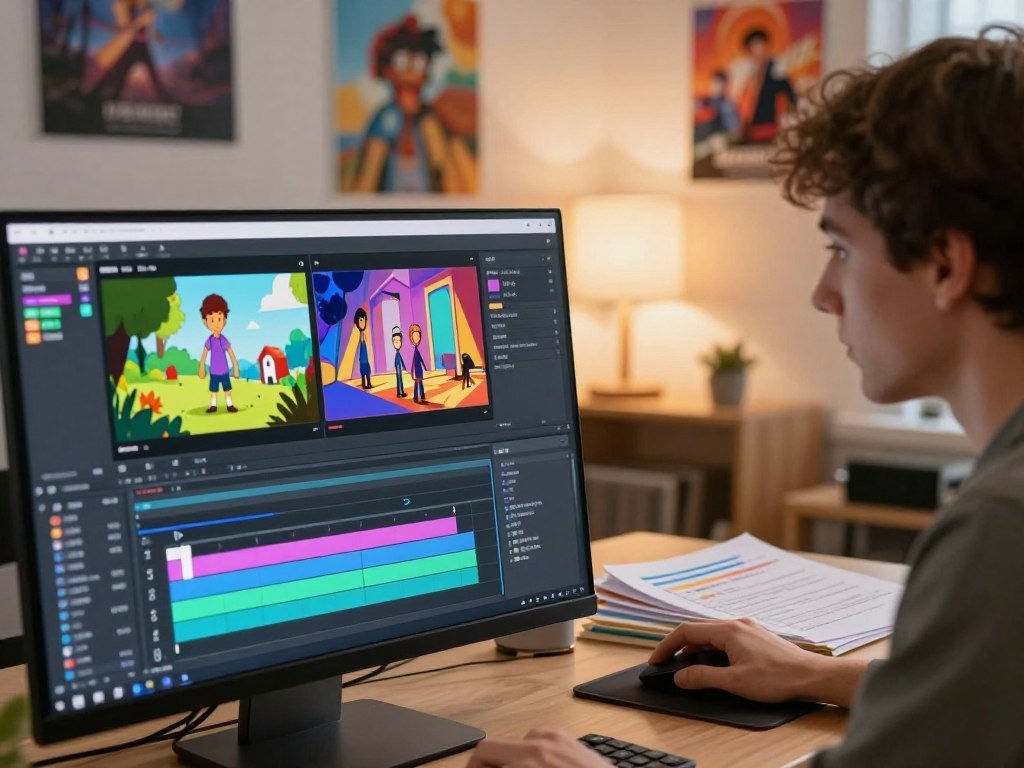
A beginner can make an online animation by starting with one clear idea, generating a draft, and refining only what needs attention. Browser-based tools keep generation and editing in one workflow, though features and export controls vary. Online AI animation generators for beginners can make a first project convenient, but generated scenes may still need revisions.
A script-led browser workflow can turn text into scenes, then let you refine colors, fonts, music, voiceover, timing, and movement. Canva works in a desktop browser or on a mobile device. Its completed video projects download as MP4 files.
Start with a script, prompt, or image
Choose the material that best explains your story. A script can guide a short explainer, a prompt can describe a new scene, and an image can anchor image-to-video. Keep the first idea small enough to fit in one short clip.
Generate a short draft before building more scenes. The first result gives you something concrete to review, even when the visuals need work. A clear prompt can help, but it cannot guarantee that every scene will match your intended wording.
Review scenes, edit, and export
Read the draft for scene order and story first. Then edit text, sound, timing, and movement where they affect the message. You can add an AI voiceover or your own recording in Renderforest, then adjust scene timing and visual choices.
Online animation generators still need a human review. Generated scenes may need manual changes to pacing or wording, especially when the clip turns a script into visuals. Make the edits that help the story, rather than polishing every effect at once.
Preview the finished video and check that its text and sound work together. Canva can download completed video projects as MP4 files, while export settings vary across tools. Watch the full draft once before exporting so you catch pacing or text problems that are easy to miss while editing.
Which free AI animation generators let you download a clip?
The most useful free plan is the one whose clip length, watermark rule, and usage terms match your test. Some free plans allow a download, but the clip may be short or limited in quality. A free download can still have a watermark, resolution cap, or non-commercial restriction.
These five tools give beginners different kinds of free access. A credit may cover image or video generation, so it does not always equal a guaranteed number of clips.
| Tool | Free allowance | Output limit or download condition |
|---|---|---|
| Imgveo | One lifetime video clip in supported regions | Up to 4 seconds at 480p, no visible watermark; commercial use allowed |
| Adobe Firefly | 2 video credits | One clip of about 5 seconds per credit; personal, non-commercial use |
| PixVerse | 90 starter credits and 60 daily credits | Visible watermark; below 1080p |
| Hailuo | Daily credits, roughly 3-10 clips per day | Up to 720p; not licensed for commercial use |
| Renderforest | 20 credits | About 20 seconds with Fast model at 480p; downloaded with watermark |
Imgveo’s one free video uses the same credits as its 20 monthly image-generation credits. Firefly’s two credits each cover one clip of about five seconds. Its free generations are for personal, non-commercial use. A free AI animation generator can help you test a prompt, but check the download conditions before planning a public release.
Other free offers have their own limits. Vidu includes 80 credits and off-peak generation; its output has a watermark, a 720p cap, and no commercial-use license. Pika includes 80 credits per month, with watermarked output capped at 480p and no commercial-use license.
Luma Dream Machine offers about 30 generations per month, while Kling AI lists 66 daily credits. Both have watermarked output capped at 720p and no commercial-use license. Magic Hour free previews run three seconds at 480p; longer clips and higher resolutions depend on the selected model and plan.
Check the export restriction before spending credits on a version you hope to publish.
Can an AI animation generator animate an image?
Yes, an AI animation generator can create motion from an image without requiring the beginner to draw every frame. Image-to-video uses a still image as a visual starting point and a prompt to guide motion. Describe one clear change instead of asking the picture to perform several unrelated actions.
Some workflows use one image and a motion instruction. Flaq AI can also use a start frame and an end frame, with a transition prompt that describes how the scene should change. This can give the movement a clearer beginning and ending.
Monica accepts JPG, JPEG, and PNG files up to 10MB and 2048×2048 pixels. Those limits give you a practical preparation check, but they are not the only way to animate an image. Other image-to-video tools may accept different files or workflows.
For an image-led project, begin with artwork that has one clear subject. You can create or refine a still with an AI image generator for creators before adding motion. A separate guide to making AI images can help you shape a visual starting point.
Use a clear image and describe one visible change, such as a character turning or a background moving.
Can you use AI animations commercially without copyright problems?
A commercial-use label does not by itself guarantee that an AI-generated clip is copyright-protected or free of third-party rights issues. Two separate checks matter: whether the platform allows your use and whether your work has rights issues. In the United States, human creative contributions may be protected, while material generated solely by a system is not protected as human-authored work.
Human authorship can include creative choices such as selecting, arranging, or editing material. The U.S. Copyright Office explains this rule in its AI copyright registration guidance. Copyright protection and permission to use a platform’s output commercially are different questions.
Check the applicable plan terms for the project you intend to publish. Also clear uploaded artwork, likenesses, performances, brands, and claims. A tool’s permission does not grant rights to someone else’s image, voice, or brand.
Seedance 2.5’s commercial suitability depends on its platform terms and clearance of inputs, likenesses, performances, brands, claims, and outputs. Magic Hour allows commercial use for users with a subscription or credit pack. Without either purchase, its use is limited to personal, non-commercial projects.
Magic Hour says it does not use customer prompts, uploads, or outputs to train AI models, including free, paid, and API use. That stated privacy position applies to Magic Hour, not to other animation tools. Keep records of your own creative edits and confirm the tool’s current terms before publishing work for a client.
How can you make your first animation look more coherent?
A short clip becomes easier to follow when one clear movement carries the scene. One main action gives viewers something to watch, and a clear camera instruction helps them see it. Review the draft in two passes: first for the action, then for continuity.
- Describe a visible action, such as a person opening a door, rather than an abstract emotion.
- Keep the first prompt focused on one action instead of several changes.
- Choose camera framing that makes the action easy to see.
- Review character details, timing, and sound effects separately before revising.
Changing several prompt details at once makes it harder to tell what improved the result. If a character’s movement looks right but the camera feels wrong, adjust the camera instruction alone. A focused revision keeps the next version easier to judge.
Sound can also change how a scene feels, so review effects apart from motion. Make a first pass for the main action, then a second for character details and continuity. For more help building an AI video workflow, keep each test focused on one shot.
Give each shot one main action and one clear camera instruction. Change one prompt detail at a time so you can see which revision actually helps.
What should you check before exporting your video?
Set the aspect ratio for the place your audience will watch before you save the final file. The right shape keeps the main action and text in view. Resolution and output options depend on the tool and plan.
Magic Hour supports 16:9, 9:16, and 1:1 exports. Use the table to match a common destination with its frame shape and a final check.
| Destination | Aspect ratio | Export check |
|---|---|---|
| Widescreen video | 16:9 | Keep titles and key action inside the wide frame |
| Vertical social video | 9:16 | Check captions and faces in the tall frame |
| Square placements | 1:1 | Keep text and subjects inside the square crop |
Adobe Firefly supports AI animation output at resolutions up to 4K. Canva can download a completed video project as an MP4 file. Other tools and plans may offer different sizes and file options.
Resizing can push captions near an edge or crop a face from the frame. Check that captions, sound, and framing remain clear after you change the aspect ratio. Preview the exported file at its actual display size, not only inside the editing canvas.
Conclusion
Your first animation does not need a complicated workflow to communicate one good idea. Start with the material you already have and the goal you want the clip to serve. A script, a finished image, or a character design can each point you toward a different kind of tool.
A short, low-stakes test can show whether the motion, editing process, and final export fit your needs. You do not need to build a long story before you know how a tool handles one scene. Keep the test simple enough to finish and review.
Pick one tool that fits your starting material, make a short test clip, and keep the version that best serves your project.
FAQ
Can I make an animated video without drawing skills?
Yes, you can make animated videos without drawing skills by using text-to-video, script-to-video, templates, or image-to-video. These workflows start with words, existing artwork, or editable assets instead of hand-drawn frames. You can also add text, sound, and timing in an editor. A short test clip helps you see how much editing a tool expects.
Can I download a free AI animation without a watermark?
Yes, some free plans allow a download without a visible watermark, but the limits can be strict. Imgveo offers one lifetime clip up to four seconds at 480p without a visible watermark in supported regions. Several other free plans add watermarks. Check the clip length, resolution, and use terms before relying on a free export.
How many free AI animation clips can I make?
Adobe Firefly’s free plan includes two video credits, with each credit covering one clip of about five seconds. Credits do not always equal guaranteed clip counts, since tools may use them for different actions or models. Hailuo’s daily credits can produce roughly three to ten clips per day. Its actual output can depend on how credits are used.
What is the difference between an AI animation generator and a video editor?
An AI animation generator creates motion or scenes from inputs such as text, scripts, or images. A video editor arranges and refines footage, text, sound, timing, and effects. Some products combine both jobs, so you can generate a scene and then edit it in one place. The amount of control differs between tools.
Can I animate a photo or drawing with AI?
Yes, image-to-video tools can animate a still photo or drawing from a prompt that describes the motion. Monica accepts JPG, JPEG, and PNG uploads up to 10MB and 2048×2048 pixels. Other tools may use different upload rules or image workflows. A clear subject and one simple action can make the first test easier to judge.
Do AI-generated animations have copyright protection in the United States?
Human creative contributions may receive copyright protection in the United States, but material generated solely by a system is not protected as human-authored work. Creative selection, arrangement, or editing may count as human authorship. Copyright protection is separate from permission to use an output commercially. Check platform terms and clear other people’s artwork, likenesses, and brands.



