
A finished song can be ready to share while its visuals are still only an idea. For independent artists and creators, that gap can make a strong release feel unfinished. You need a visual concept, a way to turn it into clips, and editing choices that connect those clips to your music.
An AI music video generator can help with some or all of that work. The right tool can make production faster, but your choices still shape the final video. This guide compares common options and lays out a practical workflow you can adapt to your own track.
Key Takeaways
- Song-first tools use a track to guide visual timing and scene changes.
- Scene-building tools give you more control over individual shots.
- Free plans can limit clip length, resolution, watermarks, or use rights.
- A short test can reveal timing and continuity problems before a full render.
- Check the output ratio and export terms before you commit to a tool.
The right starting point is the part of the process you most want the tool to handle.
What Can an AI Music Video Tool Actually Do?
Some tools treat the song as the timeline, while others treat it as audio to add after generating separate clips. Audio-reactive generation analyzes a track’s rhythm or other audio features and uses them to guide visual timing or motion.
Song-first automation ties visuals to the music, while scene-building gives you more say over each shot. A song commonly has an intro, verse, chorus, bridge, and outro. Common output ratios are 16:9 landscape, 9:16 vertical, and 1:1 square.
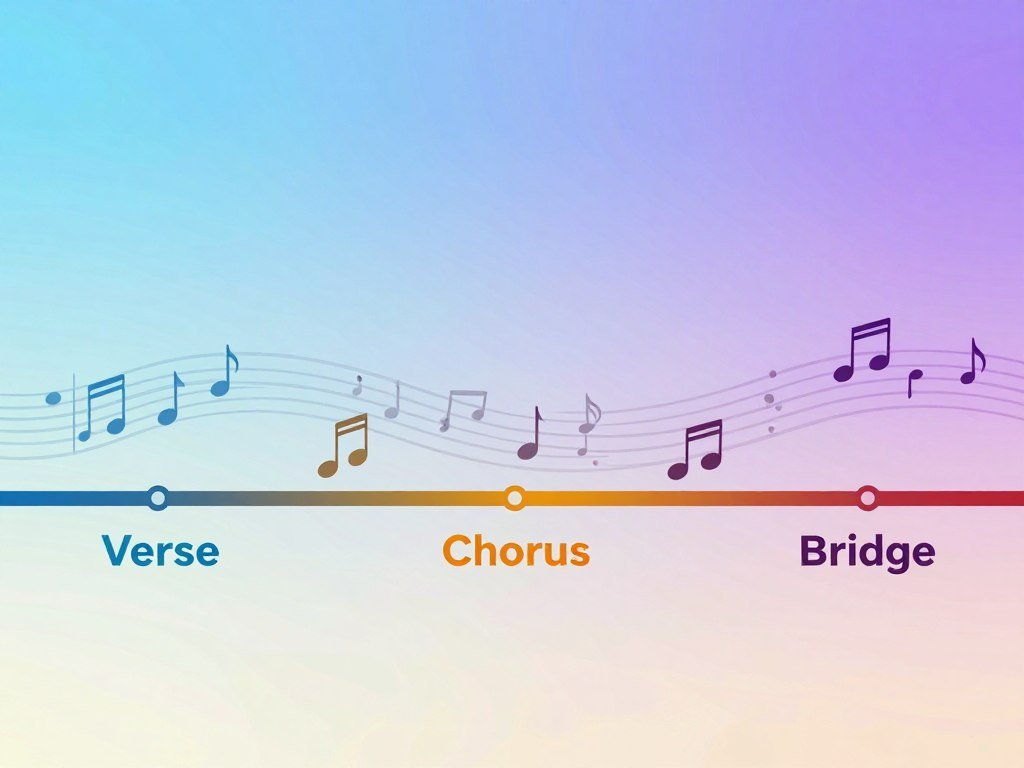
Song-first tools build around the track
A song-first tool accepts a complete track and uses its sound to shape the video. Depending on the tool, it may read rhythm, changes in energy, or song sections, then create a sequence that follows those cues.
This approach can save time when you want the beat or chorus to guide visual changes. It may leave less room to choose every camera move or scene detail.
Scene-building tools leave more assembly to you
A scene-building system is a creative video tool that generates individual shots from prompts or images. You then arrange the clips in an editor and add the song.
This gives you more control over a character, setting, or shot order. It also means you must judge whether each clip fits the track and the rest of the video.
Use these checkpoints to see how a video tool fits your workflow:
- Does it accept a full track?
- Does it analyze song structure?
- Does it generate a complete sequence?
- Does it include editing or export tools?
Pick song-first automation when musical timing is the priority, and scene-building control when directing individual shots matters more.
Some tools combine parts of both approaches, so check the actual output rather than relying on a feature name. For a closer look at separate clip creation, see this guide to creating AI videos with focused shots.
A music video can still need human review, even when a tool makes the first sequence automatically.
Which Tools Are Worth Testing First?
Start by matching the tool’s input and planning style to how much direction you want to provide. For a first test, Freebeat suits creators who want a song-led result without building every scene by hand.
The best first test for most creators is a song-first tool such as Freebeat. If you want to review a storyboard or guide scenes more closely, test VidMuse or Neural Frames too.
| Tool | Starting material | Planning or generation approach | Useful fit |
|---|---|---|---|
| Somio | Song upload, visual reference or prompt | Choose a style, aspect ratio, and AI model | Creators who want to set visual direction before generation |
| Freebeat | Uploaded audio or links from Spotify, Suno, Udio, TikTok, and YouTube | Story Video or Stage Performance modes | Creators choosing between narrative and stage-style music videos |
| VidMuse | MP3, WAV, M4A, or a Suno link | Creates a creative brief and storyboard for review | Creators who want to inspect the plan before video generation |
| Neural Frames | Audio track and mapped audio parameters | Map sound features to visual effects or use Autopilot | Creators who want audio-reactive control |
| Revid | Audio upload or supported music link | Trim the audio before generation | Creators making a video from a selected song section |
Freebeat offers a clear starting point if you want the tool to interpret the full song. Its two modes also make it easier to frame the creative brief around a story or a performance.
VidMuse’s storyboard can help you decide whether the scenes suit your concept before generation. Neural Frames gives you another route: map audio features to visual effects or let Autopilot plan a sequence.
Revid is useful when the full track is not the goal. Its trim control lets you work from a chosen section, such as a chorus or teaser.
Somio asks you to choose a visual reference or prompt, style, aspect ratio, and AI model. Those choices give you a direct way to set the look before it builds the video.
Test the tool with a track section that represents your real project, not a random sample. That makes its pacing, scene choices, and workflow easier to judge.
Before committing, check that your preferred tool produces the kind of output you actually plan to publish.
Which Free Options Are Useful, and What Do They Restrict?
A free plan can be enough to test a visual direction, but it may not cover a publishable full-length result. The best free option depends on the test: Freebeat offers 30 seconds at 720p, VidMuse offers 720p personal-use exports, and Runway gives about 10 seconds of Gen-4.5 video credits.
Do not assume a free AI music video generator exports without a watermark. Freebeat, VidMuse, and Plazmapunk add one to free videos, while Runway’s watermark-free exports start on Standard.
| Tool | Free allowance | Output limit | Watermark or use condition |
|---|---|---|---|
| Freebeat | 500 signup credits | Up to 30 seconds at 720p | Watermark; no card required |
| VidMuse | 100 one-time credits | 720p export | Watermark; personal, non-commercial use |
| Plazmapunk | 200 new-user credits | About 1-2 credits per second; 4:3 video | Small watermark; personal use; one prompt, no Scene Editor |
| Runway | 125 one-time credits | About 10 seconds of Gen-4.5 at 12 credits per second | Watermark-free exports start on Standard |
| Firefly | Free daily generations | Daily generation limit | Requires an Adobe account |
Freebeat gives you a short 720p test without asking for a card. That is enough to check whether its visual approach fits your music, though the watermark remains on the result.
VidMuse’s one-time credits can help you review a storyboard and make a personal-use video. The export is 720p, carries a watermark, and is not for commercial use.
Plazmapunk’s 200 credits can go quickly because standard generation costs about 1-2 credits per second. Its free video uses 4:3 framing and one prompt, with no Scene Editor.
Runway’s free allowance is a one-time credit grant. Gen-4.5 uses 12 credits per second, so 125 credits cover about 10 seconds under the listed comparison.
Adobe Firefly offers free daily generations with an Adobe account. Its allowance is not the same as a large one-time grant, so your test plan should match the available daily use.
A free plan can still be useful even when it cannot make a release-ready video. Compare free access, export needs, and editing limits with this guide to free AI video generator options.
Check both the watermark and commercial-use terms before using a free export for a release.
How Do Song-First Tools Turn a Track Into Visuals?
A song-first tool is most useful when the track should influence the pacing and visual changes rather than simply play beneath them. The music can guide when scenes change, how quickly they move, and which moments receive emphasis.
Choose Freebeat when the brief centers on a story or stage performance, and test Somio when style options and audio-led scenes matter most. Both tools use the song as more than background audio.
Somio analyzes a song and builds a matching video
Somio accepts MP3 and WAV files, and you can select a section of the song. Its audio analysis uses rhythm and mood to guide scene generation and music-visual synchronization.
You can choose from Cinematic, Photorealistic, 3D Animation, and Colored Pencil styles. Each offers a different visual direction, from lifelike scenes to drawn imagery.
That choice can help you keep the video close to a planned look. It does not replace a clear concept, though; a style label alone cannot tell the generator what the scenes should contain.
Somio’s free plan gives limited music-video credits, and its generated videos are watermark-free. The free allowance is still limited, so use a short test to see whether the scene choices suit your track.
Freebeat offers story and performance modes
Freebeat analyzes BPM, rhythm, drops, and song structure. It can then create story, lyric, lip-sync, or choreography-driven videos.
Story mode fits a video where scenes carry an idea or narrative. Stage Performance mode suits an artist-led visual, especially when a live-show feel matters more than a separate story.
The song’s changes can give both modes a natural pace. A drop may call for a scene change, while a quieter verse may benefit from slower motion.
Match the tool’s output to the video you want
Start with the purpose of the video. If the track should steer the visual pace, let the tool read its rhythm and structure.
If you have a detailed story in mind, check whether the generated scenes can follow that idea. An automatic sequence may match the beat without making a clear narrative.
Check lyrics support before choosing
Somio’s lyric and subtitle feature is coming soon. For synced lyrics in the meantime, Somio directs users to a separate lyrics-video generator.
That distinction matters if words on screen are central to your concept. A tool can follow music well while still lacking the lyric controls you need for a sing-along or caption-led video.
Decide whether the music should steer the scenes automatically or whether your concept should lead each visual choice.
Which Tools Give You More Review and Scene Control?
A review step before generation can save a creator from spending credits on a concept that already feels wrong. VidMuse gives you a brief and storyboard to inspect before it generates video.
Review features help you judge a plan, but they do not guarantee a fully assembled narrative video. You may still need to guide scenes or edit clips into a finished sequence.
VidMuse lays out a brief and storyboard
VidMuse creates a creative brief and storyboard for review before generating video. That gives you a chance to see whether its planned scenes fit your concept.
The review point is useful when a scene could change the meaning of your song. You can catch an unwanted setting or a weak story choice before spending more generation credits.
A storyboard is a plan, not a finished edit. It does not mean each shot will connect smoothly or that the final video will tell a complete story.
Neural Frames offers audio-reactive visual control
Neural Frames lets you map audio parameters to visual effects. Its Autopilot feature can create storyboards with less manual scene planning.
The trial covers about 20 seconds of frame-by-frame video or a couple of Autopilot storyboards. Watermark-free downloads require a paid plan.
Neural Knight starts at $39 per month, or $26 per month billed yearly, with 2,400 monthly credits. The trial can show whether the controls suit you, but it does not cover a long test.
Revid separates lyric timing from beat timing
Revid is another option when you want to review lyrics and timing. It lets you trim audio before generation, so a test can focus on a smaller section.
Its separate Lyrics and Beats modes suit different editing needs. The timing choice affects how the tool treats words and musical changes, not whether the finished clips form a story.
For a broader view of writing a focused prompt and reviewing generated clips, read this practical guide to creating AI video clips.
Choose the option whose review stage catches the kind of mistake you are most likely to make.
Which Other Tools Fit Specific Video Jobs?
A tool that is not a full-song generator can still solve one difficult part of production. The right alternative depends on whether you already have footage or need generated clips.
Use Rotor to cut existing footage to music, and consider PixVerse when a performer reference should carry across scenes. Short-clip tools can also help you test a visual idea.
PixVerse VibeMV supports several formats and performer references
PixVerse VibeMV accepts MP3, WAV, M4A, and AAC files from 10 seconds to 6 minutes long. It can use a character photo to keep a performer consistent across the video.
Its subtitle detection includes a review and editing step. That gives you a chance to inspect captions rather than treating the first text pass as final.
This approach can help when the performer needs to remain recognizable. A reference photo still cannot guarantee that every generated frame will look exactly alike.
Rotor cuts existing footage to a song
Rotor can cut stock clips or your own footage to a song up to 10 minutes long. Downloaded videos have no watermark.
That makes Rotor different from a tool that builds a new visual concept from scratch. It edits footage around the track, so it is a strong fit when you already have usable material.
For an independent artist, existing rehearsal, studio, or performance footage may be more personal than generated scenes. Rotor can help shape those clips around the song.
MusVideo and prompt-only options suit narrower tests
MusVideo lets you choose a song section, review a scene plan and credit quote, then generate and export. That review can help you decide whether a short test is worth the credit cost.
On September 9, 2026, a MusVideo example produced a video about 11 seconds long at 720 × 1280 and 30 frames per second. The example shows a short output, not a promise about every generation.
aimusic-video.com offers 16:9, 9:16, and 1:1 framing. It says users can download a PNG key frame and animated preview without an account or watermark.
Firefly creates short clips for an edit
Adobe Firefly generates 5- or 8-second clips and offers camera, lighting, and motion controls. Those clips are components to assemble, not a full-song music video on their own.
Its controls can help when a specific shot needs a certain camera move or light. You still need to plan how those short clips will fit the track.
Firefly offers free daily generations with an Adobe account, which can help you try a brief visual idea. A clip’s short runtime makes it better suited to an edit than a whole song.
If you already have usable footage, test an editor that cuts to the track before generating replacement scenes.
How to Choose an AI Music Video Generator: Tools and Workflow
Choose by the part of production that is slowing you down, not by a tool’s most impressive demo. For most creators, a song-first option is the best fit when musical timing is the biggest concern.
Choose scene-building tools for detailed shot control, and Rotor when existing footage is your starting point. The main tradeoff is how much assembly and direction you want to handle yourself.
| Creator’s priority | Tool type | Examples | Main tradeoff |
|---|---|---|---|
| Automatic song-led pacing | Song-first tool | Freebeat, Somio | Less control over each shot |
| Scene-by-scene direction | Scene-building system | Runway, Firefly | You assemble separate clips |
| Consistent performer or character | Reference-led video tool | PixVerse VibeMV | Reference use does not ensure perfect consistency |
| Editing existing footage | Song-based video editor | Rotor | Best when useful footage already exists |
| Short social clips | Short-clip generator | Firefly, MusVideo | Several clips may be needed for a full song |
Song-first tools such as Freebeat and Somio prioritize track-led generation. They suit artists who want a tool to follow the music rather than build every shot separately.
Scene-building options such as Runway and Firefly generate clips that need assembly. VidMuse adds storyboard review as a separate control point before video generation.
Ask yourself three questions before choosing:
- Do the visuals need to react to song structure?
- Do you need one consistent performer?
- Will you edit the result yourself?
Your answers point to the work you want to keep and the work you want the tool to do. This guide to choosing a free video generator also covers how credits and export needs can shape that choice.
If you would rather not assemble separate clips, make a complete song-led render the deciding test.
How Should You Prepare and Upload Your Audio?
Start from the cleanest version of the track you have permission to use. A free AI music video generator from MP3 can be tested with Solmi’s free preview, which also accepts downloaded Suno tracks in MP3 or WAV format.
Choose the song section and output ratio before you generate. Revid lets you trim a track to isolate a chorus or teaser, then choose an output ratio.
Solmi’s free web account includes 100 one-time music-video credits. That covers one 20-second, 480p preview with a watermark, and no card is required.
The preview supports 16:9 or 9:16 aspect ratios. A downloaded Suno track works as an upload if it is an MP3 or WAV file.
Prepare these choices before you open the generator:
- Use a clean, finished audio file.
- Decide whether you want the full song or one excerpt.
- Identify the platform where the video will appear.
- Select the matching aspect ratio.
A clean file avoids unwanted noise or a rough cut at the start. If you plan to test a chorus, make sure the excerpt begins where you want the visuals to begin.
Revid accepts MP3 or WAV uploads and supported music links. Its trim control can isolate a chorus or teaser before generation, which keeps the first test focused.
Think about the viewing frame when choosing an output ratio. Vertical video suits a phone screen, while landscape framing fits a wide display.
Listen once from the exact start point you selected so the first visual is not attached to a silence or an unwanted pickup.
How Do You Keep the Visual Concept Coherent?
A strong visual concept is recognizable across scenes without making every shot identical. Three clear anchors can give a music video a steady look while leaving room for change.
Keep a recurring subject, a color palette, and a motion rule consistent. You can vary the setting or energy around those anchors without making every scene feel unrelated.
Define these three anchors before generation:
- Who or what recurs in the video?
- Which colors should dominate?
- What motion or camera behavior should repeat?
A recurring subject might be the artist, a symbolic object, or a repeated shape. The palette could stay cool through a verse, then grow brighter during the chorus.
A chorus can use quicker motion or a wider view while keeping the same subject and colors. A bridge might shift the mood, but one familiar visual anchor can still connect it to the rest.
Changing the subject, palette, and setting in every prompt gives the generator too many unrelated directions. The scenes may look polished one by one but fail to feel like the same music video.
Clear prompts help keep the subject, color, and framing in view. For more ideas about planning visual styles, see this guide to creating AI images with focused prompts.
Keep one anchor unchanged in the first test render so you can see whether the tool maintains continuity.
How Can You Sync Beats, Lyrics, and Captions?
Use beat timing when instrumental changes should govern cuts, and lyric timing when words should shape the visuals. Those are separate jobs: a singer’s lip-sync is another option, not the same as captions.
Review detected words and caption timing before you generate a full track. Revid recommends testing a short excerpt and checking its displayed credit estimate because costs vary by generation method.
Beat-timed visuals follow rhythm or musical changes. Lyric captions follow detected words, while singer lip-sync tries to match a visible mouth to the vocals.
Review the detected words and timing in the lyric editor. Correct unusual pronunciations, names, or other words the tool reads incorrectly.
A caption can contain the right words and still appear too early or too late. Play the excerpt while checking the text so you can catch timing gaps.
Revid’s Lyrics and Beats options handle different timing needs. The lyric editor lets you review detected lyrics and caption timing, while singer lip-sync remains a separate choice.
Somio’s lyric and subtitle support for its music-video generator is coming soon. In the meantime, its separate lyrics-video generator supports synced lyrics.
For prerecorded video with audio, captions can include meaningful sound effects and music, not just spoken words. The W3C caption guidance explains that access need.
Listen to the final caption pass with the track, since correct words can still land at the wrong moment.
What Is a Practical Start-to-Finish Workflow?
The most reliable workflow gives the song structure a job before it asks a generator for scenes. Mark the sections first, then decide which visual idea belongs to each part.
Even automatic generation benefits from a human review pass. The tool can make the clips, but you decide whether their order and timing serve the music.
- Mark the song’s intro, verse, chorus, bridge, and outro.
- Write a short visual brief with the subject, style, and mood.
- Generate a short test render from a key section.
- Review the scene order and timing against the track.
- Revise the weak parts, then export in your target format.
You can generate one scene for each song section and assemble them in an editor. Or you can use a song-first tool to create a longer pass.
Check whether transitions support musical changes or interrupt them. A cut on a chorus entrance may add impact, while a cut just before it can weaken the moment.
Review the visual brief before generation, then compare the result with that plan. Keep the test focused so you can tell whether the problem lies in the concept, the timing, or a single scene.
Apple’s Music Understanding framework describes how rhythm, beats, bars, phrases, and song sections can guide visual timing.
Human review matters because an automatic sequence can miss a meaningful change in the song. You can keep strong sections and replace only the clips that break the flow.
If you adapt one video for several platforms, plan each output frame before the final export. More guidance on a clear AI content workflow can help you keep the brief and review steps organized.
Watch the assembled video once without stopping, then make only the edits that improve the connection between the track and the visuals.
What Length, Resolution, and Format Can You Export?
A tool’s longest supported track does not necessarily mean it exports one uninterrupted clip of that length. Check the stated limit to learn whether it describes the input track or the generated video.
Maximum track length and maximum generated clip length are not interchangeable. Also check the export option, watermark, and intended aspect ratio before starting a long render.
| Tool | Stated track or output length | Export details |
|---|---|---|
| Somio | Full-length video matching the song | Downloads without a watermark |
| Rotor | Song up to 10 minutes long | Edits footage to the song |
| Freebeat | Output up to 6 minutes | Maximum listed output length |
| Neural Frames | Output up to 30 minutes | Maximum listed output length |
| PixVerse VibeMV | Track from 10 seconds to 6 minutes | 16:9, 9:16, 1:1, 4:3, and 3:4 at 720p or 1080p |
Somio says its generator can create full-length videos that match a song’s length. It also says those videos can be downloaded without a watermark.
Rotor can edit songs up to 10 minutes long, while its role is to cut footage to music. That input limit does not describe a generated sequence in the same way as a stated output maximum.
Freebeat lists output up to 6 minutes, Neural Frames up to 30 minutes, and PixVerse VibeMV accepts tracks from 10 seconds to 6 minutes. These limits describe different parts of each tool’s workflow.
PixVerse VibeMV exports at 720p or 1080p in five aspect ratios. Choose the frame that fits the place the video will appear, then check the crop.
Framing can affect captions, faces, and other details close to the edge. Preview the downloaded file on the platform where it will appear, since framing can hide text or a performer near the edge.
What Should You Budget, and What Rights Should You Check?
Compare the cost of a finished video, not just the lowest advertised entry price. Credits, resolution, and generation frequency affect what a plan costs for your actual work.
Check billing periods, credit needs, export terms, and rights before paying. Creators must have rights to their music, photos, and other uploaded materials.
These paid plans offer examples of different billing models and credit amounts:
- Solmi Plus starts at $35 per month and includes 2,000 credits. Paid plans offer full-song rendering at 720p or 1080p without a watermark.
- Freebeat Basic was listed at $4.99 per week in September 2026. Pro was listed at $26.99 per month, and 1080p requires Ultimate or Creator.
- VidMuse Pro starts at $39 per month, or $33 per month billed yearly. It includes 4,000 monthly credits and 1080p exports.
- Neural Frames Neural Knight starts at $39 per month, or $26 per month billed yearly. It includes 2,400 monthly credits.
- Rotor Artist Unlimited Video starts at $14.99 per month billed annually. PixVerse VibeMV public paid plans start at $19 per month.
Before you choose a plan, check these four details:
- Whether billing is monthly or weekly
- How many credits a full song needs
- Resolution and watermark terms
- Commercial use rules and rights for uploaded audio or photos
A low entry price may not cover repeated tests or a full-length render. A higher plan can still be a poor fit if its credit use does not match your workflow.
Commercial use depends on the tool’s terms and your rights to the material. Clear the music, photos, and other assets before using them in a release.
Learn more about possible income from AI-assisted video in this guide to ways to monetize AI content.
Before you pay, make sure the plan fits your expected renders and your uploaded material is cleared for the intended use.
Before paying, confirm the current plan terms and that your uploaded material is cleared for the intended use.
Conclusion
The simplest way to choose is to decide whether your song or your shot list should drive the first render. Song-led generation suits you when automatic musical timing matters, while scene-level control suits you when individual shots come first.
Make a short proof of concept with the chorus before rendering the whole track. Check its timing, visual consistency, and framing against the version you plan to publish.
Test one chorus-sized idea with your own track, then scale up only if the result holds together.
FAQ
Can I use a song I made with Suno in an AI music video generator?
Yes, Solmi accepts downloaded Suno tracks as MP3 or WAV files. That makes it possible to test a song you created with Suno in its free preview. The file format does not grant music rights, though. Check that you have permission to use the song and any other uploaded material before publishing a video.
How long should my first test render be?
Test a short excerpt before paying for a full-song render. Revid recommends a short test and displays a credit estimate for each generation method. A chorus or another key passage can show whether the timing and visual direction work without committing to the whole track. Use the displayed estimate to understand the cost of that specific generation.
Can a free AI music video generator make a full-length video without a watermark?
Free plans often limit video length or add a watermark, so a full-length clean export is not a safe assumption. Solmi’s free preview covers 20 seconds at 480p and includes a watermark. Its paid plans offer full-song rendering without one. Check the plan’s length, resolution, and export terms before you build a release around it.
What’s the difference between beat sync and lyric sync?
Beat timing follows musical rhythm, while lyric timing follows detected words and captions. A beat-led cut can match a drum hit without showing any words. Lyric captions need review because a tool may misread names, pronunciations, or timing. Singer lip-sync is separate: it tries to match a visible mouth to vocals rather than timing captions.
Which aspect ratio should I use for TikTok or YouTube?
Use 9:16 for vertical social video and 16:9 for landscape video. A vertical frame suits TikTok and phone viewing, while landscape is common for YouTube. PixVerse VibeMV also supports 1:1, 4:3, and 3:4. Choose a ratio that fits the planned platform, then check that the crop keeps the performer and any text in view.
Can I download an AI music video without a watermark?
Yes, some tools offer watermark-free downloads, but the rule depends on the plan. Freebeat and VidMuse free exports carry watermarks, while Somio says its generated videos are watermark-free. Runway’s watermark-free exports start on its Standard plan. Check the export terms for the exact plan you use, since a free preview may have different rules.



