A blurry clip can look cleaner after AI processing, but a sharper-looking image is not proof that every detail was in the original. For creators, that difference matters when you prepare a video for social media, a client, or a personal archive. A polished image can still contain guessed details, odd edges, or changes that appear only during motion.
This page offers practical help for choosing an editing workflow and judging the result. You will learn how to compare a source with an export, what to check before processing, and how to tell measurable resolution from perceived quality. A larger pixel count is easy to measure; natural texture and steady motion take closer review. Your experience with the clip matters more than a number on an export menu. Treat any preview as a quality check before committing to a full export.
Key Takeaways
- AI processing can make a soft video look clearer, but it cannot prove that estimated detail is original.
- Pick a target resolution that suits the source and where viewers will watch.
- Check faces, fine patterns, edges, and motion in a representative clip.
- Read file, device, preview, and export limits before processing a long video.
- Keep the original file and inspect the finished export before sharing it.
AI Video Upscaler: Improve Video Resolution With AI
A Full HD frame has 1920 × 1080 pixels, while UHD 4K has 3840 × 2160. A video upscaler makes a larger image by estimating what could fill the added pixels. Super-resolution uses information in lower-resolution frames to estimate a higher-resolution image, rather than recovering a perfect copy of details never captured.
Doubling both frame dimensions creates four times as many pixels. The new pixels increase resolution, but they do not confirm that every fine edge or mark appeared in the source. Video upscaling changes the image size and can improve perceived clarity; it cannot recreate a verified original that was never recorded.
What AI Adds to a Frame
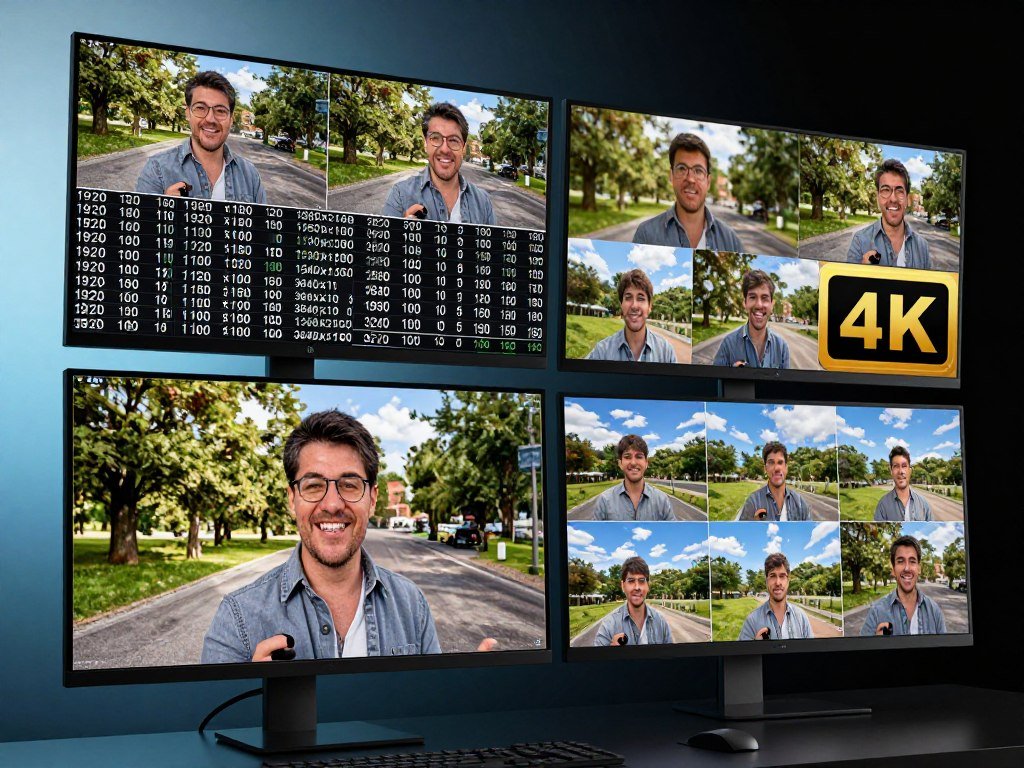
An enhancement model studies nearby pixels and, in video, information across frames. It estimates likely edges, textures, and patterns, then uses those estimates to fill the larger image. The result can make a small subject easier to see on a larger screen.
The model does not simply stretch each pixel. It predicts how the image might look at a higher resolution, which can add apparent sharpness. That is different from measuring extra detail in the original footage.
Capture choices also affect perceived image detail. The SMPTE discussion of detail in 4K imaging explains how motion blur can reduce detail, even at high resolution. A fast-moving subject may therefore remain soft after enlargement.
Where the Prediction Can Go Wrong
Noise, blur, compression, and motion make the model’s estimates harder. A compressed edge may look like a real outline, while grain can become a false texture. Fine text and repeating patterns can also turn uneven.
Each frame can receive slightly different estimates as an object moves. That change can cause flicker, warping, or details that seem to crawl across the image. A still image may hide those faults.
More pixels can make a frame larger, but they cannot certify details that the camera never captured.
Inspect the video at normal playback speed, then pause on a few useful frames. Compare moving footage as well as a still frame, since a convincing isolated frame can flicker or distort in motion.
What Can AI Upscaling Actually Recover?
AI upscaling can improve apparent detail when the source holds useful visual information, but it cannot restore every lost feature. A 360p clip enlarged to a 4K target can still show jagged edges and little recovered fine detail. The kind of footage and its condition shape the results. One good sample cannot predict how another clip will look.
A 2026 test that enlarged a 360p source to 4K found limited fine-detail recovery and visible jagged artifacts. By contrast, a 2026 test enlarged 720p wildlife footage by 2× and reported sharper fur and other details, with smooth motion. The different outcomes show why source quality and scene content matter.

| Tool or test | Source and target | Observed detail or test scope |
|---|---|---|
| Fotor | 360p to 4K | Limited fine-detail recovery; visible jagged artifacts |
| VideoProc Converter AI | Five footage types | Anime, movie, old, low-light night, and phone video; 2×, 3×, 4×, 2K, and 4K options |
| Aiarty Video Enhancer | 720p wildlife, enlarged by 2× | Sharper fur and other details; smooth motion |
Fine patterns, faces, and fast movement are useful checks because they expose different errors. A knit shirt can reveal false texture, while a face can show changes around eyes or hair. Fast movement can reveal flicker or bent edges.
Results also depend on whether the source is noisy, blurry, or heavily compressed. A tool may give a pleasing result on a clean frame and a poor one on another shot from the same video. A single favorable sample does not predict every clip.
Creators who add AI-assisted videos to a wider channel plan can also explore ways to earn from AI-assisted content. Judge the result on the actual scene you plan to publish, not only on a tool’s sample footage.
Which Output Resolution Fits Your Clip?
A 720p source intended for an ordinary HD post may not benefit from being forced to the largest available target. Choose the target resolution for the screen and platform where people will watch. A larger output is useful only when it meets a real delivery need and still looks natural.
UHD 4K uses 3840 × 2160 pixels. A 2× scale factor doubles both source dimensions, so the pixel count becomes four times larger. That may help a clip fit a larger display, though the added pixels do not guarantee more true detail.
Check these details before settling on an output:
- Source dimensions and aspect ratio: note the width, height, and shape of the original frame.
- Intended display or platform: match the target to the place viewers will watch.
- Available scaling choice: see whether the tool offers a 2× multiplier or a fixed output size.
- Smaller target quality: compare whether a smaller enlargement looks more natural.
A fixed 4K choice and a 2× scale factor solve different needs. For example, a source with dimensions other than 1920 × 1080 will not reach the same dimensions through a 2× scale factor. Keep the aspect ratio in view so faces and objects do not look stretched.
Social media platforms can resize uploads, so an oversized file may add work without improving the viewing experience. A target should suit the delivery need, not just the largest number in a menu. Choose the smallest output that meets the delivery requirement and preserves a natural-looking image.
Should You Use an Online or Local Upscaler?
If footage must stay on your computer, local browser processing can avoid uploading the video to a service. Local tools use your device to process the file, while cloud tools send it to a service for processing. Neither approach is universally safer; the actual file path and terms matter.
Local processing can reduce dependence on an internet connection after the tool loads, but it asks more of your computer. Cloud processing can be convenient for a device with limited power, though it depends on a reliable connection and an upload. Your footage and device help decide which tradeoff fits.

ArtPlayer says its browser upscaler processes video locally without uploading it to ArtPlayer servers. free.upscaler.video also says processing takes place on the user’s device and that files are never uploaded to its servers. These statements describe those tools, not every browser-based service.
Before you process a clip, check three points:
- Where does the tool process the video, on your device or through an upload?
- Does the service require you to create an account?
- What does the tool say happens to uploaded media?
Local processing gives you direct control over the file, but the browser and computer still need to handle the work. Cloud processing moves that work to a service, with a different set of privacy and access terms. Read the terms for the specific tool rather than treating all online products alike.
If your project also needs cuts, titles, or sound, compare the full workflow with free editing software for creators. Test one short, non-sensitive clip before relying on a new workflow for private footage.
How Can You Protect Your Video Before Uploading?
Before uploading a private clip, check how long the service keeps the video and whether its log policy covers a different kind of data. Media retention and technical logs are separate policies. A service may delete a video on one schedule and keep error data on another.
Read the upload, retention, and deletion terms for the specific service. Fotor says uploaded videos are automatically deleted within 24 hours. free.upscaler.video says anonymous technical error logs are automatically deleted after 90 days. Those details apply to different data types and services.
Do not assume that deleting a video also deletes diagnostic logs. Logs can describe technical errors without being the video itself. Retention details vary by service, so a rule for one product does not apply to another.
Do not upload confidential footage unless you have permission and understand the service’s terms. This matters for client work, private events, and clips that show personal information. Check whether the upload terms allow the service to process the file for your intended use.
Keep a local copy of the source until you have checked the export and confirmed the service’s deletion terms. A saved original gives you a clean starting point if the processed version has problems or the export fails.
Which Free Browser Upscalers Have Clear Limits?
A free browser tool may fit a short clip, but its file cap, GPU support, and output rule matter. ArtPlayer targets up to 2× the source width and height, while free.upscaler.video sets limits on size, duration, and batch count. Free access does not mean every tool can create a fixed 4K export.
People seeking an AI video upscaler to improve video resolution online for free should check these limits before preparing a file. A free AI video upscaler for 4K may still cap the scale factor or require a certain browser feature. Free online access can include limits on previews, processing, or downloads.
| Tool | Processing and browser requirement | Input or scale limit | Output or access |
|---|---|---|---|
| ArtPlayer | Local; WebCodecs with WebGPU or WebGL | Up to 2× source dimensions | MP4; no fixed 4K guarantee |
| free.upscaler.video | On-device; WebGPU | 100 MB, 5 minutes, 10 videos per batch | No signup or installation |
| Fotor | Browser upload | MP4, MOV, or WebM input | Free 3-second preview; longer exports may need credits or membership |
ArtPlayer’s Browser Upscaler
ArtPlayer describes its upscaler as a local browser tool. It can target up to twice the source width and height, but that does not guarantee fixed 4K dimensions. The Quality model requires WebGPU, while the tool also needs WebCodecs with WebGPU or WebGL.
A 2× scale factor gives a different final size for each source. For instance, a 720p source enlarged by 2× does not become UHD 4K. ArtPlayer exports MP4 files, which may suit common sharing needs.
free.upscaler.video
free.upscaler.video is described as free and open source, with no signup or installation. It accepts files up to 100 MB and five minutes, and batches can contain up to 10 videos. It requires WebGPU, so an unsupported browser or device can stop the workflow.
These limits make it easier to decide whether a free online AI video upscaler fits a short job. Free access can have real caps, and 4K is not assured by every browser tool. Check WebGPU and the file limit before spending time preparing a batch.
What Does Fotor’s AI Video Upscaler Offer?
Fotor’s AI video upscaler accepts MP4, MOV, and WebM and advertises output up to 4K. Its free use includes a 3-second preview, while longer exports may require credits or a membership. Fotor also advertises watermark-free downloads, but that does not mean every export path is free.
The three input formats give you options when a clip already exists in a common web or editing format. The advertised 4K output is a target size, not a promise that the source will gain authentic fine detail. Check the visual result as well as the number shown in the export menu.
For a short sample, the free preview can help you inspect the look before you commit to the full video. A longer export may use credits or need membership, so a free preview and a free finished file are different things.
Watermark-free downloads are an advertised feature. The export terms can still depend on the route you choose and the length of the clip. A download without a watermark does not by itself show that the whole job has no cost.
When deciding whether Fotor is an AI video upscaler to improve video resolution for free, separate the test from the full export. The free preview can help with an initial check, but longer output may have a charge. Confirm the credit or membership requirement for the length you plan to export before processing the full clip.
Which Desktop Upscaler Fits Your Computer?
A desktop tool can offer more output controls, but its free model and your computer’s capacity determine whether it is practical. Nero AI Video Upscaler offers output up to 8K and frame-rate conversion up to 120FPS. Those limits describe available features, not a guarantee of a better image.
Nero’s free Fast model allows watermark-free exports. Exports that use Pro models and features carry watermarks. The exact model matters if you plan to use a free download for a finished project.
Nero AI Video Upscaler
Nero lists different computer thresholds for Full HD-to-4K work and 4K-to-8K work. The higher-resolution task calls for more recommended GPU memory and RAM. These figures help you judge whether the program fits your computer before installation.
| Nero requirement | Listed threshold for Full HD-to-4K work | Listed threshold for 4K-to-8K work |
|---|---|---|
| GPU memory | 4 GB minimum | 12 GB recommended |
| RAM | 8 GB minimum | 32 GB or more recommended |
| Storage | 20 GB free | 20 GB free |
Nero also supports frame-rate conversion up to 120FPS. A higher frame rate can change how motion appears, but the number alone says nothing about whether the result looks smooth or natural.
VideoProc Converter AI
VideoProc Converter AI offers a choice between 2×, 3×, or 4× scaling and fixed 2K or 4K output. A scale factor follows the source dimensions; a fixed target aims for a set size. In a 2026 comparison, VideoProc was tested across five footage types on a Windows 11 computer with an AMD Ryzen 5 5600X, 64 GB RAM, and an AMD Radeon RX 6700 XT with 8 GB VRAM.
The choice between those output styles may suit different source sizes and delivery needs. A desktop program can provide more control, yet a model that fits one type of clip may not fit another. Check the exact model and export mode before assuming a free download includes watermark-free output.
How Do Models and Presets Change the Look?
A preset aimed at old film or sports footage can make different visual choices than a setting focused on skin tones. Enhancement models and presets affect the image’s color, texture, and edge treatment. Preview those choices on the footage you plan to use, not just a sample image.
Canva’s Video Upscaler offers three enhancement styles: overall clarity, vibrant colors, and skin tones and facial features. A style that suits a talking-head clip may not suit a muted documentary or a dim scene. Different looks can change how familiar details appear.
Presets for Different Footage
Topaz Labs offers presets for Film & TV, Sports, Gaming, Old Video, Art & CG, and Standard. A footage-matched preset gives you a useful starting point, not a rule that every shot in that category should look the same.
Sports footage may include quick movement and textured uniforms. Old video may need a different balance of edge sharpness and grain. If a preset makes texture look too smooth or adds hard outlines, another choice may suit the source better.
Precise Restoration or Creative Detail
Adobe Firefly uses Topaz Astra with Precise and Creative modes. Precise and Creative describe the style of the result, while separate settings let you prioritize speed or quality. Those choices can affect the finish and the time needed for processing.
For close review, check skin, edges, and fine texture at normal playback size. A face can look polished while hair or clothing looks unnatural. If the clip includes several scenes, preview more than one before settling on a model.
Some generated images also need careful review because a smooth surface can hide made-up detail. The practical checks in simple AI image editing steps offer a related approach to inspecting generated results. Start with the least stylized mode that preserves the look you want, then compare before and after.
Which Footage Types Need a Closer Test?
Fur moving across a wildlife shot makes a useful test of both texture and motion. Use separate checks for fine detail, faces, low-light grain, animation edges, and phone footage. A result on one clip does not show how another kind of footage will fare.
A 2026 test enlarged 720p wildlife footage by 2× with Aiarty Video Enhancer and reported sharper fur and other details while keeping motion smooth. That is a useful example, but it does not promise the same result for every animal, camera, or scene. Your own hardest shot is a better guide to your project.
Fur and feathers can reveal whether an enhancement model keeps fine texture or turns it into a flat patch. Faces show whether small features shift, while dark footage can expose grain and color changes. Animation needs a close look at clean outlines and repeating shapes.
Phone footage can bring its own mix of motion blur, compression, and low light. Check those clips on their own rather than assuming a model that works on wildlife will suit them. A clean sample may not reveal an issue that appears in the night scene.
Hardware and settings can change processing time, but they do not prove that reconstructed details are true. A slow render is not evidence of accuracy, and a fast one is not evidence of poor quality. Run a short segment containing the hardest detail in your own footage before choosing an export setting.
Can Upscaling Also Smooth Motion?
Increasing resolution changes frame dimensions, while interpolation creates new frames between existing ones. Frame interpolation changes the motion sequence; it does not simply add pixels to each original frame. It may make playback appear smoother, but invented frames can look unnatural.
Higgsfield lists ByteDance and Topaz Video as engine options, with frame interpolation or FPS Boost up to 60 fps. Topaz Labs also describes optional frame interpolation and frame-boost features. A 60 fps ceiling is a listed product feature, not a promise of good motion.
Interpolation estimates what might happen between two original frames. The estimate can break down around fast movement, hands, thin objects, or a scene change. It can create visual errors even when the still frames look sharp.
Check these points before changing frame rate:
- Does the tool change resolution, frame rate, or both?
- Does the tool generate intermediate frames between the originals?
- Does motion look natural during fast action and scene changes?
Frame interpolation does not itself create slow motion. It creates in-between frames for smoother playback at a chosen frame rate, which is a different effect from stretching time. Higgsfield also lists deflicker and footage presets, which are separate features from resolution changes.
If the new frames make a moving subject bend or smear, the extra smoothness may not help. Keep the original frame rate if generated in-between frames make movement look artificial.
What Does AI Video Upscaling Cost?
A credit plan is easier to assess when you know whether a job is billed by started minute or by output setting and second. In August 2026, Fotor Pro was listed at US$3.99 per month with annual billing, or US$38.39 yearly, and included 1,200 credits per year. Fotor Pro+ was listed at US$8.33 per month with annual billing, or US$69.99 yearly, and included 3,600 credits per year.
Those listed prices and allowances describe annual billing. Credit use depends on the task: Fotor general video enhancement used 20 credits per started minute. Standard and advanced upscaling used separate per-second rates.
Credit-Based Plans
For standard upscaling, Fotor used 1 credit per second at 1080p or 2K. Advanced upscaling used 1 credit per second at 1080p, 2 credits per second at 2K, and 4 credits per second at 4K. The target resolution and mode change the rate, so the same clip can use different credits.
General enhancement uses a started-minute rate, while upscaling uses a per-second rate tied to mode and output. Those billing units are not interchangeable. A started minute can count differently from a clip billed by its seconds.
Do not assume unused credits follow the same rule as unused subscription minutes. Plan terms can treat those allowances differently. Check the plan’s stated rules when estimating how much work you can complete.
Subscriptions and Free Trials
Media.io listed a monthly subscription at $9.90 for 5 processing minutes. Unused minutes reset each billing cycle, so they do not carry into the next one. This can matter if you process only a few clips each month.
Krea offers free trials to signed-in users. A trial lets you test a workflow, but it is separate from a recurring allowance. Compare the clip length and processing mode you expect to use with the plan’s stated allowance.
When you compare tools, estimate how much footage you will process and which output setting you need. A short clip can use fewer credits than a long one, while a higher target can raise the rate. Estimate your expected clip length and chosen mode before comparing a subscription’s included allowance.
What Can You Preview Before Paying or Exporting?
A free preview can help you inspect a result without granting a free full-length download. Fotor offers a free 3-second preview, and Topaz Labs’ online upscaler offers a short preview before processing and download. A preview length or frame count is not the same as a full export.
Media.io’s free tier provides a 45-frame preview but no downloadable video. It limits free users to 2× scaling and 2160 × 2160 input dimensions, while 4× scaling requires a paid plan. Preview access tells you what you can inspect, not what you can save.
| Tool | Free preview | Free downloadable result | Output or scaling condition |
|---|---|---|---|
| Fotor | 3 seconds | Watermark-free downloads advertised; longer exports may need credits or membership | Up to 4K |
| Topaz Labs online | Short preview | Preview comes before processing and download | 1080p or 4K |
| Media.io | 45 frames | No downloadable video on free tier | Free 2×; paid 4× |
Fotor advertises watermark-free downloads, but longer exports may require credits or membership. That differs from a tool that lets you inspect a preview but does not let you save a free video. Read the preview and download conditions as separate limits.
Topaz Labs online offers 1080p and 4K output options, with a short preview before processing and download. Media.io’s 45-frame preview may show a moment from the clip, but it is not a downloadable file. Confirm whether the preview can be saved before spending time tuning a clip.
What Does a Reliable Upscaling Workflow Look Like?
Keep an untouched copy of the original before changing resolution or processing a batch. A reliable workflow moves from source checks to a short test, then to the saved export. Review the actual file you plan to deliver, not only the editing preview.
Canva’s Video Upscaler app lets you upload a clip, choose a resolution and enhancement style, add the result to a design, and download the finished design as MP4. That app-to-editor path can suit projects that need both processing and a final design.
Use these steps for a repeatable check:
- Save a separate copy of the original source file.
- Inspect the source dimensions, aspect ratio, and motion.
- Choose a target resolution and enhancement model.
- Process a short sample that includes difficult detail.
- Review the sample at normal playback size.
- Export the full clip and check the saved file.
Wink supports batch uploads, which can save repeated work when the clips share a source type and suitable settings. A batch is less useful when every video needs a different target or model. Check one representative clip before applying the same settings to the group.
If you are building a video from generated scenes as well, a step-by-step AI video workflow can help organize the process from idea to export. Keep the editing steps simple enough that you can trace a quality issue back to its cause.
After export, play the saved file rather than relying on a still preview. Check the start, middle, and end, and look for dropped sections or changed dimensions. Play the exported file from beginning to end before replacing or deleting the source.
What File, Hardware, and Browser Limits Should You Check?
A clip can be technically suitable for upscaling and still fail a tool’s upload or device check. Adobe Firefly accepts MP4 files under 200 MB and 5-20 seconds long. Canva’s A1D.AI app free use has a tighter limit: MP4 files of 10 MB or less and clips no longer than 10 seconds.
Check the file, computer, and browser before you start a long job. One missed limit can stop an upload or prevent a model from running. These checks are separate from the visual quality of the source.
Use this checklist in three groups:
- Upload constraints: Firefly accepts MP4 under 200 MB and 5-20 seconds; Canva A1D.AI free use needs MP4 at 10 MB or less and up to 10 seconds.
- Computer resources: Nero supports Windows 10 64-bit and Windows 11 64-bit, needs at least 8 GB RAM, and recommends 32 GB or more.
- Browser APIs: free.upscaler.video needs WebGPU; ArtPlayer needs WebCodecs with WebGPU or WebGL, and its Quality model needs WebGPU.
Nero lists 4 GB GPU memory as the minimum for Full HD-to-4K work and 12 GB as recommended for 4K-to-8K work. It also needs 20 GB of free storage. Those listed thresholds can help you avoid installing software that your computer cannot run well.
Browser upscalers may need WebGPU or WebGL support, so a modern-looking browser alone may not be enough. The browser, operating system, file type, size, and duration can each affect whether a tool accepts the job. Check the exact browser and file limits before a long upload or software installation.
What Common Upscaling Mistakes Reduce Quality?
A larger output can be heavier to store without looking more faithful to the source. A 4K output label does not establish that every fine detail came from the original footage. The safest review compares the image and movement at normal playback size.
Wink explains that higher-resolution output increases file size because it contains more pixels. Content and compression also affect the final size, so two clips with the same dimensions can take up different amounts of storage. Pixel count is one factor, not the whole file-size calculation.
- Choosing the largest target automatically can create a bigger file without a natural-looking improvement.
- Judging only a still frame can hide flicker, warping, or unstable detail during motion.
- Treating generated texture as verified original detail can make an estimate seem more certain than it is.
Compare edges, faces, and movement at normal playback size. Hard outlines can make an image look sharp while changing its appearance, and generated texture may seem convincing in one frame. Keep the original available so you can compare the export with what the camera captured.
Judge the moving clip, not just its sharpest still, and keep the original beside the export.
Higher pixel dimensions can increase storage needs, especially when compression does not reduce the file much. That matters when you share, upload, or archive many videos. Keep the original alongside the export until you have checked both image quality and file size.
Conclusion
A useful upscale is the one that looks better at the size and speed your audience will actually see. The best result improves the intended clip without making texture or motion feel unnatural. A larger number in an export menu is not enough to judge whether the video looks right.
Choose a short, representative sample with the hardest detail in your project. Compare it with the source on the screen and at the speed viewers will use. That quick check can reveal problems before you spend time processing the full file.
Choose one representative clip, run a short preview, and compare it with the original before committing to a full export.
FAQ
Can AI recover a face that is only a few pixels wide?
AI can estimate plausible facial features, but it cannot verify what the person actually looked like. At only a few pixels wide, the source contains little facial information to work from. Compare a conservative setting with the original, and avoid treating a polished face as proof of identity. A larger export may look clearer without becoming more accurate.
How long does an AI video upscale take?
Processing time depends on clip length, target resolution, enhancement model, and device or service workload. A longer clip or larger target usually takes more work, while a faster device may finish sooner. A short preview is not a reliable estimate for the full export because the full clip contains more frames to process.
Does frame interpolation turn ordinary footage into slow motion?
No, frame interpolation does not by itself turn ordinary footage into slow motion. It generates in-between frames to support smoother playback at a chosen frame rate. Slow motion changes how footage plays over time, which is a different effect. A tool’s frame-rate ceiling describes an output limit, not a promise that it creates slow motion.
Will upscaling always make a video file larger?
Higher pixel dimensions tend to increase file size, but the final size also depends on compression, bitrate, and content. A detailed scene may need more data than a simple one, even at the same dimensions. Compare the saved export with the source because a larger resolution does not set one fixed file size for every video.
Can I use a 360p clip as a 4K export?
Yes, a tool may create a 4K-sized output from a 360p clip, but the result can still show limited fine detail or visible artifacts. The output dimensions describe the frame size, not how much original information survived. Inspect edges and small patterns before using the export, especially if viewers will watch it on a large screen.
Why does an AI upscale flicker even when a still frame looks sharp?
An upscale can flicker because frame-by-frame estimates shift as objects move. A still frame may look sharp while nearby frames show different edges or textures. Watch the clip at normal playback speed, then try a less aggressive model or smaller target if details seem to crawl. Check fast movement and scene changes, where the shifts are easier to spot.



