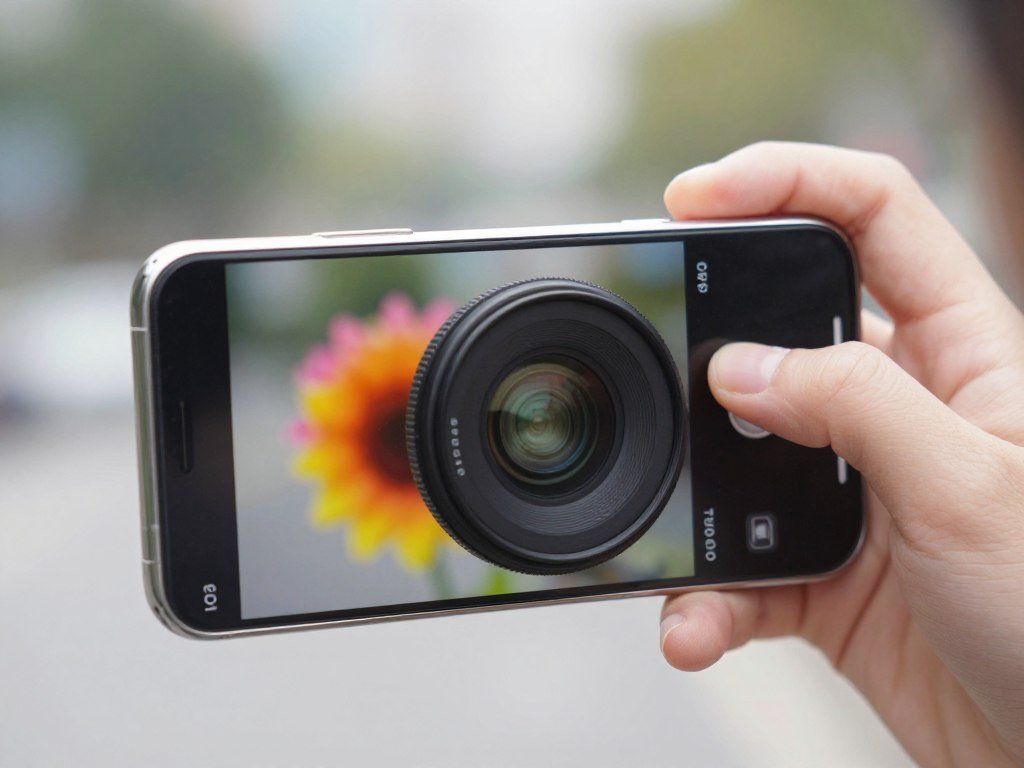
A clear photo and a visual-search tool can usually give you a useful name or a shortlist of likely matches. Start with the picture on your phone, or use its camera to take a new one. Then compare the suggested match with the details you can see.
Reverse image search means searching the web with an image to find matching or visually similar images. It can help when you have a picture but do not know the item’s name. The aim is a helpful lead, not a guess you must accept.
Check whether the shape, markings, or other visible clues fit the likely name. If the first results are vague, another image or a tighter search may help. Use the result as a starting point, then check it against the real object.
Start with the image you already have, then improve it only if the first match is too broad.
Key Takeaways
- Use a clear image to get a likely name or a shortlist.
- Google Lens searches live camera views and saved images.
- Choose a tool that works with your phone and image.
- Compare results with details visible on the object.
- Use extra clues when a match is unclear.
Get a Clear Photo Before You Search
A sharp, evenly lit picture that shows the whole subject gives an identifier more to work with than a close crop of an unclear detail. Clear features help visual search separate one object from similar ones. Keep the item steady and in focus.
Use soft daylight or even indoor light when you can. Strong glare and deep shadows can hide color, texture, or small markings. Show the full object first, then add detail shots if needed.
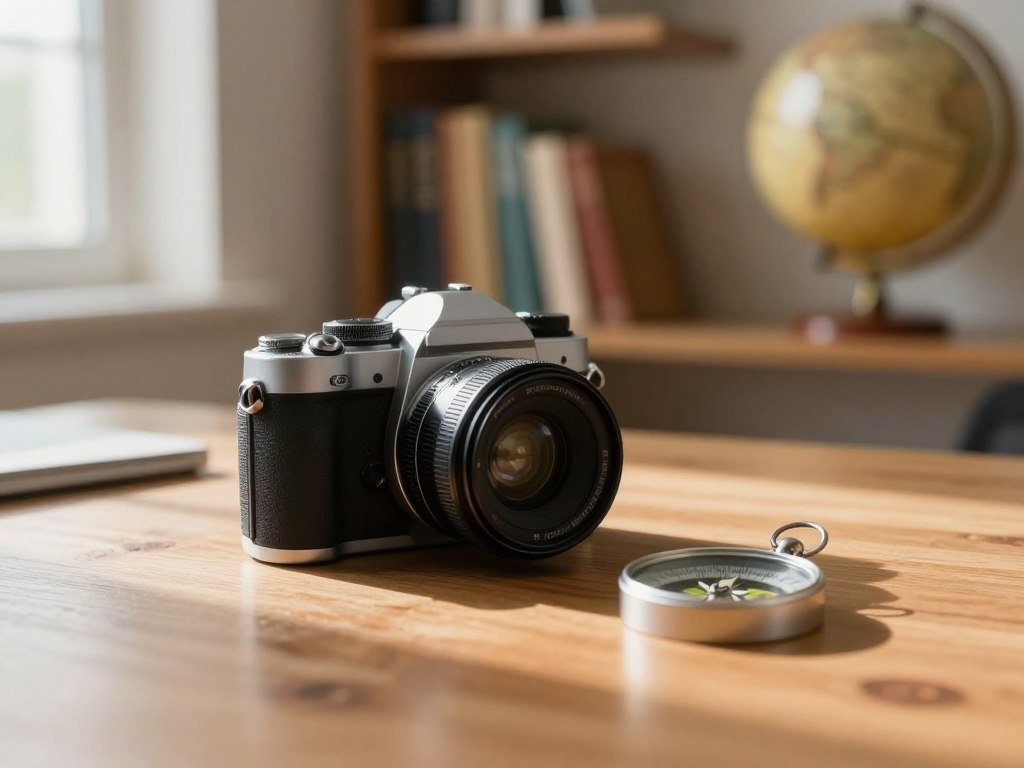
SnapIdentify recommends a sharp, well-lit photo with the main subject filling most of the frame. If a useful feature is hidden, another angle may reveal it. On some phones, cleaning the lens, tapping the subject to set focus, and holding steady can help; see these iPhone camera tips.
Frame the whole subject
Leave enough space around the object to show its outline. A full view can reveal its shape, parts, and how those parts fit together. Remove nearby clutter when it could be mistaken for part of the subject.
If the image contains several objects, select the one you want to identify. Google Lens lets Android users select part of an image. A smaller selection can bring up more specific results than searching the entire scene.
Add close-ups when details matter
Labels, logos, ports, printed numbers, and unusual edges can point to a model or type. Take a close-up of any detail that could distinguish the object from a lookalike. A second angle can help when a key feature sits on the back or underside.
Use this quick checklist before searching:
- Focus: Keep the main subject sharp.
- Light: Show its color without glare or heavy shadow.
- Framing: Include the whole subject in the image.
- Second angle: Add one if a feature is hidden.
Show the full object in one image, and use another view only when a key feature is hidden.
If an identifying mark is hidden, take a separate close-up rather than relying on digital zoom.
How to Identify an Object From a Picture with the Right Tool
The best starting point is usually Google Lens for broad visual search, while Visual Intelligence fits supported iPhones and ChatGPT can analyze an uploaded or newly captured image. Pick by access and by the kind of image you have. Each tool can offer a useful lead, but their features and limits differ.
Google Lens is the broadest option for objects, places, text, and products. It can search a live camera view or an existing photo, recognize landmarks and storefronts, and scan QR codes and barcodes.
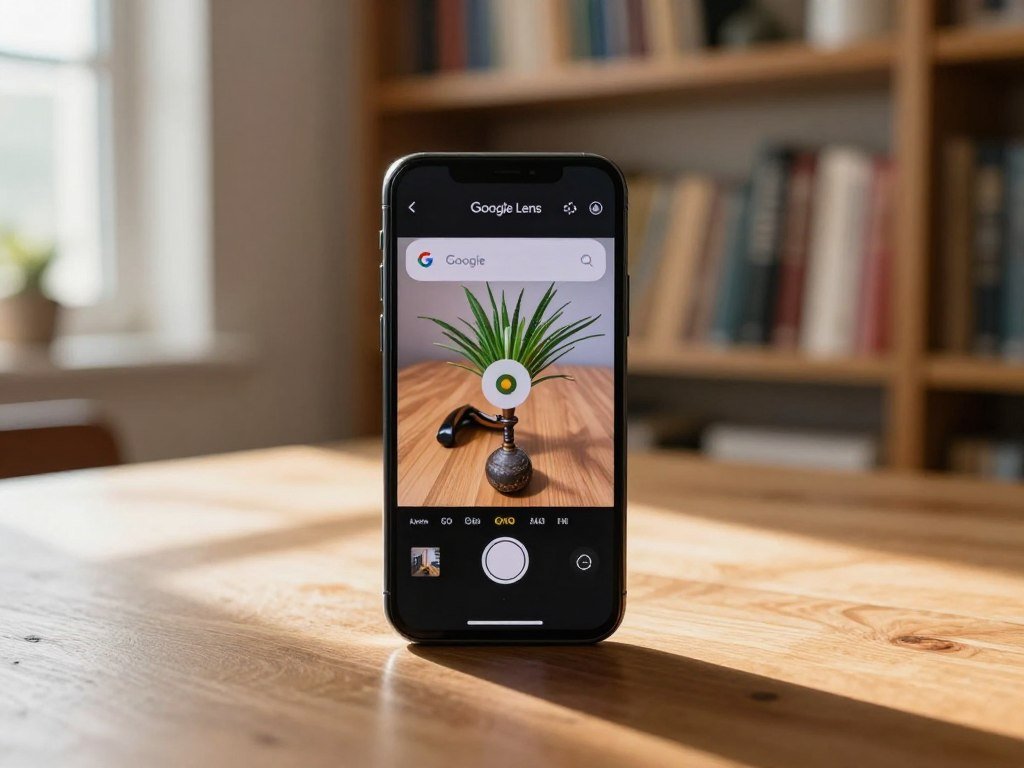
Lens can identify plants and animals, find similar products, and translate text in over 100 languages. Its shopping results are available in the United States. Google Lens works on Android, iPhone, desktop, and tablet through Google services.
| Tool | Access or device | Useful capability | Relevant limit or condition |
|---|---|---|---|
| Google Lens | Android, iPhone, desktop, tablet | Objects, places, text, products | Shopping results available in the United States |
| Visual Intelligence | Supported iPhone models | Similar images, business details, plants, animals | Requires listed iPhone and iOS 27 or later |
| ChatGPT image upload | Web, iOS, Android | Ask questions about an image | PNG, JPEG, GIF, or WebP; up to 20 MB each |
| SnapIdentify | Online image identifier | Add region, size, and observations | One photo; confirm you are at least 18 |
Use Google Lens for broad visual search
To identify an object from a picture online for free, try Google Lens or SnapIdentify. Lens is available through Google surfaces on several device types. Its text translation in over 100 languages can also help when an image contains unfamiliar writing.
Choose an Apple feature on a supported iPhone
Visual Intelligence can find visually similar images, look up business details, and identify plants and animals. It also lets you ask ChatGPT about an object. It requires an Apple Intelligence-enabled iPhone 15 Pro, iPhone 15 Pro Max, or iPhone 16 model or later running iOS 27 or later.
On a supported phone, you can activate Visual Intelligence with Camera Control, the Action button, the Lock Screen, or Control Center. This is separate from Visual Look Up, which identifies supported content in an image.
Try an image upload or a context-based identifier
ChatGPT accepts PNG, JPEG, GIF, and WebP image uploads, up to 20 MB per image. Its iOS and Android apps can also take a photo for image analysis.
SnapIdentify accepts one photo and lets you add a country or broad region, approximate size, and other observations. It states that its identifier is free to use and asks users to confirm they are at least 18.
Choose the option whose supported device and input method match the image you have.
Use Google Lens and iPhone Visual Look Up
On Android, a saved image search starts in the Google app or Chrome by tapping Lens and choosing the photo. For an iPhone, use Lens in the Google app or Google Photos, or try Apple’s Visual Look Up on a supported image.
The entry point depends on the image’s location and the feature you choose. Android Lens needs the latest Google app and access to Google or Chrome. The steps below cover saved images, web images, and iPhone photos.
| Workflow | Where to start | Action | Condition |
|---|---|---|---|
| Android saved image | Google app or Chrome | Tap Lens, choose photo under “Screenshots” | Latest Google app; Google or Chrome access |
| Android website image | Image in Chrome | Touch and hold; tap “Search image with Google Lens” | Google must be the default search engine |
| iPhone image with Lens | Google app or Google Photos | Open Lens and select the saved photo | Lens is available through the Google app |
| iPhone Visual Look Up | Photos or another supported place | Tap starred Info, then Look Up | Not offered in every region or language |
Search a saved image or website image on Android
To identify an object from a picture on Android, open Google or Chrome and tap the Lens icon in the search bar. Choose a saved photo under “Screenshots.” Google Lens saved-image search needs the latest Google app and access to Google or Chrome.
For an image on a website in Chrome, touch and hold it, then tap “Search image with Google Lens.” Google must be your default search engine for this option. You can also open a result in Google Images and tap Lens to search it.
Use Lens or Visual Look Up on iPhone
To identify an object from a picture on iPhone, open the Google app and use Lens, or search a saved photo in Google Photos. Lens is also available in the Camera app on select Android devices, not as a general iPhone camera control.
Visual Look Up is different from Visual Intelligence. It can identify landmarks, popular statues, famous art, plants, pets, books, and food, and may suggest recipes. It works in Photos, Safari, Quick Look, and other supported places.
Search from Google Images or a supported camera
In Photos, look for an Info button with a star. Tap it, then choose Look Up to open Visual Look Up results. The feature is not available in all regions or languages.
If the starred Info button is absent on an iPhone image, Visual Look Up may not be available for that image, region, or language.
Check the Match Against Other Clues
Treat the first result as a candidate, then check whether its distinctive features actually appear in the picture. Compare details such as shape, color, material, text, and markings with the suggested name.
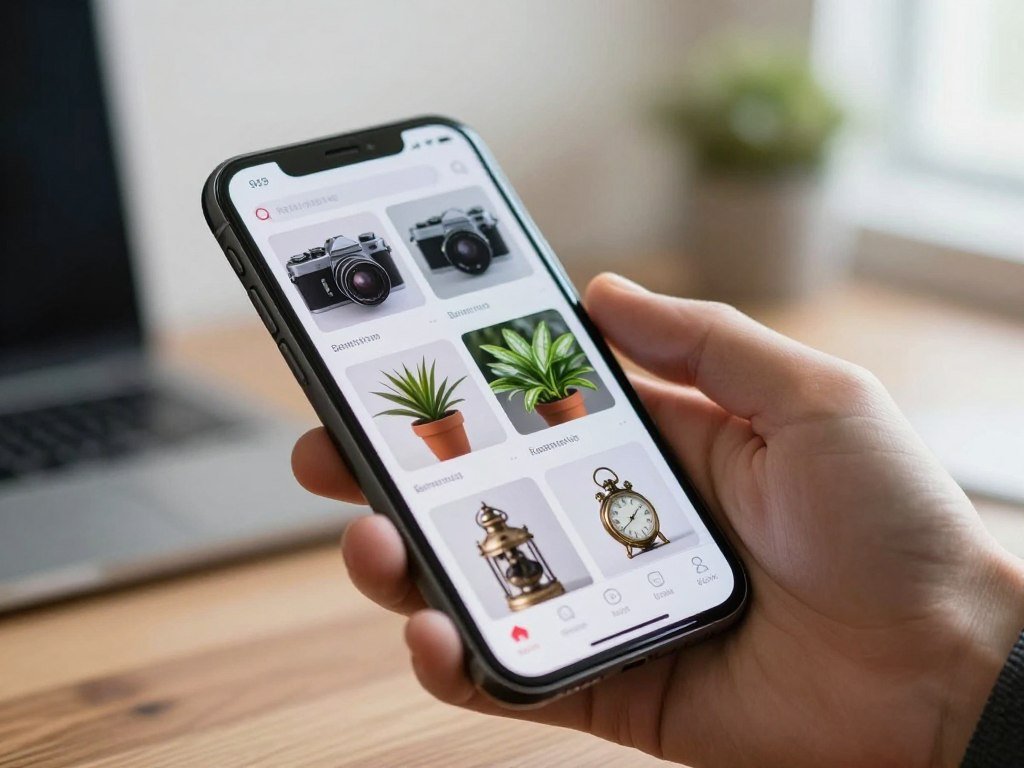
A match is stronger when more than one visible clue fits. Google Lens results can include AI Overviews, object-related search results, similar images, and websites showing the same or a similar image.

Compare details and refine the search
If the first results cover several possible objects, add a word about a visible feature. Lens can refine an image search with text such as a color, pattern, or size. For example, adding “blue striped” can narrow results for a patterned item.
Check these clues before accepting a likely name:
- Labels or logos: Do the visible words or marks fit?
- Size or scale: Does the object match its expected size?
- Results: Do separate images show the same key details?
- Photo context: Do nearby items or the setting make sense?
Search for copies and trace the photo’s context
Reverse image search can find matching or visually similar pictures. That may reveal a product page, an earlier copy, or a different caption for the same image. A copy can help you learn where a picture appeared, though it does not prove the object’s identity.
For an older photo, check its capture date, nearby photos, and any available location metadata. Some pictures retain geotags, which record where the camera took them. A research dataset, for example, used GPS details and compass direction in photo metadata to study farmland in Spain.
The geotagged image dataset contains 2,235 photos taken in 2010 in Marina Baja, Spain, with GPS coordinates and compass direction in their Exif metadata.
For an old landscape photo, a geotag or the photos taken just before and after it can provide useful location clues.
Know When a Photo Match Is Not Enough
A convincing-looking match can still be wrong when the image hides the detail that separates two similar things. Lookalikes can fool visual search, especially when the picture shows only one side or misses a label.
Use a photo result as a lead, not proof of identity. Google Lens also needs an internet connection to fetch search results, and offline use is extremely limited.
Expect lookalikes and incomplete results
Two objects may share a color, shape, or pattern but differ in a small feature. Search results may focus on the shared look and miss the part that matters. A new view or a better clue can change the likely match.
SnapIdentify warns that image identification can be wrong. Do not rely on one photo for medical, food-safety, wildlife, chemical, electrical, legal, or financial decisions. A mistaken name in these cases can lead to harm or costly errors.
For a decision involving health, safety, money, or legal consequences, one image match is not enough.
Consider privacy and connection limits
Google Lens sends a search request online to return results, so it cannot provide a full visual search offline. The app listing says the app may collect location and photos and videos. It also says data is encrypted in transit and users can request deletion of their data.
Think about what appears around the object before uploading a picture. A photo may include people, a home, or other details you did not mean to share. You can crop the file before sending it, while keeping enough of the subject for search.
For a decision involving health, safety, money, or legal consequences, confirm the identity through an appropriate qualified source.
Conclusion
A visual search is most useful as a fast way to get the right words for a better-informed check. One likely match can help you name an unfamiliar object, then focus your next check on a real feature.
Take or select one clear image and try Google Lens, or use a supported iPhone feature when it fits your device. Compare the result with something you can see on the item itself, such as its printed name or shape.
Select your clearest image and compare the first useful match with a label, marking, or other visible clue.
FAQ
What is the name of the app that can identify objects for free?
Google Lens is a broad visual-search option, and SnapIdentify states that its image identifier is free to use. Lens can search pictures, text, products, and places through Google services. SnapIdentify accepts one photo and optional context, such as a broad region or approximate size. It requires users to confirm they are at least 18 years old.
What is look up on an iPhone?
Visual Look Up is Apple’s feature for identifying supported content in an image. It can recognize items such as plants, pets, landmarks, and food in supported places, including Photos and Safari. In Photos, tap the Info button with a star, then choose Look Up. The feature may not appear in every region or language.
Can ChatGPT identify a picture?
Yes, ChatGPT can analyze an image upload and answer questions about what it shows. It supports PNG, JPEG, GIF, and WebP files, with a maximum size of 20 MB per image. The iOS and Android apps can also take a photo with the camera for image analysis. Treat its answer as a likely description, not proof.
Can I take a picture of an item and find out what it is?
Yes, Google Lens can search a live camera view or an existing photo and suggest a likely match. It can identify plants and animals, find similar products, recognize some places, and scan QR codes or barcodes. Compare its results with details you can see on the item. A similar-looking result may not be the correct identity.
Is Google Lens still free?
Google Lens is available through the Google app or Chrome without buying a separate Lens app. You can use it to search an image or a live camera view, though results need an internet connection. Lens can also appear in Google Photos and on select Android cameras. Available features can vary by device and region.
Where is the Google Lens on my phone?
On Android, look for the Lens icon in the search bar of the Google app or Chrome. On iPhone, open the Google app to use Lens, or use Google Photos to search a saved photo. You may need the latest Google app for Android image search. The icon’s exact position can vary with app layout.
What are the disadvantages of Google Lens?
Google Lens can return lookalike results, and it needs an internet connection to fetch search results. The Google Lens app listing says the app may collect location and photos and videos. It also says data is encrypted in transit and that users can request deletion. A visual match should not guide a high-stakes decision by itself.



