
For a broad first search, start with Google Lens, then switch tools when you need exact-copy tracking, a different regional index, or visual inspiration. Visual search means using an image or part of one as the query to find related results. A match is a lead, not proof of ownership or identity.
This comparison helps you choose a tool for a photo, product, person, or piece of content. You can look for a source, explore similar pictures, or check whether an image appears elsewhere online. Those tasks can lead to different results, even with the same image.
TinEye is a focused choice for tracing exact or edited copies. Other tools can help when you need regional results, a crop-based search, visual ideas, or several engines in one place. For copyright checks, a result still needs a closer look before you act on it.
Choose the tool by the question you need answered, not by the number of results.
Key Takeaways
- Start with Google Lens for broad searches about objects, places, and web pages.
- Try TinEye when you need to trace the same image through edits or size changes.
- Use another search engine when the first one misses useful matches.
- Crop a photo when a small object or detail matters most.
- Check the original page and license before reusing an image.
Best Reverse Image Search Engines Compared: Which Tool Fits Your Task?
Google Lens is the best starting point for most general searches, while TinEye is the clearest pick for exact-copy provenance. Your task should guide the choice: the best reverse image search engines with Google include tools that find similar pictures, edited copies, or details in a crop.
For a broad-purpose image search engine, start with Google Lens. A comparison with Google Lens should show it as a general starting point, not a winner for every task. A 2022 comparison may not reflect current features, so check current access paths when using older advice.
| Engine | Best fit | Image input | Standout capability |
|---|---|---|---|
| Google Lens | Broad object and web discovery | Upload or select an image area | Similar images and pages |
| TinEye | Exact-copy provenance | Upload or image URL | Sort by occurrence, size, or edits |
| Yandex Images | Alternate visual matches | Upload or image URL | Color, size, type, and orientation filters |
| Bing Visual Search | Product and detail discovery | Upload and crop | Isolate part of an image |
These search engines do not all look for the same thing. Google Lens can connect a visible object with pages about it. TinEye focuses on matching copies, while Yandex Images can return other visually similar images.

Match the engine to the job
Use the comparison to pick an image search tool that fits the question. If you want to know what a plant is, broad visual recognition helps. If you need to find where a logo image appears, a copy-focused search may be more useful.
Bing Visual Search can help when one part of a picture matters more than the whole scene. Yandex Images offers an alternate set of visual matches, with filters to narrow the view. Each engine can surface pages that another search engine does not show.
Read matches as leads, not proof
A result may show the same picture, a crop, or something that only looks similar. The page around it can add clues, such as a caption or a link to another site. But a match alone cannot establish who made an image or whether a person is correctly identified.
A search result is a lead to follow, not proof of ownership, identity, or publication history.
For a common image search, begin with Lens and judge the results by their fit. Try a second engine when the first returns no useful match, since each index and matching method can surface different pages.
What Can Google Lens Find From a Photo?
For objects, landmarks, text, and products, Google Lens is the strongest all-purpose starting point in this group. One photo can lead to similar images, pages that use the same or similar image, extracted text, and product suggestions.
Lens identifies what an image shows, but that does not prove it found the original photograph. Google reverse image search and Google image search can place shopping results or visually similar pictures ahead of an exact copy. A product match and a source match answer different questions.
| Device or context | How to start | What can be searched |
|---|---|---|
| Chrome desktop webpage | Select an item in the current tab | The selected item |
| Android webpage image | Press and hold, then adjust the selection box | The image or selected area |
| Device image or screenshot | Open it in Lens through Google or Chrome | The upload or screenshot |
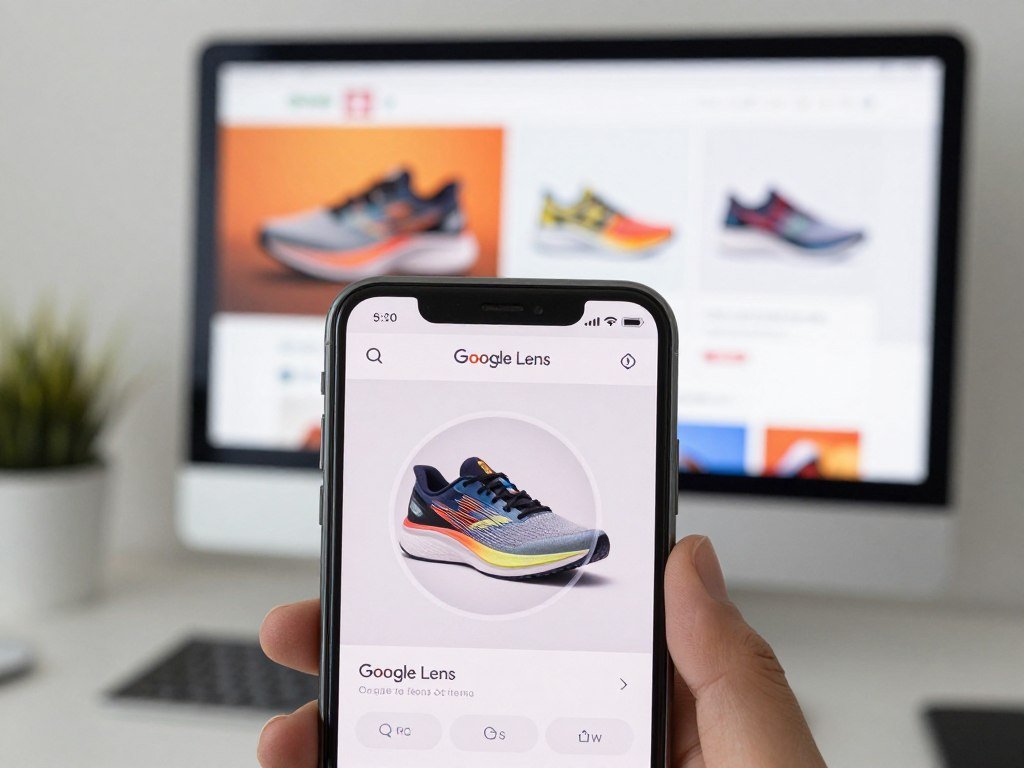
Use Lens on a webpage
On Chrome desktop, select an item in a webpage to search it without leaving the current tab. This is useful when a room photo shows a chair you want to identify, but the rest of the page adds visual clutter.
On Android, press and hold an image in the Google or Chrome app. Move the selection-box corners to include the whole subject or a specific part. You can also search an image uploaded from your device through either app.
Search an upload, screenshot, or selected area
Google Lens accepts camera photos, screenshots, uploads, and selected image areas. It can identify plants, animals, landmarks, restaurants, and storefronts. It can also find similar clothing, furniture, and home décor.
Lens can translate text in more than 100 languages. Its app has a 4.7 rating from 2.85 million reviews on Google Play. Those features make it useful for quick recognition, but popularity does not turn a result into a verified source.
- Open the image or webpage you want to search.
- Choose the full image or a useful area.
- Review both similar images and pages.
- Check the page itself before treating a result as a source.
A result that identifies an object is not necessarily the original page where the photograph first appeared.
Is TinEye Best for Finding Exact Copies?
TinEye is the best fit here when you need to trace the same image through edits, crops, or resizing. It looks for copies rather than different photographs of the same person or scene.
TinEye does not aim to find every image that looks alike. It focuses on exact and modified copies, so it can help trace an image as it spreads across sites. For object identification or visual inspiration, a broader search may fit better.
TinEye searches an index of 86.5 billion images. It says it does not save or index images submitted for searches. TinEye analyzes and fingerprints an uploaded image, then deletes it instead of adding it to the index.
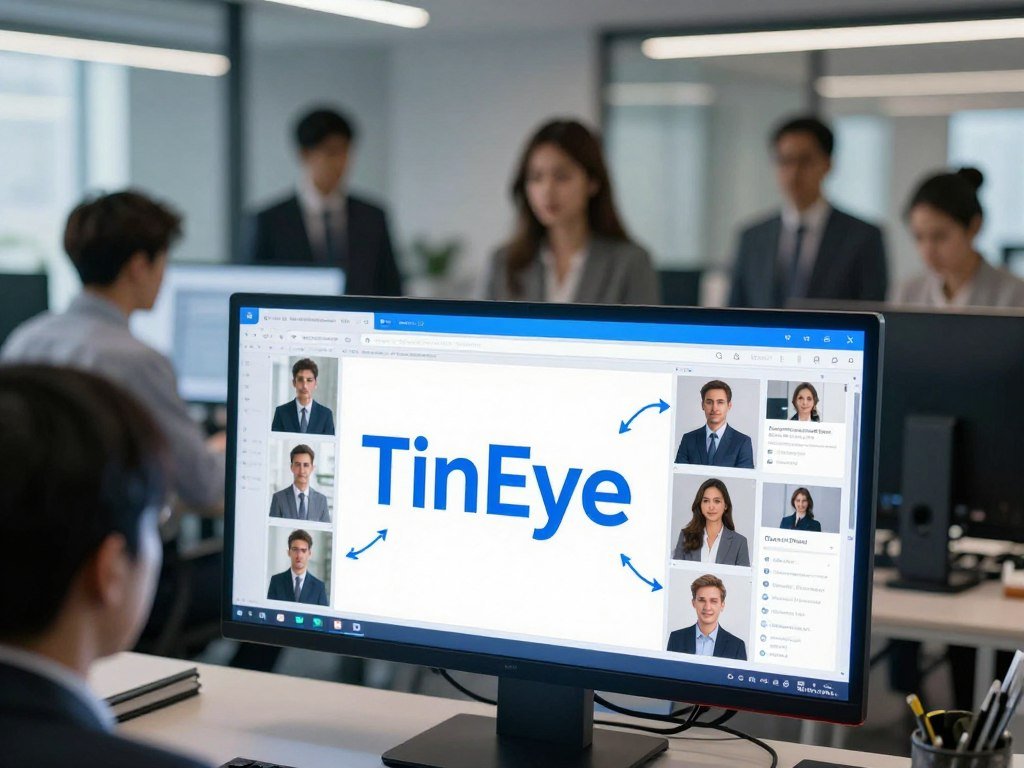
Read its sorting options
Sort by first occurrence to see when TinEye’s crawler first found a match. Sort by largest to locate a higher-resolution version. Sort by most edited to spot versions with changes, such as added text or a crop.
The Oldest result does not show when an image was first published. It reports when TinEye’s crawler first found that image, which may be later than its first appearance online.
A browser extension for Firefox, Chrome, Edge, and Opera lets you right-click an image to search it. That can save time when you are already viewing a likely match on a webpage.
TinEye’s free non-commercial use is limited to 100 searches per day and 300 per week. Commercial API use is separate from that free limit and serves different needs.
When an image appears in several sizes, comparing the largest result with its smaller copies can help reveal how it changed. The oldest crawler result remains a lead to verify on the page, not a definitive publication date.
When Does Yandex Images Add Useful Results?
Add Yandex Images when Google returns too few useful matches or you want a different view of visually similar results. A different index can surface pages that another search engine did not show.
Yandex Images can search an upload or image URL at no charge. It returns visually similar images and possible source pages, so it can add an alternate view for regional-image research or face-related searches.
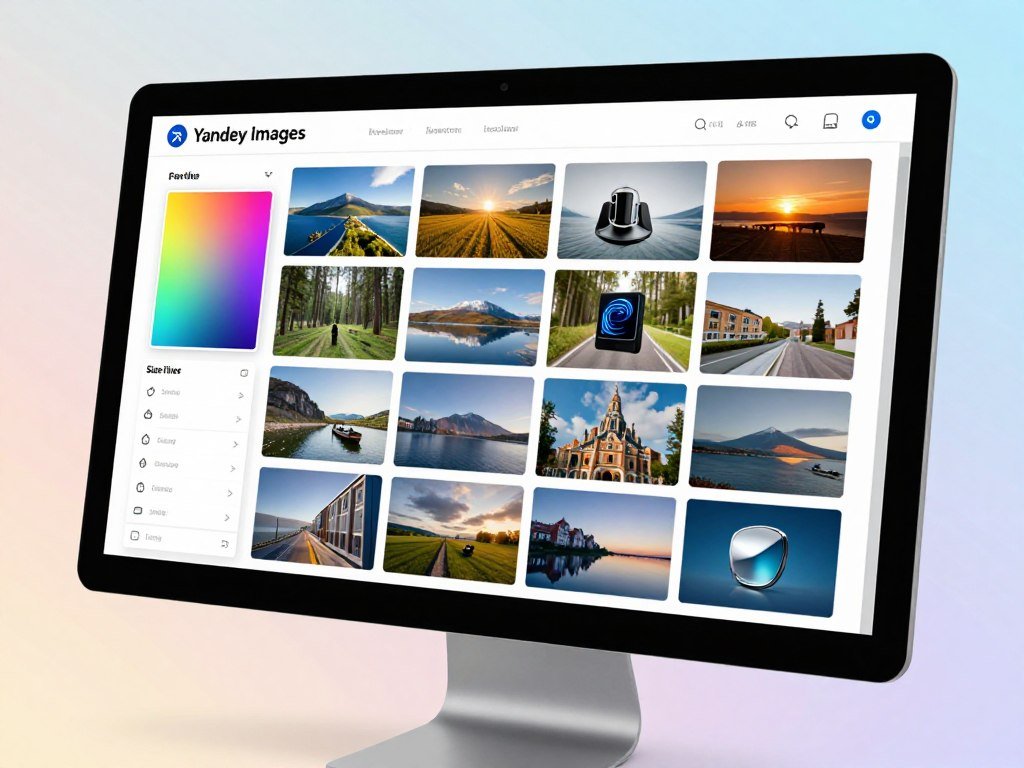
Where Yandex can broaden a search
Yandex may show pictures that you do not see in Google. That can help when an image, place, or page is more visible in one region than another. The results remain visual matches, not proof that two photos show the same person.
Yandex supports keyword searches as well as reverse searches by upload or image URL. After an image search, try a keyword that names a visible detail, place, or object. That added context can bring up pages that explain why a similar image appears.
Face search can raise privacy concerns, especially when a result points to social media or a private person. Do not treat a visual match as confirmed identity. Use the results to assess images and public context, not to track someone without permission.
How to narrow the matches
Yandex offers filters for color, size, type, and orientation. A color filter can help separate images with a clear visual feature. Size can narrow results when you need a larger or smaller version.
Image type and orientation can also reduce clutter. For example, a portrait-oriented search may remove many wide landscape results. Keep the crop and filter focused on the feature that makes the subject recognizable.
Use a color or orientation filter only when it narrows the subject without hiding the feature that makes the image recognizable.
What Is Bing Visual Search Best At?
Bing Visual Search is most useful when the object or detail you care about occupies only a small part of a larger picture. A focused crop can point the search toward that item instead of the full scene.
Bing lets you crop an uploaded picture to search for a specific detail. If a room photo shows a sofa, you can select its leg or fabric pattern. A logo on a jacket can also be easier to find when the rest of the image is excluded.
This kind of image search helps with products and small details. A crop can reveal similar images or pages featuring a look-alike item. That does not mean the results are copies of the original picture.
Try keeping a small amount of surrounding context if an object has a plain shape. A sofa leg alone may look like many other legs. Including part of the seat or frame can give the search engine a clearer visual cue.
Bing can also extract text from an image through optical character recognition, or OCR. OCR reads text in a picture, which can help with an infographic, sign, or label that you cannot easily copy.
Text results can help you find a phrase or identify what a sign says. They do not confirm who created the image or where it first appeared. Treat a text match as one detail to compare with the page and image.
Crop tightly enough to exclude distractions but leave enough of the item visible to preserve its defining features.
When Should You Use Pinterest Visual Search?
Use Pinterest Visual Search when your goal is to explore related styles, outfits, or room ideas rather than trace a specific image’s history. Inspiration is the strength of this image search option.
Pinterest can focus a visual search on one object inside a larger image. Select a chair in a room scene, for example, to find related furniture and décor ideas. A crop around a jacket can bring up other outfits or styling choices.
The tool suits fashion, interiors, and lifestyle content, where look-alike ideas can be more helpful than an exact match. You can use a picture as a starting point for a different color, shape, or style.
That makes Pinterest different from an exact-copy tracker. Its visual search is meant for discovery, not to establish where a picture first appeared or find the original file. A pin with a similar look may point to a new product, not the source of the image you searched.
Check the destination behind a promising result. A pin may lead to a useful product page, a blog post, or another image collection. The linked page can provide more context than the thumbnail alone.
Open the linked pin or page to check whether a promising visual lead points to a useful source.
What Can Lenso.ai Find in a Reverse Search?
Lenso.ai separates visual matches into categories, which can make a focused search easier to scan. Each category points to a different kind of result, from possible duplicates to places.
Its categories help organize matches, but a category does not confirm what an image proves. The tool offers People, Duplicates, Places, Related, and Similar sections. These labels can help you narrow a large set before reviewing individual pages.
What its result categories mean
People groups results that appear to show the same face. Duplicates focuses on copies, while Places can help locate images of similar locations. Related and Similar surface other visual connections.
Keyword and domain filters can narrow results to a topic or website. Sorting by newest, oldest, best, or worst match changes how results appear. Alerts can notify you about new matches for repeat monitoring.
These options can be useful when you need to review results over time. A new match still needs a careful look at its page and context. A name, face, or image match alone cannot confirm identity or authorship.
Use face-related results with care
Face-related search can raise serious privacy concerns. Do not use it to identify or track a private person without permission. A possible face match is not a confirmed identity, even when several pictures look alike.
Use such results only for a legitimate purpose and with respect for the person’s privacy. Avoid drawing conclusions about someone from an image alone. Captions, accounts, and pages can be wrong or misleading.
Use the category and domain filters to narrow a broad result set before drawing conclusions from individual matches.
Can RIMG Compare Several Engines on iPhone?
RIMG is a convenient iPhone option when you want to compare Google, Bing, Yandex, and Lenso.ai from one app. One search entry can send an image to several search engines for comparison.
RIMG is a free iOS reverse-image-search app. It accepts images from four kinds of input, so you can start with a saved picture or something you just captured.
- A photo gallery image
- An image URL
- An image copied to the clipboard
- A photo taken in the app
Comparing engines can reveal different matches because each may use a different index or method. One may show a page another misses, or group results in another way. That difference can help you see more possibilities.
RIMG does not make results from different engines equivalent. A result from one engine does not confirm a source or make another result more reliable. Open a match in its own search engine and assess the page it leads to.
A photo taken in the app may work well for a sign or object in front of you. A gallery image can be better when you need to search a saved screenshot or picture. The best input keeps the important subject clear.
Choose the input that preserves the subject and context you need to compare.
How Do You Check an Image’s Source and Reuse Rights?
A reverse image match can point toward a source, but publication requires a separate check of the image’s license. Finding a page and getting permission to reuse an image are different steps.
A match is a clue to follow, not proof of copyright ownership. When provenance matters, compare results from a second engine with a different matching approach. Then review the pages and image versions behind the matches.
Run a cross-engine check
Start with the original image, then try another engine if the first results do not answer your question. Compare the page context, captions, and image versions. A result may be a repost, a crop, or a page that uses the image without explaining its origin.
Google Images’ Usage Rights filter can find images carrying license information. That label is a starting point, not a full permission check. Confirm the specific license with both the image provider and the host site before publishing.
- Search with the original image.
- Try a second engine with a different matching approach.
- Open promising result pages and compare image versions and context.
- Confirm permission and attribution terms with the provider and host before publication.
Verify reuse rights before publishing
Finding a likely source does not grant permission to use an image. Check the terms on the provider’s page and the host page where the image appears. Both can help clarify the license and the image’s context.
| Checkpoint | What it tells you | What to verify next |
|---|---|---|
| Google Images Usage Rights result | License information is present | Read the specific terms |
| Image-provider page | Who offers the image and its license | Confirm permitted uses and attribution |
| Host page | Where the image is displayed | Confirm the page’s context and terms |
Creative Commons licenses have different conditions. Some may require attribution or limit certain uses, so identify the exact license rather than assuming all reuse is allowed.
If you are checking whether a picture may be AI-generated, reverse search can reveal earlier posts or other contexts. A match or no match does not prove that an image is authentic or generated. Compare captions, dates, and claims with the page itself, and see how to check for AI-generated images.
Do not publish an image based on a search match alone. Confirm the license terms and any required credit on the relevant pages.
Save the license details and the page where you verified them before publishing.
Conclusion
Start with Google Lens for a general visual question, and use a specialized tool when you need a narrower kind of match. TinEye fits exact-copy tracking, while another engine can help when a result is missing.
Keep the purpose of your search in mind. A similar picture can help identify an object or spark an idea, but it may not lead to the image’s first publication. Check the page and license before reusing any image.
Run one image through the best-fit tool today, then verify the result on its original page before acting on it.
FAQ
How many reverse image search engines should I try?
Try two engines with different matching approaches when you need to check an image’s source. One may find exact or edited copies, while another may show similar images or pages. If neither answers your question, add another engine or try a tighter crop. Compare the pages behind the matches, not just the result thumbnails.
Can reverse image search find photos on private social media accounts?
No, reverse image search cannot guarantee that it will find photos on private social media accounts. Search engines may not index private pages or content behind login screens. A missing result does not mean the picture is absent from social media. It only means that the engine did not return it in that search.
What kind of image should I upload for a better match?
Start with a clear image that shows the subject you want to find. Crop around the subject if background details distract from it, but keep enough context to show what makes the subject distinct. A very tight crop can remove useful clues, while a wide scene may pull results toward unrelated objects.
Are reverse image search engines anonymous?
Do not assume every reverse image search tool handles uploads in the same way. TinEye says it deletes search uploads instead of adding them to its index. Privacy practices can differ across services, so read the tool’s terms before submitting a sensitive photo. Avoid uploading an image if you are unsure how the service handles it.
Can reverse image search identify an AI-generated picture?
Reverse image search may find reposts or visually related results, but it cannot confirm that a picture is authentic or AI-generated. A search with no matches does not prove that the image is new or synthetic. Check the image’s claimed context, captions, and dates, and use other signs when judging its origin.
Can reverse image search find a product from just part of a photo?
Yes, Google Lens and Bing Visual Search can search a selected or cropped area, which can help isolate a product detail. Choose enough of the item to show its shape or pattern, while leaving out unrelated objects. A look-alike result can suggest a product, but it may not be the exact item in the photo.
What does it mean when a reverse image search finds no results?
No results mean that the engine found no match in its index for that search. The image may still appear on pages the engine does not index, or the crop may be too broad or too tight. Try a different crop or another engine. No result does not establish that an image is original.



