If a website, support technician, or home-network setup asks for your IP, the first step is knowing which kind it needs. You may need the address used inside your local network or the one websites can see online.
This guide covers Windows, Mac, iPhone, and Android, with a few notes for other devices. You can find the right address in network settings or with a quick browser lookup.
Key Takeaways
- Use device settings to find its private IP address.
- Use a browser lookup to see your public IP address.
- Check the connected network, not a saved network.
- A router can show other devices on your home network.
- An IP location result is an estimate, not a precise address.
For a quick answer from websites, use a browser lookup; for a device on your Wi-Fi, check that device’s network settings.
What Does a Private IP Address Identify?
The address in your device settings is usually private, while websites generally see your network’s public IP. A private IP address helps devices communicate within the same network.
An IP address identifies a network connection or local device, not a person by name. A home router typically assigns each device its own private IP, while devices share the same public IP.
| Address type | Where it works | Who or what it identifies | Who can see it |
|---|---|---|---|
| Private IP | Local network | A device on that network | Devices and router on the network |
| Public IP | Internet | Your network connection | Websites and online services |
| Default gateway | Local network | Router used to reach other networks | Devices on the network |
DHCP is a protocol that automatically assigns network settings, including an IP address, to a device. It lets your router hand out private addresses without requiring you to set each one by hand.
Private IPv4 addresses use three reserved ranges: 10.0.0.0/8, 172.16.0.0/12, and 192.168.0.0/16. The internet protocol address is not a name or a personal ID.
Use the private IP to reach a device on the same network, and the public IP when checking how your connection appears online.
A default gateway is usually your router’s local address. Your device sends traffic through it when it needs to reach a different network.
How to Find Your IP Address on Any Device on Windows, Mac, iPhone, and Android
On a Windows PC, the fastest Settings route is through the active Wi-Fi or Ethernet connection. The address shown there is the device’s private IP for that network.
Choose the network you are using now, then look for its IPv4 address. A saved network’s details may show an address that does not apply to your current connection.
Find the IPv4 Address on Windows
Open Settings, then choose Network & internet. Select Wi-Fi and the connected network, or select Ethernet if your computer uses a cable.
Network properties show the IPv4 address for Wi-Fi. Ethernet users can open Ethernet in Network & internet settings and check its properties.
Press the Windows key and search Settings to get there quickly. The Control Panel also has network tools, but Settings gives a direct path to the active connection.
Use Settings to find address Windows shows for the active connection. This is the address used by other devices on that local network.
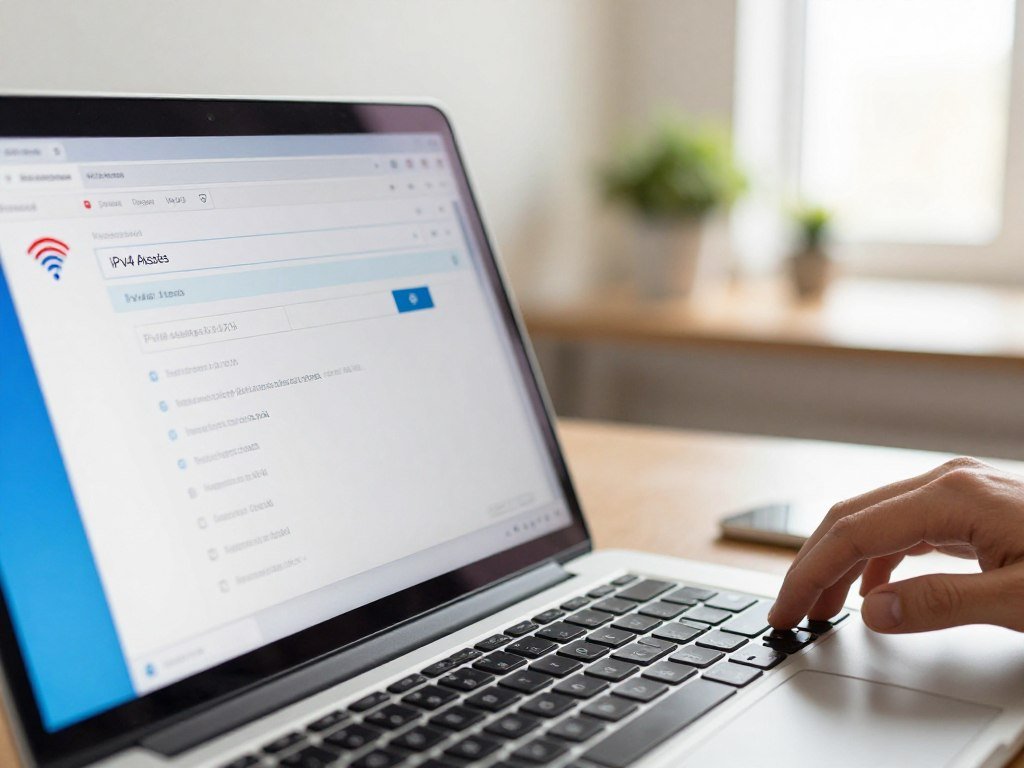
Check the Active Network on a Mac
Open System Settings, choose Network, and select the active Wi-Fi or Ethernet connection. Choose Details in macOS Ventura and later, or Advanced in older versions.
Select TCP/IP to see the address Mac uses on that network. The same panel also shows the router address, which is the default gateway.
For a quick Wi-Fi check, open Terminal and run ipconfig getifaddr en0. The command returns the Mac’s Wi-Fi IP address without opening a settings panel.
When you need to find the address Mac uses over Wi-Fi, check that Wi-Fi is active first. An Ethernet connection may have a separate address.
Find the Wi-Fi Address on iPhone
Open Settings, tap Wi-Fi, then tap the information icon beside the connected network. Find the address under IPv4 Address.
An iPhone running iOS 15 or later may also show an IPv6 address. An iPad uses the same Wi-Fi information-icon path to view its network details.
Your phone’s private IP appears in its connected Wi-Fi details. A browser lookup shows the public IP instead.
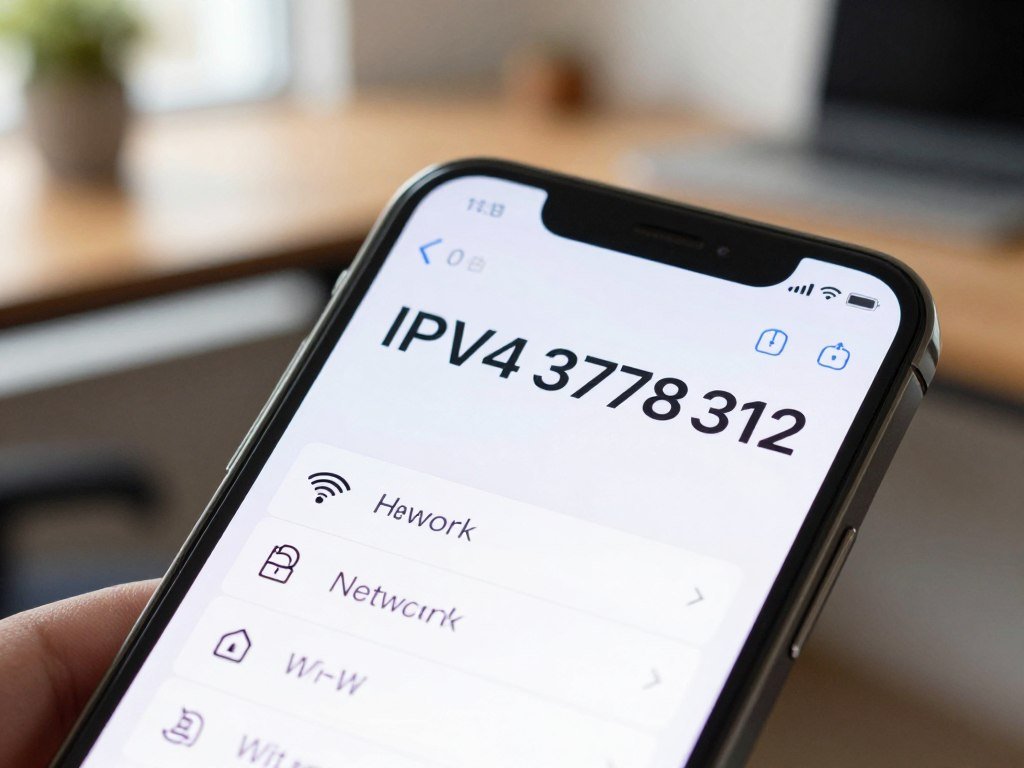
Check Wi-Fi Details on Android
Open Settings, then Network & Internet, or Connections on a Samsung phone. Tap Wi-Fi and the gear icon beside the connected network.
Wi-Fi details can show the private IP, gateway, subnet mask, and DNS servers. Samsung Galaxy network details may show IPv6 below the IP address when the network supports it.
Android menus vary by phone maker, so the settings name may differ. Check the connected network’s details for your my device IP, rather than a network you used earlier.
Linux users can run ip addr show or hostname -I in Terminal to check a network address.
Check that the selected network is the one currently connected, especially if the device has saved more than one Wi-Fi network.
How to Show Your Current Public IP Address
To see the public IP websites currently receive, open an IP lookup page in any browser. The result shows the public IP for your current internet connection, not the private IP in device settings.
A browser lookup shows the public IP used by the connection you are on. Use these quick checks to understand what the page is reporting:
- Open a browser-based IP lookup and note the displayed address.
- Check whether a VPN is active, since it can change the address websites see.
- Note whether your phone is using Wi-Fi or cellular data.
A VPN changes the public IP websites see to the VPN server’s address, while your private local-network IP stays the same. Read about free VPN options if you want to understand how VPN plans work.
Mobile carriers may use Carrier-Grade NAT, which lets many subscribers share one public IP. The IETF requirements for Carrier-Grade NAT explain why a public address alone may not identify one subscriber.
An IP address identifies a connection, while a port identifies a service or application endpoint. A lookup does not show which ports are open or prove that a device accepts outside traffic.
Your public IP may change after you reconnect or restart a router. A different network, such as cellular service, can also use a different public address.
If the lookup changes after switching from Wi-Fi to cellular, compare the connection type before treating the result as unexpected.
How Do You Find Another Device on Your Home Network?
To find a printer or TV’s local IP, check the connected-device list in your router’s admin page. Sign in to the router, then look for a list such as Attached Devices, Device List, or DHCP Client List.
The router list can show device names, MAC addresses, and private IP addresses. Compare those details with devices you recognize before treating an entry as unknown.
- Check whether the device name is familiar.
- Compare the MAC address manufacturer with the device brand.
- Look for devices that are powered on now.
- Print a network configuration page from the printer, if available.
A smart-home device may use a surprising name, so do not rely on the label alone. A printer’s network configuration page can provide its IP address without using the router list.
Match an unfamiliar entry against devices in the home before deciding it is unrecognized.
What Is the Difference Between IPv4 and IPv6?
IPv4 and IPv6 are two versions of the Internet Protocol, and a device can have both available. Seeing both in network details is normal.
IPv6 provides a much larger address space than IPv4. IPv4 uses a 32-bit address field, while IPv6 uses 128 bits.
| Type | Address field | What to know |
|---|---|---|
| IPv4 | 32 bits | About 4 billion address values |
| IPv6 | 128 bits | A much larger address space |
| Both | 32 and 128 bits | One network can use both versions |
IPv4’s roughly 4 billion address values are not enough for the expected number of connected devices. Network Address Translators help client devices share public IPv4 addresses.
ARIN’s IPv6 information explains that IPv6 addresses use 128 bits, compared with IPv4’s 32-bit format.
Networks may use IPv4 and IPv6 together, so a device can display both versions at once. The two address types do not mean your device has two separate internet connections.
If settings show both versions, use the one requested by the network task or support technician.
How Accurate Is an IP Location Finder?
An IP location finder estimates where a network connection is associated, not where a device is sitting. An IP country result can be useful, but it does not prove where a person or device is.
What an IP Country Result Can Tell You
An IP lookup can often suggest a country or region tied to an internet connection. It does not give a street address or the precise position of a phone or computer.
A 2026 study of residential IP addresses found that providers placed roughly 50%-75% of addresses within 50 km of the user. Roughly 15%-35% fell within 10 km.
The 2026 residential IP study found that providers’ 75th-percentile location deviations ranged from about 128 km to 288 km. These results apply to residential IP addresses, not every type of connection.
Why an IP Location Can Be Wrong
IP geolocation estimates a connection’s location, while GPS measures a device’s position. Typical mobile-device GPS accuracy is 5-15 meters, and desktop browser Wi-Fi triangulation is typically 35-100 meters.
A VPN lookup shows the VPN server’s location instead of yours. A proxy or mobile-carrier routing can also change or complicate the location shown.
The 2026 accuracy study excluded non-residential IPs, including datacenter, VPN, proxy, Tor, satellite, and crawler traffic. A result from one of those connections may not match residential accuracy estimates.
What to Check in a Location Lookup
Choose an IP location finder that shows a country and region and labels its result as an estimate. Treat a city as a rough clue, not a verified point on a map.
Mobile carriers may route traffic far from where a phone is used. The address can reflect that network path rather than the phone’s nearby surroundings.
Use an IP lookup while connected to a VPN only to check the VPN’s public address and apparent location. It will not reveal the location of your device.
Treat a city-level result as a rough clue, not proof of a person’s exact location.
What If Your IP Address Is Missing or Unexpected?
A missing address or an Android address beginning with 169.254.x.x can point to a failed automatic network assignment. On Android, 169.254.x.x is a link-local address used when DHCP fails to assign an address.
Check these items in order before changing network settings:
- Verify that the active Wi-Fi or Ethernet adapter is the one you intend to use.
- On Windows, check whether IP assignment is Automatic (DHCP) or Manual.
- If DHCP has not assigned an address, reconnect to the network and check again.
- Compare the device’s reported default gateway with the router address you are entering.
Windows lets you choose Automatic (DHCP) or Manual for IP assignment. Automatic (DHCP) lets the router or access point assign IP and DNS settings.
Windows ipconfig shows the Default Gateway, while Mac TCP/IP details show Router. Common router addresses include 192.168.1.1, 192.168.0.1, and 10.0.0.1.
The gateway listed in your device’s network settings is more reliable than guessing a common router address.
A network administrator may set a manual address for a work or school device. Changing it without checking can stop that device from reaching the network.
Restore the previous setting or ask the network administrator before changing a manually configured address.
Conclusion
Choose the address that matches the task: local access needs the private IP, while an online visibility check needs the public IP. Device settings show the address used on a local network, and a browser lookup shows what websites receive.
Open the relevant device’s network settings or a browser lookup now. Check the address on the active connection before using it for setup or support.
FAQ
Can I change my IP address location?
A VPN can change the public IP websites see to the VPN server’s address, but it does not move your device. Your private local IP remains tied to the network you are using. A website lookup while the VPN is active shows the server’s apparent location, not your physical location. Switching VPN servers can change the result without changing your home network settings.
Can I reveal my IP address?
Yes, websites and online services can see the public IP used for their connection. A browser lookup displays that public address, and each site you connect to can receive it as part of normal internet traffic. The public IP identifies a network connection, not your name by itself. A VPN can make websites see the VPN server’s address instead of your usual connection address.
Can you trace an IP address on a phone?
An IP lookup can estimate a network location, but it cannot establish a phone’s precise physical location. The result may point to a carrier or routing location rather than the phone’s current area. Mobile carriers may use Carrier-Grade NAT, which lets many subscribers share one public IP address. The phone’s Wi-Fi or cellular connection also affects which public IP a website sees.
Can people find your IP address from your phone number?
No, a phone number alone does not show the phone’s current IP address. The phone uses an address tied to its current internet connection, which may be home Wi-Fi, another wireless network, or cellular data. A website can see the public IP used for its connection, but the phone number does not reveal that address. Changing networks can change the public IP shown online.
Can someone find your exact home address using your IP address?
No, an IP location result does not identify a street address or exact home. It may show a general area linked to the network provider or its routing setup. A city-level result can be far from where you are, especially with mobile service, a VPN, or a proxy. An IP address points to a network connection, not a verified person or home address.



