A website can remember your cart or language choice because your browser holds a small piece of site data. That file is called a cookie. It can make a return visit feel easier, but it can also raise privacy questions when sites use it to follow activity.
You may notice cookies when a shop keeps items in your cart or a news site remembers your region. Other cookies help a site understand which pages users visit. Those uses can feel very different, even though both rely on data stored in your browser.
This guide separates useful remembering from tracking. It explains cookies through ordinary examples and offers manageable ways to inspect and adjust your settings. You will also see why a cookie’s label alone does not tell you everything about its purpose.
Cookies are one part of the web’s storage tools, not a complete record of your online life. Your choices can depend on what a site remembers, who set the cookie, and how related information is used.
Knowing the difference between a useful preference and cross-site tracking makes it easier to choose settings that suit you.
Key Takeaways
- A cookie is a small data file stored by your browser.
- Sites may use cookies to keep you signed in or remember preferences.
- Some cookies help services track activity across different websites.
- Cookies can point to information stored elsewhere, rather than hold it all.
- Chrome lets you inspect and remove site data on computers and Android devices.
- Blocking cookies can affect site features, so narrow settings can help.
What Is a Cookie on a Website? How Does It Work?
A cookie is a small piece of data a website asks your browser to keep and return when the site needs to recognize an earlier request. In simple terms, it helps the website connect one request with another. A session identifier is a value that lets a website connect a browser’s requests to the same active visit.
For example, a shop can send your browser a cookie after you add a mug to your cart. When you open another page, your browser may send that cookie back. The shop can then use its identifier to find the cart details stored on its server.

The cookie itself may contain a unique identifier, not your account details or the full contents of your cart. A server can use that identifier to look up information it keeps elsewhere. So the browser holds a small key, while the site may hold the related records.
A cookie acts more like a label connecting requests than a complete record of everything a website knows about you.
Websites use a standard request and response system to exchange cookies. An HTTP response can include a Set-Cookie header, asking the browser to store a value. On a later request, the browser may include that value in a Cookie header.
The browser sends a cookie only when its rules allow it for that request. The website can then recognize the browser or retrieve information linked to the identifier. The RFC 6265 cookie standard describes this HTTP process.
A cookie does not tell you exactly what the site has saved on its own server. One identifier might connect to a cart, a login session, or another record. The amount of information associated with it depends on how the website uses it.
That is why two cookies with similar-looking values can support different features. One might keep a shopping visit connected, while another helps a site remember a choice. A cookie acts more like a label connecting requests than a complete record of everything a website knows about you.
What Information Can Cookies Remember?
A cookie might remember your language choice, but it may instead hold only an identifier that points to information stored on the website’s server. The value itself may be brief, even when the related record is more detailed. Cookie contents and the information a website associates with them are not always the same thing.
Preferences are one common use. A website may use a cookie to remember your language, region, or display choice, so you do not need to set it again each time.
Cookies can also help keep users signed in or maintain the status of an active session. A cookie may contain a random identifier that lets the site retrieve a shopping cart from its server. The browser does not need to hold every item and account detail itself.
Some identifiers support analytics or advertising. They can help a service measure visits or connect activity with a browser. What the cookie points to depends on the site and the services it uses.
For example, Chrome cookies can help keep users signed in, remember site preferences, and support locally relevant content. You can read the site’s privacy policy to see how a specific publisher says it handles personal information.
A cookie on a website or app may mean different kinds of stored data. HTTP cookies belong to browser activity, while an app may use other device storage or identifiers. Apps do not all store information in the same way, so an app’s data is not always a cookie.
Website data can include more than cookies, such as cached files or site settings. A cookie may hold a preference, or it may point to a record kept by the site. Those differences matter when you inspect what is stored.
Check whether a site is storing a preference or using an identifier to connect activity before assuming the cookie contains a full personal record.
What Are the Main Types of Website Cookies?
Cookie labels describe different things: some tell you how long a cookie lasts, while others tell you what it is used for. Those categories can overlap, so one cookie may have both a lifespan and a purpose. Look at both labels to understand what the cookie does.
For example, an authentication cookie can be temporary or persistent. The purpose describes the job, while the lifespan describes how long the browser keeps it.
Session Cookies and Persistent Cookies
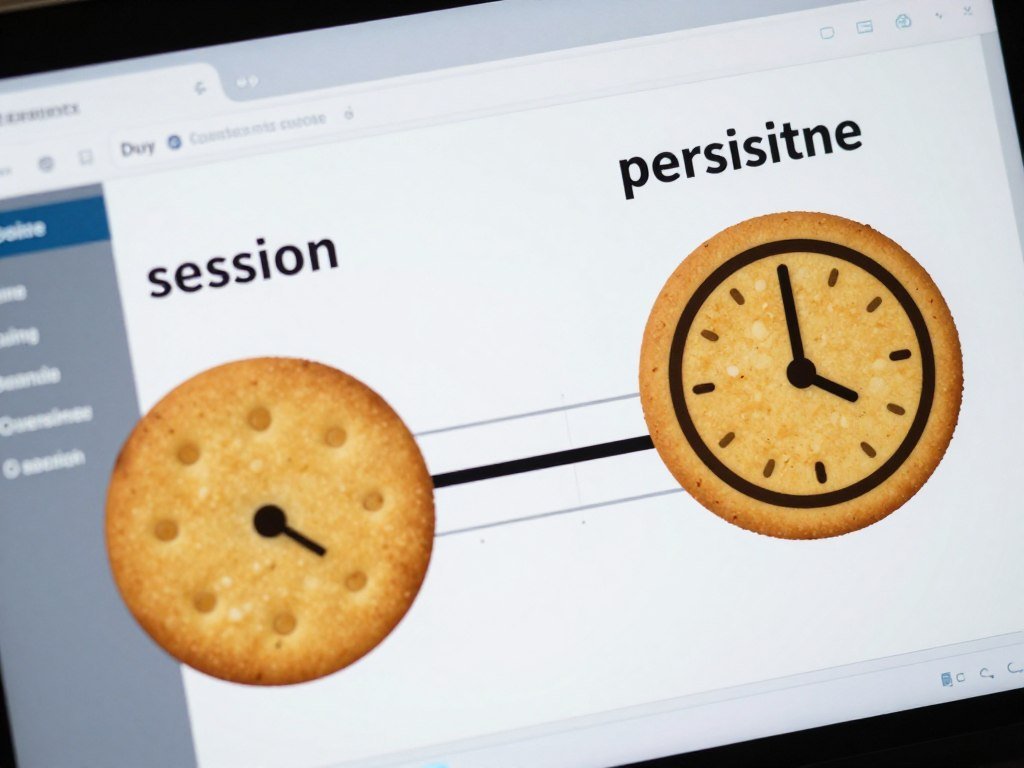
A session cookie is temporary and tied to an active visit. It has no set expiration date and is normally removed when the session ends. A persistent cookie stays until its expiration date or until you delete it.
The browser’s handling of a session can vary, so closing a window does not always mean every session cookie disappears at once. A persistent cookie may remain after you leave the site, letting it remember a login status or preference on a later visit.
| Attribute | Session cookie | Persistent cookie |
|---|---|---|
| Typical duration | active session | until expiration or deletion |
| Expiration | no set expiration date | has an expiration date |
| After the session ends | normally removed when the session ends | may remain |
| Common use | maintaining a current visit | remembering login status or preferences across visits |
Cookies by Purpose
Authentication cookies help a website recognize a signed-in user. Functional cookies support features such as a saved language or cart. Some sites call cookies needed for core features “necessary” cookies.
Analytics cookies help a site measure how people use its pages. Advertising or tracking cookies may help select ads or connect activity. These purpose labels do not tell you how long each cookie lasts.
A cookie can be persistent and used for authentication or tracking. That is why types cookies can refer to separate ways of grouping them: by lifespan or by purpose. A work-in-progress IETF draft discusses cookie behavior and attributes, but it is not the final standard.
Look at both the cookie’s purpose and its duration instead of treating any one label as a complete privacy assessment.
How Do First-Party and Third-Party Cookies Differ?
The key difference is which domain sets the cookie, not whether the cookie is automatically useful or harmful. The domain matters because it helps show which site can receive the cookie. A third-party cookie can come from an embedded service, not just an advertising network.
The site shown in the address bar is the site you’re visiting. A page may also contain content from another domain, such as an embedded video or analytics tool. That other service may set its own cookie.

First-Party Cookies on the Site You Visit
A first-party cookie is set by the site you’re visiting. A store may use one to keep you signed in, remember your language, or hold your cart as you move between pages.
That cookie is tied to the site shown in the address bar. It can support a feature without tracking you across unrelated sites. Its actual use still depends on the website’s design and data practices.
Third-Party Cookies and Cross-Site Tracking
A third-party cookie is set by a different domain whose content appears on the page. If the same service appears on several websites, it may recognize the same browser on each one. That can make activity visible across sites that use the service.
In Chrome, third-party cookies can help personalize content and ads. They may also let the domain that set them learn about actions taken on other sites where it appears. An analytics provider or embedded content service can set one too.
| Attribute | First-party cookie | Third-party cookie |
|---|---|---|
| Who sets it | the site shown in the address bar | another domain embedded in the page |
| Common uses | login, preferences, or site functions | advertising, analytics, or embedded services |
| Potential reach | activity on the site that set it | activity across sites that use the same service |
A third-party label describes who set the cookie, not the full reason for collecting data. First-party cookies can also support more than one purpose. A site’s privacy details can explain what it shares with outside services.
Treat a cookie’s actual purpose and data sharing as more informative than its first-party or third-party label alone.
Are Website Cookies Bad, and Should You Accept Them?
Accepting cookies can keep a site convenient, but it can also allow optional tracking depending on which cookies you approve. Necessary cookies may support a login or shopping cart, while optional advertising cookies can help build profiles. Accepting a cookie does not give a website access to your entire device.
Cookies themselves cannot run programs or directly infect a device with malware. Privacy risks come from how identifiers and related information are used or shared. Security risks can arise if someone steals a valid session identifier and uses it to impersonate a logged-in user.
Web developers can reduce some session risks with cookie settings. The Secure attribute limits a cookie to encrypted HTTPS connections. HttpOnly helps prevent JavaScript from reading it, and SameSite controls sending in certain cross-site situations.
NIST guidance on session management and cookie protections explains why protecting session values matters. These settings help lower risk, but they do not change what a website chooses to do with data it receives.
You can make a choice based on the site’s options and the feature you need. If a banner separates necessary cookies from optional categories, you can choose each group separately.
- Accept cookies needed for the site’s main functions.
- Reject optional tracking when you do not want it.
- Review the site’s explanation before you consent.
- Revisit your choice if the site stops working as expected.
Some sites may not offer separate controls, and their features can depend on cookies. You can still decide whether the feature is worth the data use described by the site.
If a site offers separate choices, accept only the categories you are comfortable allowing.
How Do You Check and Manage Cookies in Chrome?
Chrome lets you remove cookies broadly or locate data associated with one site, with different menu paths on computer and Android. Choose the scope first: clearing everything affects more sites than removing one site’s data. Chrome’s site-data search shows stored data for that site, not every server-side record about you.
On a computer, you can also change whether Chrome allows third-party cookies. The steps below use Chrome’s current menu labels for computer and Android devices.
Find or Delete Cookies on a Computer
To delete all cookies on a computer, select More, then Delete browsing data. Choose a time range, select “Cookies and other site data,” and select “Delete data.”
To find one site’s data, open Settings, then Privacy and security, then Third-party cookies. Select “See all site data and permissions,” search for the site, and delete its data.
To allow or block third-party cookies, open Settings, then Privacy and security, then Third-party cookies. A site-data search shows what Chrome stores for that site, not all information the site may hold on its servers.
Delete Cookies on Android
On Android, open More, then Settings, Privacy and security, and Delete browsing data. Select “Cookies and site data,” then tap “Delete data.” Chrome offers these time ranges: Last 15 minutes, Last hour, Last 24 hours, Last 7 days, Last 4 weeks, and All time.
To remove data for one site on Android, open the site and tap Page info, then Cookies and site data. Tap Delete to remove the site’s data.
| Task | Computer | Android |
|---|---|---|
| Delete all | More > Delete browsing data | More > Settings > Privacy and security > Delete browsing data |
| Find one site | Settings > Privacy and security > Third-party cookies > See all site data and permissions | not available through this route |
| Manage third-party cookies | Settings > Privacy and security > Third-party cookies | not available through this route |
The computer route for one site lets you search, review, and delete its stored data. On Android, the single-site route starts from the site itself. The menu names may take a few taps to find on a small screen.
Before deleting, confirm that the selected time range and site match what you intend to remove.
What Do U.S. Privacy Laws Say About Cookies?
In the United States, cookie and tracking obligations generally come from state privacy laws rather than one federal cookie law. The rules vary by state and by business. In 2026, more than 20 states have enacted comprehensive privacy laws.
Those laws may cover personal data collected through cookies or other tracking tools. A cookie is only one part of the data practice, so the legal duties often depend on what a business does with the information.
Notice and Opt-Out Rights
Most state privacy laws follow a notice and opt-out model. Businesses generally must explain relevant data practices and provide a clear way to opt out of some uses, such as selling or sharing personal data.
That opt-out model may also apply to targeted advertising and profiling. Profiling means using personal data to assess or predict things about a person, such as interests or behavior.
- Selling or sharing personal data
- Targeted advertising
- Profiling
An opt-out choice can matter when cookies help a business share activity with advertising partners. The IAPP state privacy law tracker follows laws across states, which can change the rules that apply to a business.
Sensitive Data and Minors
Some state privacy laws may require prior consent before a business processes sensitive data or data belonging to minors. The exact duty depends on the state law and the business’s circumstances.
A cookie banner alone does not show whether a company meets every legal duty. Notice, opt-out tools, and consent rules can apply to different data practices.
Check the law that applies to the people and business involved before treating a cookie banner as proof of compliance.
What Happens When You Block or Clear Cookies?
Clearing cookies can sign you out of websites and remove preferences you had saved there. The effect depends on the site and the time range you choose. Blocking cookies can also interfere with logins, shopping carts, or other site features.
Clearing cookies does not automatically delete saved passwords, browsing history, or every kind of site data. Those items have separate controls. A site may simply ask you to sign in again or choose your settings again.
Incognito mode blocks third-party cookies by default in Chrome. In regular browsing, a temporary allowance lasts 90 days or until you turn the setting off. In Incognito, that allowance lasts only for the session.
If an exception fixes one site, keep it limited to that site rather than broadly enabling third-party cookies.
Chrome can allow a specific site when cookie blocking breaks a feature. A narrow exception can restore a login or cart while leaving broader controls in place. You can remove the exception when the site no longer needs it.
Try these steps if a page stops working after you block cookies:
- Reload the affected page and confirm whether the problem persists.
- Add a specific-site exception if the site needs cookies.
- Turn the exception off again if it is no longer needed.
Should cookies be turned on or off? Keep site functions available when you need them, and limit third-party cookies to reduce cross-site tracking. If a tracking control disrupts one site, use a narrowly scoped exception instead of opening every site to those cookies.
Some shopping carts depend on cookies to keep items attached to your visit. If a cart empties after blocking cookies, the site may not be able to connect your page requests. Sign-in features can fail for the same reason.
Before changing a broad setting, check whether one site causes the problem. That can help you avoid changing cookie access for services you do not use.
If an exception fixes one site, keep it limited to that site rather than broadly enabling third-party cookies.
Conclusion
A cookie can be a useful reminder for a site or an identifier that supports tracking, so its purpose matters. The domain that sets it and the way related data is used tell you more than the label alone.
You can keep features you rely on while limiting data use you do not want. A good next step is to check a site you visit often in Chrome’s site data view.
Review the stored data for one frequently visited site and remove anything you no longer want kept in your browser.
FAQ
What is website data?
Website data is information your browser stores for a site, including cookies, cached files, and site settings. Cookies are only one part of that data. Cached files can help pages load faster, while settings may keep choices such as site permissions. Removing cookies does not always remove those other items, because browsers often manage them separately.
What cookies are used on my website?
Chrome can show data stored for a selected site, but it cannot show every record held by that site’s servers. On a computer, open Settings, Privacy and security, Third-party cookies, then “See all site data and permissions.” Search for the site to view its browser data. A site may also use information that the browser view cannot reveal.
What is cookie with example?
A cookie is a small piece of data that a browser stores for a website. For example, an online shop can use an identifier in a cookie to find your saved cart on its server. The cookie may not contain the cart’s full contents. It can simply help the shop connect your browser request with the right cart record.
What happens if I accept cookies on a website?
Accepting cookies may let a website remember your login or preferences. Optional tracking cookies may also support analytics, advertising, or profiling. The exact result depends on the categories you accept and how the site uses them. Accepting cookies does not give the site access to every file or app on your device.
How do I check my cookies?
On a computer, open Chrome Settings, Privacy and security, Third-party cookies, then “See all site data and permissions.” Search for a site to see browser data associated with it. This view can help you find and remove stored cookies. It does not show every server-side record or all ways the site uses your information.
What will I lose if I clear cookies?
You may be signed out of websites and lose preferences saved in your browser. The effect depends on the site and the time range you select. For example, a shop may forget your cart or language choice. Clearing cookies does not automatically erase saved passwords, browsing history, or every other kind of site data.
Should cookies be turned on or off?
Allow cookies needed for site functions, and limit third-party cookies if you want to reduce cross-site tracking. Blocking cookies can disrupt features such as logins or shopping carts. If one site breaks, add a specific exception rather than allowing third-party cookies everywhere. Remove that exception when the site no longer needs it.



