Every time you load a webpage, your device needs a way to send the request to the right place and receive the response. An IP address helps make that exchange possible. IP stands for Internet Protocol, the set of rules devices use to send data across a network.
At home, your phone, computer, and router all take part in internet communication. The address helps direct information between those devices and other systems, such as a website’s server. It does not work like a name tag, and it cannot pinpoint a person’s exact location.
This guide will make everyday internet communication easier to understand, from the numbers you see in settings to the address a website can see. You will also learn what to check when a connection needs fixing. An IP address is one part of that process, not a name tag for a person.
Key Takeaways
- An IP address helps data reach the right network connection.
- Public and private addresses serve different parts of a connection.
- IPv4 and IPv6 use different formats.
- Most devices get an address automatically.
- An IP address does not prove who a person is.
- You can check a device’s local address in its network settings.
What Is an IP Address and How Does It Work? From Device to Server
If you enter google.com, your device first needs the server’s IP address before it can send the request. The internet protocol uses addresses to mark where each packet starts and where it should go. A packet is a small unit of data sent across a network.
Each packet carries source and destination address information. The source points to the sending connection, while the destination points toward the server or device receiving it. The packet can carry part of a webpage request, a message, or another kind of data.
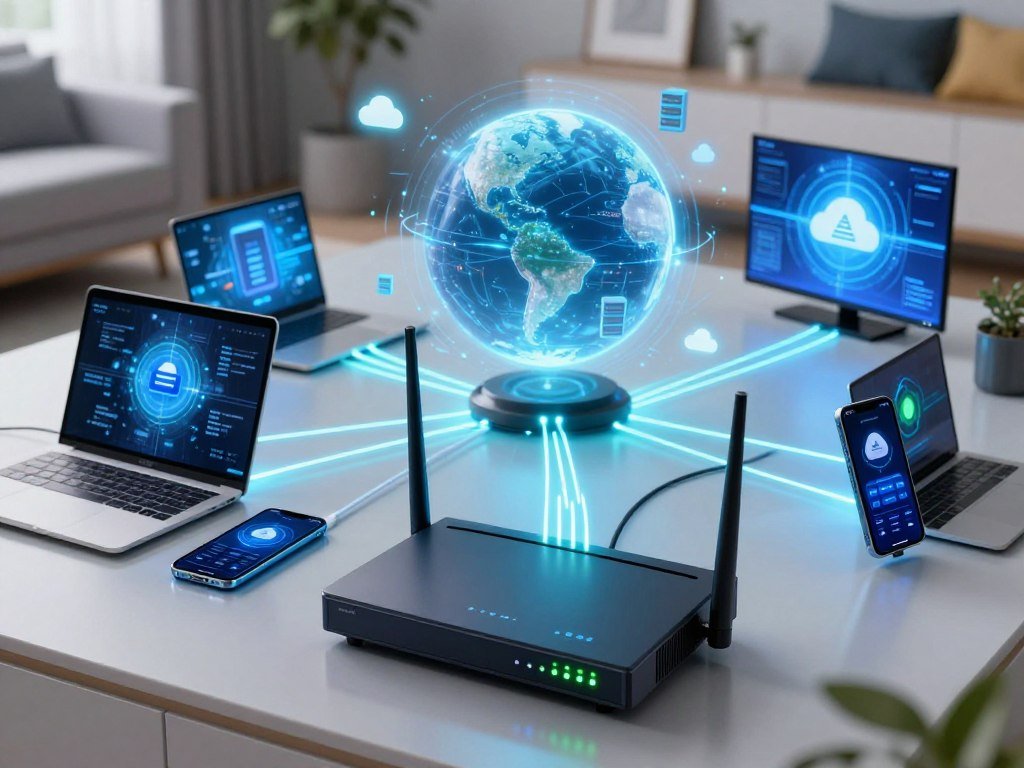
How a request reaches its destination
A domain name is easier to remember than a row of numbers. The Domain Name System, or DNS, looks up the IP address linked to a name such as google.com. Your device can then send packets toward that address.
- Enter a domain name in your browser.
- DNS finds an IP address for that name.
- Routers forward packets toward the destination.
- The response returns to the requesting connection.
Routers connect separate networks and pass traffic toward its destination. Each router uses address information to choose where a packet should go next. A response follows network routes back toward your connection, though it may not take the identical path.
How a home router shares one connection
Your local router also handles traffic inside your home. It uses its network information to deliver data to the right phone, computer, or other connected device. The router does not need to read the contents to move the traffic.
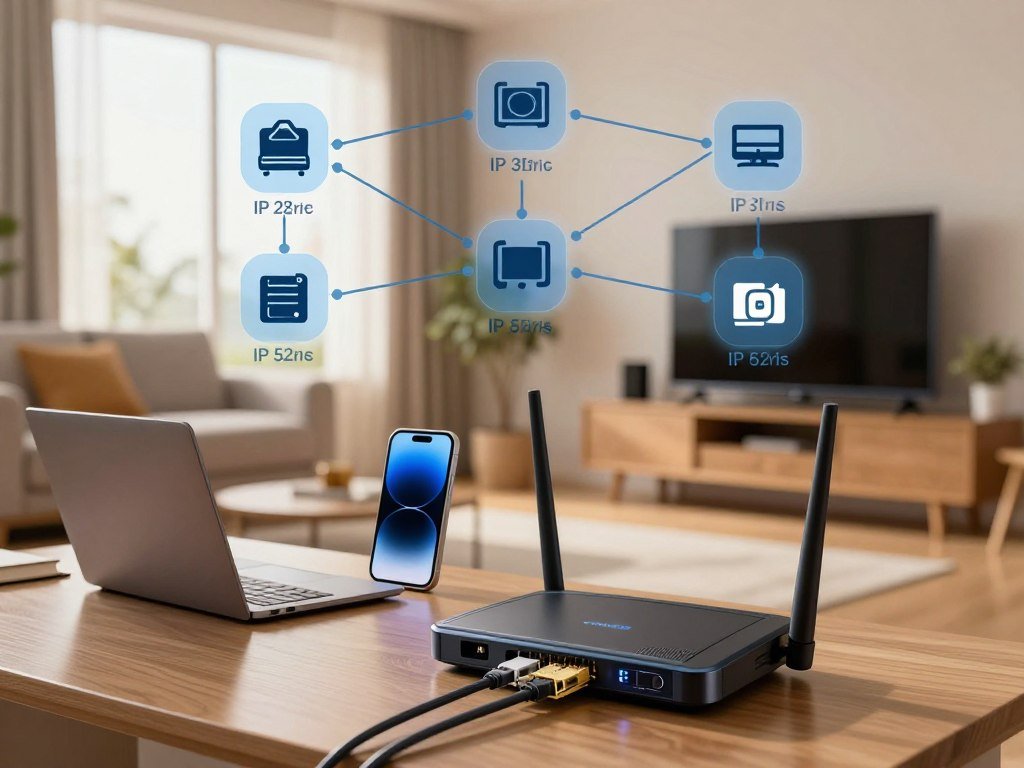
Network address translation, or NAT, changes address information at the router. This lets multiple devices on a private network share one public IP address for internet communication. The router tracks the connections so replies reach the device that requested them.
NAT lets several devices share one public IP address while keeping their separate local connections straight.
When a response arrives, the router uses its connection records to send it to the right device on your home network. A router’s job is to forward traffic using the destination information in each packet, not to understand the message itself.
What Do IPv4 and IPv6 Addresses Look Like?
The most familiar IP addresses have four numbers separated by periods, while the newer format uses hexadecimal groups separated by colons. These formats are called IPv4 and IPv6. They use different sizes, but both help identify network connections.
An IPv4 address has 32 bits, while an IPv6 address has 128 bits. A bit is a single value, either zero or one. The larger IPv6 format allows far more unique addresses as internet-connected devices grow.
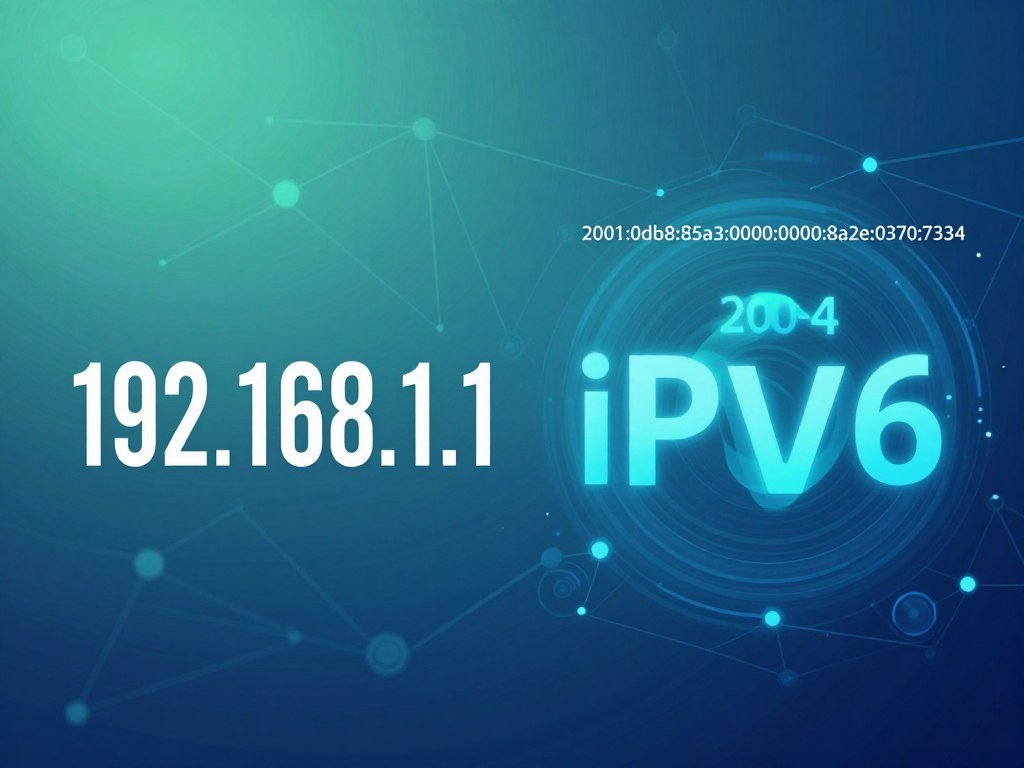
IPv4 uses four dotted-decimal octets
An IPv4 address is commonly written as four decimal numbers separated by periods. Each number is an octet, an eight-bit group that can range from 0 to 255. That means the number of digits varies: an octet can have one, two, or three digits.
For example, 10.0.0.1 has four octets. It is also a Class A example under the old class system. Those historical labels once grouped IPv4 networks by size, but they no longer set today’s network boundaries.
IPv6 uses hexadecimal groups
An IPv6 address uses hexadecimal, a number system with digits 0 through 9 and letters A through F. Colons separate its groups. An IPv6 address is longer than a typical IPv4 address, but its format gives networks a much larger pool of addresses.
IPv4 and IPv6 can both be used on the internet. Some devices and networks support both formats, while others rely on one. The RFC 791 Internet Protocol specification describes IPv4’s 32-bit address structure and packet rules.
Historical classes and modern CIDR
The class labels are useful for understanding older network terms, including IP address class ranges and subnet masks. The table shows the historical ranges and their typical uses. It describes classful addressing, not current fixed network boundaries.
| Class | Historical IPv4 range | Historical use |
|---|---|---|
| A | 1.0.0.0-126.255.255.255 | Large networks |
| B | 128.0.0.0-191.255.255.255 | Medium networks |
| C | 192.0.0.0-223.255.255.255 | Smaller networks |
| D | 224.0.0.0-239.255.255.255 | Multicast |
| E | 240.0.0.0-255.255.255.255 | Experimental or reserved use |
Modern networks use Classless Inter-Domain Routing, or CIDR, to mark the network portion of an address. A subnet mask also helps show which bits belong to the network and which identify a device within it. These methods do not rely on class labels.
A suffix such as /24 is CIDR notation. It tells you how many bits form the network prefix, which helps define the network’s size. Read a slash suffix as the number of bits in the network prefix, not as another address class.
How Do Public and Private IP Addresses Differ?
Your phone can use one address inside your home Wi-Fi while your router uses a different address for internet communication. The phone’s private address works on the local network. The router uses a public IP address for its internet-facing connection. The two addresses have separate jobs.
Private addresses work within local networks; public addresses identify internet-facing connections. IANA lists three IPv4 blocks for private use. The registry update was dated October 9, 2025, and the ranges below use CIDR notation.
| Private-use block | Address range | Common context |
|---|---|---|
| 10.0.0.0/8 | 10.0.0.0-10.255.255.255 | Private networks |
| 172.16.0.0/12 | 172.16.0.0-172.31.255.255 | Private networks |
| 192.168.0.0/16 | 192.168.0.0-192.168.255.255 | Private networks |
Private addresses stay within a local network
These private addresses can be reused on separate local networks. Your home router may use an address from one of these blocks, and a nearby office may use the same number. That reuse does not cause a conflict because the networks are separate.
The blocks are written in CIDR notation, not assigned as current private IP classes. Their ranges overlap old class labels, but the labels do not define their modern use. IANA’s private-use IPv4 blocks list the three reserved ranges.
Public addresses identify the internet-facing connection
Your internet service provider, or ISP, assigns the public-facing address to your connection. ISPs receive address allocations from local, national, or regional internet registries. IANA assigns address pools to regional registries, not directly to most ISPs or end users.
Your router uses private addresses for devices inside the local network and the public address for internet communication. A website usually sees the public-facing connection, rather than the private address assigned to your phone. A private address can repeat on another local network, but that does not mean the two devices share the same local connection.
What Makes an IP Address Static or Dynamic?
For most everyday connections, an automatically assigned address is the simpler choice because the device does not need a fixed destination. A dynamic IP address can change over time. A static IP address stays consistent. Most ISP and business networks use dynamic assignment.
Choose a static address when a service needs a consistent destination. Ordinary web use usually does not need that fixed address. The right setting can depend on whether you mean the device’s local address or the connection’s public address.
Dynamic addresses are assigned automatically
Dynamic Host Configuration Protocol, or DHCP, assigns network settings automatically. A router or another access point can set a device’s IP address and DNS server addresses. On Windows, the Automatic (DHCP) option asks the network to provide those settings.
The Windows setting describes how that device gets its local network information. It does not prove whether the public IP address changes over time. An ISP may assign a dynamic public address, while the device still uses DHCP inside the home.
A dynamic address suits a phone, laptop, or smart TV that connects for ordinary use. The network can manage addresses without requiring you to enter them by hand. That lowers the chance of a setup error when devices join or leave.
Static addresses keep a consistent destination
A static address can help when a web, mail, or FTP server needs a stable destination. It can also suit remote corporate network access, a webcam, or some video-conference systems. A static address may be set on a device or arranged for an internet connection.
Windows offers Manual IP assignment as an alternative to Automatic (DHCP). Manual settings require the correct address, DNS details, and other network information. If an internet service changes, its static IP address may also need to change.
Most people do not need to set a manual address for routine browsing. Before setting a manual address, make sure it fits the network’s configuration to avoid an address conflict.
Where Can You Find Your IP Address?
To check what an outside website sees, use an IP-checking page; to see the address assigned to your Windows device, open its network settings. The first result is the public-facing address visible to that service. Windows shows the selected connection’s local address.
A public IP-checking page and Windows settings show different parts of your connection. Your computer may use Wi-Fi or Ethernet for its active network connection. A device may also have both IPv4 and IPv6 addresses.
Check the public address seen by websites
An IP-checking page shows the public address that its service can see. That result may differ from the address shown in Windows because Windows reports the device’s local connection. If you switch from home Wi-Fi to mobile data, the public address can change.
Check the connection you are using when you compare results. A phone on Wi-Fi sends traffic through the home router, while mobile data uses the carrier’s network. The displayed public address belongs to the network path, not a precise location for you.
Find the device’s local address in Windows
Use these steps to find the IPv4 address for a selected Windows connection:
- Open Settings.
- Select Network & internet.
- Choose Wi-Fi and the connected network, or choose Ethernet.
- Locate the number next to IPv4 address.
Windows shows the address for the connection you selected. If the computer uses both Wi-Fi and Ethernet, each connection can have its own local address. Look at the active connection when troubleshooting a network issue.
Give a technician the right kind of address for the problem. A local connection fault may call for the device’s local address, while an outside service may ask what public address it sees. Confirm whether you are viewing the public or local address before sharing it for troubleshooting.
What Can Your IP Address Reveal About You?
An IP address can point to an approximate network location, but it does not identify a person as precisely as a street address does. A public address may suggest a broad area or network provider. It does not prove who is using the connection.
An IP address alone does not reveal a person’s exact identity. It can still be useful to someone targeting a network, so basic security steps matter. A distributed denial-of-service attack, or DDoS attack, floods a target with traffic and can disrupt access.
A DDoS attack does not mean every home connection faces a likely attack. Its impact depends on the target and the traffic sent. The address is one piece of network information, not proof that an account or device has been breached.
A MAC address has a different job. It identifies a network interface, such as a Wi-Fi adapter, within a local network. An IP address identifies a network connection and helps move traffic across networks.
Use these practical checks to reduce common risks:
- Keep router and device software updated.
- Use the router’s firewall and strong access credentials.
- Avoid posting your home public IP address in public forums.
The NSA’s home network security guidance also recommends updates and strong passwords. Treat an exposed IP as a reason to keep network protections current, not as proof that an account or device has been compromised.
Does a VPN Hide Your IP Address?
A VPN usually replaces the public IP address a website sees with the address of the VPN server. The VPN routes your connection through a server run by the provider. Websites usually see that server’s address, not your normal public address.
A VPN hides your normal public address from many websites, but it does not make you anonymous. It encrypts traffic between your device and the VPN server. That can help protect data on that part of the connection, but it does not erase other clues about who you are.
What a VPN changes and protects
When you use a VPN, the provider’s server becomes the exit point for your traffic. Websites generally see its public IP address. A free VPN guide can help you compare plan limits and privacy trade-offs.
Your sign-in accounts, cookies, device settings, and form entries can still identify you. A VPN does not hide information you choose to share with a website. It also does not protect you from every online risk, such as a fake login page.
VPN providers differ in what they record and keep. A no-logs claim does not stop a legal request for data the provider has retained. What it can disclose depends on the information it collected and stored.
A dedicated IP is a stable exit address assigned to one subscriber, rather than shared by many subscribers. It can help when a work system or other service allows access only from approved addresses. This practice is called allowlisting.
When a VPN may not be the right choice
VPN encryption and routing can slow an internet connection. The effect may be more noticeable when the VPN server is far away or busy. If a video call or work service becomes unreliable, compare the connection with and without the VPN.
Some services restrict VPN use or block connections from known VPN servers. A VPN does not guarantee access to those services, and you should follow their terms. Use another connection when VPN use interferes with a service you need.
Check a VPN provider’s logging practices and the service’s rules before relying on a VPN for privacy or access.
What Do Special-Purpose IP Addresses Mean?
Some IPv4 numbers are set aside for network functions, so seeing one does not mean it is a public address you can reach across the internet. These special-purpose addresses support tasks inside a device, a local network, or a carrier’s system. They are not ordinary public destinations.
Several familiar IPv4 ranges have specific roles and are not globally reachable. IANA’s registry, updated October 9, 2025, lists these special-use blocks and their routing limits. Its IPv4 special-purpose address registry identifies each range.
Loopback and link-local addresses
The range 127.0.0.0/8 is for loopback. A device uses it to refer to itself, often when software checks a local network service. The address 127.0.0.1 is a familiar example.
The range 169.254.0.0/16 is for link-local use. A device may use an address in that range when it cannot get one through normal network assignment. Such an address works only on the local network link, not as a public internet destination.
If a device shows a 169.254 address, check whether it joined the correct Wi-Fi network or has a working Ethernet link. A router or network issue may also stop automatic address assignment. The number itself does not mean the device has a public address.
Shared and limited-broadcast addresses
The range 100.64.0.0/10 is shared address space used for carrier-grade NAT. An internet service provider can use this space while sharing public addresses among customers. It is not globally reachable like an ordinary public destination.
The address 255.255.255.255 is reserved for a limited local broadcast, not a destination across the internet.
The full block 255.255.255.255/32 is the limited-broadcast address. A device can use it to send a local broadcast, but routers do not forward it across networks. It is an IP address with a special local function, not an ordinary public destination.
These special addresses help network systems handle local tests, address sharing, and broadcasts. If one appears in settings, its meaning depends on the range and the network task using it.
Conclusion
An IP address is a routing identifier for a network connection, and its meaning depends on where it is used. Public addresses support internet-facing communication, while private addresses work within a local network. Neither one identifies a person precisely on its own.
For a quick check, find your active device’s local address and compare it with the public address shown by an IP-checking page. The difference can help you spot which part of a connection needs attention. Check both addresses on your own connection the next time you troubleshoot a network issue.
FAQ
Can two people have the same IP address?
Yes, people can use the same address in different ways. Devices on separate local networks can reuse private addresses without sharing a connection. Multiple customers can also share one public-facing address through carrier-grade NAT. In that case, the network provider tracks connections to keep traffic separate. An address by itself does not show which person used a particular device.
Is 255.255.255.255 an IP address?
Yes, 255.255.255.255 is an IPv4 address with a limited-broadcast function. A device can use it to send traffic to devices on its local network. Routers do not forward that broadcast across networks, so it is not a globally reachable destination. Seeing the number does not mean a website or person can connect to it like a normal public address.
What is a dynamic IP address?
A dynamic IP address is one that can change over time and is assigned automatically in many networks. DHCP often assigns local device addresses, while an internet service provider may assign a public address separately. Those settings are related but not identical. A device using automatic local settings does not prove that its public address will change.
How can I tell if my IP address is static or dynamic?
Check the network’s IP assignment settings or ask your internet service provider about the public address. A Windows device set to Automatic (DHCP) receives its local network settings automatically. That setting alone does not establish whether the public address changes over time. To confirm the public address type, ask the ISP or check the service details for your connection.
Does a VPN hide my IP address?
A VPN usually makes websites see the VPN server’s public IP address instead of your normal public address. It also encrypts traffic between your device and that server. Account sign-ins, cookies, device settings, and form entries can still identify you. A VPN changes part of the connection, but it does not make every online action anonymous.
When shouldn’t you use a VPN?
Do not use a VPN when it prevents access to a service you need or conflicts with that service’s terms. Some sites and work systems block connections from VPN servers. A VPN may also slow a connection enough to disrupt a call or other task. If that happens, use another connection that follows the service’s rules.
Can I change my IP address without using a VPN?
Yes, switching networks can change the public address that a website sees. For example, moving from home Wi-Fi to mobile data uses a different network connection. An ISP may also change a dynamic public address over time. A static address may stay fixed until the ISP changes it or helps you arrange a different one.
Can the FBI see through VPNs?
A VPN does not guarantee that you are beyond a legal investigation. What a provider can disclose depends on the information it collected and stored. A no-logs claim does not prevent a legal request for data that remains on the provider’s systems. Your accounts, device records, and activity on services can also provide information outside the VPN connection.



