A tap on a link or a typed address is enough to start a chain of behind-the-scenes work that ends with a page on your screen. A web browser is an application for accessing and interacting with websites on the internet. It turns site information into pages you can read, watch, and use.
That simple action connects several parts of the web. The browser is the tool you use, each page is content you view, and a search engine helps you find pages. These terms can sound alike at first, but each has a different job.
This guide explains what happens when a page opens and how browser features, stored data, privacy settings, and security tools shape your experience. You will also learn a few ways to handle common loading problems.
Key Takeaways
- A browser lets you access and interact with websites.
- A URL tells the browser where a web resource is located.
- A rendering engine turns page code into a visible layout.
- Browser settings affect privacy, security, and stored data.
- Clearing cached files can help fix some page problems.
Knowing the difference between the tool, the page, and the service that helps locate pages makes the rest of browsing easier to understand.
What Is a Browser and How Does It Work? From URL to Page
Entering a URL tells the browser where to go, and DNS helps it find the server at that destination. A web browser is the application you use to open websites, while Google Search finds and ranks web pages. Search results need a browser to open as full, interactive pages.
DNS is the system that translates a website’s domain name into an IP address so a browser can locate its server. A browser can request page resources from more than one server. That lets a page use images, fonts, or other files hosted in different places.

From a URL to the server
When you type a URL or click a link, the browser identifies the resource to request. It then contacts the server using HTTP or HTTPS, the rules that help browsers and servers exchange information.
The HTTP Semantics standard describes how HTTP requests and responses carry resources. HTTPS uses TLS to encrypt data sent between the browser and the website. This helps protect information as it travels between them.
Google Search is a search engine, not a browser. It finds and ranks web pages, and you can open its results in Chrome or another browser. A browser accesses and displays web pages; Search helps you find them.
From files to a displayed page
A server sends page resources, which may include HTML, CSS, JavaScript, images, and other media. HTML gives the page structure, while CSS controls its style. JavaScript can add actions such as menus or live updates.
The rendering engine reads the code and resources, then turns them into visible, interactive content. A browser may also fetch more files from other servers as the page loads. This is why a page can appear in stages.
Web standards help browsers handle site code in similar ways. The web standards model explains how shared rules support consistent websites. A site can look slightly different in different browsers because rendering engines may interpret web standards differently.
A URL points the browser toward a resource, while the rendering engine turns that resource into a page you can use.
Which Browser Features Help You Navigate?
The address bar is both a place to enter a website address and, in most browsers, a quick way to search. It can do both, so you do not need to open a search page first. Tabs and navigation buttons help you move between pages without losing your place.
On Windows, Ctrl + L focuses the address bar in Chrome, Edge, and Firefox. On Mac, use Command + L. These shortcuts are useful when you want to type a new URL without reaching for the mouse.
Navigation controls and page organization
Common web browser features include tabs, back and forward buttons, and refresh. Tabs keep several pages open in one window. Back and forward move through the pages in your current navigation sequence, while refresh loads the current page again.
| Control | What it does | Practical example |
|---|---|---|
| Address bar | Accepts a URL or search term | Enter a site address |
| Tabs | Keeps pages open in one window | Switch between two pages |
| Back and forward | Revisits pages in the current sequence | Return to a prior page |
| Bookmarks | Saves a page for later | Reopen a useful page |
| Extensions | Adds browser functions | Install a dictionary or visual theme |
Bookmarks, extensions, and settings
Bookmarks save pages you want to find again. Browser menus also commonly hold history, downloads, extensions, and settings. History can help you find a page you visited, while downloads show files you saved.
Extensions add tools, but they are extra software. Choose them carefully and check what permissions they request. A selection of productivity Chrome extensions can help you compare tools for work and browsing.
Use bookmarks for pages you want to revisit, rather than relying on browser history to find them again.
What Are the Main Types and Examples of Web Browsers?
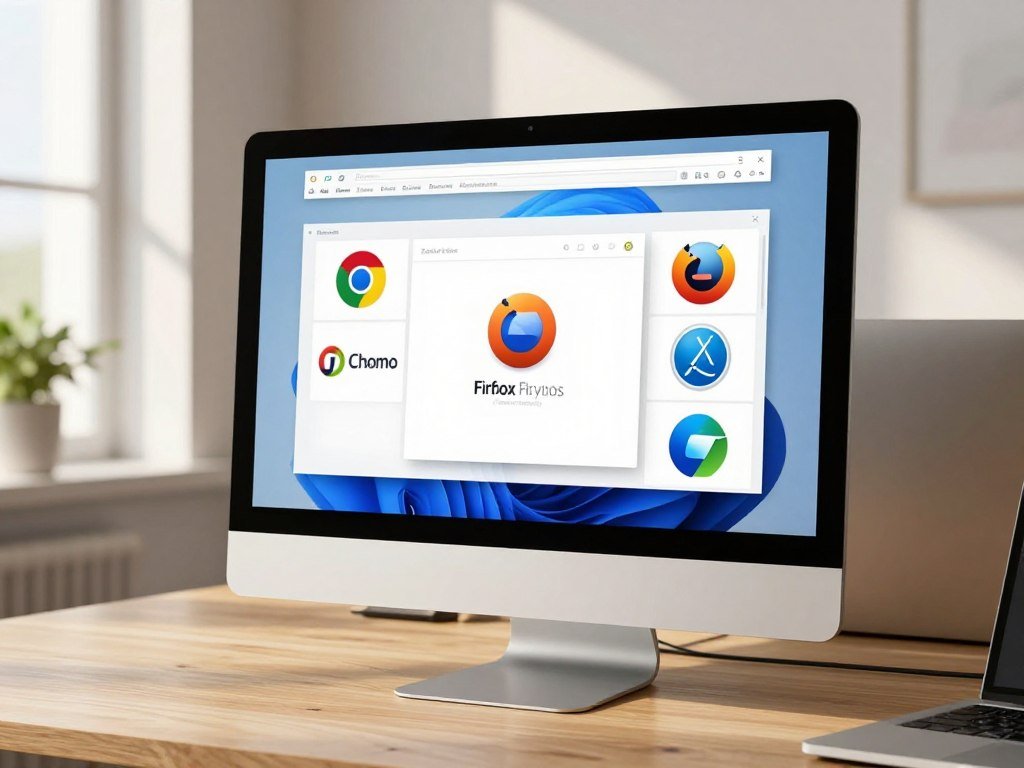
Chrome, Safari, Edge and Firefox are familiar choices, while Brave, Opera, Vivaldi, Tor Browser, Mullvad Browser and Samsung Internet add more options. Each browser has its own mix of tools, settings, and design choices. Three examples of web browsers are Chrome, Firefox, and Safari.
Google Chrome is a free web browser first released in 2008. General-purpose browsers support everyday tasks such as opening websites, watching videos, and using web apps. Some browsers also focus more on privacy or anonymity.
General-purpose browsers
Here are 10 examples of web browsers:
- Google Chrome
- Apple Safari
- Microsoft Edge
- Mozilla Firefox
- Brave
- Opera
- Vivaldi
- Tor Browser
- Mullvad Browser
- Samsung Internet
Chrome, Safari, Edge, and Firefox serve as general-purpose options for many users. Brave, Opera, and Vivaldi also support everyday browsing, with different features and settings. AI tools can be added to established browsers, so AI features do not define a separate browser type.
Browsers for different priorities
Tor Browser is built for people who want to make their browsing harder to trace. Mullvad Browser uses Tor Browser’s anti-fingerprinting design but does not route traffic through the Tor network. It includes uBlock Origin and has no mobile version.
Browser engines affect how a page’s code becomes a visible layout. As of June 2025, Chrome, Brave, Edge, Opera, and Vivaldi used Blink, while Safari used WebKit. Mozilla develops Gecko, the engine used by Firefox.
Sharing an engine does not make two browsers identical. They can still differ in settings, features, and privacy tools. The web standards model describes how shared standards support compatibility across browsers.
When a site behaves differently, checking it in a browser with a different engine can help identify whether rendering is the issue.
What Do Cookies, Cache, and Private Browsing Keep?
A shopping cart that remains full when you return to a site is one everyday use of a cookie. Cookies are small pieces of data a website stores in a browser to remember details. That memory can be useful for sign-in status, preferences, or items in your cart.
Some cookies also support cross-site tracking. A site may use them to recognize activity across different websites. This differs from a cookie that remembers your language choice or keeps you signed in.

A browser cache is a separate kind of stored data. It keeps local copies of web resources, such as images, so a site may load faster next time. Cookies store site information; cache files help load site content.
Chrome, Firefox, and Safari offer private browsing modes. Private browsing mainly limits history and temporary site data saved on your device. It does not make you anonymous to websites or network operators, who may still observe your browsing activity.
On a shared computer, close every private window when you finish so its temporary session data is cleared.
How Do Browsers Handle Privacy and Security?
Browser security and browser privacy solve different problems: one resists attacks, while the other limits collection and tracking. Both matter, but one does not replace the other. No browser removes every risk or blocks every kind of data collection.
Security updates fix flaws that attackers could use. Chrome’s bug process includes finding a bug, sorting its risk, fixing it, releasing an update, and applying that update when Chrome restarts.
Protection from attacks and unsafe sites
On desktop computers, Chrome Site Isolation runs each website in a separate process. That separation can limit damage if one site is compromised. Chrome’s Safe Browsing tools can also warn about unsafe sites and downloads.
Enhanced Safe Browsing checks sites and downloads in real time. It sends more browsing data to Google than standard protection. That tradeoff may matter if you want stronger checks but prefer to share less data.
In early 2026, an AI-assisted scan found a sandbox-escape bug. The flaw could have let a compromised rendering engine trick the browser into reading local files. Chrome’s internal AI scans run on locked-down machines without general internet access.
Those models cannot change the local system or reach files outside designated source-code folders. The scanning setup limits what the AI can access while it checks code for flaws.
Default tracking defenses across browsers
Browser privacy tools differ in what they block by default and what data they collect. Chrome, Safari, Firefox, Brave, and Edge each offer distinct protections and tradeoffs.
| Browser | Default protection | Important tradeoff or scope |
|---|---|---|
| Chrome | Site Isolation and Enhanced Safe Browsing | Enhanced Safe Browsing sends more browsing data to Google |
| Safari | Blocks third-party cookies | Safari 26 extends Advanced Fingerprinting Protection to all browsing |
| Firefox | Blocks listed trackers and partitions cookies | Firefox 151 strengthened default fingerprinting protection |
| Brave | Shields blocks listed trackers, ads, and phishing sites | Farbling varies device signals |
| Edge | Balanced tracking prevention | Enhanced Security can disable JavaScript just-in-time compilation |
Firefox Enhanced Tracking Protection blocks social trackers, cross-site tracking cookies, cryptominers, and known fingerprinting by default. Total Cookie Protection keeps each website’s cookies in a separate storage area. Mozilla explains how Firefox blocks known fingerprinters and limits exposed device details.
Firefox 151, released in May 2026, strengthened its default fingerprinting protection. Its release notes reported an average 14% drop in uniquely identifiable users, with a 49% drop on macOS.
Brave Shields blocks trackers, third-party ads, cross-site cookies, and phishing sites by default. Its farbling feature slightly changes device signals for each site and session. Edge uses Balanced tracking prevention by default.
AI features and anonymity tools
Chrome’s on-device AI features began as a preview in Chrome 126 in 2024. Gemini Nano processes its inputs on your device, which differs from downloading the model itself. By May 2026, the 4GB model had been silently downloading to some users’ devices.
Tor Browser sends traffic through three volunteer relays and isolates cookies and site data to the site shown in the address bar. It offers Standard, Safer, and Safest security levels. Safest disables JavaScript on all sites and blocks some fonts and images.
Mullvad Browser uses anti-fingerprinting tools but does not use Tor’s three-relay route. Some people switch from Chrome to Firefox or Brave for stronger default tracking blocks. That is one reason to switch, not a claim about how many people leave Chrome.
Chrome is not simply bad: it has security protections and updates, alongside distinct privacy tradeoffs. Choose protection settings according to the data you are willing to share and the threats you want to reduce.
How Can You Clear Browser Data and Fix Loading Problems?
If a site looks broken after an update, clearing cached files can make the browser fetch a fresh copy of its resources. Old copies can clash with newer site code. Refreshing the cache may fix display, loading, or function problems caused by outdated files.
In Chrome, Edge, Firefox, and Internet Explorer, Ctrl + Shift + Delete opens the clear-browsing-data window. The options vary, but most browsers let you choose what to remove and for which time range.
Follow these steps to remove selected browser data:
- Open the browser’s clear-browsing-data window.
- Select history, cached files, or cookies based on what you want removed.
- Choose the relevant time range if the browser offers one.
- Confirm your choices, then reload the page.
Clearing cached files makes the browser fetch fresh copies of web resources. That can fix a page that looks wrong after a site update. Deleting cookies can sign you out or reset site preferences, so select them only when needed.
Clear cached files first when an updated page looks broken, and remove cookies only if you accept losing saved site preferences.
If the page still fails after a cache refresh, check the site in another browser before changing more stored data.
Conclusion
A browser is the working link between a web address and the page you can read, watch, and use. Its rendering engine turns site code into a layout, while settings and protections shape how you browse.
Your browser’s features can make everyday tasks easier, but its privacy choices also affect what data sites can collect. The best next step is simple: open your current browser’s settings and review its privacy and security controls.
Take a minute to review your browser’s privacy and security settings and keep its updates enabled.
FAQ
What’s the difference between a browser and Google?
Chrome is a browser, while Google Search is a search engine that finds and ranks web pages. You can use Google Search inside Chrome, Firefox, Safari, or another browser. The browser opens and displays the pages you choose. Search helps you find pages, but it does not replace the application you use to visit them.
How do I clear my browser history?
Open your browser’s clear-browsing-data controls and select browsing history. In Chrome, Edge, and Firefox, Ctrl + Shift + Delete opens that window. Choose a time range if the browser offers one, then confirm. You can often remove history without deleting cached files or cookies, so check each selected option before you finish.
Can you provide a list of popular web browsers?
Popular web browsers include Chrome, Safari, Edge, Firefox, Brave, Opera, Vivaldi, and Tor Browser. Chrome and Edge are common general-purpose choices, while Tor Browser focuses on routing traffic through relays. Each browser has different settings and features. You can try more than one to see which works well with your devices and the sites you use.
Which web browser is the safest?
Tor Browser routes traffic through three relays, while Firefox and Brave offer default tracking protections. Those tools address different concerns, and no browser removes every risk. Tor’s Safest level disables JavaScript on all sites and blocks some fonts and images. Choose based on whether your main concern is hiding traffic, limiting tracking, or reducing exposure to unsafe sites.
Which browser is considered the worst for privacy?
For default third-party-cookie blocking, Chrome is less restrictive than Safari on Apple devices. That single difference does not make Chrome the worst browser for privacy overall. Browsers vary in their tracking blocks, data practices, and settings. Your choice also depends on which protections you enable and what kinds of sites you visit.
Why are people ditching Chrome?
Some users choose Firefox or Brave because they offer stronger default tracking blocks. That is a possible reason to switch, not a claim about how many people leave Chrome. Chrome also has security protections and updates. Before changing browsers, consider which privacy tools you want and whether your sites and devices work well with the alternative.
Do I need both Google and Chrome?
No, you do not need both. Chrome is a web browser, and Google Search is a search engine that you can open in Chrome or another browser. You can use a different search engine in Chrome, too. The browser and the search service have separate jobs, even though both products come from Google.
Is Safari really safer than Chrome?
Safari blocks third-party cookies by default on Mac, iPhone, and iPad, while Chrome has features such as desktop Site Isolation. Cookie blocking is a privacy measure, and Site Isolation helps limit some security risks. These protections measure different things, so one feature alone cannot show that one browser is safer overall.



