The address you paste into a browser can lead to a news story, a video, or a single image. A URL works like a street address: it points your browser to one online destination. That destination might be a page, a video, an image, or a file, rather than an entire website. The web uses these addresses to help people reach information across many sites and devices. A URL can look confusing at first, especially when it includes numbers or symbols. Still, you can learn to read one with a few clear steps. This guide explains how to recognize a web address, use it in a browser, and understand what it points to. By the end, you will be able to read an address and tell which part points to the site and which part points to its content.
Key Takeaways
- A URL is an address for an online resource.
- A domain name identifies a website within a URL.
- A browser uses the address to request a page or file.
- Some links show words that differ from their destination.
- YouTube channel URLs can use a handle that starts with @.
What Is a URL and How Does It Work? From Address to Resource
A URL points a browser toward one online resource, such as the blog page at https://www.example.com/blog. The letters URL stand for Uniform Resource Locator, a name for an address that locates a resource. A resource can be a webpage, an image, a video, or a file stored online. The address gives your browser a way to identify what you want to reach.
A URL is a reference that lets a browser locate and request online content. It is not limited to a website’s homepage. A single website can use many addresses for its pages and other resources. The example above points to a blog page, not just the site’s front door.
A URL can identify a specific resource without being the resource itself.
Think of a street address on a package. The address helps the delivery service find the right place, but it is not the package. In a similar way, a URL helps a browser find online content, but the address is not the content itself.
The term has a history in the early web. RFC 1738 defined URLs in 1994, with Tim Berners-Lee and the Internet Engineering Task Force involved. “Uniform resource locator” may sound technical, but its meaning is simple: a consistent address for locating a resource.
A URL also helps describe how a browser should reach that resource. For example, a web address can tell the browser to use a secure web connection. Other kinds of URLs can point to email actions or other types of online content. The address is a practical instruction as well as a label.
You may see a URL in a message, on a web page, or in a browser’s address bar. Selecting a link usually sends the browser to its destination without requiring you to type the whole address. Either way, the URL tells the browser which resource to request and how to reach it.
A URL can lead to a page, but it can just as readily identify a file or image.
How Is a URL Different From a Domain Name or a Link?
In https://www.example.com/blog, example.com names the site, while the full address points to a particular page. The full address is the URL; the domain name is only one part of it. A link is something you can select to open a destination, and its visible words may not show the full address.
The complete URL identifies a particular resource, while a domain name identifies the site. People often use “URL” and “web address” to mean the same thing. In technical terms, a URL is one kind of URI, a broader category for identifiers of resources.
| Item | Example | What it identifies |
|---|---|---|
| Full URL | https://www.example.com/blog | A particular blog page |
| Domain name | example.com | The website’s name |
| Link text | Read the blog | Clickable words on a page |
The table shows why the three terms do not mean exactly the same thing. A domain name can appear in many URLs for one website. Each URL can point to a different page, image, or other resource on that site.
Link text is the label you see, such as “Read the blog.” The page creator chooses that text, so it might describe the destination without showing its address. A link can also use a short button label or an image instead of ordinary words.
That difference can matter when you are deciding where a link will take you. The words on the page provide a clue, but the destination is the URL behind the link. The domain name alone does not show which specific page will open.
A clickable label such as “Read the blog” is not enough to reveal its destination unless you inspect the link.
What Are the Parts of a URL?
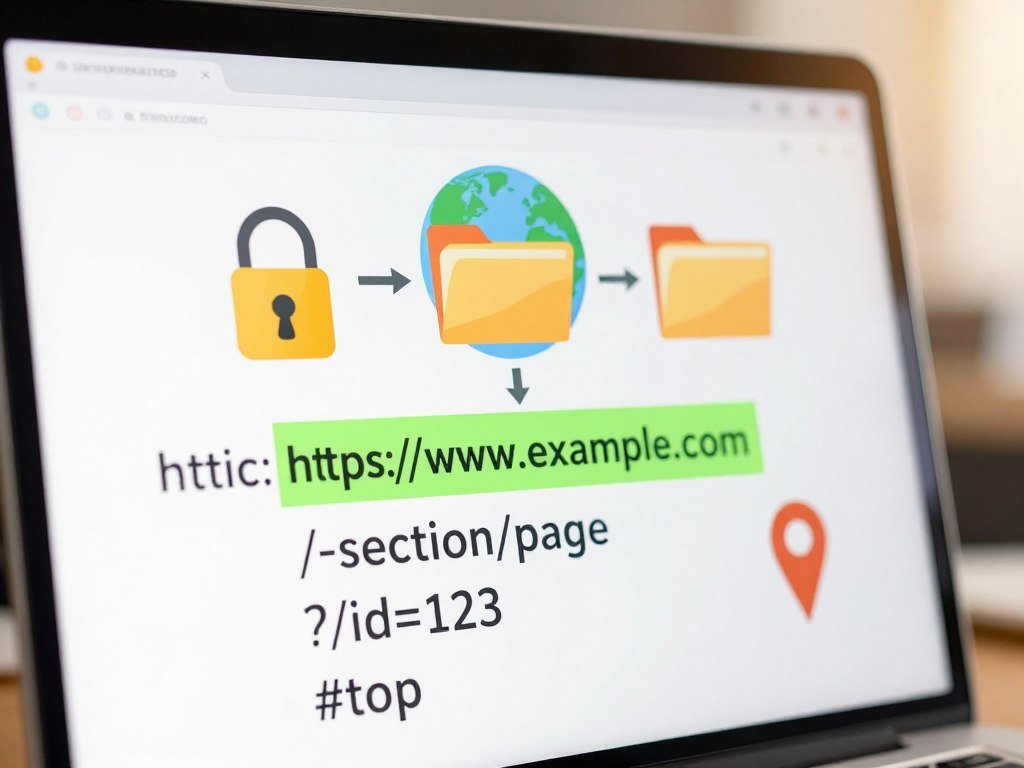
In https://www.example.com/blog?topic=urls#examples, each symbol marks a different kind of information. The scheme comes first, followed by the host and the path. Optional details can follow the path to pass extra information or point to a place within a page.
A URL can include a scheme, an optional authority, a path, an optional query, and an optional fragment. In that example, https is the scheme, www.example.com is the host, and /blog is the path. The question mark starts the query, while the number sign starts the fragment.
Scheme and authority
The scheme names the access method. In a web URL, it is usually http or https, followed by ://. HTTP stands for Hypertext Transfer Protocol, the set of rules used to transfer web content. HTTPS uses a secure connection for that transfer.
The authority is the part after :// and before the path, query, or fragment. It can include a host and, sometimes, a port. The general structure and parsing rules appear in the URL Standard.
Host, subdomain, and port
A host can be a domain name or an IP address. In www.example.com, www is a subdomain and example.com is the domain name. Many websites work without www, so it is not required in every address.
A port can follow the host after a colon. HTTP uses standard port 80, and HTTPS uses standard port 443. Browsers often leave these standard ports out of the displayed address.
Path and resource location
The path comes after the host and often looks like /blog or /images/logo.png. It helps identify a resource on the site. A readable path can suggest what a page contains, but it does not have to match a physical folder or file on the server.
For example, https://example.com can point to a homepage, while https://example.com/news/local names a nested page. A search address might be https://example.com/search?q=birds. A file address could be https://example.com/files/guide.pdf.
Query parameters and fragment
After a question mark, query parameters can pass extra information to a website. For instance, https://example.com/search?topic=birds adds a search value. A number sign begins a fragment, as in https://example.com/guide#feeding.
Other short URL examples include https://example.com/photo.jpg for an image, https://example.com/watch/7 for a video, mailto:hello@example.com for an email action, and ftp://example.com/archive for an FTP address. A URL with two query parameters might look like https://example.com/search?topic=birds&sort=new.
These examples show that a URL does not always open a typical webpage. It may lead to a file, image, video, search result, or email action. A readable path such as /blog can still be a label the server interprets rather than a literal file location.
Do not assume that a path such as /blog is a literal folder on the server.
What Happens After You Enter a URL in a Browser?
Entering https://www.example.com/blog starts a short sequence between your browser and the computer serving that page. The browser reads the address, finds the destination, requests the resource, and displays what comes back. A web server is a computer system that receives browser requests and returns online resources.
DNS helps the browser find the server linked to a domain name. DNS, or the Domain Name System, translates a domain name into an IP address that helps direct the browser. The browser then sends a request for the resource named by the URL.
- The browser reads the URL and identifies the requested resource.
- DNS finds the server’s IP address for the domain name.
- The browser sends a request to that server.
- The server returns the requested resource to the browser.
- The browser displays the page, video, image, or other content.
The URL helps identify the resource and the method of access. DNS helps translate a domain name into a destination, so the browser can contact the right server. These jobs are related, but they are not the same.
A webpage may need more than one resource to appear. The browser can request items such as images or other files as it builds the page on your screen. A video or image may also be the main resource you asked to open.
If a web address contains a path, that path helps the server choose what to return. The server decides how to handle the request and which content matches the address. The same visible structure can lead to different results on different websites.
If a page fails to load, first check that the browser is trying to reach the address you intended.
When Should You Use an Absolute or Relative URL?
Use an absolute URL when you need a complete address that works on its own. A relative URL uses the current page’s address as context, so it can be shorter inside a website. For example, a webpage can link to /about without repeating the whole site address.
A relative URL depends on the current document, while an absolute URL includes the complete address. The browser uses the current page’s URL to resolve a relative path. That makes relative forms useful in a page, but not as stand-alone addresses.
Complete addresses for stand-alone use
An absolute URL includes the scheme, host, and any path needed to identify the resource. For example, https://www.example.com/about names a page with a complete address. You can use that address in a message or paste it into a new browser tab.
Use a complete URL when a link must work without relying on another page for context. It gives the browser the site and resource location directly. This form is also easier to share with someone who is not already on the website.
Shorter paths within a website
A root-relative path begins with a slash and starts from the site’s root. A path-relative address uses the current page’s location as its starting point. The MIT guide to URL forms explains these two patterns.
| URL form | Example | How the browser resolves it |
|---|---|---|
| Absolute | https://www.example.com/about | Uses its complete address |
| Root-relative | /images/logo.png | Starts at the site root |
| Path-relative | ../about | Uses the current page’s location |
For the root-relative example, the browser uses the current page’s website but starts at its root. For ../about, the browser starts from the current page’s path and moves up one directory level. The current page’s URL supplies the context for both short forms.
Relative URLs can help when a site’s domain changes, since the page can still point to nearby resources. They also keep internal addresses shorter. A path-relative form may resolve differently if you move the same link to another page.
If you are pasting an address into a new browser tab, use the complete URL rather than a context-dependent path.
How Do You Enter, Find, and Copy a URL?
On a computer, the current page’s address appears in the browser’s address bar. The address bar is the browser’s top input field, where you can type or paste a web address. It shows the full URL for the current page, not just the domain name.
To open a page, enter its complete URL in the address bar and press Enter or Return. The same field also helps you find the browser address for a page you want to share. A copied address can point to a whole page or a specific video.
Type or paste an address into the browser
- Open a browser on your computer or device.
- Select the address bar at the top of the window.
- Type or paste the full address you want to visit.
- Press Enter or Return to open the page.
Typing a URL directly is handy when you already know the address. Pasting can prevent small typing errors, especially in a long web address. The address bar may also show suggested pages as you type.
Copy a YouTube video or channel URL
On a computer, open the YouTube video you want to share. Select Share, then select Copy in the sharing panel. You can use the video sharing controls to copy a link that opens at a chosen time.
The sharing panel can set a start time before you copy the address. YouTube’s example uses 2:30, so the video can begin at that point. This option is useful when a key moment happens well after the video starts.
For a channel, open its Channel page and copy the URL shown in the browser address bar. You can also find a channel’s current address in YouTube Studio. Creators who make video content, including AI-assisted YouTube channels, may share links to both individual videos and channel pages.
Before sharing a copied link, open it once to confirm that it leads to the intended page.
What Is a YouTube Channel URL?
A YouTube channel URL can use the channel’s chosen handle after the @ symbol. For example, youtube.com/@youtubecreators is a handle URL. More than one URL can lead to the same channel homepage.
A channel’s handle URL is its public address built from its handle. YouTube creates this address when the owner chooses or changes a handle. An older address may still lead to the same channel, so two people can share different working URLs for one page.
Channel owners can find the handle URL in YouTube Studio. Open Customization, choose Basic info, then look under Handle. The address there provides a direct way to share the channel with viewers.
YouTube no longer lets channel owners create or change custom URLs. Existing custom URLs continue to work, though. Older custom URLs and username URLs redirect to the handle-based URL.
This change means an older link may look different from the channel’s current handle address. A redirect sends visitors from the older address to the channel’s current destination. A handle URL is a straightforward option for sharing a channel today.
The channel URL is useful beyond YouTube pages. You can place it in a profile on social media, a website, or a message to help people find the channel. Creators who publish video and other content may share their channel alongside individual video addresses.
For sharing a channel from a computer, use the address shown on its Channel page.
How Do YouTube Handles and Channel IDs Differ?
A handle is the public name in a channel URL, while a channel ID is its unique identifier. Handles begin with @ and form the public URL people can share. A channel ID is a separate identifier, shown in a URL such as youtube.com/channel/UCUZHFZ9jIKrLroW8LcyJEQQ.
A handle is meant to be readable, while a channel ID uniquely identifies the channel. The channel owner can locate the user ID and channel ID in Advanced settings after signing in. Only the channel’s primary owner can see those IDs there.
Handles identify a channel with a chosen name
Handles are unique and are not case-sensitive. Their rules also limit which characters and lengths are allowed. The exact length depends in part on the writing system used for the handle.
- Letter case does not matter, so uppercase and lowercase forms match.
- Length is usually 3-30 characters, with script-based exceptions.
- Letters and numbers from supported languages can be used with allowed punctuation.
- Spaces, certain symbols, used handles, and URL-like or phone-like names are not allowed.
Channel IDs are unique identifiers
Most handles run 3-30 characters long. Han and Hangul handles can be 1-10 characters, while Ethiopic, Hiragana, and Katakana handles can be 2-20. Some mixed-script handles also have special length rules.
Handles can use letters and numbers from 75 supported languages. They may also include underscores, hyphens, periods, and Latin middle dots. Those punctuation marks cannot start or end a handle.
Spaces and symbols such as !, #, $, and % are not allowed. A handle must not already belong to someone else or resemble a URL or phone number. YouTube handles use these rules to keep channel names distinct and usable.
The channel ID remains useful when you need the channel’s unique identifier rather than its public name. Its longer string may be less readable, but it points to a specific channel. Advanced settings separates this information from the handle visitors see.
If you need the channel ID, sign in as the primary owner before opening Advanced settings.
How Can You Create a URL for a Page?
To create a working page URL, publish the page on a website and use its domain together with the page’s path. You cannot make a working destination just by typing a string. The site must have a page or resource set up to answer that address.
A page URL combines a website’s domain name with a path that identifies its content. The path /blog/how-to-start is a readable example. It tells visitors something about the page, while the server decides which resource to return.
Start by setting up a website or choosing a publishing platform. Then choose or confirm the domain name for the site. A domain name is registered separately from creating one page, and it provides the site’s recognizable address.
Next, publish the page. Your platform may assign a path automatically or let you edit it. For example, a site might give a new article the path /blog/how-to-start, then add that path to its domain name.
A semantic URL uses words that help people understand a page’s topic. The path /blog/how-to-start gives more context than a random string of characters. It can make an address easier to recognize when you see it in a browser or message.
Readable paths do not have to match folders or files on the server. A server can map a stable address to the resource it should return. The W3C guide to stable web addresses explains why sites can keep useful URLs even as their files change.
Choose a path that clearly names the page and is easy to share. The server controls what content appears at that address, so a well-worded path alone cannot create the page. Publish the content through the site before treating its address as live.
Check the finished address in a browser before sharing it.
What Do Query Parameters and Fragments Do?
In /search?name=ferret&color=purple#fur, the question mark begins the query and the number sign begins the fragment. The query contains two key-value pairs: name=ferret and color=purple. The fragment is fur, which can point to a place within the page.
A query can pass site-specific information, while a fragment can identify a spot on a page. In the common key-value format, an equal sign separates a key from its value. An ampersand separates one parameter pair from the next.
The path in the example is /search. After the question mark, name=ferret asks the site to use the value ferret for the name parameter. The next pair, color=purple, gives a value for color.
Each website decides what its parameters mean. A parameter called name might search for a person on one site and a product on another. The same name can have different effects depending on how the site handles it.
The fragment begins after the number sign. A browser can use it to jump to a matching section or location on the page. For example, a page may use #fur to bring the reader to a section about fur.
The fragment is not sent to the server with the request. The browser uses it after it has the page, so it can move to the right place. Query information and fragment information serve different jobs, even when they appear together.
Extra information in an address can make a useful page easier to reach. It can also show that a URL has been set up for a search, filter, or page location. Read each part in context rather than assuming every site uses the same rules.
Treat query values as site-specific instructions, not as universal settings.
How Can You Check Whether a URL Is Safe?
A familiar-looking link label can point somewhere different from the address it opens. Check the destination itself before you open a link or share personal information. Link text alone does not prove that a destination is safe.
HTTPS creates a secure connection, but it does not prove that a website is trustworthy. A scam site can use HTTPS, too. The secure connection protects data in transit, but it does not confirm who runs the site or whether its claims are honest.
- Inspect the actual destination instead of trusting the visible link text.
- Look for misspellings or extra words that do not fit the website.
- Be cautious with shortened links that hide the full address.
- Do not treat HTTPS alone as proof of a legitimate website.
A misleading address may use small spelling changes or characters that look alike. Check the domain name carefully, especially before signing in or paying. A familiar brand name in the link text does not guarantee that the actual address belongs to that brand.
Shortened links can hide their destinations, so pause before opening one from an unexpected message. The browser’s displayed address can help you inspect where a link leads. If the destination seems unrelated to the message, do not continue.
A URL that contains a username and password is a deprecated pattern. It can expose credentials in places such as browser history or copied text, so it is not a safe sign-in shortcut. Use the website’s normal sign-in page instead.
URL parsing can be tricky when an address uses misleading characters. The URL Standard’s security notes describe risks from URL spoofing and passing addresses between people. A careful look at the real destination matters more than a familiar-looking label.
Do not enter a password until the destination and the site itself are the ones you intended to use.
For a sign-in, compare the address with the site you meant to visit before sharing account details.
What Common URL Details Do Beginners Misread?
A website can work perfectly well without www at the start of its address. Many sites accept addresses with or without that subdomain. The web scheme is a separate detail that appears at the start of a web address.
HTTP and HTTPS are web schemes, while mailto serves email rather than a webpage. A mailto URL can open an email-handling application. A data URL can embed content directly in the address instead of pointing to a typical page.
Common URL schemes include HTTP, HTTPS, mailto, FTP, and data. They do not all open the same kind of resource. A web address often opens a page, while mailto starts an email action.
Because schemes can lead to different actions, do not assume every address opens a webpage. Some URLs point to files or use a method that a regular browser page does not. The browser or another application may handle them in a different way.
An address without a familiar scheme may still be valid for a specific purpose. Its meaning depends on the application and the type of resource it names. It is better to check than to guess what an unfamiliar address will do.
If an unfamiliar scheme appears, check what application or action it will open before proceeding.
Conclusion
A useful habit is to pause long enough to recognize the destination before opening an unfamiliar link. A URL identifies an online resource, but its visible words may not show where it leads. That small check can help you use web addresses with more confidence.
Practice with a familiar page you trust. Copy the URL of a page you trust, paste it into the address bar, and identify its scheme, domain, and path.
FAQ
What is meant by a URL?
A URL means Uniform Resource Locator, and it identifies an online resource for a browser. That resource might be a webpage, image, video, or file. The address gives the browser a way to locate and request the resource. It can also show how to reach it, such as through a secure web connection. A URL is the address, not the content itself.
How can I create a URL?
A working page URL comes from publishing content on a website and using the site’s domain with the page path. First, set up a site or publishing platform and choose its domain name. Then publish a page and use the path assigned by the platform, or edit it if the site allows. Typing an address alone does not create a working page.
How do I find a URL?
Find the current page’s full URL in the browser address bar, usually at the top of the window. The full address can include more than the domain name, such as a path that points to one page. The domain name identifies the site, while the complete URL identifies the specific resource. Select the address bar to view or copy the full address.
What is the URL in YouTube?
A YouTube URL can identify an individual video or a channel. A channel address may use a handle that begins with @, such as youtube.com/@youtubecreators. Older addresses can still lead to the same channel homepage. Video URLs point to a particular video, while channel URLs take viewers to the channel. Check the address in the browser before sharing it.
Can you give me an example of a URL?
https://www.example.com/blog is an example of a URL. Its scheme is https, which tells the browser to use a secure web connection. The domain name is example.com, and the path is /blog. Together, those parts identify a blog page on that site. A different path or domain could point to another resource.
How do I locate my YouTube URL?
For a channel, open its Channel page and copy the URL from the browser address bar. If you own the channel, YouTube Studio also shows its handle URL under Customization, Basic info, and Handle. That address uses your channel’s chosen handle and can be shared with viewers. The channel page address is a simple option when you are on a computer.
How can I copy a YouTube URL?
On a computer, open the video, select Share, then select Copy. The sharing panel can also let you set a start time before copying the link. You can choose a time such as 2:30 so the video opens at that point. Open the copied address once to make sure it reaches the video you meant to share.
Where do I find my YouTube ID?
A signed-in channel’s user ID and channel ID appear in Advanced settings, and only its primary owner can see them there. Sign in to the account that owns the channel, then open the advanced settings. A channel ID is different from its public handle, which appears in the channel’s shareable URL. The ID is a unique identifier rather than a chosen public name.



