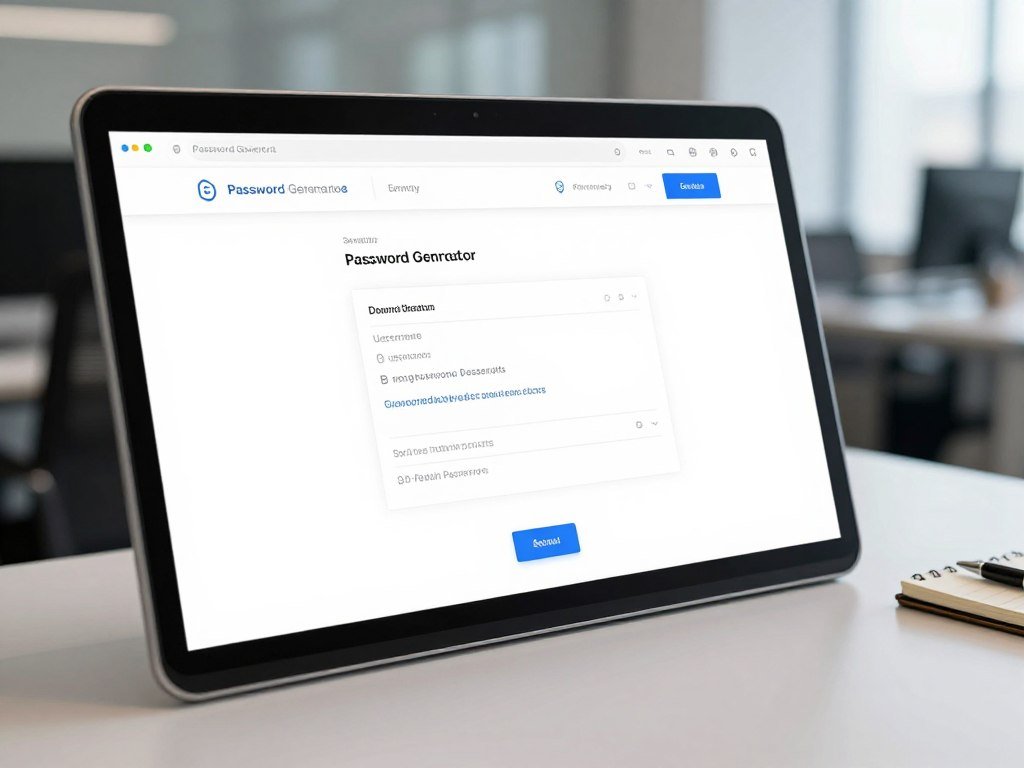
For an email, financial, or work login, don’t build a strong random password from personal details or familiar patterns. Hackers can guess common choices, and reusing one credential can put several online accounts and sensitive information at risk. This page lets you set length and complexity before generating a result, so you can make a credential that fits the sign-in form.
A passphrase is a password made from several unrelated words. The browser-based generator gives you a quick way to create a fresh result without relying on details from your life. Start with the account you use most often for sensitive tasks.
Key Takeaways
- Avoid personal details and familiar patterns.
- Set the length and complexity with the page controls.
- Use a fresh credential rather than reusing one.
- Check that the account accepts the characters you choose.
- Begin with an account used for sensitive tasks.
How to Generate a Strong Random Password with This Generator
A secure result starts with two choices: how long it should be and which characters the account accepts. You can generate a strong random password for free using the page controls.
CISA recommends passwords of at least 16 characters. A generator’s shorter minimum setting does not change that recommendation.
Do not treat a tool’s shortest setting as a security target.
Choose length and character options
First, check the account’s rules for length, spaces, and symbols. Then set a length of at least 16 characters when the field allows it. CISA’s strong-password guidance gives the same minimum.
Select the character types the sign-in form accepts, such as letters, numbers, and symbols. Some forms block certain marks, so a result that follows the field’s rules saves time at login.
Generate and apply the result
Follow these four steps to make and use a credential:
- Check the account’s character and length limits.
- Set the length to fit those limits.
- Select the allowed letters, numbers, and symbols.
- Generate a result and paste it into the correct field.
Manytools.org accepts lengths from 6 to 128 characters. It can make 1 to 9,999 passwords per batch, with CSV or plain-text downloads.
A random password generator for 1,000 passwords suits a large batch, while 100 passwords can serve a smaller batch. For WPA wireless passwords, guidance allows 8 to 63 characters using lowercase letters and numbers. These rules apply to that wireless case, not every account. See these home Wi-Fi naming tips for the difference between a network name and its password.
If the site rejects a symbol, regenerate with an allowed character set rather than editing the result into a predictable pattern.
Which Password Format Fits the Account?
For most logins you can autofill, use a random character password. Choose an unrelated-word passphrase when you expect to type it yourself.
Every account needs its own unique password, even when two accounts seem equally important. CISA recommends a unique password for each account, using either a random mix of mixed-case letters, numbers, and symbols or a memorable passphrase of 4 to 7 unrelated words. Its government password guidance covers these recommendations.
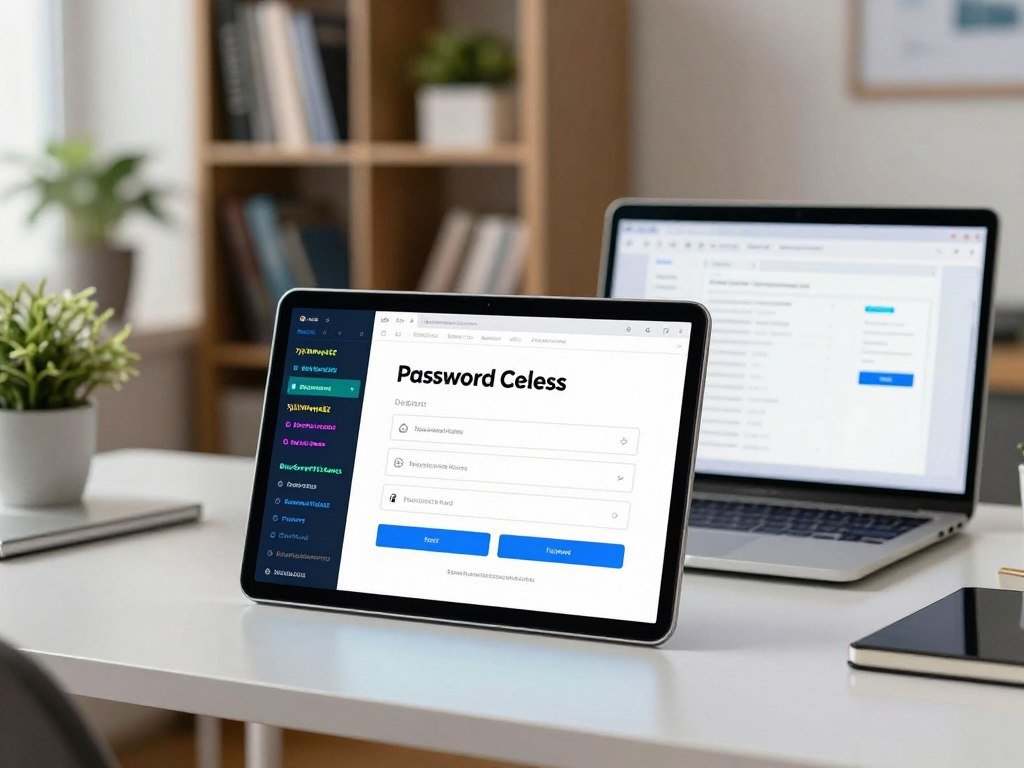
Random character passwords for autofill
A random character password works well when a password manager can fill the sign-in form. The mix of characters does not need to be easy to say or recall. Instead, the tool can enter it for you, reducing the need to type a long string on a phone or laptop.
This format also suits accounts whose forms accept a broad range of characters. Check the rules for each sign-in field before using a result. A strong password should be hard to guess, not built around a pattern you can spot at a glance.
Passphrases for manual entry
A passphrase generator creates a credential from random words, which can be easier to type when autofill is not available. A free passphrase generator can help, as long as it picks words at random instead of using a phrase you chose.
Bitwarden’s passphrase generator lets you set the word count, separator, capitalization, and whether to include a number. It recommends at least 4 words. Bitwarden describes random character passwords as a good fit for autofilled accounts, and random-word passphrases joined by dashes as useful for manual entry.
A Diceware software module samples dictionary words with a cryptographically secure random number generator, then securely shuffles them. This process makes word selection different from choosing a line that already feels familiar.
Can a funny phrase be secure?
A funny password phrases generator can suggest playful wording, but humor does not make a phrase random. A familiar joke, song lyric, or line tied to your life may be easy for someone to guess.
The table shows how the formats differ. A personally chosen funny phrase may feel memorable, but it lacks the random selection used by the other options.
| Format | Structure | Best fit | Main caution |
|---|---|---|---|
| Random character password | Mixed letters, numbers, symbols | Autofill | Harder to type by hand |
| Random-word passphrase | 4 to 7 unrelated words | Manual entry | Form may reject a separator |
| Personally chosen funny phrase | Joke, lyric, or personal line | None as a credential | Familiar wording can be guessed |
Choose a separator the sign-in form accepts when generating a passphrase.
How Should You Store and Protect Generated Passwords?
A password manager is a practical place to keep long, unique credentials because it can generate, store, and fill them. You need to remember only the manager’s password for your saved logins.
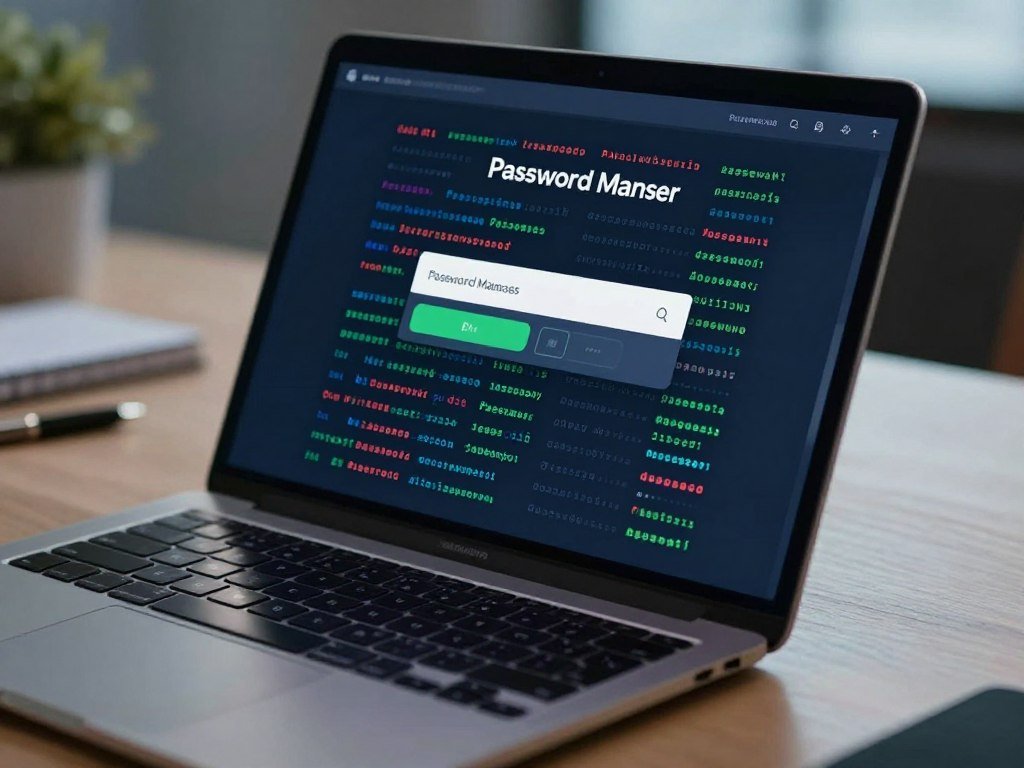
CISA recommends a password manager for secure passwords. Bitwarden can auto-generate and securely store passwords up to 128 characters. You can choose a cloud vault for access across devices, or a local database that stays on your own storage.
Password manager comparisons can help you weigh features such as storage and sign-in protection. A local database needs regular backups to another storage device, while a cloud vault supports access across devices.
A strong vault password alone does not add a second sign-in check.
Choose a password manager that supports multifactor authentication (MFA), an extra sign-in check, for vault access. Turn on MFA for email, social media, and financial logins, and protect the password manager vault with MFA too.
Conclusion
A random, unique credential is a practical upgrade for any account still using a predictable or reused password. A password manager makes strong passwords easier to use across your accounts. You do not have to rely on memory or familiar patterns to sign in. A distinct credential also helps keep one exposed login from putting another account at risk.
Choose one important account and replace its current credential with a fresh result. Generate a replacement for one important account now and save it in your password manager.
FAQ
Is a 16-character password enough for every account?
No, 16 characters is a recommended minimum, not a guarantee for every account. A longer password can still be weak if it follows a familiar pattern or appears on another login. Use a different password for each account, and turn on multifactor authentication where available. These steps add protection beyond length alone.
Should a generated password include every kind of symbol?
No, use only characters the account accepts. Some sign-in forms block certain symbols or set limits on password length. Check the site’s rules, then generate a result that fits them. A randomly generated passphrase is also a recommended option when the account allows one and you need to type the credential yourself.
How often should I change a password?
Change a password if it may have been exposed, if you reused it, or if it is weak. A fixed change schedule is not needed in every case. If you learn that a site had a breach, replace that site’s password and any reused copies. Use a new, distinct credential rather than a small edit to the old one.
Is cloud or local password vault storage better?
Cloud storage supports access to your vault across devices, while local storage keeps a database on your own storage. A local database needs regular backups to another storage device, or a device failure could erase your saved logins. Your choice depends on whether cross-device access or direct control of the database matters more to you.
What should I do if a website rejects my generated password?
Check the site’s character and length rules, then generate a new result using allowed settings. A site may reject a symbol, a password that is too long, or one that is too short. Avoid changing the result into a familiar word or pattern by hand. A fresh result that follows the form’s rules is a safer fix.



