
A Mac can run into malware, but a slowdown or strange pop-up alone does not prove it is infected. That uncertainty can feel unsettling when you rely on your computer for files, privacy, and passwords. Malware is a broad term for malicious software; a virus is one kind that can infect other files. Notarization is Apple’s check of an app for known malicious software, which means Apple detected none when it checked the app.
You can make a careful check without deleting unfamiliar system files or treating every glitch as an attack. The five steps in this guide help you review updates, apps, startup items, system activity, and scan results. They also explain what to do if a trusted scan finds a threat, and when a clean result calls for a different kind of troubleshooting.
Key Takeaways
- A single slowdown or pop-up does not confirm malware.
- macOS checks for known threats in the background.
- An antivirus scanner can provide an on-demand check.
- Do not delete unknown system files on a hunch.
- If malware returns, avoid sensitive account use on that Mac.
The safest check combines careful observation, a trusted scan, and deliberate cleanup rather than deleting unfamiliar system files on a hunch.
What signs suggest malware on a Mac?
A cluster of unexplained changes is more concerning than one isolated slow afternoon. Several changes together can point to mac malware, but the same symptoms can come from ordinary software problems.
Warning signs are reasons to investigate, not a diagnosis. Compare recent changes with app installs, updates, and new settings before deciding what they mean.

Changes in performance and files
Check whether the Mac’s behavior changed suddenly, especially after installing software or opening a file. These changes can affect daily work and deserve a closer look:
- Sudden slowdowns, freezes, or unexpected restarts.
- Files that will not open, frequent errors, or unexplained disk-space loss.
- Unusually high CPU or memory use when you are not running demanding apps.
Any one sign can have a simple cause, such as a large download or an app that needs an update. A combination that persists after normal tasks end is more useful to investigate.
Unexpected browser, account, and system activity
A changed homepage or search engine, repeated pop-ups, or an unfamiliar app merits attention. So do unexpected account alerts, new user accounts, unknown login items, or settings you did not change.
Unfamiliar background processes and unexpected network transfers can also signal a problem. Infostealers are malware that may target passwords, cryptocurrency wallet data, or personal files. In January 2026, SecureMac reported that macOS malware detections, especially infostealers, had roughly doubled over recent quarters.
Some threats arrive through fake installers, so an unfamiliar installer deserves more scrutiny than a harmless-looking file name. Red Canary’s report on macOS threats describes malware that can steal passwords, browser data, and files.
Treat a warning sign as a reason to investigate, not as proof that malware is present.
Look at when the change began and whether it followed a new app, download, or account alert. A clear timeline can help you tell a software conflict from suspicious activity.
How to Check for Malware on a Mac With Built-In Protections
macOS checks for known threats in the background, but it does not give you a button to start an XProtect scan. Each built-in tool has a different job, from screening apps to finding known malicious code.
XProtect cannot run as an on-demand scan, and it has no user-facing report. You can learn what the checks do, but you cannot open a dashboard to review their results.
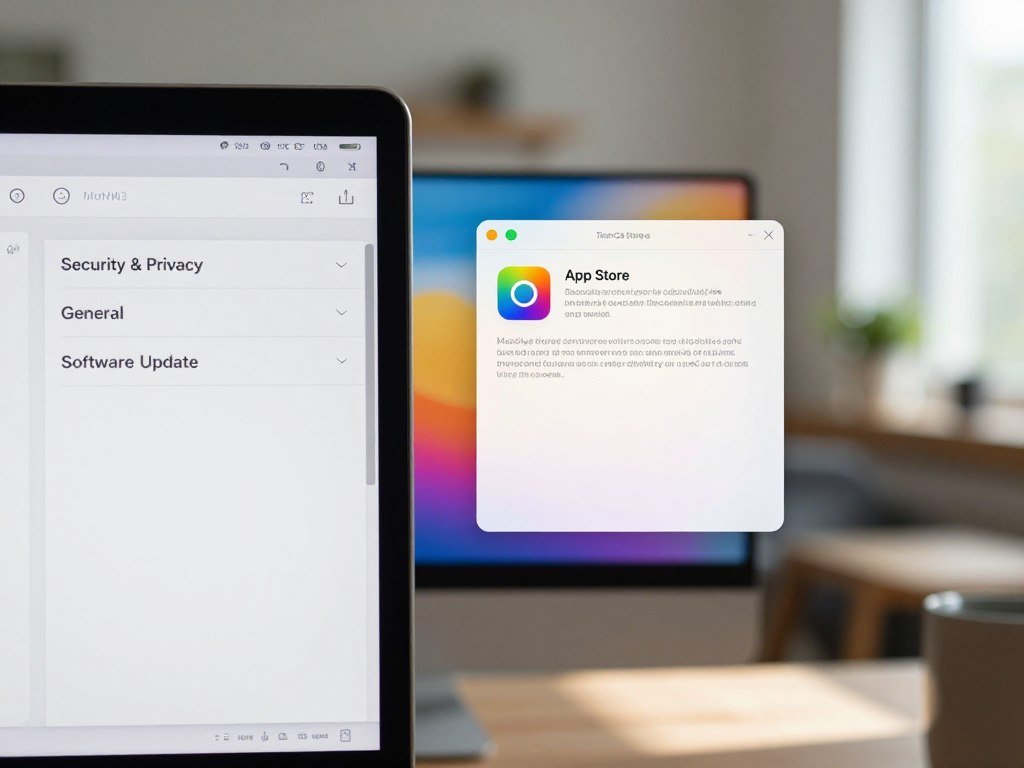
What Gatekeeper, notarization, and XProtect do
The App Store provides a source for apps that Apple reviews under its store rules. For apps from outside the store, Gatekeeper checks a Developer ID signature to confirm an identified developer and detect changes.
On macOS Catalina and later, outside-store software must be notarized by default. Notarization means Apple checked the app for known malicious software and detected none at that time.
XProtect is Apple’s built-in malware tool. It checks apps for known malicious content when they first launch, after changes, and when Apple updates its detection signatures. Apple sends XProtect updates through background security updates, separately from major macOS upgrades.
| Where it comes from | macOS check | What the check helps establish |
|---|---|---|
| App Store app | App Store review and macOS security checks | App met store rules and can be checked for known threats |
| Notarized app from outside the store | Developer ID signature and notarization | Identified developer, no detected changes, and no known malware at Apple’s check |
| App without the required checks | macOS warns or blocks opening | Developer identity or notarization is missing |
What built-in protection cannot show you
When macOS detects known malware, it can warn that an app cannot open and move it to the Trash. This response helps stop known threats, but it does not prove that every app or file is safe.
New malware may reach a Mac before Apple updates its detection information. XProtect’s automatic checks work without a manual scan or report, so a separate antivirus scanner is needed for an on-demand check.
For a broader comparison of Mac antivirus options, consider how each product handles scans and real-time protection. Keep the distinction clear: built-in protection works automatically, while a manual scan requires a separate tool.
Step 1: Are macOS and security updates current?
An outdated Mac may miss security fixes, so check its update settings before investigating individual files. Update controls depend on your macOS version, and security fixes do not always arrive with a major upgrade.
Security updates are separate from major macOS upgrades. Confirm the right controls for your version rather than waiting for a new full-version release.

On macOS Ventura or later, open System Settings, choose General, then select Software Update. Use that screen to check for macOS updates and review the update controls available for your system.
On macOS Monterey or earlier, open System Preferences and choose Software Update. The older name, System Preferences, applies to these versions; newer versions use System Settings.
macOS Tahoe 26 or later has a separate control for Background Security Improvements. Open System Settings, choose Privacy & Security, then select Background Security Improvements.
Check that automatic installation is enabled there. XProtect updates arrive through background security updates, so the setting matters even when you are not installing a major macOS upgrade.
If your Mac cannot install a newer version, use the update controls it still supports. An update check also helps rule out missing fixes as one source of trouble.
Confirm that automatic security updates are enabled instead of assuming a major macOS upgrade will install them.
Step 2: Which apps and startup items should you inspect?
Start with items you can identify by where they live: installed apps, recent downloads, and programs set to open at login. Check familiar folders first so you can assess apps without opening suspicious installers.
Do not delete an essential system file just because its name looks unfamiliar. A proper app uninstall is safer than dragging random files out of system folders.

Review Applications and Downloads
Use this short checklist to review apps and installers without launching files you do not recognize:
- Open Finder > Applications and look for apps you do not remember installing.
- Open Downloads and check for unfamiliar installers or disk images without double-clicking them.
- Select an unfamiliar download and press the Space bar to preview its name and download date.
An app can have a name you do not recognize because another app installed it as a helper. Check its developer and purpose before removing it, especially if it came with software you use.
When you confirm an app is unwanted, use its built-in uninstaller or the developer’s removal steps when available. Deleting only its main icon can leave support files behind.
Remove unfamiliar login items
Login items are apps and services set to open when you sign in. In System Settings, choose General, then Login Items, and review the entries that start automatically.
Select an entry you have identified as unwanted and remove it from the list. This stops it from launching at login, but it does not always remove the app itself.
Compare each entry with apps you use and software you recently installed. If you cannot identify an item safely, leave it in place until a trusted scanner or qualified technician can assess it.
Step 3: Can Activity Monitor or Terminal reveal malware?
Activity Monitor can show what is consuming resources, but a process name or high CPU reading is only a clue. Resource use needs context, since normal software can make a Mac work hard for a while.
Quitting a process does not remove the app that launched it. The app may restart at once or after the next reboot.
Check resource use in Activity Monitor
Open Activity Monitor from Applications > Utilities. Check the CPU, Memory, Disk, and Network tabs for unfamiliar processes using unusually high resources.
A demanding video export, cloud sync, or browser tab can raise resource use without malware. Check what was running and whether the high use continues after those tasks finish.
The same checks apply when you need to detect malware on a MacBook Air. If a process looks suspicious, note its name and resource use before taking action.
Force quitting a process may interrupt its activity, but it will not remove its parent app or related files. A process that comes back may be starting through an app or service elsewhere on the Mac.
Review browser changes and the limits of Terminal
Check Safari or Chrome extensions, homepage, and search engine settings. Remove extensions you do not recognize, then clear browser data and cache if settings changed without your permission.
Terminal is not a built-in on-demand malware scanner. macOS has no user-facing Terminal command that starts an XProtect scan, so a command copied from an unknown forum cannot replace one.
Commands can delete files or change system settings, sometimes without making the effect clear. Do not run commands from a stranger to remove unfamiliar files, even if the post promises a quick fix.
If you are checking for a virus on a Mac using Terminal, use it only when you understand the command and its result. A trusted antivirus scanner is the safer route for an on-demand check.
A process that reappears after being quit needs its launching app identified, not another force quit.
Step 4: How can you run a free malware scan?
A free on-demand scanner can check for threats that macOS does not let you inspect through a manual XProtect scan. Choose a reputable scanner and download it from the developer’s official site or the App Store.
Malwarebytes Free for Mac offers on-demand malware scanning and removal. Real-time protection against malware and ransomware is a Malwarebytes Premium feature.
Choose an on-demand scanner
Download the scanner from its official source, install it, and follow its prompts for scan permissions. Review what the app asks to access before you approve it.
Malwarebytes Free for Mac can scan when you start a check and remove detected malware. Its free version does not provide real-time malware protection; that feature requires Premium.
If you are comparing free antivirus software, check which features remain free after installation. Some tools offer an on-demand scan, while other features may require a paid plan.
When you want to check for malware on a Mac for free, an on-demand scanner is a direct option. A free scan does not mean every feature, including ongoing protection, is free.
Read test scores without treating them as a guarantee
AV-TEST evaluated nine home-user security products on macOS Tahoe in June 2026. It tested malware detection, false positives, and performance, with up to six points in each category.
A product needed at least 10 points across protection, performance, and usability to earn the AV-TEST seal of approval. Here are five product scores from that test:
| Product | Protection | Performance | Usability |
|---|---|---|---|
| Avast One | 6 points | 6 points | 6 points |
| AVG Antivirus | 6 points | 6 points | 6 points |
| Avira Security | 6 points | 6 points | 6 points |
| Bitdefender Antivirus for Mac | 6 points | 6 points | 6 points |
| ESET Security Ultimate | 6 points | 5.5 points | 6 points |
F-Secure Total scored 6 points for protection, 5.5 for performance, and 6 for usability. Kaspersky Premium, Norton 360, and TotalAV each scored 6 points in all three categories.
The June 2026 AV-TEST results show how products performed under specific test conditions. They cannot predict every threat, file, or setting on your own Mac.
A strong test score is useful evidence about a product’s tested performance, not a promise that it will catch every threat on your Mac.
Step 5: What should you do if a scan finds malware?
If a scan confirms a threat, disconnect the Mac from the network before carrying out cleanup. Cutting the connection first can limit an attacker’s ability to communicate with the Mac or extract data.
Use the scanner’s quarantine or removal process instead of deleting files by guesswork. Follow its prompts, then secure accounts from a clean device.
Contain the suspected infection
Use these steps in order, and keep the Mac offline while you remove the detected threat:
- Turn off Wi-Fi or make the Ethernet connection inactive.
- Use Safe Mode if the threat may load when the Mac starts.
- Run the scanner’s quarantine or removal process, then uninstall the suspicious app.
- Clear affected browser data and cache, then follow the scanner’s restart prompt.
- After cleanup, run a follow-up scan before reconnecting for sensitive tasks.
Safe Mode limits startup to the files and apps macOS needs to run. It can help when malware loads at startup, but Safe Mode does not remove malware on its own.
On an Intel Mac, hold Shift during startup or restart. Release the key when the login window appears.
On an Apple silicon Mac, shut it down and hold the power button until startup options appear. Select the startup disk while holding Shift, then choose Continue in Safe Mode.
Remove the threat and secure accounts
Let the scanner handle the detected item when possible, and remove the suspicious app through its proper uninstall method. Clear browser data and cache if the threat changed browser settings or activity.
Once the Mac is secure, use a clean device to change important passwords. Check recent activity on email, banking, and other key accounts for changes you did not make.
If cleanup fails, restore a Time Machine backup made before the symptoms began. Wiping the Mac and reinstalling macOS is a last resort, not the first response to a scan alert.
If the threat returns after removal and a follow-up check, stop using the Mac for sensitive account access until it has been assessed.
What if the scan is clean but problems continue?
A clean scan makes malware less likely, but it does not rule out a software conflict or another ordinary system problem. Look for a non-malware cause before changing system files or repeating the same scan.
A clean scan does not explain every slowdown or crash. Background downloads, low storage, demanding apps, or software conflicts can cause similar behavior.
Check for ordinary software causes
Check whether a large download or cloud sync is still running. A demanding app can also use heavy resources while it renders video, updates a library, or handles a large project.
Low storage can slow normal tasks, while two apps may conflict after an update. Close apps you do not need and check whether the problem changes after pending downloads finish.
A clean result from one scan lowers concern about known threats that scanner can detect. It does not guarantee that every Mac problem has been found or explained.
Reduce the chance of another infection
Small habits can lower the chance of installing malicious software or losing account access. Keep these practices part of normal Mac use:
- Keep macOS and apps updated.
- Prefer the App Store or a developer’s official site for software.
- Pause before bypassing a macOS warning.
- Avoid unexpected links, attachments, fake updates, and unfamiliar files on external media.
- Use unique passwords and turn on two-factor authentication.
- Back up important files with Time Machine.
A clean scan is one useful check, not a clean bill of health for every cause of trouble.
These habits help protect your files, privacy, and online accounts without requiring constant scans. If an updated Mac still misbehaves after a clean scan, ask Apple Support or a qualified technician to investigate instead of deleting system files on suspicion.
Conclusion
A suspicious change deserves attention, but it does not by itself prove that your Mac is infected. Built-in macOS defenses work in the background, and an on-demand scan can add another check when you need more information.
Use a scan result alongside what you can observe, rather than treating one glitch as a diagnosis. That keeps you from removing useful files or apps just because their names look unfamiliar.
If a threat returns after cleanup, keep sensitive account activity off the Mac and get qualified help.
FAQ
How can I scan my Mac for malware?
Use a reputable third-party scanner for an on-demand malware check because macOS has no manual XProtect scan button. Download the scanner from its official source and follow its prompts for scan permissions. A free option can check for threats when you start a scan, though ongoing, real-time protection may require a paid plan.
How do I run a security check on my Mac?
Check your update settings, review installed apps and login items, then use a trusted scanner if concern remains. Those checks cover software updates, apps you may not recognize, and items that start when you sign in. Do not remove a system file just because its name is unfamiliar; confirm its purpose first.
How do I clear malware from my Mac?
Disconnect the Mac from the network, then use the scanner’s quarantine or removal steps. Uninstall the suspicious app through its proper method, and clear affected browser data if settings changed. Restart if the scanner prompts you, then run a follow-up scan. If the threat returns, avoid sensitive account use on that Mac and seek qualified help.
How can I check if my Mac is compromised?
Look for several unexplained changes, such as unauthorized account settings or unexpected network transfers, then verify your concern with a trusted scan. One symptom alone does not prove compromise. Check whether the change began after a new app or download, and review account activity from a clean device if you see alerts you did not expect.
How do I tell if my Mac has a virus or malware?
Slowdowns, pop-ups, changed browser settings, and unfamiliar apps are clues, not proof. Malware is the broader term for malicious software; a virus is one type that can infect other files. A cluster of unexplained changes deserves a careful check, while a single crash may have an ordinary cause such as low storage or an app conflict.
What are the 12 signs your computer has been hacked?
Twelve Mac-relevant clues are freezes, restarts, browser changes, files that will not open, frequent errors, high resource use, lost disk space, persistent pop-ups, unknown login items, unfamiliar processes, unexpected network transfers, and unauthorized account changes. These signs can have other causes, so treat them as reasons to investigate rather than proof of a hack.
How do I kick hackers out of your computer?
Disconnect the Mac from Wi-Fi or Ethernet, then clean it with a trusted scanner and follow its removal steps. After cleanup, change important passwords and check account activity from a clean device. If the threat returns after a follow-up scan, stop using that Mac for sensitive accounts until a qualified technician assesses it.



