A still portrait can become a short speaking video without filming a new scene. You can start with one image and a brief message, then pick typed text, generated speech, or recorded audio. The result can suit a quick social post, a greeting, or a simple explainer.
An AI Talking Photo Generator: How It Works depends on the tool you choose, but the basic task stays simple. You provide words or a voice track, choose an AI avatar style when available, and let the service render a talking-photo video. Some tools offer voice choices or language settings, while others focus on matching an audio file. A short message makes a practical first test because you can review the face movement without waiting on a long clip.
Key Takeaways
- Start with a portrait and a short message.
- Choose typed text, generated speech, or your own audio.
- Review the full result before sharing it.
- Check available export options and clip limits.
- Use images and voices you have permission to use.
A short test line and an image you have permission to use are enough to judge whether the motion fits your message.
What Is a Talking Photo, and How Does Lip Sync Work?
The key step is matching the timing of speech sounds to mouth shapes, then rendering those changes frame by frame. Lip sync means matching mouth shapes to speech sounds as the face is rendered frame by frame. An AI talking photo generator animates a still portrait to supplied audio or text.
The face may add synchronized mouth movement, blinks, expressions, and head motion, depending on the model. The tool analyzes speech timing, maps sounds to mouth shapes, and renders the face across a series of frames. That process creates a speaking face, not a fully animated room or scene.
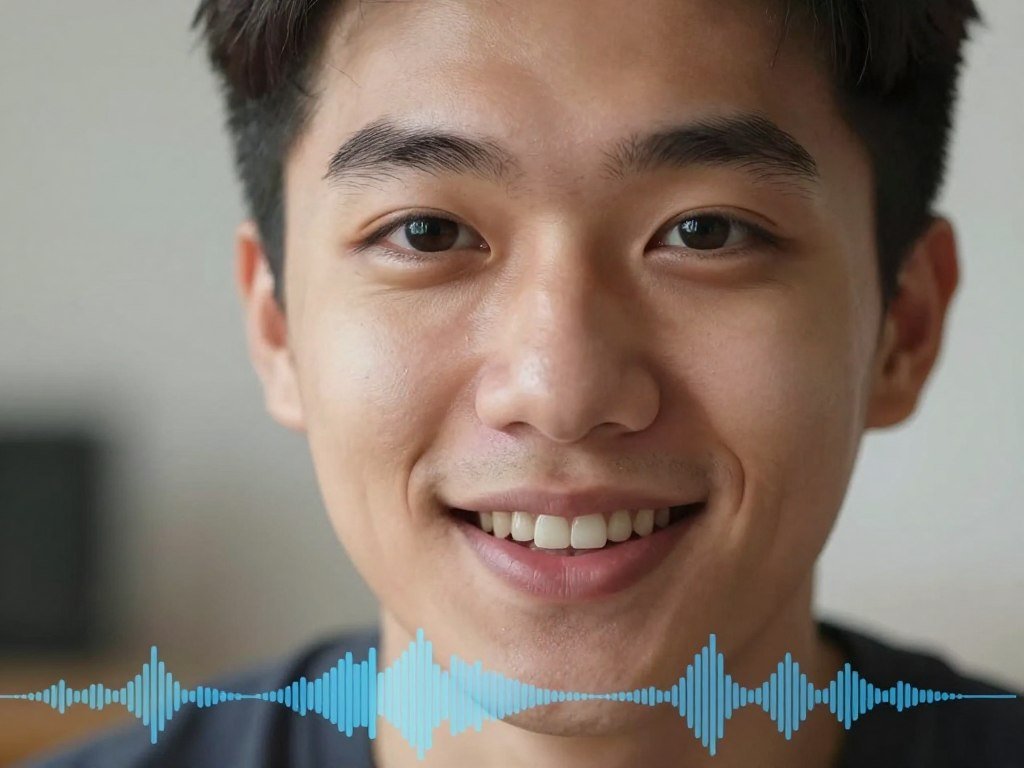
Lip sync can make a portrait appear to speak, but it does not create a new scene around that portrait.
A basic setup pairs one still image with one script or audio track. The script may first pass through text-to-speech, which turns written words into a voice recording. With uploaded audio, the generator uses the existing voice and timing instead.
The face must respond to more than individual words. Speech includes pauses, changes in pace, and sounds that use different mouth shapes. A model uses those cues to make facial expressions and movement appear more closely tied to the audio.
Speech-driven animation can also help viewers follow words when sound is hard to hear. In one study of 18 listeners, comprehension in noise rose from 50.8% with audio alone to 61.8% with synthesized facial animation. Natural video reached 71.2%. The speech-animation study also tested how realistic the videos looked.
A still image stays still outside the animated face unless the selected feature adds wider movement. The eyes may blink, the head may shift, or the expression may change, but the background can remain fixed. A pause or emphasized word can affect the timing of the mouth and expression, so the audio track shapes the performance.
How Do You Make a Photo Talk?
A first test can start with one portrait and either typed words or a recorded voice. Three steps take you from the source image to a finished talking-photo video. The exact buttons differ, but most workflows ask you to choose an image, add speech, and review the result.
Use the still-photo workflow when you want one portrait to speak. Some services also accept video uploads for lip sync, which is a different workflow. Check that you have selected the right project type before adding files.
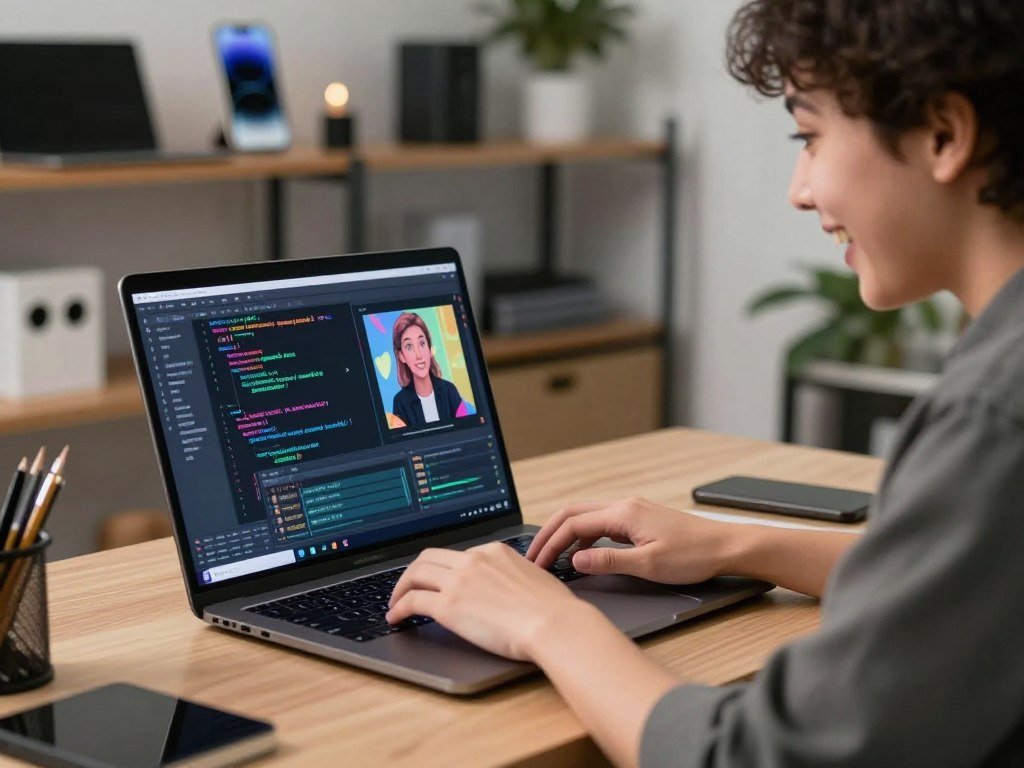
- Choose a portrait and start a project. Select a still-photo option if your source is a single image. The tool may offer a library or avatar settings.
- Add a script, generated speech, uploaded audio, or a recording. Text-to-speech can create a voice track from typed words. An audio upload keeps the voice you recorded.
- Generate the clip, preview it, and download the result. Watch the full video rather than checking only the opening frame. Save the export in a format your next app accepts.
HeyGen accepts one photo plus audio or a script for a talking-photo video. Its short lip-sync clips typically render in two to five minutes. The wait can change with the service and project, so leave time for a second render if needed.
For video uploads, HeyGen accepts MP4, MOV, or WEBM files up to 5 GB. Its audio uploads can use MP3 or WAV. These limits apply to its video and audio upload options, not every generator or every project type.
TalkingPhotos.ai offers photo upload, user-supplied audio, text-to-speech, and direct recording. That gives you a choice between bringing a finished voice track and making one inside the workflow. If a service asks you to record in your browser, use a quiet room and speak at a steady pace.
A script gives you more control over the spoken wording, while an audio file carries the exact timing and voice. Generated speech can save recording time, but the voice options may shape how the message sounds. Choose the path that fits your final delivery.
Keep the first message short enough to review in one sitting. A greeting or one clear update can reveal whether the expression and pace suit your goal. Preview the whole clip before downloading so you can catch a missed word or an awkward pause.
Which Photo and Audio Files Work Best?
A clean, front-facing face and audible speech give the model fewer obstacles to interpret. Clear inputs help a talking-photo tool track the person and the speech. Each service sets its own file rules, so check the details for your chosen generator.
A technically accepted file can still be a poor input if the mouth is covered or the audio is hard to hear. File type and size limits do not guarantee that the face or sound will animate well.
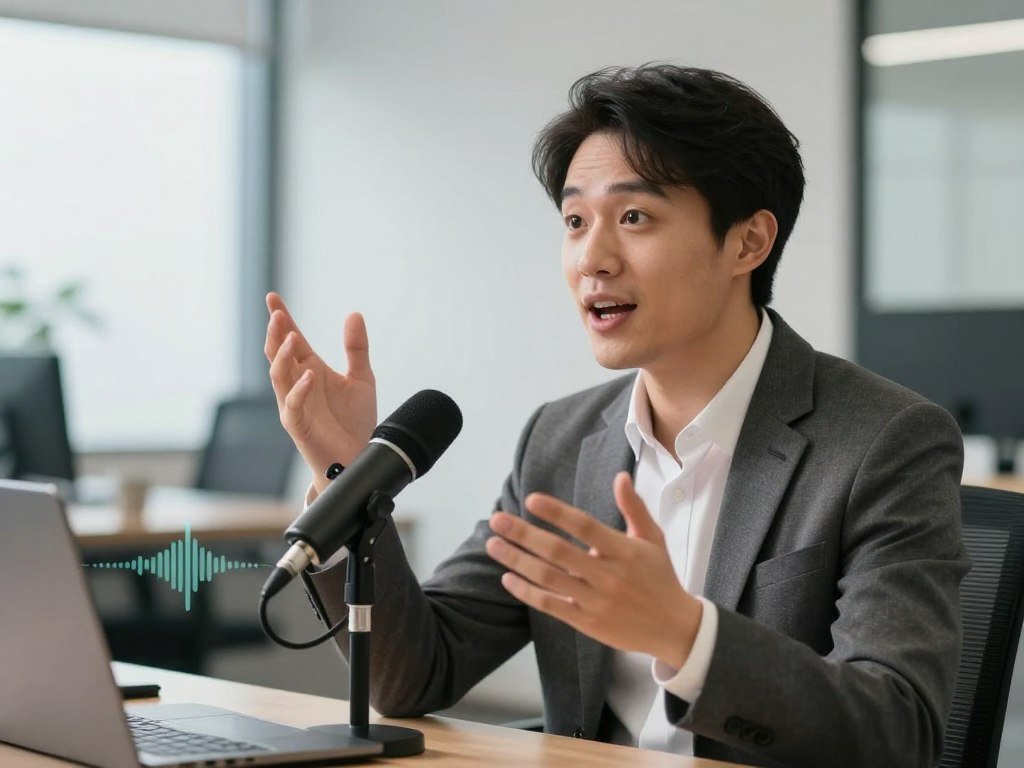
Choose a portrait with a clear, visible face
Choose a portrait with one large, unobstructed face. A frontal or slightly turned angle gives the model a useful view of the features. Even lighting can help the face remain clear across the image.
Imgveo recommends one visible person, even lighting, a front-facing or slightly turned face, and a relaxed closed mouth. It accepts JPG or PNG images up to 10 MB. Each side must measure at least 300 pixels, and the image cannot be wider or taller than a 2.5-to-1 aspect ratio.
Keep hair, hands, glasses, or other items from covering the mouth when possible. A relaxed closed mouth gives the model a clear starting point. A face turned far to one side may still upload, yet the angle can make speech movement harder to read.
The face image quality survey reviews how pose and lighting affect face analysis. Its findings cover face-image quality broadly, rather than talking-photo generators alone. Good source images matter beyond file acceptance.
Prepare an audio file the tool can read
Audio rules vary by service. Imgveo accepts MP3, WAV, M4A, or AAC files up to 10 MB. FreeLipSync accepts MP3, WAV, M4A, and WEBM audio files.
Listen to the full recording before uploading. Speech should be easy to hear, with clear word endings and pauses. Music or room noise can hide speech timing, even when the file type and size meet the service’s rules.
Some tools use text-to-speech instead of an uploaded recording. Others let you record directly in a browser. When you bring your own audio, keep the voice track focused on one speaker unless the selected feature supports speaker changes.
Check the upload panel’s format and size limits before spending time on a clip.
What Can You Create with a Talking Photo?
A shop owner could use one portrait to deliver a brief product update without filming a new spokesperson. Short, focused messages work well because the portrait can speak directly to the viewer. You can also use an AI avatar or character for a more stylized project.
Talking-photo videos can serve both practical messages and creative scenes. TalkingPhotos.ai, for example, offers more than 40 character actions, including walking, dancing, and waving. These examples describe specific features, not a promise that every generator can make the same movements.

- Social posts and short explainers.
- Personalized greetings.
- Educational or historical storytelling.
- Character dialogue and short scenes.
- Product or customer-support messages.
A company can use one speaking portrait for a short customer update, while a teacher might use a historical character to introduce a topic. For real estate teams, a short spoken social post could explain a listing feature. Review factual claims before publishing, especially when details affect a buyer’s understanding. The practical AI guide for real estate covers content review and image changes in that setting.
TalkingPhotos.ai supports human, cartoon, and animal characters created from prompts. Its tools also include a full-body talking-photo feature that can animate hand movement, facial expressions, and lip sync. A reference video can guide an avatar’s posture and timing through its Avatar Action Replicator.
Some photo-to-video features can add broad motion such as walking or waving. Those expanded actions depend on the selected tool and feature. Basic lip sync does not guarantee hand or full-body movement.
If you want a character rather than a real person, a prompt-based image tool can help create a starting visual. You can compare options in this guide to AI image generator tools. Check the image tool’s rights and terms before using a generated character in paid content.
Pick a use case that needs only the movements your selected feature can produce.
How to Choose an AI Talking Photo Generator: How It Works for Your Project
For one front-facing speaker, a fast lip-sync mode is a sensible first choice; use a precision mode for profile shots or changing speakers. Match the mode to the shot before judging voice or export tools. A talking photo generator may offer more than one kind of motion processing.
HeyGen Speed lip-sync costs 6 credits per minute and suits front-facing footage with one speaker. Precision costs 10 credits per minute and is designed for side profiles, speaker switches, camera-angle changes, and objects near the mouth.
Match the lip-sync mode to the shot
A single speaker looking toward the camera gives a fast mode a simple job. Side profiles and scene changes need a mode built to handle those shifts. Think about the source footage, not only the final message, when you choose.
The motion mode can affect both the result and the credit cost. A precision mode may fit a complex shot, while a fast mode can make more sense for a basic portrait. Do not pay for motion handling your clip does not need.
Check voice and language support
Voice options matter if you want generated speech, translated dialogue, or a voice that resembles a particular speaker. HeyGen voice cloning uses a 15-second voice sample and supports more than 175 languages and dialects for translated scripts. HeyGen requires consent from the voice owner for voice cloning.
Leadde can translate talking-photo audio and resynchronize lip movement in 89 languages and 175 dialects. TalkPix offers 30 AI voices in 10 languages. These options differ: some translate an existing message, while others provide voice choices for new speech.
Compare voice tools with the final audience in mind. A translated script, a text-to-speech voice, and an uploaded recording each create a different workflow. The ChatGPT app comparison also explains how plans can affect access to connected creative tools.
Confirm export controls before generating
| Tool | Voice or language capability | Other useful control |
|---|---|---|
| HeyGen | 15-second voice sample; 175+ languages and dialects for translated scripts | Up to 4K on Pro and above; MP4 at 16:9, 9:16, and 1:1 |
| Leadde | Translation and lip resync in 89 languages and 175 dialects | Premium plans include watermark-free, high-resolution exports |
| TalkPix | 30 AI voices in 10 languages | MP3, WAV, M4A, or OGG uploads, plus browser recording |
Export controls affect where your finished video can play. A vertical clip suits many phone feeds, while a square file may fit a different post layout. If you plan to edit the result, include the file format in your comparison.
Check the required aspect ratio before generation if the clip must fit a specific social platform.
How Much Do Plans and Video Limits Allow?
Free and paid limits differ by service: FreeLipSync caps free output at 20 seconds, while HeyGen’s regional free plan permits 1 to 3 videos of up to one minute each. Free access may include watermarks or project caps. Check both clip length and export quality before starting.
HeyGen paid plans allow clips up to 30 minutes on Creator and Pro, 60 minutes on Business, and 5 hours on Enterprise. VlogMe’s 2026 comparison lists HeyGen Creator at $29 per month. The price and maximum duration differ by plan.
Compare free access and paid duration caps
HeyGen’s free plan includes one to three videos, depending on region, with each clip up to one minute. Those free clips carry a watermark, and the plan requires no credit card. FreeLipSync offers free output up to 20 seconds and says basic use needs no credit card.
Vozo offers three free projects and supports talking-photo videos up to one minute. TalkingPhotos.ai advertises access with no monthly fees and no watermarks. Those terms make a service worth considering for a short test, but check the needed export features as well.
Free offers can use project counts, clip limits, recurring credits, or export restrictions. If you want to compare video tools beyond talking portraits, this free AI video generator comparison explains how access and export limits can differ.
Estimate the length of your message before choosing a plan. A one-minute cap may be enough for a greeting, but a longer lesson or training clip could exceed it. The maximum duration is not the only limit: some services also charge by the second or resolution.
Understand credit-priced clips
Imgveo prices some talking-photo videos by audio length and output setting. Its three modes have different credit rates and maximum audio lengths:
| Imgveo mode | Maximum audio | Credits per second | Output resolution |
|---|---|---|---|
| Standard | 15 seconds | 8 | 720p |
| HD | 15 seconds | 16 | 1080p |
| Cinematic | 30 seconds | 27 | 1080p |
Imgveo rounds audio duration to whole seconds when it calculates credits. The output lasts as long as the supplied audio, so a longer recording uses more credits. Shorten a script before generating if the clip sits near a maximum.
TalkPix supports clips up to five minutes at 720p or two minutes at 1080p. The 1080p option uses twice the credits per second. That makes resolution a direct part of the cost, alongside the clip duration.
Estimate the full audio duration before generating a credit-priced clip, since rounding can affect the charge.
What Makes the Animation Look Convincing?
If the lips track well but the shoulders stay still, the limitation may be the selected animation mode rather than the script. Motion scope sets which parts can move. Expression and head motion follow the source audio and the selected model.
A face-only mode cannot create full-body movement just because the portrait shows a full person. The selected feature determines whether shoulders, hands, or the background move. A broader mode may animate more, but its results still depend on the source image and settings.
- Confirm the mouth is unobstructed in the source.
- Listen for clear speech timing.
- Preview the full clip for pauses that look unnatural.
- Switch to a model intended for the needed movement.
Imgveo animates the face, head, and shoulders. It does not provide full-body action, and its background stays still. This can work for a close portrait, but it will not make a room or landscape respond to the speech.
Magic Hour modes that support broader motion can add facial, body, and hand movement. The result depends on the source image and selected settings. A portrait with little visible body area cannot show the same range as a full-body image.
Speech timing can affect how natural the face appears. A long pause may look odd if the face keeps moving, while a sharp change in pace may make the expression feel rushed. Read the script aloud before generating if the spoken rhythm matters.
Research has found that synthesized faces can help people understand speech in noise, though natural video scored higher in one test. The same speech-animation study found a median 50% correct response rate when participants judged whether synthesized and natural videos differed. That result does not mean every generated clip looks natural.
Judge motion in the downloaded preview at its intended viewing size, not only in a close-up preview window.
What Consent and Disclosure Rules Should You Follow?
A synthetic face can appear in marketing, but an endorsement still has to reflect the endorser’s honest experience. Permission and truth matter when you use a real person’s face or voice. Rules also apply when a realistic video could mislead viewers.
An AI avatar is not categorically barred from marketing, but a paid endorsement must be honest. The FTC Endorsement Guides require endorsements to reflect the endorser’s real experience. A made-up testimonial cannot stand in for a real customer’s opinion.
Get permission and keep endorsements honest
The FTC Consumer Reviews and Testimonials Rule has prohibited fake reviews or testimonials attributed to nonexistent people since October 21, 2024. Do not present a fictional avatar as a real customer who tried a product. A character can deliver a message, but the claim still needs a truthful basis.
Get consent before cloning a person’s voice. HeyGen requires consent from the voice owner for voice cloning. You also need the rights to use the portrait and any audio you upload.
Marketing use and endorsement use are not the same. An avatar can explain a product without claiming personal experience. If the script says the speaker used or recommends the product, that statement needs to reflect an honest experience.
Label realistic synthetic media and protect sensitive files
TikTok requires labels for content that uses AI to show realistic-looking people or scenes. It may remove or label content that lacks a label. YouTube requires disclosure when realistic content makes a real person appear to say or do something they did not do.
Meta asks Instagram and Facebook creators to use its AI disclosure tool for photorealistic video or realistic audio. Platform rules can apply even when a video is lawful. Set the disclosure option before posting when the content meets the platform’s rule.
The TAKE IT DOWN Act was signed on May 19, 2025. It makes knowingly publishing non-consensual intimate images of an identifiable person, including AI digital forgeries, a federal crime. Platforms must remove reported images within 48 hours.
Never use a realistic avatar to expose someone through intimate content they did not consent to share.
Privacy terms also differ by service. TalkPix says uploaded photos are used only to create the video, are not used to train AI, and are deleted after 30 days. Magic Hour says it does not train AI on customer prompts, uploads, or outputs. It offers deletion controls and feature-specific retention.
Before uploading a family portrait or sensitive recording, review the service’s training, retention, and deletion terms. A quick privacy check can help you avoid sharing a file with unclear handling rules. For more image tool choices, see this free text-to-image generator comparison and review each tool’s terms.
Get permission for the image and voice, then apply the platform’s disclosure setting before publishing realistic synthetic media.
Conclusion
A successful first clip needs a clear message, a suitable portrait, and a quick review before sharing. Start small with a short script and an image you are allowed to use. That gives you a simple way to see whether the voice and motion fit your audience.
Preview the rendered motion before sharing the video. Check the full clip for missed words, odd pauses, or expressions that do not suit the message. A short test can help you decide whether to adjust the script or choose another mode.
Prepare an authorized portrait and a brief script, then create a test video in the selected generator. Decide whether the result is ready for your audience.
FAQ
Can I create the portrait with AI instead of uploading a photo?
Yes, some tools let you create a portrait from a prompt or choose from an avatar library. Check that the selected workflow creates an image before you start the talking-video process. Some generators only animate images you upload. You may need a separate image tool first, then move the finished portrait into the video workflow.
Can I make the same portrait speak in a language I do not speak?
Yes, if the service supports the language and the workflow you need. A translated script changes the written words, while text-to-speech reads those words in a selected voice. You can also upload audio already recorded in the target language. Check whether the tool resynchronizes mouth movement after translation.
Can I make a talking photo sing instead of speak?
Yes, some singing-photo workflows animate a portrait to a vocal track. A speech-focused model may not match sustained notes or musical timing well. Confirm that the tool accepts singing or music audio before preparing the clip. A short sample can show whether the mouth movement follows the tune closely enough.
Are uploaded portraits used to train AI?
Some services say they do not train on customer uploads, but policies differ. Check the tool’s training, retention, and deletion terms before uploading a family photo or sensitive image. Also see whether you can delete the portrait and finished video yourself. Do not assume one service’s policy applies to another.
Can I use a talking-photo video in a paid ad?
Yes, an AI avatar is not categorically barred from marketing. Check your rights to the portrait and voice, along with the generator’s terms. If the avatar makes an endorsement, the statement must reflect an honest experience. A fictional speaker should not pose as a real customer or claim personal use that never happened.
Can one talking-photo video animate multiple faces?
Sometimes, but face-count support depends on the tool and workflow. Some generators animate only one face in a portrait, even when several people appear. A multi-speaker clip may need a feature that handles speaker changes or separate portraits. Check the service’s limits before building a group image into your project.



