You sit down to work, open your phone to check one thing, and find yourself scrolling before the task has started. The best app blockers help you interrupt that pattern, but they do not all use the same kind of boundary.
Blocking makes an app or site unavailable for a set time. Friction adds a brief, deliberate pause or extra step that interrupts an automatic attempt to open an app. The right choice depends on whether you need a hard block, a nudge, or coverage across devices.
Some tools suit a laptop and phone, while others work best on one device. A built-in setting may be enough, or you may want a dedicated app with schedules. We’ll compare options for different devices and needs, so you can pick a boundary that fits your work, study, and habits.
The useful first choice is not the most forceful app, but the kind of boundary you are most likely to keep.
Key Takeaways
- Choose a hard block when a reminder is too easy to ignore.
- Try friction when you want to pause before opening an app.
- Use cross-device coverage when distractions follow you between screens.
- Check your phone’s built-in controls before adding another tool.
- Start with one realistic rule that protects a key part of your day.
Do App Blockers Really Work?
App blockers can reduce use, but research results show that no single approach works consistently for everyone. The best fit depends on how you use distracting apps and whether a gentle nudge is enough to change your next move.
Blocking works best as a boundary you can follow, not a promise that your habits will change by themselves. A hard block prevents access for a set time, while friction adds a brief pause or extra step before an app opens.
Hard blocks and lighter friction
A hard block can help when you open social media without thinking, then lose time before noticing. A pause can make that action more deliberate, but you can still continue into the app.
Some people need the app unavailable during a focus session. Others do better with a prompt that reminds them why they picked up the phone. Your choice should match the moment you want to interrupt.
What the research can and cannot tell you
A 2023 study found that app-based interventions did not reduce maladaptive mobile phone use in 50% of the cases studied. A review in the Journal of Medical Internet Research review covered 19 studies and 13 blocking apps, and identified four apps that reduced phone use long-term.
App-limit features reduced use of targeted apps by 30-35%. Grayscale mode reduced phone use by up to 37.9 minutes per day. These results describe tested approaches, not a guarantee for every app or person.
If a soft pause is easy to ignore, choose a firmer barrier rather than expecting a reminder to do the work.
A separate review of digital habit programs found that most studied interventions lasted six months or less. That wider evidence can inform expectations, but it did not test app blockers specifically.
Best App Blockers by Focus Need
Start with the problem you need to solve: distractions across devices, automatic app opening, or a need for stricter limits. This quick comparison can help you narrow the options before choosing an app.
Match the tool’s approach to the boundary you need. Freedom covers more than one device, while one sec adds friction rather than making an app fully unavailable.
| Tool | Best fit | Approach | Platforms or setting |
|---|---|---|---|
| Freedom | Cross-device focus | Blocks apps and websites | Multiple devices |
| AppBlock | Customizable app restrictions | Schedules and Strict Mode | Android and iPhone |
| one sec | A pause before opening | Adds friction | Mobile and desktop options |
| Android Digital Wellbeing | Built-in controls | Timers and focus settings | Built in to Android |
| Habit Doom | Habit-linked access | Unlocks apps after habits | Android |
AppBlock offers scheduled blocking and Strict Mode. Habit Doom ties access to habits, so it may suit you better than a simple timer. Digital Wellbeing is built in, which makes it a practical first check on an Android phone.
For a closer look at how Occcy approaches product testing, read Occcy’s editorial approach. Your own routine still matters most: a tool that feels too strict may not last through a busy week.
Use this comparison to shortlist one tool, then judge it by how it behaves during your hardest-to-focus part of the day.
Which Built-In Blocker Fits Your Phone?
If you mainly want basic limits, check the controls built into your phone before installing another app. Android offers personal limits and parental controls, while Apple’s newer Screen Time features need a specific iOS version.
Check the operating system and who controls the settings before you set a rule. A limit you set for yourself is not the same as a rule a parent manages for a child.
Android controls for your own phone
Digital Wellbeing comes built into Android and includes app timers, Focus mode, and Bedtime mode on Pixel and many other phones. Pixel and many other phones can protect app timers with an App limits PIN.
Samsung Galaxy phones use Samsung’s version of Digital Wellbeing. It needs Android 10 or later, and settings vary by device, software version, and wireless provider. App timers can cover selected days and times, send alerts before a limit, and show app use, notifications, and unlock counts.
These controls can help you manage your own screen time without another download. For social media, set a daily timer or use Focus mode during a planned work period.
Android parental controls for a child’s phone
Google Family Link is free in 2026. It can remotely block apps, set limits for each app, approve Play Store downloads, and lock a child’s Android phone at bedtime. App blocking and limits need Android 7 or later on the child’s phone.
Family Link filters websites in Chrome. To restrict web access through other browsers, block those browsers as apps. Android 17 also has free parental controls with a PIN, app and whole-phone daily limits, downtime, and filters for explicit sites in Chrome and the Google app.
Android 17 rules are set and changed on the child’s phone, not remotely from a parent’s phone. Paid-plan alternatives include Qustodio and FamiSafe. Qustodio’s free plan covers one device but has no app blocking or app limits; its Basic plan costs $59.95 per year for five devices, and Complete costs $104.95 per year for unlimited devices.
FamiSafe’s free plan covers one device, but app blocking, web filtering, and location features are locked. Its plans cost $9.99 per month for five devices, $19.99 per quarter for 10 devices, or $59.99 per year for 30 devices.
iPhone schedules and time allowances
Apple Screen Time Schedules and Time Allowances need iOS 27 or later on all Apple devices using them. Schedules set time windows by day and app category. Time Allowances set daily limits for categories such as Entertainment, Games, and Social Media.
You can leave selected apps and contacts as Always Allowed. That can keep a needed tool or a key contact available while other categories have limits.
- Check the phone’s operating system.
- Decide who controls and changes the settings.
- List every browser that needs a web limit.
- Choose essential apps that must remain available.
Before turning on a child’s restrictions, verify the child’s Android version and test the rules on the device that will be managed.
Freedom for Blocking Across Devices
If you block a site on your laptop only to open the same distraction on your phone, a synced session is the feature to prioritize. Freedom blocks selected apps and websites across devices, so one focus session can cover more than one screen.
Freedom’s free plan includes multiple devices and custom blocklists, but not recurring or scheduled sessions. Paid plans start at $3.33 per month billed annually or $8.99 per month. A $199 lifetime option is also available.

You can make separate blocklists for different tasks, such as writing, study, or evening downtime. When you are ready to work, select a list and start a session. Optional focus sounds can play during that time.
Lockdown mode makes a session harder to edit once it starts. That can help when you often change a rule after a tempting notification, though it does not make the tool impossible to get around.
Recurring sessions can put a regular work block on your calendar without a fresh setup each day. That feature is part of paid plans, so the free version may suit you if you prefer to start sessions by hand.
The lifetime option may fit someone who expects to use Freedom for years, but it is not a better value for everyone. Your use, plan choice, and time with the app shape what makes sense.
Try the free plan with a custom list first, and pay only if recurring sessions are important to your routine.
AppBlock for Custom Schedules and Strict Mode
Choose AppBlock if you want separate rules for different routines instead of one blanket limit. Its features include time-, location-, and Wi-Fi-based schedules, app-open limits, allowlists, Strict Mode, and one-tap Quick Block.
An allowlist keeps selected apps available while other apps are blocked. That can leave your calendar, maps, or work chat open during a focus session without giving social media the same access.
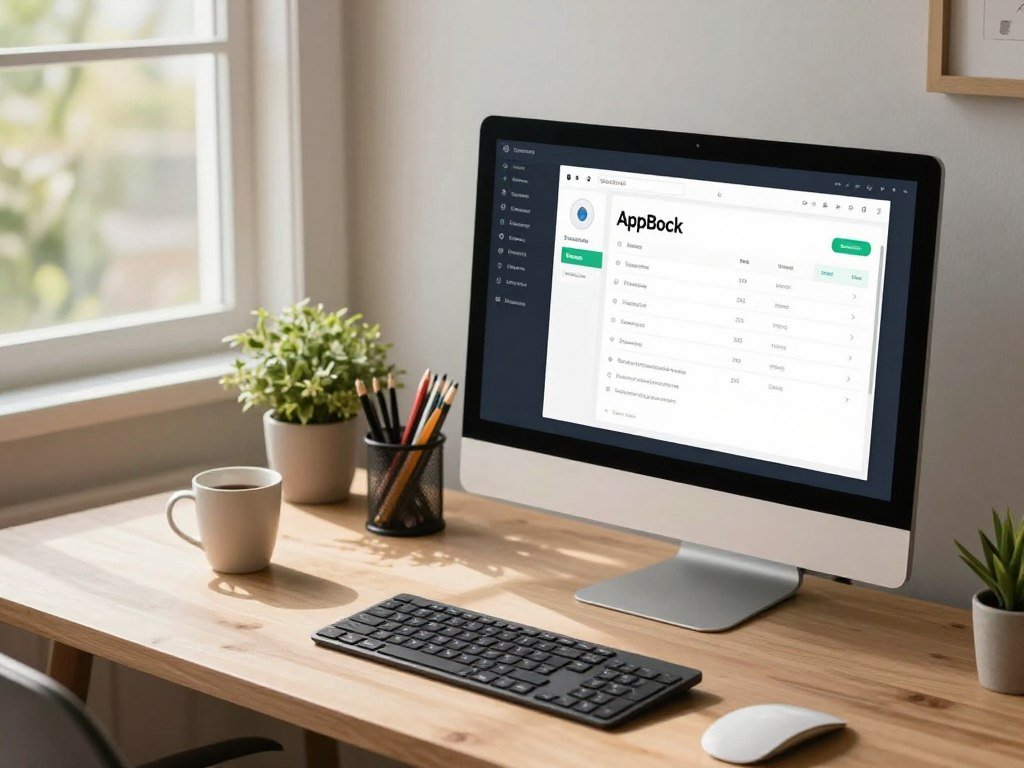
For example, you could block games and social apps during a weekday work profile. An evening schedule might use different rules, such as limiting news apps while keeping music available.
Strict Mode adds a tighter layer to a profile or schedule. Quick Block starts an unplanned focus period with a tap, which can help when a task appears outside your usual routine.
AppBlock’s iPhone App Store listing says it uses Apple’s Screen Time API for content blocking. The listing reports 6.9K ratings. A rating count shows that people have rated the app, but it does not tell you whether its rules fit your needs.
A long feature list is not proof that you cannot bypass a restriction. Test the rules during an ordinary day before relying on them for a high-stakes task.
Set up your first profile with these steps:
- Choose the distracting apps you want to block.
- Keep essential apps available through an allowlist.
- Set one schedule for a normal work period.
- Test it during a regular day and note any problems.
Start with one schedule and a short list of apps, then add complexity only when the first setup works as intended.
one sec and ScreenZen for Gentle Friction
If you reach for social media automatically but do not want it completely unavailable, a brief interruption may fit better than a hard lock. one sec and ScreenZen add a pause before selected apps open, though you can continue after that pause.
Friction slows an automatic opening; it does not block access. That difference matters if you need a firm limit rather than a moment to reconsider.
one sec adds a pause before opening
one sec can show a breathing pause before selected apps and sites open. You might feel the interruption when tapping a social media icon, then decide whether the visit is worth your time.
The pause does not prevent you from continuing. one sec also has a free desktop browser extension and Mac app. Paid plans start at $2.99 per month.
ScreenZen adds customizable delays
ScreenZen uses delays you can adjust, so the interruption can feel brief or more noticeable. It is free and donation-supported, and its support screen says, “No data saved.”
For example, a delay before opening a video app can give you time to remember why you picked up your phone. You can still proceed after the delay, so it is not a hard block.
This style can suit you when a small pause is enough to break a reflex. If you repeatedly ignore the prompt, a stricter tool may better match your goal.
Choose this approach when a nudge is enough, not when access must be prevented.
Habit Doom for Blocking Apps Until Habits Are Done
Habit Doom suits you if a time-based schedule feels less motivating than earning access by completing daily tasks. The Android app connects app blocking with habits, so finishing a task can release access to selected apps.
The Android free tier includes app blocking, streaks, Anti-Cheat photo verification, and up to three habits, with no ads. Habit Doom requires Android 10 or newer.
Start by choosing the distracting apps you want held back. Then set a few daily habits and complete them to unlock access. The system makes the reward clear, but it works best when the habits are specific and realistic.
For example, “read one chapter” gives you a clearer finish line than “read more.” You can keep the free tier if three habits are enough for your routine.
Habit Doom Pro is optional. On Android, it costs $4.99 per month, $19.99 per year with a seven-day free trial, or $29.99 for a lifetime plan.
These habits can work well as daily goals:
- Exercise for a planned period.
- Read a chapter or a set number of pages.
- Meditate before opening selected apps.
A habit-based rule can feel rewarding, but it still depends on your follow-through. Check that the phone runs Android 10 or newer before relying on Habit Doom.
Desktop and Browser Blockers for Focus at Work
If your phone is not the main problem, a computer blocker can target the exact place your work gets interrupted. Choose a system-wide tool for a stronger boundary, or a browser extension for a narrower routine.
A browser extension only controls activity in that browser. System-wide tools are harder to evade by switching browsers, while extensions are simpler but browser-bound.
| Tool | Platform or scope | Blocking approach | Price or free status |
|---|---|---|---|
| Cold Turkey Blocker | System-wide computer blocking | Schedules and Frozen Turkey mode | Pro is $45 one time |
| LeechBlock NG | Major browsers | Blocks chosen sites | Free |
| SelfControl | Mac URLs | Cannot be disabled once started | Free |
| Session | macOS and iOS | Pomodoro timer and distraction blocking | Basic app free; Pro from $4.99/month |
| Forest | Phone and browser extension | Focus timer and virtual tree | Free status varies by platform |
Cold Turkey and SelfControl for stronger computer blocks
Cold Turkey Blocker supports scheduled, system-wide blocking. Frozen Turkey mode can lock down access more firmly, and Pro costs $45 one time.
SelfControl is a free Mac URL blocker that cannot be disabled once started. It is designed for a firm block on listed web addresses, rather than a general timer.
LeechBlock NG and Session for narrower work routines
LeechBlock NG is free and works in major browsers, but it cannot block desktop apps. If you switch to another browser, the extension cannot control that activity.
Session pairs a Pomodoro timer with distraction blocking on macOS and iOS. Forest takes a different route: its focus timer grows a virtual tree, so it adds a game-like reason to stay on task rather than a strict lock.
Browser extensions can be useful for a short writing block, especially if one browser holds your work tabs. For broader advice on browser add-ons and their scope, see this comparison of browser tools.
Choose an extension only if you can avoid switching to another browser when a block begins.
How to Choose and Set Up a Blocker You’ll Keep Using
Pick the least complicated tool that addresses the moment when you most often lose focus. A hard block, gentle friction, built-in control, or cross-device option can each suit a different distraction pattern.
Start with the boundary you can follow on an ordinary day. A complicated rule set can be hard to maintain, especially if it interrupts tools you need for work or family.
Match the restriction to your habits
Choose a hard block if you need distracting apps or websites unavailable during a set period. Pick gentle friction if a pause may be enough to interrupt automatic openings.
Built-in controls can be a simple choice for one phone. Apple Screen Time and Android Digital Wellbeing manage phone use, while Freedom can cover devices together. Those approaches differ in scope, so use the one that fits where distractions occur.
Willpower is not the only part of the setup. A timer or schedule can help you begin, while preserving a work chat or map can prevent the rule from causing new problems.
Start with one realistic focus routine
A common Pomodoro routine uses 25-minute focus intervals followed by five-minute breaks. Treat that as an optional starting point, not a productivity formula that works for everyone.
Try this setup before adding more rules:
- Identify the distracting apps or sites.
- Select one high-risk period of the day.
- Preserve the tools you need for essential tasks.
- After a few sessions, review whether the rule felt realistic.
If a 25-minute block feels too long, choose a shorter focus session and build from there. The goal is a schedule you can repeat, not a perfect streak.
If the first schedule repeatedly disrupts essential work, adjust the rule rather than abandoning the whole system.
Privacy, Permissions, and How Easy a Block Is to Bypass
Before granting access, check which permissions the blocker needs and what information its privacy policy says is sent off-device. Android app blockers that use overlay or Accessibility Service permissions can be disabled by the phone’s owner in Settings.
Permission-based blocking can be changed by the device owner. Android Advanced Protection can also revoke Accessibility access from apps it does not classify as accessibility tools.
| Data or permission | Stated handling | Practical implication |
|---|---|---|
| Blocking activity and statistics | AppBlock says these stay local unless a server feature is used | Cloud features can change what leaves the phone |
| Installed app names | Package names go to servers for category-based blocking | Names can support app categories |
| Usage events and crash reports | Some events include app names; narrow crash reports may include a blocked page address | Diagnostics can contain limited activity details |
| Screen or notification content | AppBlock says processing happens on-device and content is not collected, with policy exceptions | Review the policy for stated exceptions |
AppBlock says its profiles, schedules, blocking, and statistics are processed locally unless a feature needs a server. Its category-based blocking sends installed application package names to its servers.
Android settings and Advanced Protection can affect features that depend on Accessibility access, so test the exact rules you plan to use.
AppBlock says screen and notification content read through Android permissions is checked on-device, not stored or collected by its operator, apart from stated policy exceptions. Recheck the app’s permissions and privacy policy whenever you enable a server-dependent feature such as an account or cloud backup.
Conclusion
The best fit is the tool that creates the right amount of friction for your real routine. Choose a boundary you can follow, whether that means a pause, a timed limit, or a block across devices.
Start with one small rule that protects an important part of the day. A single work period is easier to test than a full set of new habits and limits.
Pick one option, set one focus period for tomorrow, and check whether it helped you return to the task.
FAQ
Do app blockers really work?
App blockers can reduce use of targeted apps, but results vary from person to person. A hard block makes selected apps unavailable for a set time, while friction adds a pause that you can continue past. Research has found benefits for some approaches, but it does not show that every blocker works for every user. Choose a level of restriction that matches your habits.
What is the best free app blocker?
ScreenZen is a free, donation-supported choice if you want friction rather than a full lock. Your phone’s built-in settings may be a better free option: Android has Digital Wellbeing, while Apple has Screen Time features. Check the iOS version needed for Apple’s Schedules and Time Allowances. The best fit depends on your device and whether you need a pause or a firmer block.
Which app is best for blocking?
Freedom is a strong fit when you want to block apps and websites across devices. AppBlock suits people who want customizable restrictions, schedules, and a stricter mode. one sec and ScreenZen are better matches when you want a pause before opening selected apps. Pick based on where the distraction happens and how hard the boundary needs to be.
How do I permanently block any app?
You cannot count on a permanent block for every app. A schedule or Strict Mode can make access harder during selected periods, but the phone’s owner may still change Android permissions in Settings. Some tools also let you edit or end a rule. For a personal device, combine a clear schedule with a realistic boundary instead of expecting software to prevent every workaround.
What is the best app blocker for Android?
AppBlock is a good Android pick when you want configurable schedules and app restrictions. Digital Wellbeing may be enough for personal timers and Focus mode. For a child’s Android phone, Family Link offers remote app controls and limits when the device meets its version requirement. Choose based on who manages the phone and how much control you need.
Can I block an app for myself?
Yes, you can block an app for yourself with an app timer, schedule, or focus mode. Start by choosing the app and the time when you want less access. If you often override a gentle limit, switch to a stricter setting or a tool that makes the rule harder to edit. Keep essential apps available so the rule does not disrupt daily tasks.
Is AppBlock safe?
AppBlock says blocking, schedules, and statistics are processed on-device unless a feature needs a server. It also says installed app package names go to its servers for category-based blocking. Some usage events may include an app name, and a narrow crash report may include a blocked page address. Screen and notification content is processed on-device, with stated policy exceptions.
Can you temporarily disable an app without deleting it?
Yes, a timed block, schedule, or focus mode can restrict an app temporarily without uninstalling it. The app remains on your phone, and access returns when the rule ends or you turn it off. A schedule works well for regular periods, while a one-time session can cover an unexpected task. Use a stronger setting if you routinely cancel the block early.



