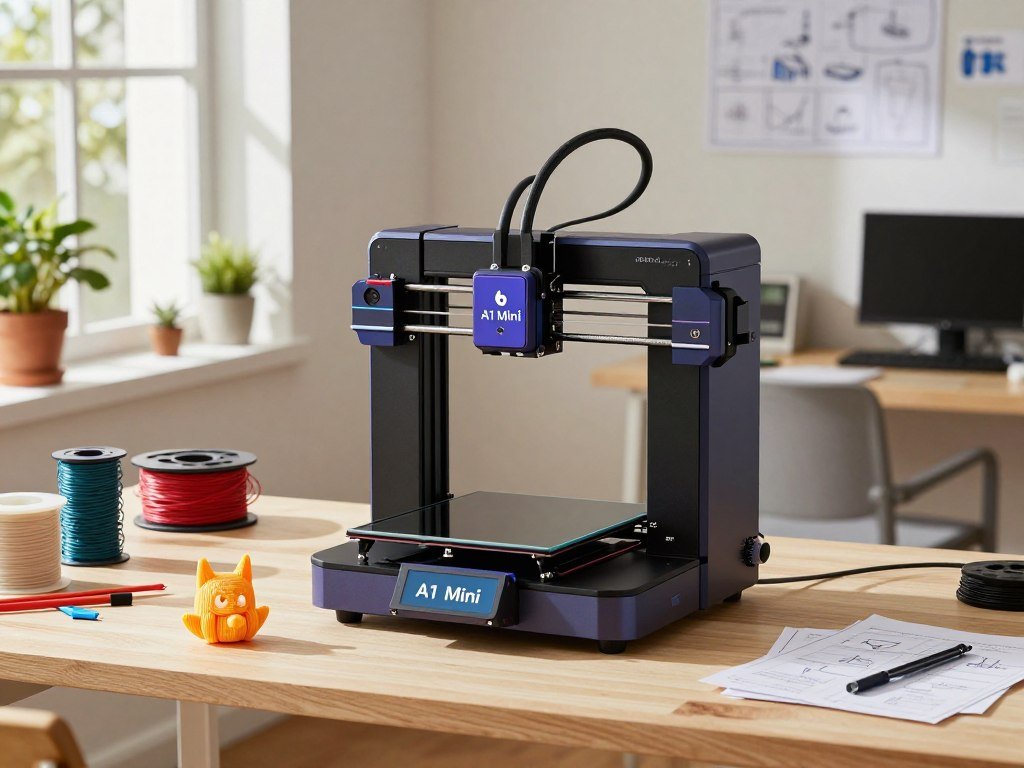
The Bambu Lab A1 Mini is the clearest starting point for most first-time buyers who want easy setup and a modest initial spend. For a home hobby in a small space, it offers a manageable way to try a first 3D-printing project without starting with a large machine. FDM is a 3D-printing process that melts filament and deposits it through a nozzle in successive layers.
The Bambu Lab A1 is a larger easy-to-use option, while the Elegoo Centauri Carbon gives you an enclosed alternative. Each choice has a tradeoff: compact size limits some projects, multicolor printing adds steps and waste, and an enclosure needs a suitable place at home. Your best pick depends most on budget, project size, and whether color printing matters.
Below, you’ll find practical picks for new users, along with ways to weigh size, materials, setup, and support. You can match a printer to the objects you actually want to make instead of paying for features that may sit unused. Choose based on the projects you actually expect to print, not the longest feature list.
Key Takeaways
- Bambu Lab A1 Mini: a compact default choice for many new users.
- Bambu Lab A1: more room with an open-frame design.
- Elegoo Centauri Carbon: an enclosed, single-color option.
- Check your likely project size before choosing a build volume.
- Buy multicolor hardware when color is part of your regular projects.
- Software, repair help, and material fit matter alongside printer features.
What Should First-Time Buyers Prioritize?
A beginner should prioritize a reliable first layer and a clear setup path before chasing speed or extra features. Practical basics make early prints less frustrating, especially when you are learning how filament, the nozzle, and the build plate work together.
Automatic leveling helps, but you still need to check the first layer. A nozzle can be level and still struggle with a dirty plate, poor adhesion, or an unsuitable profile. A well-supported PLA profile can reduce common setup friction without removing the need to watch the first print.
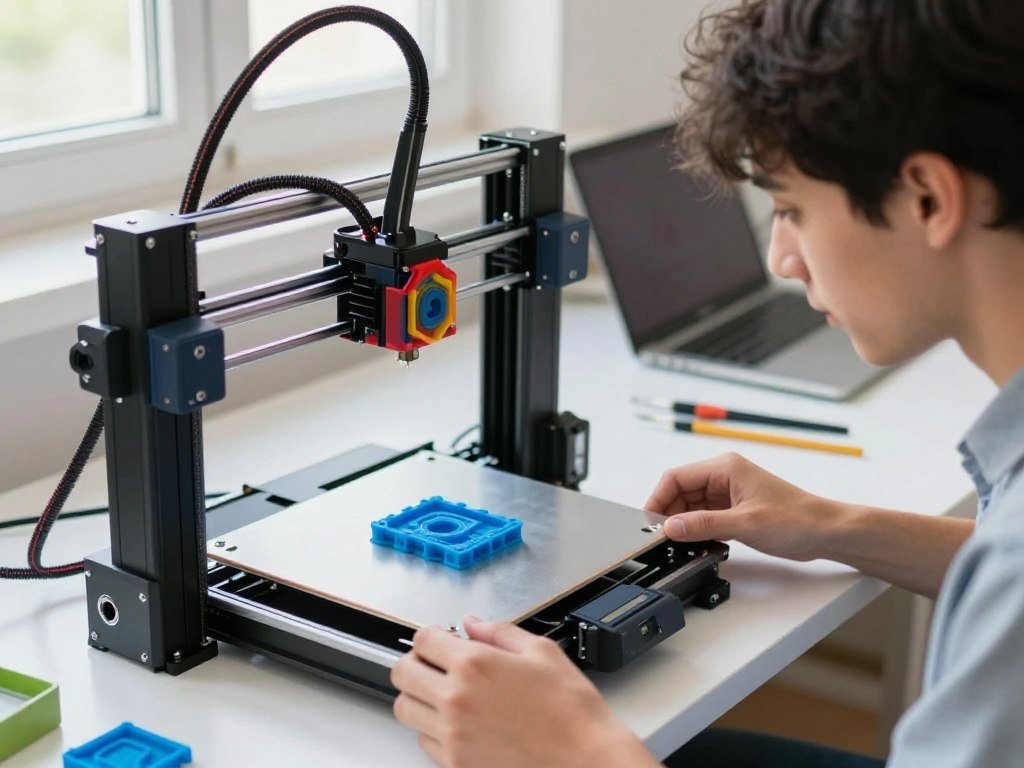
Use this five-point checklist to compare printers for beginners. It keeps attention on the daily workflow instead of a long list of features.
- Setup and calibration: Can you follow the initial instructions without extra tools?
- First-layer reliability: Can you see and inspect the print as it starts?
- Software clarity: Can you find a model, choose a profile, and send a print?
- Parts and repair help: Are replacement parts and repair guidance easy to find?
- Build volume: Will the printer fit the objects you expect to make?
Setup and calibration that reduce early troubleshooting
Leveling can be automatic, assisted, or manual, depending on the printer. A removable build plate also helps because you can take it out to release a finished part. These features reduce routine effort, but they do not make every print problem disappear.
A beginner-friendly printer should make key settings easy to find. If basic tasks require guessing at temperatures, profiles, or file types, a large feature list will not rescue the experience. A frustrating workflow can outweigh a faster tool head or extra sensors.
Support, replacement parts, and a workflow you can manage
Support resources matter when a nozzle wears out or a part needs adjustment. Compare brands such as Bambu Lab, Creality, and Prusa by checking repair guides, spare-part access, and options for local or offline use.
Some buyers want a guided app workflow, while others prefer desktop software and control over local files. Look for the exact model’s help pages rather than assuming every printer from one brand works the same way. Check whether a repair guide and replacement nozzle exist for the exact model before buying.
Should a Beginner Start With FDM or Resin?
For most first-time buyers, an FDM filament printer is easier to learn and maintain than a resin setup. Its usual workflow avoids the standard resin wash-and-cure process, which calls for extra tools and careful handling.
Choose FDM for a simpler first workflow, and resin when fine miniature detail matters more. Both can make useful prints, but they ask for different cleanup and safety habits.
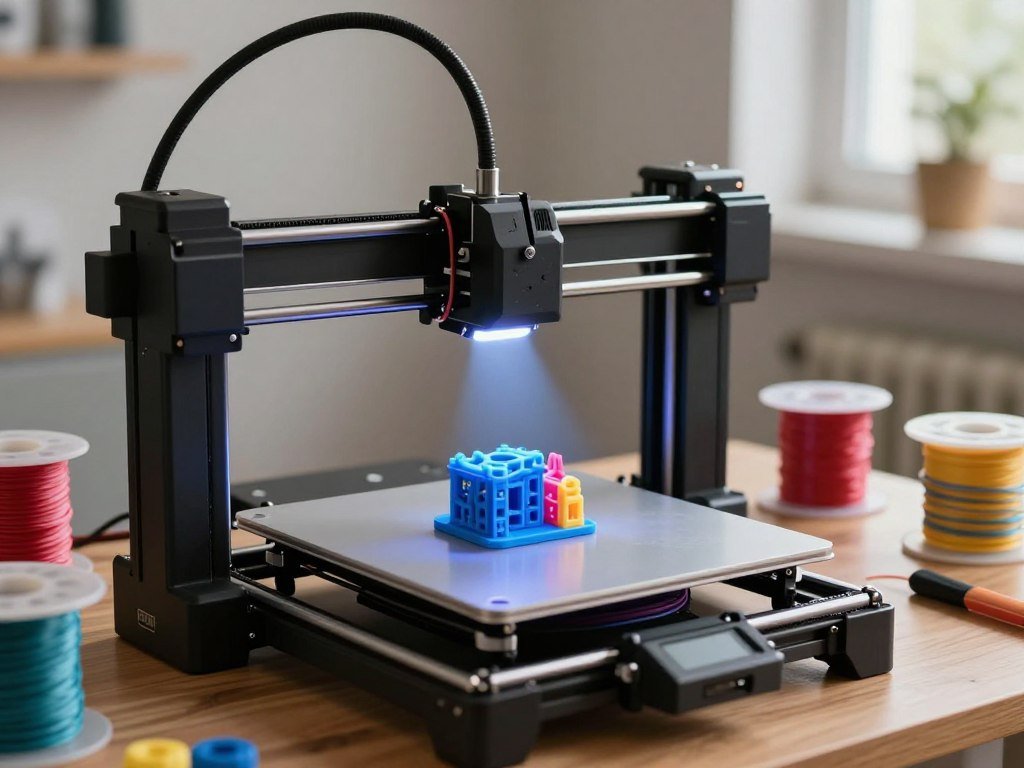
Why filament is the simpler first workflow
FDM is the familiar name for filament printing; standards use material extrusion as the broader process term. ISO/ASTM 52900:2021 uses that term for the process behind FDM and FFF printing.
Filament printers commonly use PLA for everyday models. You remove the finished part and may trim a support or rough edge. That is usually a simpler routine than handling liquid resin and cleaning a print after it leaves the machine.
When resin detail is worth the added handling
Resin printers can suit highly detailed miniatures, where small features matter. Liquid resin needs careful handling, and printed parts need post-processing, including washing and curing. Follow the resin maker’s handling directions.
- Workflow: FDM melts filament; resin printing cures liquid resin in layers.
- Typical project: FDM suits household objects; resin suits detailed miniatures.
- Cleanup: FDM parts may need trimming; resin parts need washing and curing.
Ventilate the room sensibly when printing with filament, and do not treat a material as emission-free. UL 2904 Ed. 2-2023 is an emissions-testing framework for printer and material combinations. Tested desktop combinations have reported ultrafine-particle estimates around 10^8-10^11 particles per minute, with results that vary by setup and material.
Reported lactide emissions from PLA were about 4-5 μg/min, while styrene from ABS or HIPS was about 10-110 μg/min. Those figures describe tested combinations, not every printer or room. Treat ease of handling and ventilation as part of the purchase decision, not as afterthoughts.
How Much Build Volume Do You Need?
A 180 mm cube is enough for many small household objects, while larger props and organizers may need more room. The right build volume depends on the biggest single piece you plan to print, not the size of your average keychain or desk clip.
A larger build area can reduce the need to split a model, but every part must fit the usable dimensions. The Bambu Lab A1 Mini measures 180 x 180 x 180 mm, while the A1 provides 256 256 256 mm of printable space.
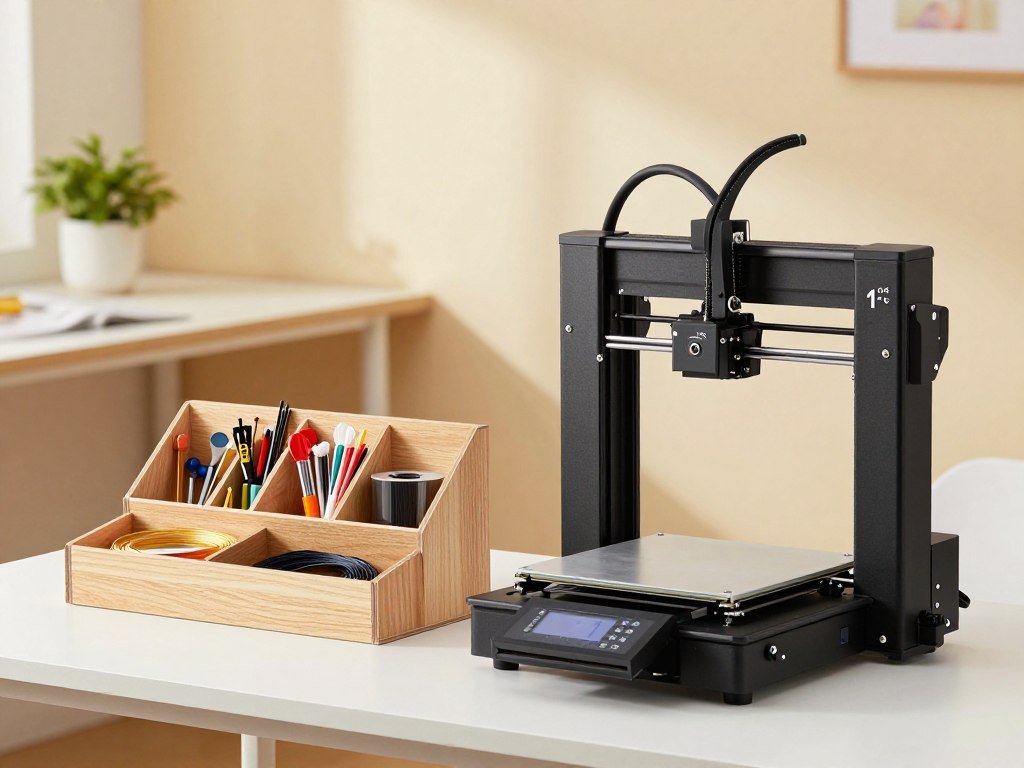
For comparison, the Creality Ender-3 V3 SE has a build volume of 220 220 250 mm. That extra height can help with taller toys or brackets, though the object still needs to fit the printer’s usable width and depth.
The Anycubic Kobra X offers 260 260 260 mm. Its larger cube can suit bigger organizers and some costume parts, while a 256 256 build area already accommodates many home projects. A listed number does not guarantee that every model will fit, since a print also needs room for the nozzle path and any supports.
Think about whether an object must print as one piece. A small shelf bracket may fit a compact machine, but a long costume prop could need to be split, joined, and sanded. Splitting can work, though it adds alignment and finishing work.
Build volume also affects where you keep the printer, since larger machines need more space around them. A bigger build is useful only when your projects need it and your work area can handle the machine. Measure the largest object you expect to make before paying for a bigger machine.
What Makes Setup Easy on a First Print?
A smooth first session begins with a stable surface, correctly loaded filament, and a first-layer check. Steady progress matters more than rushing through setup, since a small loading or adhesion issue can stop a print early.
A pre-assembled printer can cut assembly work, but it cannot guarantee a successful print. The Bambu Lab A1 Mini is pre-assembled and allows setup for a first print in 20 minutes. The Creality Ender-3 V3 SE uses CR Touch automatic leveling.
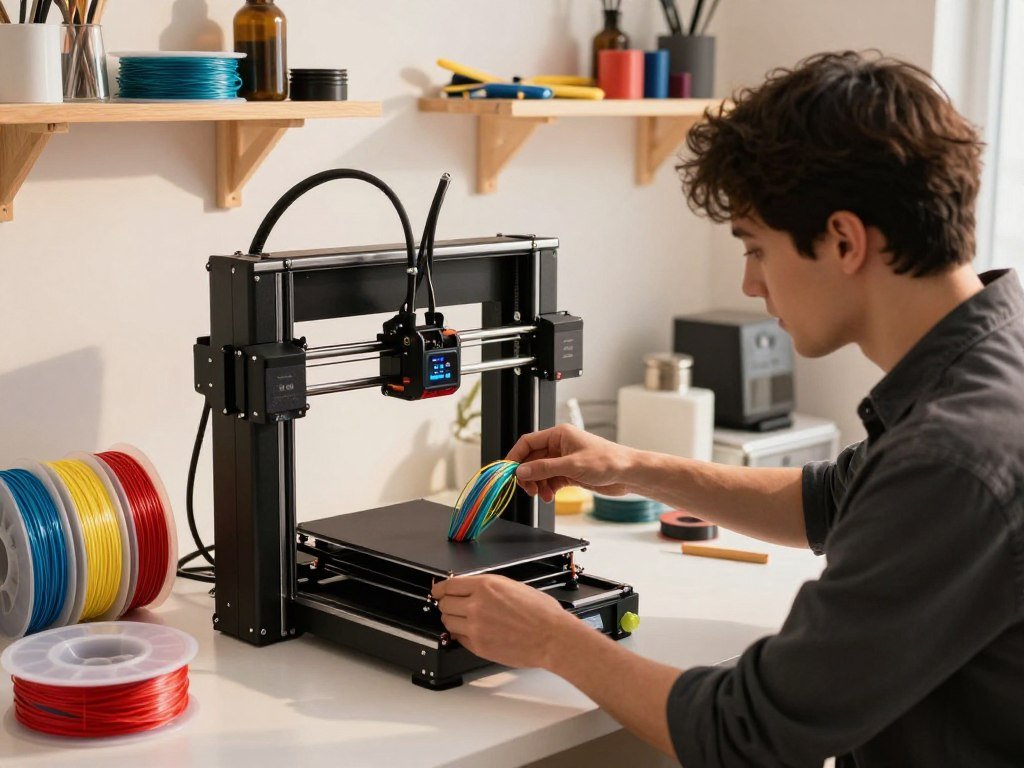
Unboxing, calibration, and loading filament
Start by placing the machine on a firm, level surface and removing packing materials. Follow the model’s setup instructions for calibration, then load filament through the path shown in its guide. Automatic leveling can help with bed setup, but it cannot correct every issue.
Choose a simple model from the printer’s library or slicer, then use a profile for the filament you loaded. A small test object is easier to inspect than a long print with many supports. Make sure the selected file and material settings match the machine.
What to check when the first layer starts
Watch the first layer as the nozzle lays down each line. The filament should stay on the build plate rather than curling around the nozzle or dragging behind it. Stop and check the instructions if the lines fail to stick evenly.
The build plate may be hot after printing, so do not grab it without checking. A finished model can also remain firmly attached while warm, and prying can damage the print or plate. A successful first layer gives you a useful early sign, not a promise that the whole job will finish.
Some printers move the tool head quickly, so keep hands clear while the machine runs. Follow the maker’s directions for pausing or stopping a job instead of reaching near moving parts. Let the print and build plate cool enough for safe, easy removal instead of prying at a stuck model.
Which Is the Best Beginner 3D Printer for Most People?
The Bambu Lab A1 Mini is the best beginner 3D printer for most buyers who value an easy start over a large print area. Its compact footprint suits a first printer when your projects are small and you want a low-friction way to learn.
The standalone A1 Mini is listed at $199 in 2026. Its build volume is 180 x 180 x 180 mm, which fits many small household prints but can limit large organizers and costume parts.
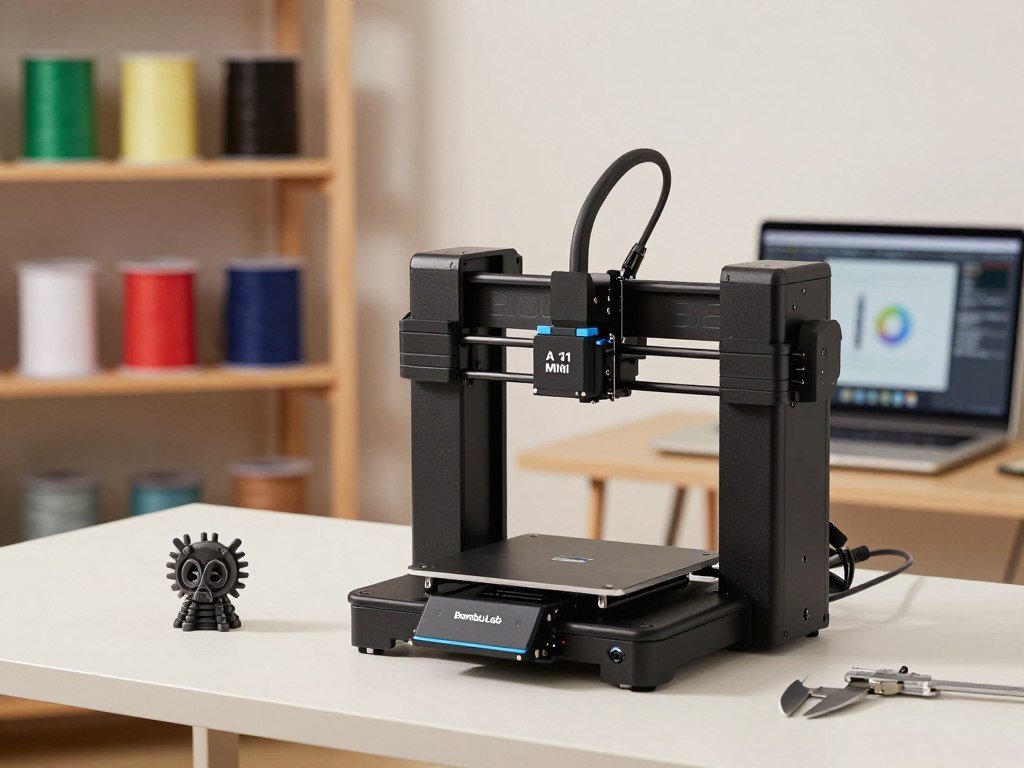
The standalone A1 Mini for a compact, lower-cost start
The standalone model makes sense when you expect to print mostly in one color. You can learn the slicer, test common models, and decide later whether multicolor printing fits your plans. This avoids buying extra hardware before you know how often you will use it.
Some buyers searching for the best printer beginners can choose will value the smaller build volume over a larger machine. That choice is practical for desk organizers, small toys, brackets, and household parts that fit within its limits. It is less suited to a single-piece costume part or a wide storage tray.
The A1 Mini’s size does not mean every print will be tiny. Many common objects fit within a 180 mm cube, and the slicer can help arrange a model within the available area. Still, a model that exceeds the usable dimensions needs to be split or printed on a larger machine.
The AMS lite Combo for color projects
The A1 Mini Combo with AMS lite is listed at $369 in 2026. AMS lite is the optional multicolor system for the A1 Mini and A1, and it enables printing with up to four colors.
Four colors can help with labels, signs, and display objects where color is part of the design. The added system also takes space and changes the printing workflow. It does not make the compact printer’s build volume larger.
If you want to print mostly functional parts, color may not change the result enough to justify the added cost. The system can make colored details easier than painting by hand, but the job may take longer and create purge waste. Pick the Combo only if four-color printing will be useful often enough to justify its added cost.
When Is the Bambu Lab A1 Worth the Extra Room?
Choose the Bambu Lab A1 when you want a larger easy-to-use machine and have a stable place to keep it. It gives you more room than the Mini while keeping the same broad Bambu Lab workflow.
The A1 supports PLA, PETG, TPU, and PVA, with up to four colors through one AMS lite. Its maximum hot-end temperature is 300 °C, and the build plate reaches 100 °C.
More room and material flexibility
The A1 can suit you if your models often need more space or you want to try several common filament types. The AMS lite Combo is listed at $489 in 2026, compared with $399 for the standalone A1.
Its maximum tool-head speed is 500 mm/s, with maximum acceleration of 10,000 mm/s². Those are upper limits, not a promise that each design will finish at the same pace. Model shape, material, and print settings affect the final time.
The machine measures 465 x 410 x 430 mm and weighs 8.3 kg. Its low-frame-rate chamber-monitoring camera supports up to 1080P and timelapse. Those details matter when deciding whether your desk can hold the printer and whether you can reach the build plate.
Open-frame tradeoffs and the A1 Combo
The A1 is an open-frame printer, unlike an enclosed machine. Bambu Lab does not recommend enclosing it, so do not add a cabinet or cover without checking the maker’s guidance. This is a design instruction, not proof that an open printer or an enclosure controls emissions.
The A1 Combo adds AMS lite for multicolor printing, while the standalone unit keeps the setup simpler. Both versions need a firm work surface and enough access to remove prints. The build plate must slide or lift out as the design allows.
Think about the full working area, not only the printer’s listed dimensions. A wall, shelf edge, or nearby tool can make routine access awkward even when the machine fits. Check the machine’s full footprint and leave room to reach the build plate before choosing a desk or shelf.
Which Affordable Alternatives Add More Capacity or Color?
The Ender-3 V3 SE is a straightforward low-price benchmark, while the Kobra X and SPARKX models offer more room or color options. These alternatives suit buyers whose first priority is not a compact Bambu Lab workflow.
Compare the color setup and build volume alongside price and speed. The Ender-3 V3 SE is listed at $199 and includes CR Touch auto-leveling.
| Model | Build volume | Color system | Useful differentiator |
|---|---|---|---|
| Creality Ender-3 V3 SE | 220 x 220 x 250 mm | Single color | $199; CR Touch auto-leveling |
| Anycubic Kobra X | 260 x 260 x 260 mm | Four colors out of the box | Up to 19 colors with added ACE modules |
| Creality SPARKX i7 | 260 x 260 x 255 mm | CFS Lite, up to four colors | 300 °C hot end; CFS Lite cannot expand |
| Creality SPARKX i7 Nano Combo | Not stated here | Combo color system | $299 in 2026; body-mounted spool holder |
The Anycubic Kobra X reaches a maximum speed of 600 mm/s, with a stated standard-mode speed of 300 mm/s. Maximum speed is a capability ceiling, while standard-mode speed describes a named way of printing. Neither figure promises the same finish or time for every model.
The SPARKX i7 reaches a maximum print speed of 500 mm/s. Its CFS Lite supports up to four colors, but it cannot expand beyond that system’s capacity. The Kobra X can expand with extra ACE modules, which add hardware and setup choices.
The SPARKX i7 Nano Combo produced fine details, smooth surfaces, and sharp edges consistently in testing. Its spool holder sits on the body, which may suit a more compact setup. Compare the actual printing workflow and service options, not just the largest speed number.
Is the Elegoo Centauri Carbon the Best Enclosed Value?
The Elegoo Centauri Carbon is a sensible enclosed-value choice for buyers who prefer a larger, single-color machine. Its enclosed design and quick printing make it a clear alternative to open-frame printers.
The original Centauri Carbon prints a 10 x 10 x 10-inch cube and has no multicolor upgrade. In 2026, it costs about $415 with the $55 Canvas upgrade.
What the original Centauri Carbon offers
The original model is enclosed and prints in one color. Its 10-inch cube offers a useful size benchmark for home projects, from organizers to larger decorative objects. A model still needs to fit the usable print area.
Testing found that the printer printed quickly and accurately. Its box-to-Benchy time was 1 hour 11 minutes in testing, a result tied to that test rather than every print. The enclosure can help limit drafts around a print and can support some materials.
Tom’s Guide reported setup in under 10 minutes, along with automatic bed leveling and a built-in monitoring camera. The review also described household accessories and gifts made on the printer. Its Centauri Carbon hands-on review gives examples of those uses.
When the Centauri Carbon 2 Combo makes sense
The newer Centauri Carbon 2 Combo is listed at $450 in 2026 and has a separate multicolor position. It is not an upgrade path for the original model, which remains single-color.
Choose between the two versions based on whether color printing is part of your regular work. The original may suit you if you want an enclosed printer for single-color parts and do not need a multicolor system.
An enclosure may help with drafts and certain materials, but it does not prove emissions control or make every room suitable. The original Centauri Carbon is about $415 with the Canvas upgrade, while the Combo is listed at $450. Choose the original only if single-color printing meets your needs.
Does Multicolor Printing Justify Its Extra Cost?
Multicolor is worth paying for when color is central to the object, not just because the printer can do it. Display objects and labeled parts can benefit, while many hidden or painted parts do not need color changes.
Multicolor printing can add long runtimes and purge waste. The best fit depends on how often you need colored details and whether you can accept those costs in time and filament.
| System | Color capacity | Practical tradeoff |
|---|---|---|
| A1 Mini with AMS lite | Up to four colors | Added color workflow and purge waste |
| P2S with optional add-ons | Up to 16 colors | Higher listed price and longer color jobs |
| Snapmaker U1 | Four colors | Four-color printing without a listed expansion figure |
The Bambu Lab P2S AMS Combo is listed at $749 in 2026. Its maximum print size is 10 x 10 x 10 inches, and optional add-ons support up to 16 colors. In testing, it had no connection issues and identified and paused failed prints.
One tested three-color P2S print took 19 hours 30 minutes, while the single-color version of the same design took 2 hours 4 minutes. In a couple of complicated multicolor prints, the printer discarded three to four times as much filament as it used. Those results describe those test prints, not every design or setup.
Each color change can leave a strand of filament that the system discards as purge waste. The extra material can matter on designs with frequent changes, while a large block of one color may need fewer changes. Single-color printing can be more efficient when appearance is not important.
Multicolor works well for objects that need visible labels or distinct sections. It is less useful when a part will sit inside a machine or receive paint later. For functional parts that will be painted or hidden, start with single-color printing.
Which 3D Printer Fits a Child’s Age and Supervision?
For a younger child, a compact, simple setup is a better starting point than a fast machine with a long feature list. Adult involvement should match the child’s skills and the tasks the printer requires.
A 3D printer is a tool, not a toy, at any age. Adults should handle hot parts, tools, and material choices, while older children can take on more supervised setup and model preparation.
| Model | Suggested age range | Family consideration |
|---|---|---|
| Toybox | Lower elementary grades | Compact body, less than 10 inches tall and 7 inches wide |
| Elegoo Centauri Carbon | Upper elementary grades | Enclosed design still needs adult oversight |
| Snapmaker U1 | Middle school age and above | Better for older users ready for supervised setup |
WIRED recommends Toybox for children in lower elementary grades, Elegoo Centauri Carbon for upper elementary grades, and Snapmaker U1 for middle school age and above. Those are starting points, not a promise that every child will be ready at the same time.
The Toybox measures less than 10 inches tall and 7 inches wide, which can help when a family has little room. A small size does not remove the need to manage hot parts, electrical equipment, and print materials. Keep the printer where an adult can check on it.
Children can learn to choose a model, prepare a file, and watch a print with guidance. Adults should decide which materials are suitable and handle tasks that involve heat or sharp tools. Give the child a clear role rather than asking them to manage the whole process alone.
As children gain experience, they can take on more supervised tasks, such as preparing a model or checking a slicer preview. The right level of help changes with the child’s attention, patience, and ability to follow directions. Treat age recommendations as a starting point and match supervision to the child’s experience.
Which Filaments Should Beginners Start With?
Start with PLA unless a specific project requires a flexible or higher-temperature material. For common first projects, PLA suits many models and is supported by a wide range of desktop printers.
Check the printer’s documented limits before loading a new filament. Material choice affects nozzle temperature, bed settings, storage, and the kind of control your machine needs.
PLA for common first projects
PLA is a useful starting point for toys, organizers, and simple household models. Begin with a known profile for your printer and filament type. A profile helps set basic print temperatures and speeds, but the material still needs dry storage.
Check the spool label and the maker’s guidance before choosing settings. Filament can vary by brand, even when two spools use the same material name. Do not assume that every profile works well with every machine.
When TPU, ABS, or ASA changes the choice
TPU is flexible and needs a compatible feed path. ABS and ASA often need more control over heat and drafts than PLA. An enclosed printer may help manage drafts, but an enclosure alone does not guarantee emissions control or make a bedroom safe.
The Elegoo Centauri Carbon supports PLA, PETG, TPU, ABS, and ASA. Its top lid must be removed when printing cooler filaments. The Creality SPARKX i7 with CFS Lite can process TPU, and its enclosed housing with desiccant helps protect filament from moisture.
PCMag reports that the Centauri Carbon also supports nylon and carbon fiber, along with common materials such as PLA and ABS. Those materials have different needs, so a broad compatibility list does not mean every spool is equally easy for a beginner.
- Material: Confirm the exact filament type and any blend.
- Temperature: Check that its range fits the printer and hot end.
- Storage: Keep the spool dry as its maker advises.
- Ventilation: Choose a suitable work area for the printer-material combination.
Material choice can also affect which printer makes sense. A machine that supports flexible filament is not automatically a good match if its feed path cannot handle it well. Match the filament to the printer’s documented limits before loading a new spool.
How Much Should You Trust Maximum Speed?
A maximum speed figure tells you what a printer may reach under suitable conditions, not how fast every object will finish. Think of it as a ceiling, rather than a time estimate for your next model.
Maximum speed is a capability limit, not a promise for every print. The machine’s motion, the model, and the filament all affect the time and quality you get.
Acceleration describes how quickly the tool head reaches a chosen speed. A short object may not leave enough room to reach a high top speed, while a long straight section may use more of it.
Geometry matters because curves, small details, and frequent direction changes can slow a print. Layer height changes how many layers the machine must lay down. Nozzle flow and material settings also limit how quickly it can place plastic.
The Elegoo Centauri Carbon has a top print speed of 500 mm/s and maximum acceleration of 20,000 mm/s². Its Benchy test print took 18 minutes 19 seconds. That is one specific test result, not a prediction for a larger or more detailed object.
A common mistake is to choose a printer based on its largest speed number. A machine may reach that figure only with suitable models and settings, and a faster print can still need adjustment or cleanup. The time saved on one print may not matter if the workflow is hard to manage.
Look for test prints that resemble the objects you expect to make. A small Benchy tells you something about a short test, while a larger household part may behave differently. Compare test prints and everyday settings before treating a headline speed as a buying advantage.
Where Can a 3D Printer Fit at Home?
A spare work surface in a ventilated shared area is usually more practical than a bedroom or an enclosed cabinet. Home use works best when the printer has clear access, steady support, and room airflow.
A bedroom is a poor default location for a printer. Noise, long print jobs, and the printer-material combination all matter when you share a room or sleep nearby.
A desk or workbench can be a good spot if it stays stable during printing. Leave space to reach the build plate and remove a finished part. Avoid an enclosed cabinet that blocks normal airflow or makes the machine hard to inspect.
Noise can matter in a shared room, especially when a print runs for hours. The Bambu Lab A1 Mini has a stated noise level of ≤48 dB. That rating describes the model, not every print sound in every room.
The Elegoo Centauri Carbon was noisier during operation than the other printers tested. That is a comparative finding from those printers, not a fixed noise level for every unit or setting. A printer’s sound can also seem louder in a small room with hard surfaces.
Think about the people and activities near the machine. A printer beside a work area may be easier to monitor than one placed in a closet or a bedroom. Keep the space usable for regular household tasks, and do not block vents or access points.
Give the printer room for its normal movement and for you to reach the build plate. A crowded shelf may make a machine fit on paper but awkward to use. Leave clear access around the printer and avoid placing it where normal household airflow is blocked.
Which Software and Support Ecosystem Suits Beginners?
The best printer brand for a beginner is the one whose software and repair resources feel manageable before the first failure. A clear workflow can make choosing a model, preparing a file, and getting help less daunting.
Compare software, ready-made models, spare parts, and repair help before choosing a brand. A smooth first print matters, but so does knowing what to do when a nozzle clogs or a part wears out.
Model libraries, slicers, and sending a print
Bambu Lab’s workflow includes Bambu Handy, Bambu Studio, and MakerWorld. Creality Print is the slicer named for Creality K1 Max use. QIDI Plus5 works with PrusaSlicer and OrcaSlicer.
A slicer turns a 3D model into instructions the printer can follow. Some tools guide you through a basic print, while others expose more settings. Try a sample file or preview the interface before you decide which style suits you.
Ready-made libraries help you print without designing a model from scratch. Check that the files include profiles or clear settings for your printer and filament. A model that looks simple on screen may still need supports or a changed orientation.
Repair guidance, spare parts, and local control
Use this five-point checklist to compare a beginner workflow:
- Ready-made models and profiles: Can you find files suited to the machine?
- Slicer clarity: Are the main settings easy to understand?
- Mobile or desktop workflow: Can you send a print the way you prefer?
- Replacement parts: Can you find a nozzle and other common parts?
- Repair help: Are instructions or community guidance available?
The best 3D printer brand depends on what you value: a guided workflow, local control, or repairability. A guided app may suit you if you want fewer choices, while desktop tools can offer more direct control over files and settings.
Support can differ by model, not just by brand. Look for repair instructions that match the exact printer and for parts you may need to replace. Check current account and connectivity requirements, especially if you plan to print offline.
A printer should accept files in a way that fits your home or work setup. Some users want to send a print from a phone, while others prefer local files and desktop software. Check that the printer can receive a file in the way you plan to use it, including any offline requirements.
Which Printer Fits Home Projects, Business, or a Tight Budget?
For a general home hobby, start with the A1 Mini; choose the A1 when project size matters more than footprint or color. Your main use should guide the choice, since a home printer and a small business tool may need different strengths.
Small-business buyers should prioritize repeatability and material fit over headline speed. A printer that can handle a representative job reliably is more useful than one with a striking maximum figure.
| Buyer need | Model | Main tradeoff |
|---|---|---|
| Compact everyday home projects | Bambu Lab A1 Mini | Smaller build volume limits large parts |
| Larger open-frame workflow | Bambu Lab A1 | Needs more room than a compact model |
| Enclosed single-color setup | Elegoo Centauri Carbon | Original model has no multicolor upgrade |
| Out-of-box color printing | Anycubic Kobra X | Extra color capacity needs added modules |
| Connection checks and failed-print pauses | Bambu Lab P2S | Higher-capacity workflow costs more |
The A1 Mini fits small household models, desk items, and other projects that do not need a larger print area. The A1 makes more sense when a project often exceeds the compact machine’s usable size. Both choices involve an open-frame design.
The Centauri Carbon suits buyers who prefer an enclosed, single-color setup. The Kobra X offers four-color printing out of the box, while the P2S may appeal to users who value its tested connection and failed-print pause features.
The Creality Ender-3 V3 SE is a separate budget-oriented option. It can make sense when low entry cost matters most and you are comfortable comparing its support and workflow with other models. Do not assume the cheapest machine is the least costly to own if repair parts are hard to find.
For business use, consider the materials, repeat jobs, file workflow, and replacement parts you may need. A small business should test the actual kind of part it plans to make, not rely on a generic speed claim. For business use, test a representative job and confirm material, workflow, and replacement-part needs before committing.
Conclusion
Most first-time buyers can begin confidently with the Bambu Lab A1 Mini. It is the default choice when you want an easy start and your planned models fit its compact size.
The A1 is a larger open-frame option, while the Elegoo Centauri Carbon suits a preference for enclosed, single-color printing. Before you decide, write down the largest project you expect to make and whether color is essential.
That simple check can keep you from paying for capacity or features you will rarely use. Measure your available work area and one likely project, then choose the printer that fits both.
FAQ
Do I need to buy filament from the printer’s manufacturer?
No, you can use another brand if its material, spool dimensions, and printer profile are compatible. Start with a familiar PLA spool because it suits many common beginner projects. Check that the spool fits the holder and that the printer can feed it properly. Follow the filament maker’s temperature range and storage advice, since profiles and material blends can differ.
How often should I run automatic bed leveling?
Run calibration after moving the machine or changing hardware that affects the nozzle, bed, or build plate. You do not need to repeat it on a fixed schedule when prints start well. If a first layer stops adhering evenly, inspect the plate and settings, then troubleshoot before assuming calibration alone will fix it. Use the printer’s own steps for running the process.
Can I print a model larger than my printer’s build volume?
Yes, a slicer can split some models into smaller parts that fit the printer. You will need to align and join those pieces after printing, which adds work and can weaken the finished part. The joint may also need sanding or other finishing. Splitting is useful for large props, but it does not make every design easy to assemble.
Do I need to design my own models to use a 3D printer?
No, ready-made model libraries let beginners print without learning CAD first. You can download a design, check that it fits your printer, and prepare it in a slicer. Review the model’s instructions for supports, material, and orientation before printing. Check the license before sharing or selling a downloaded design, since some files limit commercial use.
Is a 3D printer safe to run in a bedroom?
A bedroom is not the recommended default location for a 3D printer. Choose a ventilated area and consider the printer-material combination instead of assuming an enclosure removes emissions. Noise and long print jobs can also disturb sleep. Keep the printer where you can reach and monitor it, and follow the material maker’s handling and ventilation directions.
Should a beginner buy a multicolor Combo immediately?
Buy a Combo when color is central to the projects you expect to make often. If most prints are functional parts, single-color printing can avoid extra filament loading steps and purge waste. You can learn the basic workflow first and add color only when it serves a real use. Color is most useful when the finished object needs visible labels or distinct sections.



