
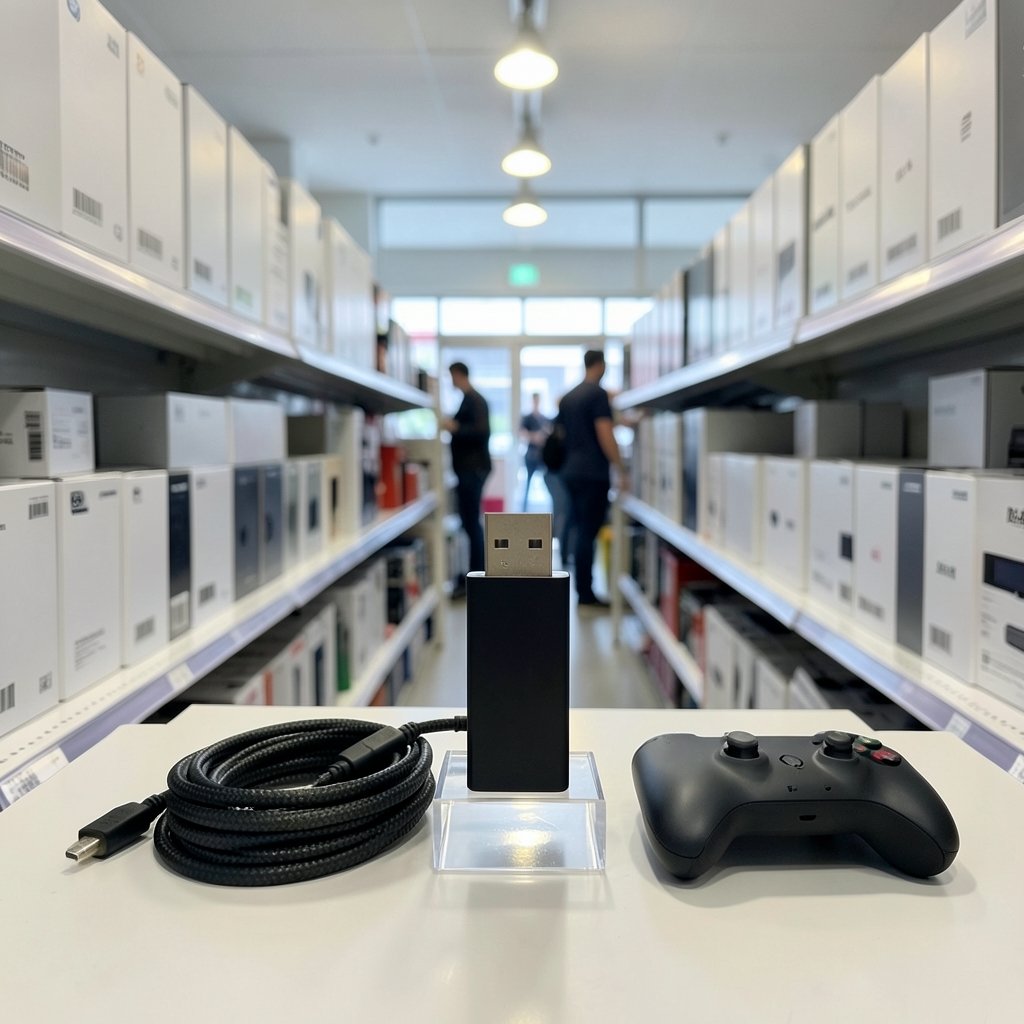
Quick Answer: What are the best capture cards for new streamers?
The best capture cards for new streamers are external USB models that record at 1080p60 while passing through a higher-resolution signal to a TV or monitor. The Elgato HD60 X is the safest starting point for most people, while the AVerMedia Live Gamer line offers comparable USB and PCIe options and the Elgato 4K X suits those who want higher-end capture.
Internal PCIe cards such as the Elgato 4K60 Pro class deliver lower latency and more bandwidth, but they need a desktop with a free slot. Budget USB cards exist too, though many cap at 1080p30 or ship with weaker software support.
Before buying, compare capture resolution and frame rate, passthrough support, connection type, software compatibility, latency, and price.
Ever watched a friend pull off a perfect clutch in a game and wished everyone could see it live? That moment is exactly what a capture card makes possible. The catch is that the market is crowded, specs are confusing, and a wrong purchase can leave a new streamer stuck with blurry footage or laggy audio. This guide walks through what actually matters, which cards fit which setups, and the mistakes that trip up almost everyone in their first month.
What a capture card actually does
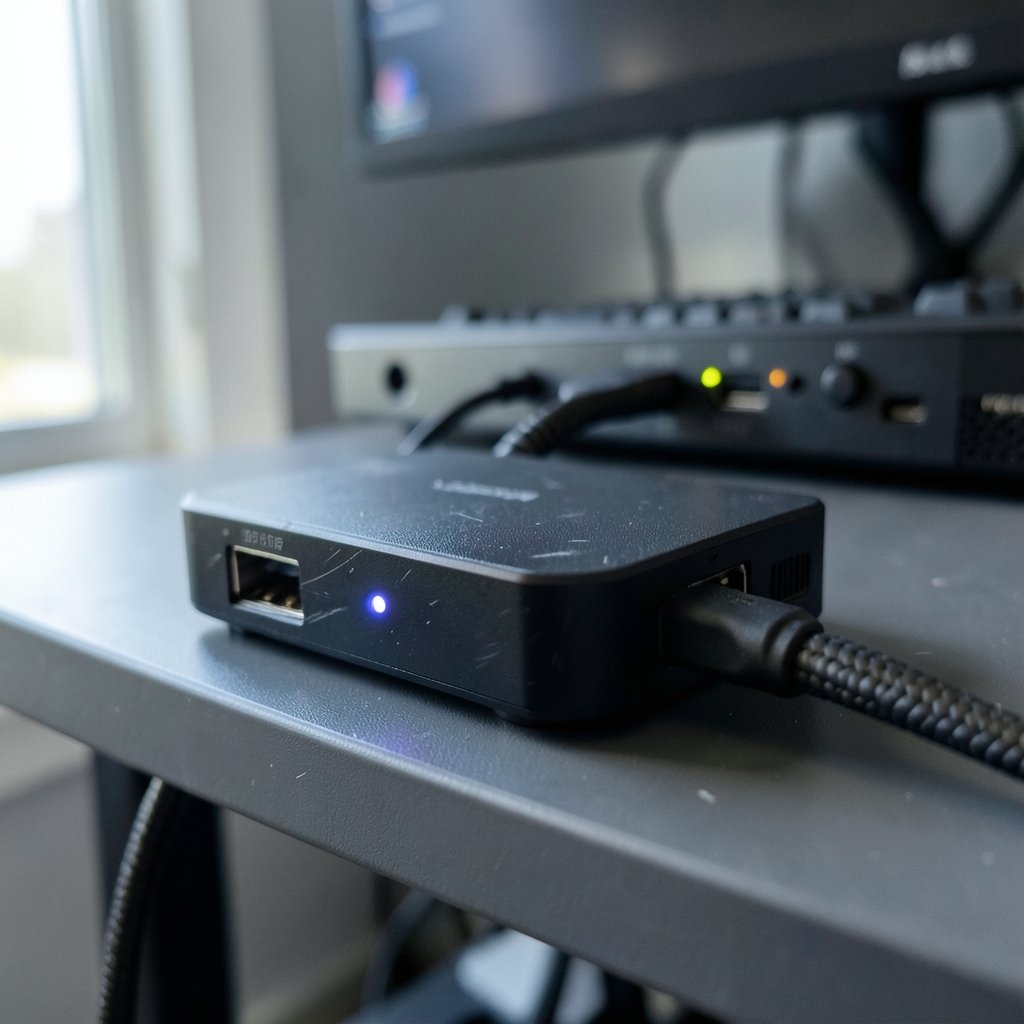
A capture card takes an HDMI video signal, usually from a console or a second PC, and converts it into something a computer can record or stream. The signal travels over USB or through a PCIe slot inside a desktop.
That simple description hides the detail that matters most: the difference between passthrough and capture. Passthrough sends the original signal onward to a TV or monitor so the player sees the game with no added delay. Capture is what the computer actually receives and encodes. Many affordable USB cards pass through 4K but capture at 1080p60 or 1440p. Buyers who only read the passthrough line on the box often assume they are recording in 4K when they are not. (Best screenshot tools windows picking right capture app)
If the concept of passing a signal through a device while capturing it sounds familiar, it works much like the tap-and-go logic behind smartpass systems for school hall passes and transit cards: one signal, routed and read in more than one place at once. The capture card is the reader, and the TV is the passenger who never notices the extra step.
The specs that decide whether a card is worth buying
New streamers tend to fixate on resolution numbers. That is understandable, but four specs matter more in daily use.
Capture resolution and frame rate. This is the number the card actually records. 1080p60 is the sweet spot for beginners. It looks sharp on Twitch and YouTube, it is easy on a mid-range PC, and it keeps file sizes manageable.
Passthrough quality. If the card sits between a console and a TV, passthrough should match the display. A card with 4K60 HDR passthrough lets the player keep full visual quality while the stream runs at 1080p60.
Connection type. USB cards are plug-and-play and suit laptops and single-PC setups. PCIe cards live inside a desktop and offer lower latency and higher bandwidth, but they need a free slot and an open case.
Software compatibility. A card is only as good as the software driving it. OBS Studio is free, open-source, and the de facto standard for new streamers, so any card worth buying should work with it without drama. Elgato cards also integrate with Elgato’s own 4K Capture Utility, and AVerMedia cards ship with their own software while remaining OBS-friendly.
One more spec deserves a warning label: USB bandwidth. Cheap cards sometimes claim high resolutions but run on older USB standards that cannot carry the data. The result is dropped frames that look like a card failure when the real problem is the port.
Best overall for most beginners: Elgato HD60 X
The Elgato HD60 X is the card most often recommended to people starting out, and the reasoning holds up. It is an external USB card that captures at 1080p60 with 4K60 HDR passthrough, and it works with consoles and cameras alike.
Why it fits beginners so well comes down to three things. First, setup is genuinely simple: plug the console into the card, the card into the PC, and the TV into the passthrough port. Second, the software situation is settled, since it works cleanly with OBS and with Elgato’s own utility. Third, the passthrough keeps the gaming experience intact, which matters for anyone who plans to play on a big screen while streaming.
The trade-off is price and ceiling. The HD60 X is not the cheapest option, and it will not capture native 4K. For a new streamer running a 1080p60 stream, neither limitation bites in practice. Anyone who wants to future-proof for 4K recording should look at the next tier.
Step-up pick: Elgato 4K X
The Elgato 4K X is a USB card aimed at higher-end capture, and it is frequently cited for PS5 and Xbox Series X use. It targets the 4K60 capture class, which makes it appealing to streamers who want to record gameplay at full console quality and downscale for the live stream.
This is the card to consider if the plan involves a YouTube archive of 4K footage, a channel that may grow into higher production values, or a capture setup shared between streaming and content creation. The exact spec sheet is worth confirming on the manufacturer’s product page before buying, since model details shift between revisions.
For a pure beginner on a budget, the 4K X is more card than needed. For someone who already knows they will want the headroom, buying once at this level can be cheaper than upgrading in a year.
The main alternative: AVerMedia Live Gamer
AVerMedia’s Live Gamer series is the other name that comes up constantly in capture card conversations, and it spans both USB and PCIe options. The lineup includes models in the Live Gamer Ultra and Live Gamer 4K families, which cover roughly the same ground as Elgato’s offerings.
The practical differences are small but real. AVerMedia’s own software has a different interface, some users prefer its recording options, and pricing often undercuts the equivalent Elgato model. Both brands work with OBS, so neither locks a streamer into a single workflow.
The honest advice for a beginner is that either brand will do the job. The right choice usually comes down to which model is on sale, which one has the ports the setup needs, and which software feels less annoying to use. Brand loyalty is a poor reason to pay more.
Should a new streamer buy a PCIe card instead?
Internal PCIe cards such as the Elgato 4K60 Pro class exist for a reason: they offer lower latency and higher bandwidth than USB, and they avoid the port bottlenecks that plague budget external cards.
The catch is the requirement. A PCIe card needs a desktop with a free slot, and installation means opening the case. Laptop owners are out entirely. Single-PC streamers who already have a desktop with room to spare may find a PCIe card gives cleaner results, especially at higher resolutions.
For most people starting from zero, though, USB is the safer first purchase. It moves between machines, works with laptops, and can be resold easily if streaming turns out to be a short-lived hobby.
The budget trap most new streamers fall into
Cheap USB capture cards are everywhere, and the marketing is optimistic. Many of them cap at 1080p30, which produces noticeably choppy motion in fast games. Others have higher latency, weaker driver support, or software that fights with OBS.
That does not mean every budget card is junk. It means the spec sheet needs reading with suspicion. A card advertised as “4K” may only pass through 4K while capturing at 1080p30. A card advertised as USB 3.0 may ship with a USB 2.0 cable in the box. A card with no named software support may work in OBS only after an afternoon of troubleshooting.
The pattern repeats across tech purchases: the cheap option costs more in time than it saves in money. Anyone who has compared OBS, ShadowPlay, and Xbox Game Bar for gameplay capture knows that software friction is the real enemy of consistent streaming. A capture card that fights the software is a card that stays in a drawer.
Matching the card to the actual setup
The right card depends on what is already on the desk. A quick comparison helps sort the options.
| Setup | Best fit | Why |
|---|---|---|
| Console plus laptop | Elgato HD60 X or AVerMedia Live Gamer Ultra | USB, plug-and-play, works without a desktop |
| Single gaming PC with a free slot | Elgato 4K60 Pro class PCIe card | Lower latency, higher bandwidth |
| PS5 or Xbox Series X with 4K ambitions | Elgato 4K X | Higher-end USB capture for console play |
| Tight budget, 1080p60 target | Entry AVerMedia or Elgato USB model | Reliable software support without premium pricing |
| Camera capture for a face cam | Any USB card with clean OBS support | Cameras output HDMI just like consoles |
The pattern is straightforward. Laptops and consoles point to USB. Desktops with room to grow point to PCIe. Ambition for 4K recording points to the higher tier. Everything else is a budget decision.
Setup mistakes that ruin first streams
Even a good card performs badly when the setup is wrong. A few fixes cover most of the problems new streamers hit.
- Use the right cable. Confirm the USB cable in the box matches the card’s speed rating. A slow cable throttles everything downstream.
- Check the port as well as the plug. USB ports on a laptop are not all equal. Some are slower than others, and the fastest port is often the one nearest the power input.
- Set OBS to match the card. If the card captures at 1080p60, the OBS canvas and output should match. Mismatched settings cause stutter that looks like hardware failure.
- Separate audio paths. Game audio and microphone audio should be captured on separate tracks. Fixing this later means re-recording everything.
- Test before going live. A five-minute private recording reveals dropped frames, desync, and passthrough issues before an audience sees them.
The same discipline applies to any capture workflow, whether the source is a console, a camera, or a screen. Anyone who has worked through clean HTTPS traffic capture in Burp Suite will recognize the principle: the capture is only as good as the configuration behind it.
How much should a new streamer spend?
There is no universal number, but the tiers are clear. Budget cards sit at the bottom and usually cap at 1080p30 with weaker support. Mid-range USB cards like the HD60 X sit in the middle and deliver dependable 1080p60. Higher-end USB and PCIe cards cost more and add 4K capture or lower latency.
The sensible approach for a first purchase is to buy the mid-range USB card and spend the savings on a decent microphone and lighting. Viewers forgive a 1080p stream. They do not forgive muffled audio. A card is one part of a chain, and the chain is only as strong as its weakest link.
Conclusion
The best capture card for a new streamer is the one that matches the setup, works cleanly with OBS, and does not promise more than it delivers. For most people, that means the Elgato HD60 X or a comparable AVerMedia Live Gamer model: USB, 1080p60 capture, solid passthrough, and software that behaves. Streamers with a desktop and a free slot can step up to PCIe for lower latency, and those planning for 4K archives can look at the Elgato 4K X.
The mistakes to avoid are predictable. Do not buy on passthrough specs alone. Do not trust a budget card’s resolution claims without checking the capture numbers. Do not skip the cable and port check. Get those right, and the card becomes invisible, which is exactly what a good capture card should be.
FAQ
Do I need a capture card to stream from a PC?
No. A single gaming PC can stream with software alone, since the game and the encoder share the same machine. A capture card becomes necessary when the signal comes from a console, a second PC, or a camera that outputs HDMI. It is also useful when a single PC struggles to game and encode at the same time.
Is 1080p60 enough for a new streamer?
For almost every beginner, yes. 1080p60 looks sharp on Twitch and YouTube, encodes easily on mid-range hardware, and keeps upload requirements reasonable. Higher resolutions raise the load on the PC, the internet connection, and the viewer’s device. Most audiences watch on phones and laptops where 1080p is already plenty.
What is the difference between passthrough and capture?
Passthrough is the signal sent onward to a TV or monitor so the player sees the game without delay. Capture is the signal the computer receives and records. A card can pass through 4K while capturing at 1080p60, which is common and perfectly fine for streaming. Confusing the two specs is the most frequent buying mistake.
Can a capture card work with a laptop?
Yes, and that is one of the strongest arguments for USB cards. External models connect over USB and need no internal slot, so they work with laptops and desktops alike. PCIe cards require an open slot inside a desktop case and are not an option for laptop owners.
Does a capture card add input lag?
A good card with passthrough adds no noticeable lag to the gaming display, because the TV or monitor receives the original signal directly. The captured feed on the PC may run slightly behind, which is normal and does not affect gameplay. Lag complaints usually trace back to a slow USB port, a bad cable, or software settings rather than the card itself.
Which software should a new streamer use with a capture card?
OBS Studio is the standard choice. It is free, open-source, widely documented, and compatible with cards from Elgato, AVerMedia, and most other brands. Manufacturer software such as Elgato’s 4K Capture Utility is useful for firmware updates and quick recordings, but OBS remains the tool most streamers build their workflow around.



