
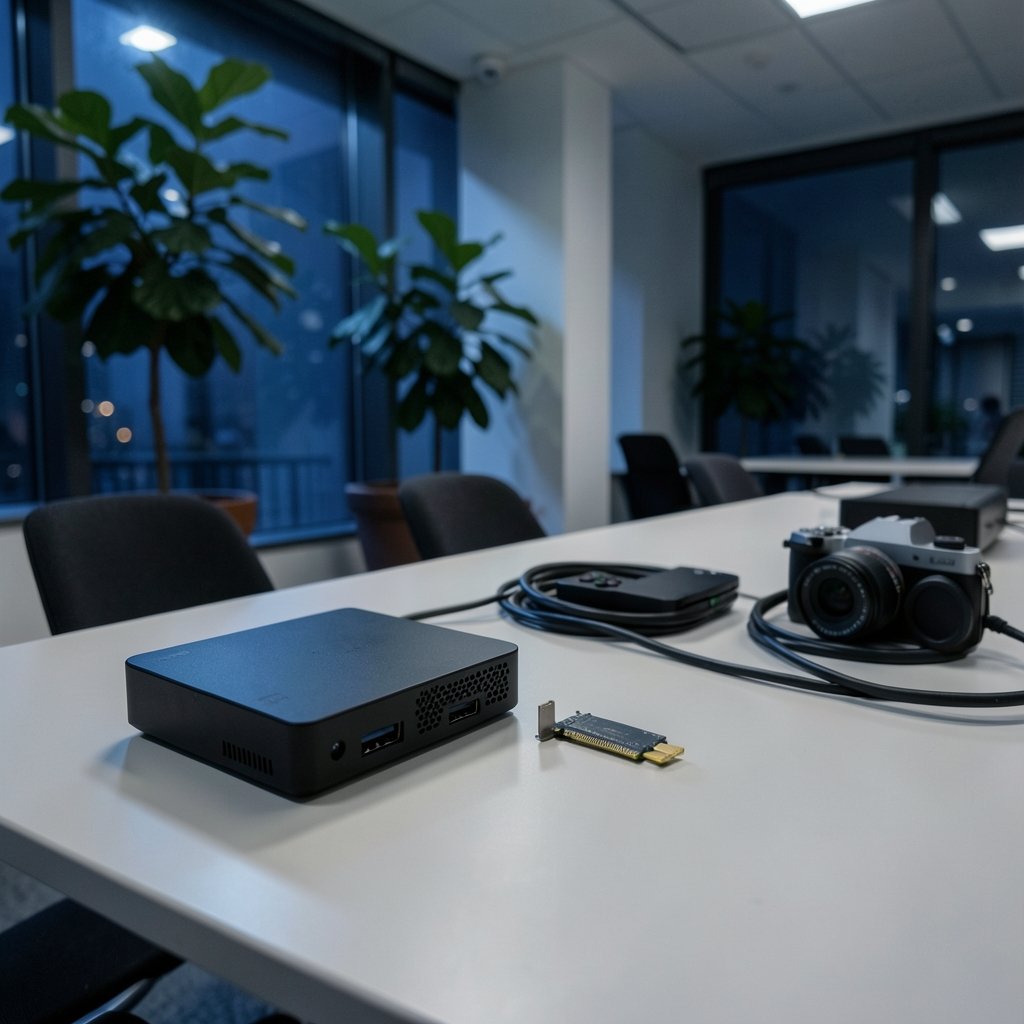
Quick Answer: How do I choose capture cards?
Choosing a capture card means matching the card’s inputs, resolution, and frame rate to the source you actually want to record, then confirming it works with your computer, software, and connection type. Most buyers should start with the exact resolution and refresh rate they need, then narrow the field by internal PCIe versus external USB, pass-through support, audio handling, and driver compatibility.
Alternatives matter too: a cheap USB dongle can handle casual 1080p recording, while an internal PCIe card suits high-bandwidth 4K work and lower latency. Some cards compress video on board, and others pass it through uncompressed, which changes both CPU load and quality.
Before buying, compare resolution and frame rate, HDMI version, pass-through and latency, internal versus external format, audio support, HDCP behavior, and operating system drivers.
Why the Capture Card Decision Trips Up So Many People
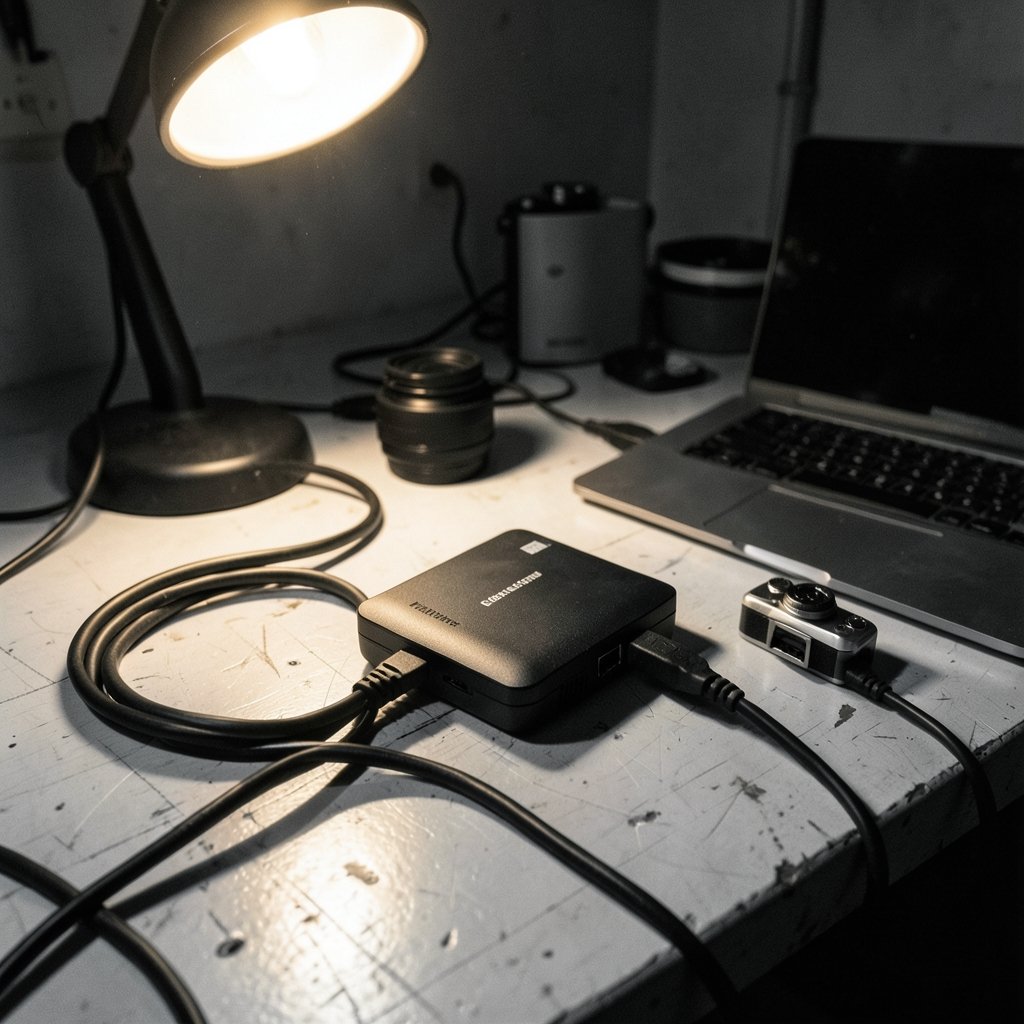
What actually happens when someone plugs a console or camera into a capture card and gets a black screen, stuttering video, or audio that drifts out of sync? Almost always, the card was chosen by spec sheet rather than by workflow. Capture cards look simple: an HDMI cable in, a USB cable out, and video appears on a computer. In practice, they sit at the center of a chain of standards, and one weak link breaks the whole recording.
The single most common mistake is buying for the biggest number on the box. A card that advertises 4K capture is useless if the source outputs 1080p60, and a card rated for 1080p60 will not pass 4K60 no matter how good the cable is. The second most common mistake is ignoring the computer side. Capture is a data pipeline, and the pipeline is only as fast as its slowest part.
This guide walks through the decisions in the order that saves the most returns and refunds: what you are capturing, what the card must pass through, how it connects, and what happens after the video reaches the computer.
Start With the Source, Not the Card
Every capture decision begins with the device on the other end of the HDMI cable. A game console, a mirrorless camera, a camcorder, and a second PC all produce different signals, and the card has to accept the one you have.
Match resolution and frame rate to what you actually capture
Buy for the highest resolution and frame rate you actually need to record, rather than the highest the card advertises. If the source runs at 1080p60, a 1080p60 card is enough. If you plan to record 4K60 gameplay or camera footage, the card must support 4K60 capture specifically, rather than only 4K pass-through.
Frame rate deserves equal attention. A card that captures 4K at 30 frames per second will make fast gameplay look choppy, even though the resolution number looks impressive. For anything with motion, 60 frames per second is the practical baseline.
Check the HDMI version on both ends
The HDMI version sets the ceiling for the whole chain. HDMI 2.0, published in 2013, tops out around 4K60 at 8-bit 4:2:0. HDMI 2.1, published in 2017, supports 4K120 and 8K60. A 4K120 capture needs an HDMI 2.1 source, an HDMI 2.1 cable, and a card that handles HDMI 2.1. Miss any one of those, and the signal falls back to a lower mode, often without a clear error message.
The same logic applies to storage on the recording side. High-bitrate footage fills drives quickly, and slow cards cause dropped frames, which is why it pays to understand how to pick an SD card for continuous security recording if your workflow also involves local recording devices. The principles of sustained write speed carry over directly.
Pass-Through, Latency, and Why Gamers Care
Many cards include an HDMI pass-through, which sends the signal on to a TV or monitor at full quality while the card captures a copy. This is the feature that separates a comfortable setup from a frustrating one.
Pass-through quality and latency vary widely between cards. Some pass through the same resolution and refresh rate they capture; others downgrade the pass-through signal without saying so. Before buying, confirm that pass-through supports the resolution and refresh rate you play at, rather than only the resolution you record at.
Latency becomes critical if you play through the capture software preview instead of a pass-through display. Cards marketed as low latency or zero-latency pass-through are aimed squarely at this problem. In practice, playing through software preview adds delay that most action games punish, so a pass-through display remains the safer choice for competitive play.
Internal PCIe or External USB?
The connection type shapes portability, latency, and cost. Neither is universally better; they serve different setups.
| Feature | Internal PCIe card | External USB card |
|---|---|---|
| Latency | Generally lower | Slightly higher |
| Bandwidth | Higher, more headroom | Limited by USB generation |
| Portability | Fixed in one PC | Moves between machines |
| Installation | Requires opening the case | Plug and play |
| Best for | Dedicated desktops, 4K work | Laptops, travel, quick setups |
USB 3.0, released in 2008, is the common minimum for uncompressed 1080p60 capture. USB 2.0 is generally insufficient for HD capture and will force compression or reduced quality. If the plan involves a laptop, an external card is the only option, and the laptop’s USB ports become the real bottleneck.
Internal cards need a free PCIe slot and a desktop case with room. That is a modest hurdle, but it is worth checking before ordering. The same fit-and-budget thinking applies to other PC upgrades, much like learning how to choose a graphics card that fits your PC budget, where the slot, power, and case clearance decide what actually works.
Compression, Codecs, and CPU Load
Capture cards handle video in one of two broad ways, and the difference affects both quality and how hard the computer has to work.
Some cards output uncompressed video. This demands high bandwidth but places almost no encoding load on the CPU, leaving the processor free for streaming, overlays, and multitasking. Others compress on board, often with MJPEG or H.264. Compression lowers bandwidth requirements and can make older machines viable, but it may add latency and reduce image quality.
The right choice depends on the software. OBS Studio and similar programs accept a range of formats, but not every format from every card. Checking the card’s supported output formats against the software’s capture sources before purchase avoids a painful discovery on day one.
There is a parallel in storage hardware: endurance and performance are separate specs, and conflating them leads to disappointment. The same distinction between micro SD card endurance vs performance helps explain why a capture card’s headline resolution says nothing about its sustained reliability.
Audio, HDCP, and the Details That Bite Later
Two specifications rarely printed in large type cause most of the post-purchase frustration: audio handling and HDCP.
Audio handling
Confirm that the card passes HDMI audio and check whether it appears as a separate audio device in the operating system. Some budget cards suffer from audio sync drift or dropouts, which are painful to fix after the fact. A card that handles audio cleanly saves hours of editing.
HDCP
HDCP is a copy-protection standard that can block capture of protected content, such as some streaming apps and Blu-ray discs. Many cards do not strip HDCP, and capturing protected content may be blocked or legally restricted. Buyers planning to record streaming services should expect this limitation rather than treat it as a defect.
Drivers and operating system support
Check official driver support for Windows, macOS, or Linux before buying. Some cards work driver-free as UVC devices, which makes them genuinely plug and play. Others need vendor drivers that may lag behind operating system updates. On macOS in particular, driver support is thinner, so verification matters more.
Set a Realistic Budget and Match It to Use
Capture cards span a wide price range, and the cheapest option is rarely the best value for a serious workflow. A sensible approach is to set the budget after defining the job, not before.
For casual 1080p60 recording from a console, a modest external USB card covers the need. For 4K60 work with pass-through and clean audio, expect to pay more, and expect the computer to need the bandwidth to match. For 4K120 or multi-camera production, internal PCIe cards with HDMI 2.1 support become the realistic choice.
The same budget discipline shows up in unrelated purchases. Anyone weighing a design tool subscription against free options knows the pattern: the cheapest tool that fits the job beats the most powerful tool that does not, which is exactly the logic behind choosing among Figma alternatives for beginners.
Practical Tips That Save Returns
A few habits separate a smooth setup from a frustrating one.
First, write down the source resolution, frame rate, and HDMI version before shopping. Second, confirm the card’s capture specs and pass-through specs separately, because they are not always the same. Third, check the computer’s USB generation or available PCIe slot. Fourth, verify driver support for the exact operating system version in use. Fifth, read reviews specifically for audio sync complaints, since that flaw appears in patterns rather than one-off units.
Finally, test the full chain within the return window: source, cable, card, software, and recording drive. Problems surface fast when everything is connected and recording, and they are far cheaper to fix before the window closes.
Conclusion
Choosing a capture card comes down to matching the card to the signal, the computer, and the workflow, in that order. Resolution and frame rate define the floor, HDMI version sets the ceiling, pass-through and latency decide comfort, and connection type determines where the setup can live. Audio handling, HDCP behavior, and driver support are the quiet specifications that decide whether the card feels reliable six months later. Buy for the job in front of you, verify the whole chain before the return window closes, and the choice becomes far simpler than the spec sheets suggest.
Frequently Asked Questions
Do I need a 4K capture card if I only stream in 1080p?
No. If the final output is 1080p, a 1080p60 capture card is sufficient, and it will usually cost less and demand less bandwidth. The exception is future-proofing: if a 4K console or camera is planned, buying 4K capture now can avoid a second purchase later.
Can a capture card work with a laptop?
Yes, provided the laptop has a suitable USB port. External USB cards are the practical choice for laptops, and USB 3.0 is the common minimum for uncompressed 1080p60 capture. USB 2.0 ports generally cannot handle HD capture without compression or reduced quality.
Why does my capture card show a black screen?
A black screen usually points to HDCP protection, a resolution or frame rate the card does not support, or a cable that cannot carry the signal. Checking each link in the chain separately, starting with the source settings, identifies the cause fastest.
Is pass-through necessary for gaming?
It is not strictly necessary, but it makes gaming far more comfortable. Pass-through lets the player use a TV or monitor at full quality with no added delay, while the card records a copy. Playing through software preview instead introduces latency that many games punish.
Does a capture card reduce video quality?
It can, depending on how it handles video. Cards that output uncompressed video preserve quality but need more bandwidth. Cards that compress on board, often with MJPEG or H.264, may reduce image quality and add latency in exchange for lower bandwidth demands.
What should I check before buying a capture card?
Check the source resolution and frame rate, the HDMI version on both ends, whether pass-through matches capture quality, internal versus external connection, audio handling, HDCP limitations, and official driver support for the operating system in use.



