

Video editing is one of the most storage-hungry jobs in the world. A single hour of 4K footage can take up 100GB or more, and a finished project often needs several copies of everything. The best cloud storage for video editing in 2027 has to handle those huge files without slowing you down, keep every version safe, and let collaborators grab what they need without a dozen emails back and forth.
That is a very different job from storing documents or photos. Editors need fast uploads, high download speeds, generous file-size limits, and a way to preview footage without downloading it first.
We compared the leading services on upload and download speed, maximum file size, storage per dollar, preview tools, collaboration, and version history. The shortlist covers solo editors, small studios, and large post-production teams.
Key takeaways
- Google Drive is the best overall pick for video editing, with fast transfers, 5TB file uploads, and strong collaboration tools.
- Dropbox leads on preview and review workflows, with frame-accurate comments and easy client sharing.
- Backblaze B2 is the cheapest place to park terabytes of raw footage you rarely touch.
- Watch the file-size cap and the download fees: some services charge every time you pull footage back down.
- Keep a local copy of active projects; cloud storage is your backup and sharing layer, not your only copy.
At a glance: the shortlist
| Product | Best for | Starting price | Standout limit |
|---|---|---|---|
| Google Drive | Best overall | About $10 per month for 2TB | 5TB maximum file size |
| Dropbox | Client review and sharing | About $12 per month for 2TB | 2TB file uploads on paid plans |
| Sync.com | Private, encrypted storage | About $8 per month for 2TB | 40GB per file on web upload |
| pCloud | One-time payment fans | About $5 per month for 500GB | Unlimited file size on paid plans |
| iDrive | Large libraries on a budget | About $80 per year for 5TB | 10TB plans available |
| Backblaze B2 | Cheap archive storage | About $0.005 per GB per month | No storage cap, pay per GB |
| Egnyte | Studios and teams | About $10 per user per month | Unlimited file size |
Prices are approximate starting prices and change often, so check current pricing before you buy.
Google Drive — Best overall
Google Drive is the most balanced choice for video editors in 2027. It accepts single files up to 5TB, uploads are consistently fast, and the desktop app syncs project folders in the background while you keep editing. The built-in video player streams most formats in the browser, so a producer can watch a cut without downloading a 40GB file.
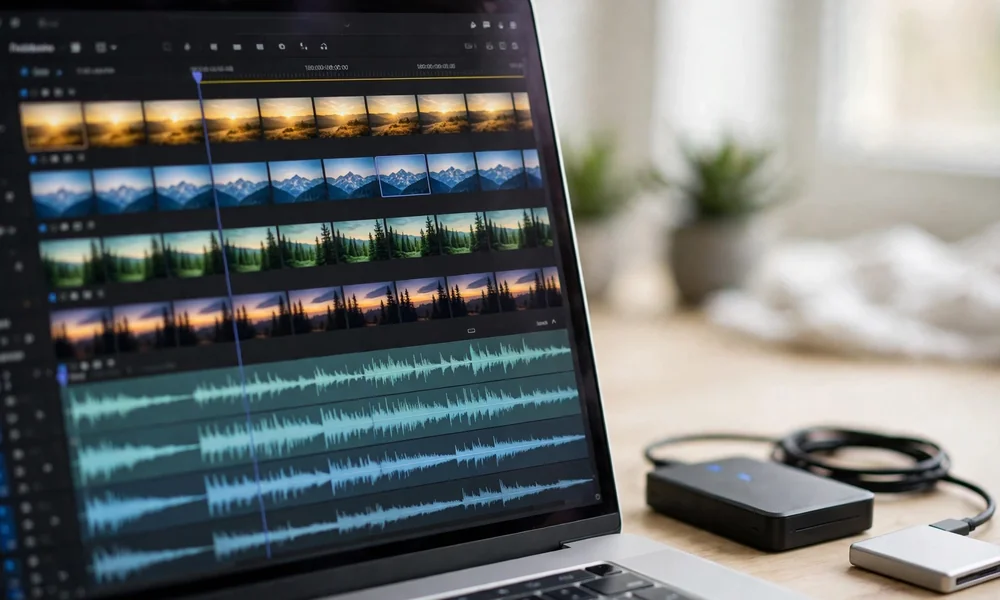
Collaboration is where Drive pulls ahead. Shared drives give a whole team one folder structure, comments land on exact moments in a video, and permissions can be set per folder so a client sees only their own project. Editors who also publish to the web will find our guide to the best web hosting for videos useful once a project is ready to go live.
Pros: 5TB file-size limit, fast uploads, strong video preview, excellent sharing controls, huge ecosystem. Cons: Storage gets pricey above 2TB, desktop sync can be heavy on older machines, version history is 30 days on basic plans.
Dropbox — Best for client review and sharing
Dropbox has the smoothest sharing experience in cloud storage. You can send a client a link to a 60GB ProRes file, they can stream a preview in their browser, and they can leave time-stamped comments on the exact frame that needs a change.
Dropbox Replay, the review tool on higher plans, lets reviewers draw on frames and approve versions, a real time saver for editors juggling several clients. Transfer speeds are strong and the desktop app is very reliable. The downside is price: Dropbox costs more per terabyte than most rivals.
Pros: Best-in-class review and commenting, reliable sync, strong mobile apps, easy client links. Cons: Expensive per terabyte, 3TB plan is a big jump in price, no lifetime payment option.
Sync.com — Best for private, encrypted storage
Sync.com is the pick for editors who handle sensitive footage: unreleased commercials, documentary interviews, or client material under a strict non-disclosure agreement. Every file is protected with end-to-end encryption, so even Sync.com cannot read what you store. That is a stronger privacy promise than most mainstream services offer.
The trade-offs are real but manageable. Uploads are slower than Google Drive or Dropbox because files are encrypted before they leave your computer, and the 40GB web-upload limit means large masters should go through the desktop app. Vault storage keeps finished projects out of the sync folder.
Pros: End-to-end encryption, zero-knowledge privacy, good value at 2TB, vault for archives. Cons: Slower uploads, 40GB web upload cap, weaker video preview than rivals.
pCloud — Best for a one-time payment
pCloud is the only major service here that lets you buy storage once and keep it for life. A one-time payment of a few hundred dollars gets you 2TB forever, which can pay for itself in under two years compared with a monthly plan. For a freelance editor who hates subscriptions, that is a serious draw.
pCloud handles unlimited file sizes on paid plans and includes a built-in video player that streams footage in the browser. The desktop app mounts your cloud storage as a virtual drive, so you can browse huge libraries without filling your local disk. Crypto, the optional encryption add-on, costs extra, and download speeds can vary by region.
Pros: Lifetime plans, unlimited file size, virtual drive mount, built-in video player. Cons: Encryption costs extra, speeds vary by location, support is slower than rivals.
iDrive — Best for large libraries on a budget
iDrive gives you the most terabytes per dollar of any mainstream service on this list. The 5TB plan costs roughly what rivals charge for 2TB, and a 10TB plan exists for editors with truly enormous libraries. That makes it an excellent home for finished projects, raw archives, and full-system backups of your editing workstation.
It is not a replacement for a fast working drive, though. Sync is slower than Dropbox, the interface feels dated, and there is no frame-by-frame review tool. Think of iDrive as the vault, paired with a faster service for active projects.
Pros: Cheapest per terabyte, 5TB and 10TB plans, backs up whole computers, good version history. Cons: Dated interface, slower sync, weak video preview and review tools.
Backblaze B2 — Best for cheap archive storage
Backblaze B2 is object storage priced by the gigabyte, and it is the cheapest way to keep terabytes of raw footage that you rarely need to touch. At roughly half a cent per gigabyte per month, 10TB of archive footage costs about $50 a month, which is far less than any consumer plan at that scale. There is no storage cap and no minimum, so you pay for exactly what you use.
B2 is not a polished consumer app, though. There is no desktop sync client of its own, so you will use a third-party tool to move files. Downloads cost about a cent per gigabyte, which adds up if you pull footage down often, and there is no video preview or commenting. Use B2 for the deep archive, not the project you are cutting this week.
Pros: Very cheap per gigabyte, no storage cap, reliable infrastructure, scales to any size. Cons: No native sync app, download fees, no preview or review tools, setup takes effort.
Egnyte — Best for studios and teams
Egnyte is built for teams that treat video as a business asset, not a personal file. It combines cloud storage with content governance: admins can set retention rules, track who opened what, and lock folders so a finished master cannot be overwritten by accident. Large-file handling is excellent, with no practical file-size limit and fast transfers even for multi-hundred-gigabyte masters.
The platform also includes review tools and integrations with editing software, so a supervisor can follow a project from ingest to delivery in one place. The trade-off is cost and complexity: Egnyte starts at around $10 per user per month with a minimum number of users, and it is overkill for a solo editor.
Pros: No file-size limit, strong admin and audit tools, good team review features, fast large-file transfers. Cons: Priced per user with minimums, complex setup, overkill for solo editors.
How to choose
Start with your footage. If you shoot 4K or 8K, you need a service with a high file-size cap, which points to Google Drive or pCloud. If you shoot 1080p and mostly share short cuts with clients, Dropbox’s review tools will save you more time than extra terabytes will.
Next, count your terabytes honestly. Add up your active projects, your archive, and a year of growth, then buy the plan that covers it with room to spare. Many editors pair two services: a fast one for active work and a cheap archive like Backblaze B2 for everything else. Creators who publish regularly should also read our guide to the best cloud backup services for YouTubers, which covers keeping a channel’s whole library safe.
Finally, test the upload speed on your own connection before you commit, and check the renewal price too, since first-year discounts are common and the second year is the real cost.
Checklist: before you pay
- Confirm the maximum file size covers your largest master file, with room to grow.
- Check whether downloads cost extra, and how much a full restore would cost.
- Test upload speed from your studio on the free trial, not just on paper.
- Make sure the video preview supports your codecs before you rely on it.
- Check version history length, so an overwritten project file can be recovered.
- Confirm how many devices and users the plan covers, and what extra seats cost.
Frequently asked questions
How much cloud storage does a video editor need?
Most solo editors need at least 2TB, and many need 5TB or more once archives are counted.
Can I edit video directly from cloud storage?
You can with a fast connection and a service that mounts as a local drive, but most editors keep active projects on a local SSD and use the cloud for backup, sharing, and archive. Cloud editing works best for short clips and review, not heavy 4K timelines.
What is the maximum file size I can upload?
Google Drive allows up to 5TB per file, Dropbox allows 2TB on paid plans, and pCloud and Egnyte have no practical limit. Sync.com caps web uploads at 40GB, so use its desktop app for large files. Small businesses facing the same question should see our roundup of the best cloud storage for small businesses for plans that scale with a growing team.
Is cloud storage safe for unreleased footage?
Yes, if you choose a service with strong encryption and turn on two-factor authentication. For footage under a strict non-disclosure agreement, Sync.com’s end-to-end encryption adds an extra layer.
Do I still need a local backup if I use cloud storage?
Yes. The standard rule is three copies on two different media, with one off-site. Cloud storage is the off-site copy, but a local drive gives you fast access if your internet goes down.
What is the cheapest way to store terabytes of footage?
Object storage such as Backblaze B2 is the cheapest per terabyte, at roughly half a cent per gigabyte per month.
The bottom line
For most video editors, Google Drive is the best all-round choice: fast transfers, a 5TB file limit, and collaboration tools that clients actually use. If client review is the biggest part of your week, Dropbox earns its higher price. And if your archive keeps growing faster than your budget, pair either one with Backblaze B2 for cheap long-term storage.
Whatever you choose, decide on your workflow first and your plan second. The right service is the one that fits how you shoot, cut, share, and archive.


