
Every gamer has chased the “one weird trick” that drops ping. DNS servers are the latest favorite. But here’s the number that should reset your expectations: a DNS lookup usually takes somewhere between 10 and 50 milliseconds, while your in-game round-trip time is often 30 to 80 milliseconds per packet, continuously. A faster resolver can’t touch that second number once you’re connected. What it can do is speed up matchmaking, store pages, patch downloads, and the first few seconds of joining a lobby. That’s a real but narrow win, and knowing where it applies saves you from wasting an evening on placebo tweaks.
This guide breaks down which public resolvers are worth trying, how to test them properly, and the mistakes that make most “best DNS for gaming” advice useless.
What DNS Actually Does (and Doesn’t Do) for Games
DNS is the internet’s phone book. When your console or PC needs to reach a game server, a storefront, or a matchmaking service, it asks a resolver to translate a hostname into an IP address. Once that translation happens, DNS steps out of the way. Your gameplay traffic flows directly to the server’s IP.
That distinction matters. A resolver with 8 ms lookup latency versus one with 25 ms saves you roughly 17 milliseconds once, at connection time. It does not shave 17 ms off every shot you fire. Anyone claiming a DNS change “reduced my ping by 40” is usually seeing normal network variance, a different server assignment, or a fresh route.
Where DNS genuinely helps:
- Matchmaking and lobby joins, which hit domain names repeatedly
- Game launchers and storefronts (Steam, Epic, console dashboards) that resolve many hosts
- Patch and update downloads, especially when the resolver hands you a closer CDN node
- Party chat, voice services, and account logins
Where it doesn’t:
- In-match latency once you’re connected
- Packet loss or jitter, which are routing and congestion problems
- Server-side lag on the game’s own infrastructure
If your real problem is rubber-banding, a resolver swap won’t fix it. Start with a wired connection and a solid cable from our guide to the best ethernet cable for gaming, then look at your ISP path.
The Main Contenders Compared
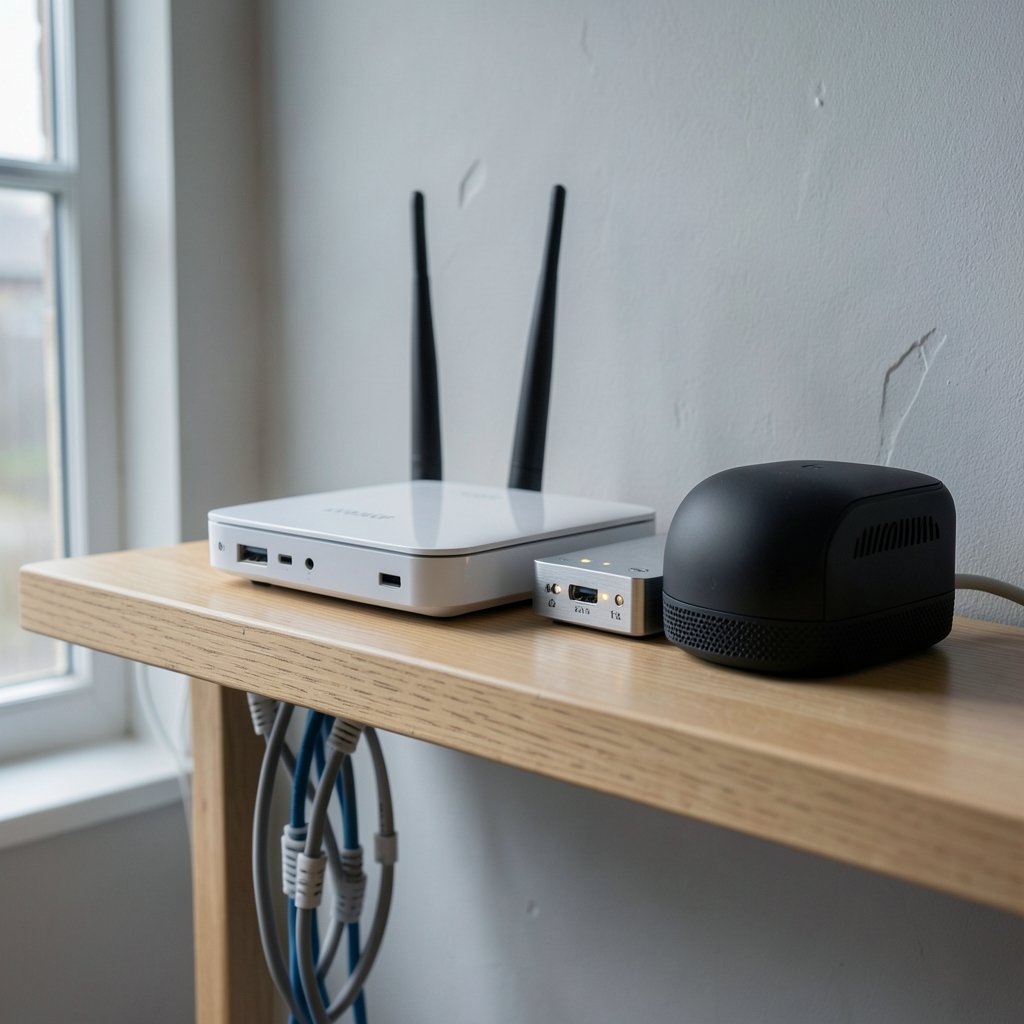
Four public resolvers dominate the conversation. All are free, all support modern privacy features to varying degrees, and all perform differently depending on where you live and which ISP you use.
| Resolver | Primary addresses | Best known for | Notable trade-off |
|---|---|---|---|
| Cloudflare | 1.1.1.1 / 1.0.0.1 | Low lookup latency, strong privacy stance | Minimal filtering by default |
| Google Public DNS | 8.8.8.8 / 8.8.4.4 | Reliability and global reach | Logs data for operational purposes |
| Quad9 | 9.9.9.9 / 149.112.112.112 | Malware and phishing domain blocking | Blocking can occasionally hit a false positive |
| OpenDNS | 208.67.222.222 / 208.67.220.220 | Parental controls and filtering options | Free tier pushes you toward accounts |
A few practical notes that rarely make the listicles:
- Anycast routing matters more than brand. Most big resolvers run anycast, meaning your query lands at whichever data center the routing table prefers. Two players in the same city on different ISPs can get wildly different results from the same resolver.
- ISP resolvers are sometimes fastest. They’re physically close and well-peered. The reason to switch is usually privacy or filtering, not speed.
- Quad9’s blocking is a genuine feature for shared family machines. It stops known malicious domains before they resolve, which is a nice layer if a younger player clicks bad links.
- Cloudflare’s appeal is policy as much as performance. Its logging window is short and its privacy documentation is unusually clear.
If you want to understand the technical foundation, the Wikipedia entry on the Domain Name System covers the resolver hierarchy well, and the IETF’s RFC 8484 defines DNS over HTTPS for anyone curious about the encrypted variants.
How to Test DNS Properly Instead of Guessing
Benchmark articles are close to worthless for your specific setup. Resolver latency is a function of your ISP, your city, your router, and the time of day. The only test that counts is the one you run yourself.
Here’s a method that works:
- Pick three candidates. Usually your ISP resolver, Cloudflare, and one other.
- Test at the same time of day, ideally during your normal play window.
- Run at least 20 lookups per resolver across several domains rather than a single domain.
- Record average and worst-case times alongside the best result.
- Change one thing at a time and retest after each change.
On Windows, `nslookup` with the `-d` flag or a small loop gives you raw numbers. On macOS and Linux, `dig` is the standard tool. Many routers also show resolver response times in their status pages. Free benchmarking utilities exist, but be careful: some are ad-supported and skew results toward their sponsors.
The trap most people fall into is testing once, seeing a great number, and concluding the resolver is fast. DNS performance fluctuates. A resolver that averages 14 ms but spikes to 90 ms under load is worse for gaming than one that sits steadily at 18 ms. Consistency beats peak speed.
Where DNS Fits in a Bigger Latency Picture
DNS is one lever among many, and usually a small one. If someone is building a low-latency setup from scratch, the order of impact looks roughly like this:
- Wired over wireless. Wi-Fi adds jitter that no resolver can fix.
- Adequate bandwidth and a good router. Check our picks for the best internet for gaming if you’re choosing a provider.
- A machine that isn’t bottlenecked. A weak CPU or a struggling motherboard can cause stutter that feels like lag; our roundup of the best motherboard for gaming covers what to look for.
- Clean local network. Background downloads, streaming TVs, and crowded channels all add delay.
- DNS. Genuinely last, but free and fast to change.
There’s also a security angle worth mentioning. Distributed denial-of-service attacks can knock game servers offline regardless of your resolver, and understanding them helps you recognize when the problem isn’t on your end. Our explainer on what DDoS means in gaming is a good starting point.
For multiplayer titles that rely on backend services, resolver choice is even less relevant than the game’s own infrastructure. Studios running dedicated server platforms handle matchmaking internally, as covered in this breakdown of PlayFab multiplayer servers setup. Your DNS setting won’t change how their backend routes you.
Setting It Up on PC and Console
On Windows, the change lives in Network Adapter settings under IPv4 properties. Set the preferred and alternate DNS fields, flush the cache with `ipconfig /flushdns`, and reboot the router if you want a clean slate. The most common mistake is changing DNS on the wrong adapter, especially on laptops with both Wi-Fi and Ethernet. Change the one you actually play on.
On PlayStation and Xbox, the setting sits in network configuration. Choose manual setup, keep your IP settings as they are, and edit only the DNS fields. Consoles don’t support encrypted DNS natively, so you’re limited to plain lookups.
On a router, changing DNS once covers every device in the house. This is the better option for families, and it’s the only practical route for consoles that don’t let you set per-app rules.
Two mistakes to avoid:
- Setting only one DNS address. Always fill in the secondary. If the primary resolver has an outage, you’ll otherwise lose name resolution entirely.
- Enabling DNS over HTTPS on a machine that doesn’t need it. Encrypted DNS is excellent for privacy, but it adds a small overhead and some games and launchers handle it poorly. If you try it, test your in-game experience afterward rather than assuming it’s free.
One more: after changing DNS, clear your local cache. Stale entries can make a new resolver look broken when it’s just serving old answers.
Privacy and Security: The Part Most Guides Skip
Speed gets the headlines, but resolver choice is also a privacy decision. Every lookup you make reveals which services you use, when, and how often. That’s a meaningful metadata trail.
Cloudflare publishes a short retention window and a clear policy. Google logs for operational and security purposes and is transparent about it. Quad9 is a Swiss nonprofit with a filtering mission. OpenDNS is owned by Cisco and offers content filtering that parents often find useful. None of these are neutral choices, and the “fastest” resolver isn’t automatically the right one for a household with kids.
Encrypted DNS is the bigger structural shift. DNS over HTTPS and DNS over TLS wrap queries so your ISP can’t read them in transit. Browser-level support is now common, though system-level support varies. The trade-off is real: encryption adds a handshake, and misconfigured setups can silently fall back to plain DNS without telling you. (What is DNS?)
For most gamers, the balanced move is a reputable public resolver with a secondary from a different provider, plus encrypted DNS in the browser where it’s well supported. That’s a solid privacy posture without gambling on game compatibility.
Common Mistakes That Undo the Benefit
A short list of things that reliably waste time:
- Chasing “gaming DNS” services that charge money. No paid resolver has demonstrated a latency advantage over free public options.
- Testing with a single lookup. One fast query proves nothing.
- Changing DNS to fix packet loss. It cannot. That’s a routing or congestion issue.
- Ignoring the router. If the router’s DNS is hardcoded by the ISP, per-device settings may be overridden.
- Forgetting VPN interactions. A VPN often replaces your resolver entirely, so your carefully chosen DNS may never be used.
- Assuming console results match PC results. They frequently don’t, because consoles cache aggressively.
The honest summary is that DNS tuning is a five-minute job with a modest payoff. Do it once, test it, and move on to the things that actually move the needle.
Conclusion
The best DNS servers for gaming aren’t a fixed ranking. They’re whichever resolver gives your connection the most consistent lookup times with a privacy posture you’re comfortable with. Cloudflare, Google, Quad9, and OpenDNS are all reasonable choices, and the differences between them are usually smaller than the difference between a wired and wireless connection.
Change your resolver, test it during your normal play hours, and keep expectations calibrated. DNS smooths out the edges of matchmaking and downloads. It won’t rescue a bad route, and it won’t replace a decent router. Treat it as the last five percent of a solid setup rather than the magic bullet it’s often sold as, and you’ll get exactly what it’s worth: a small, free, occasionally noticeable improvement.
Frequently Asked Questions
Do DNS servers actually reduce ping in games?
Rarely, and only at connection time. DNS resolves hostnames before gameplay starts. Once you’re connected to a server’s IP, your resolver is out of the path entirely. Any in-match ping change after switching DNS is usually coincidence or a different server assignment.
Which DNS is fastest for gaming?
There’s no universal answer. Resolver speed depends on your ISP, city, and time of day because of anycast routing and peering arrangements. Cloudflare, Google, and your ISP’s own resolver are the three worth testing, and you should benchmark them yourself during your normal play window.
Is Cloudflare 1.1.1.1 good for gaming?
It’s a solid general-purpose choice with low lookup latency and a clear privacy policy. Whether it’s fastest for you specifically requires testing. It’s a reasonable default, but it isn’t automatically better than your ISP resolver.
Does changing DNS help with lag or packet loss?
No. Lag and packet loss come from routing, congestion, and server-side issues. DNS only affects name resolution. If you’re rubber-banding mid-match, look at your connection type, router, and ISP path instead.
Should I use DNS over HTTPS for gaming?
It’s worth trying for privacy, but test your games afterward. Encrypted DNS adds a small handshake overhead, and some launchers and titles handle it poorly. If you notice slower lobby joins, fall back to standard DNS.
Can I change DNS on a PlayStation or Xbox?
Yes. Both consoles let you set DNS manually in network settings. Keep your IP configuration automatic and edit only the DNS fields. For a household with multiple devices, changing DNS at the router level is simpler and covers everything at once.



