Finding the best external hard drives for Mac 2027 has to offer starts with capacity, connection and format, not speed alone. A hard drive is still the cheapest way to store terabytes of photos, video and backups, and for a Mac it needs to work with Time Machine, Photos and your file system without fuss.
The short answer is to buy a drive at least twice the size of your Mac’s internal storage, with a USB-C connection, formatted for Mac use. A portable 2.5-inch drive suits a MacBook, while a larger desktop drive suits a Mac that stays in one place. This guide explains the choices, then picks the best drive for each common use.
Key takeaways
- Buy a drive at least twice the size of your Mac’s internal storage for backups.
- Portable 2.5-inch drives are bus-powered and suit MacBooks; desktop 3.5-inch drives hold more for less money.
- Format for Mac with APFS or Mac OS Extended for Time Machine; use exFAT only if you also use Windows.
- USB-C is the connection to buy in 2027; check the cable in the box.
- A hard drive is for capacity and backup, not speed: use an SSD for active editing.
- Check current prices before you buy, as drive prices change often.
Hard drive or SSD: which does a Mac need?
A hard drive, or HDD, stores data on spinning discs. It is slow compared with an SSD, but it is far cheaper per terabyte. A 4TB hard drive costs roughly what a 1TB portable SSD costs, and that gap is why hard drives still make sense for backup and archiving.
An SSD has no moving parts, so it is faster, quieter and more resistant to drops. It is the better choice for editing video, running a photo library you open every day, or carrying files you need in a hurry. It is the worse choice for a large backup, where speed matters little and capacity matters most.
Most Mac owners need both, in time. Use an SSD for the files you work on, and a hard drive for the backup of everything. That split gives you speed where it counts and capacity where it is cheap. If you edit video from an external drive, our guide to the best portable SSDs for video editing covers the fast drives for that job.
How much capacity do you need?
Capacity is the first decision, and it is easy to get wrong. A drive that is only just big enough will fill up, and a Time Machine backup on a full drive will delete old backups sooner than you expect.
For Time Machine, Apple recommends a drive at least twice the size of your Mac’s internal storage. A Mac with 512GB of storage needs a 1TB drive as a minimum, and a 2TB drive is a better choice. A Mac with 1TB of storage needs a 2TB drive as a minimum, and a 4TB drive gives you a useful history of backups.
For a photo or video library, count what you already have and add room to grow. A photographer with 1TB of photos needs at least a 2TB drive, and a 4TB drive is safer. Video grows faster than photos: a single hour of 4K footage can take tens of gigabytes, so a video library needs 4TB or more.
For general storage, such as documents, music and old projects, 2TB is enough for most households. Buy the next size up if the price difference is small, because you cannot add capacity to a hard drive later.
Formatting a drive for Mac: APFS, Mac OS Extended and exFAT
Formatting decides which systems can use the drive and which Mac features work with it. Get this right before you copy files onto the drive.
APFS, or Apple File System, is the modern Mac format. It is the best choice for a drive used only with a Mac, especially for Time Machine on recent versions of macOS. It handles snapshots and large files well, and it is the format Apple recommends for Time Machine backups on macOS Big Sur and later.
Mac OS Extended, also called HFS+, is the older Mac format. It is still supported, and it is the format Time Machine used before APFS. It is a safe choice for an older Mac, or for a drive you may use with an older system. For a new Mac in 2027, APFS is the better default.
exFAT is the format to use if the drive must work with both Mac and Windows. It has no practical file-size limit, unlike the older FAT32 format, and both systems can read and write to it. The trade-off is that Time Machine does not work with exFAT, and the format is less reliable for a Mac-only backup. Use exFAT for a drive you carry between systems, and APFS for a drive that stays with your Mac.
You can format a drive in Disk Utility, which is built into macOS. Choose the format before you copy files, because formatting erases the drive.

Best overall: a portable 4TB drive for MacBook backup
Best for: MacBook owners who want a portable Time Machine drive with room to grow.
A portable 4TB drive is the best all-round choice for most MacBook owners. It is large enough for a Time Machine backup of a 1TB Mac, with room for a photo library as well. It is bus-powered, so it needs no separate adapter, and it fits in a laptop bag.
Choose a drive sold in a Mac version, or a standard drive you format with APFS yourself. The Mac version usually comes pre-formatted and includes a USB-C cable, which saves a step. Check the warranty, which is usually two or three years, and keep the receipt: a drive that fails under warranty is replaced, but your data is not.
Best for Time Machine on a desktop Mac: a desktop 8TB drive
Best for: iMac and Mac mini owners who want a large, always-connected Time Machine backup.
A desktop 8TB drive is the best choice for a Mac that stays in one place. It holds a long history of Time Machine backups, plus a media library, and it costs less per terabyte than any portable drive. It needs a power adapter and a desk, but it rewards that with capacity and value.
Set it up once, leave it connected, and let Time Machine run in the background. Check the backup every month or two, by opening Time Machine and confirming that the latest backup is recent. A backup you never check is a backup you cannot trust.
Best budget pick: a 2TB portable drive for a first backup
Best for: anyone buying their first Mac backup drive, or backing up a 256GB or 512GB Mac.
A 2TB portable drive is the cheapest useful backup for a Mac. It covers Time Machine for a smaller Mac, and it is small enough to carry. It is also the drive to buy if you are not sure how much capacity you need: it is cheap enough to replace later, and it makes a good second backup when you upgrade.
Do not buy a 1TB drive for backup unless your Mac has 256GB of storage or less. A 1TB drive fills quickly, and a Time Machine backup on a nearly full drive keeps only a short history.
If you edit photos on a laptop, pair the backup drive with a fast drive for the working library. Our guides to the best laptops for photo editing and the best laptops for 4K video editing explain which MacBooks handle large libraries well.
Compare the main drive types at a glance
| Drive type | Capacity | Best for | Watch out for |
|---|---|---|---|
| Portable 2TB | 2TB | First backup, small Macs | Fills quickly on a 1TB Mac |
| Portable 4TB | 4TB | MacBook Time Machine | Slower than an SSD |
| Desktop 8TB | 8TB | Desktop Mac, large backups | Needs power adapter and desk |
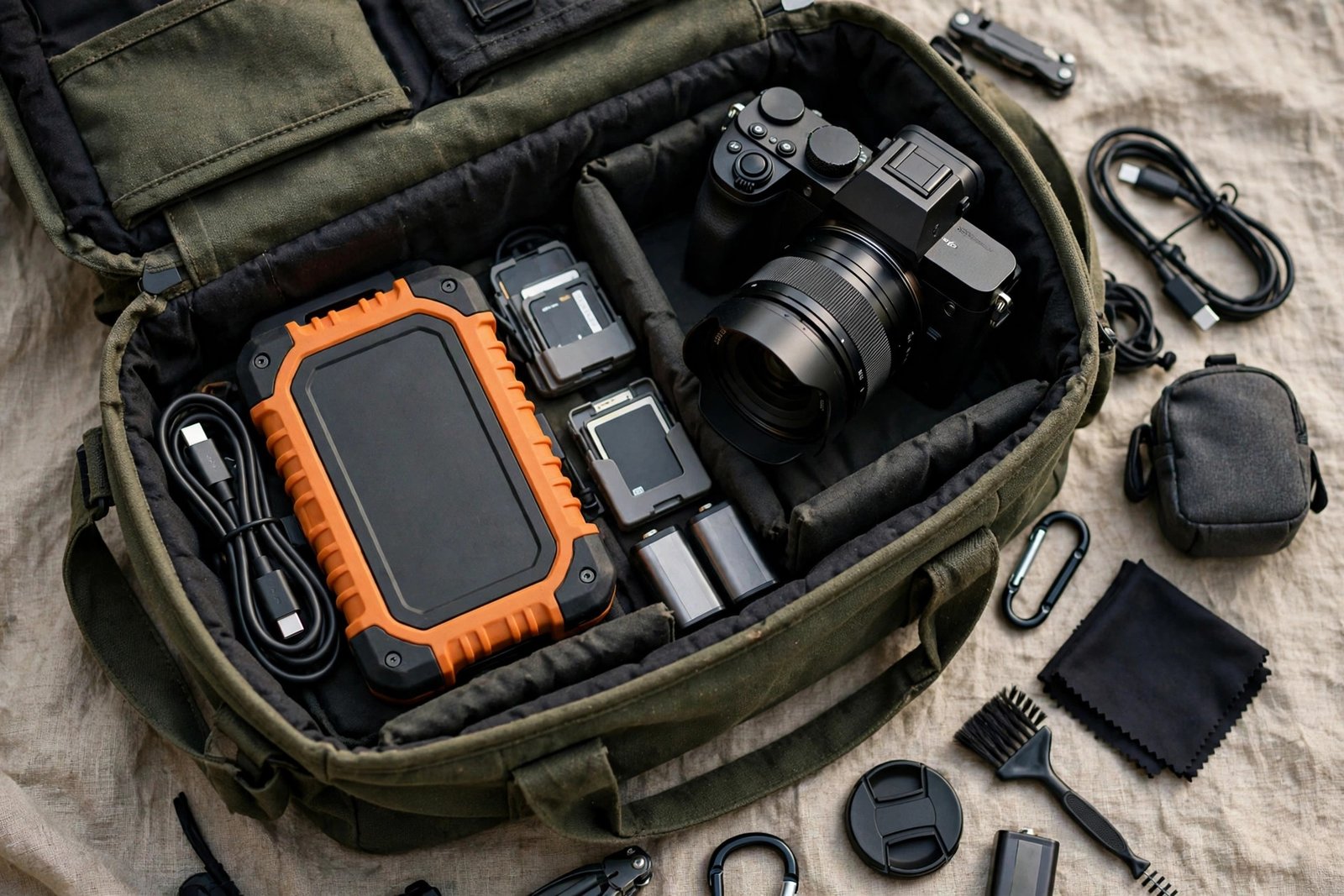
| Rugged portable | 2–5TB | Travel, field work | Costs more; still not drop-proof |
Caption: Buy at least twice your Mac’s internal storage for Time Machine, and choose portable for a MacBook and desktop for a fixed Mac.
A checklist for choosing your drive
Use this checklist before you buy, and you will avoid the most common mistakes.
- How much storage does your Mac have? Double it, and that is your minimum backup size.
- What will the drive hold? Time Machine, a photo library, video, or all three.
- Will it travel? A portable drive suits a MacBook; a desktop drive suits a fixed Mac.
- What format do you need? APFS for Mac-only use and Time Machine; exFAT only if you also use Windows.
- Does it include a USB-C cable? Check the box, and budget for a cable if it does not.
- What is the warranty? Two to three years is standard, and a longer warranty is worth having.
- Do you have a second copy? A single backup is not enough for irreplaceable files; follow the 3-2-1 rule, with three copies on two types of media, one off-site.
Frequently asked questions
Do I need a special hard drive for Mac?
No. Any USB hard drive works with a Mac, but you should format it with APFS or Mac OS Extended for Time Machine. Drives sold as “for Mac” are usually pre-formatted and include a USB-C cable, which saves a step.
How big should a Time Machine drive be?
At least twice the size of your Mac’s internal storage. A 512GB Mac needs a 1TB drive as a minimum, and a 2TB drive is better. A 1TB Mac needs a 2TB drive as a minimum, and a 4TB drive is better.
Can I use an external hard drive with both Mac and Windows?
Yes, if you format it with exFAT. Both systems can read and write exFAT drives. Time Machine does not work with exFAT, so use a separate APFS drive for your Mac backup.
Is a hard drive fast enough for video editing?
It is fast enough for playback and for editing low-resolution footage, but it is too slow for smooth 4K editing. Use an SSD for active editing, and a hard drive for storage and backup.
How long does an external hard drive last?
Most hard drives last three to five years of regular use, and some last longer. Back up the drive itself if it holds irreplaceable files, and replace it at the first sign of clicking, slowness or errors.
Should I leave my backup drive connected all the time?
For a desktop Mac, yes: Time Machine works best when the drive is always connected. For a MacBook, connect the drive regularly, at least once a week, so Time Machine can catch up. A backup that is months out of date is of limited use.
The bottom line
The best external hard drive for Mac in 2027 is a portable 4TB drive for a MacBook, or a desktop 8TB drive for a fixed Mac, formatted with APFS and at least twice the size of your internal storage. That combination gives you a reliable Time Machine backup and room for a photo or video library, at the lowest cost per terabyte.
Your next step is to check your Mac’s storage size, count the photos and videos you already have, and buy the drive that covers both with room to grow. Format it, start Time Machine, and check the first backup completes before you trust it.