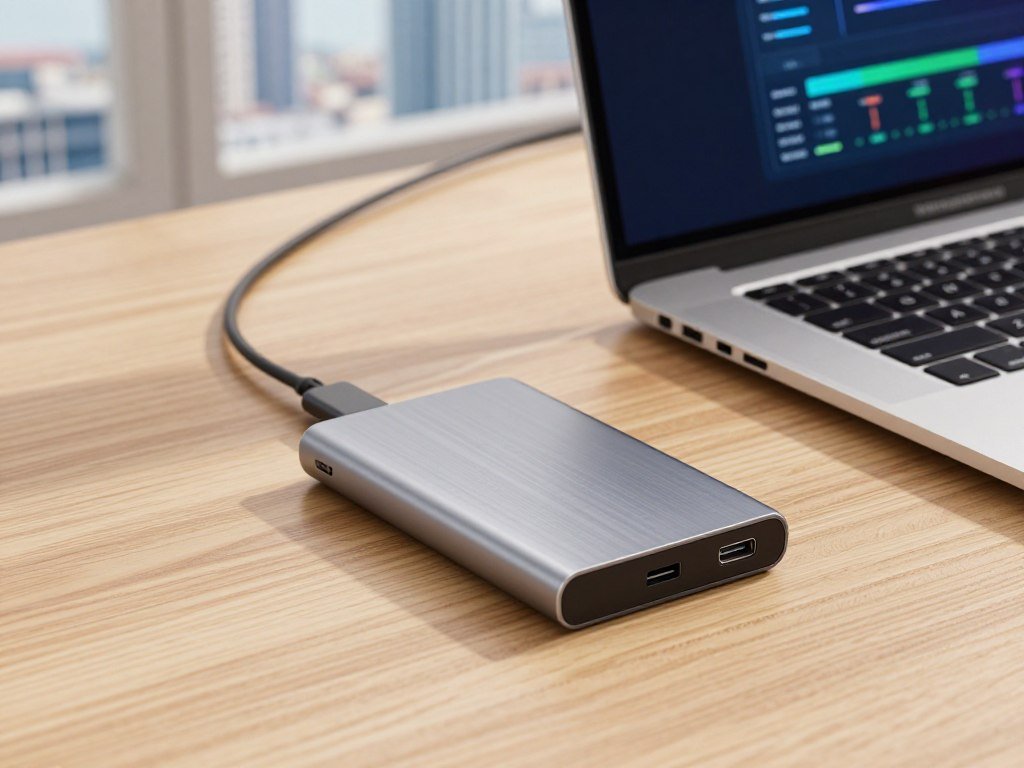
A fast portable drive can make a laptop, phone, or game library easier to manage, but the best choice depends on what you connect it to and what you store. A drive can help with travel, backups, photography, creative work, or carrying games between devices. Your device and the work you do should shape the choice.
These picks serve different needs, so one model will not suit every buyer. Your host device can also limit real-world performance, even when the drive advertises high speeds. An IP rating is a code whose first digit rates protection against solids such as dust and whose second digit rates protection against water.
We compare capacity, speed, protection, and connections to help you find a useful match. You can focus on the features that matter for your files, rather than paying extra for a speed or capacity your setup cannot use.
Key Takeaways
- The Samsung T9 2TB is a strong all-around pick with a compatible port.
- The Crucial X9 Pro costs less and suits a 10Gbps connection.
- A protected 1TB model can work well for focused travel backups.
- Console rules affect which games you can play from external storage.
- Check the drive, host port, cable, and file system together.
A useful shortlist starts with the job the drive must do, then checks speed, capacity, durability, and connection compatibility.
Best External SSD: Which Model Fits Most People?
For a strong balance of speed, security, and capacity, start with the Samsung T9 2TB, unless your computer lacks a USB 3.2 Gen 2×2 port. Most buyers can use its 2TB capacity for work files, backups, and large transfers. The table compares its main trade-offs with two alternatives.
The T9 reaches its 2,000MB/s ceiling only through a compatible 20Gbps port. A regular 10Gbps port makes the Crucial X9 Pro a sensible match, since its sequential speeds reach about 1,050MB/s.
| Model and capacity | 2026 listed price | Speed and interface | Warranty or drop protection |
|---|---|---|---|
| Samsung T9 2TB | About $110 | Up to 2,000MB/s, USB 3.2 Gen 2×2 | Five-year limited warranty |
| Crucial X9 Pro 2TB | About $80-90 | About 1,050MB/s, USB 3.2 Gen 2 | Five-year warranty, 7.5-foot drops |
| SanDisk Extreme Pro Portable 1TB | $210 | 2,000MB/s read/write, USB 3.2 Gen 2 | Five-year limited warranty |
The T9 offers AES 256-bit hardware encryption and 3-meter drop protection, which adds useful safeguards for travel and work files. Samsung also lists a five-year limited warranty. The faster performance matters most when your computer can support the drive’s interface.
The X9 Pro gives you a lower-cost route to a fast portable drive, with the same 2TB capacity as the T9. Its 7.5-foot drop protection adds reassurance if you carry it between work sites or classes. That protection does not make it safe to leave exposed to water.
The SanDisk Extreme Pro Portable SSD costs more despite its 1TB capacity, so its listed price makes most sense when its particular speed and build suit your needs. An independent Samsung T9 review also found that a compatible host port affects performance.
Look at the connection on the computer you plan to use, not just the drive’s box. A product can be fast on paper and still transfer files at the slower port’s rate. Check the host port before paying for a drive whose headline speed your setup cannot reach.
Which 1TB SSD Is a Sensible Pick?
If you want a protected 1TB travel drive without moving up to a larger capacity, the SanDisk Extreme Portable is a practical choice. One terabyte can hold a focused backup of photos, documents, or other files you need on the road. Its IP65 rating and 3-meter drop protection suit everyday travel.
The SanDisk Extreme Portable 1TB was listed at $100 in 2026, but that is a reference price, not a guaranteed current price. The listed amount can help you compare this model with larger drives. Check the exact capacity and current offer when you are ready to buy.
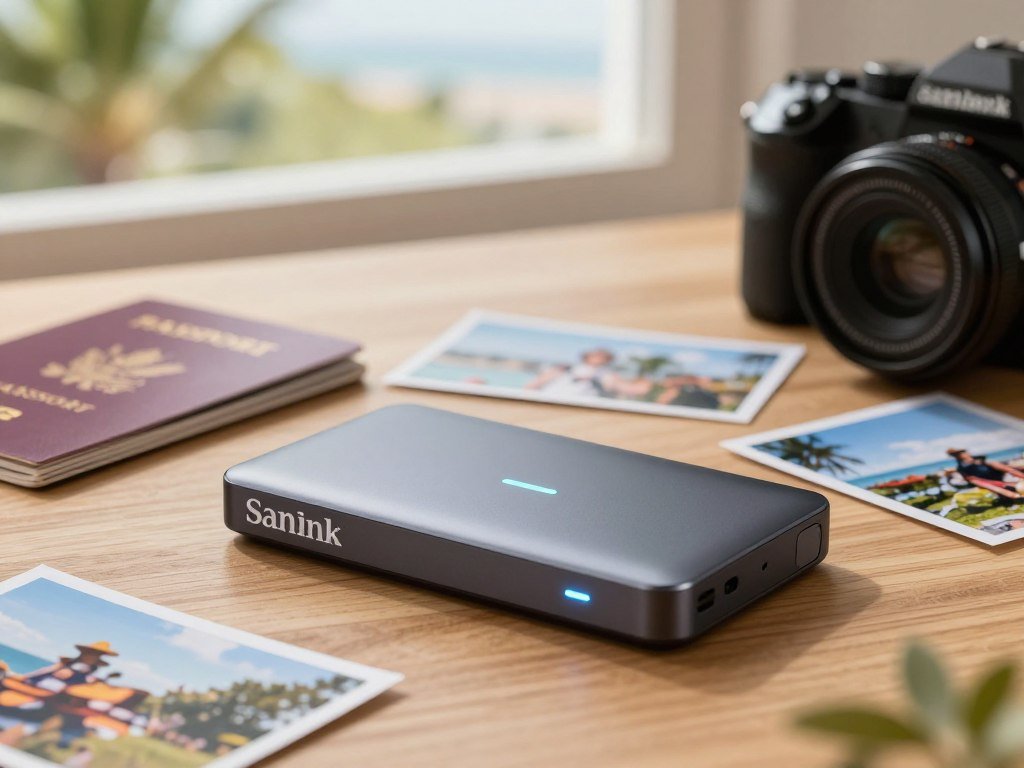
How much the drive can hold depends on the files you plan to carry. A backup of documents and selected photos may fit comfortably. A large video collection or several modern game installs can take far more room.
A 1TB external SSD is a reasonable choice for a focused travel backup, especially when you want a small drive for key files. It can also hold a work folder or a selection of media without bringing a larger unit. Set aside some space for new files, not just the ones already saved.
Active video projects often include source clips, edits, and exported copies. Those files can add up quickly. Several large game installs can also make 1TB feel tight, even when you remove games you no longer play.
In those cases, 2TB gives you more room to keep active work or games together. You may pay more, though, so consider how much of that extra storage you expect to use. A bigger drive is not a better value if much of it stays empty.
Make a rough list of the files you want to carry and check their current size. Include any projects you expect to add during the drive’s first year. Before choosing 1TB, estimate the space already occupied by the files you plan to carry.
Which Rugged SSD Can Handle Travel?
For ordinary travel, the SanDisk Extreme Portable gives you a useful balance of dust and water resistance without stepping up to a professional model. Its IP65 rating and 3-meter drop protection suit a drive kept in a bag or pocket. For tougher conditions, the LaCie Rugged SSD Pro5 offers a higher protection rating.
An IP rating covers specified dust and water exposure, not every kind of wet use. A drive should not be immersed unless its rating specifically supports immersion. Drop protection is a separate measure, so compare it on its own.
| Model | IP rating | Drop protection | Connection or capacity |
|---|---|---|---|
| SanDisk Extreme Portable 1TB | IP65 | 3 meters | 1TB |
| LaCie Rugged SSD4 | IP54 | 3 meters | USB4 |
| LaCie Rugged SSD Pro5 | IP68 | 3 meters | Thunderbolt 5, 2TB or 4TB |
The LaCie Rugged SSD4 was listed at $500 in 2026 and has an IP54 rating. Its 3-meter drop rating and USB4 connection suit demanding work, though its price may be more than you need for routine trips.
The LaCie Rugged SSD Pro5 is the tougher, higher-performance option in this group. It comes in 2TB and 4TB capacities, supports Thunderbolt 5, and has an IP68 rating. It is also rated for 3-meter drops.
IP ratings follow a defined test system. Intertek’s explanation of IP testing shows how the first digit rates solids and the second rates water. A higher water digit signals protection under different test conditions, not universal waterproofing.
Think about the hazards your drive will face. A pocket drive for city travel has different needs from a drive used near dust, spray, or rough field work. Match the protection level to the conditions you actually face, and keep a wet drive disconnected until it is dry.
Can an External SSD Expand PS5 or Xbox Storage?
An external SSD can play PS4 games on a PS5, but it cannot run PS5 games directly. Xbox Series X/S works differently: an external drive can store Series X games, but those games must move to internal storage before play.
An external SSD can hold or move games even when the console cannot play them from that drive. The right expansion depends on whether you need extra storage for games or want to play newer titles without moving them.
| Console | Games playable directly from external storage | Internal expansion option |
|---|---|---|
| PS5 | PS4 games; PS5 games must move to internal storage | Standard M.2 SSD |
| Xbox Series X/S | Series X games can be stored, but must move to internal storage to play | Proprietary Seagate-made card |
The PS5 supports compatible M.2 SSDs for internal expansion. This option lets you add storage for games that can run from the console’s internal storage. Check the console’s requirements before choosing an M.2 model.
PlayStation’s official storage guidance confirms that PS5 games can sit on an external USB drive, but must move back before play. PS4 games can run directly from external storage.
Xbox Series X games can also sit on an external hard drive, though you must transfer them to internal storage to play. The internal expansion option uses a proprietary Seagate-made card, rather than a standard M.2 SSD.
An external SSD can still help if you want to keep a game library available for later. It can hold titles you are not playing, or help move files between storage locations. It does not replace the console’s required internal expansion for direct play.
Check your console’s exact storage rules before choosing a drive. A model may hold the games you want, yet still require a transfer before you can launch them. Check the exact console rule before buying a drive solely to play newer games from it.
What Should Mac Owners Check Before Buying?
Mac buyers should check the Mac’s actual port and the drive’s interface, not rely on the USB-C connector shape alone. USB-C describes the connector, while the interface sets how data moves. USB4 is based on Thunderbolt 4 and is fully compatible with Macs.
A USB-C port alone does not tell you the maximum data speed. Check the Mac’s specifications and the external SSD’s interface before choosing a fast drive. A connector that fits can still connect through a slower protocol.

Match the Mac’s port to the drive’s interface
USB4 compatibility matters when you want to use a fast drive with a Mac. The computer, drive, and cable all need to support the interface you plan to use. A mismatch can lower real transfer speed.
For routine backups, a drive that works at the Mac’s available speed may be enough. Faster storage can help with large folders and active projects, but the computer’s port sets a limit. Check the Mac model’s port details rather than judging by its shape.
Choose a file system for your Mac workflow
A drive used only for Mac backups can use a Mac-oriented file system. A drive shared between Mac and Windows computers calls for a cross-platform format such as exFAT. Your workflow matters more than the brand printed on the drive.
Reformatting a drive can erase its files. Copy anything important to another place before changing the file system. After formatting, confirm that the Mac can read and write to the drive as expected.
Think about whether the drive will stay with one Mac or travel between computers. That choice affects the file system you need, as well as the transfer setup. Confirm the drive’s format and make a safe copy of its files before changing that format.
Which Fast SSD Fits Video Editing?
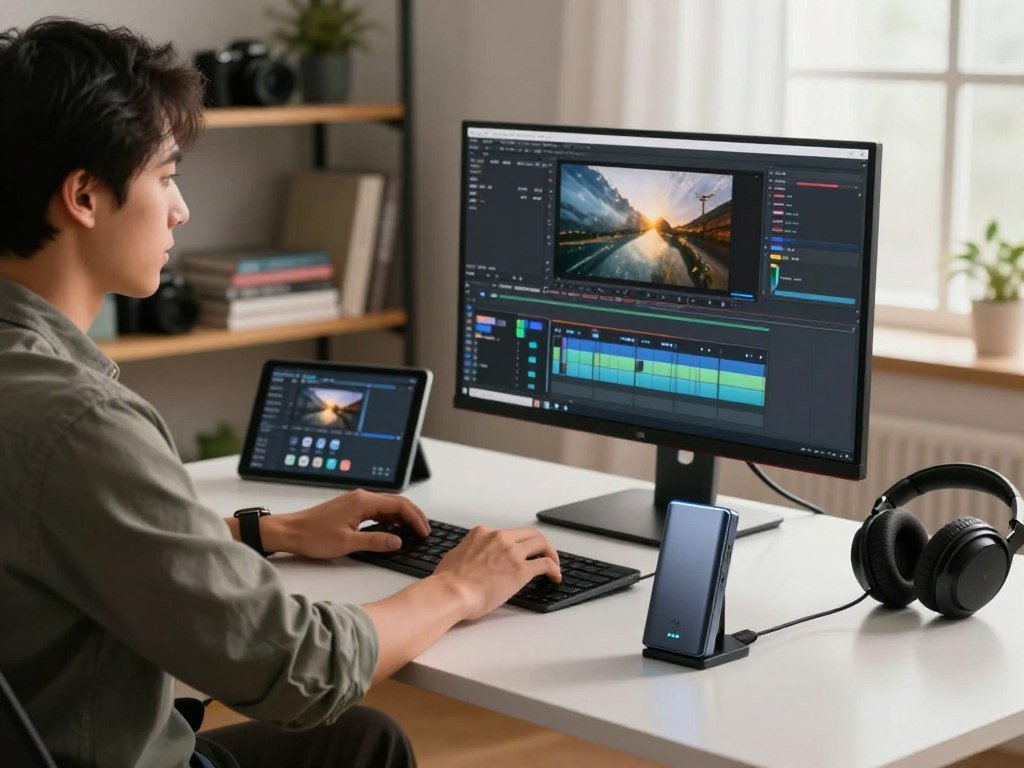
For active video editing, prioritize the speed of the complete connection and the sustained needs of your project, not the drive’s headline number alone. The LaCie Rugged SSD Pro suits high-throughput editing, while the G-Drive Pro Studio offers more space for a large professional workspace.
Moving finished media is less demanding than editing active footage directly from a drive. A transfer can finish before you begin editing, but direct editing keeps reading and writing project files throughout your work.
Choose speed for the footage you edit
The LaCie Rugged SSD Pro holds 4TB and reaches sequential read and write speeds up to 2,800MB/s. It is a fit for active projects that need fast access to footage and edits.
The SanDisk G-Drive Pro Studio SSD has 7.68TB of storage and sequential read and write speeds of 2,600MB/s. Its larger capacity can help keep more working media together, while its speed remains suited to serious editing.
Check connection and write endurance for long projects
Your computer’s port limits the results, even when the drive supports a faster connection. The LaCie Rugged SSD Pro5 needs Thunderbolt 5 support on the computer to reach its best performance. Its five-year warranty covers the product under the warranty terms.
The G-Drive Pro Studio SSD lists an 11,000 TBW endurance rating. TBW means the total amount of data written under an endurance rating. It is not a promise that every drive will last a set number of years or fail at that limit.
Choose a drive that matches the footage, project size, and computer you use. Keep enough free space for incoming clips, edits, and exports. Choose enough capacity to keep the working media and current project together without filling the drive to its limit.
How Can Photographers Back Up and Capture on a Phone?
Photographers who need a phone backup can choose a portable SSD, while direct ProRes capture calls for a compatible phone and recording setup. A basic copy of your photo library has different needs from recording high-quality video straight to a drive.
Check the phone, app, cable, and format before relying on direct capture. iPhone models, apps, cables, and recording formats all affect compatibility. A setup that works for one phone may not work with another.
- Copy a photo library from your phone to a portable SSD for a quick backup.
- Record compatible ProRes footage directly to the SanDisk Creator Phone SSD at 4K/60fps.
- Choose the Lexar TouchLock when NFC unlock and encryption matter more than maximum speed.
The SanDisk Creator Phone SSD supports Apple ProRes 4K video capture at 60fps and has an IP65 rating. That makes it a phone-first capture option, but your phone and recording app must support the full setup.
The Lexar TouchLock Portable SSD uses 128-bit encryption and offers NFC unlock. Its quoted speeds reach up to 450MB/s read and 420MB/s write. Those speeds suit file copies, though this model is not aimed at the fastest editing work.
For photography work, a portable drive can also give you a place to copy images before editing them on a computer. If you review or edit images on a UHD screen, the BenQ SW272U photography monitor offers color and print controls for that workflow.
Test the whole setup before a job. Record a short clip, copy it back, and confirm that it plays as expected. Test the phone, cable, and recording workflow together before taking them on a paid or important shoot.
When Is a High-Capacity SSD Worth It?
A 4TB SSD makes sense when one portable workspace needs to hold several large projects or a substantial library. More capacity can save you from splitting files across several drives. It can also cost more than a smaller model.
Consider 4TB when your active files regularly outgrow a smaller drive. These situations can make extra space useful:
- Carrying a large photo library.
- Keeping multiple video projects active.
- Holding a broad work or game library in one place.
The Samsung T7 SSD comes in 4TB and reaches sequential read speeds up to 1,050MB/s and write speeds up to 1,000MB/s. It has a three-year limited warranty and fall protection up to 6 feet.
The Samsung T9 SSD also comes in 4TB and has a five-year limited warranty. The Portable SSD T9 supports USB 3.2 Gen 2×2 and 256-bit AES hardware-based encryption. These features may matter when you carry valuable work files.
The OWC Envoy Pro FX works with Macs and Windows PCs, giving mixed-device users another 4TB option. It was listed at $579 in 2026, a reference point rather than a promise of today’s price. Compare the exact model and capacity when you shop.
A high-capacity drive can keep a wide work or game library in one place, but not every user needs that setup. Smaller drives may be easier to replace or split by project. Think about how often you need the full library with you.
Choose based on active files, not an imagined future collection. If you regularly remove completed projects, a smaller capacity may still work well. Buy for the amount of active data you need to carry, not for capacity you will leave unused.
Which Interface Delivers the Transfer Speed You Need?
For most everyday backups, a 10Gbps SSD is already fast; higher tiers matter most when both the drive and host support them. The useful speed comes from the full connection, not the drive alone. This table shows typical transfer ranges and common uses.
USB 3.2 Gen 2×2 offers about twice the peak throughput of USB 3.2 Gen 2. Thunderbolt 5 can be much faster, though compatible computer ports remain uncommon.
| Interface tier | Interface bandwidth | Typical real-world transfer speed | Suitable workload |
|---|---|---|---|
| USB 3.2 Gen 2 | 10Gbps | About 900-1,050MB/s | Everyday backups and transfers |
| USB 3.2 Gen 2×2 | 20Gbps | About 1,800-2,000MB/s | Faster large-file transfers |
| USB4 or Thunderbolt 4 | 40Gbps | About 3,000-4,000MB/s | Demanding work on compatible computers |
| Thunderbolt 5 | Up to 6,700MB/s | Above 6,000MB/s sequential for rated drives | Specialist high-throughput work with a compatible port |
USB 3.2 Gen 2 works well for many everyday transfers. It can handle routine backups and common file moves without requiring a high-end port. The host computer still needs to support the interface.
USB 3.2 Gen 2×2 raises the available bandwidth to 20Gbps. Drives using it can reach about 1,800-2,000MB/s in real-world transfers. That can help when moving large folders, as long as the host supports Gen 2×2.
USB4 and Thunderbolt 4 at 40Gbps can deliver about 3,000-4,000MB/s in real-world transfers. Thunderbolt 3 and Thunderbolt 4 drives can exceed 3,000MB/s with compatible ports. USB4 drives can exceed 4,000MB/s in some real-world use.
Thunderbolt 5 drives can exceed 6,000MB/s sequential, with a stated top speed up to 6,700MB/s. Full performance needs a compatible Thunderbolt 5 port. Those ports are uncommon on computers, so many buyers cannot use this tier yet.
Match the interface on both ends of the connection. A fast drive plugged into a slower host will run at the host’s limits. Compare the interface on the computer with the interface on the SSD before treating a speed claim as a likely transfer rate.
Will the SSD Work With Your PC, Phone, and Cables?
A drive can plug into a PC and still run below its advertised speed if the computer or cable uses a slower interface. Physical fit is not enough: the port protocol, file system, and operating system must work together.
A PC can use an external SSD when its connector, protocol, file system, and operating system are compatible. USB-C and USB-A describe connector shapes, while USB4 and Thunderbolt name data-transfer protocols.
- Confirm the computer’s port protocol.
- Use a cable rated for that protocol.
- Check whether the file system works on each device.
- Verify that phones and tablets support external storage and enough power.
The Kingston XS2000 supports transfer speeds up to 2,000MB/s and was listed at $238 in 2026. A USB 3.2 Gen 2 host limits a Gen 2×2 SSD to Gen 2 speeds, even when the drive itself supports more.
Check whether the operating system can read and write the drive’s file system. A drive formatted for one computer may need a different format for shared use. Make a safe copy before changing that format.
Phones and tablets can have their own limits. Some support external storage, while others may not supply enough power for a particular drive. Confirm support for the device and app you plan to use.
Use the cable that supports the drive’s interface. A cable can fit both ports and still limit the connection if it lacks the right protocol support. Check the protocol at both ends of the connection, not just whether the plugs fit.
How Much SSD Capacity Should You Choose?
Start with the amount of active data you need to carry, then leave room for the next project rather than buying capacity by instinct. One or two terabytes can suit focused portable use, while large working libraries may need more.
A 4TB external SSD is practical when a large working library must remain portable. Check your host device and budget before choosing a larger capacity.
Choose 1TB or 2TB for focused portable use
One terabyte suits a compact travel library or focused backup. It can hold selected documents, photos, and work files without adding much bulk to your bag.
Two terabytes leaves more room for mixed photos, documents, and active projects. Choose it if you want to keep several types of files on one drive, rather than deciding what to remove after every trip.
Step up to 4TB or more for large libraries
Four terabytes or more can help with large photo collections, several active video projects, or a wide game library. A 4TB SSD keeps more files available in one portable workspace.
The Crucial X10 comes in 1TB, 2TB, 4TB, 6TB, and 8TB capacities. It has an IP65 rating and 9.8-foot drop protection. It does not have AES hardware-based encryption and includes a three-year warranty.
SanDisk Extreme Portable SSD models are available up to 8TB. That range gives you options for larger libraries, though a bigger capacity can also raise the price. Choose based on files you use, rather than files you might someday collect.
Capacity listings and prices can vary by model and store. Leave enough open space for new work and temporary files, especially if you use the drive for active projects. Check the actual capacity options for the model you want, since availability and listed prices can vary.
Which Durability and Security Features Matter?
Durability ratings describe particular hazards, so separate dust and water resistance from drop protection when comparing models. Each rating has limits, and a rugged design does not protect files from every risk.
IP65 does not mean a drive can be submerged. IP ratings specify dust and water resistance, while drop protection is a separate rating that describes resistance to falls.
Read protection ratings as specific limits
The first digit in an IP rating rates protection from solids, including dust. The second digit rates protection from water. A higher number relates to different test conditions, not protection from every hazard.
IP68-rated products have protection against immersion under specified conditions, but the exact limits matter. Do not treat a rating as permission to expose a drive to any water depth or length of time. Drop protection is measured separately.
Match encryption and warranty to the risk
The Samsung T9 supports AES 256-bit hardware encryption and 3-meter drop protection. The SanDisk Extreme Pro SSD also has 256-bit AES hardware encryption, IP65 water and dust resistance, and 3-meter drop protection.
The LaCie Rugged SSD Pro5 has an IP68 rating and 3-meter drop protection. Its protection suits rougher conditions, while encryption addresses a different risk: someone accessing stored files without permission.
A warranty period describes the length of product coverage under its terms. It does not guarantee that files can be recovered after a failure, theft, or accident. Important files need another copy even when the drive has a long warranty.
Consider the value and sensitivity of the files you carry, along with the physical hazards. Encryption can help protect private data, while a drop rating speaks to falls. Keep a second copy of important files on another device or backup system, even when the SSD is rugged and encrypted.
When Is a Hard Drive Better Than an SSD?
Choose an SSD for frequent access and fast transfers, but consider a hard drive for a large, rarely opened archive where lower speed is acceptable. Cold data means files you keep but access infrequently, such as old project folders.
Typical consumer hard drives transfer data at 100-200MB/s, while faster SSD interfaces can reach 2,000MB/s or more. That speed gap matters when you regularly move large files.
SSDs suit travel, active projects, and regular file transfers. They have no moving mechanical parts, so they handle physical shock better than a hard drive. Their speed can also make large copies take less time.
A hard drive can make sense for a large archive that rarely changes. It may be a practical choice when you want to store cold data and can accept slower retrieval. You do not need SSD speed for files you seldom open.
The right choice depends on how often you use the files and how long you can wait for them to transfer. A work folder you open every day points toward an SSD. An old media archive may fit a hard drive better.
Do not treat one drive as a complete backup plan. Both SSDs and hard drives can fail, be lost, or suffer damage. Keep important files on another device or backup system as well.
Use an SSD for files you need to open and move often. Use a hard drive when capacity and cost matter more than fast access, and retrieval can be slower. For files you cannot replace, keep another copy on a separate device instead of relying on either drive type alone.
How Should You Judge SSD Performance Tests?
A benchmark score shows what a drive can do under a particular test setup, not the exact speed every buyer will see. Real file copies can tell you more about your own work than one score alone.
Compare tests that match your computer, capacity, and common file sizes. A test on a different host or with different files may produce results you cannot repeat.
Separate benchmark scores from file-copy results
Synthetic benchmarks run set tasks to measure storage behavior. CrystalDiskMark focuses on read and write speeds under set conditions. PCMark 10 Storage measures performance in common computer tasks.
Blackmagic Disk Speed Test checks storage speed in a way that can help video users judge read and write performance. A real file-copy test instead records the time needed to move actual files. Each test answers a different question.
A five-year comparison covering more than 60 external SSDs used CrystalDiskMark, PCMark 10 Storage, and Blackmagic Disk Speed Test. PCWorld tests include 48GB transfers and a 450GB write test. Those are examples of test methods, not a promise of one model’s speed.
Check the test size and the computer used
Test size can change results, especially when a write test pushes a drive for longer. Host computers also differ, and the tested drive capacity can affect performance. A nearly full drive may behave differently from one with more free space.
Use this checklist when comparing results:
- Interface and host computer.
- Tested drive capacity.
- File size used in the test.
- Read result versus write result.
- Benchmark score versus real transfer time.
Performance can vary with NAND configuration, host device, capacity, and how full the drive is. Give more weight to results that match your computer, drive capacity, and typical file sizes.
What Should You Check Before You Buy?
Before paying, verify that the exact model, capacity, port, and cable fit the device you plan to use. A good match saves you from paying for storage or speed your setup cannot use.
USB-C does not, by itself, guarantee USB4 or a particular speed. USB-C and USB-A describe connector shapes; USB4 and Thunderbolt describe data-transfer protocols.
Use this short checklist before you order:
- Match the interface to the computer.
- Confirm capacity against current files and near-term projects.
- Check the required cable and connector.
- Verify device and file-system compatibility.
- Compare current prices for the exact capacity and model.
The drive, host port, and cable set the connection’s speed ceiling. A fast SSD will not reach its advertised rate through a slower compatible port or cable. Check the protocol at each end as well as the connector shape.
Capacity should cover the files you use now and the projects you expect soon. An extra terabyte helps only if you need it. Check that phones, tablets, or computers you plan to use support external storage.
Prices can change, and different capacities of the same model may have very different prices. Compare the exact model and capacity before you buy. A listing for one size does not tell you the cost of another.
Keep the purchase tied to the job. If you need routine backups, a basic compatible interface may be enough. Choose the least expensive model that meets your real capacity, speed, durability, and compatibility needs.
Conclusion
The best choice is the model that fits your device and the work you actually do, not the one with the largest speed claim. The Samsung T9 2TB is a strong general-purpose choice when your host supports its faster interface.
The Crucial X9 Pro is a more economical fit for a 10Gbps setup. Before you buy, confirm the exact capacity, interface, and current price for the device you plan to use.
Check your available port and the space your current files occupy, then choose the matching model and capacity.
FAQ
Why does a 2TB SSD show less than 2TB of space?
A 2TB SSD may show less space because drive makers use decimal units, while operating systems may display capacity using binary units. Formatting also uses some space for the file system. The difference does not usually mean the drive is faulty. Check the operating system’s storage view after formatting to see the usable space.
Do portable external SSDs need a separate power adapter?
Most portable external SSDs draw power through USB and do not need a separate adapter. A cable connects the drive to the computer and carries both data and power. Some larger desktop-class drives may need AC power. If a portable model is not recognized, check its cable and the device’s power support.
What does TBW mean on an external SSD?
TBW means total bytes written, an endurance rating for how much data a drive is designed to write under the stated test conditions. It is not a fixed lifespan or a guarantee that a drive will fail once it reaches that number. Actual life depends on use, storage conditions, and the drive itself.
Should an external SSD be the only backup of important files?
No, an external SSD should not be your only copy of important files. Any storage device can fail, get lost, or be damaged. Keep another copy on a separate device or backup system, so one problem does not erase every copy. For vital files, check that the second copy can be opened.
Can I use an external SSD with both Windows and macOS?
Yes, an external SSD can work with both Windows and macOS when its file system and connection are compatible with each. ExFAT is a common cross-platform format for sharing files between the two systems. Back up the drive before formatting it, because formatting can erase the files already stored there.
Is an SSD a better choice than a hard drive for long-term archiving?
Neither drive type is best for every archive. SSDs are faster and more resistant to physical shock, while hard drives can be a cost-conscious choice for cold data you rarely access. Storage devices can fail over time, so keep more than one copy of files you cannot replace, regardless of drive type.



