A still portrait can blink, a product photo can reveal a new angle, and a landscape can gain moving clouds without a camera shoot. Image-to-video generation means using a still image as the visual starting point for an AI-generated moving clip. The right product depends on whether you need a faithful subject, natural motion, sound, or precise control.
Compare source fidelity, motion, audio, control, output quality, and effective cost per usable second as separate factors. The seven picks are Runway Gen-4.5, Kling 3.0, Google Veo 3.1, Sora 2, Luma Ray3.14, Seedance 2.0, and Pika 2.2. Each fits a different kind of creative work.
The most reliable choice is the tool whose strengths match the image and motion you actually need.
Key Takeaways
- Runway suits directed sequences and post-generation edits.
- Kling offers native 4K output and connected multi-shot scenes.
- Veo and Sora generate sound with image-based clips.
- Luma works for short visual shots from an iPhone.
- Seedance supports reference-led animation and lip-sync.
- Pika and Hailuo offer distinct creative effects and motion styles.
Best Image to Video AI Tools Compared for Different Projects
Runway, Kling, and Veo make the strongest initial shortlist, but they solve different image-animation problems. Runway favors direction, Kling stands out for resolution, and Veo adds native audio to short scenes.
Choose by usable output, not one specification alone. Clip length, sound, and image quality all shape whether a model fits your work. The table compares five leading video generators at a glance.
| Model | Maximum clip length | Resolution | Audio | Standout fit |
|---|---|---|---|---|
| Runway Gen-4.5 | Up to 60 seconds | Up to 4K | Not stated | Consistent multi-shot sequences |
| Kling 3.0 | 15 seconds or more | Native 4K, 60fps | Not stated | Detailed connected scenes |
| Google Veo 3.1 | Up to 8 seconds | Up to 4K | Native audio | Short scenes with sound |
| Luma Ray3.14 | Up to 5 seconds | Native 1080p | No | Brief visual shots |
| Sora 2 | Up to 20 seconds | 1080p | Synchronized native audio | Longer scenes with sound |
Seedance 2.0 and Pika 2.2 are two more featured options, with their own specifications covered later. An independent image-to-video model leaderboard uses blind human-preference votes, offering another view of model quality.
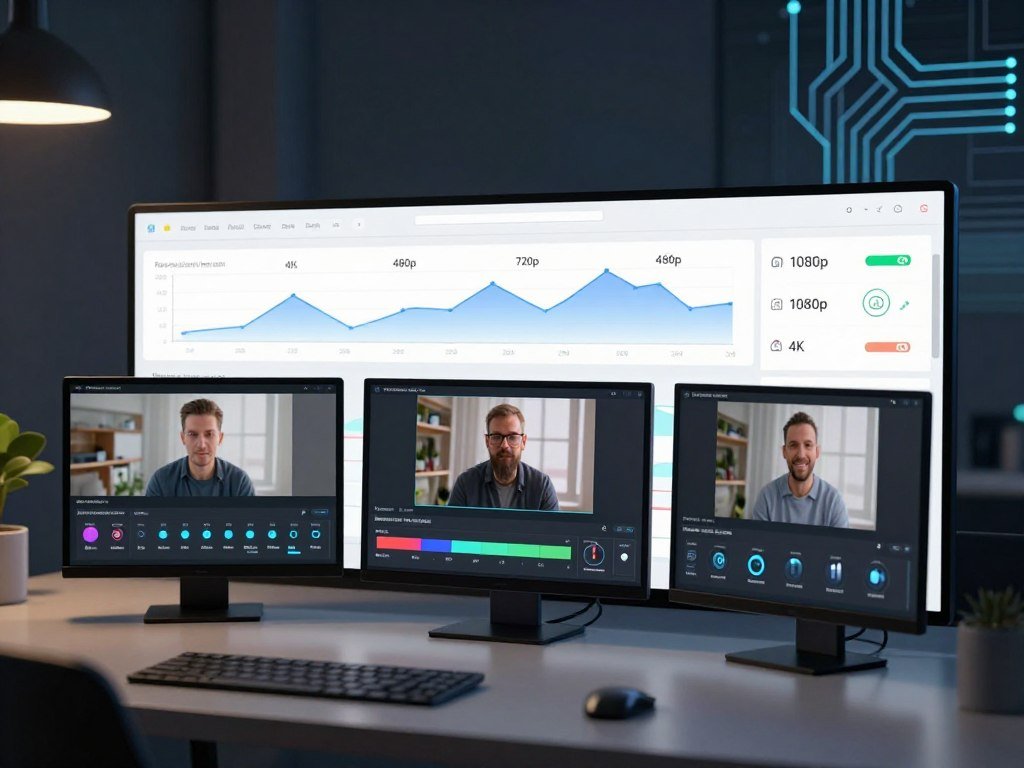
Compare the output you can actually use, not only the largest resolution number.
A 4K file may still need cleanup, while a lower-resolution clip may already suit a social post. Test the image and motion that matter to your project.
Which Models Offer the Best Motion and Camera Control?
Choose Runway when you want to direct and revise a sequence, and Kling when native detail and connected shots matter more. Both offer ways to guide motion, but their workflows serve different creative needs.
Runway Gen-4.5 supports image-to-video multi-shot sequences up to 60 seconds, with style consistency across cuts. Its camera-control and motion-brush examples let you steer a move or mark where motion should happen.
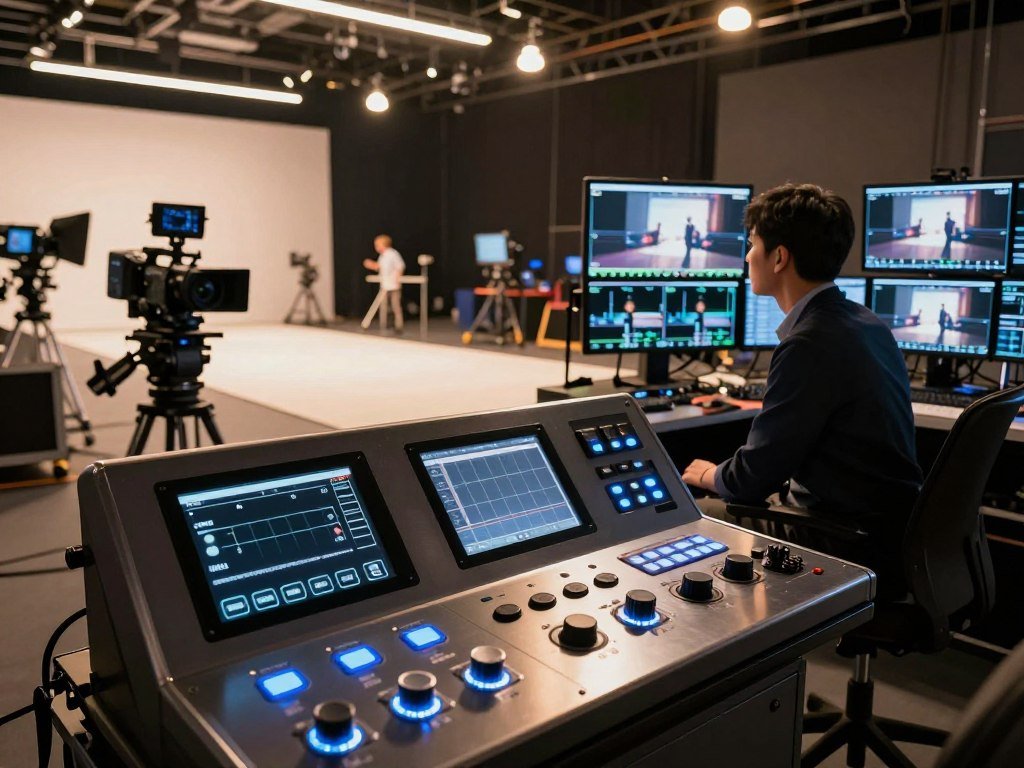
Runway Gen-4.5 for directed sequences and editing
Runway can also revise generated footage through Aleph, its post-generation editing tool. That makes it useful when a brand sequence needs a planned camera move, matching visual style, and a later change.
In 2026, Gen-4.5 is listed with 4K output and an effective cost of about $0.15-0.20 per second. It charges 25 credits per second, while Gen-4 Turbo charges 5 credits per second. A directed brand sequence with several connected shots is a practical fit.
Kling 3.0 for high-resolution multi-shot scenes
Kling 3.0 offers native 4K at 60fps, 16-bit HDR, and clips of up to 15 seconds or more. Native 4K describes detail, not better motion by itself. Character continuity across shots and reference-image guidance can help shape a detailed product or character scene.
Reference workflows can use three to five images, with examples supporting up to six shots. Kling is listed at about $0.07 per second, and plans start at $6.99 per month. Try one source image and one camera move in each model before settling on a paid workflow.

Test the same source image and camera move in both tools before committing a paid workflow.
Which Tools Add Audio to Image-Based Clips?
For sound generated in the same pass, Veo 3.1 suits short scenes and Sora 2 allows a longer clip to unfold. Native audio can combine dialogue, ambience, effects, or music with the generated scene.
Veo supports clips up to 8 seconds, while Sora supports clips up to 20 seconds. Review sound quality and timing, since generated speech or effects may not fit every frame.

Veo 3.1 for short scenes with generated sound
Veo 3.1 fits a brief cinematic beat, such as a person entering a room as rain taps the window. It supports output up to 4K and native audio in 2026. A free option provides three generations per day.
The available resolution and access depend on the route or plan you use. Check the result at its intended size, since a crisp frame does not ensure clear dialogue.
Sora 2 for longer synchronized scenes
Sora 2 offers 1080p output and synchronized native audio in clips up to 20 seconds. That extra time can let an action and its sound develop within one generated scene.
Sora 2 access comes with a Plus subscription. Its conversational prompt refinement can help you revise the scene, but it does not replace a separate edit when you need frame-level control.
Use dialogue only when the words and timing hold up on playback. Listen for mismatched speech, effects, or timing before using a clip in a finished project.
Which Options Fit Mobile and Reference-Led Work?
On an iPhone, Luma offers a direct mobile route for short visual animation, while Seedance is the stronger fit for reference-led direction. Their limits make them suited to different kinds of clips.
Luma Ray3.14 has a five-second maximum and no audio; Seedance 2.0 supports clips up to 10 seconds and lip-sync. These are separate model limits, not interchangeable versions.
Luma Ray3.14 for short HDR-focused clips
Luma Ray3.14 provides native 1080p output and 4K HDR. Its five-second limit and lack of audio make it a better fit for a short visual shot than a dialogue scene.
Luma’s iOS app gives you an iPhone workflow, and a free trial option is available in 2026. Use it for a quick visual detail, such as light moving across a product surface.
Seedance 2.0 for reference-driven animation
Seedance 2.0 offers native 2K output, clips up to 10 seconds, and lip-sync support. Its reference-driven approach helps guide the look and action of a generated scene.
For example, you can use reference images to guide a product reveal, keeping the package shape and intended movement in view. If you need to create a source still first, compare these AI image generator tools for different starting-image needs.
Confirm the clip length and audio needs before building a sequence around either tool.
What Are the Best Lower-Cost and Creative Options?
Pika is the more playful pick for social transformations, while Hailuo suits motion built around physical materials. Both trade some control for a more specific creative use.
Pika’s free account has no commercial license and no recurring monthly credits. In 2026, Pika 2.2 offers 1080p output, clips up to 10 seconds, and a free tier.
Pika 2.2 for quick social effects
Pika’s social effects and keyframe transitions suit quick transformations, such as changing a still portrait into a playful scene. They can add a visible twist without requiring a long sequence.
The free account is useful for testing, but its lack of recurring monthly credits limits ongoing use. Its free account also does not include a commercial license, so do not treat a free export as ad-ready.
Hailuo 02 for physics-led motion
Minimax Hailuo 02 is designed for motion involving water, fabric, smoke, and other physical materials. It produces 1080p clips up to 10 seconds, with no audio, and had a trial option in 2026.
At about $0.28 per video, Hailuo offers a clear per-video price, though the finished result still needs review. For a simple choice, use these cues:
- Choose Pika for playful effects.
- Choose Hailuo for physical motion.
- Choose neither first when product lettering must stay exact.
For a paid campaign, verify the account’s commercial-use terms before exporting.
How Do Free Tiers and Pricing Compare?
The cheapest practical option depends on whether you need a daily free allowance, a predictable paid rate, or local compute. Free access can mean one-time credits, daily credits, or model access with limits.
Compare the cost per usable clip at your needed resolution, not just the lowest plan entry price. Daily credits may expire, and each service sets different output limits.
| Option | Entry or free access | Allowance or cost rule | Important limit |
|---|---|---|---|
| Runway | Plans start at $12/month | 125 free credits once | No monthly free refill |
| Kling 3.0 | Credits by output | 6 credits/sec at 720p without audio; 12 at 1080p with audio; 30 at native 4K | Rate depends on resolution and audio |
| Google Flow | 50 daily credits without subscription | Veo Lite 10; Fast 20; Quality 100 credits per generation | Unused daily credits expire |
| PixVerse Basic | 60 initial credits, 30 daily | Daily credits reset | Up to 540p; paid plan for watermark-free export |
| Leonardo.Ai Free | 150 fast tokens daily | Video access included | Public creations; Auto-only model access |
Flow, PixVerse, and Leonardo offer daily allowances, but their credit units and output limits differ. Google AI Pro costs $19.99 per month and provides access to Veo 3.1 Lite. Runway Gen-4.5 uses 25 credits per second, compared with five for Gen-4 Turbo.
A free AI video generator comparison can help you weigh allowance rules alongside export limits. Open-weight options such as Wan2.1, LTX-Video, Open-Sora, and CogVideoX trade subscription fees for your compute and setup.
Before subscribing, calculate how many usable seconds your expected re-renders consume.
How Do You Get a Better Image-to-Video Result?
A sharp image and one clearly described movement usually make a better first generation than a crowded prompt. Start simple, then adjust the source or motion after you see the first clip.
Clear subject detail, sharp focus, and good lighting give a model a stronger starting point. Check that the image also has enough visible space for the movement you plan.
Prepare a clear source image
Check focus, lighting, and the edges around your subject. A hand near the edge may be hard to animate if the planned action needs more room.
If you need a new still, the free text-to-image generator guide covers ways to create one. Photoshop can also adjust an existing image, while Canva supports editable designs, as described in this guide to visual-design apps.
Write a motion prompt the model can follow
Build the prompt in this order: subject, action, expression, camera movement, scene change, and visual style. Keep each part clear, then avoid adding unrelated action.
For example: “The camera slowly pushes in as the subject turns toward the window.” Portraits usually suit subtle movement, while landscapes can use drifting clouds or moving water.
Review, revise, and export the clip
Inspect identity, product shape, text, flicker, and motion before paying for an upscale or final export. A quick review can catch a warped label before it reaches a finished post.
- Prepare a source image with clear focus and room for movement.
- Write one prompt that names the subject and camera move.
- Review the clip before you upscale or export it.
Change one prompt variable at a time so you can tell what improved the result.
Which Tool Fits Your Project and Usage Rights?
For cinematic scenes start with Veo, for character motion consider Kling, and for directed control choose Runway. Project fit also depends on access rules, queues, and the license tied to your plan.
“Unlimited” access can still include model, queue, fair-use, or time limits. Check those conditions alongside the commercial license for the output.
| Project need | Suitable option | Stated access or pricing | Practical condition |
|---|---|---|---|
| Unlimited SD video | Midjourney | Pro: $60/month or $48/month annually | Relax queues from zero to 30 minutes |
| Selected unlimited models | Magnific | Premium+: $45/month or $33.75/month annually | Fair-use and queue rules apply |
| Firefly and partner models | Adobe Firefly | Premium: $199.99/month, 50,000 monthly credits | Partner promotion lasts 12 months on supported interfaces |
| Directed creative work | Runway | Gen-4.5 or Gen-4 Turbo | Choose the workflow by required control |
| Local model access | Open-weight model | User supplies compute | Setup and hardware are your responsibility |
Midjourney includes unlimited SD video generations in Relax mode; HD video uses finite Fast GPU time. Magnific’s listed unlimited models include Kling 2.5 at 720p and MiniMax Hailuo 2.3 and Hailuo 2.3 Fast at 768p.
Firefly Premium’s first-year partner-model promotion covers the first 12 consecutive months after signup, then partner generations use credits. Selected models include Veo 3.1 Fast, Kling 3.0 Standard at 720p, Luma Ray 3.14, and Runway Gen-4.5. The promotion works on firefly.adobe.com and the Firefly mobile app, not automatically in every Adobe desktop product.
Seedance suits reference-led or longer scene work. A broader AI video generator comparison covers related production formats. Check the exact plan, interface, and license attached to the output before using it in paid content.
What Should Families Check Before Children Use Video Generators?
A child’s age, the images they plan to upload, and the tool’s controls should determine the level of adult oversight. There is no single model that suits every age or task.
Adults should weigh age, task, system capabilities, and potential harm. Good safeguards prevent harmful content and interactions, protect privacy and dignity, and include human oversight.
Use this short checklist before a child starts:
- Check for harmful outputs and unsafe interactions.
- Protect privacy and dignity when uploading a real person’s image.
- Review the result with an adult while respecting the child’s agency.
For the best AI video generator for kids, match controls to the child and activity instead of choosing by a free offer. Free access alone does not make a tool suitable for children.
Keep a trusted adult involved whenever a child uses a real person’s image or generates realistic scenes.
When Do You Need a Video Editor or Avatar Tool Instead?
If the footage already exists, an editor may solve the problem better than generating another clip. Editors work on footage, while image-to-video models create new moving scenes from still images.
Choose by the production stage you need to fix: existing footage, a generated scene, or a scripted presenter. Script-based editing, timeline editing, and repurposing long recordings are distinct needs.
Editing tools can trim, arrange, caption, or refine existing clips. Script-based editing helps shape footage around spoken words; timeline editing gives you direct control over clip order and timing. Repurposing tools turn a long recording into shorter pieces.
HeyGen’s avatar options suit presenter-style videos or talking photos, not general scene animation from a still image. Its API charges $0.0167 per second for Avatar III Digital Twin, $0.05 per second for Avatar IV photo avatar, and $0.0667 per second for Avatar V.
HeyGen API credits expire 12 months after purchase, while most subscription credits expire at the billing cycle’s end. For a wider view of AI video tools for creators, compare the job each tool handles.
- Use an editor for existing footage.
- Use an image-to-video model for moving scenes.
- Use an avatar system for a scripted presenter.
Match the tool to the production stage you need to fix, then keep the rest of the workflow simple.
Choose the tool that solves the current bottleneck, rather than adding a new tool for every step.
Conclusion
Start with the tool that matches your main constraint: direction, detail, or generated sound. Runway is a strong pick for directed control, Kling for native resolution and character continuity, and Veo for short scenes with native audio.
Judge each model by the usable result from your own source image, not a feature label alone. A smooth camera move matters little if the product changes shape, and a crisp frame cannot fix poor timing.
Test one representative image in two shortlisted tools, review the outputs, and only then choose a plan.
FAQ
Can I turn one photo into a longer video?
Yes, but most image-to-video clips are short, so a longer story often needs connected clips. Runway supports a multi-shot sequence up to 60 seconds. You can also create separate shots, then join them in an editor. Keep the subject, style, and action consistent between clips, and check each transition for sudden changes.
Which image-to-video tool can generate sound and dialogue?
Veo 3.1 and Sora 2 offer native audio with image-to-video clips. Veo fits scenes up to eight seconds, while Sora supports clips up to 20 seconds. Generated sound can include dialogue, ambience, effects, or music. Review speech, lip-sync, and sound timing before publishing, since the audio may not match every visual action.
Is there a genuinely free image-to-video AI tool?
Yes, several services offer free access, but each defines it differently. Runway’s 125 free credits are a one-time grant, while Google Flow offers 50 daily credits that expire unused. PixVerse and Leonardo also offer daily allowances, with different output limits. Check whether credits reset, which model they cover, and whether exports include restrictions.
Can I use AI-generated image-to-video clips in a commercial ad?
Sometimes, but the answer depends on the plan’s license and your rights to the source image. Pika’s free account has no commercial license, and free-tier terms differ across services. A paid plan does not automatically settle rights to a person’s likeness, a brand mark, or an uploaded photo. Read the terms that apply to the exact output.
How can I keep a product label or a person’s face consistent?
Start with a sharp, well-lit source image, and use reference images where the model supports them. Keep the requested movement modest when lettering or facial details matter. Inspect the full clip, not just its first frame, since motion can change a label or face later. If the detail drifts, shorten the movement or revise the source and prompt.
Do I need an AI video editor as well as an image-to-video generator?
No, not for every project. A generator creates moving footage from a still image, while an editor trims, arranges, captions, and refines clips. You may need both when a generated shot must join existing footage or fit a finished timeline. If you only need one short clip, a separate editor may add work without solving a real problem.



