A graphic designer’s laptop lives or dies by its display. Colour accuracy, gamut coverage, and consistency decide whether the poster, brand kit, or packaging you design on screen matches what comes off the press. A fast chip helps, but a mediocre screen quietly ruins good work — and you only find out when the client calls.
The laptops in this guide were chosen for the things that matter to designers: a display that covers Adobe RGB or DCI-P3 and is factory calibrated, enough RAM to keep Illustrator, Photoshop, and InDesign open at once, and a pen or stylus option where it genuinely helps. Prices are starting prices and can change with sales, so treat them as a guide. All seven machines below are proven by working designers.
Before you buy, be honest about your medium. A print designer needs Adobe RGB coverage above all. A digital designer working in Figma and web tools needs P3 and a sharp, bright panel. An illustrator needs pen support and a screen that does not fight the stylus. Match the machine to the work, not to the spec sheet.
Key takeaways
- Best overall design laptop: the MacBook Pro 14 with M4 Pro, for its factory-calibrated P3 display and silent running.
- Best 2-in-1 for illustrators: the Microsoft Surface Laptop 7, with a sharp touchscreen and pen support.
- Best budget pick: the Acer Swift X 14, a capable design machine from around $1,100.
- Adobe RGB coverage matters most for print work; P3 matters most for digital and video.
- Buy 32GB of RAM if you run Photoshop, Illustrator, and InDesign at the same time.
At a glance: the shortlist
| Laptop | Best for | Starting price | Standout limit |
|---|---|---|---|
| MacBook Pro 14 (M4 Pro) | Best overall | From $1,999 | macOS only; pricey upgrades |
| Microsoft Surface Laptop 7 | Best 2-in-1 for illustrators | From $1,299 | GPU is integrated only |
| Dell XPS 14 | Best premium Windows | From $1,699 | Thin port selection |
| ASUS ProArt PX13 | Best convertible creator | From $1,699 | 13-inch screen is small for layouts |
| Lenovo Yoga Slim 7x | Best thin and light | From $1,199 | No discrete GPU option |
| HP Spectre x360 14 | Best convertible | From $1,499 | Battery life is average |
| Acer Swift X 14 | Best budget | From $1,100 | Speakers and webcam are basic |
MacBook Pro 14 (M4 Pro) — Best overall
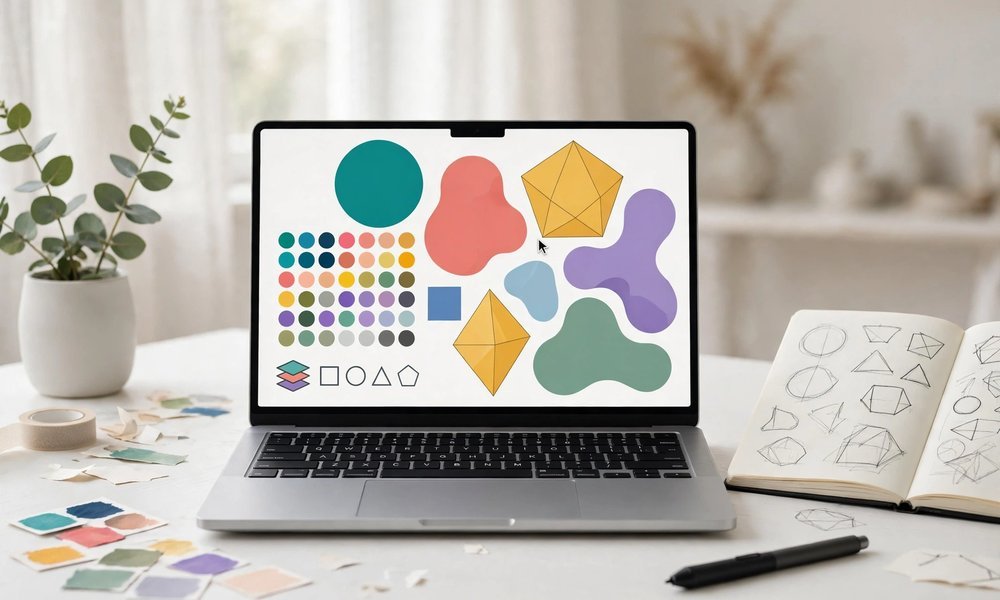
The MacBook Pro 14 is the design laptop most professionals should buy first. Its Liquid Retina XDR display covers the full P3 gamut, holds 1,000 nits of sustained brightness, and arrives factory calibrated, so the colours on screen match the colours in print and on the web. The M4 Pro chip handles large Photoshop files, complex Illustrator artboards, and multi-app workflows without slowing down, and it does so in silence.
Battery life is the other reason designers love it: more than 20 hours of real use means a full working day away from the charger. The downsides are familiar — macOS only, and RAM and storage upgrades are expensive and must be chosen at purchase. If you want a broader view of creator machines, our guide to the best laptops for creators covers video and 3D-focused options too.
Pros: Outstanding calibrated display; silent under load; superb battery life; fast and efficient.
Cons: Expensive upgrades; macOS only; no touchscreen.
Microsoft Surface Laptop 7 — Best 2-in-1 for illustrators
The Surface Laptop 7 pairs a sharp 13.8-inch or 15-inch touchscreen with pen support, which makes it the best choice for designers who sketch and illustrate directly on screen. The display is bright and colour-accurate, the keyboard is excellent, and the Snapdragon X Elite chip delivers strong performance with all-day battery life.
The limitation is the GPU: integrated graphics only, so heavy 3D rendering and large video projects are better left to the MacBook Pro or ProArt machines. But for illustration, layout, and UI work, the pen and touchscreen are genuine advantages that no other laptop in this guide matches.
Pros: Touchscreen and pen support; sharp bright display; all-day battery; premium build.
Cons: Integrated GPU only; some creative apps still run through emulation; pricey at higher specs.
Dell XPS 14 — Best premium Windows laptop
The XPS 14 is the most polished Windows laptop for designers. Its 14.5-inch OLED display is rich and colour-accurate, the aluminium body is thin and rigid, and the haptic touchpad and clean keyboard make it a pleasure to use for long sessions. With Intel Core Ultra processors and an optional RTX 4050 GPU, it handles Photoshop, Illustrator, and InDesign comfortably.
The port selection is thin — two Thunderbolt ports and a microSD slot — so most designers will want a hub. It also throttles under sustained heavy loads, but for design work rather than video rendering, that rarely matters.
Pros: Beautiful OLED display; premium build; slim and light; good speakers.
Cons: Thin port selection; throttles under sustained loads; pricey with upgrades.
ASUS ProArt PX13 — Best convertible creator laptop
The ProArt PX13 is a 13-inch convertible that folds into a tablet for sketching, with a calibrated OLED display and a stylus in the box. It covers the full DCI-P3 gamut, and the RTX 4060 GPU gives it real power for 3D work and video. At 1.38kg it is the lightest machine in this guide with a discrete GPU.
The 13-inch screen is small for complex layouts, so most designers will pair it with an external monitor at their desk. But as a portable sketching and design machine, it is the most versatile option here. For monitor pairings, see our roundup of the best 4K monitors.
Pros: Convertible with stylus; calibrated OLED; discrete GPU; very light.
Cons: Small screen for layouts; average battery; premium price.
Lenovo Yoga Slim 7x — Best thin and light
The Yoga Slim 7x is a 14.5-inch ultrabook with a sharp 3K OLED display that covers the full P3 gamut, powered by the Snapdragon X Elite chip. It weighs 1.28kg, runs silently, and lasts more than 20 hours on a charge, which makes it the best travel laptop for designers in this guide.
There is no discrete GPU, so 3D rendering is off the table, and some older creative software runs through an emulation layer. But for layout, illustration, and UI design, the display and portability are hard to beat at this price.
Pros: Gorgeous OLED display; very light; silent; superb battery life.
Cons: No discrete GPU; some apps run emulated; limited ports.
HP Spectre x360 14 — Best convertible
The Spectre x360 14 is a 2-in-1 that converts into a tablet for sketching, with a 2.8K OLED display, a stylus in the box, and a premium aluminium design. The display covers the full P3 gamut, the keyboard is comfortable, and the speakers are the best in this guide.
Battery life is average at around ten hours, and the Intel Core Ultra processor with integrated graphics is fine for design work but not for heavy 3D. For designers who want a flexible machine that works as a laptop, a sketchpad, and a presentation device, the Spectre is a strong all-rounder.
Pros: Convertible with stylus; excellent OLED display; great speakers; premium build.
Cons: Average battery life; integrated graphics; heavy for a 14-inch machine.
Acer Swift X 14 — Best budget
The Swift X 14 is the cheapest way into a capable design laptop, starting around $1,100. It pairs a 14.5-inch 2.8K OLED display with an RTX 4050 or 4060 GPU, which is a combination no other budget laptop matches. The display covers the full DCI-P3 gamut, and the GPU accelerates Photoshop’s AI features and light video work.
The compromises are in the details: the speakers and webcam are basic, the build is aluminium but not as rigid as the XPS, and battery life is around eight hours. For designers on a budget, though, the screen and GPU matter most, and the Swift X delivers both.
Pros: OLED display at a budget price; discrete GPU; light and portable; good value.
Cons: Basic speakers and webcam; average build; short-ish battery life.
How to choose
Start with your colour gamut. Print designers should look for Adobe RGB coverage of 95 percent or more. Digital and video designers should look for full DCI-P3 coverage. Either way, factory calibration matters — a calibrated panel saves you buying a colorimeter and recalibrating every month.
Next, decide on RAM. 16GB is the minimum for design work, and 32GB is the sensible choice if you run Photoshop, Illustrator, and InDesign at the same time, or work with very large files. RAM is soldered on most modern laptops, so choose at purchase. If you are comparing machines for general use too, our guide to the best budget laptops covers cheaper options that still handle design work.
Finally, think about pen input. If you sketch or illustrate, a touchscreen with a good stylus changes how you work. If you do layout and branding, it is a nice extra rather than a necessity. A convertible is worth the premium only if you will actually draw on it.
Checklist: before you pay
- Confirm the display covers Adobe RGB (print) or P3 (digital) and is factory calibrated.
- Buy 32GB of RAM if you run several Adobe apps at once or work with very large files.
- Check pen and stylus support if you sketch — and whether the stylus is included.
- Look at screen brightness and matte versus glossy, especially if you work near windows.
- Confirm storage is fast NVMe and at least 512GB, because design files and font libraries grow fast.
- Check the return window and test your real projects, including your largest files, during the first week.
Frequently asked questions
Do I need a dedicated GPU for graphic design?
For most design work — layout, illustration, branding, UI — no. Modern integrated graphics handle Photoshop and Illustrator well. A dedicated GPU helps with 3D work, video, and Photoshop’s AI features, and it speeds up large exports, but it is not essential for most designers.
What is the difference between Adobe RGB and P3?
Adobe RGB is a wider gamut used in print, especially for CMYK work. P3 is the gamut used by Apple devices and most digital displays. Print designers should prioritise Adobe RGB; digital designers should prioritise P3. The best design laptops cover both.
Is a touchscreen useful for graphic design?
Yes, if you sketch or illustrate. Drawing directly on screen with a stylus is faster and more natural than a separate tablet for many illustrators. For layout and branding work, a touchscreen is a convenience rather than a necessity.
How much RAM do I need for Adobe Creative Cloud?
16GB is the minimum Adobe recommends, and it is fine for one app at a time. 32GB is the sensible choice if you keep Photoshop, Illustrator, and InDesign open together, or work with files larger than a few hundred megabytes.
Mac or Windows for graphic design?
Both are excellent, and most design software runs identically on both. Macs have the advantage of factory-calibrated displays and the widest P3 support. Windows offers more choice, touchscreens, and better GPU options. Choose by your preferred software and workflow, not by brand loyalty.
How long will a design laptop last?
Four to five years of professional use is typical. The display and chassis age well; RAM and storage become the limit first. Buying 32GB of RAM and 1TB of storage at purchase extends the useful life more than any other choice.
The bottom line
For most graphic designers, the MacBook Pro 14 with M4 Pro is the right buy: a factory-calibrated P3 display, silent performance, and battery life that removes the charger from your day. Illustrators should look at the Microsoft Surface Laptop 7, whose touchscreen and pen change how you sketch. And if the budget is tight, the Acer Swift X 14 delivers an OLED display and a discrete GPU from around $1,100.
Whatever you choose, prioritise the display above everything else. The screen is what you look at all day, and colour accuracy is the one thing you cannot fix later.
Note: Prices and plans change. Check the product’s current plan details before buying — no link is provided here by design, all links in this article go to other occcy.com guides.